This page has been machine-translated from the original page.
While studying for AZ-500, I learned that Azure Bastion lets you remotely access Azure VMs over RDP or SSH without assigning them a public IP address.
I also learned that Azure Bastion lets you operate them from the Azure portal without connecting the host directly to the VM, so I felt I had to try building it right away.
In this article, I summarize my notes from setting up an environment that allows remote access with Azure Bastion.
Table of Contents
- What is Azure Bastion?
- Create a virtual network and subnet
- Create virtual machines
- Deploy Bastion to the virtual network (easy setup)
- Deploy Bastion to the virtual network (custom)
- Remote access to a virtual machine with a native client
- Summary
What is Azure Bastion?
Azure Bastion is a fully managed service that is deployed into a virtual network and enables RDP and SSH connections to Azure VMs.
With Azure Bastion, you can securely access Azure VMs through Bastion without assigning a public IP address to the VMs themselves.
Another very nice point is that you can remotely control a virtual machine from the Azure portal without making an RDP or SSH connection from the host machine.
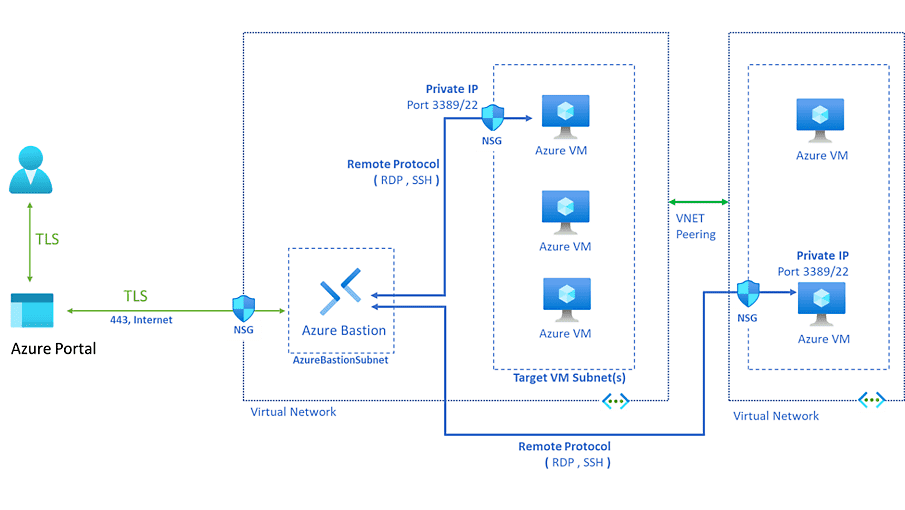
Reference: Azure Bastion - Fully Managed RDP/SSH | Microsoft Azure
Reference: About Azure Bastion | Microsoft Learn
Create a virtual network and subnet
To use Bastion, you need a virtual network for deploying Bastion and virtual machines deployed in a subnet within it.
So first, create a virtual network for a lab environment.
I created the virtual network with the address space 172.16.0.0/20, and created one subnet, 172.16.1.0/24.
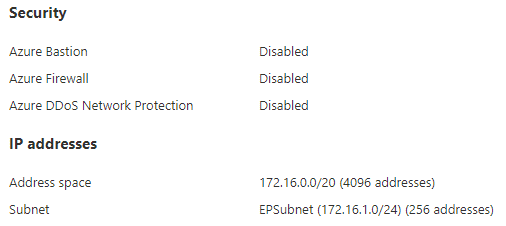
At this point, assign an NSG with the default configuration that allows inbound communication from the vNet to the 172.16.1.0/24 subnet where you plan to place the virtual machines.
Create virtual machines
Next, configure the virtual machines that will be accessed remotely through Bastion.
This time, I configured two machines: RedHat 7.9 and Windows Server 2012 R2.
Each virtual machine was added to the 172.16.1.0/24 subnet created earlier.
I also configured NSGs with only the default rules applied.
Deploy Bastion to the virtual network (easy setup)
Open the resource page for the virtual network you created earlier, and click [Deploy Bastion] from [Bastion].
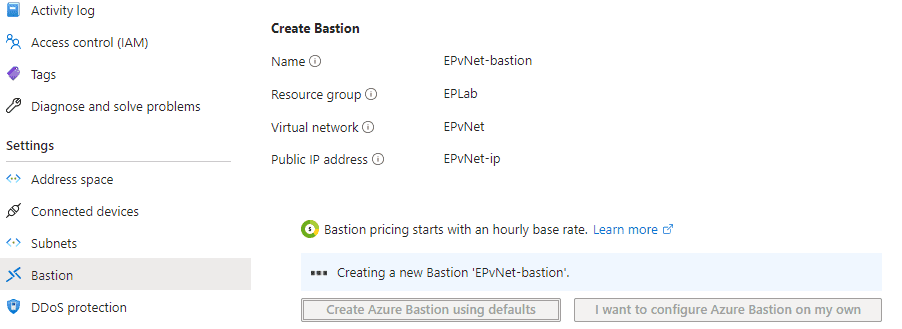
After waiting about 20 minutes, Bastion is deployed automatically to the virtual network.
However, Bastion configured this way uses the default settings, and the enabled plan is Basic.
So if you want to use features that are only available in the Standard plan, such as remote access to a virtual machine with a native client, note that you need to create Bastion with the custom configuration.
Once Bastion deployment is complete, confirm that the virtual machines you created earlier appear in the VM list.
The virtual machine information is based on information shared within the virtual network, so if inbound communication from the vNet is not allowed on the subnet containing the virtual machine or on the NSG attached to the virtual machine, you will not be able to select that virtual machine from Bastion.
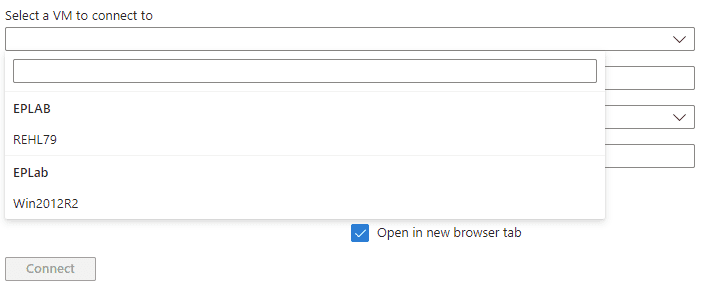
After selecting the virtual machine, connect to it using a password or private key.
At this point, besides a password or a certificate in a local file, you can also use a private key managed in Key Vault.
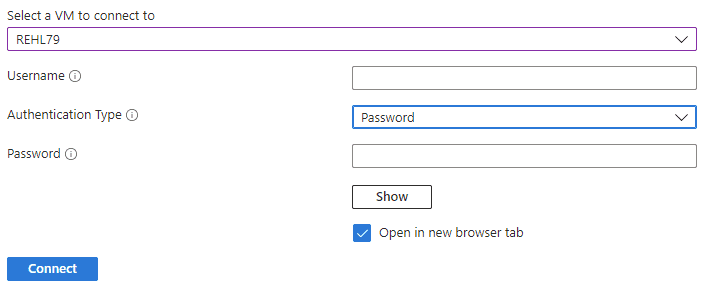
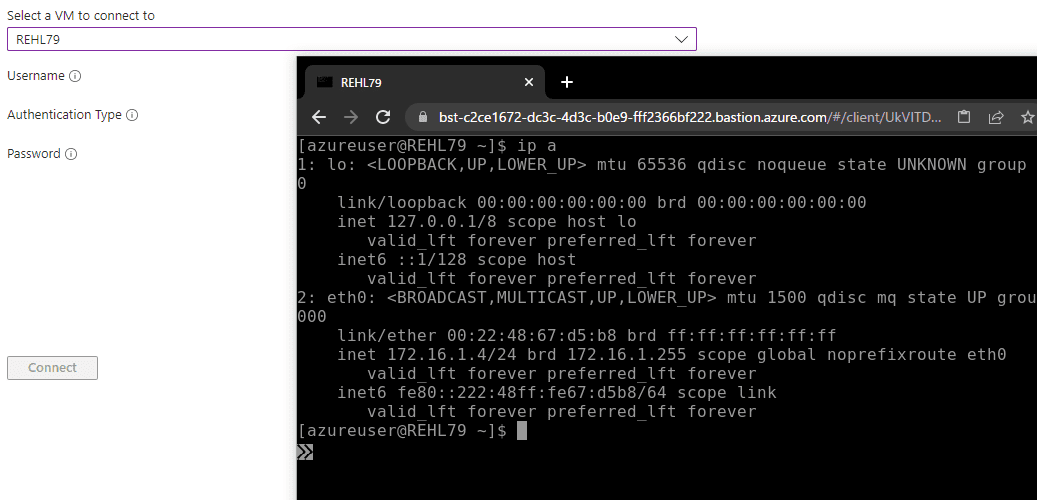
This opens a new browser window, allowing remote SSH access to the virtual machine in the subnet.
Of course, you can also make an RDP connection to the Windows machine in the browser.

Deploy Bastion to the virtual network (custom)
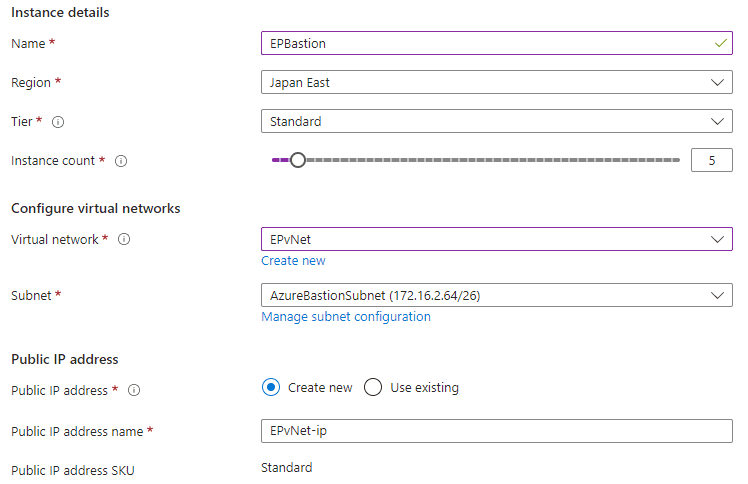
To deploy a custom Bastion, open the resource page for the virtual network and click [Configure manually] from [Bastion].
Since I wanted to use a native client for remote access this time, I selected the Standard tier.
Next, enable [Native client support] under Advanced as well.
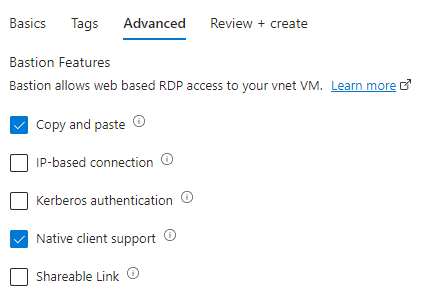
That completes creation of Bastion with the custom configuration.
Remote access to a virtual machine with a native client
Using Bastion for remote access from a browser is very convenient, but sometimes you may want to connect directly from the host machine using RDP or SSH.
In that case, use Azure CLI.
If Azure CLI is not installed yet, install it using the steps below.
Reference: Install the Azure CLI for Windows | Microsoft Learn
Reference: Install the Azure CLI on Linux | Microsoft Learn
Using winget makes the installation easy.
winget install -e --id Microsoft.AzureCLIOnce the installation is complete, run one of the following commands from Command Prompt or similar to authenticate Azure CLI.
az login
az login --use-device-code
After Azure CLI authentication is complete, you can use the following command to connect to the Windows machine through Bastion with the native RDP client.
az network bastion rdp --name "<BastionName>" --resource-group "<BastionResourceGroupName>" --target-resource-id "<VMResourceId>"Reference: Upload or download files using native client connections - Azure Bastion | Microsoft Learn
Here, if you know the resource group and the virtual machine name, you can also obtain the VM ID to specify in --target-resource-id with the following command.
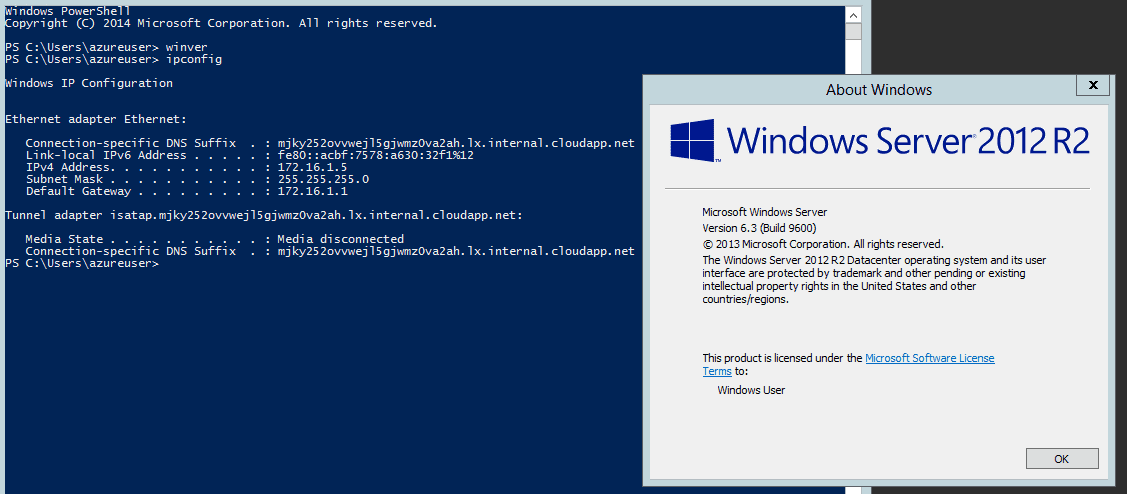
az vm list --show-details --resource-group EPLab --query "[?name == 'Win2012R2'].id"When I ran the command using the virtual machine ID obtained here, the RDP client launched automatically and I was able to connect to the virtual machine over RDP through Bastion.
az network bastion rdp --name "EPBastion" --resource-group "EPLab" --target-resource-id "<VMResourceId>"
Next, connect to the Linux machine over SSH from the host machine.
You can do this by configuring tunneling with the following command.
az network bastion tunnel --name "<BastionName>" --resource-group "<ResourceGroupName>" --target-resource-id "<VMResourceId>" --resource-port "<TargetVMPort>" --port "<LocalMachinePort>"This time, I used a command like the following.
az network bastion tunnel --name "EPBastion" --resource-group "EPLab" --resource-port 22 --port 2222 --target-resource-id "<VMResourceId>" This command forwards local host port 2222 to port 22 on the virtual machine through Bastion, so you can then connect over SSH with the following command.
ssh -p 2222 azureuser@127.0.0.1That let me connect from localhost to the Azure VM over SSH.

Summary
Now that I have built an Azure Bastion environment, it feels like my lab environment has leveled up once again.
Being able to operate VMs from the Azure portal also seems very useful for cases where you want to keep them completely separated from your local machine at the network level.
Update (May 6, 2023)
The Azure Bastion environment I built this way was very comfortable to use, but it cost about 1,000 yen per day, which made it difficult to run personally, so I ended up deleting it.
Unfortunately.