This page has been machine-translated from the original page.
The other day I summarized the steps for building a honeypot on Azure in this article, but when you actually operate it, the thing you worry about is cost.
This time I would like to configure Azure cost alerts so that notifications are sent before the operation goes over budget.
Table of Contents
Three Kinds of Cost Alerts
When I looked into Azure cost alerts, it seemed that the following three types existed.
Reference: Monitor usage and spending with cost alerts in Azure Cost Management | Microsoft Docs
A “budget alert” is an alert that occurs when the configured budget threshold is reached or exceeded.
This “budget alert” supports the following two conditions.
- Cost-based
- Usage-based
Both the “credit alert” and the “department spending quota alert” are alerts for corporate organizations, so this time I will use the “budget alert”.
Create a Budget Alert
Following the documentation below, I will configure a “budget alert” from the Azure portal.
Reference: Tutorial - Create and manage Azure budgets | Microsoft Docs
Before actually creating the alert, I decided to create an action group so I can control the notification destinations.
Create a Notification Action Group
Azure action groups can manage notification settings.
Reference: Create and manage action groups in the Azure portal - Azure Monitor | Microsoft Docs
This time I created an action group that sends SMS, email notifications, and notifications to the Azure app.
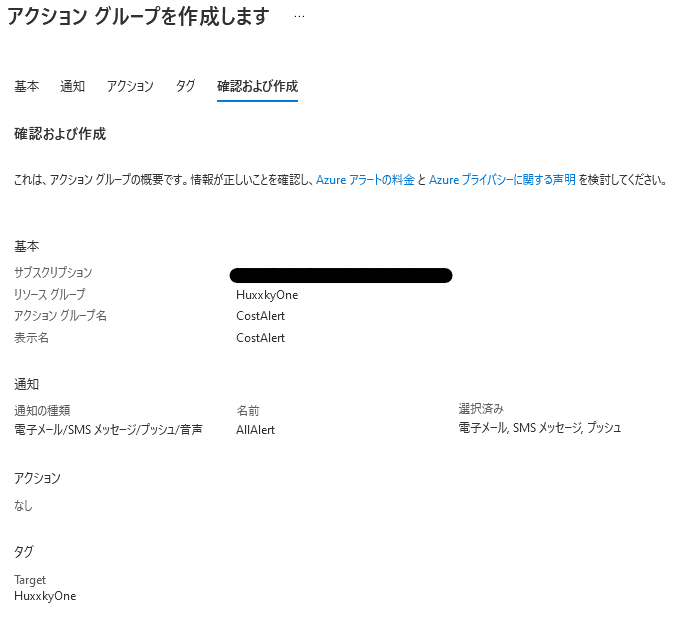
When you create the budget alert, configure it to trigger this action group and the budget alert notification will be sent.
Action groups can also be used for notifications other than budget alerts.
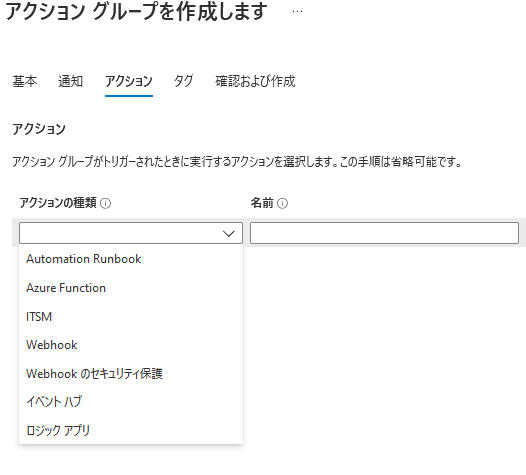
This is also an optional setting, but you can additionally define actions to run when the action group is triggered.
That means you can also perform arbitrary processing by using Function and so on.
Create the Budget Alert
Next, create a new budget alert from “Cost alerts” on the subscription page.
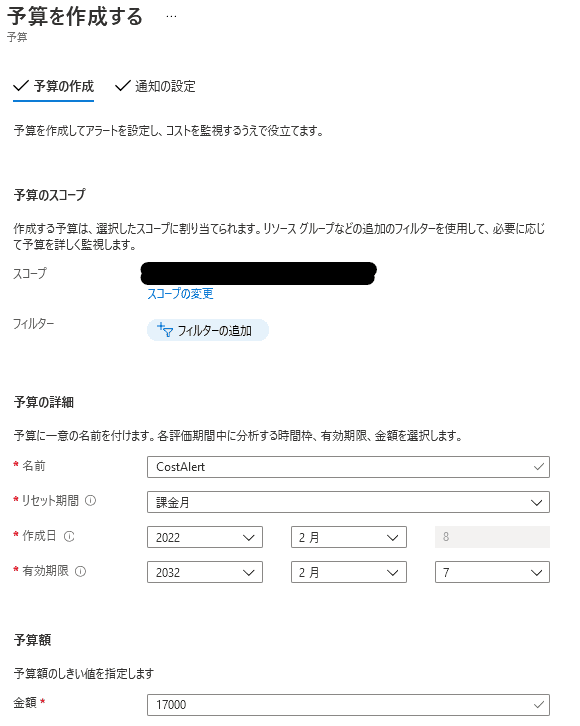
For the alert conditions, you can set forecasted and actual values as percentages of the budget.
This time I configured warnings like the following, including an alert when the forecasted usage exceeded 90%.
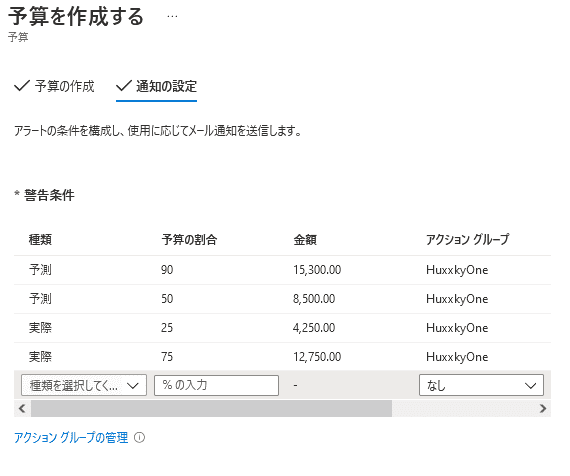
That completes the cost alert notification settings.
If you get good enough with the Azure API and the like, it might even be possible to automate something like stopping all resources when an alert is sent from the action group.
Bonus: Forward Notifications to Discord with Azure Function
“Azure Function” (called “Function App” in the Japanese UI) is a service that can run applications in a serverless way.
Reference: Azure Functions documentation | Microsoft Docs
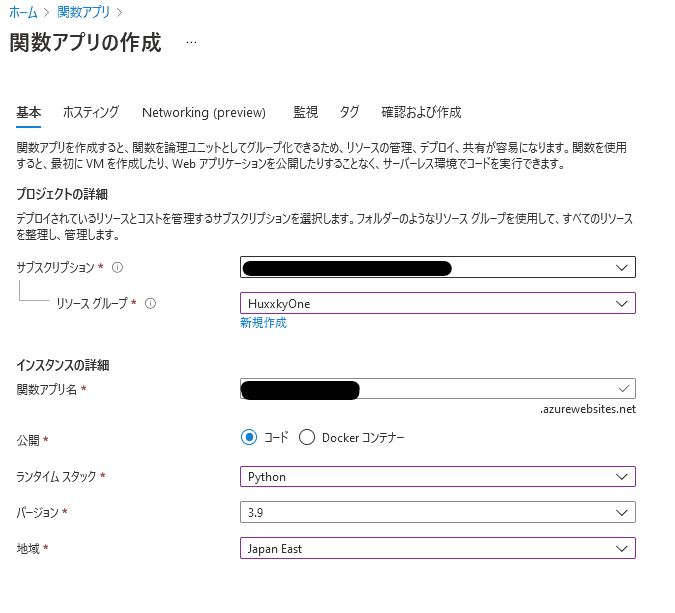
Create a new Function from “Function App”.
I set the runtime to Python.
Build the Development Environment
Azure Function is developed from localhost by using VSCode or any editor you like.
Unlike AWS Lambda, it does not look like editing from a web editor is possible.
Next, run the following command on localhost (Windows) to install the Core Tools.
npm install -g azure-functions-core-tools@3 --unsafe-perm trueEven in an environment where Node is not installed, it can be installed by following the steps in the documentation below.
Reference: Work with Azure Functions Core Tools | Microsoft Docs
Next, since I was developing in VSCode this time, I installed the following VSCode extension.
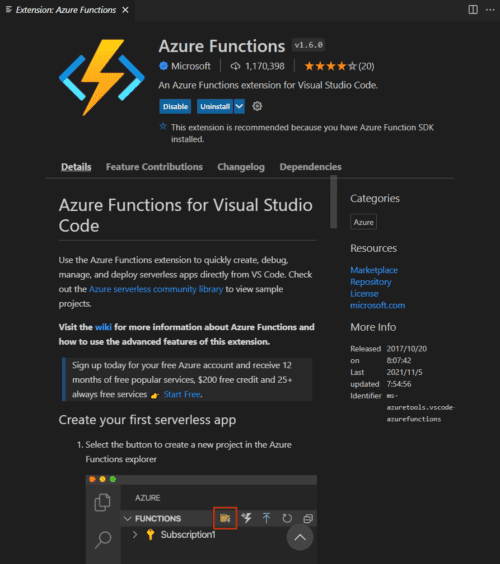
Once the extension has been installed, select Signin to Azure and log in to Azure from VSCode.
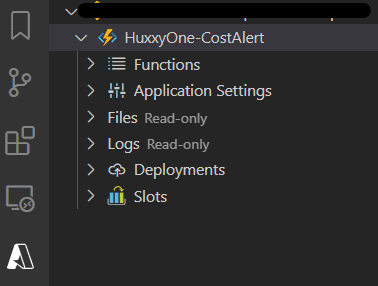
Then your subscription will appear in VSCode, and the Function you created earlier will also appear.
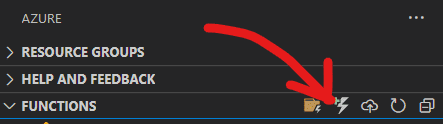
Next, create a local Function from the [Create Function] button in VSCode.
I chose the trigger “HTTP Trigger”.
Looking at the Function App created locally, you can see that a simple template has been generated in a file named __init__.py.
So I decided to tweak the template’s main function a little.
What it does is simple: when the Function is called, it just sends a message to Discord’s webhook by using urllib.request.
import json
import logging
from urllib import request, parse

import azure.functions as func

DISCORDWEBHOOK = "<Webhook URL>"
data = {
    "content": "Azure Cost Alert"
}
headers = {
    "User-Agent": "curl/7.64.1",
    "Content-Type": "application/json",
}

def main(req: func.HttpRequest) -> func.HttpResponse:
    logging.info('Python HTTP trigger function processed a request.')

    # Post to Discord
    parse.urlencode(data).encode()
    req = request.Request(
        url = DISCORDWEBHOOK,
        data=json.dumps(data).encode("utf-8"),
        headers=headers,
        method="POST"
    )

    with request.urlopen(req) as response:
        response_body = response.read().decode("utf-8")
        return func.HttpResponse(response_body)
One slightly tricky point was that Discord’s webhook seemed to blacklist urllib as a UA, so I changed the UA to curl.
Deploy
Once the code is finished, you can deploy the Function you created to any Function App from the Deploy to Function App button in VSCode.
After deployment completes, you can confirm that the locally created Function has been added to the Azure Function App.
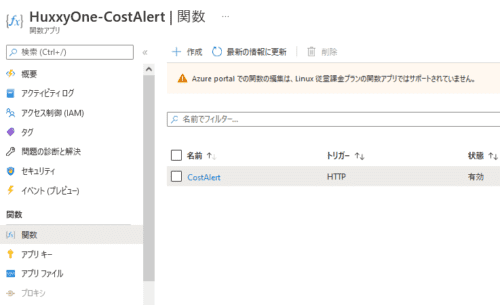
This Function runs simply by sending an HTTP request to its trigger URL.
When I opened the Function and hit the URL obtained from “Get function URL”, the message was forwarded to Discord.
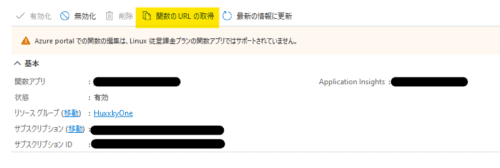
With that, I had created a simple Function.
Run the Function from the Action Group
Finally, I edited the “Action” settings so that the Function can be executed from the action group I created earlier.
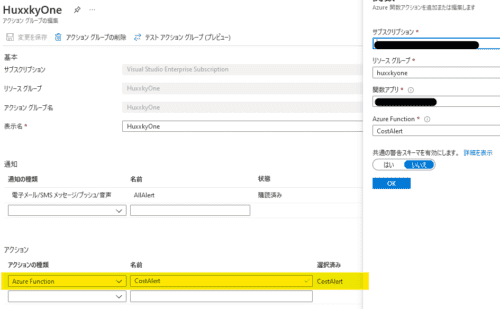
Now, when a cost alert occurs and the action group sends notifications, Discord is notified in addition to SMS and email.
Summary
I configured cost alerts in Azure and also set up notifications to Discord through a Function.
Action groups in particular seem like they could handle all kinds of automation once you get comfortable with them, which is exciting.