This page has been machine-translated from the original page.
Lately I suddenly felt like playing around with Azure, but before spinning up any machines I decided to review the security-related recommendations first.
The service I checked was Identity Secure Score, and right after logging in I was surprised to see that the achievement rate was only 14%, which meant the security level was pretty low.
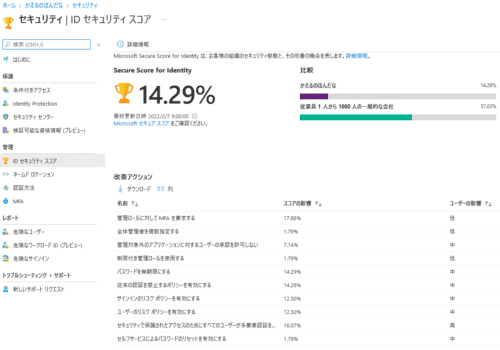
Reference: What is Identity Secure Score? - Azure Active Directory | Microsoft Docs
So this time, I would like to go through the best practices recommended by Identity Secure Score and improve the security level around my account.
Table of Contents
- Make Sure All Users Can Complete MFA for Secure Access
- Enable a Policy That Blocks Legacy Authentication
- Enable the Sign-In Risk Policy
- Enable the User Risk Policy
- Do Not Allow User Consent for Unmanaged Applications
- Assign Multiple Global Administrators
- Use Limited Administrator Roles
- Enable Self-Service Password Reset
- Summary
Require MFA for Administrative Roles
First, I will start with the item that has the biggest impact.
It is recommended to configure MFA for administrative roles.
Requiring multi-factor authentication (MFA) for all administrative roles makes it harder for attackers to access accounts.
Administrative roles are granted more advanced permissions than regular users. If any of these accounts are compromised, critical devices and data become vulnerable to attack.
According to the documentation below, enabling MFA reduces the risk of account compromise by more than 99.9%.
The recommended way to configure MFA is to protect sign-ins with a Conditional Access policy, but unfortunately I could not configure that on my account.
Reference: Enable Azure AD Multi-Factor Authentication | Microsoft Docs
Reference: Azure AD Multi-Factor Authentication in your organization - Azure Active Directory | Microsoft Docs
It seems that Azure MFA offers different configuration options depending on the license you are using.
The Conditional Access policy mentioned above appears to be available only for accounts that have purchased Enterprise Mobility + Security E5 or Azure AD Premium P2, so this time I used Security Defaults, which is available even to Azure AD Free users.
Reference: Azure AD Multi-Factor Authentication editions and consumption plans | Microsoft Docs
Configure Security Defaults
I was able to enable MFA through Security Defaults with the following steps.
First, open Azure Active Directory from the Azure portal and select [Properties].
There, enable Security Defaults.
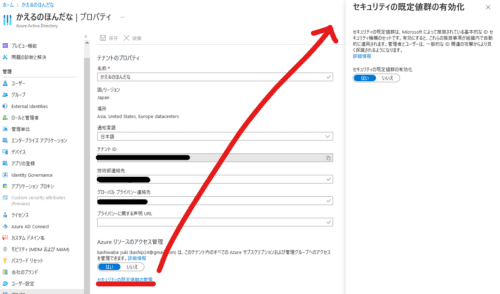
Next, open Azure Active Directory from the Azure portal and select [All users].
From there, click [Per-user MFA] to open the screen below, then click [Enable] in [quick steps] to enable MFA.
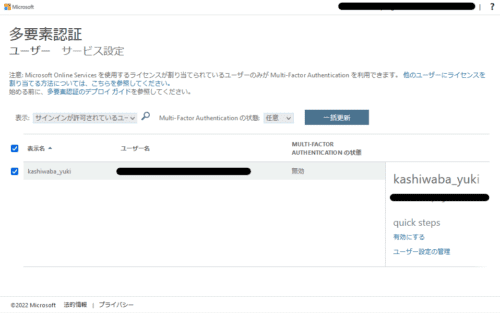
That seems to have configured MFA for the administrative account.
Unfortunately, the method recommended by the “Improvement action” is configuration through a Conditional Access policy, and I could not do that this time because of the license limitations.
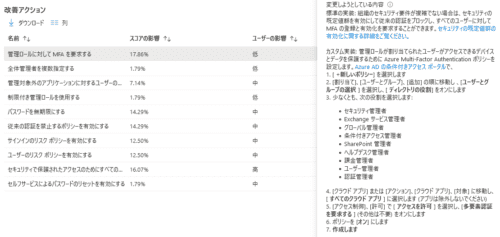
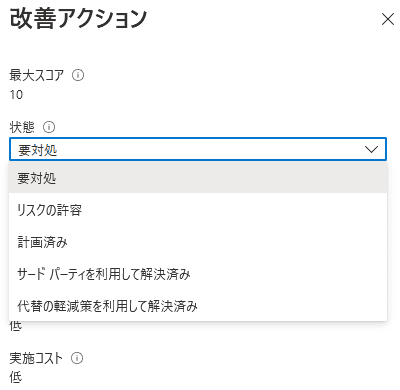
Still, MFA is properly configured for the administrative account, so under “Improvement action” I selected “Resolved through alternative mitigation”.
Make Sure All Users Can Complete MFA for Secure Access
Next is MFA again.
This time the recommendation is to configure MFA not only for administrator roles but for all users.
Multi-factor authentication (MFA) helps protect the devices and data that these users can access.
By adding authentication methods such as the Microsoft Authenticator app and phone numbers, you can strengthen protection if one authentication method is compromised.
Unfortunately, I also cannot configure a Conditional Access policy for this one because of the license, so I configured MFA for all users in the same way as above and selected “Resolved through alternative mitigation” from “Improvement action”.
Set Passwords to Never Expire
Next is the setting to make passwords never expire.
In Japanese companies and similar environments, it often feels common to force password changes every few months, but recent research says this is actually a bad practice.
Research has found that when periodic password resets are enforced, password security declines.
Users tend to choose weaker passwords and change them only slightly each time they reset them.
If users create strong passwords (long, complex, and not made from practical words), those passwords should remain just as strong in the future.
Microsoft’s official security position is that passwords should not be expired periodically without a specific reason, and it recommends that cloud-only tenants set the password policy to never expire.
Some of the Japanese UI text is mistranslated, but it seems Microsoft’s recommendation is to “set one strong password and not change it unless there is a specific reason.”
By the way, the part in the UI that read like “It is Microsoft’s official security position to periodically update passwords…” was displayed as follows in the English UI.
It is Microsoft’s official security position to not expire passwords periodically without a specific reason, and recommends that cloud-only tenants set the password policy to never expire.
So my understanding that the recommendation is “do not change passwords periodically” seems to be correct.
With that out of the way, let’s change the password expiration settings.
Configure Password Expiration with the Microsoft Azure AD Module for Windows PowerShell
It looks like you can change the password expiration policy with the Microsoft Azure AD Module for Windows PowerShell.
Reference: Self-service password reset policies - Azure Active Directory | Microsoft Docs
First, you need to install Connect-AzureAD in order to use the Microsoft Azure AD Module for Windows PowerShell.
Start PowerShell as administrator and run the following command.
Install-Module AzureADOnce the installation is complete, the Connect-AzureAD cmdlet becomes available.
The following is a useful reference for how to connect by using the Connect-AzureAD cmdlet.
This time I wanted to connect to AAD, so I think it is best to specify the AAD tenant ID with -TenantId.
Reference: Connect-AzureAD (AzureAD) | Microsoft Docs
After the connection is established, you will see output like the following.
> Connect-AzureAD -TenantId XXXXXXXX-XXXX-XXXX-XXXX-XXXXXXXXXXXX
Account            Environment TenantId                             TenantDomain                      AccountType
-------            ----------- --------                             ------------                      -----------
XXXXXXXXXXX        AzureCloud  XXXXXXXX-XXXX-XXXX-XXXX-XXXXXXXXXXXX xxxxxxxxxx.onmicrosoft.com   User
Now that I was logged in to the tenant from PowerShell, I used the following command to set passwords to never expire for all users.
Get-AzureADUser -All $true | Set-AzureADUser -PasswordPolicies DisablePasswordExpirationThat completes the setting.
Reference: Self-service password reset policies - Azure Active Directory | Microsoft Docs
Enable a Policy That Blocks Legacy Authentication
The next setting is a policy that blocks legacy authentication.
Today, most sign-in attempts that compromise security rely on legacy authentication.
Older Office clients such as Office 2010 do not support modern authentication and use legacy protocols such as IMAP, SMTP, and POP3.
Legacy authentication does not support multi-factor authentication (MFA). Even if an MFA policy is configured in the environment, malicious users can use legacy protocols to bypass those policies.
Unfortunately, this setting also requires a Conditional Access policy, so because Security Defaults is enabled, I selected “Resolved through alternative mitigation” from “Improvement action”.
Enable the Sign-In Risk Policy
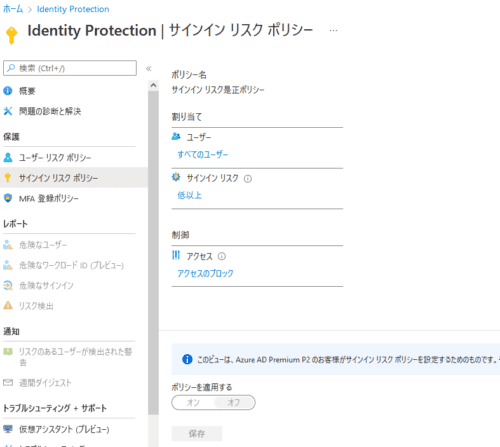
Next, let’s look at how to enable the sign-in risk policy from Azure AD Identity Protection.
Enabling the sign-in risk policy will require multi-factor authentication (MFA) for suspicious sign-ins.
Reference: What is Azure Active Directory Identity Protection? | Microsoft Docs
That said, with the license I am using, the sign-in risk remediation policy was disabled and could not be enabled, so I marked this as “Risk accepted”.
Enable the User Risk Policy
As in the previous section, this is configured from Azure AD Identity Protection.
Enabling the user risk policy allows Azure Active Directory to detect the possibility that a user account has been compromised.
Administrators can configure Conditional Access policies based on user risk in order to respond automatically to specific risk levels.
For example, they can block access to resources or require a password change to return a user account to a clean state.
This one also could not be enabled, so I marked it as “Risk accepted”.
Do Not Allow User Consent for Unmanaged Applications
This appears to be a recommendation about controlling permissions when integrating AAD with third-party applications.
Regulate permissions for integrated third-party applications to strengthen the security of the service.
Allow access only to the applications you need and that support robust security controls.
Because third-party applications are not created by Microsoft, they could be used for malicious purposes, such as exfiltrating data from the tenant.
Attackers may be able to maintain access to the service through these integrated applications without using a compromised account.
Reference: Tutorials for integrating SaaS applications with Azure AD | Microsoft Docs
At the moment I am not planning to integrate any third-party services with AAD, so I skipped this.
Assign Multiple Global Administrators
This recommendation is to prepare multiple administrators.
Having multiple global administrators can help when organizational requirements or obligations cannot be met by a single person.
It is important to prepare a delegate or emergency response account that someone on the team can access when needed.
It also makes it possible for administrators to watch each other for signs of compromise.
It is useful not only for handling absences or lost account credentials, but also for preventing abuse.
This topic was also included in CISSP content.
Since I am using this personally, I skipped this as well.
Use Limited Administrator Roles
It is not recommended to use an account with the Global Administrator role as your day-to-day user account.
Users with limited administrator roles have more privileges than standard users, but fewer than global administrators.
By using limited administrator roles to perform the management tasks you need, you can reduce the number of users who are assigned the highly valuable and high-impact Global Administrator role.
Assigning roles such as Password Administrator or Exchange Online Administrator instead of Global Administrator can reduce the chance that a globally privileged account will be compromised.
I added a new user from the AAD console and assigned an appropriate administrative role.
And of course I did not forget to enable MFA for it.
Enable Self-Service Password Reset
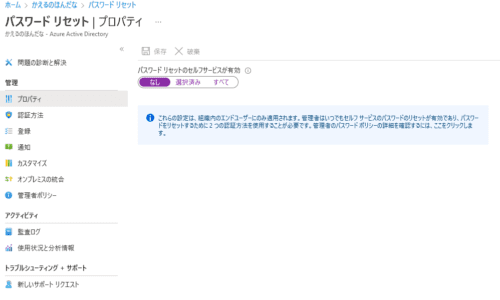
This setting controls whether non-administrative users can reset their passwords.
Using self-service password reset in Azure Active Directory means users no longer need to rely on the help desk to reset their passwords.
This feature can also be used together with Azure AD’s dynamic banned passwords, which help prevent the use of easily guessed passwords.
You can configure it from the screen below, but since this is for personal use, I left it set to “None”.
Summary
I felt like playing with Azure a bit, so as a first step I went through all of the recommendations shown in Secure Score for Identity.
I think that covers the minimum account-related best practices, so I would like to start experimenting with Azure from here.