This page has been machine-translated from the original page.
This time, I will set up a Flutter development environment on both Windows and macOS.
I left the steps here as a simple memo.
You could say I should just do development on a Mac, since it can build both Android and iOS apps. But I was far too unfamiliar with using a Mac and did not want to develop on macOS, so I decided to prepare environments on both Windows and macOS.
Table of Contents
Create a Flutter development environment on Windows
First, set up a Flutter development environment on a Windows machine.
While I was at it, I also made it possible to emulate Android apps.
Reference: Windows install | Flutter
Install Flutter SDK
First, download the Flutter SDK from Windows install | Flutter and extract it on the Windows machine.
At the time of writing, I used the latest version, flutter_windows_2.10.3-stable.zip.
After extracting the downloaded Flutter SDK, copy the extracted flutter folder directly under %USERPROFILE%\Documents\.
As long as the folder can be managed with user privileges, it seems fine to place the Flutter SDK somewhere other than directly under %USERPROFILE%\Documents\.
Configure environment variables
Next, add the Flutter SDK you just placed to PATH.
If you placed the SDK in the same folder as the official documentation, adding %USERPROFILE%\Documents\flutter\bin to PATH is enough.
Restart the OS so the PATH change is applied.
To verify that the PATH is set correctly, open Command Prompt in any folder and run where flutter dart.
$ where flutter dart
C:\Users\kash1064\Documents\flutter\bin\flutter
C:\Users\kash1064\Documents\flutter\bin\flutter.bat
C:\Users\kash1064\Documents\flutter\bin\dart
C:\Users\kash1064\Documents\flutter\bin\dart.bat
If the paths for flutter and dart are displayed as shown above, you are good to go.
Install the Flutter plugin for VSCode
If you use Flutter in VSCode as your IDE, you need to install the Flutter extension in VSCode.
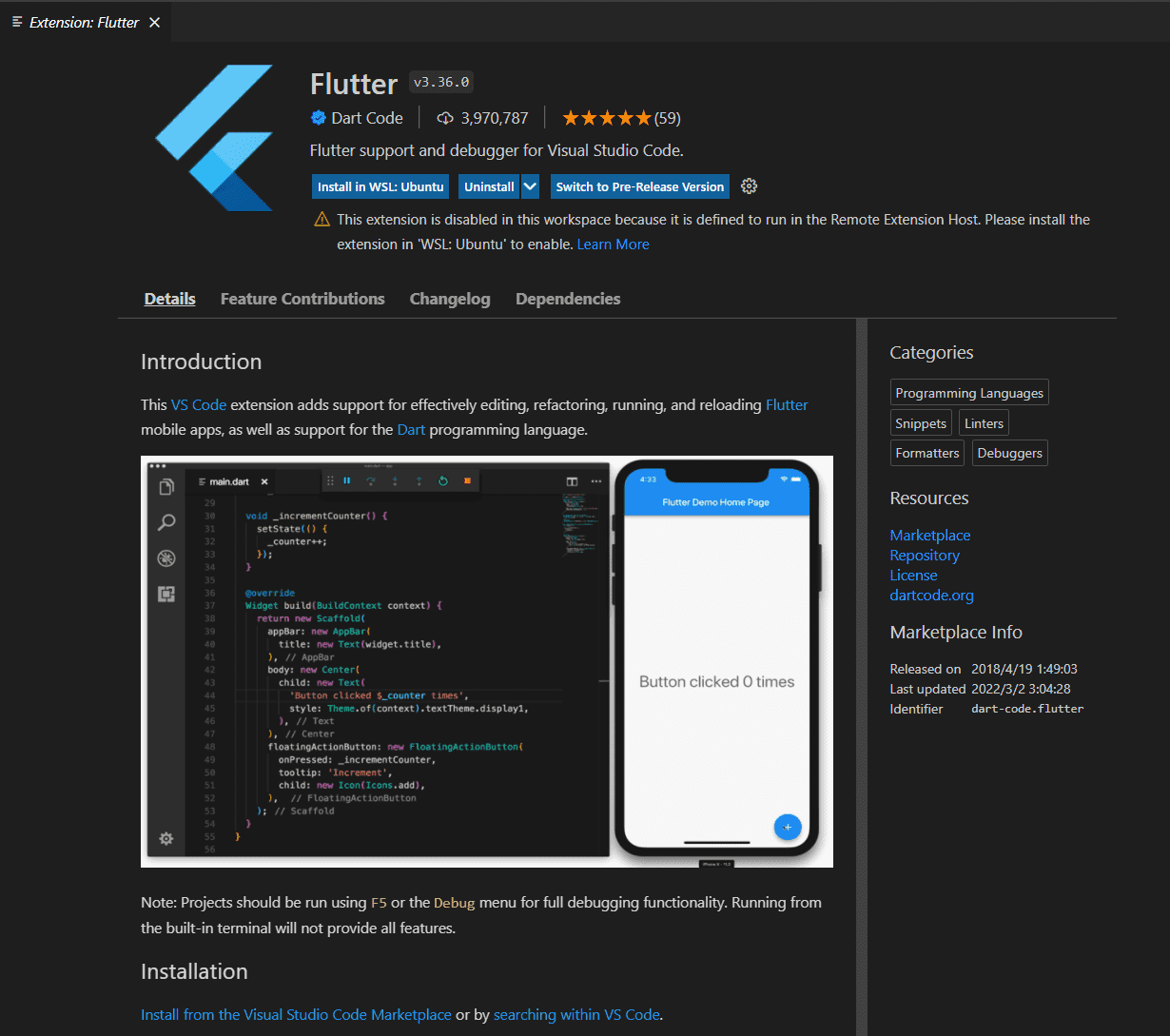
Reference: Visual Studio Code | Flutter
Create a test app
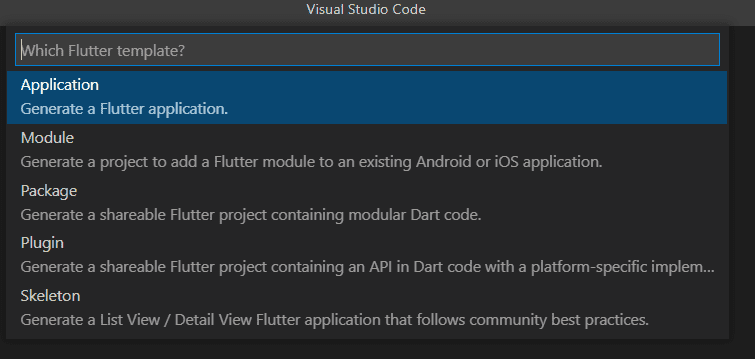
After installing the Flutter extension in VSCode, choose New Project from the Command Palette to generate a project for a test app.

For the next option, select Application.
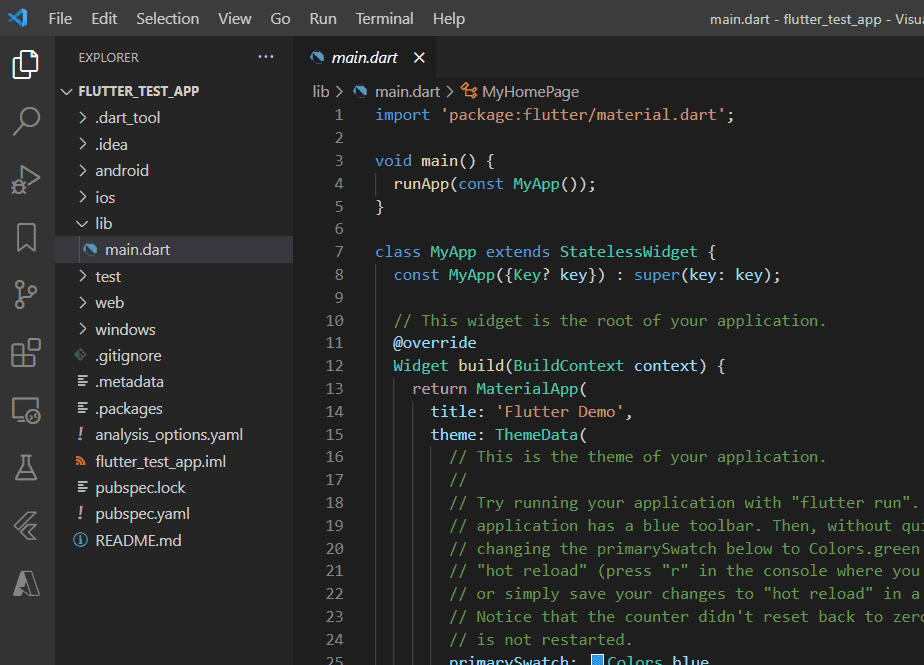
Once the project was created, the tree looked like this.
Build the application
Once the project is ready, pressing F5 automatically builds the application.
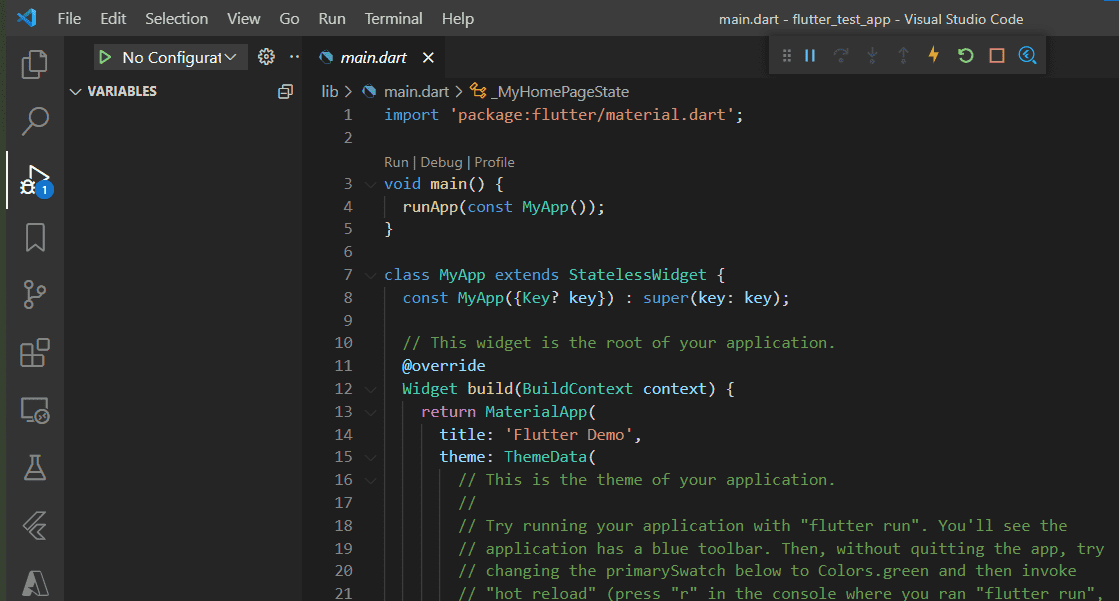
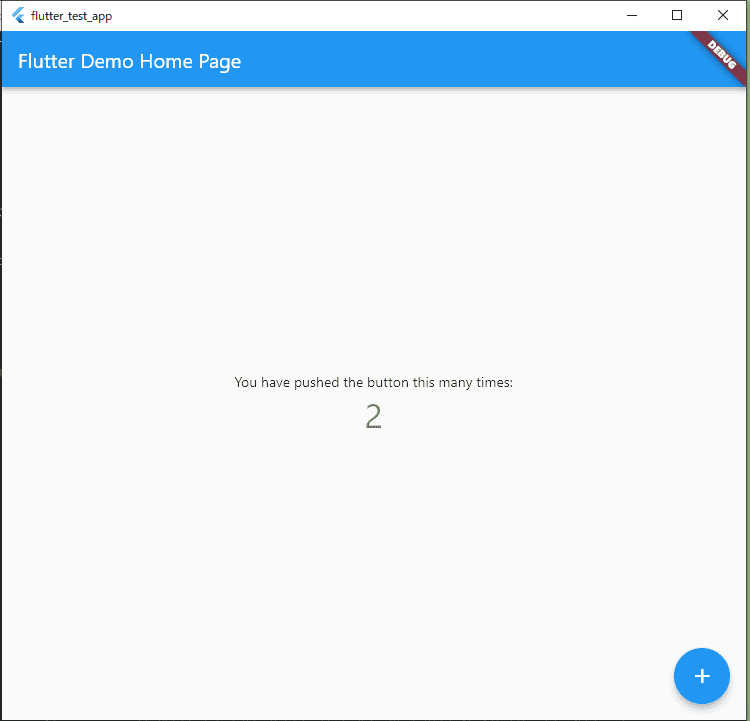
By default, DevTool is configured, and you can interact with a desktop-app UI like this.
You can also click the device name in the lower-right corner of VSCode and switch the emulator used during the build to a browser or an Android emulator.
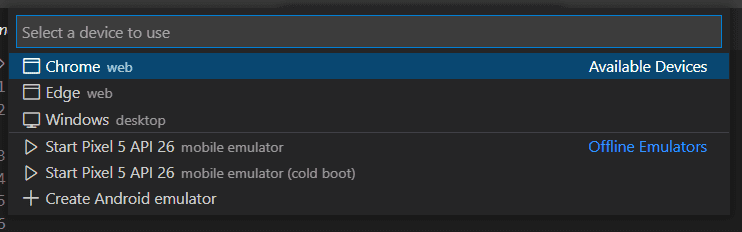
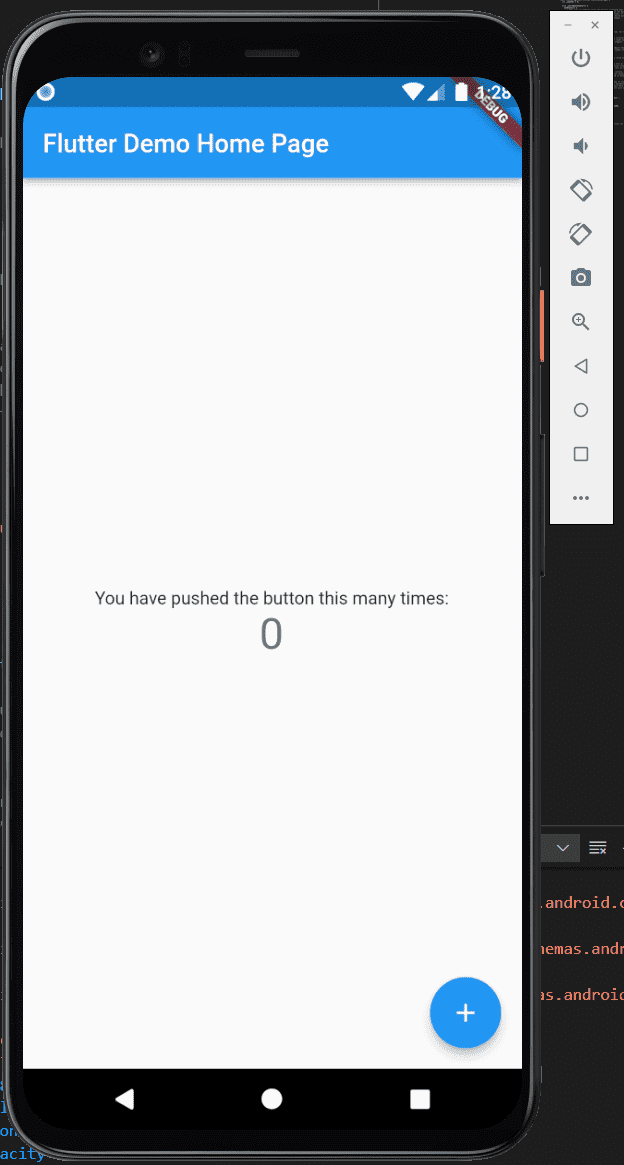
If you want to use an Android emulator, you need to install it in advance with Android Studio or Visual Studio.
Reference: Install Android Studio | Android Developers
At this point, I was able to set up a Flutter environment on Windows and run an Android app.
The whole process took about 10 minutes, so it was very easy to set up.
Check the setup
You can diagnose the environment by running the flutter doctor command in PowerShell or similar.
If everything has been set up correctly, it will output No issues found! like this.
flutter doctor
Running "flutter pub get" in flutter_tools...                       7.9s
Doctor summary (to see all details, run flutter doctor -v):
[✓] Flutter (Channel stable, 2.10.3, on Microsoft Windows [Version 10.0.19044.1526], locale ja-JP)
[✓] Android toolchain - develop for Android devices (Android SDK version 31.0.0)
[✓] Chrome - develop for the web
[✓] Visual Studio - develop for Windows (Visual Studio Community 2019 16.11.10)
[✓] Android Studio (version 2021.1)
[✓] VS Code (version 1.65.0)
[✓] Connected device (3 available)
[✓] HTTP Host Availability

 No issues found!
Create a Flutter development environment on macOS
The procedure is basically the same as on the Windows machine.
Install Flutter SDK
Now set up the Flutter development environment on macOS as well.
Reference: macOS install | Flutter
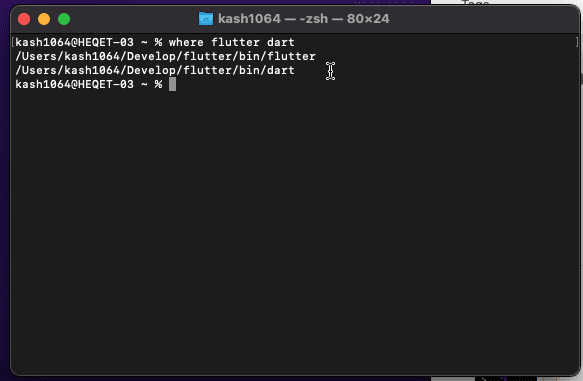
Just as on the Windows machine, download the SDK from macOS install | Flutter, extract it, and add it to PATH.
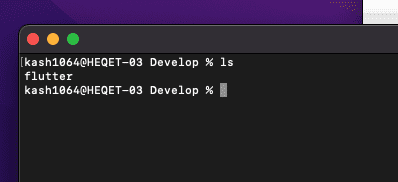
In my environment, the shell was zsh, so I added the following command to ~/.zshrc.
export PATH=$PATH:<path to Flutter>As before, you can confirm that it has been applied with the where command.
Set up VSCode
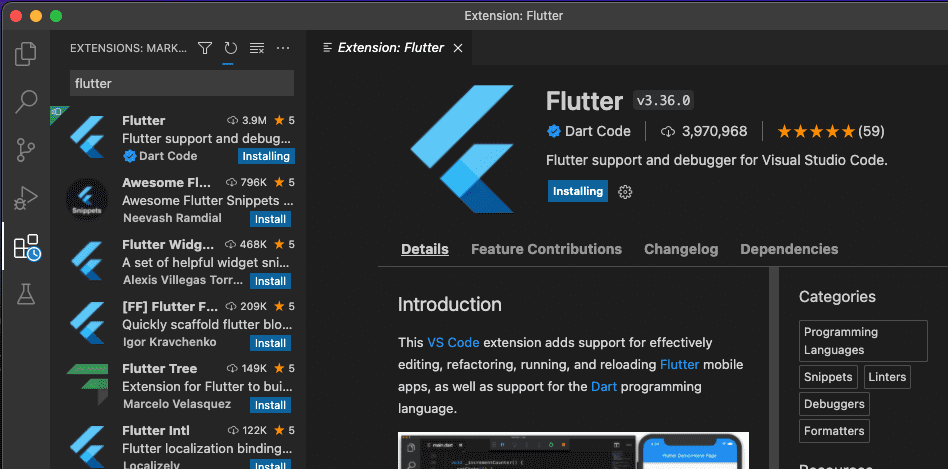
Install the Flutter plugin in the copy of VSCode installed on macOS as well.
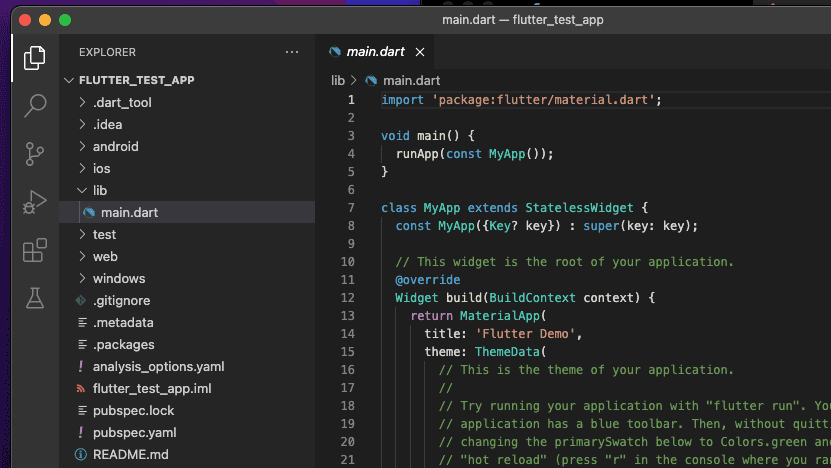
The next steps are exactly the same.
Create a project for a test app.
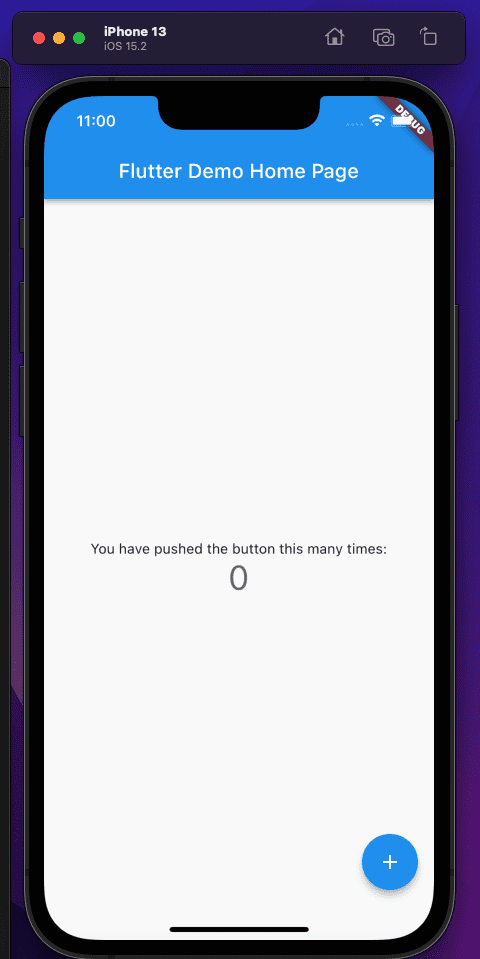
If you install XCode from the App Store in advance, the iOS emulator will be added to the device settings.
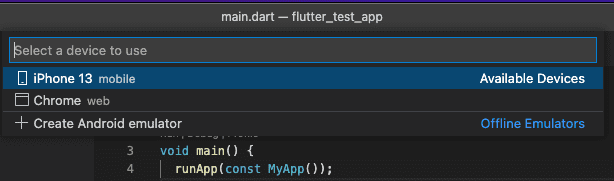
With that selected, pressing F5 also let me build an iPhone app from the same Flutter source code.
Summary
I have also used Xamarin and React Native as frameworks for building mobile apps that can cross-compile in a similar way, but Flutter felt by far the easiest to set up.