This page has been machine-translated from the original page.
I am studying security using “Hack The Box,” a penetration testing learning platform. My Hack The Box rank at the time of writing is ProHacker.

In this article, I summarize what I learned about attacks against IoT devices and countermeasures for improving security, through the HackTheBox machine “Mirai.”
About This Article
The content of this article is not intended to promote acts that violate social order.
Please be aware in advance that attempting to attack environments other than your own or environments for which you have permission may violate the “Act on Prohibition of Unauthorized Computer Access” (Unauthorized Access Prohibition Act).
All opinions expressed are my own and do not represent those of any organization I belong to.
Table of Contents
- Machine Overview
- New Things Learned While Solving This Machine
- Actually Getting In
- Internal Enumeration
- Privilege Escalation
- Obtaining the Root Flag
- Summary
Machine Overview
- Platform: Linux
- Difficulty: Easy (quite easy, even for an Easy machine)
-
Required Techniques / Knowledge
- Enumeration using nmap / gobuster, etc.
- IoT malware attack techniques
- Internal enumeration techniques for privilege escalation
- Linux device management
New Things Learned While Solving This Machine
- Overview and attack techniques of IoT malware
- Linux device files
- Methods to salvage deleted data from flash memory
Enumeration
Let’s get started on the machine. As usual, I begin with a port scan.
TARGET=10.10.10.48 && expose TARGET
nmap -sV -sC -T4 $TARGET| tee nmap1.txt
This command produced the following output:
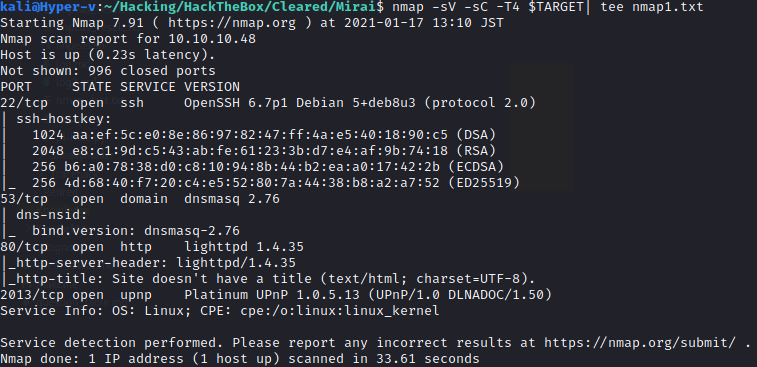
Port 80 is open, so I try accessing it in a browser.
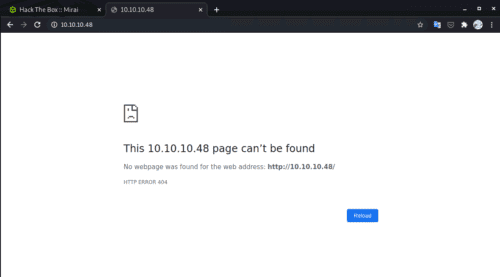
A 404 was returned, so I run enumeration against this web page. Before running gobuster, I tried a few common paths:
/robots.txt /admin /login
It looks like /admin was a hit, and a management console page for an application called Pi-hole opened.
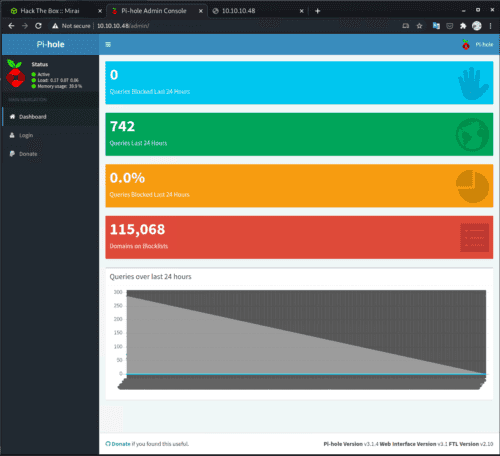
What is Pi-hole?
This was my first time seeing Pi-hole, so I glanced at the documentation.
The Pi-hole® is a DNS sinkhole that protects your devices from unwanted content, without installing any client-side software. Overview of Pi-hole - Pi-hole documentation
As stated, Pi-hole is an application that can be used as a DNS sinkhole to protect devices from unwanted content. (A DNS sinkhole is a DNS that intentionally returns incorrect responses to queries.)
Despite the name, Pi-hole can be deployed not only on Raspberry Pi but also on various platforms such as Debian and Docker containers.
From the documentation, I was able to identify the technologies used by Pi-hole:
Pi-hole being a advertising-aware DNS/Web server, makes use of the following technologies:
- dnsmasq - a lightweight DNS and DHCP server
- curl - A command-line tool for transferring data with URL syntax
- lighttpd - web server designed and optimized for high performance
- php - a popular general-purpose web scripting language
- AdminLTE Dashboard - premium admin control panel based on Bootstrap 3.x
- sqlite3 - SQL Database engine Pi-hole Origins - Pi-hole documentation
There were a few things of interest, but since it’s implemented in PHP — notorious for having a large number of reported vulnerabilities — I decided to investigate this as a potential entry point.
Foothold
Vulnerability Research
Now I search for entry points into the machine via Pi-hole vulnerabilities.
First, I confirmed from the admin console that the Pi-hole version is Pi-hole Version v3.1.4.
Searching for vulnerabilities affecting this version, I found these two that looked promising — but unfortunately, both required obtaining valid credentials for the admin console first. (A meta note: since this machine was created in 2017, CVE-2020-xxx is almost certainly not the intended solution.)
-
- Requires authentication
- RCE via blocklist vulnerability
-
- Requires authentication
- RCE via a crafted DHCP static lease
Obtaining Credentials
I tried a Google search for Pi-hole Password and similar terms.
I found that you can reset the Pi-hole password by logging into the local environment and running the following command:
sudo pihole -a -pAlso, reading several articles on setting up Pi-hole, I noticed instructions saying to log into the Raspberry Pi running Pi-hole using the default password raspberry.
At this point I finally noticed that the machine’s name is Mirai. 😄
What is Mirai?
Mirai is a malware that infects IoT devices and forms a massive botnet. It scans networks and infiltrates discovered IoT devices.
Mirai spread widely — including many variants — due to a combination of factors: how easily it could infect IoT devices that still had default credentials, and the fact that its source code was readily obtainable. Mirai is known for carrying out DDoS attacks exceeding 100 Gbps multiple times in 2016, causing US DNS services to go down and affecting services like Twitter.
When an IoT device is infected — for example by abusing default credentials — it can be remotely controlled by the attacker’s C&C server and used as a bot to spread the malware further or to carry out DDoS attacks.
- IPA: Emerging IoT Security Threats and Countermeasures
- The Worst-Ever DDoS Attack — Why Did Mirai Spread? (1/4) - ITmedia NEWS
- Background of Mirai’s Spread: Root Cause is “Default Settings on IoT Devices” | IoT Security News
- Deep Dive into Mirai Source Code — Understanding Its Mechanisms and Defenses (1/4) - @IT
Reading the Mirai scanner source code is also very interesting: it has hardcoded credentials for IoT devices’ default settings, including what appear to be credentials targeting Toshiba network cameras and Panasonic printers.
There are also multiple confirmed IoT malware variants that target Raspberry Pi specifically (not Mirai itself). Linux.MulDrop.14 is one such example, targeting the default credentials of Raspbian, the official OS for Raspberry Pi.
Raspberry Pi’s official distribution “Raspbian,” right after setup, allows SSH login with username “pi” and password “raspberry.” A New IoT Virus “Linux.MulDrop.14” That Targets Raspberry Pis with Default Passwords and Mines Cryptocurrency After Infection - Livedoor News
Countermeasures Against Mirai and Other IoT Malware
Since I study machine exploitation from a defensive security perspective to understand attacker thinking, let me briefly consider countermeasures against these IoT malware threats. (※ These are entirely personal opinions.)
The most obvious countermeasure is not leaving IoT device passwords at factory defaults. Raspberry Pi itself officially recommends changing the default credentials.
That said, how many people actually set sufficiently strong passwords is questionable. I think it might be better if the OS were designed from the start to require setting credentials on first boot. In fact, when you install Ubuntu for Raspberry Pi, you are required to set credentials on startup.
Another obvious but essential measure is not exposing unnecessary devices or ports to the network.
Many Mirai-like malware pieces seem to target network camera devices in particular.
There are apparently quite a few cases where home users open ports so they can monitor camera footage remotely while away. Personally, I really wouldn’t want my home network accessible from the outside…
Other measures include keeping IoT devices updated to address vulnerabilities and as an egress control, configuring devices to only send information to specific destinations. However, I’ve seen cases where manufacturers don’t release patches even after vulnerabilities are disclosed, so I’m somewhat skeptical of whether upgrades alone constitute sufficient protection.
Actually Getting In
Let me get back to the machine.
Since Pi-hole is running, the environment might be Raspberry Pi. (And the machine’s challenge name is Mirai…)
So I try SSH with Raspbian’s default password.
ssh pi@10.10.10.48 # Enter "raspberry" as passwordLogged in! It really was a Raspberry Pi!
Checking the system:
pi@raspberrypi:~ $ uname -a
Linux raspberrypi 3.16.0-4-686-pae #1 SMP Debian 3.16.36-1+deb8u2 (2016-10-19) i686 GNU/Linux
Anyway, I’ve obtained the user flag.
Internal Enumeration
Next, I look for privilege escalation opportunities. First, I transfer the Linpeas enumeration script to the machine via SCP and retrieve the results locally.
scp /home/kali/Hacking/Knowledge/Exploits/linPEAS/linpeas.sh pi@$TARGET:~/sh linpeas.sh | tee linpeas_result.txtscp pi@$TARGET:~/linpeas_result.txt ./Looking at the output, I see the following:

Extremely permissive.
When sudo -l shows output like this, the user can run sudo <command> without a password.
A quick check confirms that Raspbian indeed has no password configured for sudo by default. In other words, a default Raspbian setup allows both SSH login and unlimited privilege escalation.
If you plan to use Raspbian as a server, you’ll need to be careful about this.
Privilege Escalation
So I can get root privileges quickly.
sudo suFinished! …or so I thought, but there’s a little more to do.
Opening root.txt reveals not a flag but the following text. It seems the real root.txt has been lost.
root@raspberrypi:~# cd /root/
root@raspberrypi:~# cat root.txt
I lost my original root.txt! I think I may have a backup on my USB stick...
Don’t worry though. Apparently a backup was saved on a USB stick.
Another Round of Internal Enumeration
From here, I need to enumerate again to retrieve the backed-up data.
Finding the USB stick is straightforward.
Anyone who has ever connected a USB to Linux should know that it’s often mounted under /media.
Looking inside, there it is. However, it seems the data was accidentally deleted…
James is quite careless.
root@raspberrypi:~# cd /media
root@raspberrypi:/media# ls
usbstick
root@raspberrypi:/media# cd usbstick/
root@raspberrypi:/media/usbstick# ls
damnit.txt  lost+found
root@raspberrypi:/media/usbstick# cat damnit.txt
Damnit! Sorry man I accidentally deleted your files off the USB stick.
Do you know if there is any way to get them back?
-James
To fix — or rather help — clumsy James, I need to somehow salvage the lost flag from root.txt.
But what clue can I use?
The key here is understanding “how Linux device mounting works.” As a side note, this book is a great beginner’s reference for how the Linux kernel behaves:
Linux Kernel for Beginners: Learning While Doing from Scratch
How Linux Device Mounting Works
Linux (and Unix-like systems in general) abstracts and manages all connected devices as “device files.” Reference: What is a device file? — IT Dictionary for the Almost-Understood
Device drivers are abstracted by the Linux kernel as “device files,” given conventional names (sda, sdb, etc.), and stored under /dev.
Applications on the OS interact with hardware such as hard disks, USB drives, and mice by referencing these “device files.”
Device files are mainly classified as “character type” or “block type,” and fixed-length data like hard disks is stored as “block type.” Reference: Linux File Types - Qiita
Obtaining the Root Flag
The USB in this challenge should also be stored as a “block type” device file.
Block devices available to the OS can be listed with lsblk.
root@raspberrypi:~# lsblk
NAME   MAJ:MIN RM  SIZE RO TYPE MOUNTPOINT
sda      8:0    0   10G  0 disk
sda1   8:1    0  1.3G  0 part /lib/live/mount/persistence/sda1
sda2   8:2    0  8.7G  0 part /lib/live/mount/persistence/sda2
sdb      8:16   0   10M  0 disk /media/usbstick
sr0     11:0    1 1024M  0 rom
loop0    7:0    0  1.2G  1 loop /lib/live/mount/rootfs/filesystem.squashfs
We can see that /media/usbstick, which holds the flag, is handled as the device file sdb.
Finally, I extract data from it.
Since HackTheBox flags are stored as text, simply running strings /dev/sdb would easily retrieve it.
But that’s not very interesting, so let me look inside /dev/sdb.
From lsblk, the size of /dev/sdb is 10MB, so the end address is 0xa00000.
I output it with hexdump.
root@raspberrypi:~# hexdump -C /dev/sdb
00000000  00 00 00 00 00 00 00 00  00 00 00 00 00 00 00 00  |................|
*
0005b800  02 00 00 00 0c 00 01 02  2e 00 00 00 02 00 00 00  |................|
0005b810  0c 00 02 02 2e 2e 00 00  0b 00 00 00 24 00 0a 02  |............$...|
0005b820  6c 6f 73 74 2b 66 6f 75  6e 64 00 00 0c 00 00 00  |lost+found......|
0005b830  10 00 08 01 72 6f 6f 74  2e 74 78 74 0d 00 00 00  |....root.txt....|
0005b840  c4 03 0a 01 64 61 6d 6e  69 74 2e 74 78 74 00 00  |....damnit.txt..|
0005b850  00 00 00 00 00 00 00 00  00 00 00 00 00 00 00 00  |................|
*

* Flag
0080a800  33 64 33 65 34 38 33 31  34 33 66 66 31 32 65 63  |xxxxxxxxxxxxxxxx|
0080a810  35 30 35 64 30 32 36 66  61 31 33 65 30 32 30 62  |xxxxxxxxxxxxxxxx|
0080a820  0a 00 00 00 00 00 00 00  00 00 00 00 00 00 00 00  |................|
0080a830  00 00 00 00 00 00 00 00  00 00 00 00 00 00 00 00  |................|
*
0080ac00  44 61 6d 6e 69 74 21 20  53 6f 72 72 79 20 6d 61  |Damnit! Sorry ma|
0080ac10  6e 20 49 20 61 63 63 69  64 65 6e 74 61 6c 6c 79  |n I accidentally|
0080ac20  20 64 65 6c 65 74 65 64  20 79 6f 75 72 20 66 69  | deleted your fi|
0080ac30  6c 65 73 20 6f 66 66 20  74 68 65 20 55 53 42 20  |les off the USB |
0080ac40  73 74 69 63 6b 2e 0a 44  6f 20 79 6f 75 20 6b 6e  |stick..Do you kn|
0080ac50  6f 77 20 69 66 20 74 68  65 72 65 20 69 73 20 61  |ow if there is a|
0080ac60  6e 79 20 77 61 79 20 74  6f 20 67 65 74 20 74 68  |ny way to get th|
0080ac70  65 6d 20 62 61 63 6b 3f  0a 0a 2d 4a 61 6d 65 73  |em back?..-James|
0080ac80  0a 00 00 00 00 00 00 00  00 00 00 00 00 00 00 00  |................|
0080ac90  00 00 00 00 00 00 00 00  00 00 00 00 00 00 00 00  |................|
*
00a00000
I’m admittedly not well-versed in the address map of flash storage like USB memory, but it’s clear that the actual data is stored in the latter blocks.
In other words, when James deleted root.txt from the USB, only the reference information pointing to root.txt was removed; the actual data remained at that address until it was overwritten by other data. That’s the key to obtaining root on this machine.
Summary
With this, I successfully completed the Mirai machine! The defensive insights gained through this machine include:
- Default credentials are targeted
- Restrict sudo permissions
- Prevent external SSH access (use private key auth instead of password when exposing SSH)
- When deleting data from media devices, use overwrite deletion
WriteUps are useful for organizing what I’ve learned, so I’d like to keep writing them. See you next time.