This page has been machine-translated from the original page.
I study programming and security as a hobby.
Lately, I’ve been spending a lot of time on penetration-testing learning platforms like “Hack The Box” and “Try Hack Me”, as well as on CTFs.
This time, I decided to rebuild the ParrotOS environment I usually use for “Hack The Box” and CTFs, so I wrote this article to summarize the setup steps as a personal memo.
This article covers the following.
- Settings to apply after installing ParrotOS
- Applications to install for HackTheBox and CTFs
- Setting up a Ghidra Debugger build
- Miscellaneous things to do after setup
About this article
This article is not intended to encourage acts that go against public order.
Please note that attempting attacks against environments you do not own or are not authorized to access may violate laws that prohibit unauthorized computer access.
Also, everything written here reflects my personal views, not those of any organization I belong to.
Table of Contents
- What is ParrotOS?
- Why I Chose Parrot
-
- Upgrade Packages
- Configure the Network IP
- Set Up RDP
- Install Additional Packages
- Enable Japanese Input
- Start in Alphanumeric Mode at Boot
- Set Up Aliases
- Change the Menu Bar Position
- Disable the Automatic Update Window
- Change the Time Zone
- Adjust the Terminal Settings
- Change the OS Shortcut Keys
- Register an SSH Key with GitHub
- Disable Automatic Sleep
-
- Google Chrome
- VSCode
- Docker
- JDK
- Ghidra
- Universal Radio Hacker (URH)
- angr
- pwntools
- PyCryptodome
- Ciphey
- RSACTFTool
- Postman
- GIMP
- CopyQ
- Eclipse
- Wine
- GDB-PEDA
- Pwndbg
- RustScan
- FZF
- Gobuster/Feroxbuster
- CrackMapExec
- Evil-WinRM
- Windows-Exploit-Suggester
- BurpSuite
- SourceTrail
- YARA
- QEMU and Cross-Compilation Environment
- AWS CLI
- Impacket
- Tweak
- pngcheck
- png-parser
- creddump
- USB keyboard parser
- PINCE
- wabt
- ImHex
- KeePassX
- Build Docker Environments
- Build Ghidra’s Debugger Branch
- Summary
What is ParrotOS?
It is a Debian-based Linux distribution developed by Parrot Security.
It is a distribution for pentesting and reverse engineering, and it is very similar to Kali Linux.
A variety of penetration-testing tools are included by default.
ParrotOS is also developed in collaboration with Hack The Box.
Reference: HTB News | Hack The Box + Parrot OS
Why I Chose Parrot
I’ve been using Parrot for just under a year, and the hassle of upgrading feels about 100 times lower than on Kali. (It doesn’t leave the OS unbootable.)
You could say that this one point alone—fewer troubles and less work during upgrades—is why I use Parrot.
I also think it has a beautiful UI and is simply fun to use.
Because the window control buttons are on the upper left, Mac users may find Parrot easier to use.
I’m a die-hard Windows user, but Parrot still feels very comfortable to use, so I recommend it.
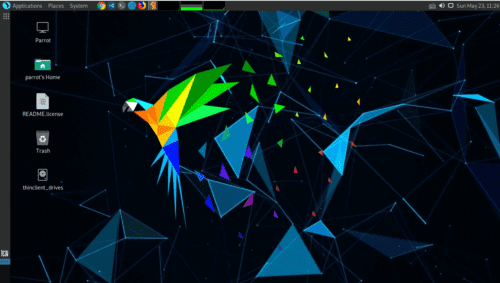
Initial ParrotOS Setup
Upgrade Packages
First, upgrade the packages.
The first time takes quite a while (more than an hour depending on the environment).
By the way, ParrotOS officially does not recommend using apt upgrade.
So update the packages with full-upgrade or parrot-upgrade like this.
sudo apt clean
sudo apt update
sudo apt full-upgrade --fix-missing -y
sudo apt autoremove -y
After waiting for a while, it can fail sometimes because of dependencies and so on, but you do not need to be too upset about it.
In most cases, upgrading the package that failed first will fix the problem.
This time, the packages upgraded without any trouble.
By the way, I select [Yes] on the Wireshark popup that appears during the process.
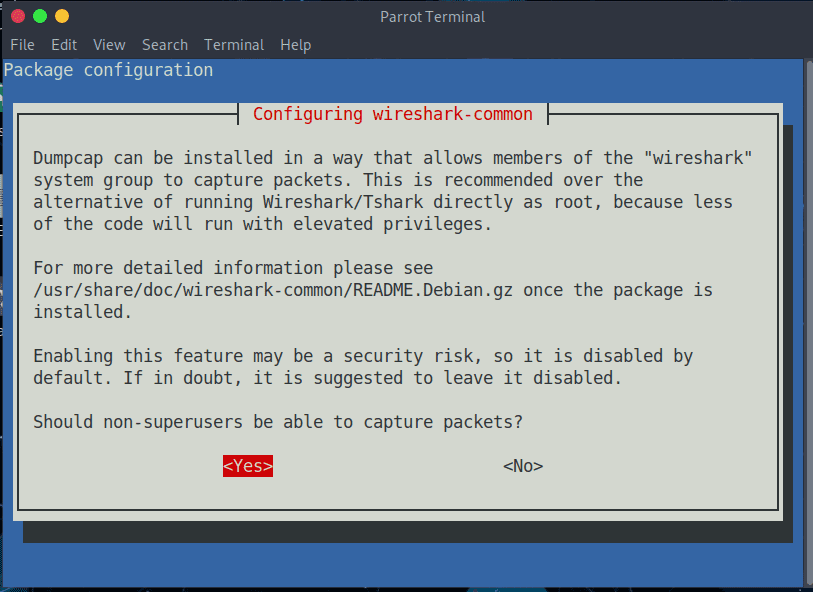
Several other popups will appear as well, but just choose whatever fits your environment.
Configure the Network IP
Next, configure the network.
In my environment, I set up two NICs on Parrot: one for external connections and one for the internal environment.
It is convenient to leave the external connection network on DHCP instead of using a fixed IP, and to assign a static IP to the internal network used for RDP from the host. That way, even if the host’s network environment changes, I can keep using it the same way.
You can easily configure each NIC by using [Advanced Network Configuration].
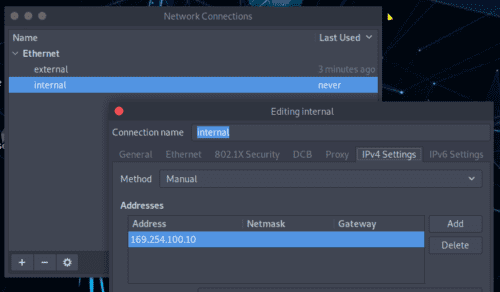
Set Up RDP
Once the network IP is fixed, set up RDP so you can comfortably operate the virtual machine from Windows.
First, install the required packages.
sudo apt install -y xrdp
sudo systemctl enable xrdp
sudo systemctl start xrdp
When you use XRDP, nobody should already be logged into the virtual machine.
So reboot or log off the virtual machine once, and then connect over RDP.
Install Additional Packages
Install the packages I personally use often ahead of time.
I will not explain the details of each package here.
sudo apt install \
                 vim \
                 make \
                 git \
                 python3.9 \
                 python3-pip \
                 python3.9-dev \
                 unzip \
                 zip \
                 build-essential \
                 gdb \
                 radare2 \
                 ltrace \
                 strace \
                 xdotool \
                 pngcheck \
                 xdotool \
                 fcitx-mozc \
                 tweak \
                 feroxbuster \
                 openvpn \
                 bloodhound  \
                 neo4j \
                 cmake \
                 -y
Enable Japanese Input
Next, make Parrot support Japanese input.
First, install this.
sudo apt install fcitx-mozcNext, open [Fcitx Configuration] from [System] > [Preferences] > [Other].
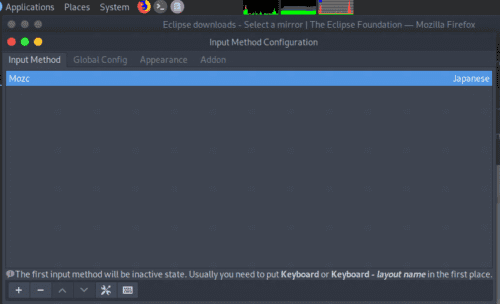
Here, after adding Mozc under [Input Method], set [Trigger Input Method] to [Zenkakuhankaku] on the [Global Config] tab.
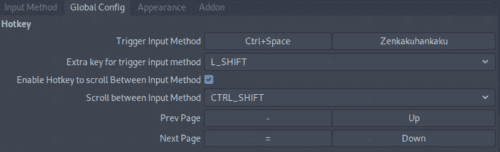
Now you can type Japanese in Parrot.
By the way, if you leave Mozc at its default settings, spaces become full-width while typing Japanese, which is annoying, so you may be happier if you change this setting too.
Open [Mozc Settings] from [System] > [Preferences] > [Other].
Here, set [Space input style] to half-width.

Start in Alphanumeric Mode at Boot
With the current version of fcitx-mozc installed by apt, input always starts in kana mode when the OS boots, and apparently that cannot be changed by design.
Patching it myself just for this would be a hassle, so I handled it with a command instead.
Just register the following command in Startup Applications.
xdotool key ctrl+alt+t && xdotool key Zenkaku_HankakuThis lets the OS start in alphanumeric mode.
(You need to assign Ctrl+Alt+T as the shortcut for launching the terminal.)
Set Up Aliases
Add the following to .bashrc or similar.
The example below shows aliases for archive extraction commands I use often. I also alias the commands I use frequently to start Python 2 and Wine containers, as well as scripts for launching applications.
I think it is a good idea to configure various things to suit your preferences.
alias tarbz2='tar -jxvf'
alias targz='tar -zxvf'
alias tarxz='tar -Jxvf'

alias run_ftp_on_downloads='python3 /home/kali/Hacking/Tools/localftp.py'

alias run_python2='docker run --net host --rm -it -v $PWD:/app python2 bash'
alias run_wine='docker run --rm -it --user ubuntu -v $PWD:/usr/app wine32 bash'
alias run_php='docker run --net host --rm -it -v $PWD:/root php bash'

alias rsactftool='docker run --rm -it -v $PWD:/data kashiwabayuki/rsactftool:1.0'
alias crackmapexec='docker run --net host --rm -it -v $PWD:/usr/src/crackmapexec kashiwabayuki/crackmapexec:1.0'
alias evil-winrm='docker run --rm -it -v $PWD:/data kashiwabayuki/evil-winrm:1.0'
alias pwndocker="docker run --rm -it -v $PWD:/ctf/work --cap-add=SYS_PTRACE -it kashiwabayuki/pwndocker:1.0"
alias windows-exploit-suggester='docker run --rm -it -v $PWD:/exploit-suggester kashiwabayuki/windows-exploit-suggester:1.0'
alias hackthebox='sudo openvpn ~/kash1064.ovpn > /dev/null 2>&1 &'
alias pince='cd /home/parrot/Tools/PINCE && sh PINCE.sh'
Change the Menu Bar Position
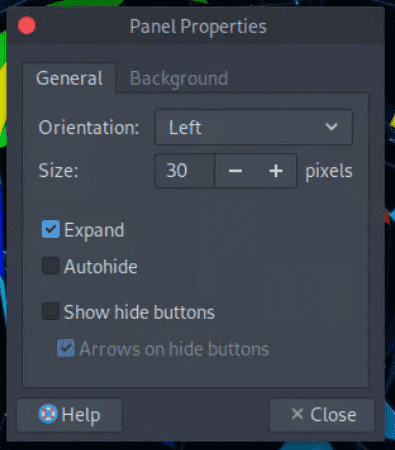
By default, right-click the menu bar at the bottom and click [Properties] to open the settings window.
Here, changing the [Orientation] item will change the menu bar position.
I usually set it to the left.
Disable the Automatic Update Window
The update confirmation window popping up on every startup is annoying, so I disable automatic updates.
Open [Synaptic Package Manager] from [System] at the top.
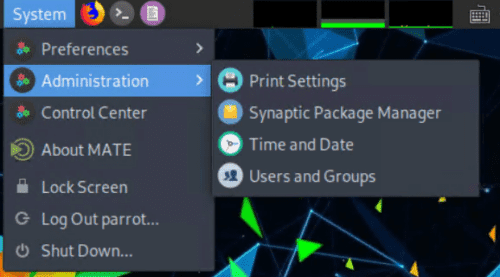
On first launch, proceed while leaving the checkbox for the startup window cleared, and the update confirmation window will stop popping up on future boots.
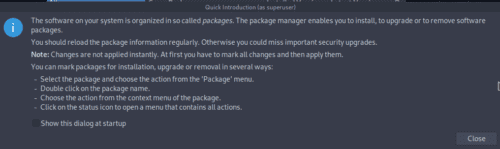
After that, disable [System Updater] from [Startup Applications].
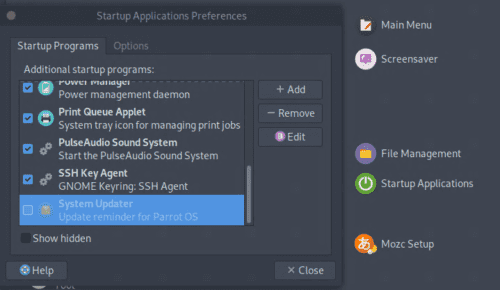
Now no popup will appear when the system starts.
Change the Time Zone
Click the clock in the upper right to open [Location], then click [Edit].
Add Japan under [Locations].
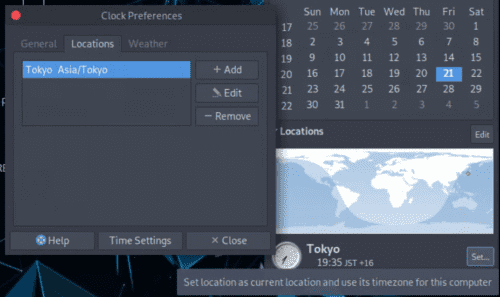
Next, click the [Set …] button next to [Tokyo] to change the time zone.
This applies the time setting.
Adjust the Terminal Settings
In Parrot, the default terminal is MATE.
This is a matter of preference, but I tweak these settings a little.
Open the settings list from [Edit] > [Profiles] in the terminal, and edit the profile there.
For now, I changed the color scheme to System theme and adjusted the background transparency as well.
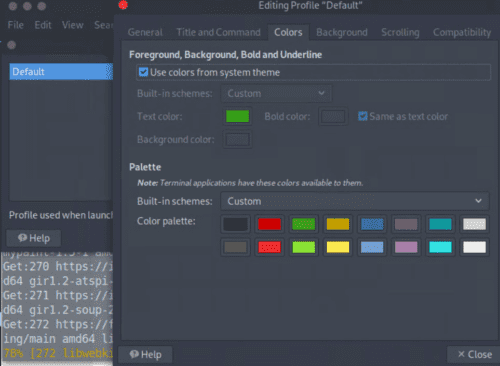
You can also change shortcut assignments from [Keyboard Shortcuts].
I edit them to suit my taste.
Change the OS Shortcut Keys
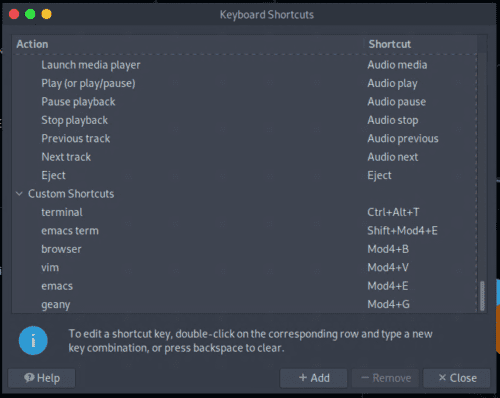
By default, the shortcut for launching the terminal is different from Ubuntu and a bit awkward to use, so I open [Keyboard Shortcuts] and add a shortcut for [terminal].
Register an SSH Key with GitHub
Register the public key created by ssh-keygen with GitHub.
For details, see Connecting to GitHub with SSH - GitHub Docs.
Disable Automatic Sleep
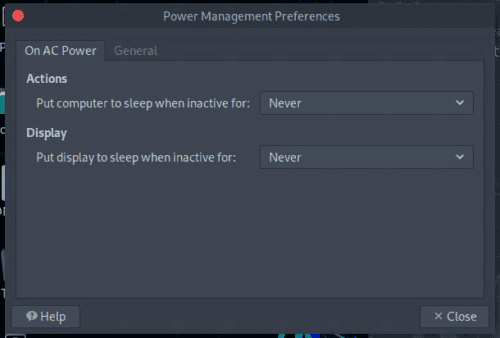
Open [Power Management Preferences] and disable automatic sleep for the display.
By default, it is set to 30 minutes.
Install Various Tools
Here is a summary of the tools I personally install.
It is not a problem if you skip them.
I will update the list of tools as needed.
Google Chrome
Download the deb package from Google Chrome - Download the Fast, Secure Browser from Google.
You can install Chrome with the sudo dpkg -i xxx.deb command.
VSCode
Download the deb package from Visual Studio Code - Code Editor | Microsoft Azure.
You can install it with the sudo dpkg -i xxx.deb command.
Install whatever extensions you like.
I think it is a good idea to disable the Symlinks setting, because it helps prevent CPU resources from being consumed at odd times.

There are also several other settings that can affect computer resource usage, such as files.watcherExclude and the memory limit, so tune them as needed.
Docker
You can install it in almost the same way as on Ubuntu.
Refer to Install Docker Engine on Ubuntu | Docker Documentation.
However, the command for obtaining the release version does not work correctly on Parrot, so this time I specify focal explicitly.
echo "deb [arch=amd64 signed-by=/usr/share/keyrings/docker-archive-keyring.gpg] https://download.docker.com/linux/ubuntu focal stable" | sudo tee /etc/apt/sources.list.d/docker.list > /dev/nullAfter Docker is installed, run the following commands so that you can use it without sudo.
sudo gpasswd -a $USER docker
sudo service docker start --enable
That completes the setup.
I will describe the Docker images and commands I use often later.
JDK
Place the extracted files in an appropriate directory.
Next, add it to PATH.
sudo mv jdk-11.0.11+9 /usr/local/lib/jdk-11.0.11+9
echo "PATH=$PATH:/usr/local/lib/jdk-11.0.11+9/bin" >> ~/.bashrc
Ghidra
The familiar powerhouse tool.
These days, everyone seems to use Ghidra in Rev write-ups.
Download and extract Ghidra from Ghidra.
Place the extracted files in a suitable folder.
To be able to launch it from anywhere, I think it is a good idea to add the folder containing ghidraRun to PATH.
echo "PATH=$PATH:/home/parrot/Tools/Ghidra/" >> ~/.bashrcBy the way, with Ghidra there are cases where you may want to use the debugger feature, which has not yet been implemented in the major release version.
In that case, build it yourself from the source code on Ghidra’s Debugger branch.
I will explain how to build it later, so please refer to that if you want to try it.
Universal Radio Hacker (URH)
This is something I occasionally use when doing Misc or Rev challenges.
Create a virtual environment in an appropriate directory.
pipenv install
pipenv shell
pip install urh
angr
A god-tier tool for Rev challenges.
I wrote about how to use it in quite some detail in A summary of solving Rev challenges with symbolic execution using angr [WaniCTF2021].
Create a virtual environment in an appropriate directory.
pipenv install
pipenv shell
pip install angr
pwntools
This library is like an all-you-can-use set of tools for CTFs.
It does not conflict much with other things, so I install it globally.
pip install pwntoolsPyCryptodome
A Python library that lets you use cryptographic functions.
This can be used without conflicting with other packages, so I just install it globally.
pip install pycryptodomeCiphey
It can crack encrypted text pretty nicely.
Create a virtual environment in an appropriate directory.
pipenv install
pipenv shell
python3 -m pip install ciphey --upgrade
RSACTFTool
A tool that is useful when you run into challenges involving weak RSA.
Because the dependencies are complicated, I basically build it in Docker.
FROM alpine:3.13
RUN apk update && \
    apk add --no-cache \
    gmp-dev mpfr-dev mpc1-dev python3 python3-dev py3-pip gcc musl-dev openssl-dev libffi-dev py3-wheel git gcc g++ make cmake git
WORKDIR /opt
RUN git clone https://github.com/Ganapati/RsaCtfTool.git
WORKDIR /opt/RsaCtfTool
RUN pip install -r "requirements.txt"
WORKDIR /data
ENTRYPOINT ["/opt/RsaCtfTool/RsaCtfTool.py"]
Building the container image takes quite a while.
It is a hassle to rebuild it every time I set up my environment, so I uploaded it to Docker Hub as my own image.
You can pull it like this.
docker pull kashiwabayuki/rsactftool:1.0Since running the full command every time is also annoying, I register an alias too.
alias rsactftool='docker run --rm -it -v $PWD:/data kashiwabayuki/rsactftool:1.0'Postman
I only found out about it recently, so I do not use it much yet, but it is a great tool for hitting APIs.
Extract the files downloaded from Download Postman | Try Postman for Free.
Once extracted, you can use it.
Add it to PATH as well.
echo "PATH=$PATH:/home/parrot/Tools/Postman" >> ~/.bashrcGIMP
I sometimes use it for steganography.
It is installed by default.
CopyQ
A clipboard management tool.
Being able to bring up the recent clipboard history with Ctrl + ; and similar shortcuts turns out to be surprisingly useful.
Install it with apt.
sudo apt install copyq -yBy the way, after rebooting, it will not work unless you launch CopyQ each time.
There probably is a setting for automatic startup, but I could not be bothered to look for it, so I configured it to launch every time from my profile.
Eclipse
Download the Linux package from Eclipse downloads - Select a mirror | The Eclipse Foundation.
Once extracted, you can use it.
Add it to PATH as well.
echo "PATH=$PATH:/home/parrot/Tools/eclipse" >> ~/.bashrcWine
Install Wine and MinGW.
sudo apt install wine mingw-w64 mingw-w64-common mingw-w64-i686-dev mingw-w64-tools mingw-w64-x86-64-dev -yI do not really want to use Wine much, so this is only for light verification.
For PE binary analysis and similar work, I prepare a separate Windows machine.
GDB-PEDA
Clone GDB-PEDA directly under the Tools directory and configure it.
git clone https://github.com/longld/peda.git ~/Tools/peda
echo "source ~/Tools/peda/peda.py" >> ~/.gdbinit
Pwndbg
Handy when doing heap challenges.
Reference: GitHub - pwndbg/pwndbg: Exploit Development and Reverse Engineering with GDB Made Easy
RustScan
Download the deb package from Releases · RustScan/RustScan · GitHub.
You can install it with the sudo dpkg -i xxx.deb command.
FZF
Something that makes file searching easier.
git clone --depth 1 https://github.com/junegunn/fzf.git ~/Tools/.fzf
~/Tools/.fzf/install
Gobuster/Feroxbuster
Gobuster is available by default.
If you want Feroxbuster, I think it is worth installing.
You can download the deb package like this.
wget https://github.com/epi052/feroxbuster/releases/latest/download/feroxbuster_amd64.deb.zip
unzip feroxbuster_amd64.deb.zip
Install it with the sudo dpkg -i xxx.deb command.
While you are at it, unpack rockyou.txt in advance too.
sudo gunzip /usr/share/wordlists/rockyou.txt.gzCrackMapExec
Used for hacking Windows machines.
Reference: byt3bl33d3r/CrackMapExec: A swiss army knife for pentesting networks
Because it has many dependencies, I build the environment as a Docker image.
git clone https://github.com/byt3bl33d3r/CrackMapExec.git
cd CrackMapExec/
docker build -t crackmapexec .
It is a hassle to build it every time I set up my environment, so I uploaded it to Docker Hub as my own image.
You can pull it like this.
docker pull kashiwabayuki/crackmapexec:1.0To make it easier to use, add an alias as well.
alias crackmapexec='docker run --rm -it -v $PWD:/usr/src/crackmapexec kashiwabayuki/crackmapexec:1.0'Evil-WinRM
A handy shell for remotely connecting to Windows machines.
Reference: Hackplayers/evil-winrm: The ultimate WinRM shell for hacking/pentesting
For peace of mind, I build it from its Dockerfile.
# Evil-WinRM Dockerfile

# Base image
FROM ruby:latest

# Credits & Data
LABEL \
    name="Evil-WinRM" \
    author="CyberVaca <cybervaca@gmail.com>" \
    maintainer="OscarAkaElvis <oscar.alfonso.diaz@gmail.com>" \
    description="The ultimate WinRM shell for hacking/pentesting"

#Env vars
ENV EVILWINRM_URL="https://github.com/Hackplayers/evil-winrm.git"

# Install dependencies
RUN gem install \
    winrm \
    winrm-fs \
    stringio \
    logger \
    fileutils

# Create volume for powershell scripts
RUN mkdir /ps1_scripts
VOLUME /ps1_scripts

# Create volume for executable files
RUN mkdir /exe_files
VOLUME /exe_files

# Create volume for data (upload/download)
RUN mkdir /data
VOLUME /data

# Set workdir
WORKDIR /opt/

#Evil-WinRM install method 1 (only one method can be used, other must be commented)
#Install Evil-WinRM (Docker Hub automated build process)
RUN mkdir evil-winrm
COPY . /opt/evil-winrm

#Evil-WinRM install method 2 (only one method can be used, other must be commented)
#Install Evil-WinRM (manual image build)
#Uncomment git clone line and one of the ENV vars to select branch (master->latest, dev->beta)
#ENV BRANCH="master"
#ENV BRANCH="dev"
#RUN git clone -b ${BRANCH} ${EVILWINRM_URL}

# Make script file executable
RUN chmod +x evil-winrm/*.rb

# Clean and remove useless files
RUN rm -rf /opt/evil-winrm/resources > /dev/null 2>&1 && \
    rm -rf /opt/evil-winrm/.github > /dev/null 2>&1 && \
    rm -rf /opt/evil-winrm/CONTRIBUTING.md > /dev/null 2>&1 && \
    rm -rf /opt/evil-winrm/CODE_OF_CONDUCT.md > /dev/null 2>&1 && \
    rm -rf /opt/evil-winrm/Dockerfile > /dev/null 2>&1 && \
    rm -rf /opt/evil-winrm/Gemfile* > /dev/null 2>&1 && \
    rm -rf /tmp/* > /dev/null 2>&1

# Start command (launching Evil-WinRM)
ENTRYPOINT ["/opt/evil-winrm/evil-winrm.rb"]
You can pull it like this.
docker pull kashiwabayuki/evil-winrm:1.0To make it easier to use, add an alias as well.
alias evil-winrm='docker run --rm -it -v $PWD:/data kashiwabayuki/evil-winrm:1.0'Windows-Exploit-Suggester
Windows-Exploit-Suggester is a useful tool for investigating Windows vulnerabilities.
I use a container image created with reference to the repository below.
Reference: gr33nm0nk2802/Windows-Exploit-Suggester
kashiwabayuki/windows-exploit-suggester:1.0Set an alias for it as well.
alias windows-exploit-suggester='docker run --rm -it -v $PWD:/exploit-suggester kashiwabayuki/windows-exploit-suggester:1.0'BurpSuite
The free edition of BurpSuite is installed by default.
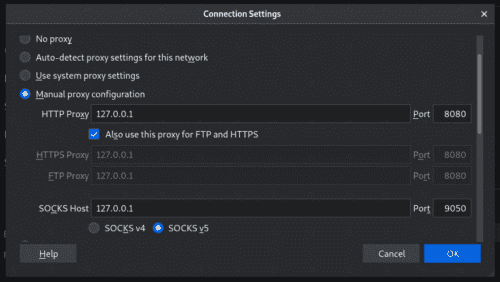
Once Chrome is installed, I barely use Firefox, so if you set proxy settings there and make it a browser dedicated to Burp, you do not have to keep changing the settings over and over.
SourceTrail
This is a tool for visualizing source code that was recently open-sourced.
Download it from Releases · CoatiSoftware/Sourcetrail · GitHub.
Move into the extracted directory and run sudo ./install.sh to complete the installation.
YARA
YARA.
I do not use YARA much in CTFs, but I personally like it and even contribute to it, so I always install it.
The version you can install with apt is a little old, so I build it from source.
You can download the latest source code from Releases · VirusTotal/yara · GitHub.
By this point, all prerequisite packages have already been installed, so you can just run the following commands.
./bootstrap.sh
./configure
make
sudo make install
If you leave it like this, YARA will not start because it cannot find the library, so add the library path to /etc/ld.so.conf.
sudo echo "/usr/local/lib" >> /etc/ld.so.conf
sudo ldconfig
Now the latest build of YARA is installed.
$ yara -v
4.1.0
QEMU and Cross-Compilation Environment
Sometimes you want to compile, analyze, or run executables for ARM.
For example, when the challenge file is an ARM binary.
So let’s build that environment.
sudo apt install qemu-user-binfmt qemu-efi qemu-efi-aarch64 qemu-efi-arm qemu-system qemu-system-arm qemu-system-common qemu-system-x86 qemu-system-misc qemu-utils -yNext, install the tools for cross-compilation.
sudo apt install g++-arm-linux-gnueabihfI used How to cross-compile C/C++ source code for ARM/ARM64 on x86_64 Ubuntu and run it with QEMU - Qiita as a reference.
AWS CLI
When HackTheBox and the like occasionally throw you an AWS challenge, sometimes you want the CLI.
curl "https://awscli.amazonaws.com/awscli-exe-linux-x86_64.zip" -o "awscliv2.zip"
unzip awscliv2.zip
sudo ./aws/install
Impacket
This is a tool you can use when attacking machines with SMB packets and the like.
Because you need Python 2’s pip and cannot install it directly on Parrot, I use Docker.
git clone https://github.com/SecureAuthCorp/impacket
cd impacket
docker build -t impacket .
Tweak
A binary editor.
I also use VSCode’s binary editor extension and hexeditor, but Tweak’s strength is that it can add and delete binary data.
sudo apt install tweakI only keep the minimum commands here because I often forget them.
^X^I : Insert
^X^S : Save
^X^C : Exit
pngcheck
I use it to inspect PNGs.
sudo apt install pngcheck -ypng-parser
It is useful when you want information about PNG chunks and the like.
pip install --user git+https://github.com/Hedroed/png-parserFor how to use it, see the README.
Reference: Hedroed/png-parser: Analyse PNG file format for CTF, python API and CLI
creddump
Used for forensics.
For usage, see CiscoCXSecurity/creddump7.
USB keyboard parser
It parses input values from a USB pcap.
Download it from the repository below.
PINCE
A tool like Cheat Engine for Linux.
You can use it on Parrot and Kali as well.
cd ~/Tools
git clone --recursive https://github.com/korcankaraokcu/PINCE
cd PINCE
sudo sh install_pince.sh
Reference: korcankaraokcu/PINCE: A reverse engineering tool that’ll supply the place of Cheat Engine for linux
The command to run it is sh PINCE.sh, but that is a hassle, so I create an alias.
wabt
A WASM decompiler.
It can decompile WASM source code.
Reference: wabt/decompiler.md at main · WebAssembly/wabt
Build it following the steps in the README of the repository above.
I think it is a good idea to add it to PATH.
Once it is built, you can decompile WASM with the following command.
./wasm-decompile file.wasm -o out.wasmImHex
A powerful hex editor.
My environment had 8 GB of RAM, but the virtual machine hung when I ran make -j.
git clone https://github.com/WerWolv/ImHex.git

cd ImHex
sudo ./dist/get_deps_debian.sh

mkdir build
cd build

cmake ..
make -jBackground reading: ImHex: A binary editor for people doing their best at 3 AM - setodaNote
KeePassX
I use it when opening KDBX files and the like.
sudo apt install keepassx -yBuild Docker Environments
These are the images I use often in my Docker environment.
- Python2
- Ubuntu16.04
- php
- node
- Impacket
When I use them in my own environment, I build the images from slightly customized Dockerfiles.
## Python2
```
docker build -t python2 .
docker run --rm -it -v $PWD:/app python2 bash
docker run --net host --rm -it -v $PWD:/app python2 bash
```

## Ubuntu16
```
docker build -t ubuntu16 .
docker run --rm -it -v $PWD:/app ubuntu16 bash
docker run --rm --cap-add=SYS_PTRACE --security-opt="seccomp=unconfined" -it -v $PWD:/app ubuntu16 bash
```

## PHP
```bash
docker build -t php .
docker run --rm -it -v $PWD:/root php bash
```

## node
```
docker pull node
docker run --rm -it -v $PWD:/root node bash
```

## Impacket
```
git clone https://github.com/SecureAuthCorp/impacket
cd impacket
docker build -t impacket .
docker run --net host --rm -it -v $PWD:/root impacket bash
```

## RSACTFTool
``` bash
docker run --rm -it -v $PWD:/data rsactftool --publickey ./key.pub
```
The image I use especially often is the one where Python 2.7’s pip works, because I frequently use it to run exploit code that only works on Python 2.
If you pass --net host to Docker’s run command, the container can use the host’s network.
That means you can run exploit code from a container through the VPN connection established on the host.
Build Ghidra’s Debugger Branch
The debugger functionality is already included in current release versions, so building the development branch is no longer necessary.
According to the official repository, building Ghidra requires the following applications.
- JDK 11 64-bit
- Gradle (minimum v6.0)
- make, gcc, and g++ (Linux/macOS-only)
- Microsoft Visual Studio (Windows-only)
By the steps up to this point, everything except Gradle has already been set up, so first install Gradle.
unzip gradle-7.0.2-all.zip
sudo mv gradle-7.0.2 /opt/gradle
echo "PATH=$PATH:/opt/gradle/bin" >> ~/.bashrc
Next, clone Ghidra’s debugger branch and build it with Gradle.
git clone -b debugger https://github.com/NationalSecurityAgency/ghidra.git
cd ghidra
gradle -I gradle/support/fetchDependencies.gradle init
gradle buildGhidra
The first build takes quite a while.
By the way, when I was writing this article, following the steps in the documentation above produced the following error and the build failed.
> Task :Graph:ip FAILED
FAILURE: Build failed with an exception
When that happens, do not panic; search Ghidra’s issue tracker with the error message.
In most cases, a solution for a similar problem has already been posted.
This time, the build was failing on Task :GraphServices:ip, so I followed the advice in the issue and ran the following command, and the build succeeded.
gradle buildGhidra -x ipWhen the build succeeds, a file named ghidra/build/dist/ghidra_10.0_DEV_20210523_linux64.zip is created.
After that, as before, replace the directory you put on your PATH with the extracted directory, and the development build you created will launch with ghidraRun.
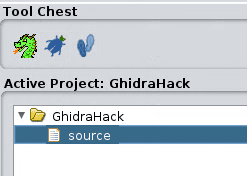
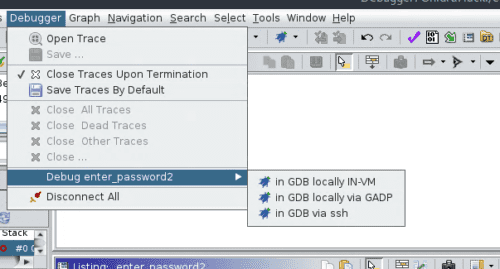
mv ghidra_10.0_DEV ~/Tools/GhidraIn the Debugger build, a bug icon is added next to the usual dragon icon.
After it starts, load the executable you want to analyze from [File] in the upper right.
Right-click an appropriate location and select [Toggle Breakpoint], and it will be added to the Breakpoint window on the right.
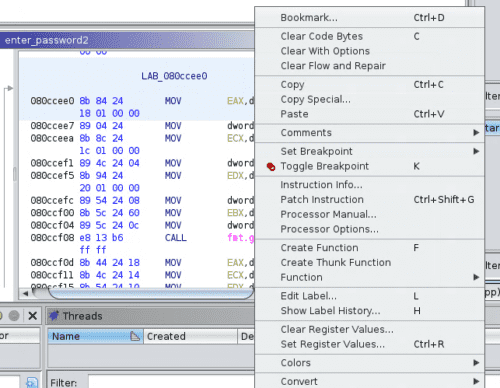
When you want to run the debugger, just choose and launch the debugger you want to use from [Debugger].
I’m looking forward to the debugger feature getting a major release.
Once the Setup Is Done…
Clean Up
Time to clean up.
A huge number of files are left under Downloads, so make sure you delete them properly.
Also, rather than appending to .bashrc throughout the process, it may be cleaner to consolidate the PATH entries into one line and put them in .bash_profile.
export PATH=$PATH:xxxxxxxxxx >> ~/.bash_profileI don’t think this happened in the steps above, but unnecessary container images may still be left behind, so as a bit of Docker housekeeping I run prune.
docker image pruneTake a Snapshot
The next time you do updates or other maintenance work, you will want to base it on a clean environment right after setup if possible.
So be sure to create a snapshot (or a checkpoint in Hyper-V).
Export the Image
As both a backup and a way to preserve the environment, export the image.
With the setup in this article, I think it ends up being a little under 30 GB.
I keep both the Parrot image for CTFs and a Windows 10 image on a 64 GB USB flash drive.
It just barely fits.
Summary
I took the opportunity while rebuilding my environment to write this article as a memo of the setup procedure.
If you know any other handy tools, I would be happy if you left a comment.
Also, if you have any questions about the content, please feel free to ask.