This page has been machine-translated from the original page.
This article was written as part of CTF Advent Calendar 2022 Day18.
It was my first time participating in an Advent Calendar, and I was looking forward to it.
Yesterday’s article was Ark’s ”Introducing the most interesting web challenges of 2022“.
Tomorrow’s article is Satoooon’s “Taking a rough look at CTFTime statistics”.
Table of Contents
Theme of This Article
In this article, we use the Ghidra debugger feature added in version 10.0 to solve simple Reversing challenges on both Windows and Linux.
My original plan was to write about analyzing an Android NDK library loaded via dlopen from a custom binary, but I spent about five days failing to get it working in my own environment, so I pivoted to this topic instead.
It has been quite a while since it was announced that a debugger would be integrated into Ghidra starting with version 10.0.
The Ghidra debugger relies on WinDbg on Windows and GDB on Linux, and it allows dynamic analysis of user-mode applications. However, I almost never see it used in CTF writeups.
I myself tried the debugger once while it was still in preview, and honestly found it a bit uncomfortable to use, so I never touched it again after that.
Some time has passed since then, and I still don’t see much information about the Ghidra debugger, so I decided to poke around, and write up how to use it along with my impressions.
I’ll work through the process of solving simple dynamic-analysis Rev challenges using the Ghidra debugger.
About the Program Used
This time we use a program built from the following code.
#include <stdio.h>
#include <string.h>

char flag[30] = {0x4b,0x6a,0x6e,0x6a,0x77,0x70,0x76,0x68,0x6a,0x60,0x6b,0x6a,0x40,0x57,0x45,0x78,0x7a,0x6c,0x76,0x5c,0x74,0x33,0x6d,0x5c,0x67,0x71,0x62,0x22,0x22,0x7e};

int super_secure_checker(char c, int i)
{
    if (c == (flag[i]^0x3)) return 1;
    else return 0;
}

int main(void)
{
    char password[0x100];

    printf("Input yout password: ");
    scanf("%s", password);

    int len = strlen(password);
    if (len != 30) {
        printf("Wrong!!\n");
        return 0;
    }
    else {
        for (int i = 0; i < 30; i++) {
            if (super_secure_checker(password[i], i)) {
                continue;
            }
            else {
                printf("Wrong!!\n");
                return 0;
            }
        }
    }
    printf("Correct!!\n");
    return 0;
}
The code is straightforward and works as follows:
- Reads a password from standard input.
- If the password is exactly 30 characters, passes each character one by one to the
super_secure_checkerfunction. - Compares the hardcoded value XOR’d with 0x3 against the input value; returns
Correctif all characters match.
This is a typical reversing challenge of the type solvable by brute-force through dynamic analysis or symbol inspection.
Since the logic is very simple, it is also possible to overwrite the return value register of super_secure_checker on each call and retrieve the password one character at a time as it is expanded into the register.
Of course, a password this simple could easily be recovered through static analysis as well, but since the goal of this article is to use the Ghidra debugger, we’ll solve it via dynamic analysis instead.
Using the Ghidra Debugger on Linux
We analyze an ELF binary compiled from the above source code with gcc and no extra options.
The sample program is available for download at Sample Program.
Ghidra version 10.2.2 is used.
Starting the Debugger
After loading the binary, click the bug-like button in the middle of the Tool Chest to launch the debugger.
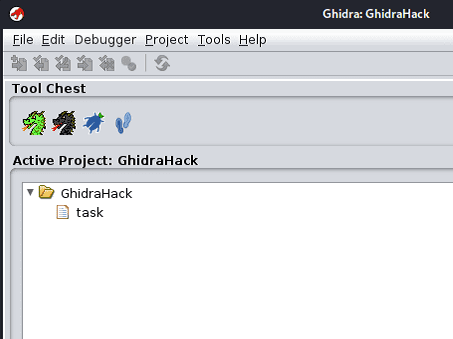
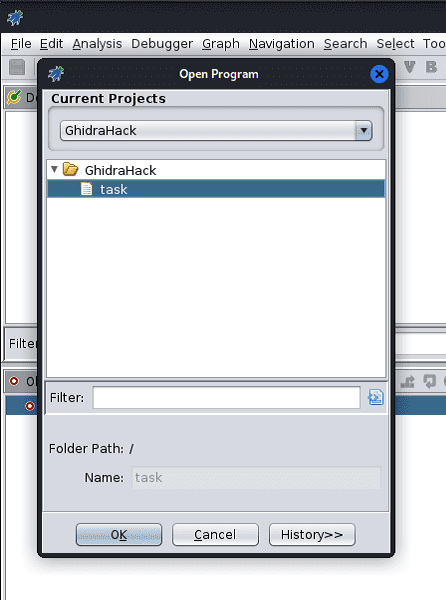
Next, load the analysis target file via [File] > [Open] in the debugger window.
Once loading completes, the disassembly result is shown in the central Listing window.
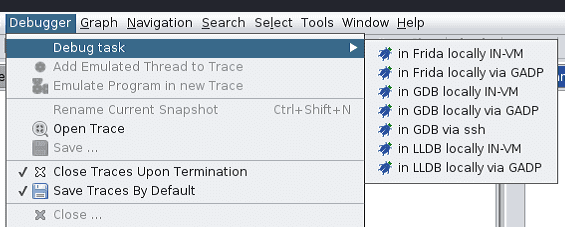
Then, select [in GDB locally IN-VM] from the [Debugger] toolbar.
For GDB launch command, leave it at the default /usr/bin/gdb unless there is a specific reason to change it.
After clicking [Connect], review the CommandLine settings.
If the target binary requires command-line arguments, configure them here.
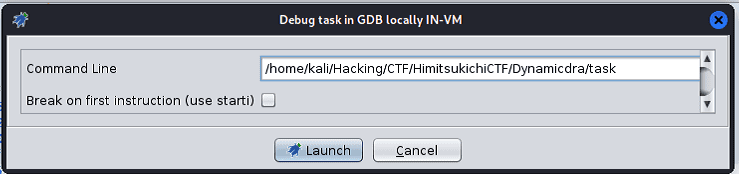
Clicking [Launch] starts the debugger and outputs various information.
By default, the familiar Listing window is displayed in the center, with the Interpreter shown on the right.
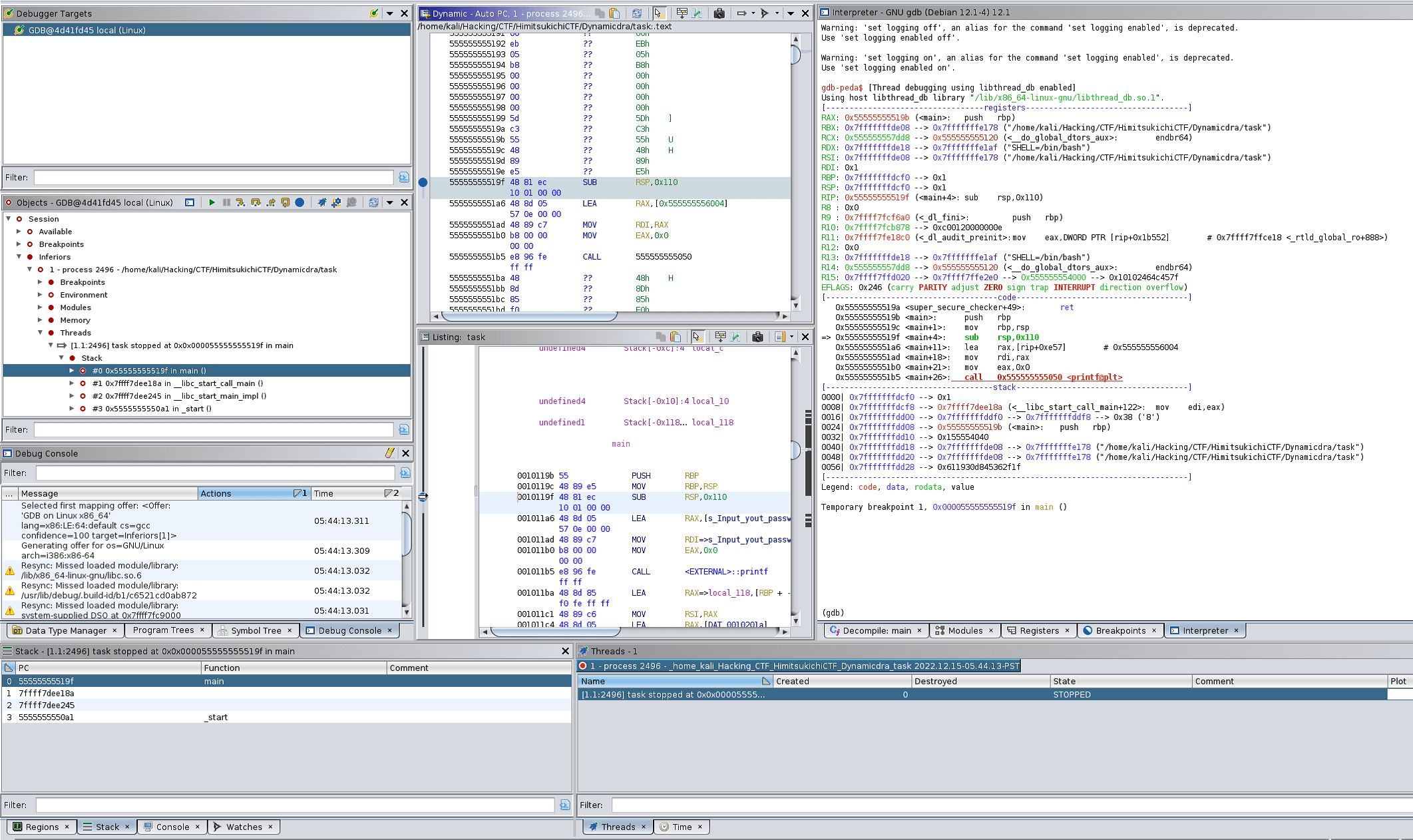
The Interpreter shows the same output as when GDB is launched from the command line, and GDB commands can be entered directly. (In this environment, gdb-peda is set up, so peda’s output is displayed.)
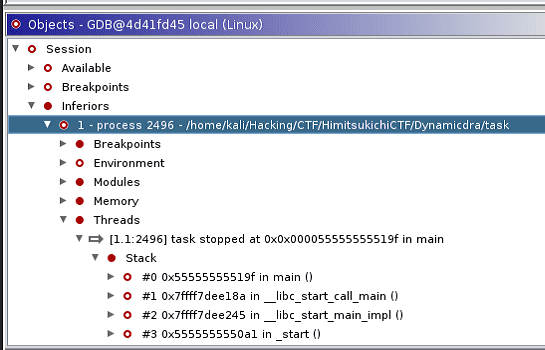
The left pane shows information about the process being debugged by GDB.
From here you can also view configured breakpoints and loaded modules.
Setting Breakpoints and Running the Program
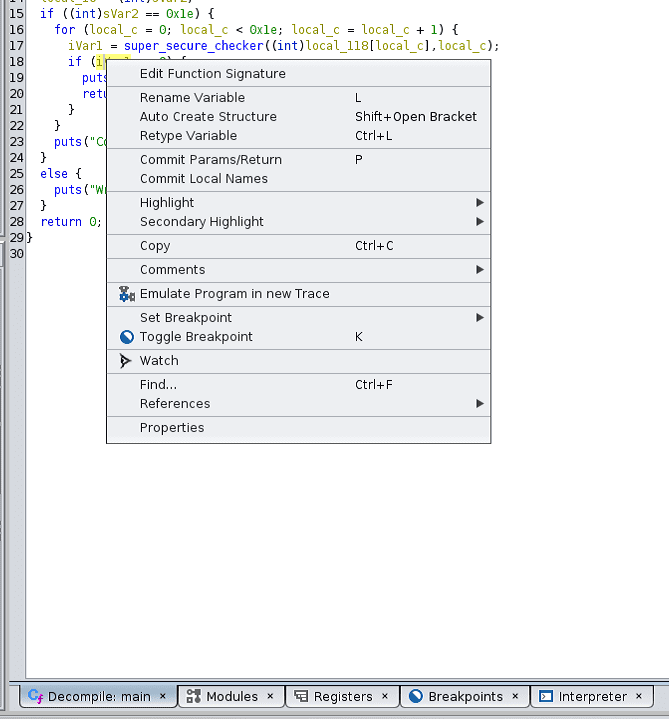
Now that the debugger is up, let’s right-click the line immediately after the super_secure_checker function call in the Decompiler window and set a breakpoint via [Toggle Breakpoint].
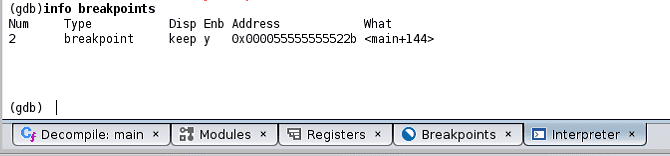
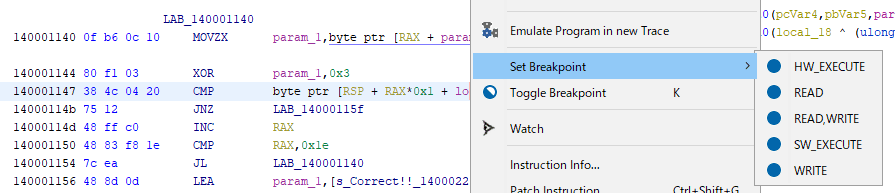
Setting the breakpoint with SW_EXECUTE causes the color of the breakpointed line to change in the Listing window as well.
The breakpoint can also be confirmed in the Interpreter via GDB.
The program can be restarted from the [Quick Launch] button at the top of the Objects window.
The buttons there also allow operations such as [Step Into].
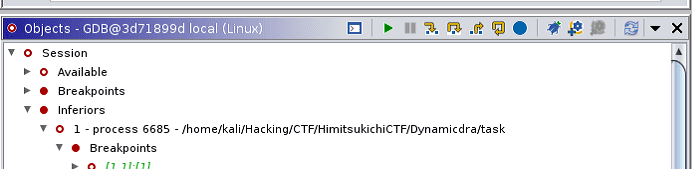
Enabling Standard Input in the Ghidra Debugger
With the breakpoint set, let’s run the program.
When running the program normally, execution pauses waiting for standard input at the scanf("%s", password); line.
However, due to an unresolved limitation in the Ghidra debugger, it is not possible to feed standard input to the program from the Interpreter.
Reference: Unable to put input value into interpreter. · Issue #3174 · NationalSecurityAgency/ghidra
To work around this, we check the tty of the running terminal and connect to it from the Ghidra debugger’s Interpreter.
First, run the tty command in your terminal to identify the device’s pts.
Next, run sleep 10000000 in the terminal as a placeholder, then enter set inferior-tty [TTY] in the Ghidra debugger’s Interpreter, and restart the program.
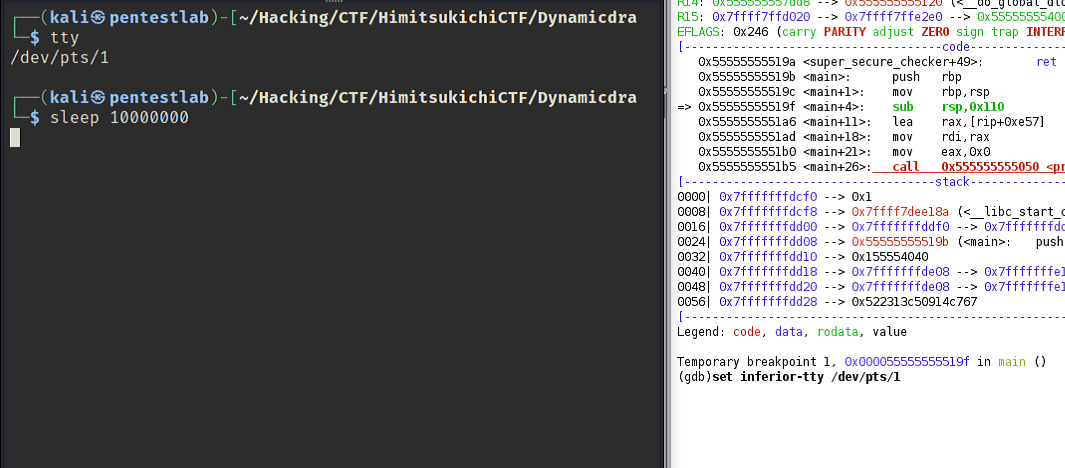
Once execution reaches the scanf("%s", password); line, the input prompt will appear in the terminal, allowing you to provide standard input and continue the debugger session.
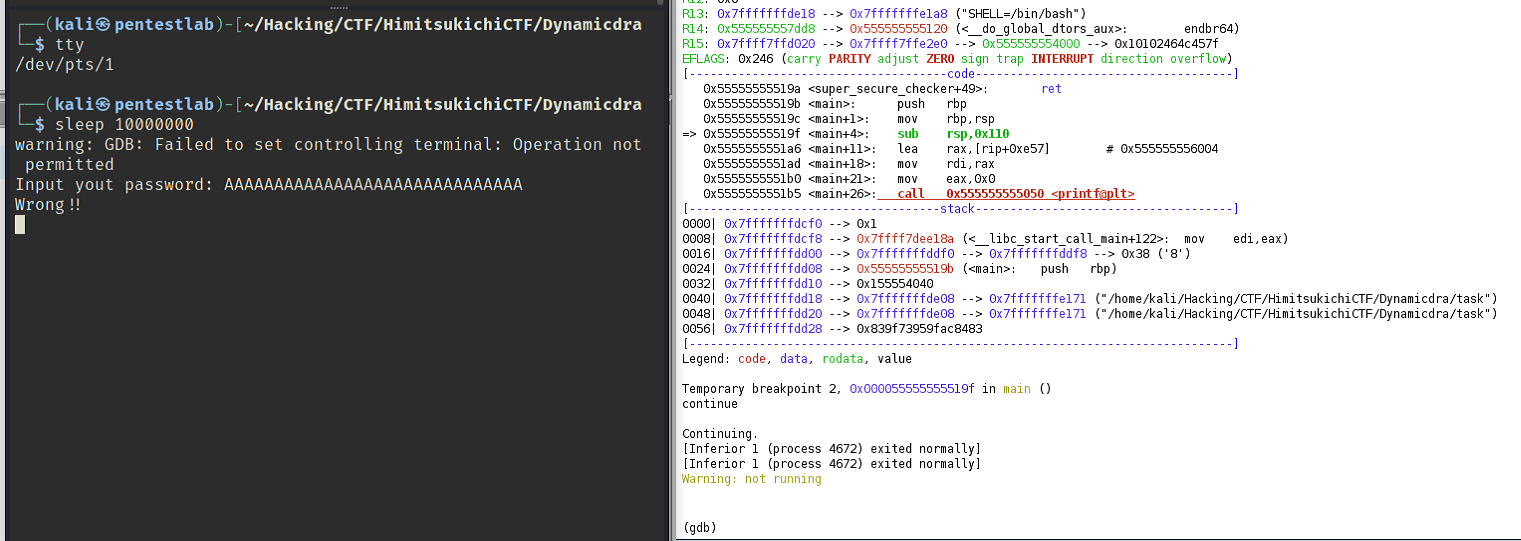
It is a somewhat cumbersome procedure, but other ways to provide standard input to the Ghidra debugger include using GDB scripts or Python.
Additionally, you can provide standard input from the Ghidra Interpreter window by running a GDB command such as run < input.txt.
Inspecting Register and Memory Information
Having successfully provided standard input to the program, execution stopped at the breakpoint we set earlier.
printf("Input yout password: ");
scanf("%s", password);

int len = strlen(password);
if (len != 30) {
printf("Wrong!!\n");
    return 0;
}
Now let’s check the register values in the Register window, which appears in the right pane by default.
Being able to reorder each register freely is quite convenient.
Using the Ghidra debugger, you can view, search, and modify register values.

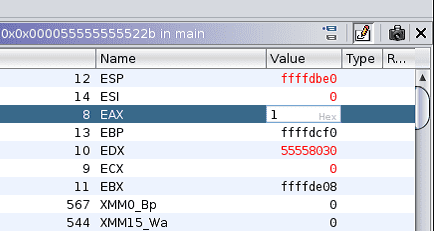
At this point, because the first character of the password was wrong, the value of EAX — which holds the return value of super_secure_checker — is 0.
Let’s change this value to 1.
The Register window is in Read Only mode by default.
To switch to Edit mode, click the pen-like button in the upper right.
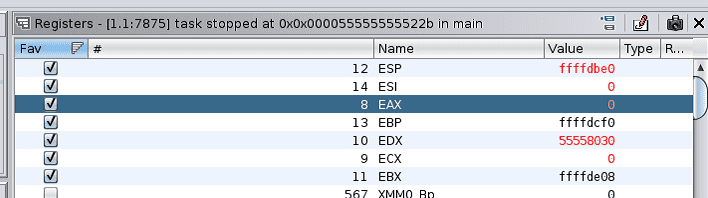
This allows you to double-click any register value and write an arbitrary value to it.
Let’s also look at memory information.
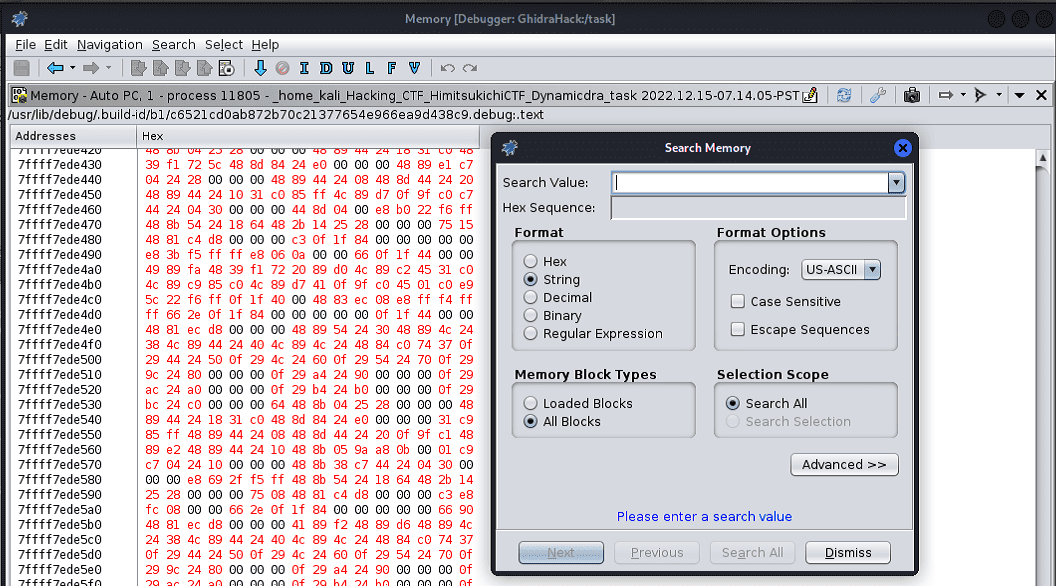
To open the Memory window, go to [Windows] > [Debugger] > [New Memory View] in the toolbar.

From here you can view and edit memory contents.
We won’t be using this in detail today, but memory search is also available here.
Additionally, a camera-like button in the upper right appears to allow capturing a snapshot of memory at a given point during debugging.
This seems like a quite useful feature.
Obtaining the Flag
Now, let’s actually retrieve the flag.
My original plan was to use GhidraScript or a Python interpreter launched via Ghidrathon to brute-force the flag, but unfortunately I abandoned that approach.
The API for controlling the Ghidra debugger from Python does exist as FlatDebuggerAPI, importable with from ghidra.debug.flatapi import FlatDebuggerAPI, but unfortunately FlatDebuggerAPI is not yet documented on ghidra_docs, and there are no issues or sample code to reference, making it difficult to implement.
Methods named things like writeMemory and breakpointSetSoftwareExecute do appear to be implemented, so it might be usable by reading the source code directly — but searching GitHub for code using ghidra.debug.flatapi returned almost nothing, suggesting it isn’t being used much yet.
I was able to use the only available sample code to restart the program and read memory and register values, so with effort it should be implementable.
So instead, we’ll retrieve the flag by combining Ghidra debugger GUI operations.
First, delete the earlier breakpoint we set to capture the return value of super_secure_checker, and set a new breakpoint at the address inside super_secure_checker where the decrypted flag character is loaded into a register and compared against the input.

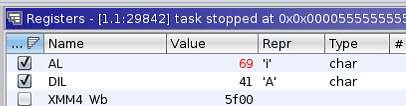
Running the program, we can see that the character ‘A’ (which we provided as arbitrary input) is stored in the DIL register, and is being compared against ‘H’, the first character of the decrypted flag.

Note that in the Ghidra debugger’s Register window, the Type column can be set to any data type, and when a Value matches the specified type, the Repr column displays the type’s representation.
To let execution continue, we use the Register window’s edit mode to overwrite the AL register value with 0x41.
This allows the password verification to pass, so continuing execution reveals the second flag character.
Repeating this operation 30 times yielded the flag HimitsukichiCTF{you_w0n_dra!!}.
Using the Ghidra Debugger on Windows
Having come this far, let’s also try the Ghidra debugger on Windows.
The file used is a PE file built with Visual Studio 2022 from the same task.c as before.
The sample program is available for download at Sample Program.
Starting the Debugger
The basic operation is the same as on Linux, but on Windows the debugger depends on WinDbg rather than GDB, so if WinDbg is not set up in your environment, you will need to install it beforehand.
Also, as with WinDbg, High Integrity is required for memory access even when analyzing user-mode programs.
Therefore, launch Ghidra with administrator privileges.
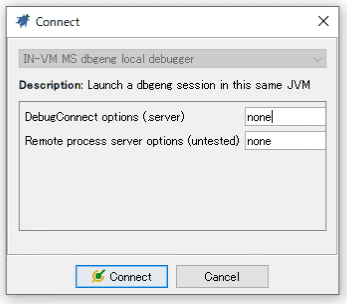
Once Ghidra is open, select [in dbgeng locally IN-VM] from the [Debugger] toolbar to start the debugger.
dbgeng is the interface used by Windows debuggers such as WinDbg.
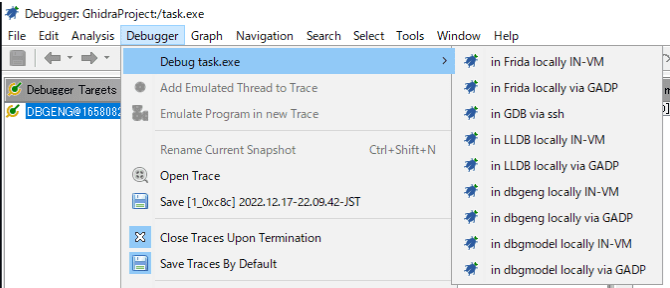
Since we are doing local debugging this time, proceed with the default [Connect] settings.
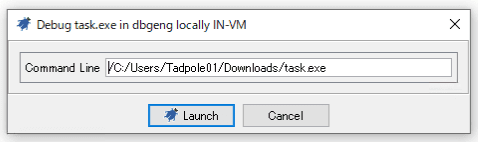
Command-line arguments can be specified here if needed.
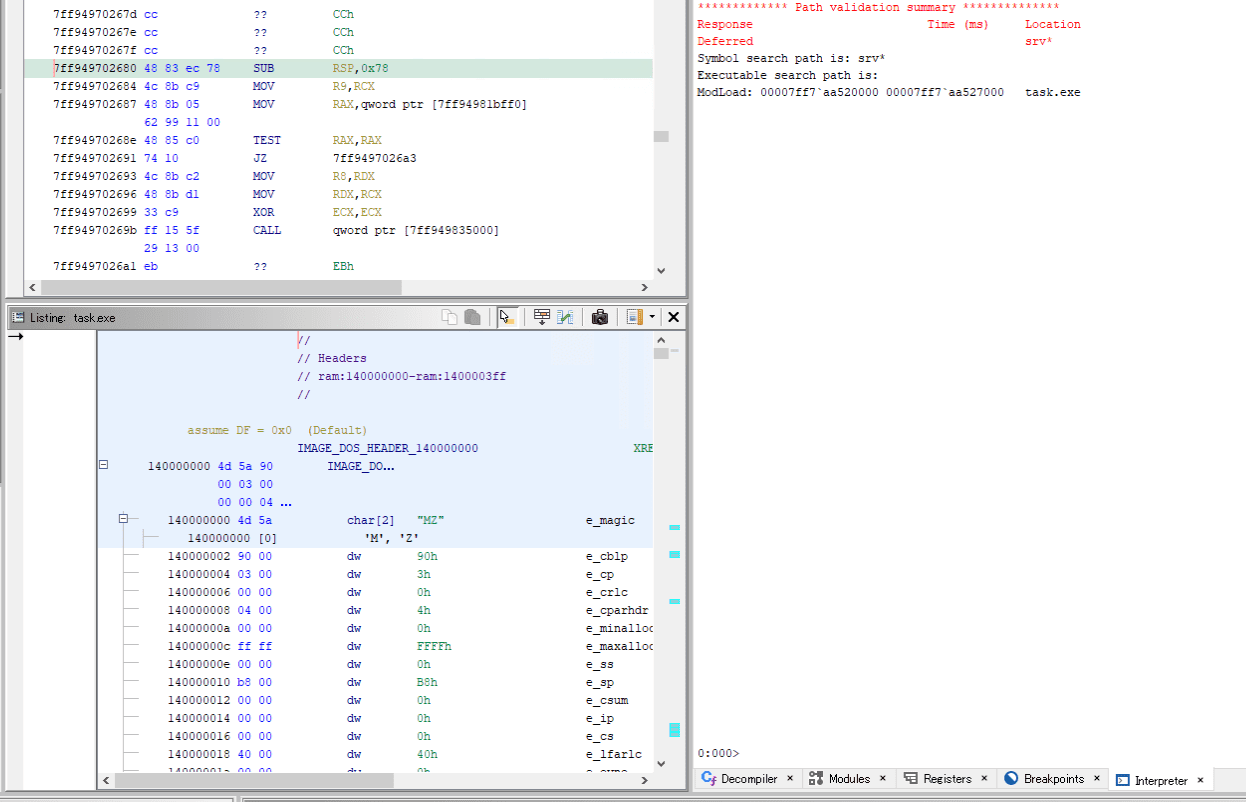
Once the debugger starts, a WinDbg-like console appears in the Interpreter window, just as with GDB.
Setting Breakpoints
With the debugger running, use the decompiler to locate the main function’s address and set a breakpoint.
Static analysis of the PE file is out of scope today, but following the entry function should lead you to main quickly.
Possibly due to compiler optimizations, the decompiled output showed the super_secure_checker function’s logic inlined into main.
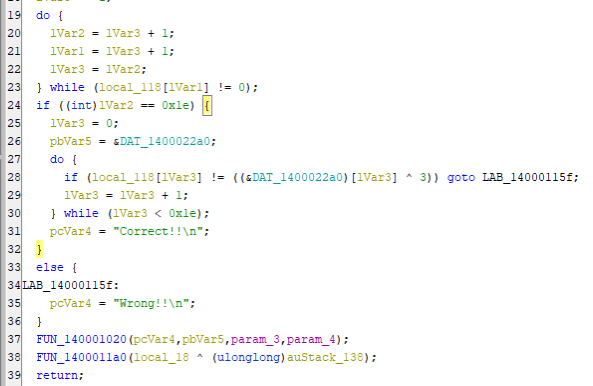
So, as on Linux, we set an SW_EXECUTE breakpoint at the line that compares the input value against the decrypted password.
Starting the program with the breakpoint set launches a console application.
Standard input can be provided directly here, so we didn’t run into the same issue as on Linux.

Viewing Register Information
To inspect the decrypted flag string, we want to check register values — but this time let’s use the Watches window instead of the Register window.
Open the Watches window (located in the lower right by default), and add entries using the [+] button.
This time, we set RCX and RSP in the [Expression] column to watch the values of each register.
Running the program, we can see that when execution hits the breakpoint, RCX holds the first decrypted flag character.

The user-input string is stored on the local stack.
However, it appears that the current Ghidra debugger cannot reference values in memory.
The help documentation suggests a notation like *:4 (RSP+8) for reading memory, but in my environment it raised an exception and the value could not be retrieved.
Looking at the following issue, it seems that memory referencing from Ghidra currently doesn’t work correctly in some cases, and there is no workaround other than using debugger commands from the Interpreter.
Reference: [Debugger]: Stack Frame Memory Viewer / Editor · Issue #2866 · NationalSecurityAgency/ghidra
For this reason, the screenshot above also shows the WinDbg da command being used from the Interpreter to inspect the input string on the local stack.
Obtaining the Flag
Finally, let’s retrieve the flag.
On Linux, we retrieved the flag one character at a time by modifying register values from the Register window, but the Watches window also allows editing register values in edit mode.
This time, by changing the value of RCX to 0x41 (the same as the input), we passed the password check and were able to retrieve the second and subsequent flag characters.

Summary
This time we used Ghidra’s debugger feature to solve a simple reversing challenge.
My initial impressions after a quick hands-on session were roughly 40% “this looks promising” and 60% “this is hard to use.”
The main pain points were the critically sparse knowledge base and the very unstable behavior.
On the knowledge side, Ghidra’s own help documentation is minimal, and Googling in English barely turns up any blog posts at all.
On the other hand, the GitHub issues have quite a variety of questions and answers, and those issues served as almost the only useful source of information.
As for stability, it may partly be my own environment, but the debugger crashed or hung with exceptions at seemingly random moments quite frequently.
There are clearly still many unimplemented features in the Ghidra debugger, but since GDB and WinDbg commands can both be run from the Interpreter window, the limitation on actual debugging capability doesn’t feel that severe. That said, having the debugger become unstable so often without doing anything particularly complex was quite frustrating.
Nevertheless, being a free tool that can handle both PE and ELF files in the same UI is genuinely convenient, and being able to set breakpoints directly from decompiled output is also useful. (I’ve barely used IDA, so…)
Also, although not covered in this article, the Ghidra debugger’s Time feature — which captures execution-trace snapshots and allows you to step back and analyze the state at those points — looked very promising.
Being limited to snapshot-based tracing is a drawback, but having a feature similar to WinDbg Preview’s Time Travel Debugging (TTD) available for ELF analysis as well is something to be genuinely excited about.