This page has been machine-translated from the original page.
I’m planning to start playing around with Azure, and first of all, I’d like to deploy T-Pot, a honeypot I’ve been interested in for a while.
Ever since I read the book Analyzing the Footprints of Cyber Attacks: Honeypot Observation Records, I’ve wanted to try this, but I couldn’t commit due to risks and cost concerns.
This time, it seems I can do this nicely using Azure, so I’ll be setting up T-Pot on an Azure environment.
I’m figuring things out as I go, but I’ll proceed with safety first.
As I’m a beginner, the content of this article is not necessarily best practice, so I’ll add improvements as I find them.
About this Article
The content of this article is not intended to encourage acts that violate social order.
Please be aware that attempting attacks on environments other than your own or those you have permission to access may violate the “Act on Prohibition of Unauthorized Computer Access (Unauthorized Access Prohibition Act)“.
All statements are attributed to me personally, not to any organization I belong to.
Table of Contents
- About this Article
- Things Decided & Confirmed in Advance
-
- Do Not Acquire or Store Malware or Unauthorized Programs
- Not 24/7 Operation, Automatic Shutdown Except When Manually Started
- Ensure Adequate Host Security Measures
- Establish Monitoring and Notification Systems for Host Operation Status
- Use a Bastion Machine Built on Azure to Connect to the Honeypot
- Additional Note on Bastion Server
- Supplement: Expanding Honeypot Machine Disk
- Creating Snapshots
- Summary
- Reference Books
Things Decided & Confirmed in Advance
Before creating a honeypot environment on Azure, I made the following two decisions and confirmations:
- Avoiding police trouble
- Comply with Azure terms
I’ll pay particular attention to these two points.
Avoiding Police Trouble
I’m prioritizing this above all else lol
If I were to be arrested and detained by the police, or summarily prosecuted like in the Coinhive case or Wizard Bible case, my PC would be seized and I wouldn’t be able to work, which would be game over.
Even if I’m completely innocent, there can be losing events where the police misunderstand and conduct a home search, so it’s an impossible game, but I want to take as many countermeasures as possible.
Reference: Life Continuation Plan in Case of Arrest - yashio
In other cases, there are quite a few scary stories like “the police conducted a home search as a result of a site operated on a rental server being cracked” or “the administrator of a rental server where a fraudulent site was operated was questioned”.
Honestly, I think there’s considerable risk for individuals living in Japan to engage in personal security-related activities.
(That’s also why I’ve been avoiding setting up a honeypot for so long.)
However, since I’ve decided to do it, I’ll work on operations that can avoid risks as much as possible.
Specifically, as of 2022/02/09 when I decided to build this environment, I’m assuming the following points:
- Do not acquire or store malware or unauthorized programs
- Not 24/7 operation, automatic shutdown except when manually started
- Ensure adequate host security measures
- Establish monitoring and notification systems for host operation status
- Use a bastion machine built on Azure to connect to the honeypot
Do Not Acquire or Store Malware or Unauthorized Programs
First of all, T-Pot is roughly speaking a tool that can run various honeypots.
Among these, there are honeypots aimed at collecting malware.
Reference: What is a Honeypot? Actually Making and Touching One - Construction Edition | SIOS Tech. Lab
For now, I plan to operate without using honeypots aimed at collecting malware.
The reason is that I’m afraid of violating the crime related to unauthorized command electromagnetic records.
While this law prohibits possession of malware “for malicious purposes”, unfortunately the criteria for this are quite ambiguous at present.
What is the crime of acquiring and storing viruses
Without legitimate reason, for the purpose of having them executed automatically regardless of the user’s intention, acquiring or storing computer viruses or computer virus source code.
Reference: Crimes Related to Unauthorized Command Electromagnetic Records, Metropolitan Police Department
The following site is very helpful as it summarizes the results of @it_giron’s disclosure requests to various prefectural police departments regarding the constituent requirements of “crimes related to unauthorized command electromagnetic records”.
Not 24/7 Operation, Automatic Shutdown Except When Manually Started
For the time being, I plan to operate the honeypot machine by stopping it at night using Azure’s auto-shutdown function.
Once the operation is established to some extent, I’ll extend the operating hours.
Ensure Adequate Host Security Measures
This is probably where the biggest risk lies.
If the honeypot is compromised for some reason and becomes a BOT, it may attack other users or become a relay server for unauthorized files.
To prevent this, I want to create security measures and monitoring mechanisms.
For now, I’ll install the agent of Trend Micro Cloud One Workload Security on the machine where the honeypot is built.
This security software can manage up to 5 machines for free, and can perform anti-malware, host-based IDS, critical file change monitoring, and application whitelist operations.
(Also, I used it at my previous job and am personally familiar with its operation)
Added note
Unfortunately, as of 2022/01/31, the license system has changed and the free use of up to 5 machines is no longer available.
Sad.
I’ll switch to an OSS EDR tool or similar soon.
Establish Monitoring and Notification Systems for Host Operation Status
I’ll properly monitor and operate the host’s operation status.
I’ll forward various logs and events to Slack or Discord.
For costs, I’m implementing SMS and email notifications.
I summarized the cost alert settings in the following article.
Reference: Checking Azure Active Directory ID Security Score
Use a Bastion Machine Built on Azure to Connect to the Honeypot
Since I’m not planning to collect malware this time, I don’t think there’s much risk, but to avoid accidentally bringing bad things from the honeypot to my environment, connections to the honeypot will be made via a bastion.
Additional Note on Bastion Server
Although I created a virtual machine for bastion access and allowed access via SSH port forwarding, the communication became very unstable.
This is probably because the bastion machine has specs of 1vCPU / 1 RAM, but since increasing the bastion server’s specs is costly, I ultimately decided to access the T-Pot machine from a virtual machine built on my private machine.
The bastion server on Azure will be used as a Syslog server running the Sentinel Agent, and for running honeypot monitoring tools and notification programs.
Access to the T-Pot console was restricted by my home’s global IP address.
Comply with Azure Terms
This time I’m setting up a honeypot on Azure, so I checked the terms.
Looking at Azure’s Q&A site, it seems that operating honeypots is not particularly prohibited.
Reference: Deployed tpot on azure VM - Microsoft Q&A
Reference: Investigating Whether Honeypot Operation Violates Terms #2 - Black Leopard’s Blog
However, the following acts are prohibited, so care must be taken not to fall under these.
In all cases, it’s okay if the scope of impact is only your own environment, and attacks on other users or Azure itself are NG.
Prohibited Actions
- Scanning or testing assets owned by other Microsoft cloud customers.
- Accessing data that is not entirely your own.
- Performing any kind of denial of service testing.
- Performing network-intensive fuzzing against assets other than your Azure virtual machines.
- Conducting automated testing of services that generate large amounts of traffic.
- Intentionally accessing other customers’ data.
- Performing reproduction steps beyond “proof of concept” for infrastructure execution issues. (For example, proving that you have system administrator access with SQLi is acceptable, but executing xp_cmdshell is not)
- Using our services in a manner that violates the Acceptable Use Policy stipulated in the Microsoft Online Service Terms.
- Attempting phishing or other social engineering attacks against our employees.
Permitted Actions
Conversely, the following acts seem to be permitted:
- Creating a small number of test accounts and/or trial tenants to demonstrate and prove data access between accounts or tenants. ※ However, using one of these accounts to access other customers’ or accounts’ data is prohibited.
- Running fuzzing, port scanning, or vulnerability assessment tools against your own Azure virtual machines.
- Load testing your applications by generating traffic expected to occur in normal business operations. This includes testing surge capacity.
- Conducting security monitoring and detection testing. (For example, generating abnormal security logs, dropping EICAR, etc.)
-
Attempting to escape from shared service containers such as Azure Websites or Azure Functions.
However, if successful, you must immediately report to Microsoft and stop further investigation. Intentionally accessing other customers’ data violates the terms.
- Applying conditional access or mobile application management (MAM) policies within Microsoft Intune and testing the enforcement of restrictions imposed by these policies.
Building Virtual Machines on Azure
The system requirements for T-Pot are as follows:
- RAM 8GB
- SSD 128GB
- Network via DHCP
- Internet access environment (without proxy)
To meet the above, I’ll create a Debian 10 (Buster) machine.
To create the virtual machine, I’ll create the following resources first:
- Resource group for honeypot environment
- Security group to apply to honeypot machine
- Virtual network for honeypot machine
Create Resource Group for Honeypot Environment
By setting up a resource group, you can manage multiple resources together.
Reference: Managing Resource Groups - Azure portal - Azure Resource Manager | Microsoft Docs
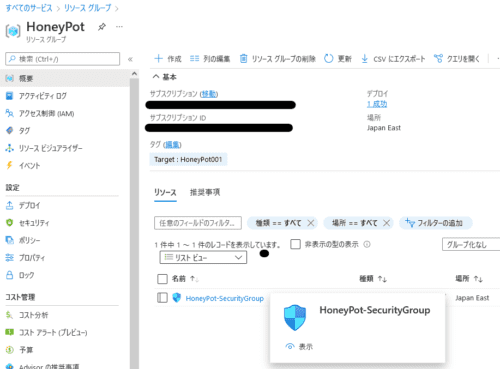
This time I created a resource group as follows and also set tags.
Create Security Group to Apply to Honeypot Machine
Network security groups are filters for network traffic that Azure resources send and receive.
Filters can be applied by associating them with virtual machine network interfaces or subnets.
Reference: Azure Network Security Groups Overview | Microsoft Docs
Reference: Network Security Groups - How It Works | Microsoft Docs
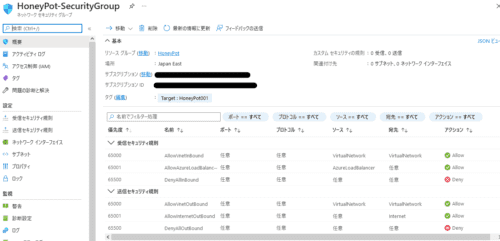
Here, I created the following two types of security groups:
- Security group to apply to honeypot machine
- Security group for bastion server connecting to honeypot machine
The bastion server’s security group allows inbound connections from my private machine to SSH and HTTPS ports, and all outbound communications.
For the SSH port, I’ll use a random port instead of port 22 just to be safe.
By the way, security groups are designed with “default rules” that allow all inbound communication from VirtualNetwork, so here I explicitly add a setting to deny all inbound communication from VirtualNetwork.
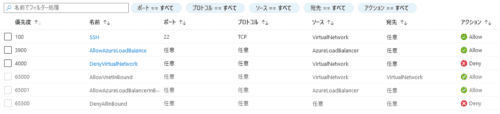
The idea is to set communications allowed on a VirtualNetwork basis, such as SSH, at higher priorities than this.
Create Virtual Network for Honeypot Machine
Azure virtual networks are elements that constitute private networks within Azure.
By using Azure virtual networks, you can build private networks within Azure that are logically separated from other networks.
Reference: Azure Virtual Network | Microsoft Docs
Reference: What is Azure’s Virtual Network Azure VNet? Explaining Communication Methods and Fees
This time I created a tightly restricted subnet space for now.
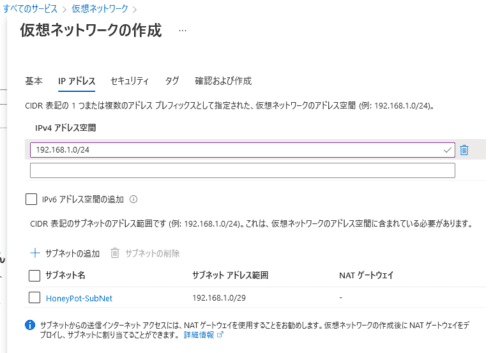
At this stage, settings such as firewall are disabled for now.
Create Virtual Machines
Next, I’ll create Azure virtual machines with the following configuration.
Honeypot Machine
- OS: Ubuntu20.04
- Infrastructure redundancy: None
- Security type: Standard
- Deletion type: Capacity only
- Deletion policy: Stop/deallocate
- Machine size: StandardD2sv3 (2vCPU 8GB RAM)
Also, for networking, I’ll use the security group and virtual network created in advance.
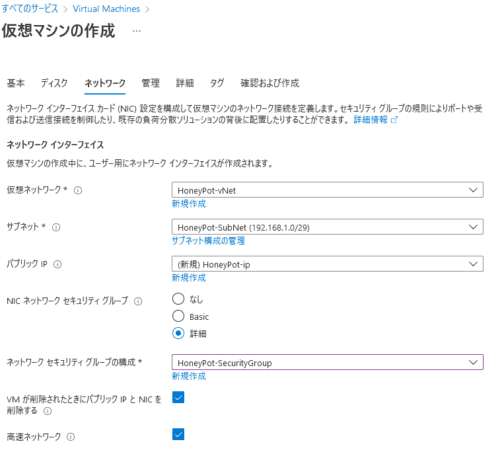
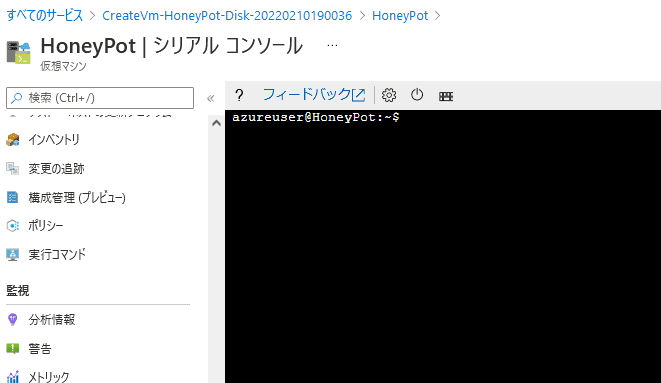
Also, in case SSH connection becomes unavailable for some reason, it’s good to enable the serial console for operation.
Enable boot diagnostics to enable the serial console.
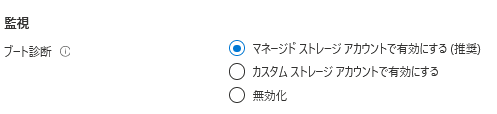
If the managed storage account is not compatible, create a custom storage account.
Bastion Server
This time I want to prevent direct connection from my environment to the honeypot machine.
Therefore, I’ll also create a bastion server on the same network.
This time, I created the bastion server with Ubuntu.
Since the bastion server is intended for continuous operation, I selected the size Standard_B1s (1vCPU 1GB RAM) (mainly for cost reasons). (It might be a bit tight for GUI use, though)
Standard_B1s costs about 1000 yen per month.
Since it’s for bastion use, I won’t create a disk and will assign the bastion security group created earlier.
StandardD2sv3 used for the honeypot costs about 10,000 yen per month, so the difference is quite large.
I want to access T-Pot’s web console from the bastion, so I’ll install a GUI and RDP connect from the host machine.
For now, install the necessary packages.
sudo apt install ubuntu-desktop xrdp -yFor RDP setup, I referred to the link below and others.
Reference: Episode 621: Using xrdp on Ubuntu 20.04 LTS: Ubuntu Weekly Recipe | gihyo.jp … Gijutsu-Hyohron
Don’t forget to allow RDP from the host machine in the security group settings.
SSH and RDP to the bastion will be attacked if opened to the internet, so it’s better to fix them with your own IP address.
About Bastion Server Size (Added)
I was thinking of using GUI with Standard_B1s, but it’s terribly slow and unusable, so I gave up.
The bastion server will be CLI only, and I’ll connect to the T-Pot console from the host machine using the bastion server as a proxy via SSH dynamic forwarding.
The setup method will be described later.
Environment Setup
Once SSH connection to the machine is available, upgrade the packages on both the honeypot and bastion server.
sudo apt update && sudo apt upgrade -yNext, install the agent for Trend Micro Cloud One Workload Security and set up policies appropriately.
(It’s really painful that the 5-machine permanent free license is gone..)
Roughly speaking, I’m setting policies like this.
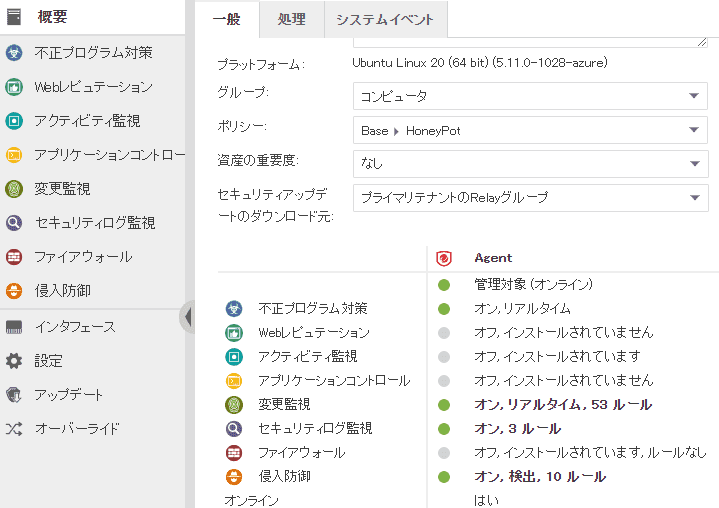
I’ve enabled real-time anti-malware and host-based IDS.
This host-based IDS can (probably) filter communication between Docker containers within the terminal, so it should prevent various things.
I’ve also enabled a feature called “Change Monitoring, Security Log Monitoring” to prevent the host machine from being compromised.
This will generate events when configuration files or important files in the system are tampered with.
DNS Name Configuration
To access the virtual machine, configure the DNS name in the public IP settings assigned to the machine.
By making this setting, it’s possible to always connect with the same FQDN even if the public IP is dynamically assigned.
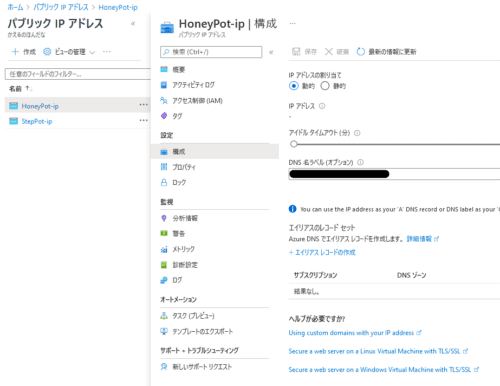
You could also connect with a fixed IP, but it wastes costs and IP access lacks flexibility, so I think it’s good to set a DNS name.
Building Azure Sentinel
Azure Sentinel is a SIEM service provided by Azure.
Reference: Azure Sentinel - Cloud-Native SIEM Solution | Microsoft Azure
- Install Linux agent that collects Common Event Format (CEF) Syslog messages on bastion server
- On the bastion server, allow inbound communication on port 514 from the honeypot machine
- Configure Cloud One Syslog events to forward from honeypot machine to bastion server
Install Linux Agent on Bastion Server
For linking Cloud One and Azure Sentinel, detailed procedures are written in the “Data Connector” on the Azure Sentinel side as follows.
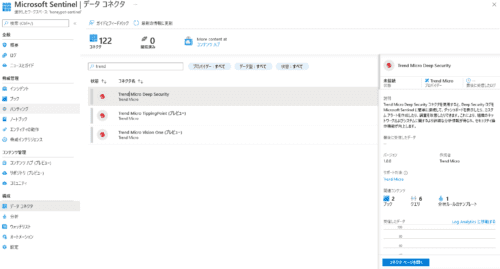
Referring to this, install the Syslog Agent on the bastion server.
Python is required for installation, so first install the package.
sudo apt install python -yNext, run a command like the following displayed in the “Data Connector” to install the Agent.
sudo wget -O cef_installer.py https://raw.githubusercontent.com/Azure/Azure-Sentinel/master/DataConnectors/CEF/cef_installer.py&&sudo python cef_installer.py <TENANT> <TOKEN>Enable Port 514 Listening on Bastion Server
I changed the security group settings to accept traffic to port 514 from the honeypot machine.
Configure Cloud One Syslog Events to Forward from Honeypot Machine to Bastion Server
First, on the Cloud One side, configure to forward detection events to port 514 of the bastion server.
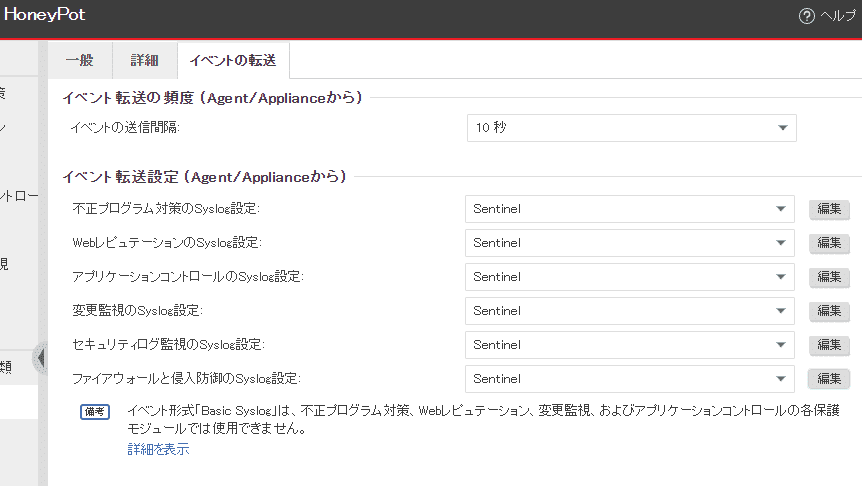
When I tried detecting Eicar on the honeypot machine, I could confirm the detection event on the Azure Sentinel portal.

This is all for now, but in the future it would be good to do some analysis on Azure Sentinel.
Supplement: Expanding Honeypot Machine Disk
If you need to add a disk to the virtual machine, after setting up the additional disk from the Azure console, you need to configure it the same way as mounting normally in Linux.
First, check the disk list with `lsblk`.
``` bash $ lsblk NAME MAJ:MIN RM SIZE RO TYPE MOUNTPOINT loop0 7:0 0 61.9M 1 loop /snap/core20/1328 loop1 7:1 0 43.4M 1 loop /snap/snapd/14549 loop2 7:2 0 67.2M 1 loop /snap/lxd/21835 sda 8:0 0 128G 0 disk sdb 8:16 0 30G 0 disk sdb1 8:17 0 29.9G 0 part / sdb14 8:30 0 4M 0 part sdb15 8:31 0 106M 0 part /boot/efi sdc 8:32 0 16G 0 disk sdc1 8:33 0 16G 0 part /mnt ```
The disk I added this time is recognized as `sda`, so I’ll mount it.
Since I added it as an empty new disk this time, I first need to create a partition.
``` bash sudo parted /dev/sda —script mklabel gpt mkpart xfspart xfs 0% 100% ```
If you run `lsblk` again, `sda1` has been created, so format the XFS file system with the following command.
``` bash sudo mkfs.xfs /dev/sda1 sudo partprobe /dev/sda1 ```
In the case of Debian instead of Ubuntu, you may need to install `xfsprogs` beforehand.
``` bash sudo apt install xfsprogs ```
Reference: Fix “mkfs.xfs: No such file or directory” on CentOS/Ubuntu/Debian - TechViewLeo
Finally, I created a `tpot` directory to install the honeypot and mounted `/dev/sda1`.
``` bash mkdir ~/tpot sudo mount /dev/sda1 ~/tpot ```
If you run `lsblk` again, you can see that the mount is properly reflected.
``` bash $ lsblk NAME MAJ:MIN RM SIZE RO TYPE MOUNTPOINT loop0 7:0 0 61.9M 1 loop /snap/core20/1328 loop1 7:1 0 43.4M 1 loop /snap/snapd/14549 loop2 7:2 0 67.2M 1 loop /snap/lxd/21835 sda 8:0 0 128G 0 disk sda1 8:1 0 128G 0 part /home/azureuser/tpot sdb 8:16 0 30G 0 disk sdb1 8:17 0 29.9G 0 part / sdb14 8:30 0 4M 0 part sdb15 8:31 0 106M 0 part /boot/efi sdc 8:32 0 16G 0 disk sdc1 8:33 0 16G 0 part /mnt ```
Reference: Expanding Virtual Hard Disks for Linux VMs - Azure Virtual Machines | Microsoft Docs
Creating Snapshots
Since the preparation is mostly complete, I’ll finally install T-Pot, but before that, I’ll take a snapshot of the disk just in case.
By taking a snapshot of the Azure disk, you can restore by rebuilding a new machine if there’s a problem.
Honestly, even snapshots cost monthly fees which I don’t really want to use personally, but I’ll do it for now.
The link below is easy to understand for detailed instructions.
Just turn off the virtual machine and create a snapshot from the disk.
Once the snapshot is created, finally install T-Pot.
Installing T-Pot
Before installing T-Pot, disable Cloud One’s anti-malware function.
Then execute the following commands in order.
``` bash cd ~/tpot git clone https://github.com/telekom-security/tpotce cd tpotce/iso/installer/ ```
Here, a file called `tpot.conf.dist` has the following settings written:
``` bash
tpot configuration file
myCONFTPOTFLAVOR=[STANDARD, SENSOR, INDUSTRIAL, COLLECTOR, NEXTGEN, MEDICAL]
myCONFTPOTFLAVOR=‘STANDARD’ myCONFWEBUSER=‘webuser’ myCONFWEBPW=‘w3b$ecret’ ```
By default, the T-Pot type is `STANDARD`.
Next, after changing the username and password arbitrarily, execute the following command.
``` bash cp tpot.conf.dist tpot.conf sudo ./install.sh —type=auto —conf=tpot.conf ```
If this completes without problems, you’ll get output like the following.
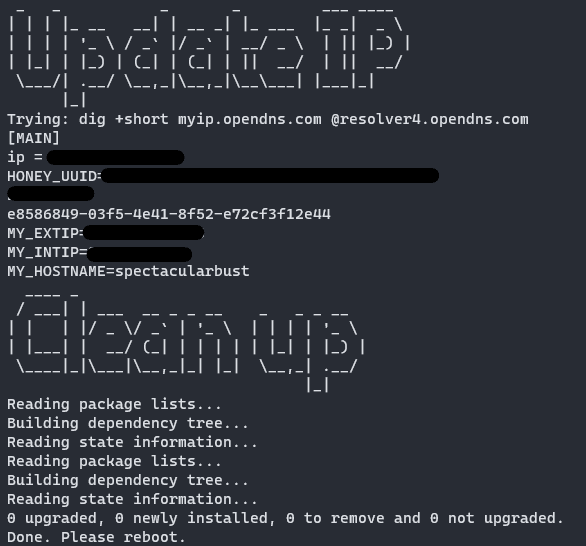
This completes the T-Pot installation.
When T-Pot installation is complete, SSH on port 22 is disabled.
With default settings, the SSH connection port becomes 64295, so confirm that you can SSH connect.
``` bash
ssh -i .ssh/id_rsa -p 64295
By the way, the ports for each T-Pot service are set to the following by default:
- SSH: 64295
- WEB console: 64297
- ADMIN site: 64294
Configure these ports in the security group so they are only accessible from the bastion server and not from the internet side.
Adding Docker User
When T-Pot installation is complete, Docker is installed on the machine.
However, immediately after installation, regular users cannot access the Docker service.
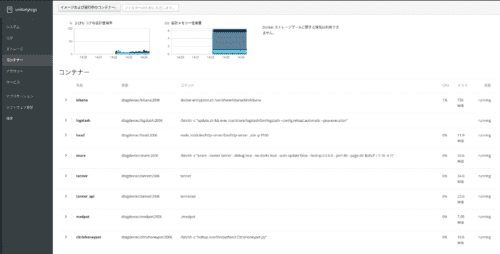
To enable monitoring of Docker services from the Pilot console logged in as a regular user in the future, add the user to the Docker group with the following command.
``` bash sudo usermod -aG docker $USER ```
By enabling regular users to use Docker services, you can monitor Docker containers from the Pilot console as follows.
Connecting to T-Pot via Bastion Using SSH Dynamic Forwarding
Next, connect to T-Pot’s web console via the bastion server.
First, on the host machine side, make an SSH connection to the bastion server as follows.
``` bash
ssh -fN -D
Now you can connect to the bastion server via `
Next, set the browser’s `SOCKS v5` proxy settings to localhost and the forwarding port you set.
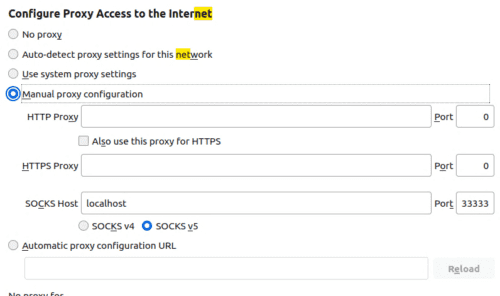
Now you can connect to the T-Pot machine’s local IP address via the bastion server.
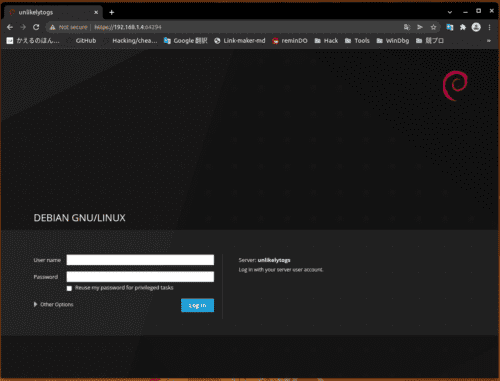
You can actually open the console by connecting to `https://
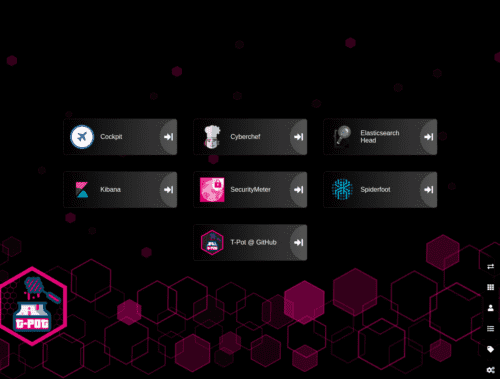
The T-Pot console looks cool!!
Summary
What I did this time is as follows:
- Built T-Pot and bastion server on Azure
- Installed Cloud One Workload Security Agent on T-Pot machine and linked SIEM with Sentinel
- Connected to T-Pot console via bastion server SSH forwarding (later changed configuration to connect directly from on-premise virtual machine)
- Confirmed T-Pot console login
I haven’t yet opened the inbound ports of the T-Pot machine’s security group, so it’s not actually operational yet.
I’ll decide from now on which honeypots included in T-Pot to use and what kind of analysis to do with Azure Sentinel.