This page has been machine-translated from the original page.
After updating Kali Linux, pressing Ctrl+Alt+t to launch the terminal started showing the following error.
Failed to launch preferred application for category
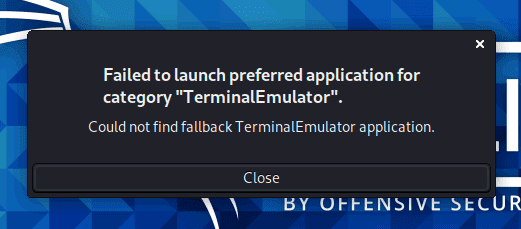
This time, I’m recording how I fixed the problem above.
Solution
I was able to resolve this issue by referring to this Stack Overflow post.
First, run the following command in the terminal.
sudo update-alternatives --config x-terminal-emulatorThen the following output appears, so choose an appropriate number.
There are 2 choices for the alternative x-terminal-emulator (providing /usr/bin/x-terminal-emulator).

Selection Path Priority Status
------------------------------------------------------------
0 /usr/bin/qterminal 40 auto mode
* 1 /usr/bin/mate-terminal.wrapper 35 manual mode
2 /usr/bin/qterminal 40 manual mode

Press <enter> to keep the current choice[*], or type selection number: 0
Finally, run the update with apt.
sudo apt update && sudo apt upgrade -yThis successfully fixed the issue in my environment.
What this did
Judging from this Stack Overflow post, this error can occur when there is a problem with a symbolic-link reference.
So, I used the update-alternatives command to reconfigure the symbolic link.
sudo update-alternatives --config x-terminal-emulatorLooking at the documentation below, you can see that update-alternatives is a command for maintaining the symbolic links that determine which application the OS uses by default.
Ubuntu Manpage: update-alternatives - maintain symbolic links determining default commands
On Kali using xfce5, it seems that either qterminal or mate-terminal is used for the default terminal, x-terminal-emulator.
In this case, I believe the problem was that, for some reason, no terminal was properly associated with x-terminal-emulator, which is what the shortcut key launches.
By the way, --config is an option that lists all available choices.
Summary
When this error first appeared, it felt like “my computer broke even though I didn’t do anything,” but in the end I learned quite a bit, so I’m glad I looked into it.