This page has been machine-translated from the original page.
My Rakuten Hikari line suddenly became extremely slow, so I enabled IPv6 connectivity.
In this article, I configure it using a Buffalo router, the WSR-5400AX6.
(I think most Buffalo home routers probably use roughly the same settings…)
Table of Contents
Background
I have been using Rakuten Hikari since about half a year ago (around September 2020).
I had moved to primarily working remotely, wanted a stable line at home, and Rakuten Hikari also happened to be running a one-year free campaign, so I signed up for it.
Another big reason was that, since I live in a rental, it could be activated without any work that would require drilling holes in the wall.
Although I had a few complaints—such as never being able to get through on the phone to apply, and it taking about two months from the application to activation—after it was opened I was consistently getting around 200–400 Mbps on Fast.com (IPv4, wired), so it was very comfortable to use.
In my environment, because I did not know much about IPv6 and was not confident I could configure it properly, and because I was already getting fully satisfactory speeds with IPv4-only connectivity, I had disabled IPv6 in the router settings and configured it to reject all IPv6 connections from the internet side.
However, around January 18, 2022, the connection suddenly became slow.
Specifically, line speed fell to around 75 Mbps during the day and around 2–8 Mbps at night. (These are both Fast.com measurements over IPv4 on a wired connection.)
I tried the usual things, such as restarting the modem, router, and OS, but the situation did not improve, so I decided to enable IPv6 connectivity to improve communication speed.
How to enable IPv6 connectivity on Rakuten Hikari
Rakuten Hikari uses a service from Arteria Networks.
Therefore, to enable IPv6 internet connectivity on a Rakuten Hikari line, you need to use a mechanism called Cross Pass provided by Arteria Networks.
Reference: Broadband Access (Cross Pass) | Arteria Networks Corporation
To enable the Cross Pass feature, your router must support Cross Pass settings.
For Buffalo routers, you can check which router and firmware versions support Cross Pass at the following link.
Reference: Verified list of devices compatible with IPv6 (IPoE/IPv4 over IPv6) | Buffalo
In the case of the WSR-5400AX6, support starts with the current latest firmware version, Ver.1.02 or later, so update the firmware if necessary.
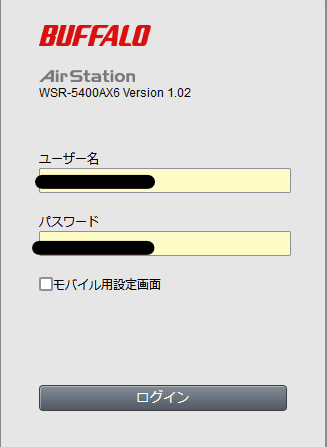
If version 1.02 or later is shown on the settings console login screen, you’re good to go.
Enable Cross Pass
Configuring Cross Pass is very simple.
Open Advanced Settings from the router management console, then enable the setting on the screen below from [Internet].
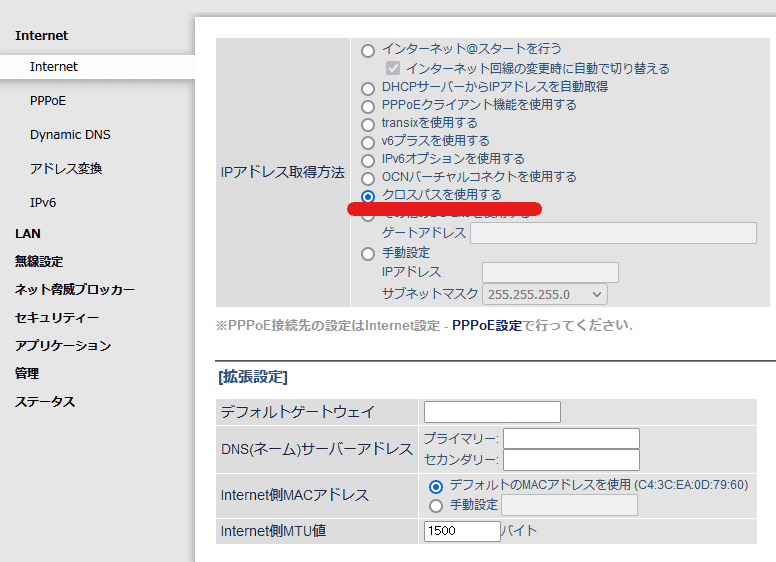
If the [IP Address Acquisition Method] setting is not shown and only “The IP address acquisition method is set to ‘Use Internet @ Start’” is displayed, the switch on the back of the router body is set to [Auto] rather than [Manual].
In that case, set the switch on the back of the router to [Manual].
This enables IPv6 connectivity when connecting to the internet.
You can check whether IPv6 internet connectivity is enabled by seeing whether [via IPv6] is displayed in the header of the following site.
Reference: IPv6-enabled services | Arteria Networks Corporation
Next, let’s check the ND proxy setting used with IPv6.
Enable ND proxy
Unlike IPv4, IPv6 does not use IP masquerading through NAT.
Therefore, depending on the router settings, it can become easy to access hosts on the home network directly from the internet side.
Since home-network devices are generally assumed to be used privately, leaving them accessible from the internet is undesirable from a security perspective, which shows how significant the security benefits of the NAT commonly used with IPv4 are.
This time, because I am enabling IPv6 internet connectivity, I want to make sure devices inside the network cannot be accessed from the internet side.
To implement that kind of environment, enable ND proxy in the router settings.
Configure it as follows.
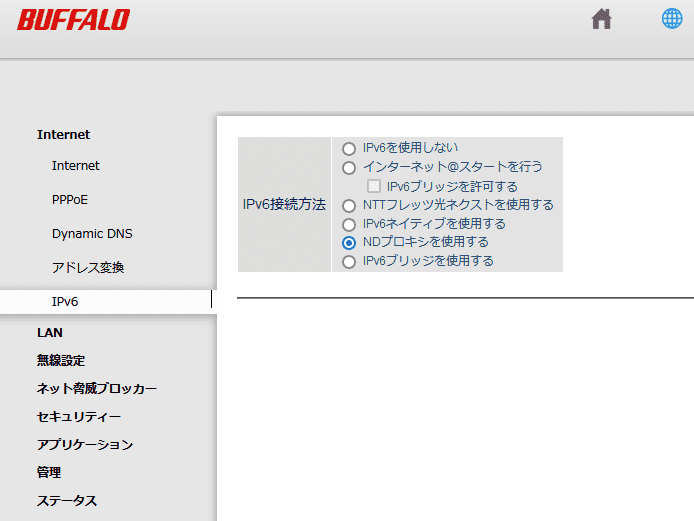
This makes it impossible to connect directly from the internet side to devices on the home network.
Some home routers also seem to have an IPv6 setting enabled by default called “IPv6 passthrough (IPv6 bridge),” but if that setting is enabled, devices on the internal network can be accessed directly from the internet side.
Unless you have a special reason, such as wanting to access them from outside, it seems best to keep ND proxy enabled.
What is ND proxy?
ND proxy is defined in RFC4389, and there is a specification that allows the P bit in RA to be set to 1.
When ND proxy is configured, communication to IPv6 addresses goes through the router once.
Because of this behavior, it becomes possible to prevent direct access from the internet to hosts.
Reference: ND Proxy and IPv6 Passthrough: Explaining IPv6 settings - YouTube
Reference: One-minute internet term explanation: What is RA (Router Advertisement)? - JPNIC
Reference: Can IPv6 be accessed directly from the internet? Try it and find out [Initial B] - INTERNET Watch
Summary
By enabling IPv6 internet connectivity, the line speed that had dropped to around 8 Mbps recovered to around 300 Mbps, and my comfortable internet environment came back.
I hope the line stays stable from here on out…
So, if you use a fiber line but feel that it has somehow become slow recently, it may be a good idea to check your IPv6 settings at least once.
To be honest, I am still a little uneasy about the security side, so I would like to continue things such as not neglecting firewall settings on the hosts and considering ways to monitor the network.
Update (January 28, 2022)
It has now been about exactly one week since enabling this setting, so I’m writing down what I noticed.
What improved
Even now, communication speed remains comfortably stable at around 200–400 Mbps on Fast.com (wired).
Also, as a pleasant surprise, wireless devices started reaching around 200–300 Mbps on Fast.com.
When I was using IPv4 only, the line speed on the wired machine was fast, but wireless devices only achieved around 10–30 Mbps.
I had wondered whether the router’s performance was poor, but because my main environment was already running fast over wired, I had not replaced the router or anything like that.
This time, enabling IPv6 unexpectedly also made the communication speed of wireless devices faster, and in particular page loading on my smartphone improved dramatically.
(I do not know the reason, though…)
What got worse
The Buffalo router’s “Guest Port feature” stopped working.
Apparently, the guest port feature does not support IPv6, so internet connectivity does not work in an environment where Cross Pass is configured. (It would be nice if it automatically switched to IPv4.)