This page has been machine-translated from the original page.
Ever since I started using Windows 11, automatic connections using credentials saved in an .rdp file have started failing with the error below.
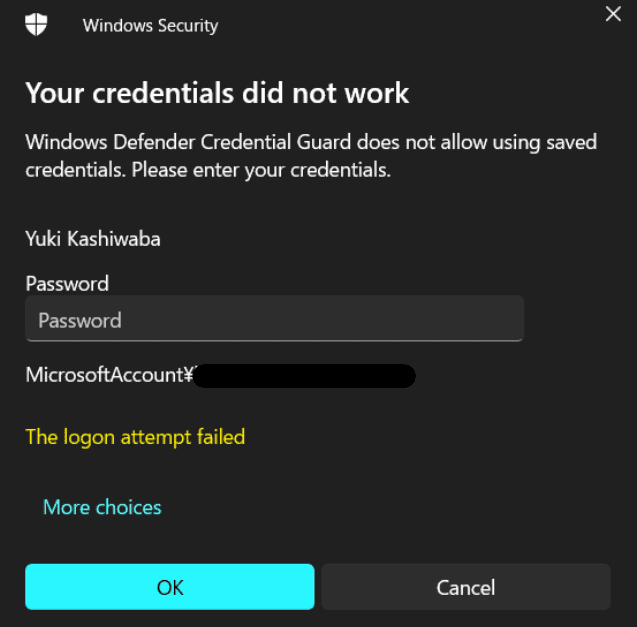
From this error, it appears that Credential Guard is blocking the use of stored credentials.
From a quick investigation, Credential Guard seems to be enabled by default starting with Windows 11 22H2.
Reference: Overview of Credential Guard | Microsoft Learn
I could not determine in detail why Credential Guard blocks the use of credentials in this case, but the behavior described in the following document is likely involved.
Devices that use 802.1x wireless or wired networks, RDP, or VPN connections that rely on insecure protocols with password-based authentication cannot use SSO to sign in, and are forced to manually reauthenticate for all new Windows sessions while Credential Guard is running.Reference: Considerations and known issues when using Credential Guard | Microsoft Learn
This time, I looked into ways to avoid this reauthentication during RDP connections and perform remote access more smoothly, so I am summarizing them here.
Contents
- Workaround 1: Use the Microsoft Store remote desktop app
- Workaround 2: Register generic credentials with cmdkey
- Summary
Workaround 1: Use the Microsoft Store remote desktop app
Apparently, this problem can be resolved by using the Microsoft Store version of the Remote Desktop app.
When I actually tried it, using the Store version of Remote Desktop made it possible to automatically access the remote machine using credentials saved in the app.
However, personally I do not like the Store app version of Remote Desktop because the scrolling behavior feels weird, so I decided not to adopt this method.
Workaround 2: Register generic credentials with cmdkey
The next workaround is to register generic credentials with cmdkey.
Reference: cmdkey | Microsoft Learn
If you save credentials in the traditional Remote Desktop client, those credentials are stored as Windows Credentials.
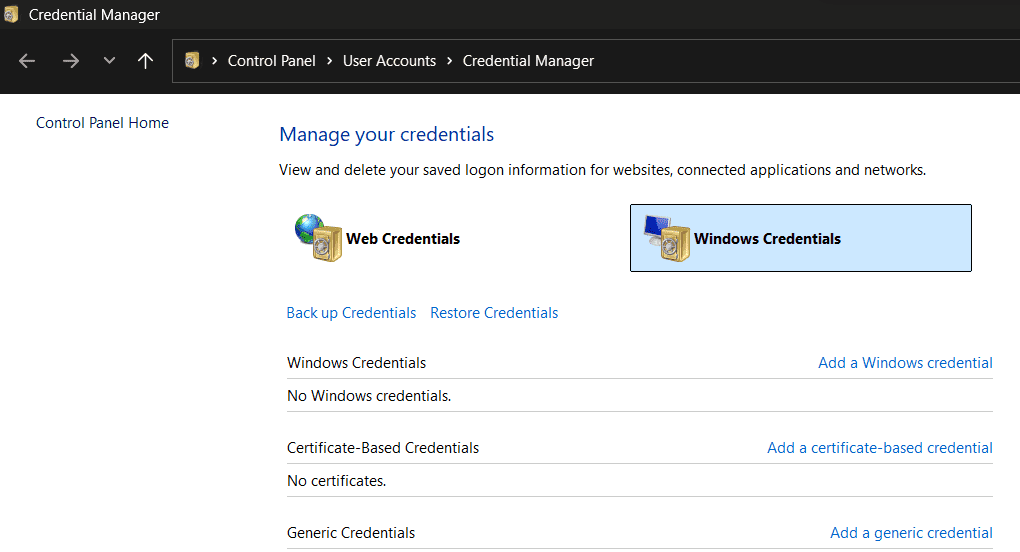
By deleting those with cmdkey and re-registering them as Generic Credencials, it seems possible to avoid Credential Guard blocking during Remote Desktop and enable automatic logon.
First, use the following command to check the currently registered credentials.
cmdkey /list

>
Target: Domain:target=TERMSRV/192.168.10.10
Type: Domain Password
User: kash1064
Local machine persistence
Next, after deleting the existing credentials with the delete option, re-register the credentials as Generic Credencials.
cmdkey /delete:TERMSRV/192.168.10.10
cmdkey /generic:TERMSRV/192.168.10.10 /user:<UserName> /pass:<Password>
Run the following command again to confirm that the credentials were registered, and then confirm that you can successfully perform remote access using the .rdp file.
cmdkey /list

>
Target: LegacyGeneric:target=TERMSRV/192.168.10.10
Type: Generic
User: kash1064
Summary
I do not know nearly enough about Windows credential management, so I could not dig deeply enough into why Credential Guard blocks the connection or why the workaround works. I would like to study authentication-related topics more as well.