This page has been machine-translated from the original page.
This time, I will create boot media that can boot Windows from an external SSD over USB.
If you search for how to create boot media that can boot Windows from an external SSD over USB, you will find a huge amount of information.
I found all kinds of claims—such as that Windows machines cannot boot from external SSDs, that it can only be done with paid apps, or that it is possible on a Mac—which was honestly quite confusing.
To get straight to the point, as of the time of writing, it is possible to create boot media that can boot from an external SSD over USB even with the latest Windows 10 21H2.
I was able to create a bootable SSD by following the procedure in the article below.
Table of Contents
- Summary
- Update: How to specify the Windows edition to boot from USB
- Update: How to delete the EFI partition on the storage device from the OS side
- Update: What to do if Disk Management cannot create a primary partition
- Update: Installing USBPcap prevents the OS from booting
Create a USB-bootable SSD
The procedure I followed this time could, in the worst case, erase all data on the PC’s storage if something goes wrong.
So if you try it, please be extremely careful and proceed at your own risk.
I really did not want to lose the data on my main PC by accident, so I created the boot media on a spare laptop.
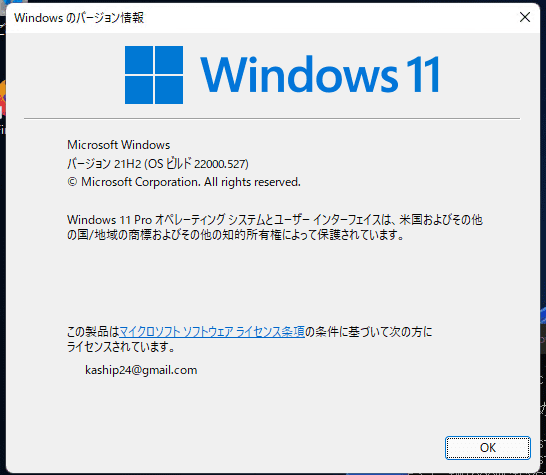
The environment I used was Windows 11 21H2.
Initialize the target disk
Use Windows Disk Management to divide the SSD that will be used as boot media into the following two volumes.
-
System partition
- Drive letter: L
- Size: 600 MB
- File system: FAT32
-
Volume partition
- Drive letter: M
- Size: all remaining free space
- File system: NTFS
Be careful not to choose the wrong disk to initialize here, because doing so will erase data.
In particular, make sure you do not wipe the disk you use as drive C.
While you are at it, also double-click the Windows ISO file you are going to deploy this time so that it gets mounted.
This time, it was mounted as drive letter F.
The result after initialization looks like this.

I will deploy the bootable OS here.
Mark the system partition as active with diskpart
If you install Windows using the standard installer, unfortunately installation to a disk connected over USB is not supported.
Because of that, you need to create the boot configuration yourself.
Run the following commands one by one in PowerShell with administrator privileges.
Because disk and partition numbers differ depending on the environment, be careful not to copy and paste them blindly.
diskpart
list disk
// Specify the number of the disk to use for the boot media
select disk 2

list partition
// Select the partition number initialized to 600 MB for the system partition
select partition 1

// Mark it as active and exit
active
exit
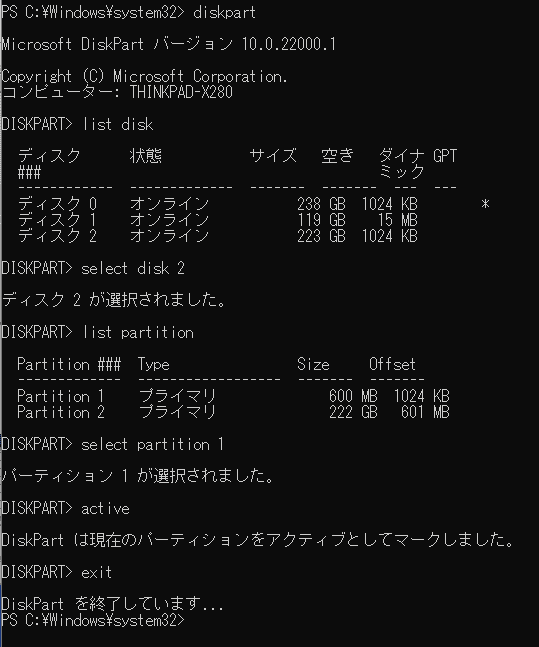
The result looked like this.
What is diskpart?
The diskpart command interpreter is a tool for managing drives on a computer.
This time, after focusing on the disk to install to, I enumerated the partitions and marked the partition that had been initialized with a size of 600 MB as active.
Reference: diskpart | Microsoft Docs
Marking this partition as active makes it possible to notify the BIOS or EFI that this partition contains the OS startup files.
Next, I will place the OS startup files in this area.
Reference: active | Microsoft Docs
Deploy the ISO image to the disk with DISM and BCDBoot
Next, deploy the ISO file to the SSD.
Run the following commands in PowerShell with administrator privileges.
Again, if the drive letters differ from my environment, do not copy and paste them blindly.
It took quite a while to complete.
# F is the drive where the ISO is mounted, and M is the volume partition drive
# Change the /Index=1 value depending on the Windows edition you want to use
Dism /Apply-Image /ImageFile:F:\sources\install.wim /Index=1 /ApplyDir:M:\

# Specify /l ja-JP when using the Japanese edition
M:\Windows\System32\bcdboot M:\Windows /l en-US /s L: /f ALL
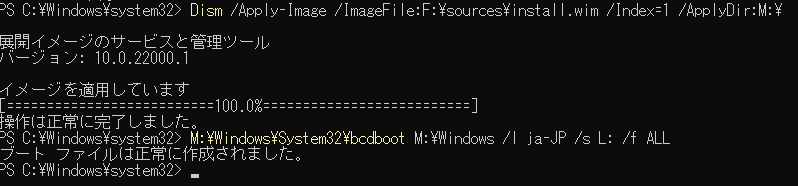
The result looked like this.
What is DISM?
DISM is a tool that can deploy and manage images.
DISM creates Windows images and virtual hard disks.
Reference: What is DISM? | Microsoft Docs
This time, I am using the Apply-Image option.
This is the option that places a Windows image in the specified location.
Reference: Expand-WindowsImage (DISM) | Microsoft Docs
This time, I passed \sources\install.wim inside the ISO as the argument to the ImageFile option and deployed it to the free space on the disk that I initialized earlier.
The Index option is set to 1, which specifies that the data at index 1 in install.wim should be deployed.
Create the system partition with BCDBoot
Finally, run BCDBoot to create the system partition.
The first argument to BCDBoot specifies the Windows folder to use as the source of the boot environment.
This time, I specified the Windows folder in the image that I had deployed with DISM earlier.
/l is the locale option. This time, ja-JP is specified.
The /s <drive-letter> option specifies the drive letter of the partition to use as the system partition.
Here, specify the partition that you initialized to 600 MB for the system partition.
The /f option specifies the firmware.
By setting it to ALL as in this example, you can support both BIOS and UEFI.
Reference: BCDBoot command-line options | Microsoft Docs
Summary
I was able to create a Windows disk that can boot from USB.
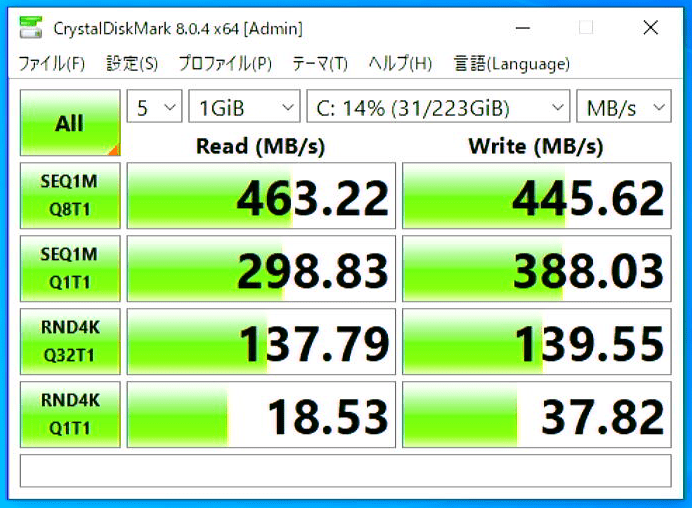
I tried booting it with the PC and SSD connected over USB 3.1 Gen1, and it was fast enough that, subjectively, it did not feel very different from an OS installed on an internal SSD.
If the benchmark is this good, that is more than good enough. It feels perfectly comfortable in normal use.
It was quite educational because I manually created a boot configuration that I had always left up to tools before.
Update: How to specify the Windows edition to boot from USB
If you use the above procedure to create boot media from an ISO that contains multiple editions, you can specify which Windows edition boots by setting the Index value.
To get the index of the OS edition you want to use from install.wim included in the ISO, run the following command with administrator privileges.
# D:\sources\install.wim is on the mounted ISO drive
Dism /Get-ImageInfo /ImageFile:D:\sources\install.wim
Details for image : D:\sources\install.wim

Index : 1
Name : Windows 10 Home
Description : Windows 10 Home
Size : 14,732,719,469 bytes
...
Index : 6
Name : Windows 10 Pro
Description : Windows 10 Pro
Size : 15,010,424,921 bytes
Incidentally, if you want to create an install.wim that contains only the edition for the specified Index, you can export it with the following command.
Dism /Export-Image /SourceImageFile:"D:\sources\install.wim" /SourceIndex:6 /DestinationImageFile:"C:\Users\kash1064\Downloads\install.wim"Update: How to delete the EFI partition on the storage device from the OS side
When you install an OS from installation media and so on, Windows Disk Management cannot delete or format the system partition.

In that case, use diskpart to delete the partition so that the disk can be used as a new system drive.
# Identify the ID of the target disk
DISKPART> list disk
  Disk ###  Status         Size     Free     Dyn  Gpt
  --------  -------------  -------  -------  ---  ---
  Disk 0    Online          465 GB  1024 KB        *
  Disk 2    Online          238 GB  1024 KB        *

# Select the disk you want to delete from and check its partitions
DISKPART> select disk 2
DISKPART> list partition

  Partition ###  Type              Size     Offset
  -------------  ----------------  -------  -------
  Partition 1    System             100 MB  1024 KB
  Partition 2    Reserved            16 MB   101 MB
  Partition 3    Primary            237 GB   117 MB
  Partition 4    Recovery           552 MB   237 GB

# Specify the partition ID to delete, then delete it with the delete command
DISKPART> select partition 1
DISKPART> delete partition override
DiskPart successfully deleted the selected partition.

# Delete the other partition in the same way
DISKPART> select partition 2
DISKPART> delete partition override
DiskPart successfully deleted the selected partition.

# Check the partitions after deletion to confirm the system partition is gone
DISKPART> list partition

  Partition ###  Type              Size     Offset
  -------------  ----------------  -------  -------
  Partition 3    Primary            237 GB   117 MB
  Partition 4    Recovery           552 MB   237 GB
By following the above procedure, you can also confirm from Disk Management that the system partition has been deleted.

Update: What to do if Disk Management cannot create a primary partition
If creating a partition from Disk Management does not result in a primary partition, you can create the partition from diskpart.
# Identify the ID of the target disk
DISKPART> list disk
  Disk ###  Status         Size     Free     Dyn  Gpt
  --------  -------------  -------  -------  ---  ---
  Disk 0    Online          465 GB  1024 KB        *
  Disk 2    Online          238 GB  1024 KB        *

# Select the target disk and run clean.
DISKPART> select disk 2
clean


DISKPART> create partition primary size=600 offset=0
DISKPART> list partition

  Partition ###  Type              Size     Offset
  -------------  ----------------  -------  -------
* Partition 1    Primary            600 MB  1024 KB

DISKPART> select partition 1
DISKPART> format fs=fat32
DISKPART> active
Update: Installing USBPcap prevents the OS from booting
After installing USBPcap on an SSD connected over USB and rebooting, I ran into a problem where the OS would no longer boot and instead displayed “Preparing Automatic Repair” during startup.
Unfortunately, even after trying to delete all of the following folders and registry entries created during installation from the externally connected SSD, the boot failure did not go away.
- %ProgramFiles%\USBPcap
- C:\Windows\System32\drivers\USBPcap.sys
- HKLM\System\CurrentControlSet\Services\USBPcap
- HKLM\SOFTWARE\Microsoft\Windows\CurrentVersion\Uninstall\USBPcap
As far as I could tell, deleting the items above should have been enough to return the system to the state before USBPcap was installed, but I still could not figure out the cause.
I do not think it is rewriting system files, but at the moment, if this problem occurs, I have not found any solution other than setting up the boot SSD again.