This page has been machine-translated from the original page.
This may come as a surprise, but for various reasons I decided to move my blog.
I plan to gradually migrate articles from my old blog to this one (it is a hassle because I have to do it manually…).
For the new blog, I used the MIT-licensed Gatsby template gatsby-starter-lumen as the base.
In this article, I am recording the work I carried out before publishing the new blog as personal notes.
Table of Contents
The Environment Built in This Article
This time I am assuming the following environment.
Local Development Environment
- Windows 10 Pro
- Docker
- Typora
This will be the environment actually used to write articles.
Markdown will be edited in Typora on the Windows host, and behavior will be checked in a Docker container where the Gatsby environment has been built.
By the way, Typora is a highly capable Markdown editor.
It recently became paid software, but it is a one-time license of about $15, so I highly recommend it.
Reference: Typora
Deployment Environment
The blog created locally will be deployed and published on GitHub Pages.
It will also be configured so that it can be published using a custom domain.
Build the Gatsby Environment
Install Docker
Currently, I think there are two main ways to install Docker on Windows:
- Install Docker on WSL2
- Install Docker Desktop for Windows
Reference: Install Docker Desktop on Windows | Docker Documentation
This time I planned to run Docker commands from PowerShell, so I installed Docker Desktop for Windows.
Incidentally, Docker Desktop for Windows became a topic of discussion a little while ago when its license became paid, but it is still free for personal use.
As for the installation method, it is enough to run the installer downloaded from the link in the documentation above.
Create a Container for Gatsby Development
Next, build the Gatsby development environment.
I basically referred to the following documentation and created a Dockerfile like this.
Reference: Part 0: Set Up Your Development Environment | Gatsby
FROM ubuntu:20.04
ENV TZ=Asia/Tokyo

RUN mkdir -p /app/blog
ENV HOME=/app/
WORKDIR /app

RUN apt update && apt upgrade -y
RUN apt install tzdata -y
RUN apt install curl git python wget -y
RUN apt install nodejs npm -y
RUN npm install n -g
RUN n stable

RUN apt purge -y nodejs npm
RUN apt autoremove -y

RUN node -v
RUN npm install -g gatsby-cli
RUN npm install gh-pages --save-dev

RUN chown root:root ./* -R
WORKDIR $HOME/blog
EXPOSE 8000
After installing the latest NodeJS on top of an Ubuntu 20.04 container, I installed gatsby-cli.
This makes the gatsby command available.
Also, gh-pages is the package used when deploying to GitHub Pages.
I will describe the details later.
The image I created this time is published as kashiwabayuki/gatsby-env, so you can also pull it with the following command.
docker pull kashiwabayuki/gatsby-envCreate the Gatsby Blog
After creating the container image, you need to log in to the container and perform some setup only when setting up the environment.
In a PowerShell environment, you can log in to the container with the following command.
$pwddir = (Get-Location -PSProvider FileSystem).Path
docker run -it --rm --volume $pwddir/src:/app -p 8000:8000 kashiwabayuki/gatsby-env
With this command, I log in while mapping the local volume src/ to the container’s home directory, /app.
After logging in, create the Gatsby content with gatsby-starter-lumen using the following command.
gatsby new blog https://github.com/alxshelepenok/gatsby-starter-lumenNext, run the following command under the newly generated blog directory.
npm install
# If this causes an error, run npm install --legacy-peer-deps.
If the npm install command fails, it is a good idea to try again with the --legacy-peer-deps option.
This completes the initial blog setup.
If the local server starts when you run the following command, you are done.
gatsby develop -H 0.0.0.0Troubleshooting: EACCES Permission Error for /app/.npm/sentry-cli
The exact conditions are inconsistent so I am not sure of the cause, but when running npm install, a permission error such as EACCES: permission denied, mkdir '/app/.npm/sentry-cli' may occur.
Because the Docker user is root, I would not normally expect this to happen, but it occurred several times in my environment.
As a workaround, I was able to resolve it by explicitly setting the owner to root for the directory where the error occurs in the Dockerfile, like this.
RUN chown root:root ./* -RSometimes the error does not occur at all, so honestly I still do not know the cause…
Troubleshooting: socialImage Error
Incidentally, you may see an error like the following at this point.
It seems to occur when the value of socialImage for each article is empty, when the target image does not exist, or when the static directory cannot be resolved.
Field "socialImage" must not have a selection since type "String" has no subfields.The procedure in this article does not have that problem, but if you run gatsby develop on a Windows host, you may encounter this issue because of a known problem where the static directory cannot be resolved.
To fix it, try the workaround described in the following issue, or use the container image described in this article.
Change the Gatsby Settings
At this point, the minimum Gatsby environment is in place, so next I will do the initial setup.
Change the Profile Settings
Basic profile and SNS settings can be changed in blog/config.js.
The actual settings look like this.
'use strict';

module.exports = {
  url: 'https://kashiwaba-yuki.com',
  pathPrefix: '/',
  title: 'Kaeru no Himitsukichi',
  subtitle: '',
  copyright: 'All rights reserved 2022 Kaeru-no-Himitsukichi.',
  disqusShortname: '',
  postsPerPage: 4,
  googleAnalyticsId: '',
  useKatex: false,
  menu: [
    {
      label: 'All Articles',
      path: '/'
    },
    {
      label: 'Development',
      path: '/tag/development'
    },
    {
      label: 'Notes',
      path: '/category/note'
    }
  ],
  author: {
    name: 'Kashiwaba',
    photo: '/avatar.png',
    bio: 'A hobby programmer who wants to become a reverse engineer.',
    contacts: {
      email: '',
      facebook: '',
      telegram: '',
      twitter: 'yuki_kashiwaba',
      github: 'kash1064',
      rss: '',
      vkontakte: '',
      linkedin: '',
      instagram: '',
      line: '',
      gitlab: '',
      weibo: '',
      codepen: '',
      youtube: '',
      soundcloud: '',
      medium: '',
    }
  }
};
In particular, for SNS accounts under contacts, items you do not want to display must be left blank rather than commented out.
If you comment them out, an error occurs.
Site Design Settings
If you want to change the site design, you need to edit the template for each element.
This time I did not change the base layout, and only changed some colors and similar settings.
If you want to change the base design, edit blog/src/assets/scss/base/_generic.scss.
The contents look like this, and you can change text size, colors, fonts, and so on for each element.
/**
 * Generic
 */
html {
  font-size: $typographic-root-font-size;
}

body {
  margin: 0 0 0 calc(100vw - 100%);
  font-family: $typographic-font-family;
  color: $typographic-base-font-color;
  line-height: $typographic-base-line-height;
  font-size: $typographic-base-font-size;
  -ms-text-size-adjust: 100%;
  -webkit-text-size-adjust: 100%;
  text-rendering: optimizeLegibility;
  -webkit-font-smoothing: antialiased;
  -moz-osx-font-smoothing: grayscale;
}

h1,
h2,
h3,
h4,
h5,
h6 {
  font-family: $typographic-font-family;
  font-weight: 600;
}

h1 {
  font-size: $typographic-base-font-size * 1.8;
  @include line-height(1.8);
  @include margin-top(4);
  @include margin-bottom(1);
}

h2 {
  font-size: $typographic-base-font-size * 1.6875;
  @include line-height(1.5);
  @include margin-top(2);
  @include margin-bottom(.5);
}

h3 {
  font-size: $typographic-base-font-size * 1.375;
  @include line-height(1);
  @include margin-top(2);
  @include margin-bottom(.5);
}

{{ omitted }}
Also, the link colors and the sizes of some elements are configured by the variables defined in blog/src/assets/scss/_variables.scss.
For example, if you want to change the link color, you need to change $color-primary.
The maximum content width is set by $layout-post-single-width.
For that reason, I also changed some of the base colors on my blog as follows.
// Colors
$color-base: #222;
$color-primary: #918D40;
$color-secondary: #A9D159;

$color-white: #FFF;
$color-gray: lighten($color-base, 40%);
$color-gray-border: lighten($color-base, 77%);
$color-gray-bg: lighten($color-base, 79%);
Add and Edit Content
When you use gatsby-starter-lumen, two content types are prepared by default.
- Pages: Fixed pages such as the About page
- Posts: Blog content
Both are placed under the blog/content/ directory.
Gatsby searches the files under blog/content/ according to the definitions in blog/src/cms/index.js and identifies them as pages of the specified format.
For that reason, by default all blog pages must be placed under blog/content/posts, but if you want to add a custom directory such as notes here, you need to associate the directory name with a template in CMS.registerPreviewTemplate as shown below.
// @flow strict
import CMS from 'netlify-cms-app';
import PagePreview from './preview-templates/page-preview';
import PostPreview from './preview-templates/post-preview';

CMS.registerPreviewTemplate('pages', PagePreview);
CMS.registerPreviewTemplate('posts', PostPreview);
CMS.registerPreviewTemplate('notes', PostPreview);
Remove the Directory Name from Article URLs
By default, article URLs are in the following format.
https://<custom-domain>/<directory-name-containing-the-article>/<article-slug>If <directory-name-containing-the-article> is embedded in the URL, the URL will change every time you move the Markdown file to a different directory in the future, which is not desirable.
So I change the settings so that <directory-name-containing-the-article> is not included in the URL.
Rewrite createNodeField in blog/gatsby/on-create-node.js as follows.
if (node.internal.type === 'MarkdownRemark') {
  if (typeof node.frontmatter.slug !== 'undefined') {
    const dirname = getNode(node.parent).relativeDirectory;
    createNodeField({
      node,
      name: 'slug',
      // value: `/${dirname}/${node.frontmatter.slug}`
      value: `/${node.frontmatter.slug}`
    });
};
This removes the directory name from the URLs generated at deploy time.
Change the Syntax Highlighting Settings
The syntax highlighting in the theme used this time uses Prism.js.
Therefore, if you want to customize the syntax highlighting, you need to generate CSS from the following page and replace static\css\prismjs\theme.min.css.
Reference: Download ▲ Prism
Incidentally, my blog uses the following configuration.
/* PrismJS 1.27.0
https://prismjs.com/download.html#themes=prism-tomorrow&languages=markup+css+clike+javascript+aspnet+bash+c+csharp+cpp+csv+dart+django+go+http+java+makefile+markdown+markup-templating+nginx+php+powershell+python+ruby+rust+sql+typescript+yaml */
code[class*=language-],pre[class*=language-]{color:#ccc;background:0 0;font-family:Consolas,Monaco,'Andale Mono','Ubuntu Mono',monospace;font-size:1em;text-align:left;white-space:pre;word-spacing:normal;word-break:normal;word-wrap:normal;line-height:1.5;-moz-tab-size:4;-o-tab-size:4;tab-size:4;-webkit-hyphens:none;-moz-hyphens:none;-ms-hyphens:none;hyphens:none}pre[class*=language-]{padding:1em;margin:.5em 0;overflow:auto}:not(pre)>code[class*=language-],pre[class*=language-]{background:#2d2d2d}:not(pre)>code[class*=language-]{padding:.1em;border-radius:.3em;white-space:normal}.token.block-comment,.token.cdata,.token.comment,.token.doctype,.token.prolog{color:#999}.token.punctuation{color:#ccc}.token.attr-name,.token.deleted,.token.namespace,.token.tag{color:#e2777a}.token.function-name{color:#6196cc}.token.boolean,.token.function,.token.number{color:#f08d49}.token.class-name,.token.constant,.token.property,.token.symbol{color:#f8c555}.token.atrule,.token.builtin,.token.important,.token.keyword,.token.selector{color:#cc99cd}.token.attr-value,.token.char,.token.regex,.token.string,.token.variable{color:#7ec699}.token.entity,.token.operator,.token.url{color:#67cdcc}.token.bold,.token.important{font-weight:700}.token.italic{font-style:italic}.token.entity{cursor:help}.token.inserted{color:green}

# Update
p > code[class*=language-text]{background:#F9F9F9 !important; color: #2d2d2d !important;}
li > code[class*=language-text]{background:#F9F9F9 !important; color: #2d2d2d !important;}
The last line defines the background color and text color for inline preformatted text embedded in the body.
Configure Typora
One very useful feature of the Markdown editor Typora, which I use all the time, is that when you copy and paste images it automatically saves them to a local folder of your choice.
With Gatsby, images under blog/static/media can be accessed via /media.
So in Typora I configured it as follows so that pasted images are placed in any directory under blog/static/media.
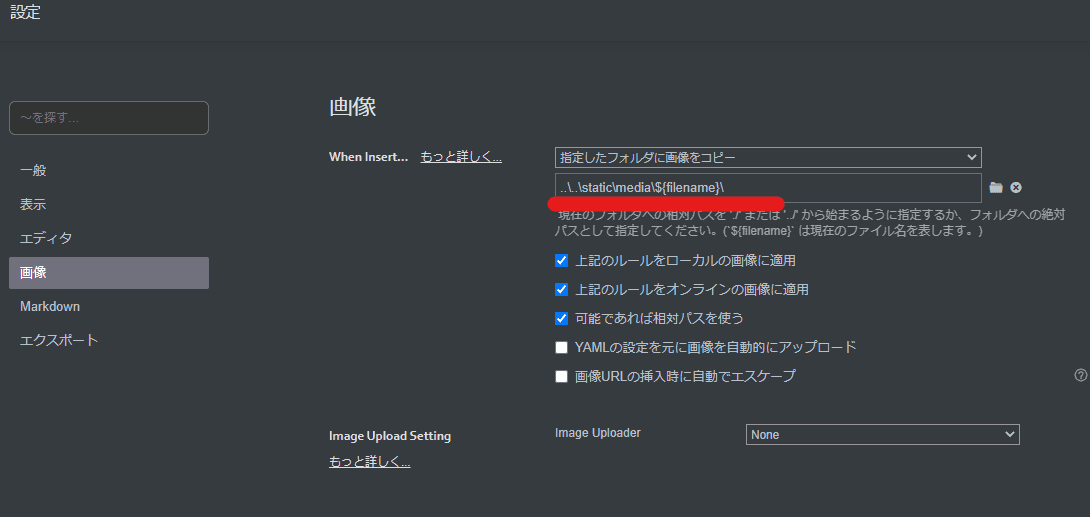
This allows blog pages to reference the appropriate images after deployment.
Deploy to GitHub Pages
Now that the basic shape is in place, it is finally time to deploy.
The procedure is basically based on the official instructions.
Reference: How Gatsby Works with GitHub Pages | Gatsby
First, you need a GitHub repository for publishing.
The repository needs to be public.
Once the push to the public repository is complete, you can begin deploying to GitHub Pages.
Path Settings
This time I use a custom domain, so I set / in pathPrefix of blog\gatsby-config.js.
module.exports = {
  // pathPrefix: siteConfig.pathPrefix,
  pathPrefix: "/",
}
This setting is necessary so that the proper path is used when accessing the site by URL.
On the other hand, if you do not specify a custom domain, set the repository name in pathPrefix.
Create a Custom Deployment Script
Next, configure the deployment script.
Set scripts>deploy in blog\package.json as follows.
"scripts": {

  "deploy": "rm -rf node_modules/.cache/gh-pages && gatsby clean && gatsby build --prefix-paths && echo 'kashiwaba-yuki.com' > public/CNAME && gh-pages -d public -b pages",

},
rm -rf node_modules/.cache/gh-pages removes past cache so that errors do not occur during the build.
gatsby clean && gatsby build --prefix-paths builds the content with the gatsby command.
gatsby clean is required to make sure your changes are reflected.
echo 'kashiwaba-yuki.com' > public/CNAME is used to place a CNAME file for using a custom domain in the public directory.
Without this, the custom domain is removed every time you deploy.
gh-pages -d public -b pages uses gh-pages to place the built content in the pages branch.
Because this pushes to a Git repository, you need to make sure you can push to the repository from inside the container.
Pages Settings
Once you get this far, the rest is easy.
Open the settings screen of the public repository, and under “Pages” specify the publishing branch pages to publish with GitHub Pages.
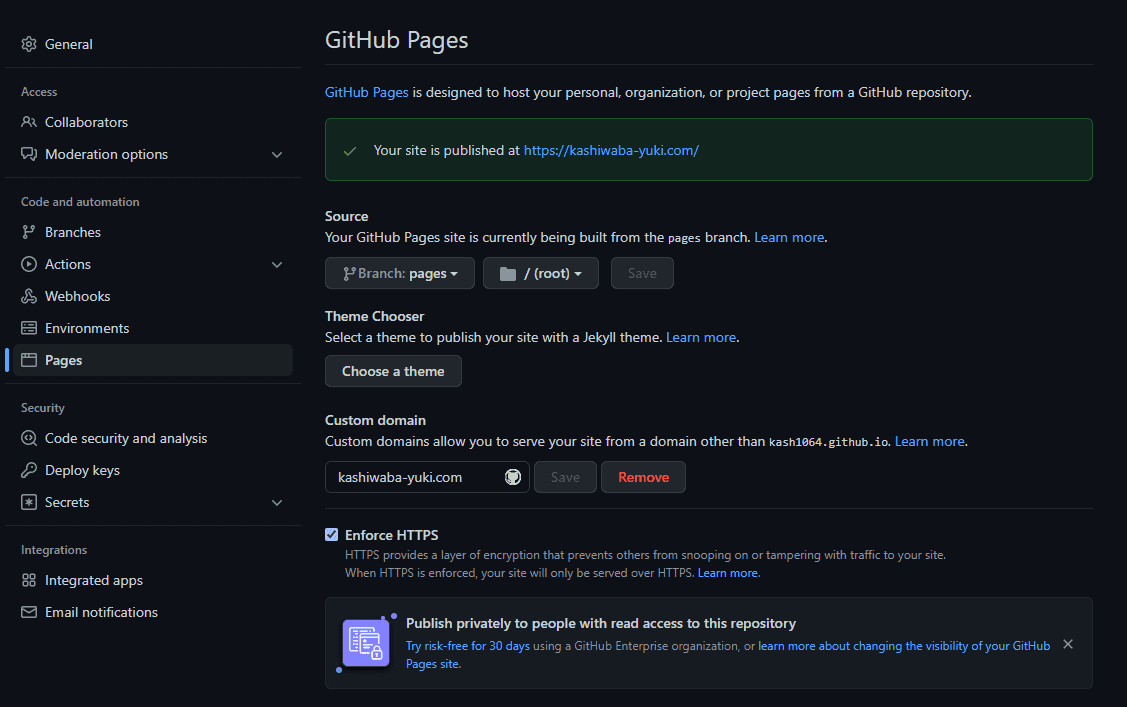
This time I also created a CNAME file and enabled the custom domain, so you can check the blog you created by connecting to this domain.
Summary
I plan to gradually migrate posts here from my old WordPress blog.
It looks like it will take quite a bit of work because I need to manually fix things like images and internal links…