This page has been machine-translated from the original page.
I decided to rebuild the analysis environment running on Proxmox, but setting up a machine from scratch was far too much hassle, so I tried migrating a Hyper-V virtual machine from another test machine instead.
I am using Proxmox version 8.2.7.
Table of Contents
- Export the Hyper-V machine
- Create a virtual machine on the Proxmox side
- Copy the files to Proxmox
- Import the virtual disk in Proxmox
- Summary
Export the Hyper-V machine
According to the following article, it seems that if you have a virtual disk in vhdx format, you can migrate a virtual machine to Proxmox.
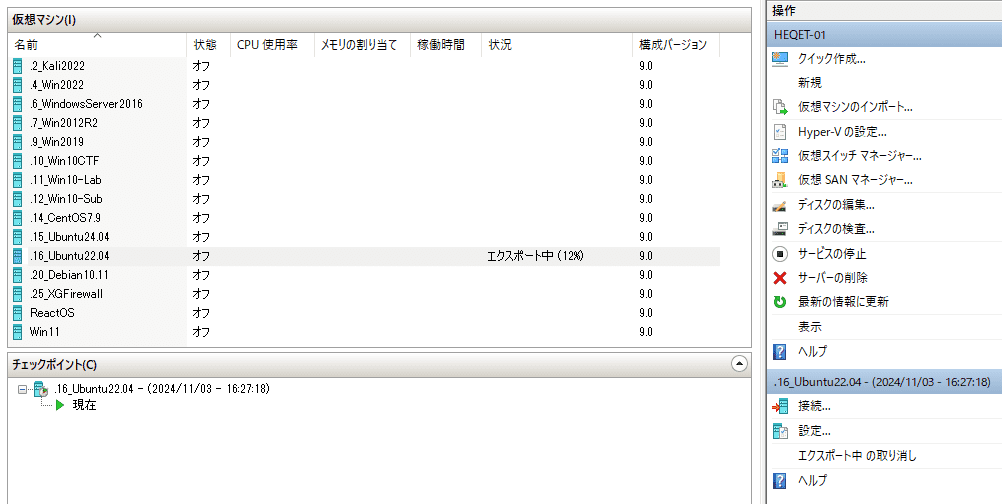
So I decided to export the existing machine in Hyper-V Manager, extract the virtual disk from it, and copy it to the Proxmox server via USB.

Create a virtual machine on the Proxmox side
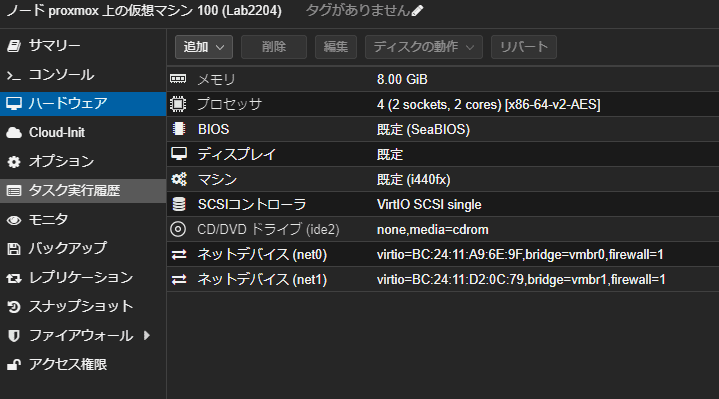
Next, create the destination virtual machine on Proxmox.
Other than removing the CD and disk settings, the procedure was the same as when creating a normal virtual machine.
Copy the files to Proxmox
First, confirm that the media containing the copied virtual disk file is connected to the server as /dev/sdb1. (This time I used an external M.2 SSD, so it seems to have been identified as an SSD.)
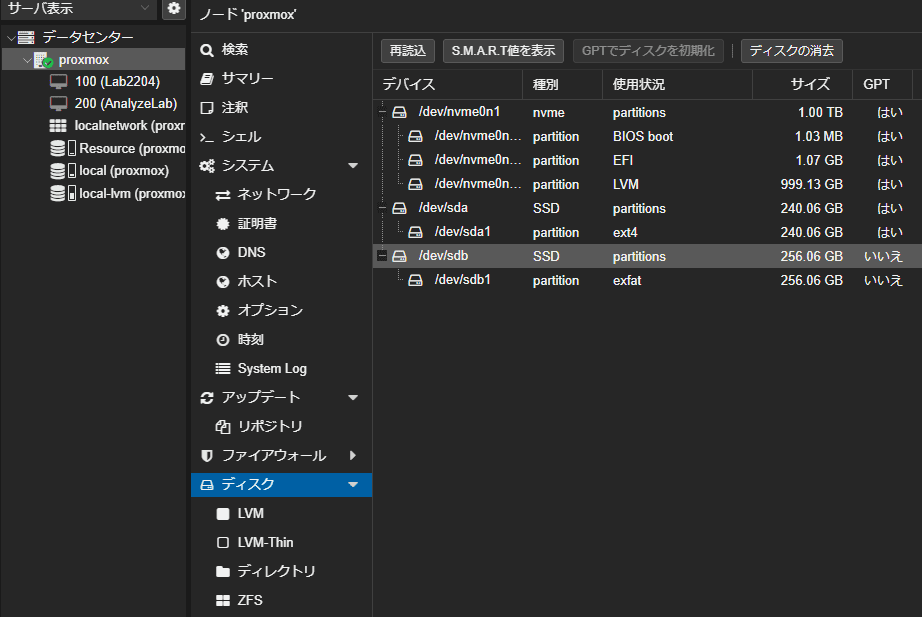
I want to extract the file from it, so start a shell, create an appropriate mount point (/mnt/ex-disk1), and mount /dev/sdb1.
mkdir -p mnt/ex-disk1

# Do not use /etc/fstab
mount /dev/sdb1 /mnt/ex-disk1
This makes the virtual disk file accessible.
Import the virtual disk in Proxmox
Now that the virtual disk can be accessed via USB, run the following command in the Proxmox shell to import it.
# Use VM ID 100 and local-lvm as the import target
qm importdisk 100 /mnt/ex-disk1/Ubuntu22.04.vhdx local-lvm
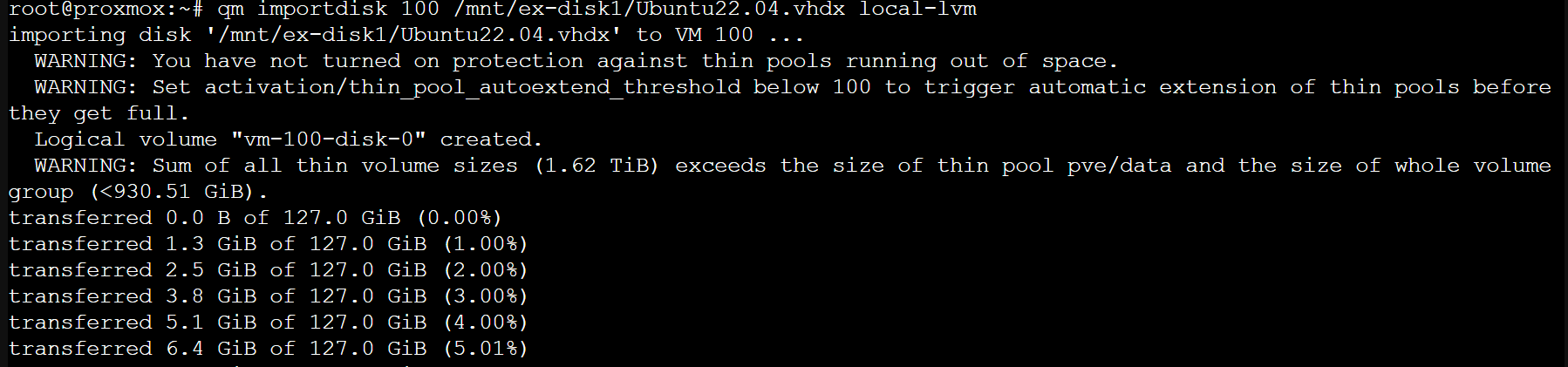
Once the import is complete, you can confirm that a disk for the specified ID (100) has been added to local-lvm.
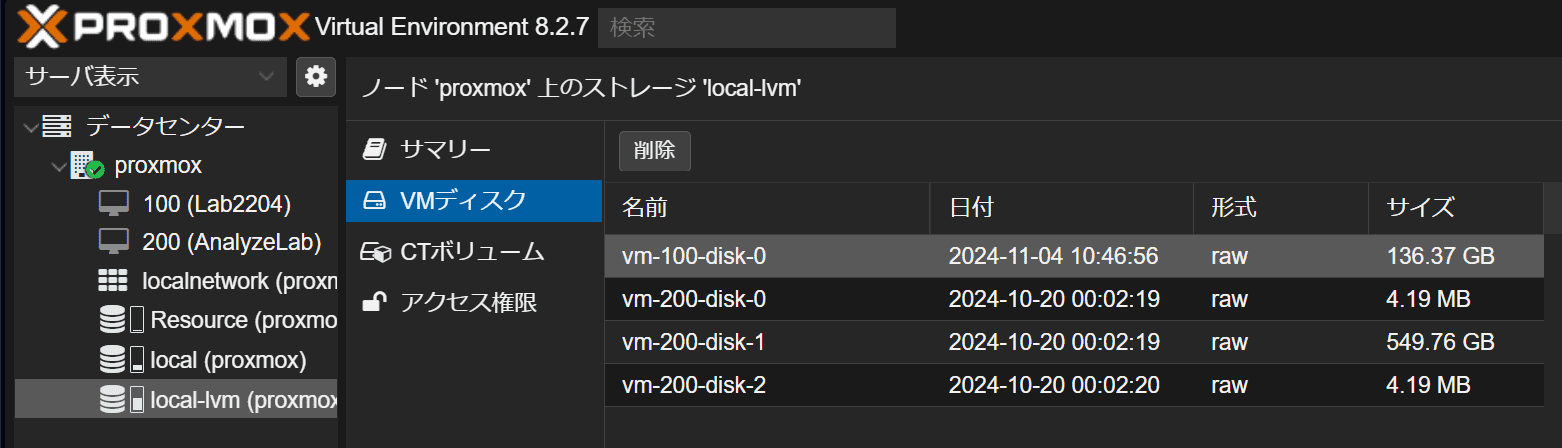
Next, open the virtual machine with ID 100 that you created, and confirm that the imported virtual disk is displayed as [Unused Disk 0].
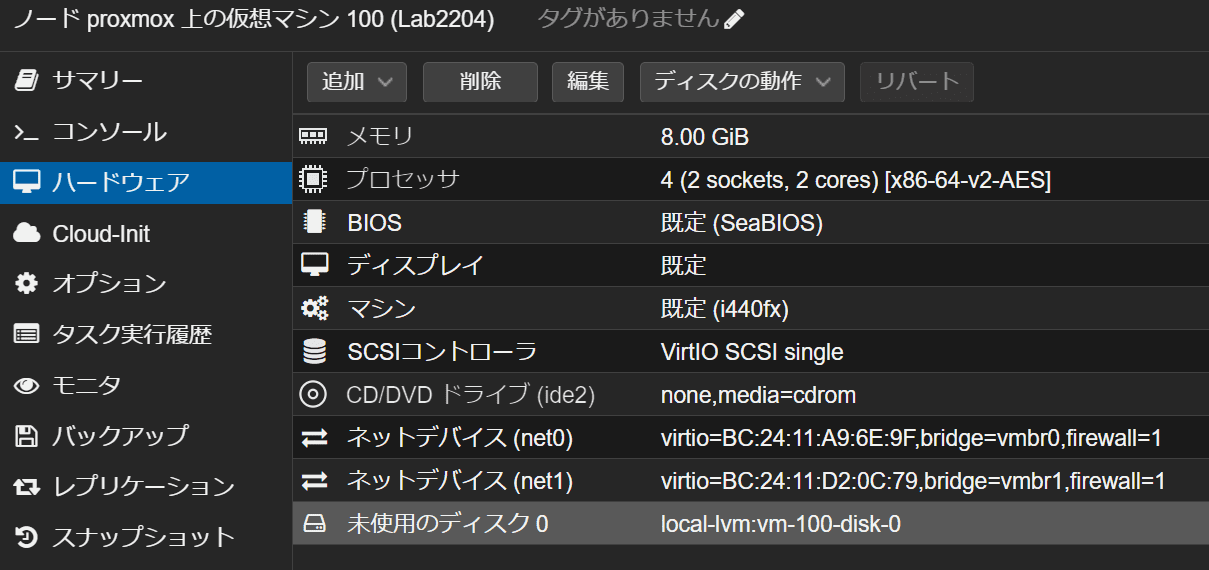
Then attach this disk from the [Edit] button, and from [Options] -> [Boot Order], enable the attached disk as the boot disk.
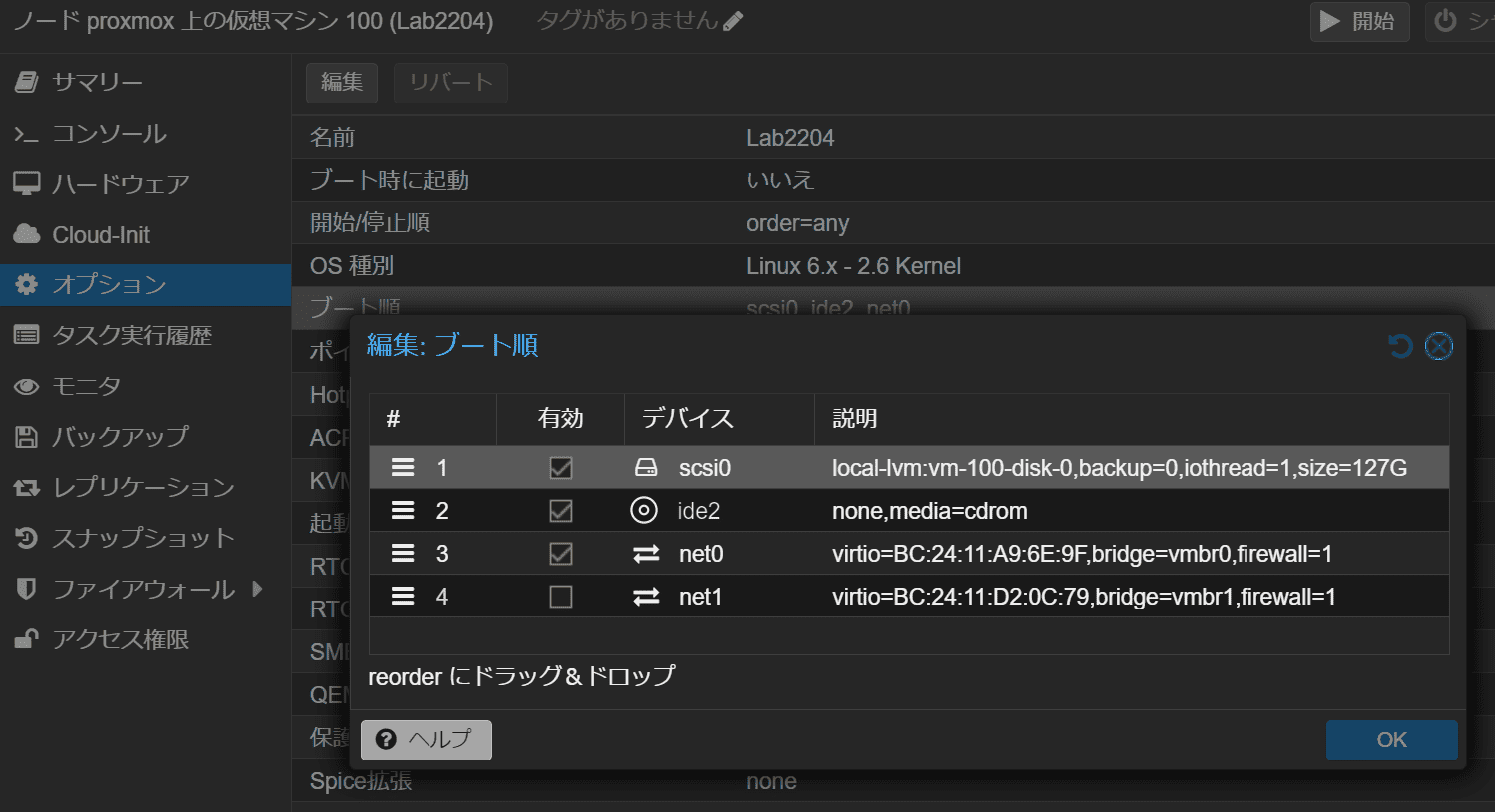
If you start the virtual machine now, you can confirm that the machine created in Hyper-V boots on Proxmox.
Summary
I wrote this up because it seems like the kind of procedure I might need again once I’ve forgotten it.
Note: among the machines migrated this time using the method above, the virtual machine with xface installed on a minimal Ubuntu Server displayed its GUI on the noVNC console after migration, but keyboard input stopped working.