This page has been machine-translated from the original page.
Introduction
Hello.
It has been about half a year since my last update.
I bought this Raspberry Pi 4 during Amazon’s Cyber Monday sale last week.
Amazon.co.jp: LABISTS Raspberry Pi 4 4GB Kit (with technical conformity mark)
This Raspberry Pi 4 has 4GB of RAM and can connect to Wi-Fi and even run Ubuntu Desktop, so I was excitedly setting it up when I ran into a problem where netplan apply failed.
As it turned out, the cause was a bug in netplan.io included in the Ubuntu Server 20.04.1 ISO downloaded from the official site, and the problem was resolved by connecting with wired networking once and performing an update.
In this article, I will summarize the steps to install Ubuntu Server 20.04.1 on a Raspberry Pi 4 and connect it to Wi-Fi, including the troubleshooting above as a note.
Download the OS image and image writer for the Raspberry Pi 4
I downloaded the OS image for the Raspberry Pi 4 from the official page below.
At the time of writing, the recommended version was Ubuntu Server 20.04.1 LTS, so I downloaded that.
Install Ubuntu on a Raspberry Pi 2, 3 or 4 | Ubuntu
By the way, choose the OS bitness according to the Raspberry Pi you are installing it on.
The product I bought is a Raspberry Pi 4 Model B, and it seems to use a CPU called “BCM2711.”
Amazon.co.jp: LABISTS Raspberry Pi 4 4GB Kit (with technical conformity mark)
Details about “BCM2711” are also described in the following document.
documentation/hardware/raspberrypi/bcm2711 at master · raspberrypi/documentation
From the explanation there, you can see that it is a 64-bit CPU with ARM cores.
Because of that, I think the 32-bit version would probably work too, but this time I decided to install the 64-bit version.
The ARM cores can run at up to 1.5GHz, making the Pi4 about 50% faster than the Raspberry Pi 3B+.
The new VideoCoreVI3D unit can now run at up to 500MHz.
The ARM cores are 64-bit, and although the VideoCore is 32-bit, there is a new memory management unit.
This means it can access more memory than previous versions.
Reference: documentation/hardware/raspberrypi/bcm2711 at master · raspberrypi/documentation
Install the official Raspberry Pi image writer
Next, install an image writer to write the downloaded OS onto a bootable SD card.
The image writer provided by the Raspberry Pi Foundation is simple and lightweight, so I recommend it.
Programs for Linux/Mac OS/Windows/Chrome OS can be downloaded from the link below.
Installing operating system images - Raspberry Pi Documentation
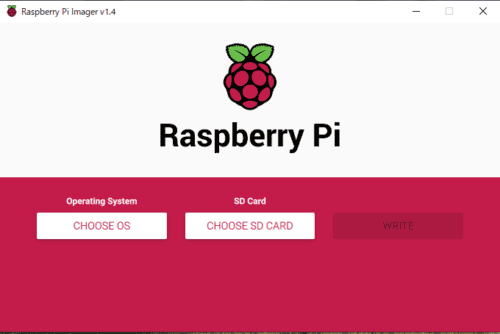
Once the installation completes successfully, you will see a screen like this, where you can specify the write destination and the OS image you downloaded earlier.
That completes the creation of the boot media.
Boot Ubuntu
Insert the SD card you prepared earlier into the Raspberry Pi 4, then plug power into the USB-C port and boot it up.
Note that you need to connect an external display and keyboard at this stage.
The external display connector used the Micro HDMI standard. (It was my first time seeing one.)
Once the OS boots, you will be prompted to log in.
The default username and password are both ubuntu.
After logging in and setting any password you like, startup is complete.
Congratulations.
Configure networking on Ubuntu
From here on, it is the same as ordinary Linux setup, so there may not be anything particularly troublesome.
To keep it simple, I will proceed by logging in as root with sudo su.
First, copy 50-cloud-init.yaml and create 99-cloud-init.yaml, then edit that file.
For an explanation of what 50-cloud-init.yaml is and why you should create 99-cloud-init.yaml, the following article is helpful: [Ubuntu] Stop editing /etc/netplan/50-cloud-init.yaml - Qiita
cp /etc/netplan/50-cloud-init.yaml /etc/netplan/99-cloud-init.yaml
vi /etc/netplan/99-cloud-init.yaml
Next, edit that file as follows.
The network interface name is probably wlan0 by default, but just to be safe, you may want to confirm it with /sbin/ifconfig.
network:
    version: 2
    ethernets:
        eth0:
            dhcp4: true
            optional: true
    wifis:
        wlan0:
            access-points:
                "<Your SSID>":
                    password: "<Password>"

            dhcp4: false
            addresses: [<Static IP>/24]
            gateway4: <Default gateway>
            nameservers:
                addresses: [<DNS server address>]
Now, when you run netplan apply with this configuration, you get an error.
Warning: The unit file, source configuration file or drop-ins of netplan-wpa-wlan0.service ch
anged on disk. Run 'systemctl daemon-reload' to reload units.
Warning: The unit file, source configuration file or drop-ins of netplan-wpa-wlan0.service ch
anged on disk. Run 'systemctl daemon-reload' to reload units.
As noted at the beginning, this error is caused by a bug in netplan.io, so systemctl daemon-reload does not fix it.
To resolve it, you need to connect to the Internet over wired networking once and perform an upgrade.
sudo apt update && sudo apt upgrade -yIf you check the upgrade above, you can confirm that the netplan.io module was updated.
Run the following command once again.
netplan applyThis applies the settings, and I was able to connect the Raspberry Pi 4 to Wi-Fi.
Summary
Even though the Raspberry Pi 4 costs only a few thousand yen, the specs are quite impressive.
Lately I have been writing stock price analysis scripts, so I am thinking about using it as a server to run them.
References
- Install Ubuntu on a Raspberry Pi 2, 3 or 4 | Ubuntu
- Bug #1874494 “netplan apply does not remove systemd service for …” : Bugs : netplan.io package : Ubuntu
- [Ubuntu 20.04/18.04 LTS Server] Change network settings to a static IP | The modern stone age.
- networking - Failed to start netplan-wpa-wlan0.sevice: Unit netplan-wpa-wlan0.service not found - Ask Ubuntu
- Installing Ubuntu Server on Raspberry Pi 4 and completing the initial setup [with simple security] - Qiita