This page has been machine-translated from the original page.
Recently, Docker is available on WSL2, so there are fewer occasions where you would deliberately do development on Linux inside a virtual machine.
Even so, there are still times when I want to develop on a Linux environment that I built as a virtual machine.
Unless there is a special need, I would prefer to build a Linux environment as CUI-only to save resources, but if I do that, I can no longer use a rich editor like VSCode.
To solve that problem, this time I will summarize how to set up an environment that lets you use VSCode installed on the host Windows machine to operate files on Ubuntu running in a virtual machine.
Specifically, you can configure it with the following steps.
- Create a Linux virtual machine in your local environment (Hyper-V is used this time)
- Prepare an environment where the virtual machine and the host machine can connect over SSH
- Prepare a key on the Windows host machine
- Register the created public key in the virtual machine’s
authorized_keys - Use the RemoteSSH extension in VSCode on the host machine to connect to the virtual machine over SSH
This time, I will omit the setup for steps 1 and 2.
Contents
- Prepare an SSH key on Windows
- Register the public key on the virtual machine
- Connect to the virtual machine from VSCode
- Summary
Prepare an SSH key on Windows
Let’s get started by creating a key on the host Windows machine.
Just start PowerShell and run ssh-keygen.exe.
ssh-keygen.exe

Generating public/private rsa key pair.
Enter file in which to save the key (C:\Users\kash1064/.ssh/id_rsa):
Enter passphrase (empty for no passphrase):
Enter same passphrase again:
Your identification has been saved in C:\Users\kash1064/.ssh/id_rsa.
Your public key has been saved in C:\Users\kash1064/.ssh/id_rsa.pub.
The key fingerprint is:
SHA256:tE/q/DCfasd3vyVQzn7/lzgq5i79k+asip3LPNafwvWE kash1064@HEQET-01
The key's randomart image is:
+---[RSA 3072]----+
|                 |
|                 |
|        .        |
|       . .       |
|        S . +    |
|         + + * . |
|        + * A D .|
|       *o*+M.* *.|
|      ..*VXA@vv+*|
+----[SHA256]-----+
The public key you created is usually placed directly under the .ssh/ directory in your user folder.
Register the public key on the virtual machine
Next, append the created public key to .ssh/authorized_keys on the Linux machine.
You can simply copy and paste it with vim or similar.
After registration is complete, run the following command from PowerShell to confirm that SSH using the private key works.
ssh <virtual-machine-username>@<virtual-machine-address> -i .\.ssh\id_rsaConnect to the virtual machine from VSCode
Finally, set up the connection from VSCode to the virtual machine.
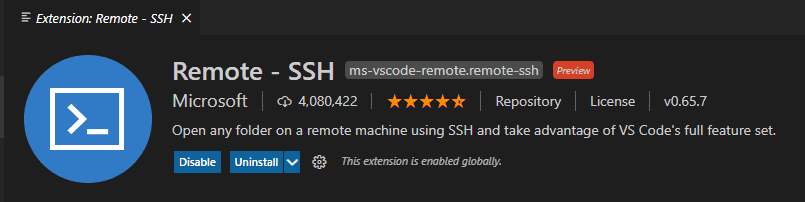
First, install the RemoteSSH extension in VSCode.
Next, select the RemoteSSH icon from the sidebar and set the address of the virtual machine you created as the SSH Target.
At that time, configure the generated config file as shown in the image below.
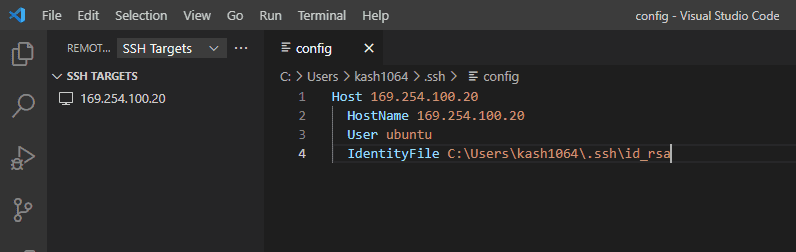
For IdentifyFile, specify the path to the private key in the key pair you created earlier.
If you do not set this, you will be asked for the virtual machine’s password every time you connect, which is a bit inconvenient.
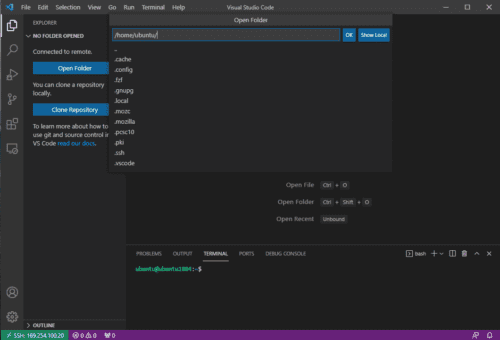
Once the configuration is complete, click the Connect Remote Host button. A new window will open, and you will be able to operate the virtual machine’s files directly from VSCode.
Summary
It is not exactly something that needs to be made into an article at this point, but even though it is convenient, surprisingly few people seem to use it, so I decided to summarize it.
Please make good use of it.