This page has been machine-translated from the original page.
I recently got my first Mac, so I’m recording the setup steps and the places where I got stuck.
This time I will set up the following environment on a Mac mini (Late 2018).
- Upgrade the macOS installed on the Mac mini to the latest version at the time, Monterey 12.2.1
- Install VMware Fusion Player and build a macOS Big Sur virtual machine
- Enable remote access via VNC from a Windows machine on the LAN
Because this was my first Mac, there were quite a few points that took me a while to figure out, so I am summarizing them here.
Contents
- About the environment
- Clean-install macOS
- Upgrade macOS
- Use VNC to remotely access it from a Windows machine over the local network
- Summary
About the environment
The specifications of the Mac mini I bought are as follows.
- Mac mini Late 2018
- Intel Core i3 8100B
- 16GB RAM
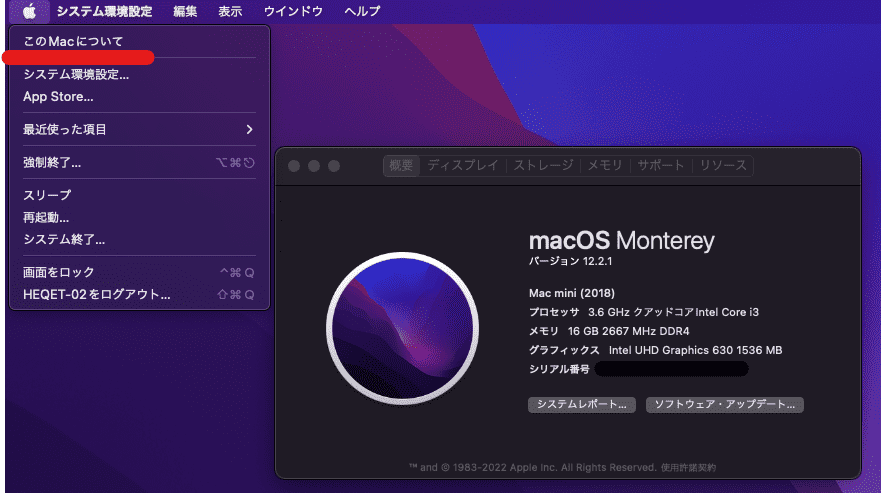
I really wanted the Late 2020 model with the M1 chip, but since VMware ESXi did not yet support the M1 architecture, I chose the Late 2018 model.
I planned to buy used, so I also considered the Late 2014 model, but the cheapest CPU in the Late 2018 lineup, the Intel Core i3 8100B, was very well reviewed and seemed to have better specs than the Late 2014 Intel Core i7-4578U, so I bought this one.
In the used market as well, the Late 2018 i3 model and the Late 2014 i7 model were almost the same price.
Also, unlike the Late 2014, the Late 2018 lets you expand the RAM, and that was ultimately the deciding factor.
Clean-install macOS
When you buy a PC, the proper thing to do first is a clean install.
It was my first time reinstalling macOS, so I was a little confused.
With macOS, unlike Windows or Linux where you create boot media and reset from the BIOS, you reinstall from the recovery utilities built into the Mac, either over the Internet or from recovery media.
For details, the following link is helpful.
Reference: How to reinstall macOS - Apple Support (Japan)
If you are using a Windows keyboard, you can start the recovery utility by turning on the Mac mini Late 2018 while holding [Win key + R].
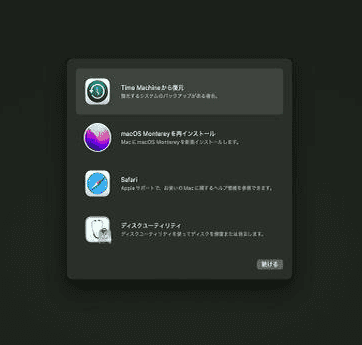
In my environment, I deleted all existing partitions from Disk Utility, repartitioned the disk, and then reinstalled macOS over the Internet.
By the way, I did not use it this time, but it seems you can also install from installation media as follows.
Reference: Get previous versions of macOS - Apple Support (Japan)
Reference: How to create a bootable installer for macOS - Apple Support (Japan)
Upgrade macOS
After the installation is complete and you have linked your Apple ID, open [System Preferences] > [Software Update] and run the update.
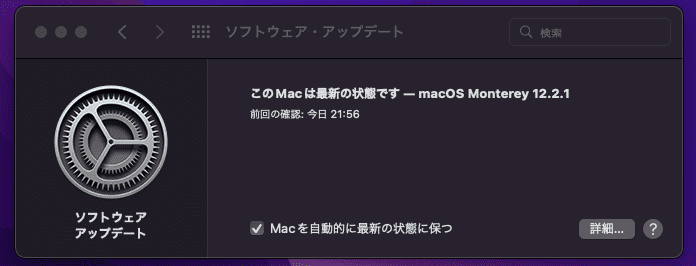
After waiting a while, the upgrade completes.
Install VMware Fusion Player
VMware Fusion is a hosted hypervisor that can run on macOS.
Like VMware Workstation on Windows and other platforms, it comes in Pro and Player editions, and Fusion Player can be used for free for personal use.
Reference: Overview of VMware Fusion | FAQ | JP
Unfortunately, with the free license for Workstation Player on Windows and similar platforms, you cannot use snapshots, which are one of the biggest benefits of virtualization.
However, VMware Fusion lets you use snapshots even with a free personal license.
That is wonderful.
You can download VMware Fusion from the download page below.
Reference: Download VMware Fusion 12 - VMware Customer Connect
Once you can download the installer, log in to the following page with your VMware account and obtain a license for personal use.
Reference: VMware Fusion Player – Personal Use License
If you do not have a VMware account, you need to create one.
Once that is done, you can obtain a license called “VMware Fusion Player – Personal Use.”
After that, just run the downloaded installer and register the license you obtained.
About the macOS license for virtual machines
Before creating a virtual machine, let’s check the license for macOS virtual machines.
If you read Apple’s license, it says that for macOS virtual machines, you may use up to two copies only on Apple hardware.
(iii) to install, use and run up to two (2) additional copies or instances of the Apple Software, or any prior macOS or OS X operating system software or subsequent release of the Apple Software, within virtual operating system environments on each Apple-branded computer you own or control that is already running the Apple Software, for purposes of: (a) software development; (b) testing during software development; (c) using macOS Server; or (d) personal, non-commercial use.
Reference: macOS Monterey License
Building a macOS virtual machine is fine, but it is important to remember that it is only permitted on Apple hardware.
Get the OS installer
When you start the installed Fusion Player, a virtual machine setup screen like the following appears.
Here, if you select “Install macOS from the recovery partition,” you can easily create a virtual machine with the same version as the OS you are currently using.
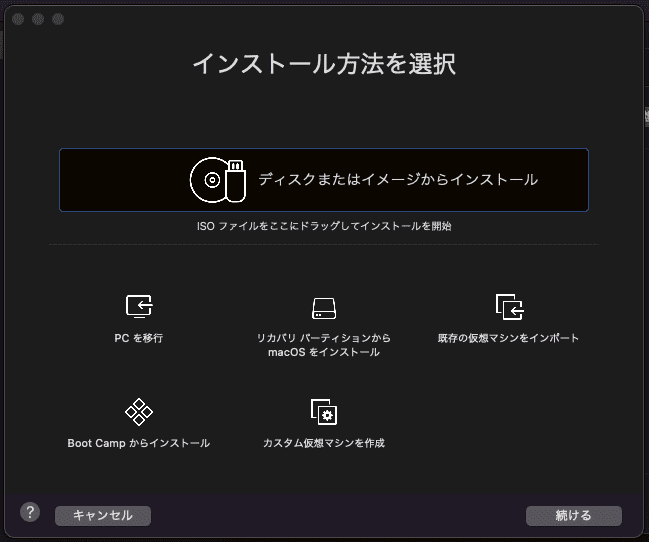
However, this time I want to create a machine for verification, so I will install the previous version, Big Sur.
To do that, I first obtain the OS image.
The OS image can be downloaded from the App Store, but older OS images than the current version do not appear in the App Store’s search results, so you need to access them directly via links on the web.
You can access the link for each OS image from the official page below.
Reference: Get previous versions of macOS - Apple Support (Japan)
If you open the App Store from that URL and download the OS image, the image will be placed in the Applications directory.
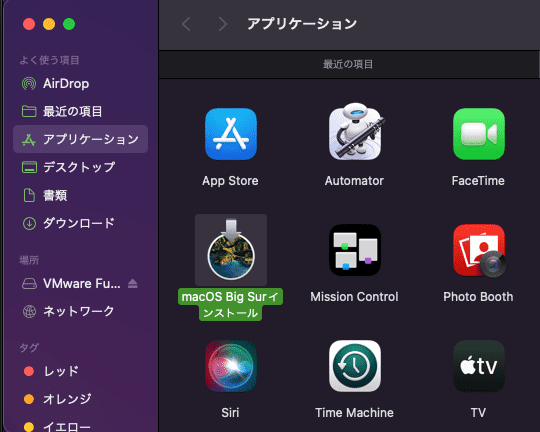
Then, if you drag and drop this image onto Fusion Player’s GUI, you can proceed to create the virtual machine as shown below.
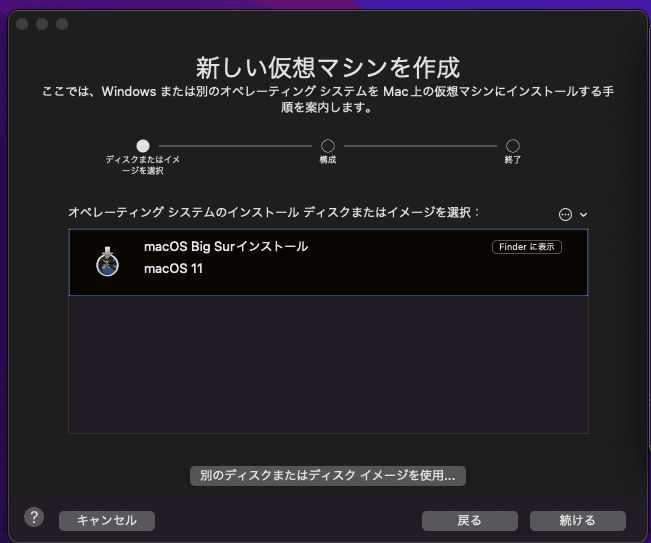
I will omit the detailed hardware customization.
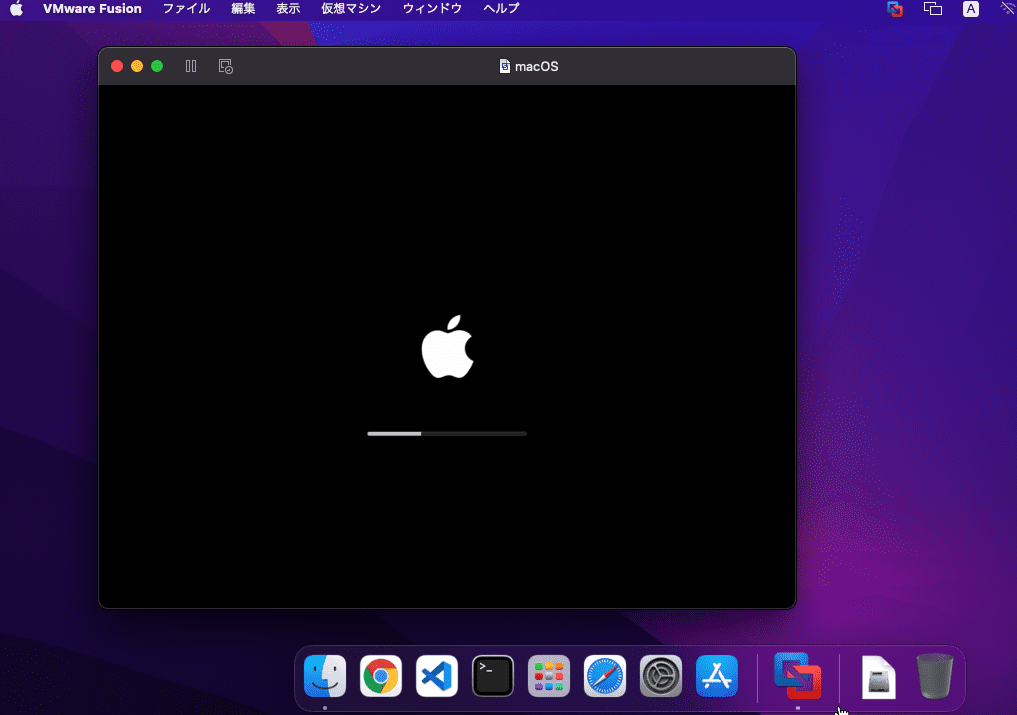
With this, I was able to run a virtual macOS environment on macOS.
Use VNC to remotely access it from a Windows machine over the local network
Click “Sharing” in macOS System Preferences.
Here, enable “Screen Sharing,” then double-click the user Administors shown in the “Allow access for” section and set a password for the connection.
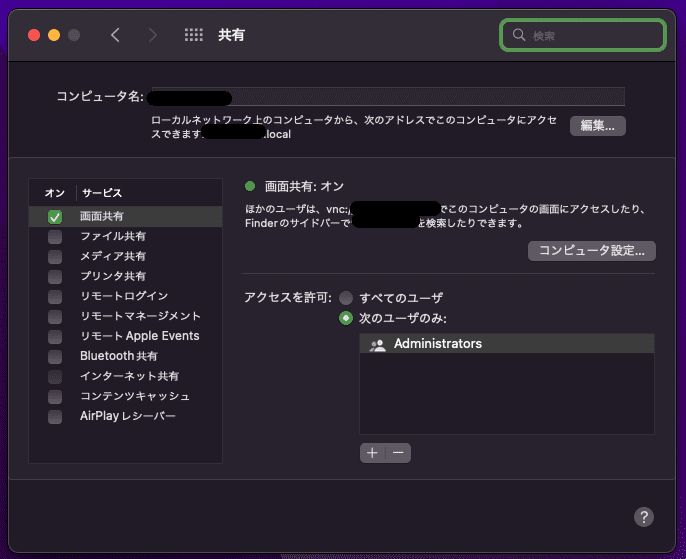
That completes the configuration on the macOS side.
Next, install UltraVNC on the client-side Windows machine.
Reference: Home - UltraVNC VNC OFFICIAL SITE, Remote Desktop Free Opensource
You only need to run the installer downloaded from the link above.
Once UltraVNC is installed, you can remotely access the Mac by specifying <macOS computer name>.LOCAL as the destination.
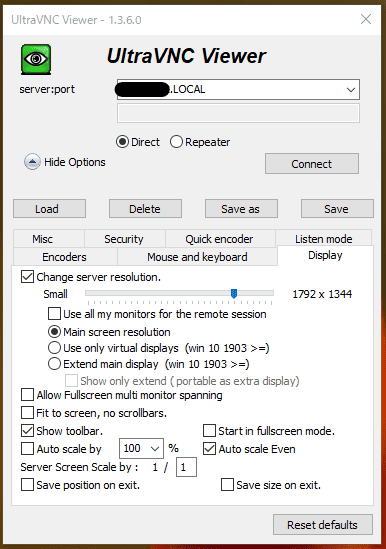
The detailed option settings should work even if you leave them at their defaults.
If you are using a Japanese-layout keyboard, it seems like it is better to enable the “Japanese Keyboard” setting from the “Mouse and Keyboard” settings tab.
Summary
I bought a new Mac and went as far as setting up a virtual machine on it.
I originally wanted to install ESXi, but I learned that apparently ESXi cannot be installed on the internal SSD of the Mac mini and instead must be installed on an external SSD connected via Thunderbolt 3, so this time I used Fusion Player as a substitute.
When I can get an SSD for external connection, I would like to try building an ESXi environment as well.