This page has been machine-translated from the original page.
When developing in both Visual Studio and VSCode, the differences in keybindings can sometimes be stressful.
I do most of my development in VSCode, so I wanted to make Visual Studio’s keybindings match VSCode somehow.
How to change Visual Studio keybindings
First, open [Tools] > [Options] from the navigation bar at the top.
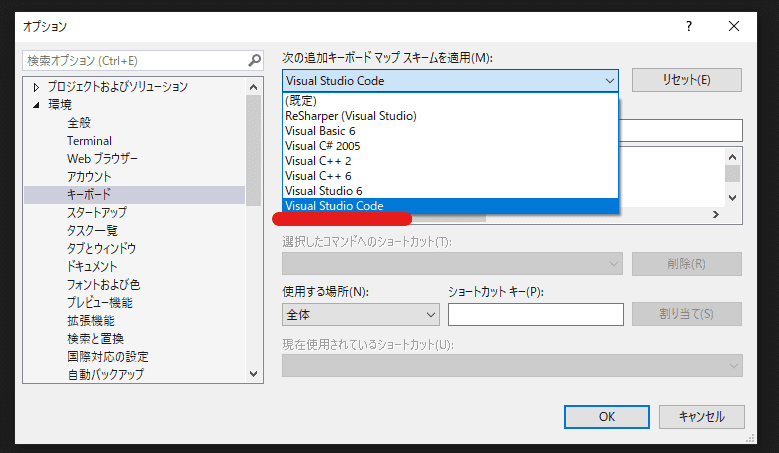
Next, open [Environment] > [Keyboard] from the tab on the left.
Here, you can assign any shortcut key to an operation.
If you want to use the same keybindings as standard VSCode in Visual Studio, select [Visual Studio Code] in the [Apply the following additional keyboard mapping scheme] setting.
Reference: Identify and customize keyboard shortcuts - Visual Studio (Windows) | Microsoft Docs
How to make VSCode keybindings match Visual Studio defaults
You can make VSCode’s keybindings match Visual Studio by installing the following extension maintained by Microsoft.
Reference: Visual Studio Keymap for Visual Studio Code
There are also extensions for setting keybindings compatible with several other editors, such as Atom and SublimeText.
Reference: Search · org:microsoft keybindings
Summary
Now developing in Visual Studio feels stress-free as well.