This page has been machine-translated from the original page.
In this article, I introduce how to recover when boot entries are corrupted in a Windows dual-boot environment and you can no longer boot an OS.
Note that the “dual boot” in this article does not mean splitting the partitions of a single storage device and installing different OSs. Instead, it refers to connecting multiple storage devices to one machine and installing a different Windows OS on each one.
Table of Contents
Dual-Boot Machine Setup
I have been using a Windows dual-boot setup on a ThinkPad E14 Gen6 that I purchased recently.
Whether it is the Intel model or the AMD model, the ThinkPad E14 Gen6 supports two SSD slots and can be equipped with up to 64GB of DDR5-SODIMM RAM, making it a very customizable machine.
The ThinkPad E14 Gen6 can hold two SSDs onboard: NVMe M.2 2280 and 2242.
So right now, I have different Windows OS installations on the two SSDs installed in my ThinkPad E14 Gen6 and use them in a dual-boot setup.
When you clean-install Windows on each disk in such an environment, a screen normally appears at startup that lets you choose which OS to boot, as shown below.
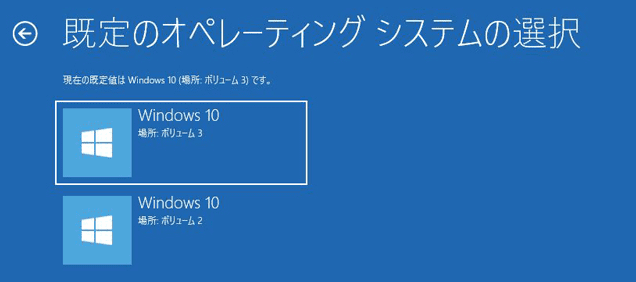
Reference: Customize the default OS and display name in a Windows 10 multiboot setup - Weekly ASCII
However, for example, if one of the OS installations is reset from the recovery options, the boot entry may be corrupted and you may no longer be able to boot that OS.
Also, there are cases where you want to move an SSD that already has an OS installed and had been used in another machine into a different machine.
In such situations, instead of clean-installing the OS again, you need to restore the dual-boot setup by restoring the boot entries.
This time, I summarize how to restore boot entries by adding and editing them with the Windows BCDEdit tool.
How to Restore Boot Entries
It is not mandatory, but if you have configured dual boot, I recommend running the bcdedit command in an administrator Command Prompt beforehand and saving the original boot entry configuration.
If you save the original boot entry configuration, the editing work that follows will go more smoothly.
After signing in to the Windows OS on the machine whose boot entry configuration you want to restore, first run the following command in an administrator Command Prompt.
bcdedit /copy {current} /d "OS1"This copies the current boot entry configuration and adds another one to the system.
Here, you can use any name you like in place of "OS1", as long as it lets you identify the boot entry.
When you inspect the copied boot entry with the BCDEdit command, you can confirm that a new ID has been assigned to identifier.
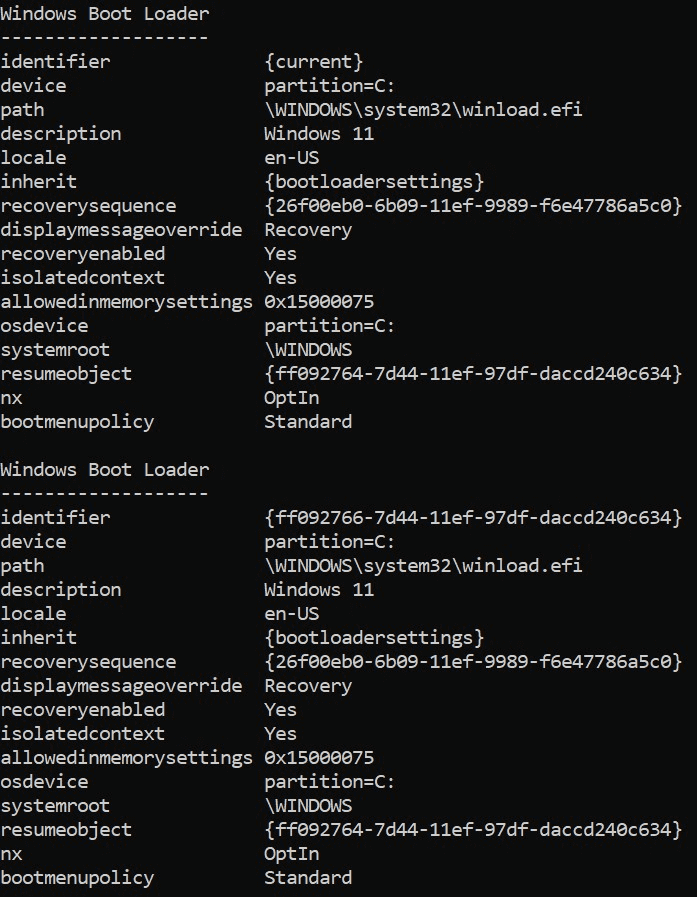
In the commands below, this identifier is used to modify the entry.
First, use the following commands to specify the disk where the OS is installed for device and osdevice.
The \Device\HarddiskVolume6 part should be changed to match your environment.
bcdedit /set {<identifier>} device partition=\Device\HarddiskVolume6
bcdedit /set {<identifier>} osdevice partition=\Device\HarddiskVolume6
Next, use the following commands to set recoverysequence and resumeobject.
If you saved the boot entry configuration in advance, you can reuse the required ID information here more smoothly.
bcdedit /set {<identifier>} recoverysequence {<saved recoverysequence>}
bcdedit /set {<identifier>} resumeobject {<saved resumeobject>}
Finally, change the reconfigured entry to the default entry.
bcdedit /default {<identifier>}When you set an entry as the default entry, it will be used as the automatically selected entry when the OS starts.
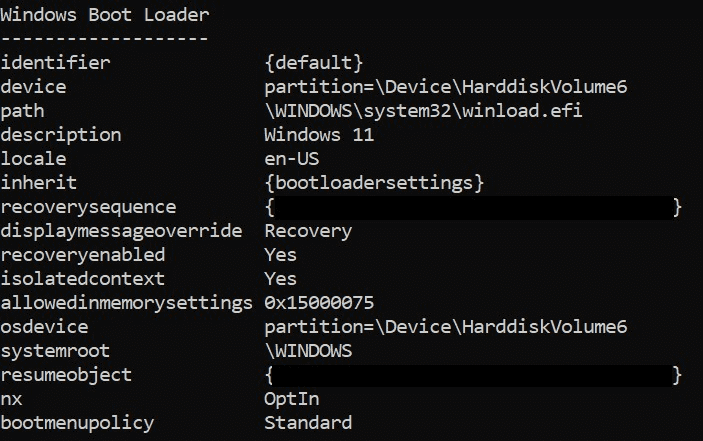
If the boot entry configuration has been added correctly, restarting the OS will restore the dual-boot setup.
Update: How to Change Boot Entry Settings
After configuring dual boot in this way, the default startup setting or display name you configured may sometimes be reset during Windows updates.
In that case, you can restore the display name and automatic selection setting for a specific identifier and the corresponding entry with the following commands.
bcdedit /set {<identifier>} description <display name>
bcdedit /default {<identifier>}
Summary
A note to my foolish past self, who panicked and recovered by clean-installing the OS after breaking a boot entry.