This page has been machine-translated from the original page.
Rust has been a hot topic for a while, and although I had been meaning to try it someday, I kept putting it off. Recently, I learned that the official Rust crate for Windows looks quite promising, so I decided to try creating and debugging programs that call various Windows APIs from Rust.
Reference: microsoft/windows-rs: Rust for Windows
The following is a crate that can call C-style Windows APIs.
Reference: windows-sys - crates.io: Rust Package Registry
This one also seems to be a crate that can call APIs such as COM.
Reference: windows - crates.io: Rust Package Registry
I would like to try various implementations using crates like these.
Table of Contents
Notes on Rust
Before implementing the program, I will first briefly summarize what I looked up about what kind of language Rust is in the first place.
Rust is generally said to have the following advantages.
- Fast execution speed
- Guaranteed safety
- Compatibility ensured through editions
- Rich features and tools
In particular, because Rust does not use garbage collection and is compiled directly into machine code, it is said to deliver performance second only to C/C++.
Also, Rust’s focus on zero-cost abstractions, as in C++, is apparently one reason it can achieve high performance.
Reference: The Rust Programming Language - The Rust Programming Language
Installing Rust and Setting Up the Development Environment
This time I want to implement a program in Rust that calls Windows APIs, so I will set up the development environment on Windows rather than Linux.
Basically, I followed the steps in the official documentation below.
Reference: Set up a development environment for Rust on Windows | Microsoft Learn
To set up the Rust environment, I first installed Visual Studio so that I could install the build tools.
At that time, I installed [.Net desktop development] and [Desktop development with C++] together.
Next, I installed Rust on Windows using the installer downloaded from the following page.
Reference: Install Rust - Rust Programming Language
This completes the minimum required Rust setup, but because I wanted to use VSCode as the IDE, I also installed the rust-analyzer and CodeLLDB extensions.
Reference: Install Visual Studio Code | Microsoft Learn
Creating a Rust Project
Once the basic setup is complete, you can create a HelloWorld project by running the following command.
cargo new HelloWorldThe created project includes main.rs, Cargo.toml, and .gitignore.
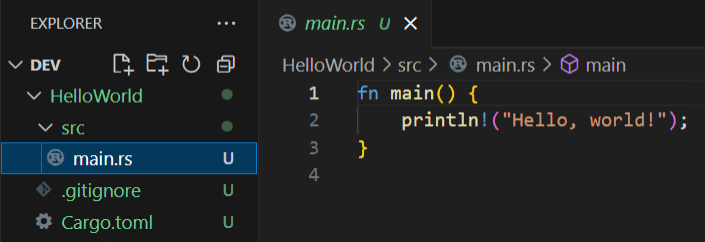
The Cargo.toml file is a manifest file written in TOML format.
The project created by cargo new contains the following default manifest.
[package]
name = "HelloWorld"
version = "0.1.0"
edition = "2024"

[dependencies]
Reference: The Manifest Format - The Cargo Book
The [package] section is required in Cargo, and it contains the package name and version.
Also, edition contains the value that specifies which edition the package will be built with.
In Rust, this edition mechanism is (apparently) how backward compatibility is maintained.
You can build the project you created by running the following command in the same directory as Cargo.toml.
cargo buildBy default, an EXE file was generated directly under target\debug\.

Even without any special configuration, a PDB file is generated in the same folder, so debugging seems straightforward.
Changing Build Options
By the way, in cargo, if you do not specify any options, the dev profile seems to be selected by default, which appears to be why the build output is created under the debug folder.
For example, if you use the following option, the files will be built in the release folder.
cargo build --releaseReference: Customizing Builds with Release Profiles - The Rust Programming Language (Japanese Edition)
At this point, the build options for each profile can be written in the Cargo.toml file.
[profile.dev]
opt-level = 0

[profile.release]
opt-level = 3
debug = false
The following article was easy to understand for the available options.
Reference: About the Compilation Options for cargo build #Rust - Qiita
Specifying the Build Target
With the default settings immediately after creating a project, running cargo build builds src/main.rs.
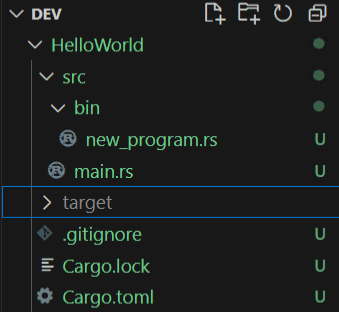
However, if, as in this case, you want to quickly test a program implemented as a single file, it seems you can create a bin folder directly under src and build the files placed there.
For example, if you create new_program.rs as shown below, you can build new_program.exe by running the cargo build --bin new_program command.
Using the MessageBoxW API from Rust
This time, I will try creating a program that calls the MessageBoxW API from Rust using the windows crate.
Reference: Rust for Windows and the windows crate | Microsoft Learn
By using the windows crate published on crates.io, you can easily use Windows APIs such as MessageBoxW from a Rust program.
A crate is something like a library in other programming languages, and even with external crates published on crates.io, such as the windows crate, it seems that if you add their definitions to [dependencies] in the Cargo.toml file, the cargo command will automatically resolve the dependencies when building.
Adding the windows Crate to Use the MessageBoxW API
First, I added the following line to the Cargo.toml file to use the MessageBoxW API.
In the following entry, I specify version 0.60.0 of the windows crate published on crates.io as a dependency, and I specify Win32_UI_WindowsAndMessaging with the features option.
[dependencies]
windows = { version = "0.60.0", features = ["Win32_UI_WindowsAndMessaging"] }
It seems that the features option can be used to specify that particular functionality should be enabled at compile time.
In this case, it enables the Win32_UI_WindowsAndMessaging feature, which includes MessageBoxW.
Reference: How to Use Feature Flags in Rust #Rust - Qiita
Reference: windows::Win32::UI::WindowsAndMessaging - Rust
Reference: MessageBoxExW in windows::Win32::UI::WindowsAndMessaging - Rust
Creating MessageBoxW.rs and Loading the Module
Next, I created a MessageBoxW.rs file directly under src/bin/ and wrote the following code.
use windows::{
    core::PCWSTR,
    Win32::UI::WindowsAndMessaging::{MessageBoxW, MB_OK, MB_ICONINFORMATION},
};

fn to_wide_null(s: &str) -> Vec<u16> {
    s.encode_utf16().chain(std::iter::once(0)).collect()
}

fn main() {
    let caption = to_wide_null("Title");
    let message = to_wide_null("This is my first WinAPI with Rust.");

    unsafe {
        MessageBoxW(
            None,
            PCWSTR(message.as_ptr()),
            PCWSTR(caption.as_ptr()),
            MB_OK | MB_ICONINFORMATION,
        );
    }
}
First, at the top of the file, use declares that the required components will be imported.
In this example, it instructs Rust to import core::PCWSTR and Win32::UI::WindowsAndMessaging::{MessageBoxW, MB_OK, MB_ICONINFORMATION} from the windows crate.
use windows::{
    core::PCWSTR,
    Win32::UI::WindowsAndMessaging::{MessageBoxW, MB_OK, MB_ICONINFORMATION},
};
core::PCWSTR is a pointer type that points to a null-terminated UTF-16 string in the Windows API.
Also, Win32::UI::WindowsAndMessaging::{MessageBoxW, MB_OK, MB_ICONINFORMATION} imports three items from Win32::UI::WindowsAndMessaging: MessageBoxW, MB_OK, and MB_ICONINFORMATION.
Because it is written compactly, it is actually a bit hard to read until you get used to it, but in practice I was able to run the program the same way even if I wrote it as follows.
use windows::core::PCWSTR;
use windows::Win32::UI::WindowsAndMessaging::MessageBoxW;
use windows::Win32::UI::WindowsAndMessaging::MB_OK;
use windows::Win32::UI::WindowsAndMessaging::MB_ICONINFORMATION;
Defining the Function
In the next section, I define a function called to_wide_null.
In Rust, functions are defined in the form fn <function_name>(). The notation after -> specifies the function’s return type.
In other words, in the following code, Vec<u16> shows that this function returns a vector type.
fn to_wide_null(s: &str) -> Vec<u16> {
    s.encode_utf16().chain(std::iter::once(0)).collect()
}
More specifically, s.encode_utf16().chain(std::iter::once(0)).collect() inside the function UTF-16 encodes the string slice s of type &str, adds a null character (0) element at the end with .chain(std::iter::once(0)), and returns it as the Vec<u16> vector specified by .collect(). (Hard to follow!)
Calling the MessageBoxW API
Finally, the following main function calls the MessageBoxW API.
fn main() {
    let caption = to_wide_null("Title");
    let message = to_wide_null("This is my first WinAPI with Rust.");

    unsafe {
        MessageBoxW(
            None,
            PCWSTR(message.as_ptr()),
            PCWSTR(caption.as_ptr()),
            MB_OK | MB_ICONINFORMATION,
        );
    }
}
Here, I first use the to_wide_null function to define caption and message as null-terminated wide strings.
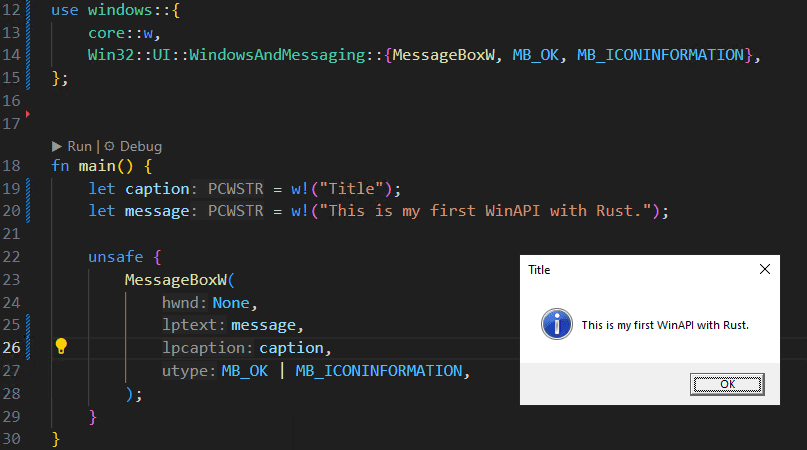
In VSCode, the types are displayed directly in the code, which makes this much easier to read.
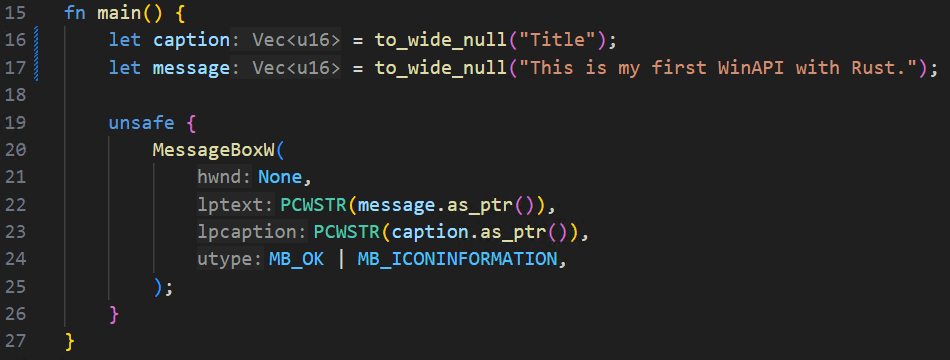
Next, I call MessageBoxW inside an unsafe block.
unsafe seems to be syntax used when bypassing Rust’s compile-time-enforced memory safety and running code for which memory safety is not enforced at compile time.
There seem to be several situations where unsafe is used, but in this case I need to use an unsafe block because I am calling MessageBoxW, an unsafe function exported via extern.
Reference: Unsafe Rust - The Rust Programming Language
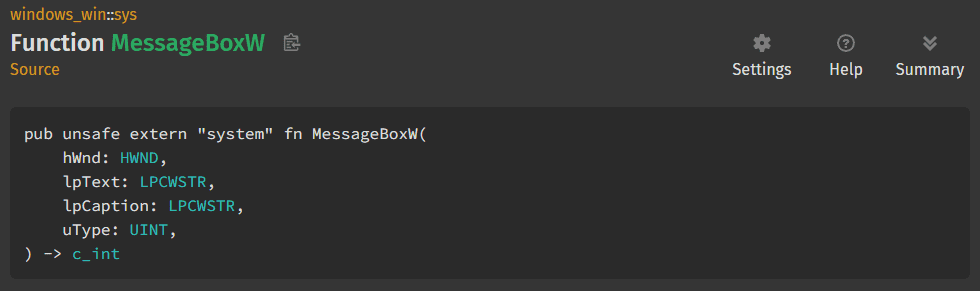
Reference: MessageBoxW in windows_win::sys - Rust
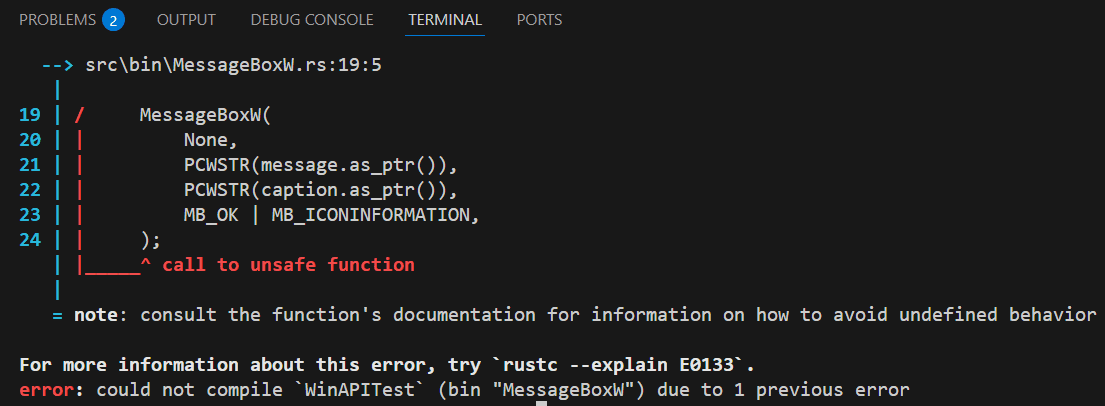
As an experiment, I removed the unsafe block and tried to compile it, and the compiler properly produced an error.
Easily Converting String Literals to UTF-16 Wide Strings
Up to this point in the code, I had been using the to_wide_null function to convert strings into the UTF-16 strings passed as arguments to MessageBoxW.
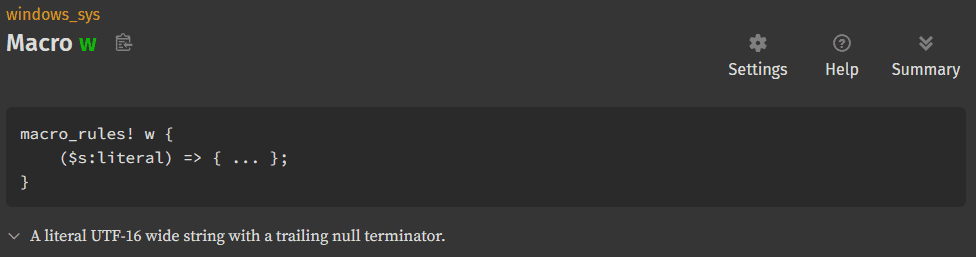
However, someone more knowledgeable told me that using a macro called w! makes string conversion much easier, so I rewrote the code.
Reference: w in windows_sys - Rust
The rewritten code is shown below. It is much cleaner.
The windows::core::w! macro converts the target string into a null-terminated UTF-16 wide string, so there is no longer any need to obtain a pointer to a vector containing the wide string via windows::core::PCWSTR.
use windows::{
    core::w,
    Win32::UI::WindowsAndMessaging::{MessageBoxW, MB_OK, MB_ICONINFORMATION},
};


fn main() {
    let caption = w!("Title");
    let message = w!("This is my first WinAPI with Rust.");

    unsafe {
        MessageBoxW(
            None,
            message,
            caption,
            MB_OK | MB_ICONINFORMATION,
        );
    }
}
When I built and ran this code, I was able to use MessageBoxW just like with the original code.
Running the Program
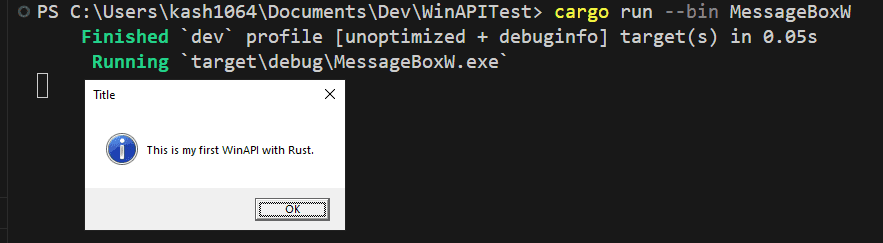
At this point the code is complete, so you can call the MessageBoxW API from Rust by running cargo run --bin MessageBoxW.
The windows crate is convenient, so invoking the API was easier than I expected.
Summary
From here on, I plan to try implementing programs in Rust that use various Windows APIs, so as a first step I summarized the procedure up to using MessageBoxW.