This page has been machine-translated from the original page.
A cheat sheet summarizing the WinDbg commands I often use personally.
I plan to add more content in the future.
Table of Contents
- Frequently Used Links
- Adding and Loading Symbol Settings
- Module Listing, Information Retrieval (lm, x, ln)
- Register Reference and Operation (r)
- Memory Reference and Editing (dc, dps, etc..)
- Searching in Memory (s)
- Saving Memory Data as a File
- Outputting Assembly Code (u, ub, etc…)
-
- !help: Extension Help
- !analyze: Obtaining Information on Exceptions or Bug Checks
- !address: Referencing Information on Memory or Processes
- !handle: Referencing System or Process Handle Information
- Obtaining Thread Environment Block (TEB) Information
- Obtaining Process Environment Block (PEB) Information
- Extracting PE Files Using !dumpext Extension
- Using MEX
- Config Commands
- Other Commands
- JavaScript-based Debugging Scripts
-
- Setting Up Full Memory Dump Acquisition
- Enumerating Kernel Structure Information
- Enumerating Process Information
- Enumerating Thread Information
- Enumerating Process Handle Information
- Outputting Physical and Virtual Memory Information
- Aligning Context in Kernel Memory Dump
- Investigating Session ID and Processes
- Exploring System Registry Information
- Reading CPU Statistics by Referencing KPCR and KPRCB
- Investigating Pool
Preface
The content of this article is created based solely on publicly available information, published books, or results verified in my personal testing environment.
Related articles are here.
- Memo for Reading Windows Process Information with WinDbg
- Knowledge Collection for Setting Global Flags with GFlags for Detailed Debugging
Frequently Used Links
Reference: Debugging Resources - Windows drivers | Microsoft Learn
Reference: Commands - Windows drivers | Microsoft Learn
Reference: Docs Search Link
Reference: WinDBG
Reference: WinDbg Release notes - Windows drivers | Microsoft Learn
Reference: WinDbgAto_Z
Reference: CrashMe Application / Mike Dos Zhang: Search results for WinDbg
Reference: Inside Show | Microsoft Learn
Adding and Loading Symbol Settings
# Set cache and symbol store (replace)
.sympath cache*C:\Users\kash1064\Documents\symbols;srv*C:\Users\kash1064\Documents\symbols*https://msdl.microsoft.com/download/symbols

# Add symbol store setting
.sympath+ C:\Users\kash1064\Downloads

# Confirm current settings
.sympath

# Load symbol files
.reload /f HEVD.sys
.reload /f

# To confirm detailed logs when loading symbols
!sym noisy
.reload /f HEVD.sys
!sym quiet
Reference: Configuring Symbol Paths: Windows Debugger - Windows drivers | Microsoft Learn
Reference: .sympath (Set Symbol Path) - Windows drivers | Microsoft Learn
Reference: .reload (Reload Module) - Windows drivers | Microsoft Learn
Reference: !sym (WinDbg) - Windows drivers | Microsoft Learn
Usually not necessary, but for minidumps, etc., .exepath is required to specify the executable file search path.
Reference: .exepath (Set Executable Path) - Windows drivers | Microsoft Learn
Module Listing, Information Retrieval (lm, x, ln)
# Enumerate modules
lm

# Enumerate modules starting with a
lm m a*

# Display module information, can also display timestamps, etc.
# !lmi can also be used to get detailed module information
lm Dvm <modulename>

# Resolve the address of the main function of the module from symbols
x modulename!*main*

# Enumerate function names starting with a
x /D /f modulename!a*

# Resolve symbol name from address
ln address
Reference: lm (List Loaded Modules) - Windows drivers | Microsoft Learn
Reference: x (Examine Symbols) - Windows drivers | Microsoft Learn
Reference: ln (List Nearest Symbols) - Windows drivers | Microsoft Learn
Register Reference and Operation (r)
# Display list of registers
r

# Display specific registers, multiple registers
r eip
r zf
r eax,ebx,ecx,edx,ebp,eip

# Rewrite register values
r eax=00000001
r zf=0

# Display registers assigned to the second thread
# Or switch the current thread with ~1s and then output
~1 r

# Display registers associated with all threads
~* r eax

# Display xmm0 as unsigned 16-byte, xmm1 as double-precision floating-point
r xmm0:16ub, xmm1:d

# Display pseudo registers
r $peb,$teb

# Copy the value of ebx to eax
r eax = @ebx
Reference: r (Registers) - Windows drivers | Microsoft Learn
Memory Reference and Editing (dc, dps, etc..)
# Output Hex and ASCII in memory range or offset
dc 0x1000 0x1200

# L indicates object count
# dc @addr L1 is 1 DWORD, dq @addr L1 is 1 QWORD
dc @eip L1
dc 0x1000 L20

# Can also reference addresses or registers holding addresses
dc 0x1000
dc eax

# dps, dqs display values in pointer size and symbols if resolvable
dps rsp
dqs rsp

# Display memory in 32bit(ddp), 64bit(dqp)
ddp 0x1000
dqp 0x1000

# Display as ASCII string
da 0x1000

# Display as UNICODE string
du rsp+0x40

# Rewrite byte values
eb 0x1000

# Rewrite ASCII string
ea 0x1000 "change ascii"

# Using pseudo registers, $p holds the result of the most recent d* command
dd r11 L1 ; ? $p
Reference: d, da, db, dc, dd, dD, df, dp, dq, du, dw (Display Memory) - Windows drivers | Microsoft Learn
Reference: dds, dps, dqs (Display Words and Symbols) - Windows drivers | Microsoft Learn
Reference: e, ea, eb, ed, eD, ef, ep, eq, eu, ew, eza (Enter Values) - Windows drivers | Microsoft Learn
Reference: Pseudo Register Syntax - Windows drivers | Microsoft Learn
Searching in Memory (s)
Basic memory search can be achieved with the following commands.
# Search for DWORD value H in the range from RSP address to 1000000 bytes
s -d @rsp L1000000 'H'

# Search for ASCII string Hello in the range from RSP address to 10000000 bytes
s -a @rsp L10000000 "Hello"

# Search for ASCII string Hello in a wide range from 0 to 0x7fffffff
# L? specification is mandatory when searching ranges larger than 256 MB
s -a 0 L?7fffffff "Hello"

# Unicode strings can also be searched similarly
s -u @rsp L1000000 'Hello'
s -u 0 L?7fffffff "Hello"
The following shows the difference between searching for ASCII strings and Unicode strings.
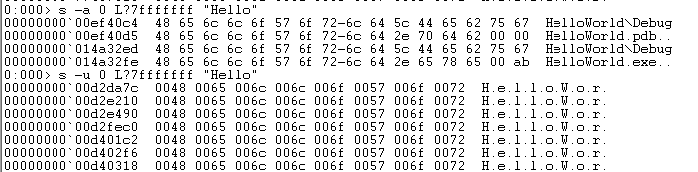
You can also specify specific byte patterns to search for memory information.
# Search for "ASCII strings longer than 4 characters" in the range from RSP address to 400 bytes
s -[l4]sa @rsp L400

# Search for "ASCII strings longer than 4 characters" from "writable addresses" in the range from RSP address to 400 bytes
s -[wl4]sa @rsp L400
Reference: s (Search Memory) - Windows drivers | Microsoft Learn
Saving Memory Data as a File
Using the .writemem command, you can save data in a specific address range in memory to a file during debugging.
For example, you can export keys expanded in memory during program execution or decrypted execution code to a file.
# Save 0x100 bytes of memory data from address 0xb3f668 to C:\Temp\output.bin
.writemem C:\Temp\output.bin 0xb3f668 L0x100

# Save 0x1ce00 bytes of memory data from binary offset 3000 to C:\Temp\output.exe
.writemem C:\Temp\output.exe binary+3000 L0x1ce00
Reference: .writemem (Write Memory to File) - Windows drivers | Microsoft Learn
Outputting Assembly Code (u, ub, etc…)
You can output the same assembly code as seen in the Disassembly window with the following commands.
# Output assembly code from EIP (ub outputs in reverse direction)
u
ub

# Output 10 lines of assembly code from specified address
u 0x1000 L10

# Can also use registers containing addresses
u eax L10
u eip L20

# Output the entire code of a specific function from function address or symbol name
uf 0x1000
uf module!function

# Extract only call instructions in the target routine
uf /c 0x1000
Reference: u, ub, uu (Unassemble) - Windows drivers | Microsoft Learn
Reference: uf (Unassemble Function) - Windows drivers | Microsoft Learn
Outputting Variables and Structures (dv, dt)
Commands to obtain variable or structure information.
Especially, using dt to obtain kernel structure information is very common.
# Output local variables in current scope (/t displays type names)
dv
dv /t

# Variable type names can also be resolved with dt command
dt local_val_name

# Resolve structures from symbol names or addresses
dt MyStruct

# To enumerate substructures recursively, use -r or -b
dt -r MyStruct

# You can specify the hierarchy of structures to display recursively with -r1 -r2, etc.
dt -r2 MyStruct

# Can enumerate type information of kernel structures
dt nt!_*
dt nt!*PEB*

# To get actual values, specify the address of the structure
dt nt!_EPROCESS <EPROCESS address>

# Can extract only specific values by specifying subtype names
dt nt!_EPROCESS ImageFileName <EPROCESS address>

# -l option traverses linked lists to dump structure information
# -y option outputs lines that start with the specified string
# -o option hides offsets
# -i option does not indent subtypes
dt nt!_EPROCESS -l ActiveProcessLinks.Flink  -y Ima -yoi Uni <EPROCESS address>

# dt cannot get substructure information, so use -r or -b switch
dt ntdll!_EPROCESS -r <EPROCESS address>
dt ntdll!_EPROCESS -b <EPROCESS address>
Reference: dv (Display Local Variables) - Windows drivers | Microsoft Learn
Reference: dt (Display Type) - Windows drivers | Microsoft Learn
Reference: Inside Windows 7th Edition Upper P.44
When the structure to be analyzed contains bidirectional lists, the dt command can recursively obtain information linked in the list. (Enumerating _EPROCESS structures during kernel debugging, etc.)
Also, the dv command does not work effectively in 64-bit calling conventions or Fast calling convention (calling conventions that pass arguments as much as possible via registers).
For example, the __cdecl calling convention commonly used in x86 Windows stably passes all arguments via stack, so local arguments can be referenced stably with dv command.
Reference: Calling Conventions Demystified (Japanese translation memo) - Glamenv-Septzen.net
Referencing PE Binary Information
# Reference table information
!dh -f !<module_name>

# Enumerate import table information from identified address and size
dps !<module_name>+<IAT address> !<module_name>+<IAT address>+<IAT size>

# Enumerate DOS header
dt /r _IMAGE_DOS_HEADER @@masm(!<module_name>)

# Enumerate NT header (FileHeader / OptionalHeader)
# e_lfanew is obtained from the PE header pointer at 0x3C of DOS header
dt /r _IMAGE_NT_HEADERS64 @@masm(!<module_name>+<e_lfanew value>)

# Get the first SectionHeader by adding the size of NT header FileHeader to the address where SizeOfOptionalHeader value is added
dt /r _IMAGE_SECTION_HEADER @@masm(!<module_name>+0xF8+0x018+<SizeOfOptionalHeader>)

# By adding the size of _IMAGE_SECTION_HEADER which is 0x28, you can refer to the information of the next section (need to load structure symbols in advance)
dt /r _IMAGE_SECTION_HEADER @@masm(!<module_name>+0xF8+0x018+<<SizeOfOptionalHeader>+0x28>)
Setting Breakpoints (bp, bu, bm)
Breakpoints can be set using three commands: bp, bu, bm.
bp is for normal breakpoint setting, setting breakpoints at symbols or addresses specified in the command.
On the other hand, for unresolved addresses or addresses that cannot be resolved with bp, use bu to set breakpoints.
※ Using bu command allows setting breakpoints on system drivers loaded later during kernel debugging, for example.
Furthermore, using bm command allows setting breakpoints on symbols using patterns.
# Set breakpoint at offset
bp module+0x123
bu dllmodule!DLLMain

# Set breakpoints collectively on multiple modules starting with mem
bm myprogram!mem*
When setting breakpoints, you can also specify the processing when the breakpoint matches, or the number of times the relevant code is called before stopping execution.
Additionally, you can finely condition the behavior at break time by defining conditional branching such as IF statements.
Operators that can be used in conditional expressions include MASM Numbers and Operators, etc.
Conditional branching is defined with .if or j commands, but this notation is now recommended to use the notation bp /w "(Condition)" Address as per Conditional breakpoints in WinDbg.
# Stop execution on the 7th time the processing set with breakpoint is called
bp MyTest+0xb 7

# After matching the breakpoint, output EAX and variable MyVar, then automatically resume execution
bp ntdll!RtlRaiseException "r eax; dt MyVar; gc"

# Output arbitrary string with echo and continue processing
bp module!myFunction ".echo myFunction executed; gc"

# Basic syntax of IF conditional expression
bp module!myFunction ".if () {} .else {}"

# Dereference var address with poi, compare with decimal 10
# If matches, do nothing and break; if not, continue processing
bp module!myFunction ".if ( poi(var) == 0n10 ) {} .else { gc }"

# The following achieves the same result
bp module!myFunction "j ( poi(var) == 0n10 ) ''; 'gc'"

# Clear all breakpoints
bc *

# Set one-shot breakpoint with /1 (breaks only once)
bp /1 nt!IoCreateDevice
Incidentally, the gc command instructs to move from conditional breakpoints, and when included in the command at break time, it specifies to proceed with the same method as the execution command (g or F10, etc.) when reaching this breakpoint.
Reference: bp, bu, bm (Set Breakpoint) - Windows drivers | Microsoft Learn
Reference: gc (Go from Conditional Breakpoint) - Windows drivers | Microsoft Learn
Reference: j (Execute If - Else) - Windows drivers | Microsoft Learn
Reference: Conditional breakpoints in WinDbg and other Windows debuggers - Windows drivers | Microsoft Learn
Conditional breakpoints can also be controlled using script files.
See Using Script Files for details.
Monitoring Read and Write Access (ba)
Using the ba command, you can set breakpoints when access occurs to specific memory areas, not just execution code.
The specifiable values are mainly “execute (e)”, “read/write (r)”, “write (w)“.
Additionally, limited to kernel debugging, you can configure breakpoints when I/O occurs on specific I/O ports with the “I/O (i)” option.
# Break when read access occurs on 4-byte area from variable name or variable address
ba r4 myVar
ba r4 0x1000

# Break when write access occurs on target
ba w4 0x1000

# Break when I/O occurs on ports from 3f8 to 3f8+4 (kernel debugging only)
ba i4 3f8
Reference: ba (Break on Access) - Windows drivers | Microsoft Learn
Managing Breakpoint Settings (bl, bd, etc…)
You can confirm, enable/disable current breakpoint settings with the following commands.
# Enumerate currently set breakpoints
# The breakpoint ID displayed here can be used to specify targets in other management commands
bl

# Disable all breakpoints
bd *

# Disable only breakpoint with ID 1
bd 1

# Enable all breakpoints
be *

# Enable only breakpoint with ID 1
be 1

# List the commands used for current breakpoint settings in order from top
.bpcmds
Reference: bl (Breakpoint List) - Windows drivers | Microsoft Learn
Reference: be (Breakpoint Enable) - Windows drivers | Microsoft Learn
Reference: bd (Breakpoint Disable) - Windows drivers | Microsoft Learn
You can also update current breakpoint settings or conditions with the following commands.
# Change breakpoint ID
# Can also batch change multiple IDs
br OldID NewID
br OldID NewID OldID2 NewID2 OldID3 NewID3

# Can modify the command part of the breakpoint
bs ID ["CommandString"]

# Can change breakpoint condition statements
bsc ID Condition ["CommandString"]
Reference: br (Breakpoint Renumber) - Windows drivers | Microsoft Learn
Reference: bs (Update Breakpoint Command) - Windows drivers | Microsoft Learn
Reference: bsc (Update Conditional Breakpoint) - Windows drivers | Microsoft Learn
Breaking When Loading DLLs or Kernel Drivers
# Break when loading HEVD.sys driver
sxe ld HEVD.sys

# Set one-shot breakpoint on nt!IoCreateDevice after load break
bp /1 nt!IoCreateDevice
Reference: sx, sxd, sxe, sxi, sxn, sxr, sx- (Set Exceptions) - Windows drivers | Microsoft Learn
Code Execution Commands
In WinDbg, code execution can be performed in three main operations.
- Step: Execute a single instruction or code (Step Over)
- Trace: Execute a single instruction or source line (Step Into)
- Go: Resume execution of process or thread
Step Over (p)
Execute a single instruction or code with p command or F10 key.
In WinDbg, the operation executed with p command or F10 key corresponds to Step Over, and in call instructions, it does not move to the called function, but proceeds to the next line of the call instruction.
By default, registers and flags are output when Step Over, but you can disable the output of registers and flags by adding r like pr, or by executing .prompt_allow -reg command. (Execute .prompt_allow +reg to restore)
# Perform step over operation
p (or F10)

# Execute 5 lines of step over
p 5

# Execute WinDbg command after step over
p "k;r eax"

# Repeat Step Over until reaching specified address
pa StopAddress

# Step Over until next call instruction line
pc

# pc can also execute count
pc 3

# Step Over until next ret instruction line
pt

# Step Over until next call or ret instruction line
pct

# Step Over until next branching instruction
ph
Reference: p (Step) - Windows drivers | Microsoft Learn
Reference: pa (Step to Address) - Windows drivers | Microsoft Learn
Reference: pc (Step to Next Call) - Windows drivers | Microsoft Learn
Reference: pt (Step to Next Return) - Windows drivers | Microsoft Learn
Reference: pct (Step to Next Call or Return) - Windows drivers | Microsoft Learn
Reference: ph (Step to Next Branching Instruction) - Windows drivers | Microsoft Learn
Step Into (t)
Planned to be added later.
Reference: t (Trace) - Windows drivers | Microsoft Learn
go (g)
Planned to be added later.
Reference: g (Go) - Windows drivers | Microsoft Learn
Saving Command Output to a File
Using the .logopen command, you can save WinDbg command execution and its output to any file.
By default, the output text is ASCII, but you can specify Unicode text with the /u option.
This is especially useful when outputting a large amount of information at once, such as with the process command.
# Record command output in any log file (ASCII text)
.logopen C:\Users\Public\windbg.log

# Record command output in any log file with the process ID and current date/time added (/t)
.logopen /t C:\Users\Public\windbg.log

# Automatically determine the file name from process or file information and save it
.logopen /d

# Append to an existing log file
.logappend C:\Users\Public\windbg.log

# Close the file and stop recording
.logclose
Reference: Keeping a Log File in WinDbg - Windows drivers | Microsoft Learn
Reference: .logopen (Open Log File) - Windows drivers | Microsoft Learn
Reference: .logappend (Append Log File) - Windows drivers | Microsoft Learn
Reference: .logclose (Close Log File) - Windows drivers | Microsoft Learn
Saving Output to a File Using Command Line Options
By starting WinDbg with the -logo FilePath option, you can record all output from the command window to the specified file.
This can also be used when specifying the path to WinDbg in an application’s Debugger flag.
You can also specify the -logo option when launching WinDbg by editing a shortcut.
For example, if you set the following command line in a shortcut, the output will always be saved to C:\Users\Public\debug.log.
C:\Program Files (x86)\Windows Kits\10\Debuggers\x64\windbg.exe -logo C:\Users\Public\debug.logNote that when using the -logo option as above, the file is overwritten each time WinDbg starts.
Extensions
Loaded extensions can be checked with .chain.
The default extensions are of the following types, and each is loaded as a DLL.
- ext
- wow64exts
- dbghelp
- exts
- uext
- ntsdexts
!help: Extension Help
The !help extension outputs the command list for the ext extension by default.
However, help commands also exist in several other extensions, and you can access each extension’s command list with notation such as !ext.help or !wow64exts.help.
# Output help for the ext extension
!ext.help

analyze [-v][level]        - Analyzes current exception or bugcheck (levels are 0..9)
owner [symbol!module]      - Displays the Owner for current exception or bugcheck
comment                    - Displays the Dump's Comment(s)

error [errorcode]          - Displays Win32 or NTSTATUS error string
gle [-all]                 - Displays the Last Error & Last Status of the current thread

address [address]          - Displays the address space layout
        [-UsageType]       - Displays the address space regions of the given type

cpuid [processor]          - Displays the CPU information for a specific or all CPUs

exchain                    - Displays exception chain for the current thread

for_each_process <cmd>     - Executes command for each process
for_each_thread <cmd>      - Executes command for each thread
for_each_frame <cmd>       - Executes command for each frame in the current thread
for_each_local <cmd> $$<n> - Executes command for each local variable in the current frame,
                             substituting the fixed-name alias $u<n> for each occurrence of $$<n>

imggp <imagebase>          - Displays GP directory entry for 64-bit image
imgreloc <imagebase>       - Relocates modules for an image

str <address>              - Displays ANSI_STRING or OEM_STRING
ustr <address>             - Displays UNICODE_STRING

list [-? | parameters]     - Displays lists

cppexr <exraddress>        - Displays a C++ EXCEPTION_RECORD
obja <address>             - Displays OBJECT_ATTRIBUTES[32|64]
rtlavl <address>           - Displays RTL_AVL_TABLE
std_map <address>          - Displays a std::map<>
!analyze: Obtaining Information on Exceptions or Bug Checks
!analyze is a command included in the ext extension and is very useful when analyzing crash dumps and similar data.
It also includes information such as the output of the .ecxr command, which displays the register context associated with the exception that occurred. (.exr -1 displays information about the most recent exception that occurred in the system.)
For system dumps, you can also examine information about the cause of the system crash with the .bugcheck command.
# Run the main analysis
!analyze -v

# Global flags
NTGLOBALFLAG

# Information related to the process or application is recorded
PROCESS_BAM_CURRENT_THROTTLED
PROCESS_BAM_PREVIOUS_THROTTLED
APPLICATION_VERIFIER_FLAGS

# EXCEPTION_RECORD contains information about the exception and the process that crashed
EXCEPTION_RECORD:  (.exr -1)
ExceptionAddress: 00007ffce5c60910 (ntdll!LdrpDoDebuggerBreak+0x0000000000000030)
ExceptionCode: 80000003 (Break instruction exception)
ExceptionFlags: 00000000

# The call stack at the time of the exception is recorded
# The same content can also be output with the command ~0s ; .cxr ; kb
STACK_TEXT

# Display the problem category
FAILURE_BUCKET_ID
Reference: WinDBG !analyze extension command
Reference: analyze (WinDbg) - Windows drivers | Microsoft Learn
!address: Referencing Information on Memory or Processes
!address is also a command included in the ext extension and displays information about the memory region or process for the specified address.
For example, by issuing the !address command for the return value address of the malloc function, you can obtain information about the target memory region.
# Output information for each memory block
!address

# Output information for the specified address
!address <Address>

# Output memory statistics in user-mode debugging
!address -summary
As shown in the parameter table in the Docs below, you can obtain various information such as the purpose of the target memory region, its state, and its protection.
Reference: address (WinDbg) - Windows drivers | Microsoft Learn
!handle: Referencing System or Process Handle Information
!handle is also a command included in the ext extension and can obtain information about system or process handles.
When used in user-mode debugging, it can display a list of handle information and statistics for that process.
The information you can obtain with !handle without options is very similar to the handle view in Process Explorer.
# Obtain handle information
!handle

# Dump detailed information for all handles
!handle 0 0xf

# Obtain detailed information for the handle whose handle ID is 430
!handle 430 0xf
Reference: handle (WinDbg) - Windows drivers | Microsoft Learn
Obtaining Thread Environment Block (TEB) Information
# Dump TEB information
!teb
Reference: teb (WinDbg) - Windows drivers | Microsoft Learn
Obtaining Process Environment Block (PEB) Information
# Dump PEB information
!peb
Extracting PE Files Using !dumpext Extension
By using the open-source !dumpext extension, you can easily dump PE header information or extract PE binaries from dump files.
Beforehand, build the extension by following the steps in the GitHub repository below.
After that, you can export a PE binary from a dump file as follows.
# Download the built binary in advance from https://kashiwaba-yuki.com/file/dumpext.dll.
.load C:\Users\User\Downloads\dumpext.dll

# Export the PE binary from a process dump as dump.out to "C:\Program Files (x86)\Windows Kits\10\Debuggers\x64"
!dumpext.dump_pe !<module_name>
Reference: peb (WinDbg) - Windows drivers | Microsoft Learn
Using MEX
Reference: Magical WinDbg VOL.1 (Appendix A: WinDbg Tips)
Config Commands
# Check symbol settings
.sympath

# Set the symbol cache and source
.sympath cache*C:\symbols;srv*https://msdl.microsoft.com/download/symbols
.reload

# Output or suppress detailed information when loading symbols
!sym noisy
!sym quiet

# Force-load mismatched symbols (not recommended)
.reload /f /i <modulename>

# Output the list of loaded extensions
.chain

# Load an additional extension
.load <Extension DLL path>

# Display extension details
.extmatch /D /e <Module> *

# Open the help window
.hh

# Save as a dump file
# https://learn.microsoft.com/en-us/windows-hardware/drivers/debugger/-dump--create-dump-file-
.dump [options] FileName
Other Commands
# ?<Hex> can convert to decimal
?ff
> Evaluate expression: 255 = 000000ff

# You can also evaluate arithmetic results like this
?ffff-f
> Evaluate expression: 65520 = 0000fff0

# Display the status of the current process in user-mode debugging
|

# Display the systems being debugged
||
Reference: Commands - Windows drivers | Microsoft Learn
Using Script Files
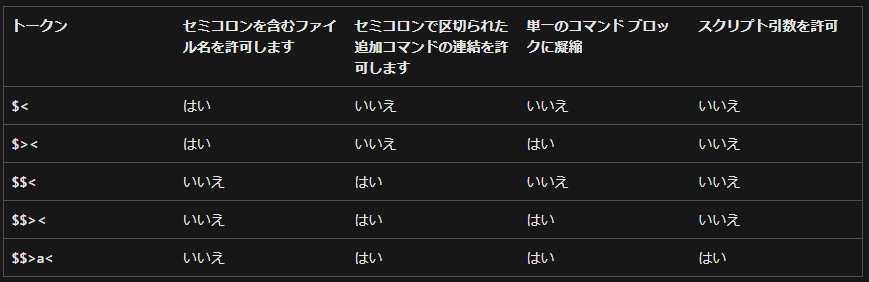
By using a text file that contains WinDbg commands, you can automate WinDbg command execution to some extent.
# Run the script defined in the file
$<C:\windbgcmd.txt

# Run as a single command block (better if you use breakpoints)
$><C:\windbgcmd.txt

# Set command arguments (not standard input)
# Can be used with commands such as .echo argument is ${$arg1}
$$>a<C:\windbgcmd.txt test_text

# Recursively call the eaxstep script that continues execution until eax contains 1234
# .if (@eax == 1234) { .echo 1234 } .else { t "$<eaxstep" }
t "$<C:\\eaxstep"
Reference: , , $$ a (Run Script File) - Windows drivers | Microsoft Learn
Reference: Executing Until a Specified State is Reached - Windows drivers | Microsoft Learn
Conditional Branching
Within WinDbg commands or scripts, you can use conditional expressions like the following.
# Using the IF token
.if (Condition) { Commands }
.if (Condition) { Commands } .else { Commands }
.if (Condition) { Commands } .elsif (Condition) { Commands }
.if (Condition) { Commands } .elsif (Condition) { Commands } .else { Commands }
Reference: .if (WinDbg) - Windows drivers | Microsoft Learn
Reference: Control Flow Tokens - Windows drivers | Microsoft Learn
At this point, Condition can include various operators.
In WinDbg, both MASM operators and C++ operators are supported.
In particular, address dereferencing with the MASM operator poi and string comparison with the non-numeric operator $scmp("String1", "String2") are used frequently.
# $scmp evaluates like C++ strcmp, so it returns 0 when the strings match
.if ($scmp("${$ImageName}","notepad.exe")) {  } .else { .echo match }

# Reassign to pseudo-register $t1 the value pointed to by the address in $t1
r $t1 = poi(@$t1)
Reference: MASM Numbers and Operators - Windows drivers | Microsoft Learn
Reference: C++ numbers and operators - Windows drivers | Microsoft Learn
You can look for other operators that can be used in conditions at the following link as well.
Reference: Numerical Expression Syntax - Windows drivers | Microsoft Learn
Loop Commands
WinDbg’s .for command behaves almost the same as C’s for.
Also, the .foreach command can split the output of a WinDbg command or the contents of a file into elements and pass them one by one to the specified command.
The elements given to .foreach replace the placeholder currently being processed.
Also, .while and .do can be used as loop commands.
# WinDbg for syntax (separated with semicolons, not commas)
.for (InitialCommand ; Condition ; IncrementCommands) { Commands }

# foreach syntax
.foreach [Options] ( Variable  { InCommands } ) { OutCommands }
.foreach [Options] /s ( Variable  "InString" ) { OutCommands }
.foreach [Options] /f ( Variable  "InFile" ) { OutCommands }

# If you want to keep looping
.while (1) { Commands }
Reference: .for (WinDbg) - Windows drivers | Microsoft Learn
Reference: .foreach (WinDbg) - Windows drivers | Microsoft Learn
Reference: .while (WinDbg) - Windows drivers | Microsoft Learn
Reference: .do (WinDbg) - Windows drivers | Microsoft Learn
The .for command can be used with syntax like the following.
Loop control with .continue and .break works the same as in C.
# Run a for loop using pseudo-registers
.for (r $t1 = 0; $t1 < 7; r $t1 = $t1 + 1) { r $t1 }

# Jump to the next loop with continue
.for (r $t1 = 0; $t1 < 7; r $t1 = $t1 + 1) { .if ( $t1 == 3 ) { .echo skip ; .continue } ; r $t1 }

# Stop the loop with break
.for (r $t1 = 0; $t1 < 7; r $t1 = $t1 + 1) { .if ( $t1 == 3 ) { .echo stop ; .break } ; r $t1 }
The following is a sample that can dump all arguments at the time of each call inside a function to a file.
.logopen /t C:\Users\Public\windbg.log
.while (1) { pc;.echo rcd;dc @rcx L10;.echo rdx; dc @rdx L10;.echo r8; dc @r8 L10;.echo r9; dc @r9 L10;.echo stack; dc @rsp L10;.echo rip; u rip L1 }
Creating Blocks
The .block command adds a new block inside the code.
This is often used, for example, when you want to use the Alias described later like a variable.
Commands ; .block { Commands } ; CommandsReference: .block (WinDbg) - Windows drivers | Microsoft Learn
Creating and Deleting Aliases
The as and aS commands define aliases.
In WinDbg, you can use aliases like variables, just as you do pseudo-registers.
However, defined aliases do not work in the current block, so after defining an alias you need to create a new block with the .block command.
# Define a string or number
as Name 10
aS Name "Test Value" ; .block { .echo Name }

# Define an ASCII string from Address up to the null terminator
as /ma Name Address

# Define a Unicode string from Address up to the null terminator
as /mu Name Address

# Define a 64-bit value from Address
as /x Name Expression

# Define a value equivalent to the contents of a file
aS /f Name File

# Define a value from command output
as /c Name CommandString
Reference: as, aS (Set Alias) - Windows drivers | Microsoft Learn
Using Pseudo Registers
WinDbg supports pseudo-registers for holding values, and you can refer to values through the default pseudo-registers or define your own pseudo-registers.
Pseudo-registers start with a $ mark. When using MASM syntax, you can add @.
# Output the value of a pseudo-register
? $ip
? @$ip
r $ip
r @$ip

# Define an arbitrary pseudo-register
r $t0 = 7

# Use a pseudo-register to dereference a pointer at an arbitrary address with poi
r $t0 = nt!PsActiveProcessHead;r $t1 = poi(@$t0);r $t1

# Perform arithmetic using pseudo-registers
?? @$t0+10

# Define a pseudo-register with a type using the r command
r? $t15 = * (UNICODE_STRING*) 0x12ffbc

# Stop execution only when the current thread calls ntopenfile
bp /t @$thread nt!ntopenfile
Reference: Pseudo-Register Syntax - Windows drivers | Microsoft Learn
The pseudo-registers set by default are summarized in Pseudo-Registers, but several are listed below.
$ea: effective address of the last instruction$ip: instruction pointer register$scopeip: instruction pointer for the current local context$exentry: address of the entry point of the executable file for the current process$thread: address of the current thread (the ETHREAD block in kernel debugging, or the TEB address in user mode)$peb: address of the PEB for the current process$teb: address of the TEB for the current process$tpid: get the PID of the current process
Sample: Enumerating Processes and Obtaining File Names
- A script that enumerates processes during kernel debugging and obtains the address of
notepad.exe.
$$  Get process list LIST_ENTRY in $t0.
r $t0 = nt!PsActiveProcessHead

$$  Iterate over all processes in list.
.for (r $t1 = poi(@$t0);
      (@$t1 != 0) & (@$t1 != @$t0);
      r $t1 = poi(@$t1))
{
    r? $t2 = #CONTAINING_RECORD(@$t1, nt!_EPROCESS, ActiveProcessLinks);
    as /x Procc @$t2

    $$  Get image name into $ImageName.
    as /ma $ImageName @@c++(&@$t2->ImageFileName[0])

    .block
    {
.if ($scmp("notepad.exe","${$ImageName}")) { } .else {.echo ${$ImageName} at ${Procc}}
    }

    ad $ImageName
    ad Procc
}
Sample: One-liner to Rewrite ZF While Continuing Loop Processing
g ;p ;.if (@zf == 1) { .printf "Solver: R8 is %d\n", @r8 ; $$< C:\CTF\script.txt } .else { .echo "Fail." ; .kill }JavaScript-based Debugging Scripts
User Mode Process Analysis
User Mode Threads
# In user-mode debugging or process dump analysis, dump the call stacks of all threads
~*k

# Set thread number 3 as the current context
~3s

# Dump TEB information
!teb

# Output the structure using the TEB address identified by !teb
dt ntdll!_TEB <TEB address>
User Mode Processes
# Dump PEB information
!peb

# Output the structure using the PEB address identified by !peb
dt ntdll!_PEB <PEB address>
Displaying Stack Backtrace and Frames
# Display the stack backtrace (the leading number is the frame number)
# Display it together with the frame number (n), frame pointer (v), and memory size used by the frame (f)
kvnf

# Display the stack backtrace of all threads
~*kvnf

# Display only the stack backtrace of a specific thread
~1kvnf

# Display the call stacks of all threads in the current process
!uniqstack
Reference: k, kb, kc, kd, kp, kP, kv (Display Stack Backtrace) - Windows drivers | Microsoft Learn
By running commands such as kvn, you can obtain ChildEBP (saved EBP), RetAddr, and Args to Child from the stack trace, but these values basically come from information on the stack.
Because of that, note that they do not contain valid values in the 64-bit binary calling convention.
Reference: x64 calling convention | Microsoft Learn
# Display local variables for the specified frame number
# /t displays variable types, and /V displays relative addresses of local variables
.frame 01;dv
.frame 01;dv /t /V

# Display register information for the specified frame number
.frame /r 9

# Specify a frame number and set that frame as the current context
.frame /c 9
Reference: dv (Display Local Variables) - Windows drivers | Microsoft Learn
Reference: .frame (Set Local Context) - Windows drivers | Microsoft Learn
Investigating User Mode Heaps
Kernel Mode Dump Analysis
Setting Up Full Memory Dump Acquisition
This is summarized in the following article.
Reference: How to manually capture a kernel memory dump on Windows and analyze it with WinDbg
Enumerating Kernel Structure Information
# Enumerate information about NT kernel structures
dt nt!_*
dt nt!_*interrupt*

# Dump information about a kernel structure
dt nt!_KINTERRUPT
Enumerating Process Information
When performing kernel debugging or analyzing a full dump, you can dump process information with the following commands.
.process is a very useful command that can change the debugger context.
Normally, kernel debugging does not display most information from user-mode address spaces, but by switching the context to a specific user-mode process with .process, you can analyze that user-mode process during kernel debugging.
Note: I do not know how to return to the original state where kernel information is displayed after changing the context, so I reconnect the kernel debugger each time.
# Enumerate all processes in the system
!process 0 0

# Get full detailed information for a specific process
!process 0 7 notepad.exe

# Get information about the EPROCESS structure for the specified process
dt nt_EPROCESS <address of the EPROCESS block identified by !process>

# Change the debugger context to the specified process (so that commands like !peb become available)
.process /r /P <address of the EPROCESS block identified by !process>

# Traverse all processes (you can also issue commands to all processes)
!for_each_process
Reference: !process (WinDbg) - Windows drivers | Microsoft Learn
Reference: .process (Set Process Context) - Windows drivers | Microsoft Learn
Reference: foreachprocess - Windows drivers | Microsoft Learn
Reference: Changing Contexts - Windows drivers | Microsoft Learn
You can also enumerate process information directly from nt!_EPROCESS.
# Get the pointer address to ActiveProcessLinks of the System process
r $t0 = nt!PsActiveProcessHead;r $t1 = poi(@$t0);r $t1

# Check the offset of ActiveProcessLinks.Flink
dt nt!_EPROCESS ActiveProcessLinks
> +0x448 ActiveProcessLinks

# Dump _EPROCESS (output equivalent to .process 0 0)
dt nt!_EPROCESS -l ActiveProcessLinks.Flink -y Ima -yoi Uni $t1-0x448
Reference: Debugger command program examples - Windows drivers | Microsoft Learn
Enumerating Thread Information
Even in kernel debugging, you can reference the TEB with the !teb command in the same way as in user mode.
In that case, specify the target TEB address as follows.
# Reference TEB information
!teb <TEB address>
Enumerating Process Handle Information
The !handle command is used a little differently between user-mode debugging and kernel debugging.
!handle notepad.exeReference: handle (WinDbg) - Windows drivers | Microsoft Learn
Outputting Physical and Virtual Memory Information
With the !memusage command, you can obtain usage statistics for physical memory, and with the !vm command, usage statistics for virtual memory.
The output of !memusage is especially large, so I think it is better to enable output logging in advance.
# Output physical memory usage statistics
!memusage

# Output virtual memory usage statistics
!vm
Reference: memusage (WinDbg) - Windows drivers | Microsoft Learn
Reference: vm (WinDbg) - Windows drivers | Microsoft Learn
Also, the !address command can be used in kernel debugging.
However, when debugging the kernel, the amount of output information is slightly smaller.
# Identify the memory region used by a specific process
!address <address of the EPROCESS block identified by !process>
Reference: address (WinDbg) - Windows drivers | Microsoft Learn
Aligning Context in Kernel Memory Dump
After identifying the context record from the output of !analyze -v, use the .cxr command.
You can align the register context with the context record by using it as follows.
.cxr <Address> ; kbReference: .cxr (Display Context Record) - Windows drivers | Microsoft Learn
Investigating Session ID and Processes
By examining the session ID, you can determine which session a process belongs to.
You can also dump structure information by using the _MM_SESSION_SPACE address obtained with !sprocess.
# Get a list of active sessions
!session

# Set session ID 1 as the current active session
!session -s 1

# Enumerate processes in the current session
!sprocess

# View detailed information for the session
dt nt!_MM_SESSION_SPACE ffffd080ba83d000

# You can also output memory usage for each session region
!vm 4
Reference: session (WinDbg) - Windows drivers | Microsoft Learn
Reference: Inside Windows, 7th Edition, Part 1, p.389
Reference: struct MMSESSIONSPACE
Exploring System Registry Information
Reading CPU Statistics by Referencing KPCR and KPRCB
The Kernel Processor Control Region (KPCR) and Kernel Processor Control Block (KPRCB) contain information about processor-specific data, state, and statistics.
# Output KPRCB information for the specified processor
!prcb <CPU number>

# Dump KPCR information
dt nt!_KPCR @$pcr
Investigating Pool
# Investigate a pool tag name
!poolused 0 <tag name>

# Investigate pool
!pool <address of pool region>

# Find the pool address from a pool tag (very slow, so use PoolHitTag in live debugging)
!poolfind -tag "<tag name>"
Reference: Magical WinDbg VOL.2 (Chapter 6: Dynamically Analyzing DoPDriver) - Checking page pool information
Analyzing the .NET Runtime Using the SOS Debugger Extension
Reference: SOS debugging extension for .NET - .NET | Microsoft Learn
Reference: SOS.dll (SOS Debugging Extension) - .NET Framework | Microsoft Learn
Displaying Stack Traces for Managed Code
# Display a managed code stack trace
!clrstack

# Switch to a specific thread context and display a managed code stack trace
~9s ; !clrstack

# Display the managed stacks of all threads
~*e !clrstack

# Display a managed code stack trace together with parameter and local variable information
!clrstack -p -l
!clrstack -a
Examining Objects on the Managed Stack
# DumpStackObjects: display all managed objects found within the current stack range
!dso

# DumpObj: display information about the object at the specified address
!do <object address>
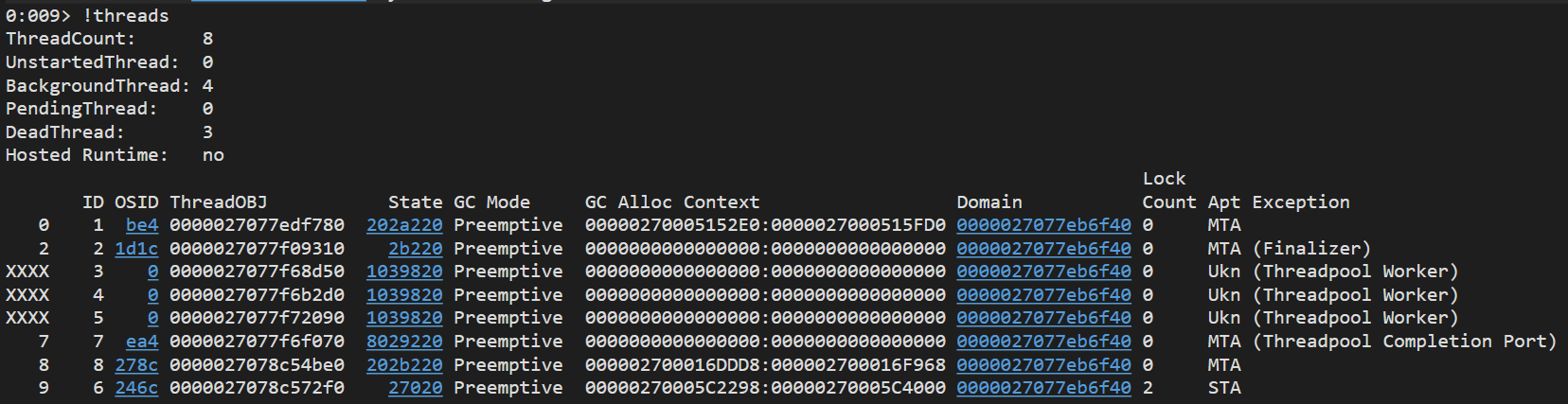
Displaying Managed Threads in the Process
# Display all managed threads in the process
!threads- With
!threads, you can check information such as the Lock Count of managed threads and the thread’s Apt (Apartment) information.
Reference: Processes, Threads, and Apartments - Win32 apps | Microsoft Learn
Remote Debugging
Debugging a Process in a Virtual Machine from the Client-side WinDbg
As a way to debug a process in a remote machine from the client-side WinDbg, you can either remotely attach to WinDbg started on the remote machine or use dbgsrv.exe.
I mainly want to manage symbol resources and similar items on the client side rather than on the virtual machine side, so I use dbgsrv.exe instead of WinDbg.
- Run the following command on the host (remote machine) side.
# Host side
dbgsrv.exe -t tcp:port=1234- Run the following command on the client side to start WinDbg and begin debugging.
# Client side (after WinDbg starts, you can attach to a process and so on)
WinDbgX.exe -premote tcp:port=1234,server=192.168.50.8

# Start the notepad.exe process in the virtual machine and debug it
WinDbgX.exe -premote tcp:port=1234,server=192.168.50.8 C:\Windows\System32\notepad.exe
Reference: Remote Debugging Using WinDbg - Windows drivers | Microsoft Learn
Reference: Process Servers (User Mode) - Windows drivers | Microsoft Learn
Live Debugging
Connecting Kernel Debugger (Hyper-V, VirtualBox)
This is summarized in the following article.
Reference: First steps for kernel debugging a Windows 10 environment with WinDbg
Setting Debugger Operations for Exceptions or Specific Events
Planned to be added later.
Reference: sx, sxd, sxe, sxi, sxn, sxr, sx- (Set exceptions) - Windows drivers | Microsoft Learn
Filter Driver Investigation
Commands of fltkd Extension
# Enumerate filter driver information (the fltmc command is also useful)
!fltkd.filters 1

# Get detailed information for a specific filter by specifying that filter's FLT_FILTER address
!fltkd.filter ffffac8ce4df1010

# Use the DeviceObject address identified here to display detailed information
dt nt!_DRIVER_OBJECT ffffac8ce357c850
>
+0x000 Type             : 0n4
+0x030 DriverExtension  : 0xffffac8c`e357c9a0 _DRIVER_EXTENSION
+0x070 MajorFunction    : [28] 0xfffff800`65e72000     long  +fffff80065e72000

# Next, identify the offset to MajorFunction in DeviceObject and display information for MajorFunction
# You can also get similar information by clicking the MajorFunction link
dps ffffac8ce357c850 + 0x70 L0n28

# You can also investigate the structure from the DRIVER_EXTENSION address
dt nt!_DRIVER_EXTENSION ffffac8ce357c850+0x30
Reference: Tools for minifilter development and testing - Windows drivers | Microsoft Learn
Reference: Of Filesystems And Other Demons: Debugging Minifilters: Finding the Callbacks
Knowledge Required for Analysis
Understanding 32-bit and 64-bit Calling Conventions
Planned as a separate article.
NTGLOBALFLAG
NTGLOBALFLAG exists in the PEB, and its default value is 0, but a value is set during debugging.
For 32-bit processes it is at offset 0x68, and for 64-bit processes it is at offset 0xBC.
Because of this, a program may access the PEB structure address through ZwQueryInformationProcess or similar APIs and use it for anti-debugging purposes.
Reference: NtGlobalFlag - CTF Wiki EN
Reference: Debugger Detection Using NtGlobalFlag | 🔐Blog of Osanda
EXCEPTION_RECORD
EXCEPTION_RECORD contains information about exceptions and crashes.
Reference: EXCEPTION_RECORD (winnt.h) - Win32 apps | Microsoft Learn
ExceptionCode contains the reason why the exception occurred.
Common exception types are listed on the page above.
EPROCESS, ETHREAD
The EPROCESS structure is undocumented, but it is known as a kernel memory structure that describes a system process and can be accessed as nt!_EPROCESS.
This structure is linked by the doubly linked list (LIST_ENTRY) ActiveProcessLinks. When a command such as cmd /c tasklist is run, the list is followed and EPROCESS structures are traversed, so the processes are displayed as a list.
For that reason, in WinDbg you can also inspect active processes by following this list with the kernel debugger.
On the other hand, if malware or similar code can access kernel memory, it may rewrite the ActiveProcessLinks pointers so that a malicious process does not appear in the process list.
Reference: struct EPROCESS
Reference: struct ETHREAD
Reference: Windows kernel opaque structures - Windows drivers | Microsoft Learn
Reference: Manipulating ActiveProcessLinks to Hide Processes in Userland - Red Team Notes
Guard page
When a program accesses memory that was created as a Guard Page, a STATUS_GUARD_PAGE_VIOLATION (0x80000001) exception occurs.
Reference: Creating Guard Pages - Win32 apps | Microsoft Learn
sysenter instruction
Planned to be added.
Reference: SYSENTER - OSDev Wiki
Common Exceptions
Access Violation Exception
An Access Violation exception (error code: C0000005) occurs when a program tries to read from or write to protected memory, corrupted memory, or a nonexistent pointer address.
For example, this exception is also triggered when accessing freed memory, such as in a use-after-free.
Also, if memory in the range from 0x0 to 0x10000 (64K) is accessed, the exception is triggered by a NULL pointer dereference.
Reference: Access Violation C0000005 | Microsoft Learn
Environment Settings
Changing Visual Studio Linker Settings
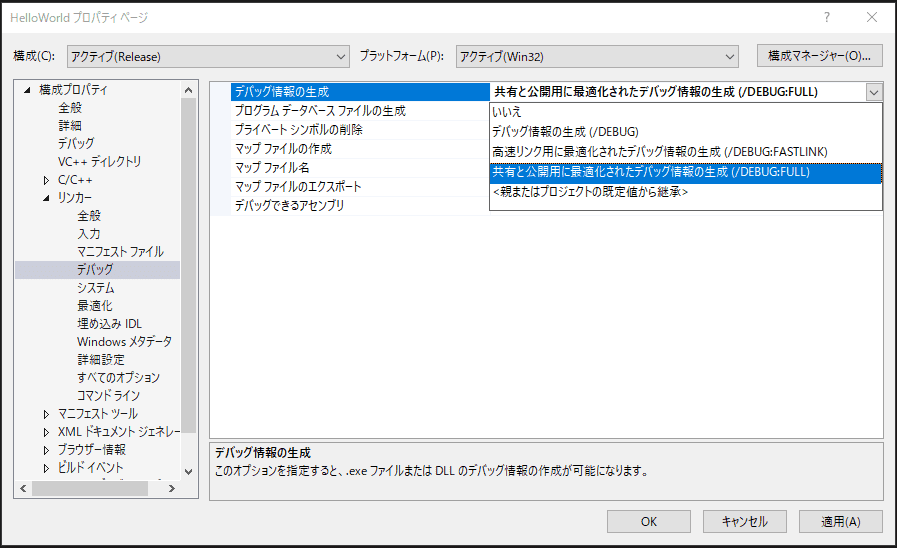
In the default settings of recent Visual Studio versions, the export table is not included in symbol files.
Therefore, configure /DEBUG:FULL in the project settings as shown below.
Disabling Optimization in Release Builds
When building a program for WinDbg verification purposes, it may be useful to disable the optimization settings for Release builds.
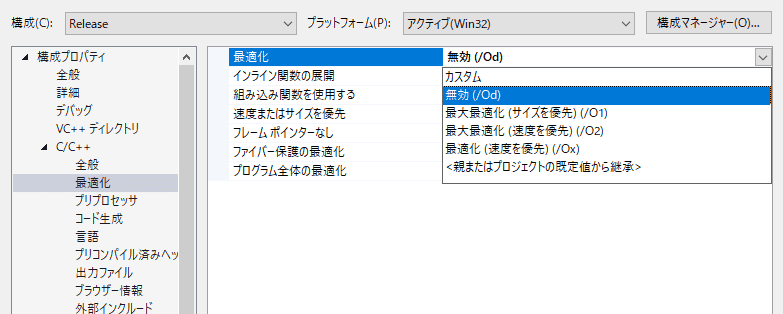
Note that Debug builds have optimization disabled by default.
WinDbg Troubleshooting
When “NT symbols are incorrect, please fix symbols” Error is Output
If the error NT symbols are incorrect, please fix symbols is displayed when you run a command such as !process 0 0, there may be some problem with symbol loading.
In such a case, first use a command like the following example to identify what problem is occurring during symbol loading.
# Output detailed information when loading nt symbols
!sym noisy; .reload /f nt
Reference: windows 10 - !process 0 0 - NT symbols are incorrect, please fix symbols - Stack Overflow
In my environment, fixing an incorrect symbol path setting also resolved this problem.
Other Tips
Which WinDbg(X86) and WinDbg(X64) Should Be Used?
Basically, use WinDbg(X64) when debugging or analyzing dumps for 64-bit applications, and use WinDbg(X86) for 32-bit applications.
WinDbg(X64) can analyze both 64-bit and 32-bit applications, but when WinDbg(X64) analyzes a 32-bit application, the added WOW64 layer can cause problems that make analysis more difficult, especially when analyzing dumps.
In some cases, you can avoid the problem with the .effmach x86 command, but this is not the same as using WinDbg(X86), so it is better to use WinDbg(X86) whenever possible.
Reference: .effmach (Effective Machine) - Windows drivers | Microsoft Learn
Using Dark Theme in WinDbg(Classic)
You can get the theme I usually use from the following link.
Reference: kash1064/WinDbg-Classic-Dark: The Dark theme of WinDbg Classic
In appearance, it looks like the following. I customized it to keep the colors as simple as possible, reduce the number of color types, and aim for a color scheme close to the dark theme of VSCode, which I am used to.
