This page has been machine-translated from the original page.
These are my notes from when I built an AD environment in my lab.
For now, I have summarized the steps and troubleshooting up to configuring the domain controller and joining a client to AD.
I plan to add more if I try other configurations.
Table of Contents
Build the AD Server
AD Basics
In an AD environment, resources are managed by the domain controller (DC).
The feature that provides this domain controller functionality is AD DS.
In the AD DS environment built here, organizational unit resource groups (OUs) are created to manage objects such as users and servers.
Permissions and settings can also be defined through Group Policy.
In an AD environment, a collection of domains is called a forest. When creating AD, you always need one forest and one domain.
Environment Information
This is the configuration information for the Windows Server used as the AD server.
If the computer name is 15 bytes or longer, it will be shortened when converted to a NetBIOS name.
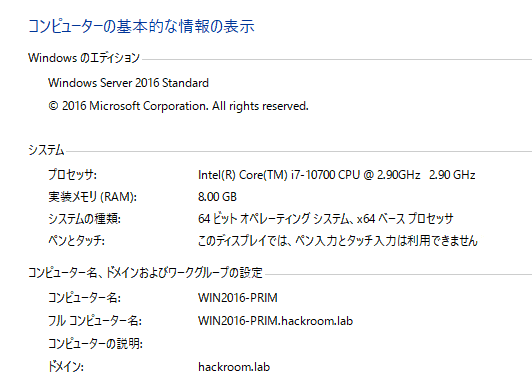
Enable AD
First, add a server role and enable Active Directory Domain Services.
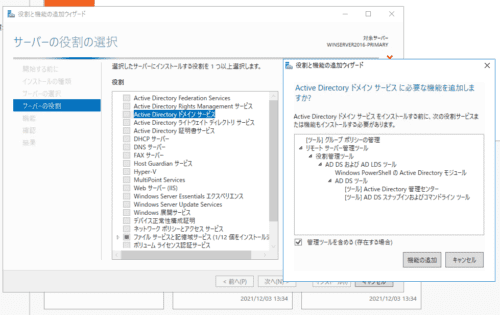
Proceed as is, start the installation with [Restart the destination server automatically if required] enabled, and wait for a while.
For more detailed steps, the following site may be helpful.
Reference: Active Directory サーバー(ADサーバー)の構築手順を初心者にも分かり易く徹底解説 | IT trip
Also, LDAPS cannot be used on a domain controller by default.
If you want to use another application that integrates with Active Directory over LDAPS, you need a certificate for LDAPS.
To install a certification server on the domain controller and enable LDAPS with a self-signed certificate, add Active Directory Certificate Services here as well.
Promote It to a Domain Controller
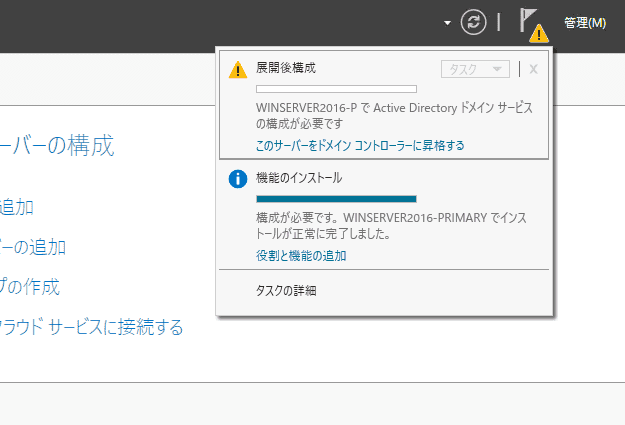
Once enabling is complete, it will be displayed as shown in the image below.
Next, click [Promote this server to a domain controller] to create the domain controller.
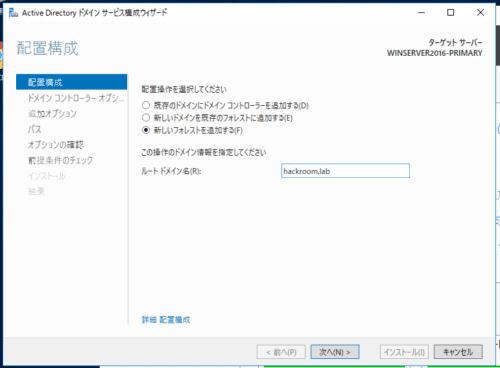
When the configuration wizard opens, select [Add a new forest] and set any domain name you like.
The default settings are fine, so set a password under Domain Controller Options.
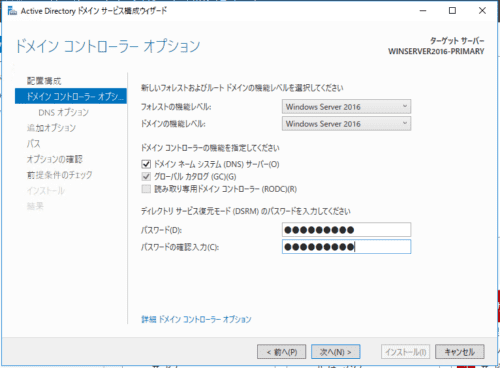
Leave the following DNS Options and Additional Options at their defaults.
In Additional Options, the NetBIOS domain name will contain the root domain name you set earlier.
Leave the path and option confirmation screens at their defaults as well, and finally run the installation.
The installation takes a while, so enjoy a coffee break until it is finished.
When the installation finishes, the server restarts, and the domain name is shown on the login screen instead of the workgroup.
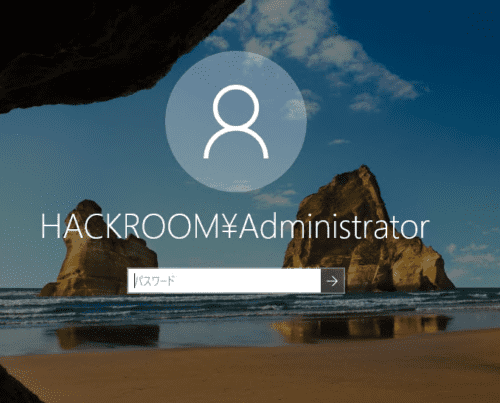
This completes the AD environment setup.
After this, the other machines built in the lab environment will be added to AD and managed with Group Policy.
Set a Static IP
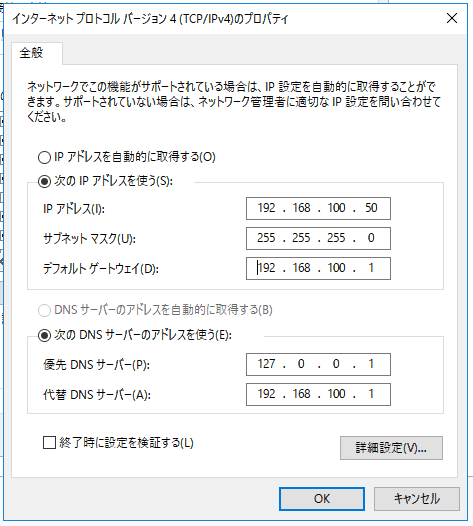
When joining a server to the AD you created, you need to configure the preferred DNS server on the joining server to use the domain controller’s IP address.
To make this easier, set a static IP address on the domain controller side.
When I opened the network properties, the preferred DNS server was set to localhost by default.
With that setting left as is, all that remains is to set a static IP address.
Check AD and DNS
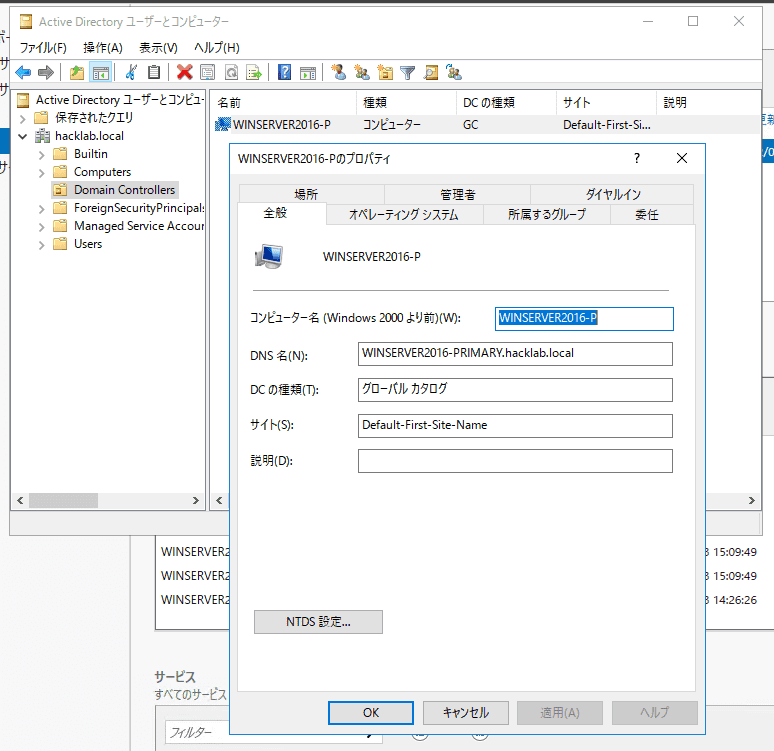
From [Tools] in Server Manager, open [Active Directory Users and Computers] and confirm that the combination of the computer name you set and the root domain name is correctly configured as the DNS name in [Domain Controllers].
Next, open [DNS] from [Tools] in Server Manager and confirm that the zones related to the AD you created are configured in Forward Lookup Zones.
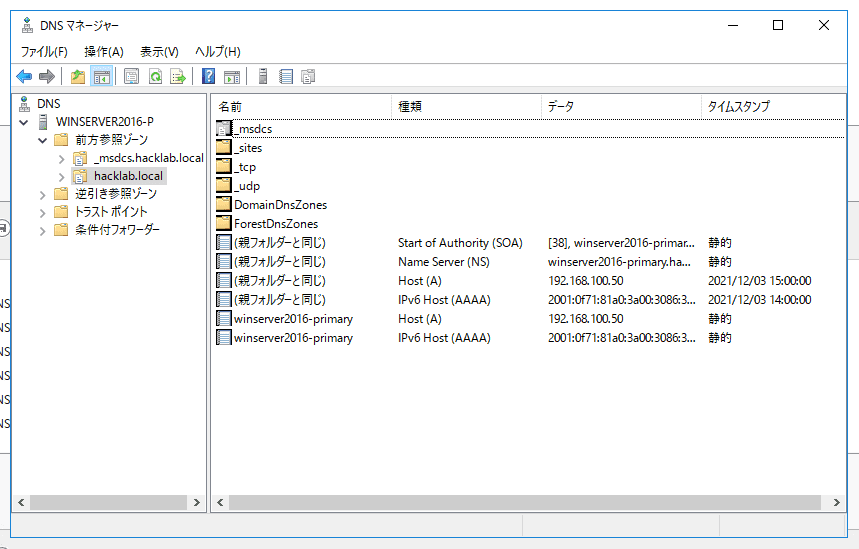
Finally, start PowerShell and confirm that the domain controller’s address can be resolved correctly for the domain you created.
$ nslookup hackroom.lab
サーバー:  localhost
Address:  ::1
名前:    hackroom.lab
Addresses:  2001:f71:81a0:3a00:3086:3ad5:664d:d4e0
          192.168.100.50
The preferred DNS server on the AD server is defined as localhost by default after promotion to domain controller.
This confirms that it can resolve its own address under the name hacklab.local.
Add an AD User
Immediately after configuring AD, only the default users are registered, so add a user.
Open [Active Directory Administrative Center] from [Tools] in Server Manager.
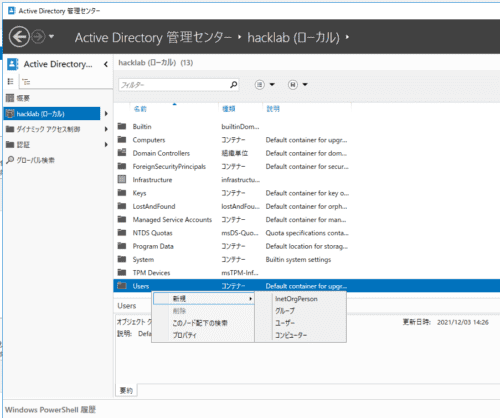
Here, as shown above, right-click Users in the registered domain and create a new user.
Here, I created a user named TESTUSER.
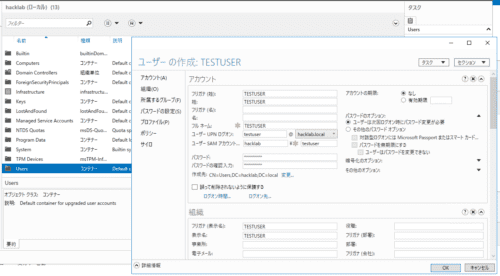
Finally, join another server to AD using this TESTUSER.
Join a Server to AD
Set the Preferred DNS Server to the Domain Controller’s IP Address
First, open the network settings and change the preferred DNS server destination to the domain controller’s IP address.
Join the Client to the Domain
From System in Control Panel, select change computer name/domain and join the hackroom.lab domain.
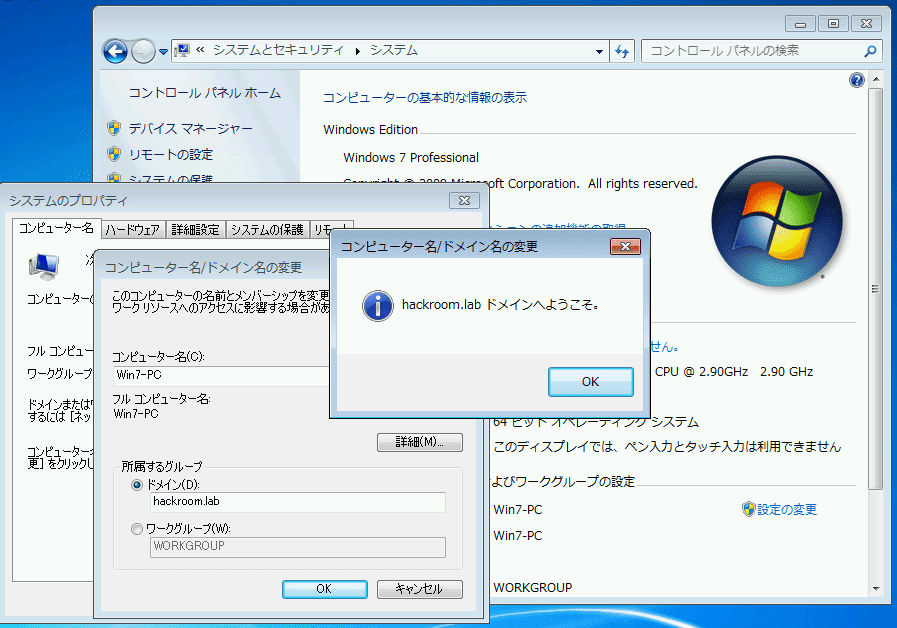
For authentication, I used the credentials of the TESTUSER created earlier.
Troubleshooting When Failing to Join AD
If You Get the “The specified domain either does not exist or could not be contacted” Error
First, check whether you changed the preferred DNS server destination to the domain controller’s IP address and whether you can reach the domain controller server with the ping command.
Next, check from the command prompt on the domain controller side that the DNS server is running.
$ sc queryex dns
SERVICE_NAME: dns
        TYPE               : 10  WIN32_OWN_PROCESS
        STATE              : 4  RUNNING
                                (STOPPABLE, PAUSABLE, ACCEPTS_SHUTDOWN)
        WIN32_EXIT_CODE    : 0  (0x0)
        SERVICE_EXIT_CODE  : 0  (0x0)
        CHECKPOINT         : 0x0
        WAIT_HINT          : 0x0
        PID                : 2800
        FLAGS
If the problem still occurs after confirming this, use nslookup to confirm whether the domain controller for the domain you want to join can be resolved.
$ nslookup hackroom.lab
サーバー:  UnKnown
Address:  2404:1a8:7f01:b::3
*** UnKnown が hackroom.lab を見つけられません: Non-existent domain
If the output looks like this, the domain controller’s DNS is not being referenced properly, so AD joining will fail.
First, try disabling the firewall on the domain controller side and see whether DNS lookups start working.
Next, on the client side (the server you want to join to AD), enter the following command in Command Prompt, clear the DNS cache, and then try nslookup again.
ipconfig/flushdnsIf this still fails, check the DNS events on the domain controller side.
Check DNS Events
Open the DNS tab in Server Manager and you can confirm events like the ones below.
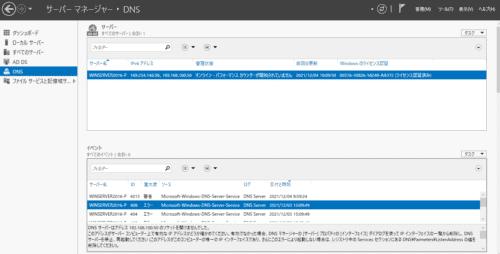
In my environment, there was an error saying that the DNS server could not open a socket on 192.168.100.50.
Using .local in the AD Domain Name
I messed this up in my environment.
I had to rebuild AD.
Reference: Active Directoryのドメイン名に「.local」を使ってはいけない件 - asohiroblog
Disable IPv6
It seems that joining AD can fail if name resolution uses IPv6.
DNS Can Resolve the Domain Controller, but You Still Cannot Join AD
If you get an error like the following, it seems that DNS successfully resolves the domain controller name, but the connection to the domain controller itself fails.
クエリによって、次のドメイン コントローラが識別されました。

<DC>

このエラーの一般的な原因:

- ドメイン コントローラの名前を IP アドレスに割り当てるための Host (A) レコードが見つからないか、正しくないアドレスを含んでいる。
- DNS で登録されているドメイン コントローラがネットワークに接続されていないか、実行中でない。
In my environment, this problem occurred when I created AD with multiple NICs. Recreating AD with only one NIC assigned to the AD server resolved it.
When Integration Is Not Going Well
Try checking the following.
Reference: ドメイン参加時にクライアントPC・サーバー設定で気をつけること: niyoな日記
I also referred to the following article.
Reference: ValidationMemo: Active Directoryのドメイン名を検討するときに考えるべきこと
Enable LDAPS and Integrate Applications with AD
If you want to use LDAPS to integrate AD with other applications, the following articles were helpful.
If you only need to install Active Directory Certificate Services and use a self-signed certificate for authentication, it can be configured very easily.
Reference: Active DirectoryのLDAPS通信を有効化する | KMMR Note
Reference: Windows ADサーバーのLDAPS有効化の構築方法 | puti se blog
Summary
I had a hard time resolving the issues, and troubleshooting took quite a while.
As expected, if your understanding of AD integration itself is insufficient, troubleshooting also takes more time.