This page has been machine-translated from the original page.
This time, I tried several methods for creating a DLL file on Windows and loading it into a process.
This article is not intended to publish information that violates laws or ethics.
Table of Contents
- Create a Hello World DLL
- DLL Reason Code
- Best Practices for DLLMain
- Load a DLL into a Process
- DLL Search Order
- Run an Exported Function from a Process with rundll32.exe
- Load a DLL into a Remote Process
- Load a DLL into a Remote Process with VirtualAllocEx and WriteProessMemory
- About Reflective DLL Injection
- Summary
Create a Hello World DLL
In Visual Studio, create a new DLL project and replace dllmain.cpp with the following code to create a DLL that displays the string Hello, World! in a message box when it is loaded.
#include <Windows.h>

// Exported function
extern "C" {
    __declspec(dllexport) void ShowMessage() {
        MessageBoxA(NULL, "Hello, World!", "DLL Message", MB_OK | MB_ICONINFORMATION);
    }

    __declspec(dllexport) void ShowMessage2() {
        MessageBoxA(NULL, "Hello, New World!", "DLL Message", MB_OK | MB_ICONINFORMATION);
    }
}

BOOL APIENTRY DllMain( HMODULE hModule,
                       DWORD  ul_reason_for_call,
                       LPVOID lpReserved
                     )
{
    switch (ul_reason_for_call)
    {
    case DLL_PROCESS_ATTACH: {
        ShowMessage();
        break;
    };
    case DLL_THREAD_ATTACH:
    case DLL_THREAD_DETACH:
    case DLL_PROCESS_DETACH:
        break;
    }
    return TRUE;
}
At this time, ShowMessage, which is the function that displays the message box, is defined as an exported function by extern __declspec(dllexport) void ShowMessage().
Reference: Exporting from a DLL Using __declspec(dllexport) | Microsoft Learn
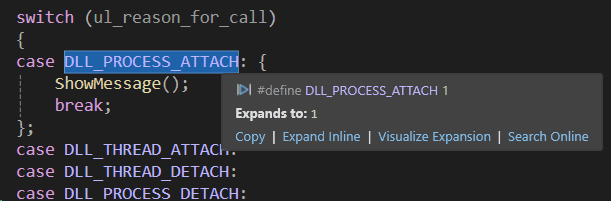
Because this ShowMessage function is called during DLL_PROCESS_ATTACH, it runs when the DLL is loaded into the process.
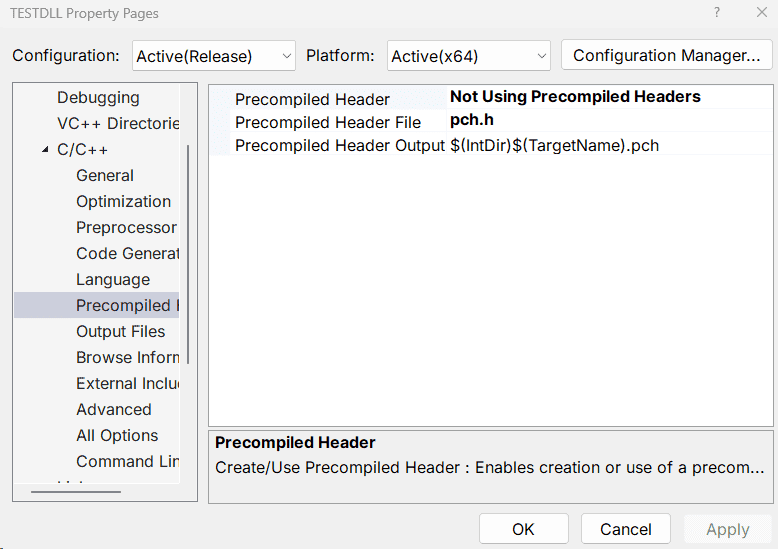
When building the sample DLL code, disable the precompiled header, which is not particularly necessary here.
DLL Reason Code
DLL_PROCESS_ATTACH corresponds to the Reason Code passed as the fdwReason argument to the DllMain function (the value that indicates why the DLL entry point was called).
BOOL WINAPI DllMain(
  _In_ HINSTANCE hinstDLL,
  _In_ DWORD     fdwReason,
  _In_ LPVOID    lpvReserved
);
When DLL_PROCESS_ATTACH is used, it seems to apply when the DLL is loaded into the process by LoadLibrary, as shown below.
DLLPROCESSATTACH 1: The DLL is being loaded into the virtual address space of the current process as a result of the process starting up or as a result of a call to LoadLibrary. DLLs can use this opportunity to initialize any instance data or to use the TlsAlloc function to allocate a thread local storage (TLS) index. The lpvReserved parameter indicates whether the DLL is being loaded statically or dynamically.
Reference: DllMain entry point (Process.h) - Win32 apps | Microsoft Learn
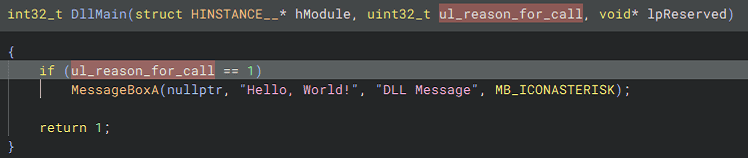
By the way, when I analyzed this DLL with Binary Ninja, I was able to obtain the following decompiled output.
Best Practices for DLLMain
The DllMain function appears to have several restrictions because it runs while the loader lock is held, as shown in the following diagram.
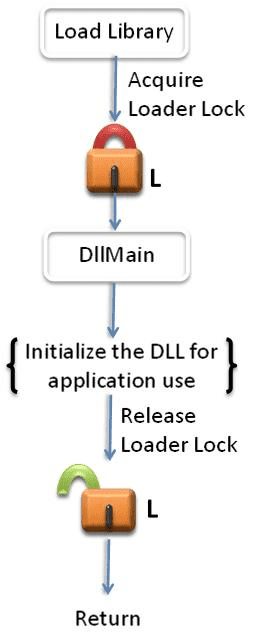
As described in the public information below, which summarizes best practices for DllMain, you need to be careful not to cause deadlocks or crashes through DllMain behavior.
For example, because the DllMain thread holds the loader lock, it cannot dynamically load additional DLLs.
Reference: Dynamic-Link Library Best Practices - Win32 apps | Microsoft Learn
Load a DLL into a Process
A process can load a module file from disk by using the LoadLibrary function and specifying the module’s file name.
HMODULE LoadLibraryA(
  [in] LPCSTR lpLibFileName
);
Reference: LoadLibraryA function (libloaderapi.h) - Win32 apps | Microsoft Learn
At this time, it seems that you can specify either a full path or just a file name for lpLibFileName, but if you specify only the file name, the DLL is loaded according to the standard search order.
DLL Search Order
The standard search order varies depending on several conditions, but for now, if the “safe DLL search mode,” which is enabled by default, is active and the application is not using an alternate search order, DLLs appear to be searched in the following order.
- The directory from which the application loaded.
- The system directory.
- The 16-bit system directory.
- The Windows directory.
- The current directory.
- The directories that are listed in the PATH environment variable.
The key point is that the current directory, which is relatively easy to abuse, is lower in the order.
Reference: Dynamic-link library search order - Win32 apps | Microsoft Learn
Reference: Dynamic-Link Library Security - Win32 apps | Microsoft Learn
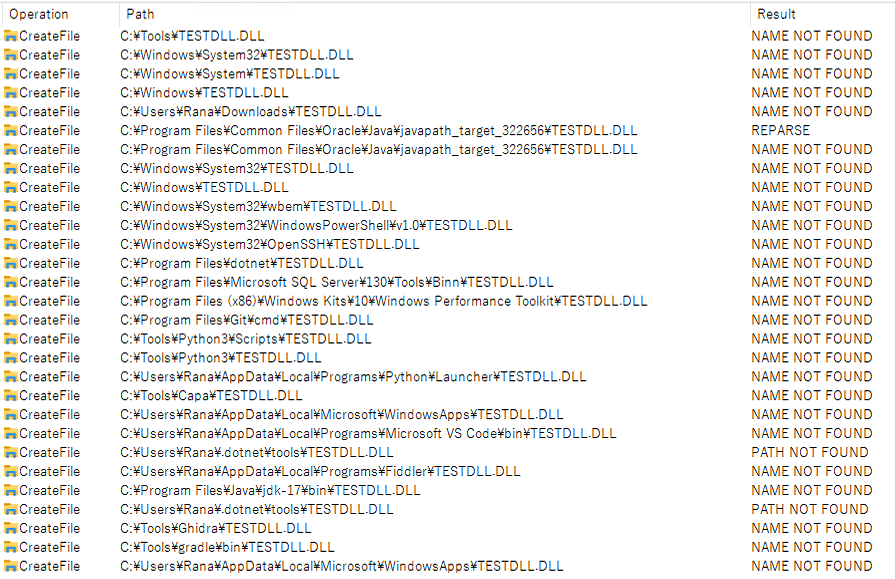
In fact, when I tried this on my local Windows 10 environment, I was able to confirm events that seemed to show the DLL search proceeding in the order above, starting from the folder where the application’s executable file was located.
Run an Exported Function from a Process with rundll32.exe
You can also call functions exported by the DLL you created by using rundll32.exe.
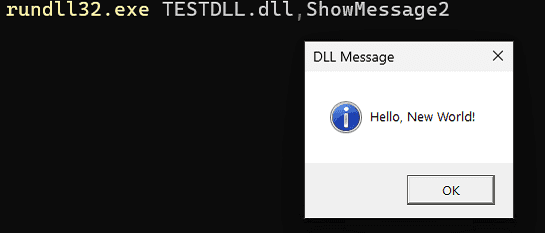
Below is the command that runs the ShowMessage2 function exported by the TESTDLL.dll created earlier.
# rundll32.exe <DLL file>,<Export function>
rundll32.exe TESTDLL.dll,ShowMessage2
When you actually run the command above, you can confirm that the exported function you defined is called.
Reference: rundll32 | Microsoft Learn
This rundll32.exe appears to load DLLs by using the LoadLibraryExW function.
HMODULE LoadLibraryExW(
  [in] LPCWSTR lpLibFileName,
       HANDLE  hFile,
  [in] DWORD   dwFlags
);
Reference: LoadLibraryExW function (libloaderapi.h) - Win32 apps | Microsoft Learn
Load a DLL into a Remote Process
After the method for loading a DLL within a local process, next I will try a method for loading a specific DLL into a remote process.
Note that the DLL injection technique itself is not something used exclusively for malware; it is also used by commercial software such as security software.
For example, official documentation explains that SEP depends on injecting sysfer.dll into other processes in the system.
There was no official information describing the technique SEP uses for DLL injection, but according to the article below, there is a description suggesting that it uses KeInitializeApc and KeInsertQueueApc.
Reference: Security Software and Undocumented API Usage - NTDEV - OSR Developer Community
Load a DLL into a Remote Process with VirtualAllocEx and WriteProessMemory
This time, I will try a DLL injection technique in which memory allocated in a remote process with the VirtualAllocEx function is used to store the path of the DLL to load by using the WriteProessMemory function, and then the code is loaded by the LoadLibrary function executed through the CreateRemoteThread function.
Note that the method tried here loads a DLL into a remote process by using legitimate APIs provided by Microsoft.
As mentioned above, the DLL injection technique itself is also used by legitimate tools, and this operation itself does not perform any kind of unauthorized attack.
However, just to be safe, this article does not include copy-and-paste-ready code and instead includes only general Windows API call code.
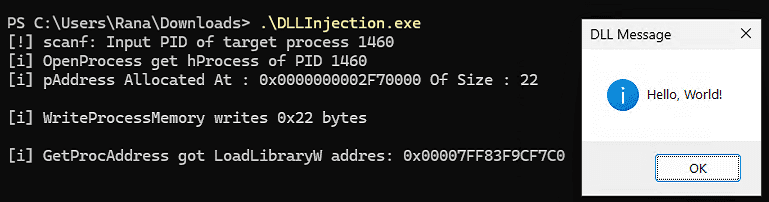
To load a DLL into a remote process, first use the PID of the target process received by the scanf_s function, and obtain a handle to the target process with the OpenProcess function.
HANDLE OpenProcess(
  [in] DWORD dwDesiredAccess,
  [in] BOOL  bInheritHandle,
  [in] DWORD dwProcessId
);
Reference: OpenProcess function (processthreadsapi.h) - Win32 apps | Microsoft Learn
Although this assumes that the PID is entered manually, you can also obtain a handle to the target process by enumerating and searching processes in the system from within the program.
Reference: Trying to Enumerate Process Information in the System with the Win32 API - Kaeru no Himitsukichi
Once you have obtained the process handle, call the VirtualAllocEx function with that process handle as an argument to allocate memory in the remote process for writing the file name of the DLL to load.
pAddress = VirtualAllocEx(hProcess, NULL, dwSizeToWrite, MEM_COMMIT | MEM_RESERVE, PAGE_READWRITE);Reference: VirtualAllocEx function (memoryapi.h) - Win32 apps | Microsoft Learn
Next, use the WriteProcessMemory function to write the DLL file name into the memory region allocated in the remote process.
WriteProcessMemory(hProcess, pAddress, DLLFileName, dwSizeToWrite, &lpNumberOfBytesWritten) || lpNumberOfBytesWritten != dwSizeToWrite)The data to write is specified by the third argument of the WriteProcessMemory function.
BOOL WriteProcessMemory(
  [in]  HANDLE  hProcess,
  [in]  LPVOID  lpBaseAddress,
  [in]  LPCVOID lpBuffer,
  [in]  SIZE_T  nSize,
  [out] SIZE_T  *lpNumberOfBytesWritten
);
Reference: WriteProcessMemory function (memoryapi.h) - Win32 apps | Microsoft Learn
Finally, use the GetProcAddress function to obtain the address of the LoadLibraryW function exported by kernel32.dll, and start a thread in the target process by using the CreateRemoteThread function.
LPVOIDpLoadLibraryW = GetProcAddress(GetModuleHandle(L"kernel32.dll"), "LoadLibraryW");
HANDLEhThread = CreateRemoteThread(hProcess, NULL, NULL, pLoadLibraryW, pAddress, NULL, NULL);
Reference: GetProcAddress function (libloaderapi.h) - Win32 apps | Microsoft Learn
The CreateRemoteThread function can create a thread that runs in the virtual address space of another process.
You specify the address of the obtained LoadLibraryW function for lpStartAddress, and for lpParameter, which is the argument passed to the thread function, you specify a pointer to the file name of the DLL to load that was written into the target process’s memory.
HANDLE CreateRemoteThread(
  [in]  HANDLE                 hProcess,
  [in]  LPSECURITY_ATTRIBUTES  lpThreadAttributes,
  [in]  SIZE_T                 dwStackSize,
  [in]  LPTHREAD_START_ROUTINE lpStartAddress,
  [in]  LPVOID                 lpParameter,
  [in]  DWORD                  dwCreationFlags,
  [out] LPDWORD                lpThreadId
);
Reference: CreateRemoteThread function (processthreadsapi.h) - Win32 apps | Microsoft Learn
By the way, the reason the address of the LoadLibraryW function obtained in the local process can be reused as-is in the arguments to the CreateRemoteThread function that runs in the remote process is that the address of kernel32.dll is shared across processes. (Therefore, if the local process and the target process have different bitness, it seems this method cannot be used to load the DLL.)
By performing this series of operations, I was able to load an arbitrary DLL into the target process specified by PID.
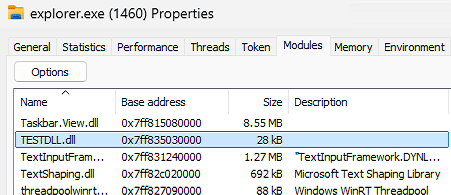
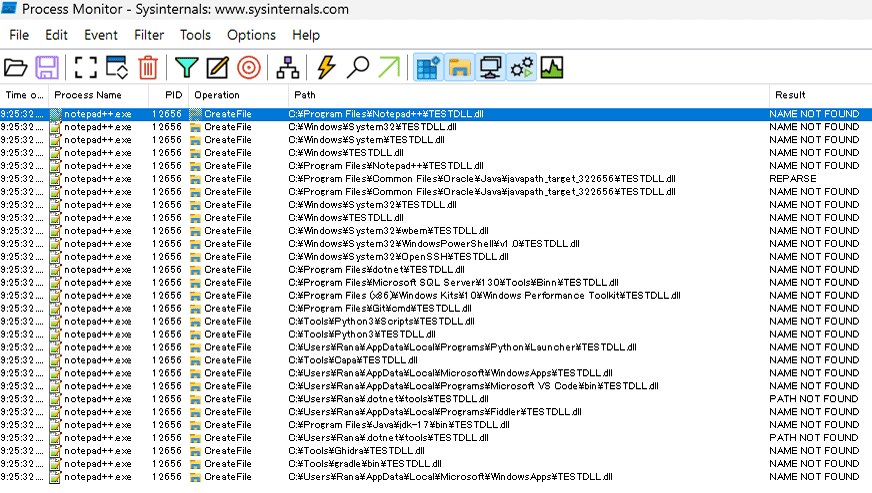
At that time, the search order for the DLL to load was, by default, the same as the standard search order.
However, because the process doing the loading is the remote process, the preferred lookup location is not the execution folder of the program performing the DLL injection, but the folder where the target process’s executable file exists.
Therefore, when performing DLL injection with this method, you need to specify the full path to the target DLL file or place the DLL file to be loaded in advance in the application folder, system folder, or another folder included in PATH.
Below is the search order for TESTDLL.dll when attempting DLL injection into Notepad++.
About Reflective DLL Injection
The DLL injection method above simply loads a DLL that exists as a file.
However, when DLL injection techniques are used for malicious purposes, it seems that a technique called Reflective DLL Injection is often abused instead of this kind of classic method.
Reference: Reflective DLL Injection | Sunano Katamari
Reference: Investigating Malware with Reflective DLL Injection - CyberFortress
I will not describe the detailed implementation because it could potentially cause some trouble, but the articles above explained it in great detail and were very helpful.
Summary
This time, I summarized several methods for loading DLLs on Windows.