This page has been machine-translated from the original page.
The other day, when I attended a digital forensics study session, I learned about a Windows artifact called SRUM (System Resource Usage Monitor).
This may be common knowledge in the forensics community, but I could find very little information even after searching Windows Internals material and official documentation, so I was very glad to have a chance to learn about it.
From a forensic perspective, SRUM seems to be used to discover suspicious processes and network activity. This time, however, I want to summarize how to use SRUM information mainly from the perspective of performance-related troubleshooting.
Table of Contents
What Is SRUM
SRUM (System Resource Usage Monitor) is a Windows feature that monitors how applications and services are used, and it appears to have been introduced in Windows 8.
After SRUM collects data, it is temporarily stored inside the system and then transferred to C:\Windows\System32\sru\SRUDB.dat every hour or at shutdown.
The following article says that information collected by SRUM is temporarily kept in the SOFTWARE registry until it is transferred to SRUDB.dat.
Reference: フォレンジックにおけるSRUMの活用: NECセキュリティブログ | NEC
However, the following source explains that in recent versions of Windows, information collected by SRUM is no longer stored in the SOFTWARE registry and is instead stored in memory.
In recent versions of Windows, SRUM no longer uses the registry to store temporarily database records. Nowadays, SRUM relies on 2 types of storage:
A Tier1 store, which is in memory and is updated every Tier1Period (60 seconds by default) with the data from the SRUM extensions. A Tier2 store, which is the SRUM database on disk and is updated every Tier2Period (1 hour by default) with the content of the Tier1 store.
Reference: SRUM Analysis · WithSecureLabs/chainsaw Wiki
I could not find any officially published documentation describing SRUM behavior in detail, but either way, the point seems consistent that temporarily stored data is written to C:\Windows\System32\sru\SRUDB.dat about once an hour.
SRUM records statistics about network data usage and application activity.

Reference: Beyond Windows Forensics with Built-in Microsoft Tooling
Reference: SRUM: Forensic Analysis of System Resource Utilization Monitor
Also, according to Forensic insights about the DLLs related to the SRUM extensions, the information saved in the SRUM database is collected by several extensions.
Information collection for network data depends on WFP, and the size of recorded communication data apparently includes the size of Layer 2 frames in the OSI model.
Also, if a system’s network traffic goes through a VPN process, the size of the audited input and output data appears to be associated with that VPN process.
This SRUDB is also stored in the Extensible Storage Engine (ESE) format, so it can be analyzed with libraries such as libesedb, as shown later.
Reference: 拡張可能なストレージ エンジン - Win32 apps | Microsoft Learn
Analyzing the SRUM Database
Information stored in C:\Windows\System32\sru\SRUDB.dat can be analyzed with tools such as srum-dump and NetworkUsageView.
Reference: Displays network usage information stored in the SRUDB.dat database of Windows 10/8.
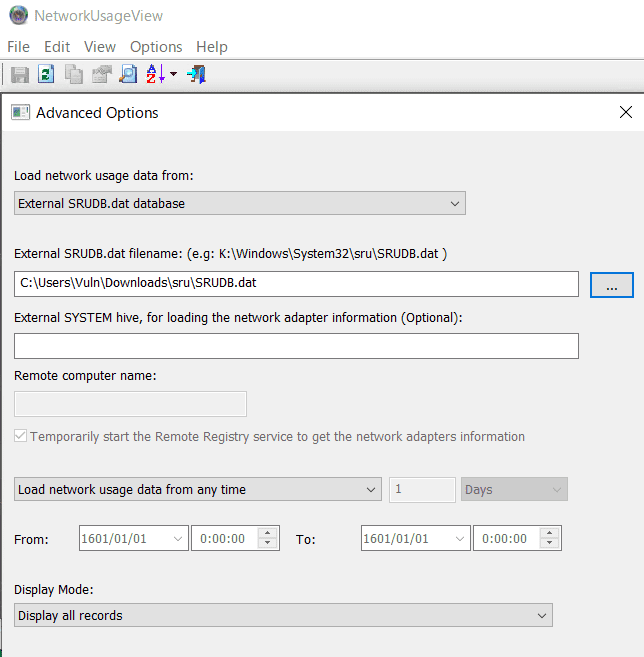
When using NetworkUsageView, you can inspect network data from SRUMDB by starting the application, opening [Options] > [Advanced Options], and loading the SRUDB.dat collected from the device you want to examine.
When I used srum-dump, I could easily dump not only network data but also application usage information, so if you want to inspect a wider range of data, srum-dump seems like the better option.
By the way, copying C:\Windows\System32\sru\SRUDB.dat fails surprisingly often with an error like the following. (If you wait about one minute, it usually becomes copyable.)
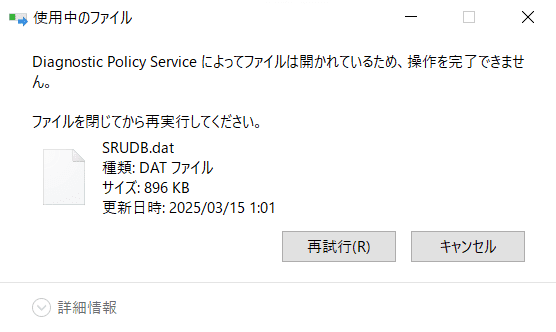
So, for example, I think it is a good idea to retry the copy operation with something like robocopy as shown below.
robocopy "C:\Windows\System32\sru" "C:\Users\Public\Downloads" /BAnalysis with NetworkUsageView
Below, I analyze the SRUMDB generated when a 1 GB file was uploaded from Microsoft Edge.
First, upload a 1 GB file from Microsoft Edge to any upload site.
Even in the packet-capture statistics collected with Wire Shark, you can confirm that exactly 1 GB of data was sent to an external address.

When you analyze the SRUMDB captured from the machine that actually performed this upload, you can see that roughly 1 GB of upload traffic is associated with the Microsoft Edge application.

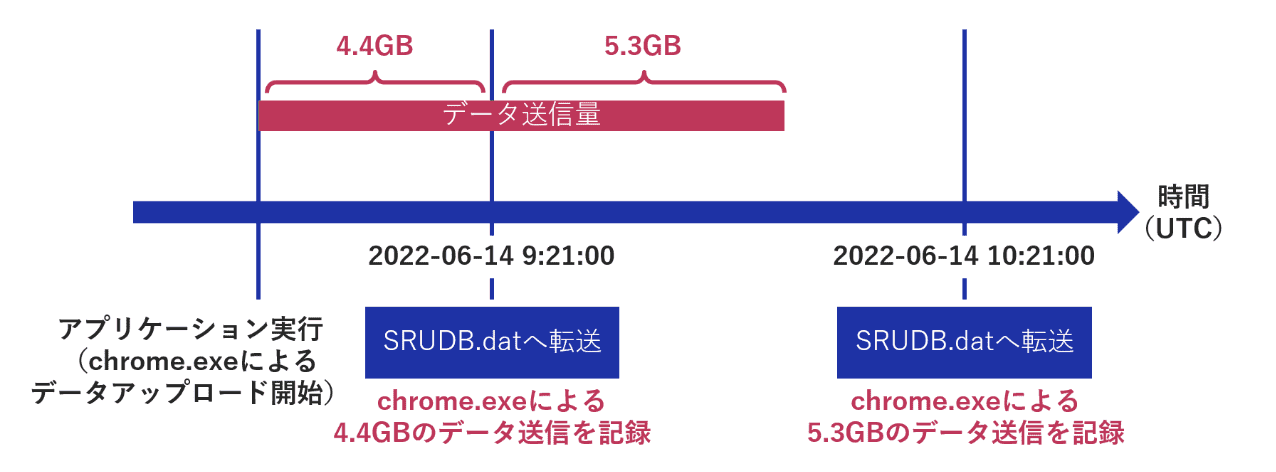
One important point is that the Timestamp value shown here is not the time when the communication actually occurred, but the time when the data was written to SRUMDB.
Also, the communication-data size shown here corresponds to information recorded since the previous event transfer. (Data is transferred to SRUMDB about once an hour or when the machine shuts down.)
The following article explains this area very clearly, and I found it helpful.
Reference: フォレンジックにおけるSRUMの活用: NECセキュリティブログ | NEC
Note: Entries with an Empty App Name
By the way, the entry at the very top, where App ID is 1 and App Name is empty, seems to indicate that the value in the idBlob column of the SruDbIdMapTable table in SRUMDB is empty.
If you actually dump the SruDbIdMapTable table from SRUMDB with the following script using the libesedb library, you can confirm that when the App ID is 1, idBlob becomes None.
# sudo apt-get install libesedb-utils libesedb-dev python3-libesedb
import pyesedb

esedb_file = "SRUDB.dat"
esedb = pyesedb.file()
esedb.open(esedb_file)

table_names = [esedb.get_table(i).get_name() for i in range(esedb.number_of_tables)]
print(table_names)

table = esedb.get_table_by_name("SruDbIdMapTable")
column_names = [table.get_column(i).get_name() for i in range(table.number_of_columns)]
print(column_names)

for record_index in range(table.number_of_records):
    record = table.get_record(record_index)
    id_type = record.get_value_data_as_integer(0)
    id_index = record.get_value_data_as_integer(1)

    try:
        id_blob = record.get_value_data(2).decode("utf-16le", errors="ignore").strip("\x00")
        if id_type == 0:
            print(f"AppID: {id_index}, AppName: {id_blob}")

    except:
        # AppID: 0 AppName: None
        if id_type == 0:
            print(f"AppID: {id_index}, AppName: {record.get_value_data(2)}")
In practice, I could not find any information explaining what this entry with App ID 1 actually refers to.
However, based on ChatGPT’s answers and comments in threads like the one below, I found suggestions that it may be tracking system-wide I/O.

When I actually uploaded a 1 GB file from Microsoft Edge, nearly the same amount of traffic was associated with the App ID 1 entry, so it seems reasonably plausible.
If anyone knows the details here, I would really appreciate hearing about it.
Note: Building libesedb
This time I installed libesedb with apt, but I was also able to build it from source with the following commands.
sudo apt install git autoconf automake autopoint libtool pkg-config

wget https://github.com/libyal/libesedb/releases/download/20240420/libesedb-experimental-20240420.tar.gz
targz  libesedb-experimental-20240420.tar.gz
cd libesedb-20240420/

./configure --enable-python
make
sudo make install
Reference: Building · libyal/libesdb Wiki
Summary
SRUM seems to be used often for forensic purposes, but personally I also felt that it could be extremely useful for performance and network-related troubleshooting. (That is probably its original purpose.)
Especially for intermittent performance issues and bandwidth-saturation problems, identifying the process that caused the spike is often the bottleneck in an investigation, but analyzing SRUM seems likely to make it possible to investigate these kinds of issues more smoothly.