This page has been machine-translated from the original page.
In this article, I use the tutorial environment from Trying the WinDbg User-Mode Debugging Tutorial to summarize the basic UI operations in WinDbg.
For a list of articles I have published about Windows debugging and dump analysis with WinDbg, please also see the following page.
Reference: Debugging and Troubleshooting Techniques with WinDbg
This article covers the following topics.
Table of Contents
-
- 1. Open Source File ([Ctrl+O] key)
- 2. Insert or Remove Breakpoint ([F9] key)
- 3. Command ([Alt+1] key)
- 4. Watch ([Alt+2] key)
- 5. Locals ([Alt+3] key)
- 6. Registers ([Alt+4] key)
- 7. Memory Window ([Alt+5] key)
- 8. Call Stack ([Alt+6] key)
- 9. Disassembly ([Alt+7] key)
- 10. Scratch Pad ([Alt+8] key)
- 11. Processes and Threads ([Alt+9] key)
- 12. Command Browser ([Ctrl+N] key)
- 13. Source Mode ON
- 14. Source Mode OFF
- 15. Font
- 16. Options
- Wrap-up
About the WinDbg UI
The WinDbg version used here is WinDbg10.0.22000.1 AMD64.
This is the GUI immediately after starting WinDbg. It is running with administrator privileges.
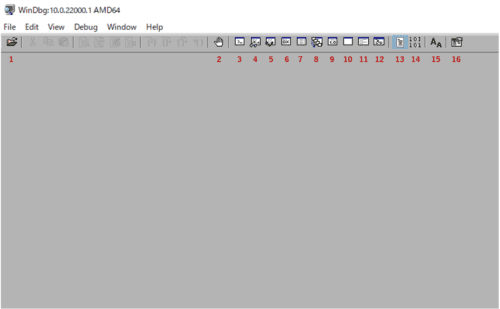
Each button has the following function.
| No. | Function | Shortcut |
|---|---|---|
| 1 | Open Source File | Ctrl+O |
| 2 | Insert or remove breakpoint | F9 |
| 3 | Command | Alt+1 |
| 4 | Watch | Alt+2 |
| 5 | Locals | Alt+3 |
| 6 | Registers | Alt+4 |
| 7 | Memory Window | Alt+5 |
| 8 | Call Stack | Alt+6 |
| 9 | Disassembly | Alt+7 |
| 10 | Scratch Pad | Alt+8 |
| 11 | Processes and Threads | Alt+9 |
| 12 | Command Browser | Ctrl+N |
| 13 | Source mode ON | N/A |
| 14 | Source mode OFF | N/A |
| 15 | Font | N/A |
| 16 | Options | N/A |
Descriptions of each toolbar button are provided in the following reference.
Reference: Toolbar Buttons - Windows drivers | Microsoft Docs
The following reference also documents the keyboard shortcuts.
Reference: Keyboard Shortcuts - Windows drivers | Microsoft Docs
1. Open Source File ([Ctrl+O] key)
The leftmost button on the toolbar, button 1, is the Open Source File button.
Clicking this button opens an Explorer window, where you can open a source file in WinDbg. Note: you cannot use it to open an executable or attach to a process.
Reference: File Open Source File - Windows drivers | Microsoft Docs
The shortcut key is [Ctrl+O].
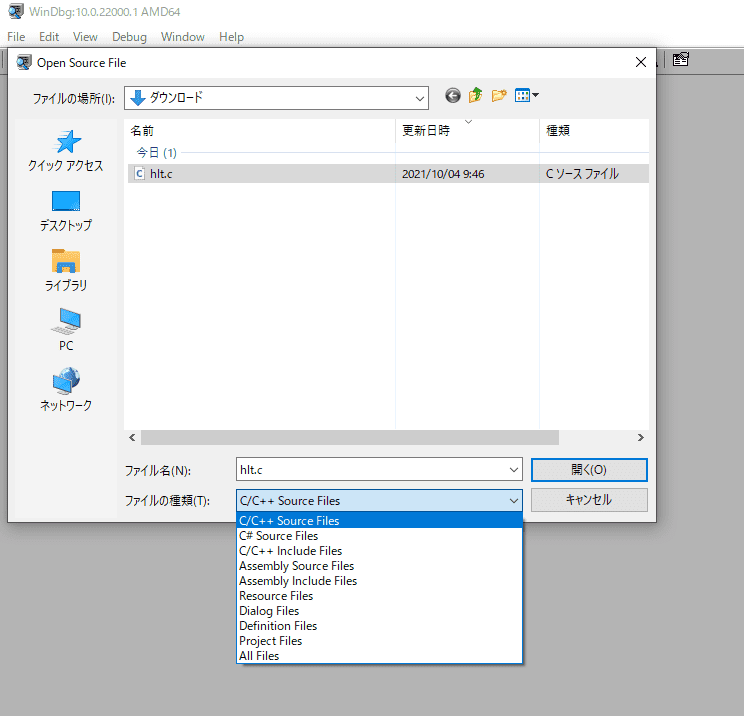
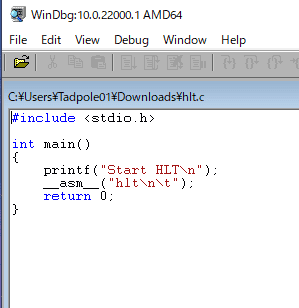
After opening a source file, you can view the source code inside that file directly in WinDbg as shown below. Note: this view is read-only, so you cannot edit the file.
2. Insert or Remove Breakpoint ([F9] key)
Button 2 is Insert or remove breakpoint.
It is available only when the active window is either the Source window or the Disassembly window.
Press this button while a location is selected to toggle a breakpoint at that location.
The shortcut key is [F9].
Reference: Edit Breakpoints - Windows drivers | Microsoft Docs
For example, in the following screenshot, a breakpoint is set on notepad!wWinMain in Notepad.
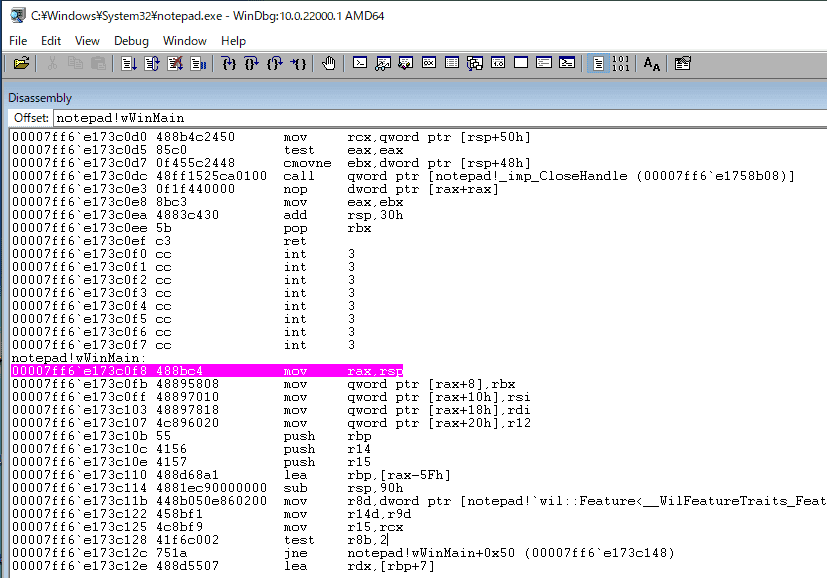
If you place the cursor on the line where the breakpoint is set (the highlighted line) and press the Insert or remove breakpoint button or the [F9] key, you can remove the breakpoint.
Conversely, if you execute this button on a line that does not already have a breakpoint (an unhighlighted line), you can set a new breakpoint there.
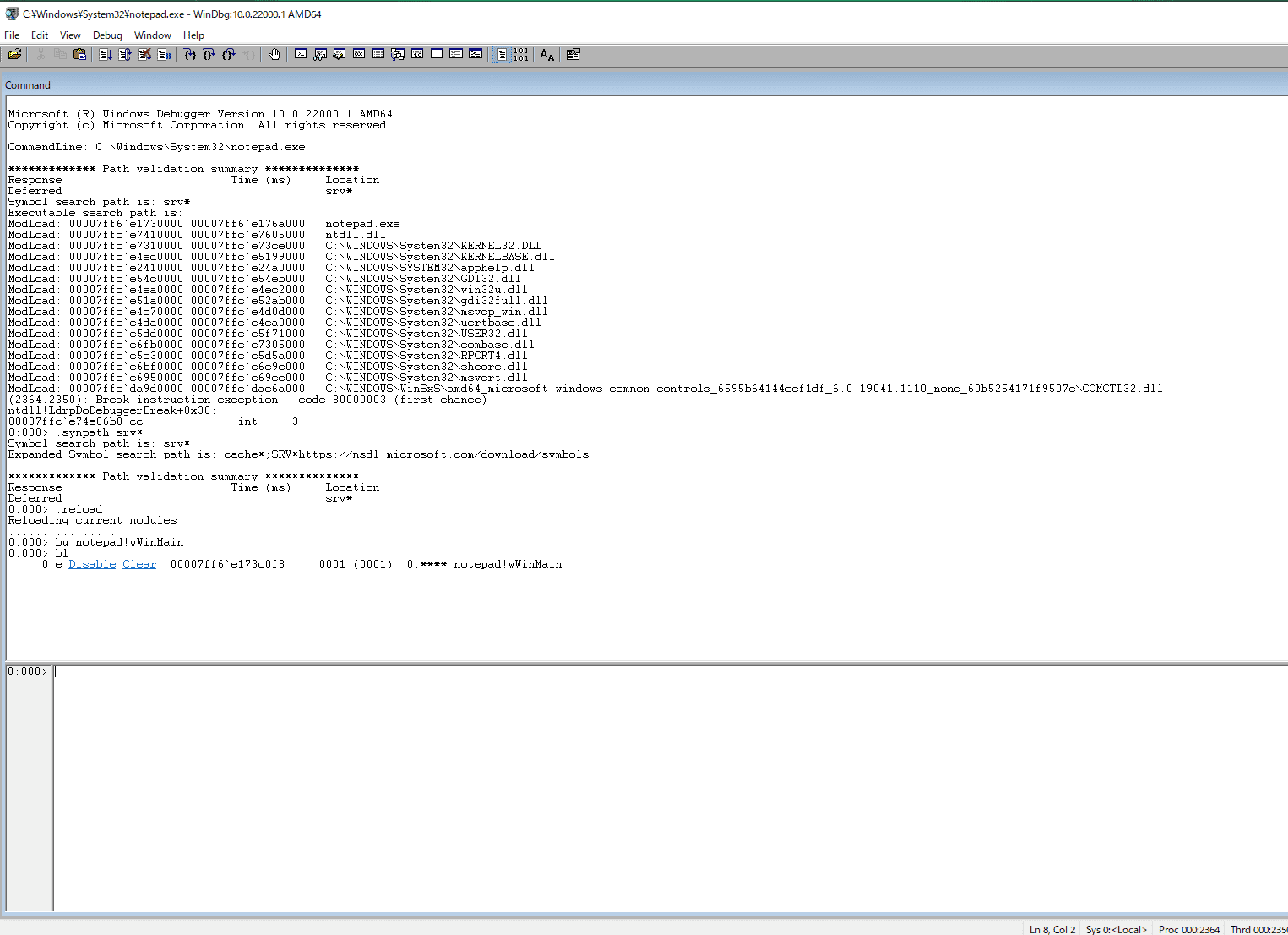
3. Command ([Alt+1] key)
If the Command window is closed, clicking button 3 opens a new Command window.
The shortcut key is [Alt+1].
Reference: View Command - Windows drivers | Microsoft Docs
4. Watch ([Alt+2] key)
Clicking button 4 opens the Watch window.
The shortcut key is [Alt+2].
Reference: View Watch - Windows drivers | Microsoft Docs
The Watch window displays information about global variables, local variables, and registers. For details about the Watch window, see the following documentation.
Reference: Using the Watch Window - Windows drivers | Microsoft Docs
5. Locals ([Alt+3] key)
Clicking button 5 opens the Locals window.
The shortcut key is [Alt+3].
Reference: View Locals - Windows drivers | Microsoft Docs
In the Locals window, you can view a list of local variables.
Reference: Viewing and Editing Local Variables in WinDbg - Windows drivers | Microsoft Docs
6. Registers ([Alt+4] key)
Clicking button 6 opens the Registers window.
The shortcut key is [Alt+4].
Reference: View Registers - Windows drivers | Microsoft Docs
For how to display and edit registers in the Registers window, see the following documentation.
Reference: Viewing and Editing Registers in WinDbg - Windows drivers | Microsoft Docs
7. Memory Window ([Alt+5] key)
Clicking button 7 opens the Memory window.
The shortcut key is [Alt+5].
Reference: View Memory - Windows drivers | Microsoft Docs

For how to use the Memory window, see the following documentation.
Reference: Viewing and Editing Memory in WinDbg - Windows drivers | Microsoft Docs
8. Call Stack ([Alt+6] key)
Clicking button 8 opens the Call Stack window.
The shortcut key is [Alt+6].
Reference: View Call Stack - Windows drivers | Microsoft Docs
The Call Stack window displays call history information from the stack.
This is the same information as the stack trace displayed when you run the k command in the Command window.
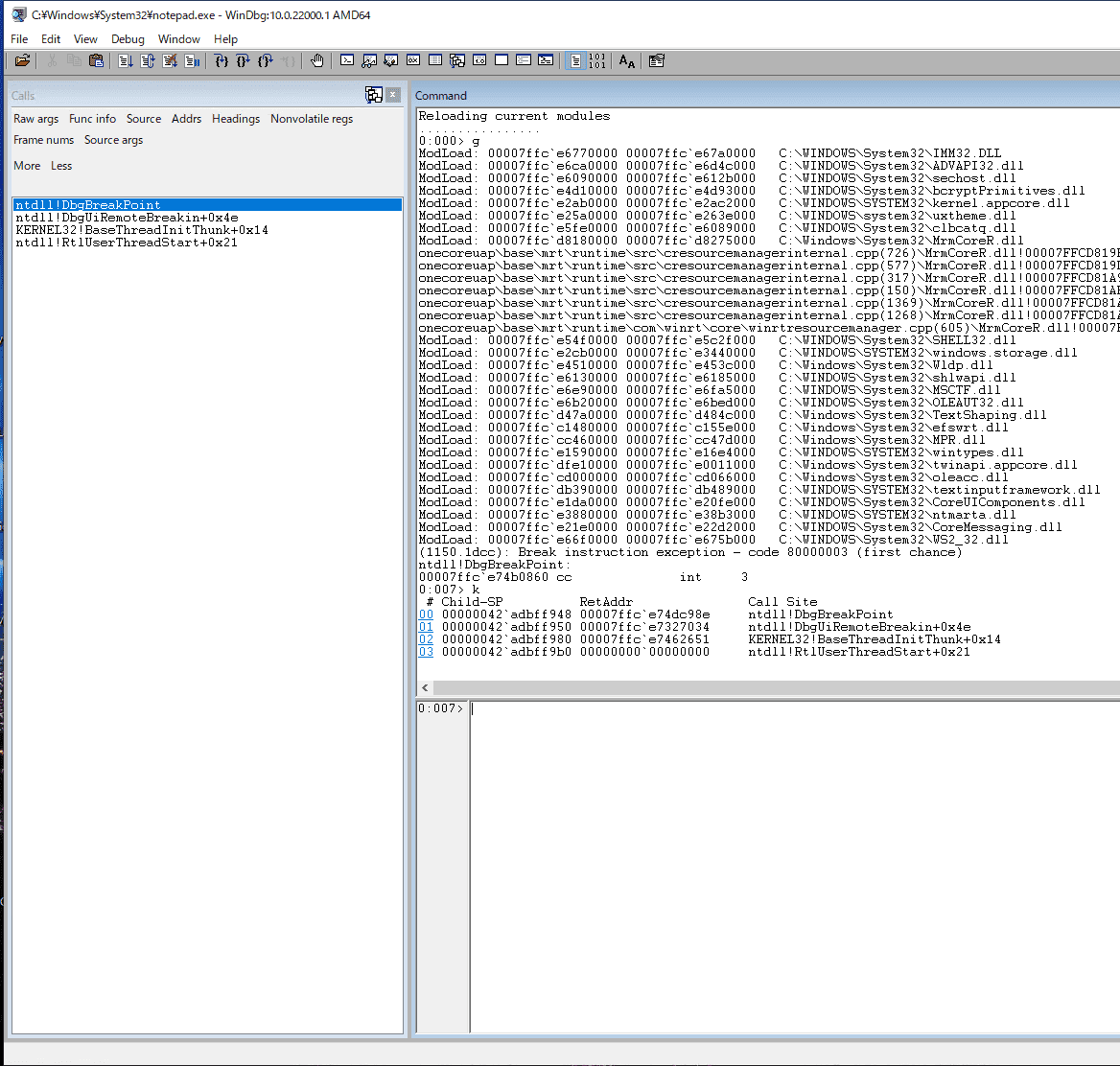
For more about the Call Stack window, see the following documentation.
Reference: Displaying the Call Stack in WinDbg - Windows drivers | Microsoft Docs
9. Disassembly ([Alt+7] key)
Clicking button 9 opens the Disassembly window.
The shortcut key is [Alt+7].
Reference: View Disassembly - Windows drivers | Microsoft Docs
In the Disassembly window, you can display the assembly code of the debug target.
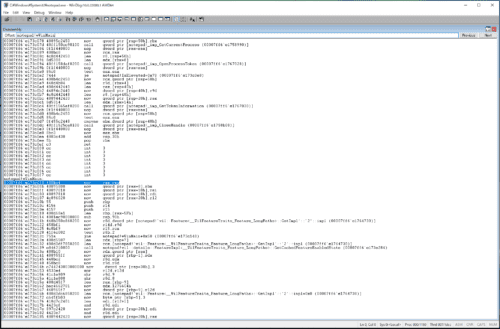
For more about the Disassembly window, see the following documentation.
Reference: Debugging Assembly Code in WinDbg - Windows drivers | Microsoft Docs
10. Scratch Pad ([Alt+8] key)
Clicking button 10 opens the Scratch Pad window.
The shortcut key is [Alt+8].
A Scratch Pad is a clipboard where you can enter and save text.
Reference: Using the Scratch Pad - Windows drivers | Microsoft Docs
11. Processes and Threads ([Alt+9] key)
Clicking button 11 opens the Processes and Threads window.
The shortcut key is [Alt+9].
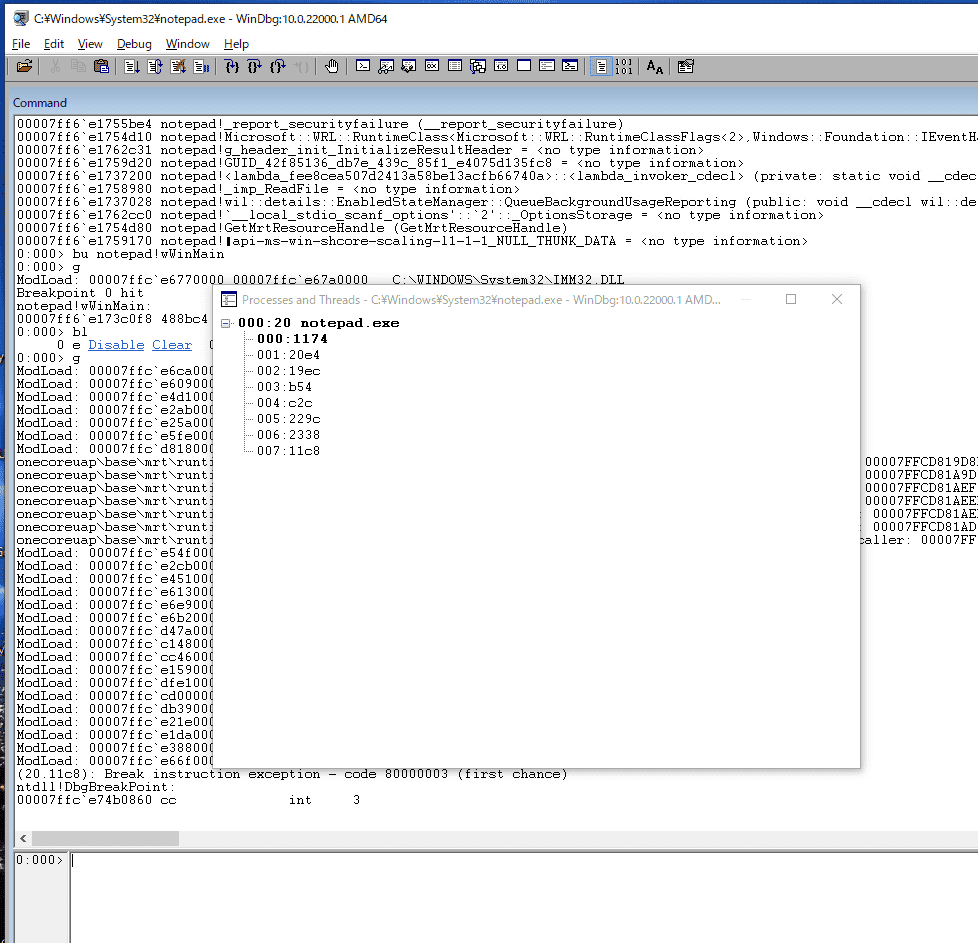
In this window, you can browse a list of all processes being debugged.
In the example image below, the threads in the notepad.exe process are displayed in a tree under that process.
Here, processes are displayed in the format <internal decimal process index used by the debugger>:<hexadecimal process ID> application name of the process.
Likewise, each thread is displayed as <internal decimal thread index used by the debugger>:<hexadecimal thread ID>.
Reference: Controlling Processes and Threads in WinDbg - Windows drivers | Microsoft Docs
12. Command Browser ([Ctrl+N] key)
Clicking button 12 opens the Command Browser window.
The shortcut key is [Ctrl+N].
In this window, you can retrieve the output of commands.
The commands you run are the same as those entered in the Command window, but by using command history and related features, you can execute commands more efficiently.
Reference: Using the Command Browser Window in WinDbg - Windows drivers | Microsoft Docs
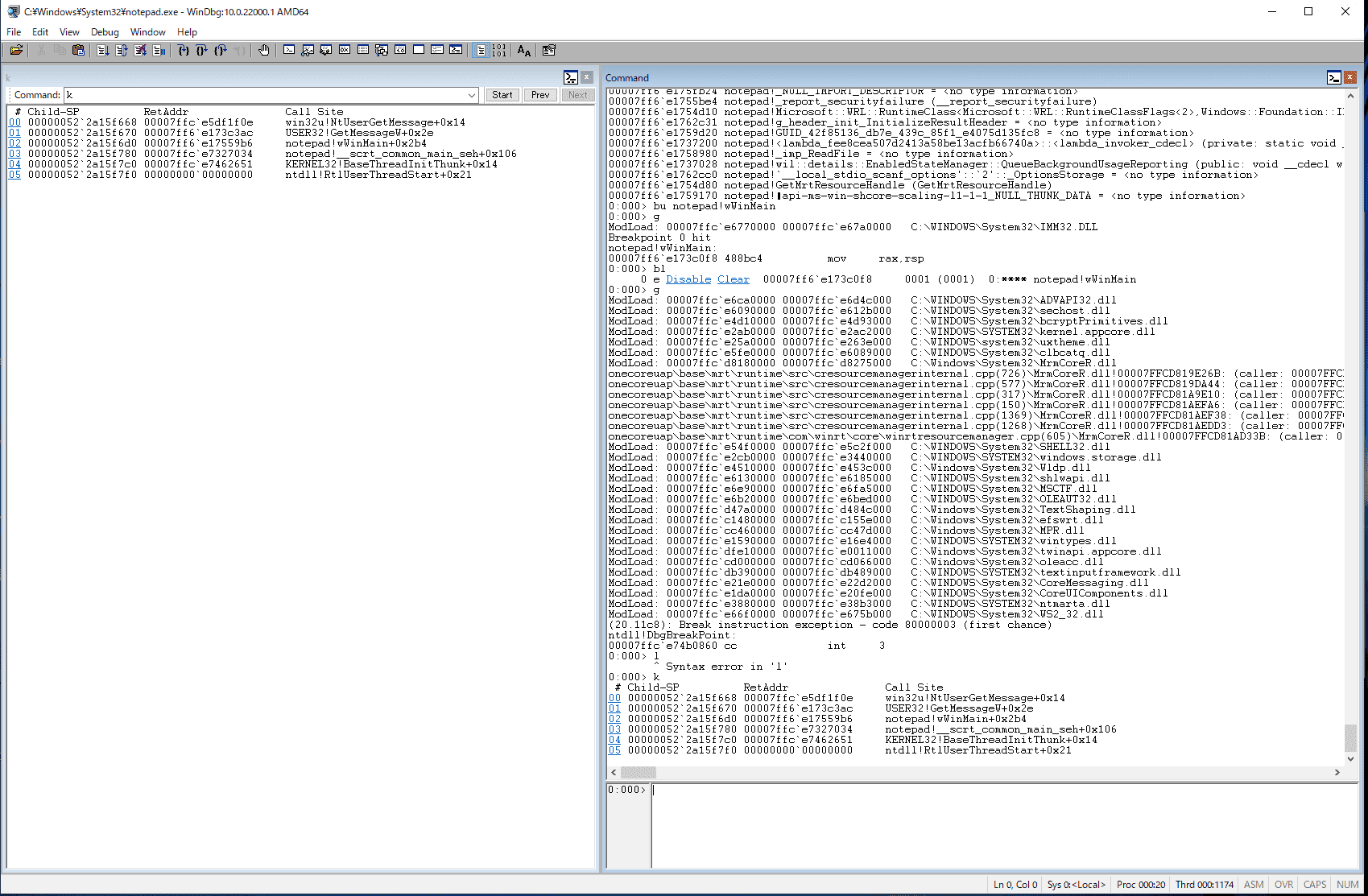
13. Source Mode ON
Switches the debugger to source mode.
When source mode is active, you cannot use ASM in the status bar.
Reference: Debug Source Mode - Windows drivers | Microsoft Docs
14. Source Mode OFF
Switches the debugger to assembly mode.
Reference: Debug Source Mode - Windows drivers | Microsoft Docs
15. Font
Lets you change the font used in the debugging windows.
Reference: View Font - Windows drivers | Microsoft Docs
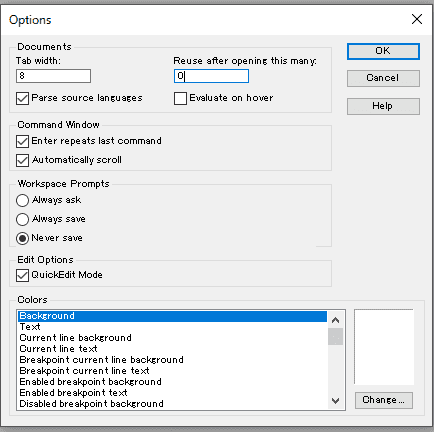
16. Options
Opens the Options window. In the Options window, you can configure the following items.
- The tab width used when displaying tab characters in the source window
- The number of document or source windows that can be opened at the same time
- Enable syntax highlighting based on source-language parsing
- Enable analysis when hovering the mouse pointer
- Enable the feature that reruns the previous command when you press the Enter key
- Control the auto-scroll feature
- Control how often and when the workspace is saved to WinDbg
- Enable quick edit mode
- Change the colors of the displayed text
Reference: View Options - Windows drivers | Microsoft Docs
Wrap-up
This time, I summarized the window interface used when debugging and analyzing with WinDbg.
For other information I have published about Windows debugging and dump analysis with WinDbg, please see the list on the following page.
Reference: Debugging and Troubleshooting Techniques with WinDbg