This page has been machine-translated from the original page.
My goal is to become proficient with WinDbg for Windows debugging and dump-based troubleshooting.
In Trying the WinDbg User-Mode Debugging Tutorial, I introduced the first steps for debugging a user-mode process with WinDbg based on the official tutorial.
In this article, I summarize how to perform kernel-mode debugging with WinDbg.
For a list of information I have published about Windows debugging and dump analysis with WinDbg, see the page below.
Reference: Debugging and Troubleshooting Techniques with WinDbg
This article covers the following topics.
Table of Contents
Setting Up an Environment for Kernel-Mode Debugging
To perform kernel-mode debugging with WinDbg, you need two systems: a host computer that runs WinDbg and a target computer to be debugged, connected by one of the following methods.
- Ethernet
- USB 2.0 / USB 3.0
- Serial (also called a null modem)
Reference: WinDbg Overview (Kernel Mode) - Windows drivers | Microsoft Docs
Strictly speaking, two machines are required if you want to access and debug the entire kernel. You can also perform local kernel debugging on a single machine, but analyses that require stopping the OS cannot be performed, so there are limitations.
Reference: Manually setting up local kernel debugging of a single computer - Windows drivers | Microsoft Docs
Normally, kernel-mode debugging requires two computers, but WinDbg can also perform kernel-mode debugging against Windows installed in a virtual machine.
This time, I will set up kernel-mode debugging for Windows machines built on Hyper-V and VirtualBox.
Environment Used in This Article
-
Host machine
- Windows10 Pro 20H2
- WinDbg 10.0.22000.1 AMD64 (started with administrator privileges)
- VirtualBox 6.1.26
- Hyper-V
-
Target machine
- Windows10 Pro 22H2 (built on Hyper-V)
- Windows 10 Pro 1511 (built on VirtualBox)
Changing Hyper-V Settings
This section assumes that a Windows 10 virtual machine is already running on Hyper-V.
For kernel debugging, open the settings for the target virtual machine in Hyper-V and configure the COM1 settings as shown below.
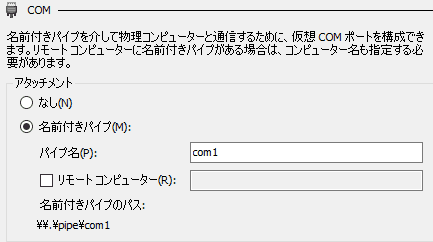
As long as the final value of Named pipe path is \\.\pipe\com1, you are good to go.
This completes the Hyper-V-side configuration, so start the virtual machine.
By the way, when attaching kernel debugging to a virtual machine configured in Hyper-V, it is better to disable Enhanced Session Mode.
Changing VirtualBox Settings
This section assumes that a Windows virtual machine has already been created in VirtualBox.
To perform kernel-mode debugging, configure the COM port on the VirtualBox virtual machine.
- In VirtualBox Manager on the host machine, open the settings for the virtual machine to be debugged.
- Next, open the [Serial Ports] settings and enable [Port 1].
- Then apply the following settings.
- Port Number: COM1
- Port Mode: Host Pipe
- Path/Address:
\\.\pipe\com1
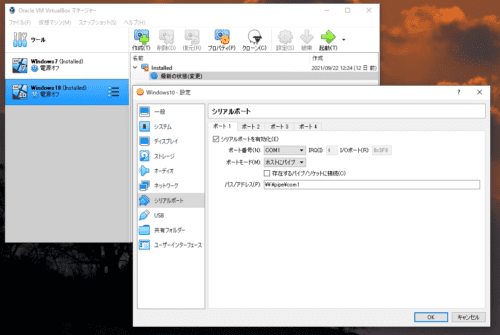
This completes the VirtualBox-side configuration, so start the virtual machine.
Enabling Kernel-Mode Debugging
After the virtual machine starts, launch a command line as an administrator and enter the following commands.
bcdedit /debug on
bcdedit /dbgsettings serial debugport:1 baudrate:115200
Alternatively, start Msconfig.exe, specify the COM1 port from the advanced options, and enable debugging.
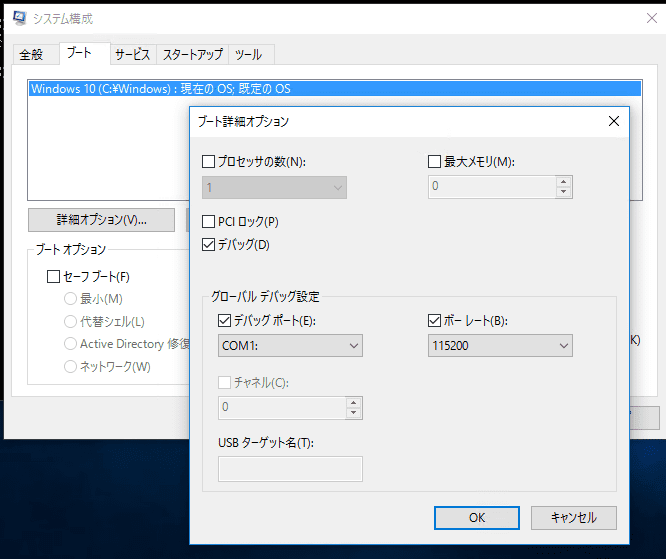
Once the settings above are complete, configure WinDbg on the host machine.
This is not required for kernel debugging itself, but if you want to test using a self-made device driver or similar, run the following command and then restart the OS to enable test-signing mode.
bcdedit /set testsigning onConfiguring WinDbg
On the host machine, start WinDbg with administrator privileges.
For kernel-mode debugging, WinDbg must also be started with administrator privileges.
If it is started in user mode, kernel-mode debugging will fail with an error such as Kernel debugger failed initialization, Win32 error 5 Access is denied.
After starting WinDbg as an administrator, select [File] > [Kernel Debug] and connect to the target machine using a named pipe as shown below.
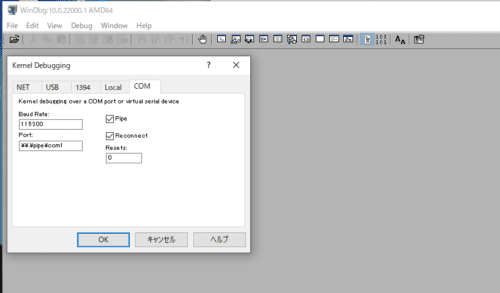
After completing this setup, click [OK]. A Command window for kernel debugging will open and begin waiting for a connection on the COM port.
Waiting for pipe \\.\pipe\com1
Waiting to reconnect...
Finally, restart the Windows machine on the target side.
Then, as shown below, WinDbg connects to the target machine and the target machine starts in test mode.
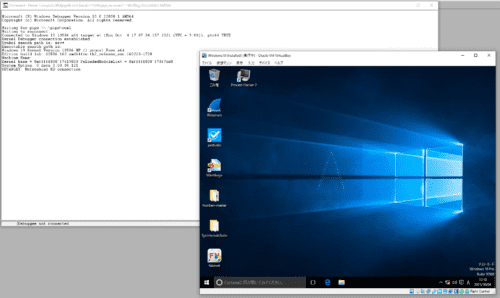
This completes the preparation required to perform Windows kernel debugging with WinDbg.
Performing Kernel Debugging with WinDbg
Now that WinDbg has connected to the target machine over the COM port, the environment is ready for kernel debugging.
However, because the target machine’s Windows OS is currently running, you still cannot operate it from the WinDbg Command window.
To proceed with kernel debugging in WinDbg, you first need to stop the Windows kernel once.
Stopping the Kernel from WinDbg
To stop the Windows kernel for kernel debugging, click the [Break] button on the toolbar at the top of WinDbg, or press [Ctrl+Break].
Alternatively, you can stop it by selecting [Break] from the [Debug] menu at the top of WinDbg.
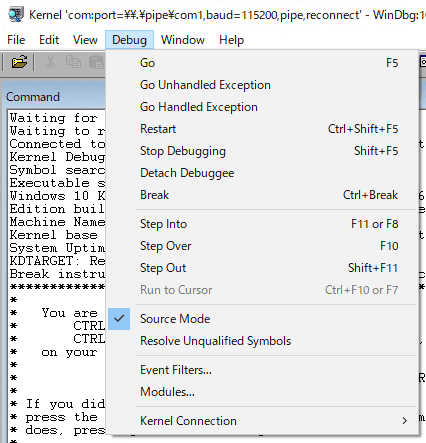
After the following output appears, you can operate WinDbg from the Command window.
Connected to Windows 10 10586 x64 target at (Mon Oct  4 17:32:25.121 2021 (UTC + 9:00)), ptr64 TRUE
Kernel Debugger connection established.
Symbol search path is: srv*
Executable search path is:
Windows 10 Kernel Version 10586 MP (1 procs) Free x64
Edition build lab: 10586.162.amd64fre.th2_release_sec.160223-1728
Machine Name:
Kernel base = 0xfffff803`5280b000 PsLoadedModuleList = 0xfffff803`52ae9cd0
System Uptime: 0 days 0:00:00.121
KDTARGET: Refreshing KD connection
Break instruction exception - code 80000003 (first chance)
*******************************************************************************
*                                                                             *
*   You are seeing this message because you pressed either                    *
*       CTRL+C (if you run console kernel debugger) or,                       *
*       CTRL+BREAK (if you run GUI kernel debugger),                          *
*   on your debugger machine's keyboard.                                      *
*                                                                             *
*                   THIS IS NOT A BUG OR A SYSTEM CRASH                       *
*                                                                             *
* If you did not intend to break into the debugger, press the "g" key, then   *
* press the "Enter" key now.  This message might immediately reappear.  If it *
* does, press "g" and "Enter" again.                                          *
*                                                                             *
*******************************************************************************
nt!DbgBreakPointWithStatus:
fffff803`52952eb0 cc              int     3
Displaying a List of Modules in Kernel-Mode Debugging
Even in kernel-mode debugging, the basic operations performed from the Command window are almost the same as the user-mode debugging introduced in this article.
As a quick test, I ran the lm command to output a list of the loaded modules.
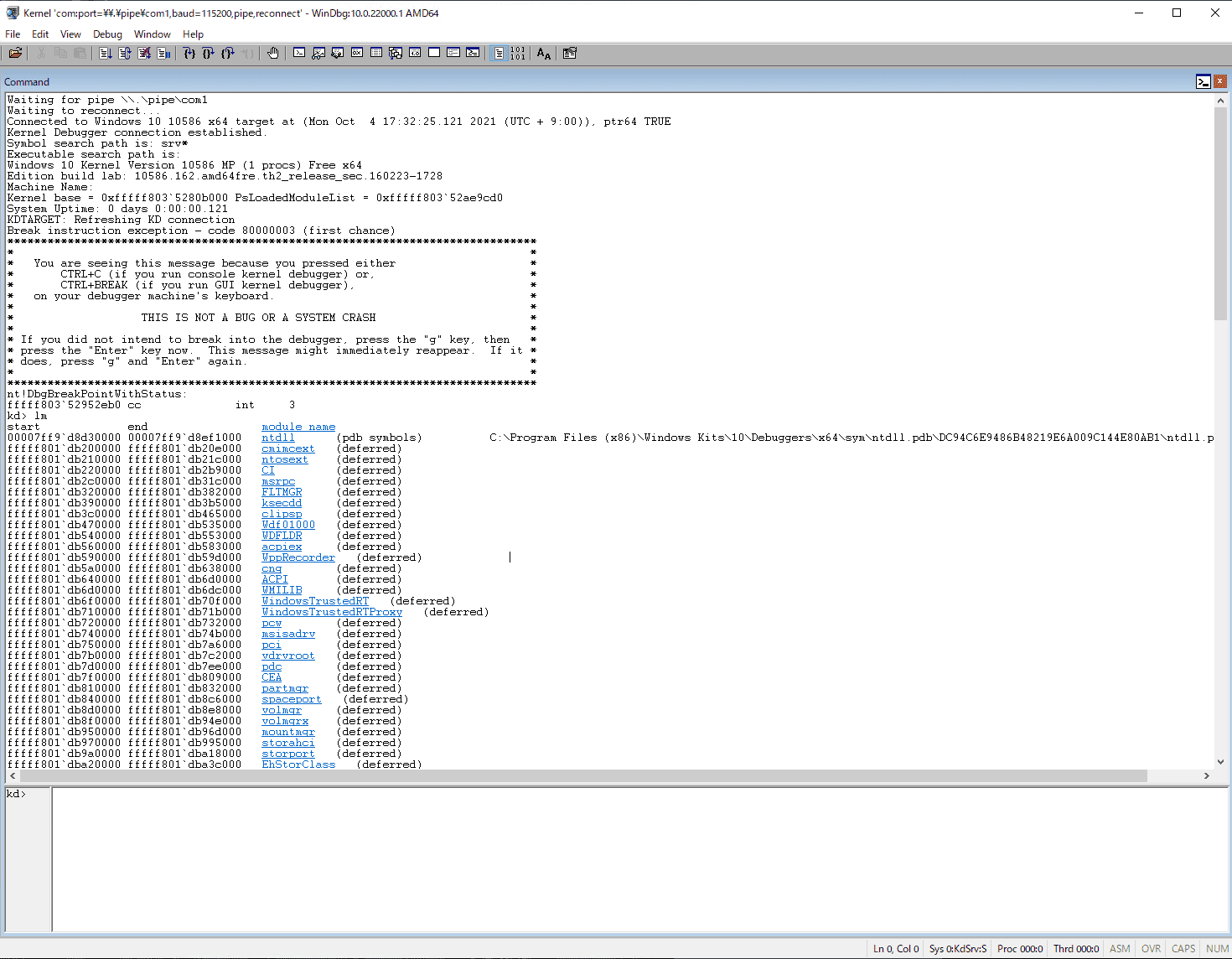
Next, run x nt!MmCreate* to retrieve some of the symbols in the nt module.
kd> x nt!MmCreate*
fffff803`52bd46ac nt!MmCreateTeb (MmCreateTeb)
fffff803`52c5733c nt!MmCreatePeb (MmCreatePeb)
fffff803`528ecfb8 nt!MmCreateMdl (MmCreateMdl)
fffff803`528a5fc8 nt!MmCreateSystemSection (MmCreateSystemSection)
fffff803`52c08c40 nt!MmCreateSection (MmCreateSection)
fffff803`52c4a2fc nt!MmCreateProcessAddressSpace (MmCreateProcessAddressSpace)
fffff803`52c08d30 nt!MmCreateCacheManagerSection (MmCreateCacheManagerSection)
fffff803`52c88c8c nt!MmCreateSpecialImageSection (MmCreateSpecialImageSection)
fffff803`5281cda0 nt!MmCreateKernelStack (MmCreateKernelStack)
fffff803`52e2e838 nt!MmCreateMirror (MmCreateMirror)
Setting a Breakpoint in a Kernel Module
Next, run bu nt!MmCreateProcessAddressSpace to set a breakpoint.
kd> bu nt!MmCreateProcessAddressSpace
kd> bl
     0 e Disable Clear  fffff803`52c4a2fc     0001 (0001) nt!MmCreateProcessAddressSpace
If you run the g command here to resume execution of the Windows kernel, each time a new process starts the configured breakpoint causes the kernel to stop and switch into WinDbg debugging mode.
For example, this time I launched Microsoft Edge on the target machine.
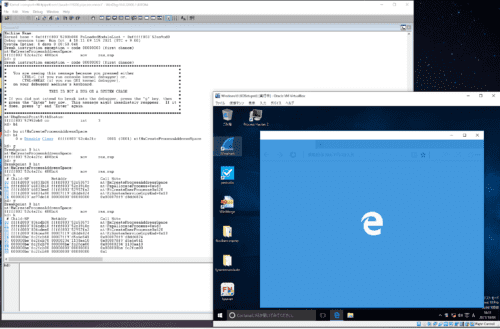
Because nt!MmCreateProcessAddressSpace was called as part of the new-process startup path, the kernel stopped and debugging became possible in WinDbg.
From here, WinDbg can step through Windows kernel processing, display stack traces, rewrite registry information, and perform other operations.
The image below shows the state after stepping execution forward until Microsoft Edge is in the middle of starting up and then outputting a stack trace.
Wrap-up
This time, I introduced how to configure kernel debugging with WinDbg and some basic operations.
I plan to cover troubleshooting techniques that use kernel debugging in a different article.
For other information I have published about Windows debugging and dump analysis with WinDbg, see the list on the page below.
Reference: Debugging and Troubleshooting Techniques with WinDbg