This page has been machine-translated from the original page.
My goal is to become proficient with WinDbg for Windows debugging and dump-based troubleshooting.
In Trying the WinDbg User-Mode Debugging Tutorial, I covered how to debug user-mode applications with WinDbg.
This time, as a practical use case, I’ll show how to inspect memory and register information during live debugging of a user-mode application with WinDbg.
For a full list of articles on Windows debugging and dump analysis with WinDbg, see the index page:
Reference: Debugging and Troubleshooting Techniques with WinDbg
Table of Contents
- Goals for This Article
- Sample Program Used in This Article
- Launching the Application in WinDbg
- Setting a Breakpoint at the Address of the main Function
- Setting a Breakpoint at the return_addr Function
- Inspecting Memory
- Tampering with Memory
- Wrap-up
Goals for This Article
This article has two goals:
- Confirm that, when a function is called, the address of the instruction to be executed after the function returns is stored in RSP/BSP.
- Tamper with the memory referenced by RSP to cause an arbitrary function to execute.
I’ll set breakpoints at various points in the program during live user-mode debugging with WinDbg and inspect the stack information at the time of each function call.
I’ll also tamper with memory from WinDbg to make an arbitrary piece of code execute.
Sample Program Used in This Article
The program used in this test is made up of the following source code.
When run, it calls the ret_func function, prints a few strings, and then exits.
// return_addr.cpp
#include <stdio.h>

int ret_func() {
    printf("Call ret_func\n");
    return 0;
}

int main() {
    printf("Start main\n");
    ret_func();
    printf("Return ret_func\n");
    return 0;
}
The sample code is available at kash1064/Try2WinDbg.
For instructions on how to compile the sample program with a symbol file (.pdb), refer to the following article:
Reference: How to Generate Symbol Files (.pdb) in a Linux Environment Using llvm-mingw
Let’s get started with the analysis using return_addr.exe, the compiled binary from this source code.
Launching the Application in WinDbg
I’m using the UWP version, WinDbg Preview, for this analysis. It is available from the Windows Store.
First, launch the compiled return_addr.exe from WinDbg.
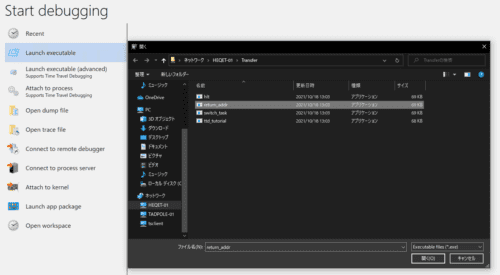
The debugger stops before execution begins, and the debug command prompt becomes available.
Let’s load the symbol file first.
In my environment, return_addr.pdb is placed on the Desktop, so I use .sympath+ <desktop path>.
After adding the symbol file path, run the .reload command.
.sympath+ C:\Users\Tadpole01\Desktop
.reload
When the symbol file is loaded correctly, WinDbg can interpret and display function names and other symbols for ttd_tutorial.exe, as shown in the image below.
When you run the lm command to list modules, you should see (pdb symbols) as shown here:
0:000> lm
start             end                 module name
00007ff7`cd710000 00007ff7`cd72a000   return_addr C (pdb symbols)          C:\ProgramData\Dbg\sym\return_addr.pdb\28CEC53415E7CD7D4C4C44205044422E1\return_addr.pdb
00007ffd`ef320000 00007ffd`ef5e9000   KERNELBASE   (deferred)
00007ffd`ef5f0000 00007ffd`ef6f0000   ucrtbase   (deferred)
00007ffd`f01b0000 00007ffd`f026e000   KERNEL32   (deferred)
00007ffd`f18d0000 00007ffd`f1ac5000   ntdll      (pdb symbols)          C:\ProgramData\Dbg\sym\ntdll.pdb\96EF4ED537402DAAA51D4A4212EA4B2C1\ntdll.pdb
Setting a Breakpoint at the Address of the main Function
To set a breakpoint for debugging, first identify the address of the main function.
Running x /D /f return_addr!m* displays all symbols starting with m:
0:000> x /D /f return_addr!m*
 A B C D E F G H I J K L M N O P Q R S T U V W X Y Z

00007ff6`96451490 return_addr!main (main)
00007ff6`964527b0 return_addr!memcpy (memcpy)
00007ff6`96452790 return_addr!malloc (malloc)
00007ff6`96451420 return_addr!mainCRTStartup (mainCRTStartup)
00007ff6`964516a0 return_addr!matherr (_matherr)
We can see that the main function is at 00007ff7 cd711490.
Use the bu command to set a breakpoint, then confirm it with bl:
0:000> bu 00007ff7`cd711490
0:000> bl
     1 e Disable Clear  00007ff7`cd711490     0001 (0001)  0:**** return_addr!main
Running the program with the g command, execution stopped at the start of the main function.
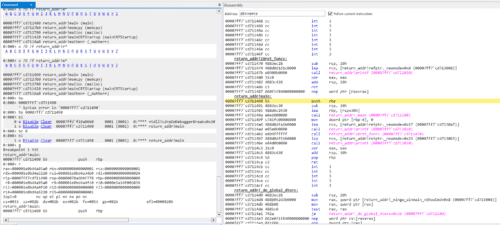
Setting a Breakpoint at the return_addr Function
My goal here is to observe the value stored in the base pointer at the time of a function call.
Next, set a breakpoint at the first address of the ret_func function, identified using the Disassembly window:
0:000> bu 00007ff6`96451470
0:000> bl
     0 e Disable Clear  00007ff6`96451470     0001 (0001)  0:**** return_addr!Z8ret_funcv
     1 e Disable Clear  00007ff6`96451490     0001 (0001)  0:**** return_addr!main
After running with g and hitting the breakpoint, use the r command to print register information:
0:000> g
Breakpoint 0 hit
return_addr!Z8ret_funcv:
00007ff6`96451470 4883ec28        sub     rsp,28h

0:000> r
rax=000000000000000b rbx=0000000000000001 rcx=00000000ffffffff
rdx=00007ffdef6e0980 rsi=0000021d4c3134d0 rdi=000000000000002b
rip=00007ff696451470 rsp=0000002e738ff748 rbp=0000002e738ff780
 r8=0000002e738fdb78  r9=0000021d4c31a47b r10=0000000000000000
r11=0000002e738ff660 r12=0000000000000000 r13=0000000000000000
r14=0000021d4c315230 r15=0000000000000001
iopl=0         nv up ei pl nz na pe nc
cs=0033  ss=002b  ds=002b  es=002b  fs=0053  gs=002b             efl=00000202
return_addr!Z8ret_funcv:
00007ff6`96451470 4883ec28        sub     rsp,28h
We can see that the value of the rbp register immediately after the function call is 0x2e738ff780.
Inspecting Memory
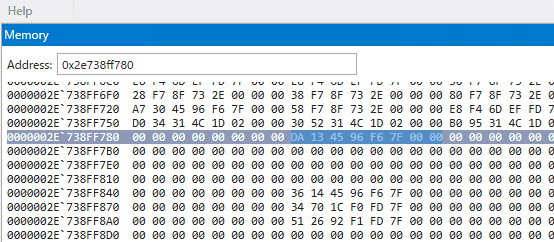
Next, enter the address pointed to by the rbp register in the Memory window’s address bar to inspect memory.
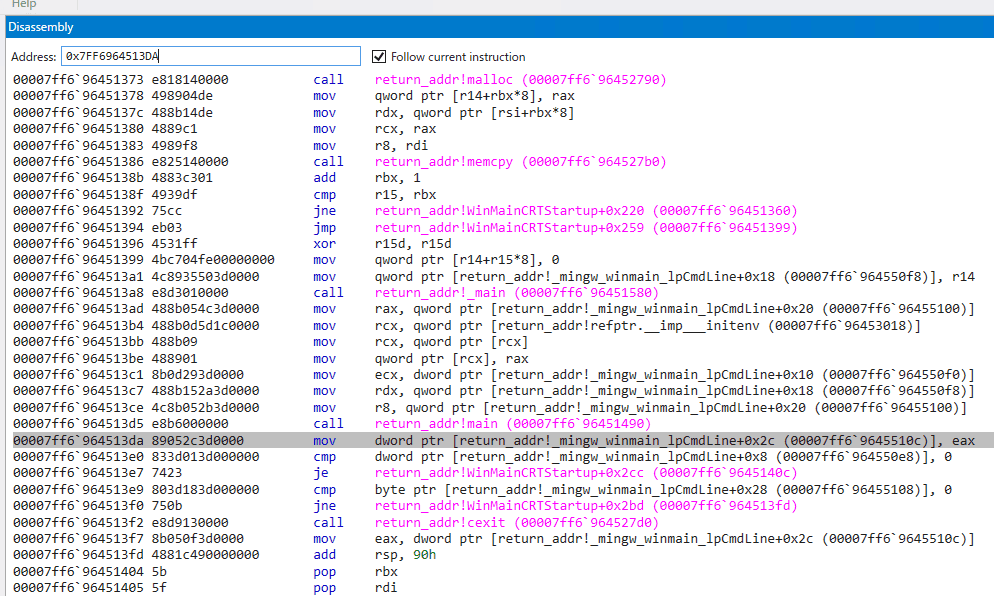
The value stored there appears to be 0x7FF6964513DA (note: read in reverse, as values are stored in little-endian format).
Checking this address in the Disassembly window confirms it is the address of the instruction to be executed after the main function completes and returns.
Next, to find the address that will be called after ret_func finishes, inspect the value of the rsp register at the moment the function was called.
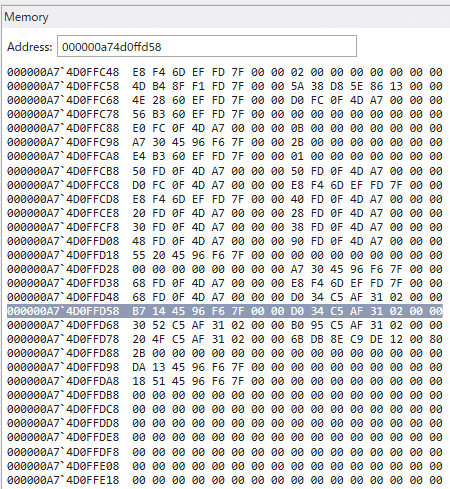
From the register information, the stack pointer address is 0xa74d0ffd58, so let’s check the Memory window.
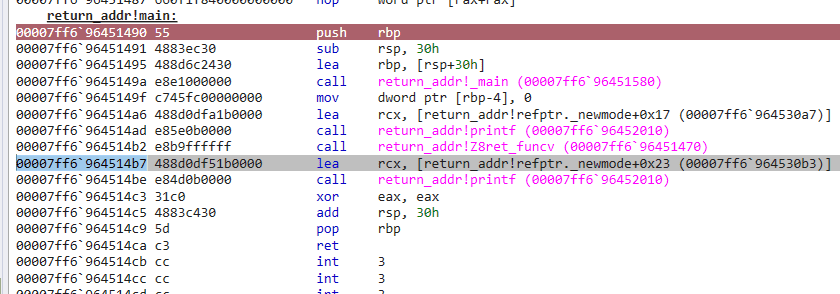
The value stored there appears to be 0x7FF6964514B7.
Checking the Disassembly window again confirms this is the address of the instruction scheduled to be called after ret_func finishes.
Tampering with Memory
Finally, I’ll tamper with the memory at the address pointed to by the rsp register — the address to jump to after ret_func returns — and make an arbitrary function execute.
In WinDbg, you can tamper with memory by directly editing values in the Memory window. (WinDbg must be launched with administrator privileges.)
Reference: Viewing and Editing Memory in WinDbg - Windows drivers | Microsoft Docs
Note: in the version of WinDbg Preview I’m using, editing values directly from the Memory window did not work. (It did work in WinDbg X64 included with Windows Debug Tools, so this may be a limitation or a bug in the Preview version.)
Therefore, I’ll use the e command instead of the Memory window to tamper with the memory.
Reference: e, ea, eb, ed, eD, ef, ep, eq, eu, ew, eza (Enter Values) - Windows drivers | Microsoft Docs
The address I want to modify is 0x000000150acffb58, the address currently pointed to by the rsp register.
I’ll change the value at that address to the call address of the ret_func function so that ret_func is called one more time.
The call address of ret_func is 0x00007ff7 81df1470.
The following command tampers with the memory in one shot. (Values are entered in reverse because of little-endian notation.)
eb 000000150acffb58 0x70 0x14 0xdf 0x81 0xf7 0x7f 0x00 0x00After running the command, the memory was successfully overwritten!

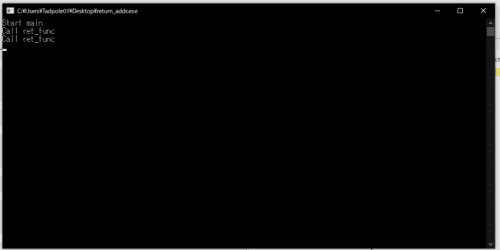
Resuming execution with the g command, ret_func was called again after its first execution ended, and the text Call ret_func — which would normally appear only once — was printed twice.
Wrap-up
In this article, I introduced how to inspect and tamper with memory using WinDbg.
For other articles on Windows debugging and dump analysis with WinDbg, see the list on the following page:
Reference: Debugging and Troubleshooting Techniques with WinDbg