This page has been machine-translated from the original page.
When I tried Windows kernel debugging, one obstacle I ran into was that there are very few kernel drivers with detailed public specifications.
If there wasn’t one, I figured I would just make one myself, so I started developing a kernel driver.
For kernel driver development, I am basically using the following book as a reference.
Reference: Windows Kernel Driver Programming
I summarized how to configure kernel debugging in the following article.
Reference: A First Step Toward Kernel Debugging a Windows 10 Environment with WinDbg
Table of Contents
-
- What is WDM?
- Simple code
- DriverEntry
- FirstDriverUnload
- System threads (kernel-mode system threads)
- Build the driver
- Set the target platform
- Load the kernel driver
- The service cannot be stopped
- Reload the service
- Check the service
- Confirm that the driver is loaded into the system
- Add the KdPrint macro
- Configure DebugView
- Analyze the custom driver with kernel debugging
- Summary
Create your first driver
Let’s start by creating our first driver.
Create a WDM project in Visual Studio.
At the time of writing this article, on 2021/12/01, Visual Studio 2022 did not support kernel driver development.
For that reason, if you have updated to Visual Studio 2022 or later, you need to be careful because you will not be able to create a WDM project.
This time I am using Visual Studio 2019.
What is WDM?
WDM stands for Microsoft Windows Driver Model, and it is the architecture for device drivers on Windows 2000 and later.
It is now a deprecated driver model.
If you are creating a kernel driver today, Windows Driver Foundation(WDF) or universal Windows drivers are probably the mainstream choice.
Reference: Introduction to WDM - Windows drivers | Microsoft Docs
There are three types of WDM drivers:
- bus driver
- function driver
- filter drivers
Reference: Bus Drivers - Windows drivers | Microsoft Docs
Reference: Function Drivers - Windows drivers | Microsoft Docs
Reference: Filter Drivers - Windows drivers | Microsoft Docs
Simple code
After creating a WDM project in Visual Studio, add a C++ source file with any name and add the following code.
#include <ntddk.h>

void FirstDriverUnload(_In_ PDRIVER_OBJECT DriverObject)
{
UNREFERENCED_PARAMETER(DriverObject);
}

extern "C"
NTSTATUS
DriverEntry(_In_ PDRIVER_OBJECT DriverObject, _In_ PUNICODE_STRING RegistryPath)
{
UNREFERENCED_PARAMETER(DriverObject);
UNREFERENCED_PARAMETER(RegistryPath);

return STATUS_SUCCESS;
}
DriverEntry
DriverEntry is the entry point of the driver module.
DriverEntry is called by a system thread (kernel-mode system thread) at IRQL IRQL_PASSIVE_LEVEL(0).
FirstDriverUnload
FirstDriverUnload defines the unload routine for the driver.
There is no problem if you change the function name to something other than FirstDriverUnload.
Although it is not yet defined in the sample code above, assigning it to DriverObject’s DriverUnload defines the function that is called when the driver module is unloaded.
// アンロードルーチンを定義
DriverObject->DriverUnload = FirstDriverUnload;
In the case of a kernel driver, resources such as memory need to be released when it is unloaded, so cleanup processing is defined in this unload routine.
System threads (kernel-mode system threads)
The threads running in the System process (Process ID 4) are system threads, and they run in kernel mode.
System threads execute kernel-mode code in Ntoskrnl.exe or in loaded device drivers.
Reference: Inside Windows 7th Edition, Part 1
Build the driver
Once you have created the minimum code, build the kernel driver.
For now, build it as a debug build by pressing [Ctrl+Shift+B].
Set the target platform
This time, because I am building a driver module for an x64 environment, I set [Active solution platform] to [x64] in the Visual Studio project properties.
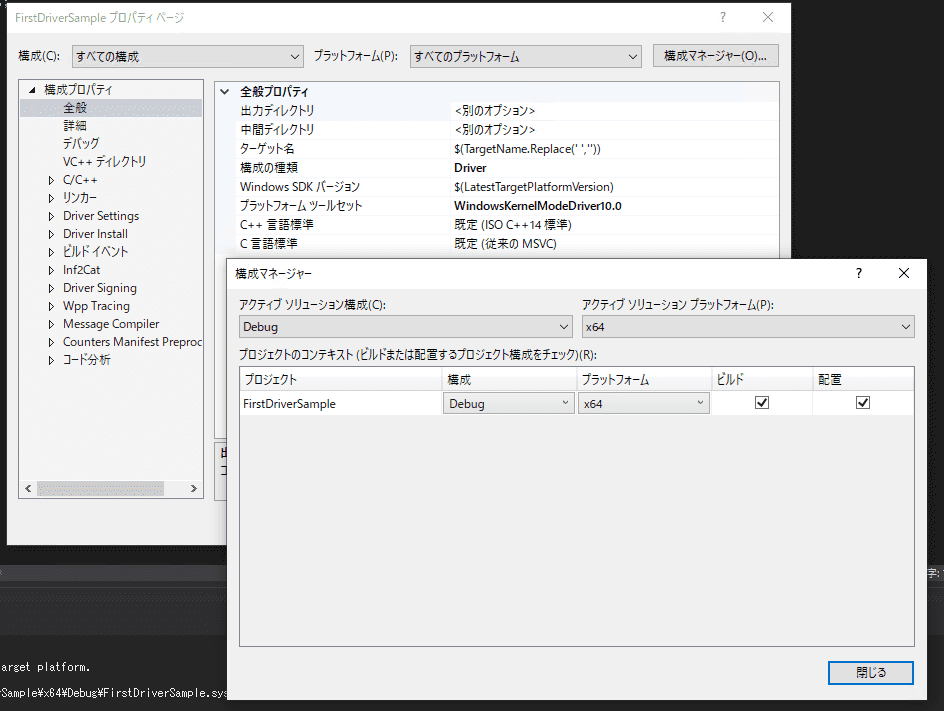
If you leave this at the default setting, a driver module for an x86 environment will be built, which causes the problem that it fails even if you try to start it on 64-bit Windows.
Load the kernel driver
Once the driver has been built, place the built driver module in the virtual machine as Z:\FirstDriverSample.sys.
Note: Any folder and driver name are fine here.
Next, use the sc command to load the driver you created as the 001_sample service.
sc create 001_sample type= kernel binPath= Z:\FirstDriverSample.sysIf it succeeds, you will see a screen like the following, and the service you added is registered under HKLM\SYSTEM\CurrentControlSet\Services in the registry.
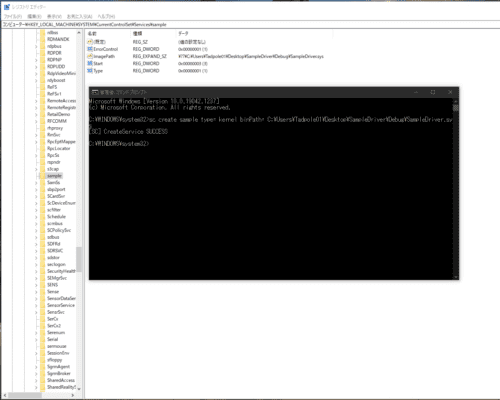
Next, start the service you added.
If you run the sc start 001_sample command, startup fails.
> sc start 001_sample
[SC] StartService FAILED 1275:
このドライバーの読み込みはブロックされています
This is because 64-bit system drivers require a signature, while the driver I created myself does not have one.
To work around this error, boot the virtual machine you use to verify the driver in test-signing mode.
Run the following command and reboot.
bcdedit /set testsigning onNote: The system does not switch to test-signing mode until the OS is rebooted.
Note: If Secure Boot is enabled, switching to test-signing mode will fail.
To reboot, run the following command from a command prompt started with administrator privileges.
shutdown /r /t 0After rebooting, if you start the service again, the registered service starts.
> sc start 001_sample
SERVICE_NAME: sample
        TYPE               : 1  KERNEL_DRIVER
        STATE              : 4  RUNNING
                                (STOPPABLE, NOT_PAUSABLE, IGNORES_SHUTDOWN)
        WIN32_EXIT_CODE    : 0  (0x0)
        SERVICE_EXIT_CODE  : 0  (0x0)
        CHECKPOINT         : 0x0
        WAIT_HINT          : 0x0
        PID                : 0
        FLAGS              :
Next, stop the service.
The service cannot be stopped
Even if you try to stop the service with the driver module up to this point, stopping fails.
> sc stop 001_sample
[SC] ControlService FAILED 1052:s
要求された制御はこのサービスに対して無効です。
The same happens if you use a tool such as ProcessHacker to stop the service.
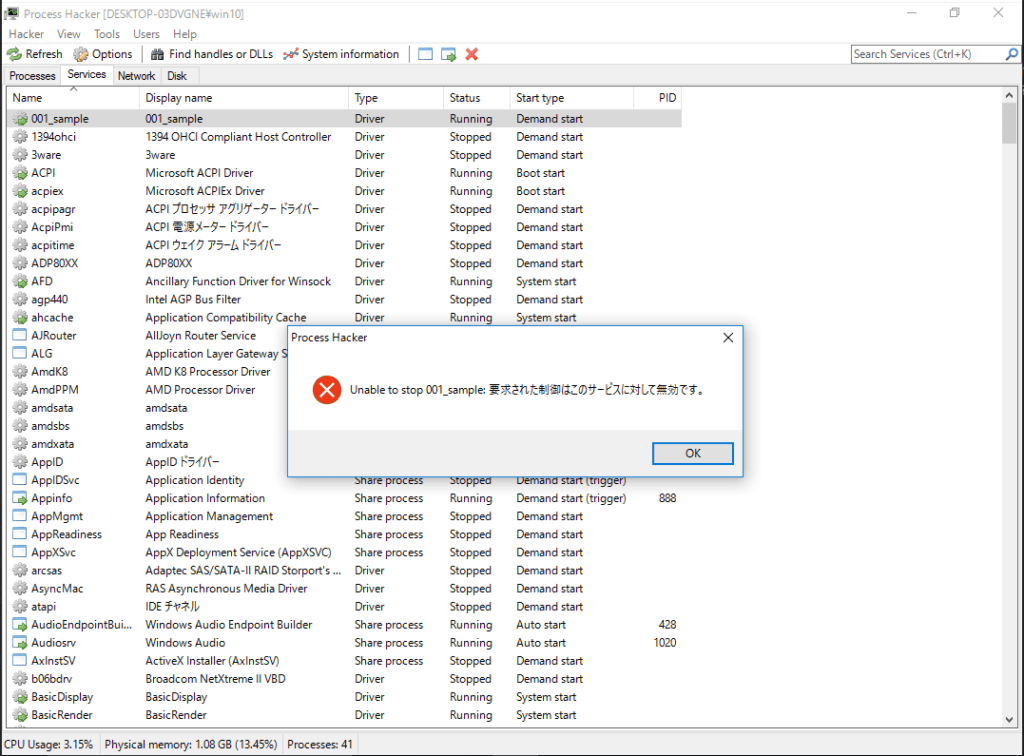
This is because the unload routine mentioned earlier has not been implemented in the device driver.
Reference: Checking the Basic Behavior of Windows Device Drivers (1) - Fixstars Tech Blog /proc/cpuinfo
For that reason, I modified the code as follows.
#include <ntddk.h>

void FirstDriverUnload(_In_ PDRIVER_OBJECT DriverObject)
{
UNREFERENCED_PARAMETER(DriverObject);
}

extern "C"
NTSTATUS
DriverEntry(_In_ PDRIVER_OBJECT DriverObject, _In_ PUNICODE_STRING RegistryPath)
{
UNREFERENCED_PARAMETER(RegistryPath);

    // アンロードルーチンを定義
DriverObject->DriverUnload = FirstDriverUnload;

return STATUS_SUCCESS;
}
After reloading the device driver with this change and starting the service, running the sc stop 001_sample command makes it possible to stop the service.
> sc stop 001_sample
SERVICE_NAME: 001_sample
        TYPE               : 1  KERNEL_DRIVER
        STATE              : 1  STOPPED
        WIN32_EXIT_CODE    : 0  (0x0)
        SERVICE_EXIT_CODE  : 0  (0x0)
        CHECKPOINT         : 0x0
        WAIT_HINT          続いて、サービスの確認を行います。
Reload the service
To reload the service, you need to delete the service you previously registered once.
The following commands let you delete and re-register the service, so save them as an appropriate batch file such as reload.bat and use that.
sc stop 001_sample
sc delete 001_sample
sc create 001_sample type= kernel binPath= Z:\FirstDriverSample.sys
sc start 001_sample
Next, check the registered kernel driver service.
Check the service
Before that, let me briefly touch on what a service is.
In Windows, a service refers to a process started by the Service Control Manager (SCM).
When you add a kernel driver, it is added as a service, which is confusing, but in many cases it seems that “Windows services” and “driver services” are distinguished.
Inside Windows also explicitly states that a “service” is a user-mode process started by the SCM, and that device drivers are not treated as services.
Reference: Inside Windows 7th Edition, Part 1
Reference: Service Control Manager - Win32 apps | Microsoft Docs
As confirmed earlier, a kernel driver is registered as a subkey under HKLM\SYSTEM\CurrentCntrolSet\Services and is started by the SCM.
Here, the services registered under HKLM\SYSTEM\CurrentCntrolSet\Services are distinguished between kernel drivers and Windows services, and when the value of each subkey’s [Type] is a low numeric value, it means the service is a kernel driver; a value of 0x10 or 0x20 means it is registered as a Windows service.
You can verify the registered kernel driver service using tools such as ProcessHacker or Proexp.
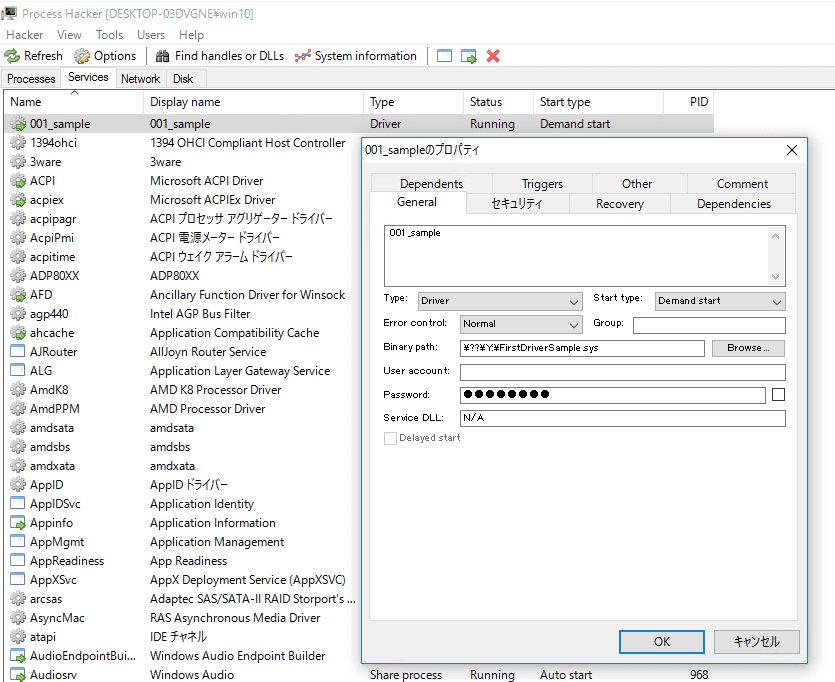
Next, let’s also confirm that the driver (.sys file) is loaded in the system.
Confirm that the driver is loaded into the system
In Proexp, open [DLLs] from [Lower Pane View].
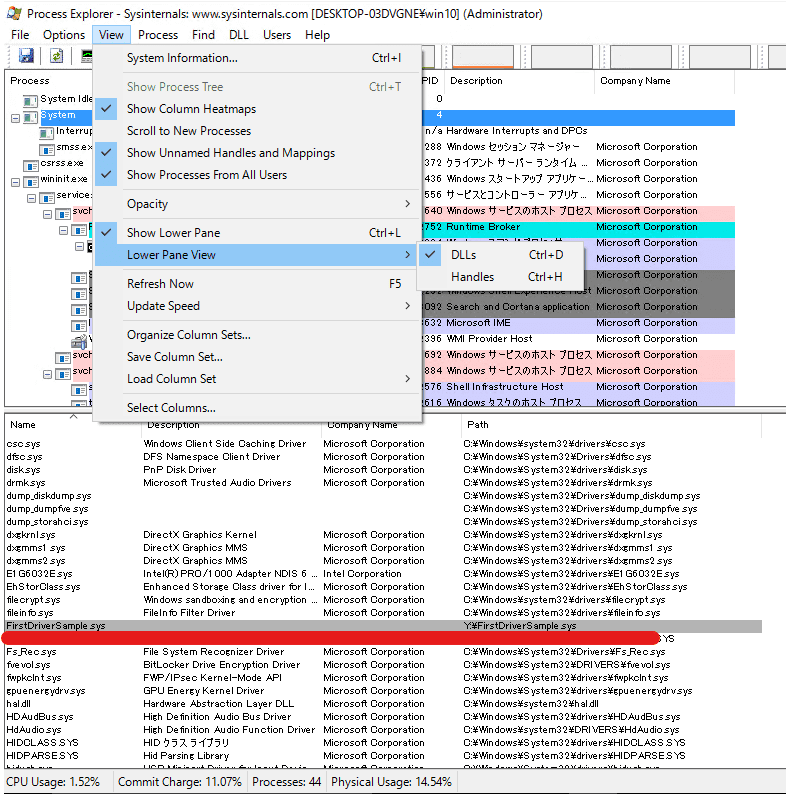
As shown in the image, you can confirm that the driver module you created is loaded.
Add the KdPrint macro
Next, add a print routine to the device driver.
Before that, to make DebugView capture the output of KdPrint from the kernel driver, create a [Debug Print Filter] subkey under HKLM\SYSTEM\CurrentControlSet\Control\Session Manager, add a DWORD key named DEFAULT, and set its value to 1.
Note: You need to reboot the OS for this setting to take effect.
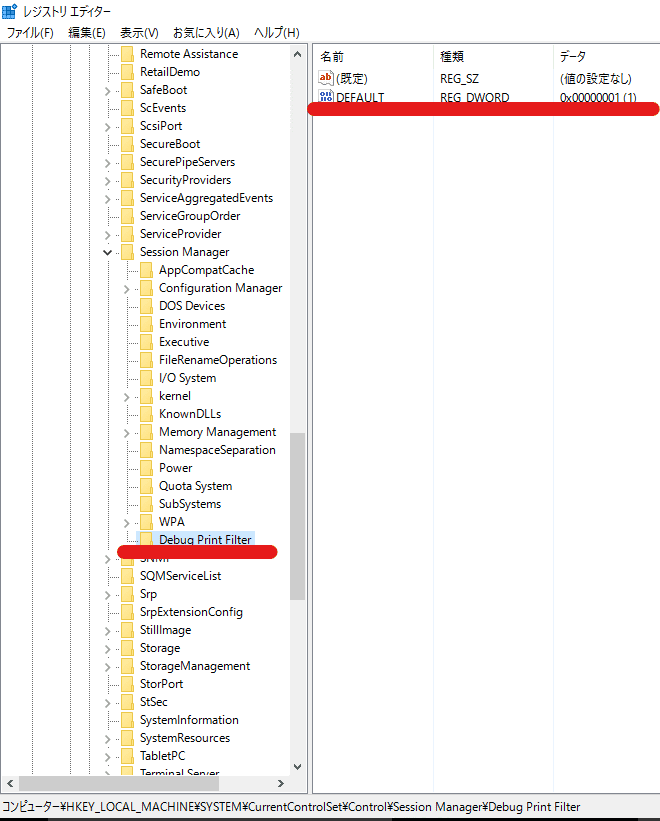
Next, rewrite the device driver code as follows, and after building, reload the device driver.
#include <ntddk.h>

void FirstDriverUnload(_In_ PDRIVER_OBJECT DriverObject)
{
UNREFERENCED_PARAMETER(DriverObject);

KdPrint(("This driver unloaded\n"));
}

extern "C"
NTSTATUS
DriverEntry(_In_ PDRIVER_OBJECT DriverObject, _In_ PUNICODE_STRING RegistryPath)
{
UNREFERENCED_PARAMETER(RegistryPath);

DriverObject->DriverUnload = FirstDriverUnload;

OSVERSIONINFOEXW osVersionInfo;
NTSTATUS status = STATUS_SUCCESS;
osVersionInfo.dwOSVersionInfoSize = sizeof(OSVERSIONINFOEXW);
status = RtlGetVersion((POSVERSIONINFOW)&osVersionInfo);

KdPrint(("This is my first sample driver\n"));
KdPrint(("OS version is : %d.%d.%d\n", osVersionInfo.dwMajorVersion, osVersionInfo.dwMinorVersion, osVersionInfo.dwBuildNumber));

return STATUS_SUCCESS;
}
Here, I use the KdPrint macro to output the current OS version information.
I use RtlGetVersion to obtain the OS version information.
Reference: RtlGetVersion function (wdm.h) - Windows drivers | Microsoft Docs
The information obtained is returned as an OSVERSIONINFOEXW structure.
Reference: OSVERSIONINFOA (winnt.h) - Win32 apps | Microsoft Docs
typedef struct _OSVERSIONINFOA {
  DWORD dwOSVersionInfoSize;
  DWORD dwMajorVersion;
  DWORD dwMinorVersion;
  DWORD dwBuildNumber;
  DWORD dwPlatformId;
  CHAR  szCSDVersion[128];
} OSVERSIONINFOA, *POSVERSIONINFOA, *LPOSVERSIONINFOA;
Configure DebugView
Use Sysinternals DebugView to capture the output of the KdPrint macro.
First, start the application and enable [Capture Kernel] and [Enable Verbose Output] from [Capture].
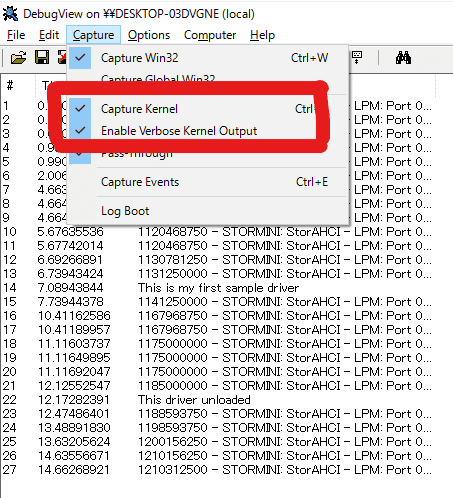
Now, if you start the service while capture is running after pressing the capture button on the toolbar, you can see the OS version information in DebugView.

Finally, I will try kernel-debugging the custom driver with WinDbg (the main topic at last).
Analyze the custom driver with kernel debugging
First, enable kernel debugging.
bcdedit /debug on
bcdedit /dbgsettings serial debugport:1 baudrate:115200
shutdown /r /t 0
I summarized the detailed setup method in the following article.
Reference: A First Step Toward Kernel Debugging a Windows 10 Environment with WinDbg
Once the kernel debugging connection succeeds, add the pdb file for the driver you built this time to Sympath.
.sympath+ C:\Users\Tadpole01\source\repos\Try2WinDbg\drivers\FirstDriverSample\x64\DebugIf you look at the module list, you can confirm that FirstDriverSample exists.
kd> lm
start             end                 module name
fffff800`64520000 fffff800`64527000   FirstDriverSample   (deferred)
fffff801`74000000 fffff801`747cc000   nt         (pdb symbols)          C:\ProgramData\Dbg\sym\ntkrnlmp.pdb\F7971FB6AA7E450CBCA7054A98D659421\ntkrnlmp.pdb
Unloaded modules:
fffff800`62c80000 fffff800`62c8f000   dump_storport.sys
fffff800`62cc0000 fffff800`62ce5000   dump_storahci.sys
fffff800`62d10000 fffff800`62d2c000   dump_dumpfve.sys
fffff800`63400000 fffff800`63413000   dam.sys
fffff800`61ec0000 fffff800`61ed0000   WdBoot.sys
fffff800`62ba0000 fffff800`62bae000   hwpolicy.sys
Because the symbols are loaded, you can also confirm the function names.
kd> x /D /f FirstDriverSample!d*
fffff800`64521020 FirstDriverSample!DriverEntry (struct _DRIVER_OBJECT *, struct _UNICODE_STRING *)
fffff800`645210f7 FirstDriverSample!DbgPrint (DbgPrint)
Use the uf command to look at the disassembly result of the entry function.
kd> uf FirstDriverSample!DriverEntry
FirstDriverSample!DriverEntry [C:\Users\Tadpole01\source\repos\Try2WinDbg\drivers\FirstDriverSample\FirstDriver.cpp @ 13]:
   13 fffff800`64521020 4889542410      mov     qword ptr [rsp+10h],rdx
   13 fffff800`64521025 48894c2408      mov     qword ptr [rsp+8],rcx
   13 fffff800`6452102a 4881ec68010000  sub     rsp,168h
   13 fffff800`64521031 488b05c81f0000  mov     rax,qword ptr [FirstDriverSample!__security_cookie (fffff800`64523000)]
   13 fffff800`64521038 4833c4          xor     rax,rsp
   13 fffff800`6452103b 4889842450010000 mov     qword ptr [rsp+150h],rax
   16 fffff800`64521043 488b842470010000 mov     rax,qword ptr [rsp+170h]
   16 fffff800`6452104b 488d0daeffffff  lea     rcx,[FirstDriverSample!FirstDriverUnload (fffff800`64521000)]
   16 fffff800`64521052 48894868        mov     qword ptr [rax+68h],rcx
   19 fffff800`64521056 c744242000000000 mov     dword ptr [rsp+20h],0
   20 fffff800`6452105e c74424301c010000 mov     dword ptr [rsp+30h],11Ch
   21 fffff800`64521066 488d4c2430      lea     rcx,[rsp+30h]
   21 fffff800`6452106b ff158f0f0000    call    qword ptr [FirstDriverSample!_imp_RtlGetVersion (fffff800`64522000)]
   21 fffff800`64521071 89442420        mov     dword ptr [rsp+20h],eax
   23 fffff800`64521075 488d0d74010000  lea     rcx,[FirstDriverSample! ?? ::FNODOBFM::`string' (fffff800`645211f0)]
   23 fffff800`6452107c e876000000      call    FirstDriverSample!DbgPrint (fffff800`645210f7)
   24 fffff800`64521081 448b4c243c      mov     r9d,dword ptr [rsp+3Ch]
   24 fffff800`64521086 448b442438      mov     r8d,dword ptr [rsp+38h]
   24 fffff800`6452108b 8b542434        mov     edx,dword ptr [rsp+34h]
   24 fffff800`6452108f 488d0d7a010000  lea     rcx,[FirstDriverSample! ?? ::FNODOBFM::`string' (fffff800`64521210)]
   24 fffff800`64521096 e85c000000      call    FirstDriverSample!DbgPrint (fffff800`645210f7)
   26 fffff800`6452109b 33c0            xor     eax,eax
   27 fffff800`6452109d 488b8c2450010000 mov     rcx,qword ptr [rsp+150h]
   27 fffff800`645210a5 4833cc          xor     rcx,rsp
   27 fffff800`645210a8 e823000000      call    FirstDriverSample!__security_check_cookie (fffff800`645210d0)
   27 fffff800`645210ad 4881c468010000  add     rsp,168h
   27 fffff800`645210b4 c3              ret
This time, it is not a kernel driver with much behavior, so I will stop here for now.
From next time onward, I plan to perform live debugging against a custom driver.
Summary
I started developing a kernel driver in order to verify kernel-mode debugging.
WinDbg-related articles are collected here.
Reference: Debugging and Troubleshooting Techniques with WinDbg