This page has been machine-translated from the original page.
This time, I will use Windows Package Manager, whose major version was just recently released, to install the applications I normally use.
This article covers the following:
- How to use Windows Package Manager
- A list of Windows Package Manager commands
- Installing frequently used applications with Windows Package Manager
- Errors that occur when using Windows Package Manager
Basically, I will refer to the following official documentation and official blog post.
- Use the winget tool to install and manage applications | Microsoft Docs
- Windows Package Manager 1.0 | Windows Command Line
Table of Contents
Enable Windows Package Manager
Download [Microsoft.DesktopAppInstaller_8wekyb3d8bbwe.appxbundle] from the GitHub releases page.
I will use the latest version available right now, v1.0.11692. (The version in the screenshot is old, though…)
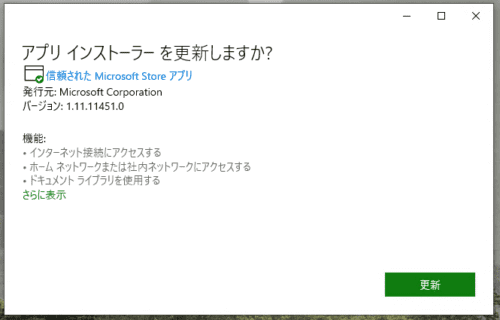
If you can confirm in PowerShell that commands such as [winget.exe install —id search APPNAME] work, you are good to go.
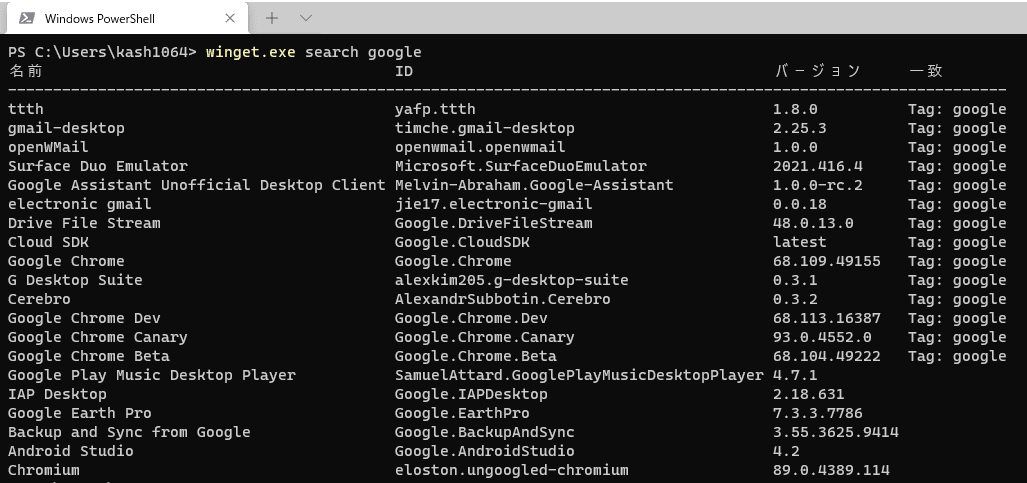
winget Commands
The commands currently available in winget seem to be as follows.
| Command | Overview |
|---|---|
| export | Exports a list of installed packages. |
| features | Displays the status of experimental features. |
| hash | Generates the installer’s SHA256 hash. |
| import | Installs all packages from a file. |
| install | Installs the specified application. |
| list | Displays installed packages. |
| search | Searches for applications. |
| settings | Searches for applications. |
| show | Displays details of the specified application. |
| source | Adds, removes, and updates the Windows Package Manager repositories accessed by the winget tool. |
| validate | Validates manifest files submitted to the Windows Package Manager repository. |
| uninstall | Uninstalls the specified package. |
| upgrade | Upgrades the specified package. |
Install Applications
So, I installed the tools I usually use with winget.
The list of applications I install with winget is as follows.
Web Browsers
- Google Chrome
- Firefox
Development Tools
- VSCode
- Visual Studio 2019 Community
- Windows Terminal
- Git
- WSL Ubuntu
- WSL Debian
- Qemu
- Wire Shark
- Typora
Communication Tools
- Slack
- Discord
- ZOOM
- LINE
Others
- Spotify
- OBS Studio
- Acrobat
- Power Toys
Installation Script
The tools above can be installed with the following script.
winget.exe install --id Google.Chrome
winget.exe install --id Mozilla.Firefox
winget.exe install --id SlackTechnologies.Slack
winget.exe install --id Discord.Discord
winget.exe install --id Zoom.Zoom
winget.exe install --id LINE.LINE
winget.exe install --id Canonical.Ubuntu
winget.exe install --id Debian.Debian
winget.exe install --id Typora.Typora
winget.exe install --id Microsoft.VisualStudioCode
winget.exe install --id Microsoft.VisualStudio.2019.Community
winget.exe install --id Microsoft.WindowsTerminal
winget.exe install --id Git.Git
winget.exe install --id Amazon.Kindle
winget.exe install --id Microsoft.PowerToys
winget.exe install --id WiresharkFoundation.Wireshark
winget.exe install --id Adobe.AdobeAcrobatReaderDC
winget.exe install --id SoftwareFreedomConservancy.QEMU
winget.exe install --id Spotify.Spotify
winget.exe install --id OBSProject.OBSStudio
At present, unlike Linux’s apt command, you cannot install multiple packages together on a single line. To install them in bulk, you need to load an import file defined in JSON format using the [--import-file] option.
Troubles When Installing Applications with winget
Hash Mismatch
When installing with winget, if you do not specify a version it is treated as the latest, and during installation winget performs hash verification against the manifest file it has.
It seems fairly common for inconsistencies to occur between the manifest file winget has and the actual installer.
PS C:`Users`kash1064> winget.exe install --id Google.Chrome
見つかりました Google Chrome [Google.Chrome]
このアプリケーションは所有者からライセンス供与されます。
Microsoft はサードパーティのパッケージに対して責任を負わず、ライセンスも付与しません。
Downloading https://dl.google.com/edgedl/chrome/install/GoogleChromeStandaloneEnterprise64.msi
  ██████████████████████████████  75.2 MB / 75.2 MB
インストーラーのハッシュが一致しません; このチェックを無効にするには、--force を使用します
After looking at the issue, it seems that, under the current specification, it is unavoidable that this error occurs in some cases.
That makes it seem less stable for automation by script.
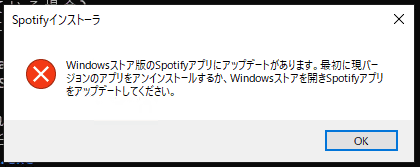
Version Mismatch with the Microsoft Store Version
If the same application is installed from the Microsoft Store, the following mismatch error may occur.
Uninstalling the application installed from the Microsoft Store resolves it.
Summary
I tried installing applications with Windows Package Manager, whose major version has been released.
There still seem to be many issues to work through, but being able to install the applications you want with a single copy-and-paste, without the usual “Google search → download the installer → install” steps, is extremely convenient.