This page has been machine-translated from the original page.
This article explains how to capture and decrypt RDP packets with WireShark.
If you just want to view RDP packet contents with WireShark, the easiest way is to use the pcap and pem files distributed on the official site below.
Reference: Wiki · Wireshark Foundation
This article will proceed while referencing the steps in Wiresharkによるパケット解析講座 11: RDPトラフィックの復号.
There were some situations where following that article’s steps exactly didn’t work well, so I’ll cover those aspects as well.
Table of Contents
- Environment
- Removing Forward Secrecy Ciphers from the RDP Client
- Exporting the RDP Server’s Private Key
- Capturing RDP Packets
- Decrypting Packet Capture with the Private Key
- Summary
Environment
I set up the following environment for this project:
- RDP Client Host: Windows 10 1511
- RDP Server Host: Windows 10 1511
The RDP server host has remote desktop connection enabled.
Both are connected via VirtualBox internal network.
The applications used are as follows:
- WireShark 3.4.8: Used for packet capture acquisition and pcap file display
- jailbreak: Used to obtain the RDP server’s certificate
- OpenSSL v1.1.1L Light: Used to extract the private key from the certificate
Removing Forward Secrecy Ciphers from the RDP Client
First, open the Group Policy Editor (gpedit.msc) on the client side and remove Forward Secrecy ciphers.
Forward Secrecy is not an encryption method using the server’s private and public keys, but rather an encryption technique using data created from secret keys held by both the client and server.
Using Forward Secrecy has the advantage that even if one party’s secret key is leaked, the data cannot be decrypted and security is maintained.
By default, Windows RDP communication uses encryption with Forward Secrecy, so packets cannot be decrypted from WireShark using a single private key.
Therefore, it’s necessary to first remove Forward Secrecy ciphers on the client side.
As shown in the image below, open the SSL cipher order setting from the SSL configuration settings and set it to [Enabled].
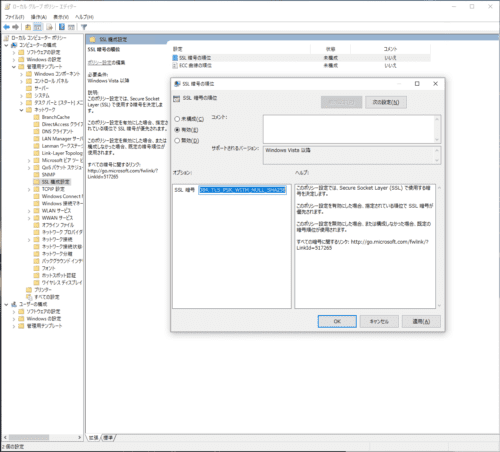
When enabled, a list of SSL ciphers will be stored in the [Options] field.
When I enabled it in my environment (Windows 10 Pro 20H2), the following cipher suites were defined by default:
TLS_AES_256_GCM_SHA384、TLS_AES_128_GCM_SHA256、TLS_ECDHE_ECDSA_WITH_AES_256_GCM_SHA384、TLS_ECDHE_ECDSA_WITH_AES_128_GCM_SHA256、TLS_ECDHE_RSA_WITH_AES_256_GCM_SHA384、TLS_ECDHE_RSA_WITH_AES_128_GCM_SHA256、TLS_DHE_RSA_WITH_AES_256_GCM_SHA384、TLS_DHE_RSA_WITH_AES_128_GCM_SHA256、TLS_ECDHE_ECDSA_WITH_AES_256_CBC_SHA384、TLS_ECDHE_ECDSA_WITH_AES_128_CBC_SHA256、TLS_ECDHE_RSA_WITH_AES_256_CBC_SHA384、TLS_ECDHE_RSA_WITH_AES_128_CBC_SHA256、TLS_ECDHE_ECDSA_WITH_AES_256_CBC_SHA、TLS_ECDHE_ECDSA_WITH_AES_128_CBC_SHA、TLS_ECDHE_RSA_WITH_AES_256_CBC_SHA、TLS_ECDHE_RSA_WITH_AES_128_CBC_SHA、TLS_RSA_WITH_AES_256_GCM_SHA384、TLS_RSA_WITH_AES_128_GCM_SHA256、TLS_RSA_WITH_AES_256_CBC_SHA256、TLS_RSA_WITH_AES_128_CBC_SHA256、TLS_RSA_WITH_AES_256_CBC_SHA、TLS_RSA_WITH_AES_128_CBC_SHA、TLS_RSA_WITH_3DES_EDE_CBC_SHA、TLS_RSA_WITH_NULL_SHA256、TLS_RSA_WITH_NULL_SHA、TLS_PSK_WITH_AES_256_GCM_SHA384、TLS_PSK_WITH_AES_128_GCM_SHA256、TLS_PSK_WITH_AES_256_CBC_SHA384TLS_PSK_WITH_AES_128_CBC_SHA256、TLS_PSK_WITH_NULL_SHA384、TLS_PSK_WITH_NULL_SHA256In this step, manually delete some of the default cipher suites.
What’s being removed here are cipher suites related to DHE (Diffie-Hellman key exchange) and ECDHE (Elliptic Curve Diffie-Hellman key exchange), which are currently practical Forward Secrecy encryption methods.
After deletion, the settings will look like this:
I’ll simplify it to just TLS_RSA_WITH_AES_128_CBC_SHA256.
TLS_RSA_WITH_AES_128_CBC_SHA256Copy and paste this setting value into the [SSL Cipher Suites] form and press the OK button to complete the configuration.
Just to be safe, execute the following command in the command prompt to apply the Group Policy settings:
gpupdate /forceThis completes the disabling of Forward Secrecy.
※ As mentioned later, this step alone is insufficient, and in my environment the cipher suite wasn’t changed until I restarted the OS.
Exporting the RDP Server’s Private Key
Next, export the certificate from the RDP server side.
Tools like Mimikatz can also be used for export, but I used Jailbreak, which was used in the reference article.
To retrieve using Mimikatz, refer to the following procedure:
Reference: FreeRDP-wiki/Mimikatz.md at master · ypid/FreeRDP-wiki
Download the ZIP file from the Jailbreak repository and execute jailbreak64.exe stored in the binaries folder from a command prompt running with administrator privileges.
jailbreak64.exe %WINDIR%\system32\mmc.exe %WINDIR%\system32\certlm.msc -64When execution completes, the certificate store screen launches, and you can confirm that an RDP certificate has been created in [Remote Desktop]>[Certificates], so export it.
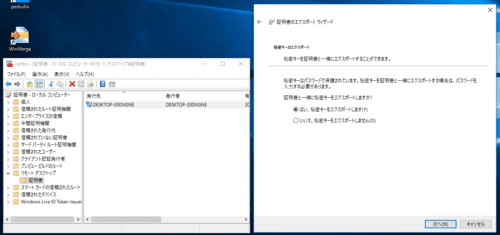
Export looks like this:
You’ll also be asked to enter a password, but any password is OK. (I used “test” this time)
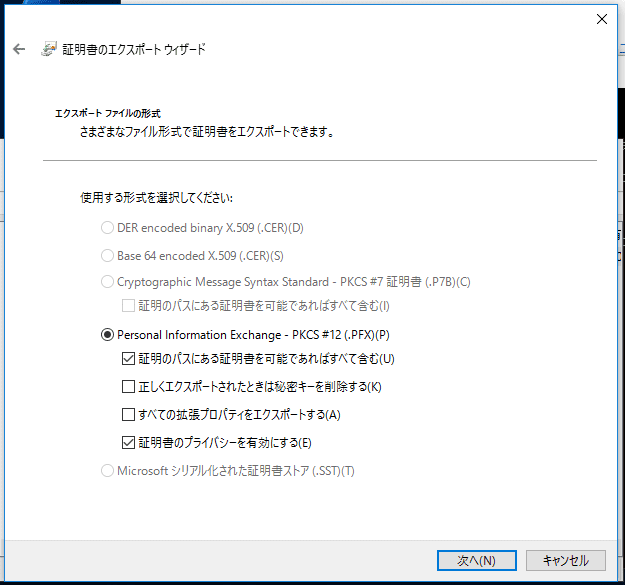
Next, extract the private key from the obtained certificate.
To install OpenSSL in a Windows environment, you can download the installer from the following link:
Reference: Win32/Win64 OpenSSL Installer for Windows - Shining Light Productions
The private key can be obtained with the following commands:
openssl pkcs12 -in rdp_key.pfx -nocerts -nodes -password pass:test -out rdp_key.pem
openssl rsa -in rdp_key.pem -out rdp_key.key
In my environment, OpenSSL version 3.0.0 series failed to retrieve the private key, so I used v1.1.1.
Capturing RDP Packets
I started WireShark on the RDP client machine and began packet capture.
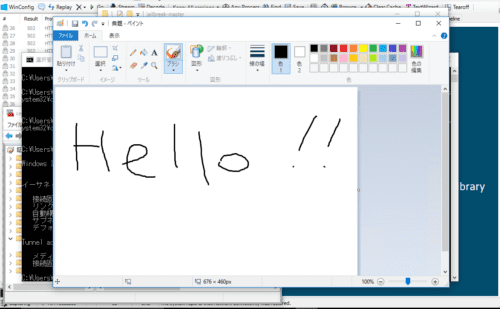
I connected from the RDP client side to the server side via RDP connection and captured packets up to the point of launching the Paint application and writing text.
I tried to decrypt the captured packets here, but for some reason it didn’t work.
I tried changing keys and various other things, but ultimately it didn’t work.
No wonder, when I checked the Server Hello packet during RDP communication, it appeared to be using ECDHE as the cipher suite. (Forward Secrecy wasn’t disabled…)
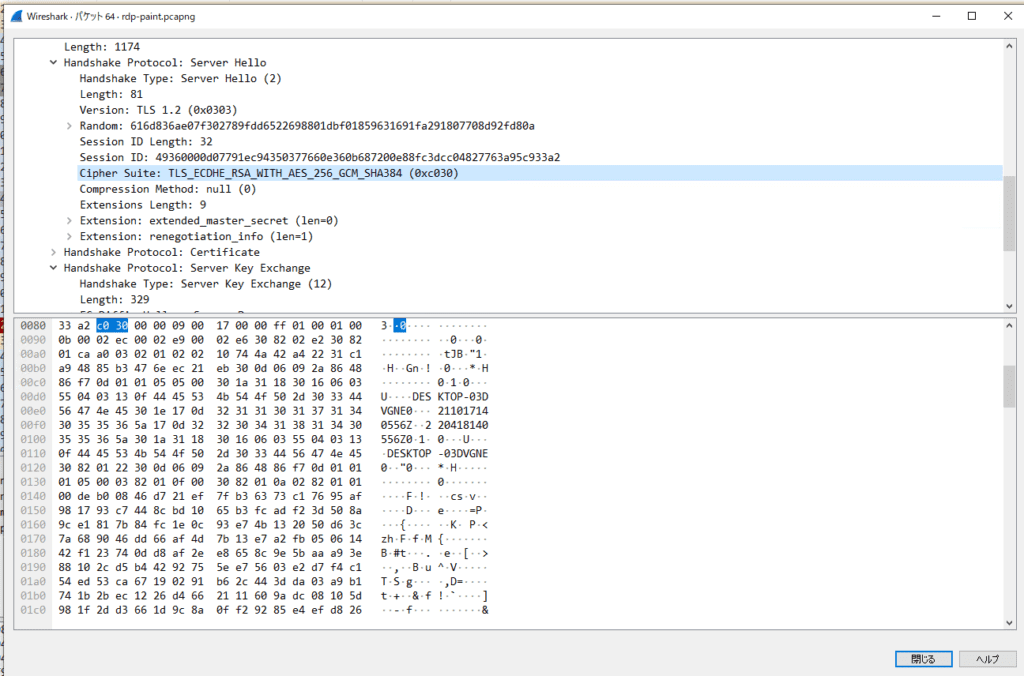
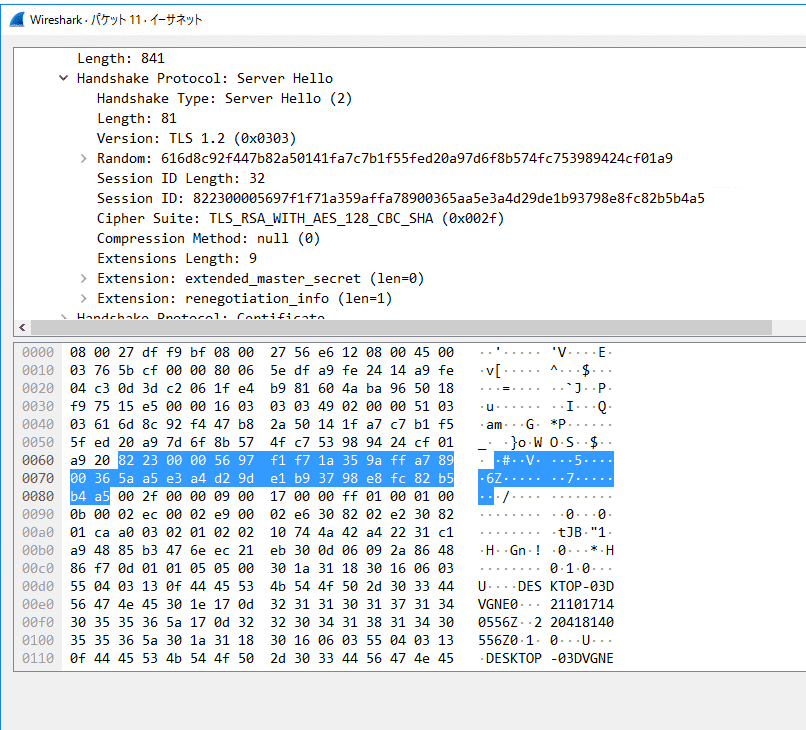
Apparently gpupdate /force alone was insufficient, so I restarted the OS.
After that, I captured packets again and successfully obtained RDP communication packets using the TLS_RSA_WITH_AES_128_CBC_SHA256 cipher suite.
Decrypting Packet Capture with the Private Key
Finally made it here.
Finally, decrypt the captured packets.
Open the captured pcap file in WireShark and open [Preferences] from the [Edit] tab in the toolbar.
Next, select [TLS] from the protocol list in the left tree and open the settings.
Finally, enter the following settings from the edit in [RSA keys list]:
IP address : "RDP server's IP address"
Port : "RDP connection destination port (3389)"
Protocol : "tpkt"
Key File : "RSA key file extracted from certificate"
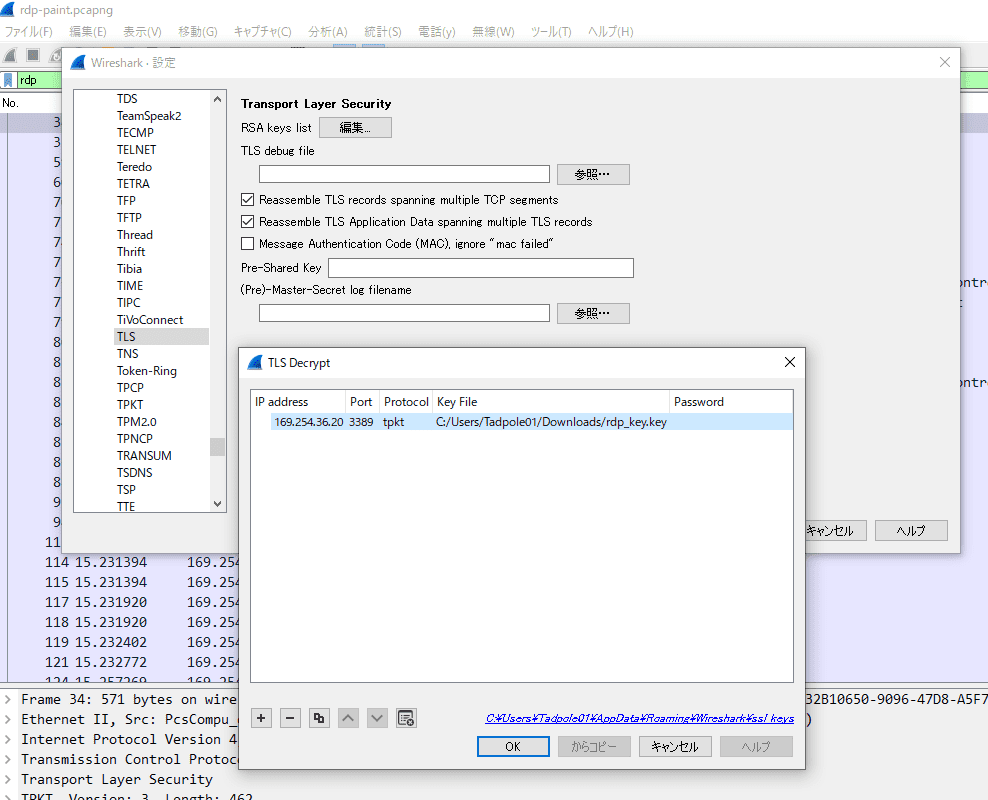
When this setting is applied, RDP packets are decrypted and become filterable.
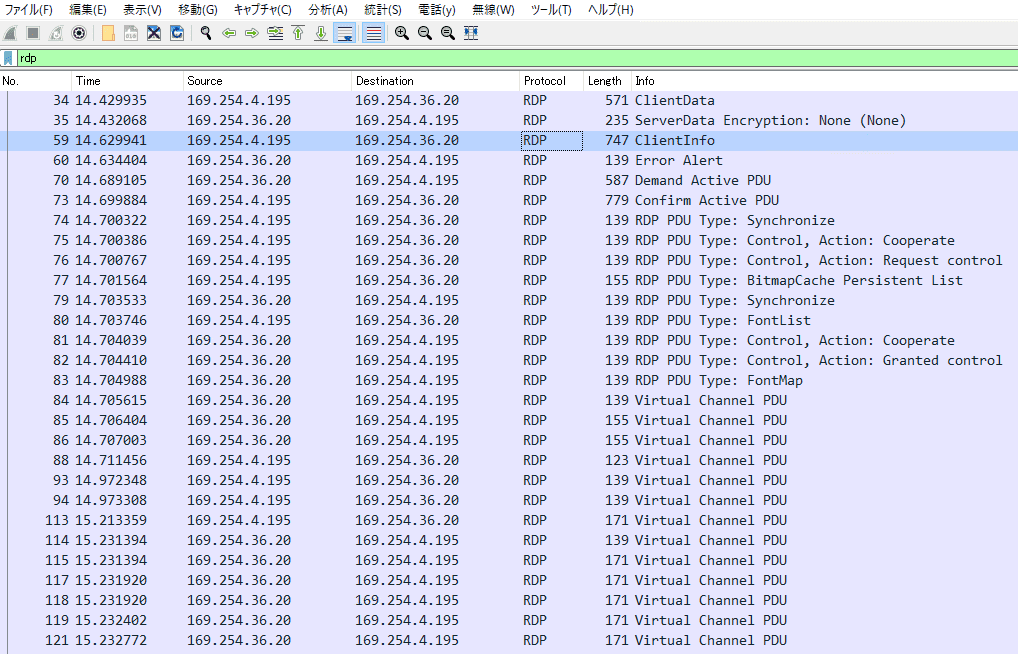
Great work!!
Summary
Basically, I followed the steps in Wiresharkによるパケット解析講座 11: RDPトラフィックの復号, but some steps didn’t reproduce well exactly as written in the article, so I struggled a bit.
As a result, I learned about WireShark and Windows cipher suites, so I think it was worthwhile to try it.
If I feel like it, I’ll write an article about the details of the RDP protocol.
However, I’m not really motivated to read this approximately 500-page reference, so it will really be when I feel like it.
Reference: [MS-RDPBCGR]: Remote Desktop Protocol: Basic Connectivity and Graphics Remoting | Microsoft Docs