This page has been machine-translated from the original page.
The other day I wrote this article about building a honeypot on Azure. From both an access-control and security perspective, it seemed better to connect to the honeypot over a VPN, so I used Azure Virtual Network Gateway to configure a P2S VPN connection to the virtual network.
While I was at it, I also thought it might be nice to use a server on AzureVM as a cloud proxy for extra security (a shallow thought, admittedly), so I built a proxy server on the Azure virtual network that I connect to over VPN.
Table of Contents
- Create a virtual network and virtual network gateway
- Generate a self-signed root certificate and client certificate
- Configure the P2S VPN connection
- Configure VPN on Windows
- Configure a proxy on AzureVM
- Connection test
Create a virtual network and virtual network gateway
First, create a virtual network.
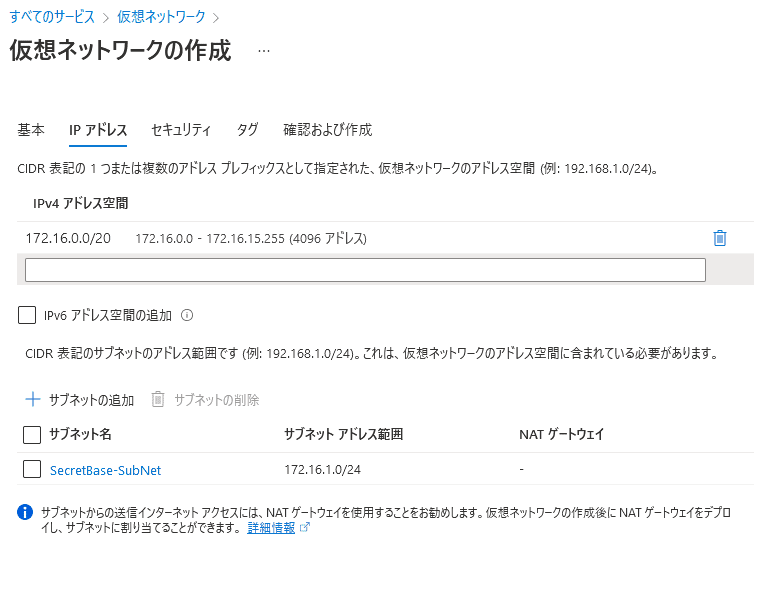
This time, I created a virtual network with 172.16.0.0/20 and created a subnet in it for virtual machines.
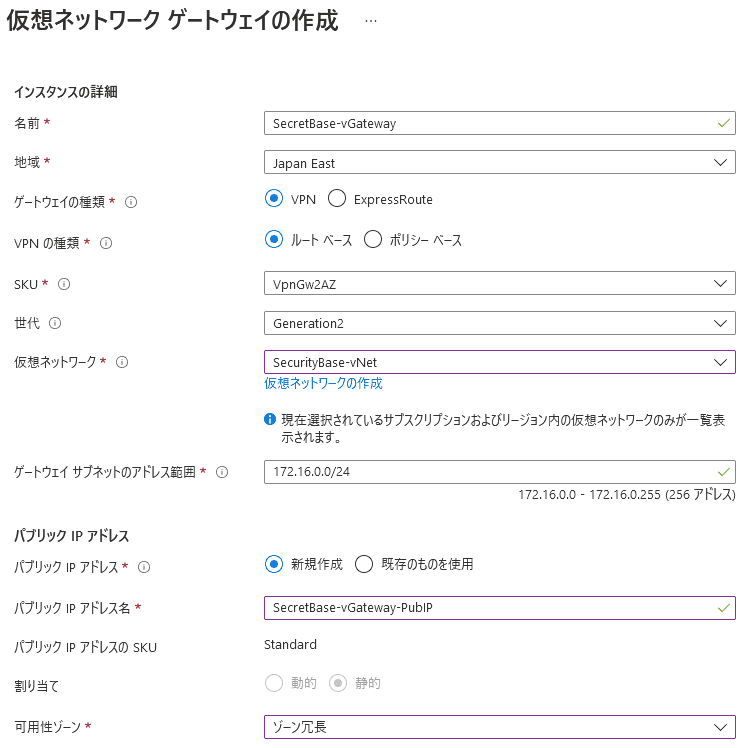
Next, I created a virtual network gateway.
At this point, the address range configured for the gateway subnet must be both within the virtual network’s address space and not overlap with any existing subnet in that virtual network.
With that in place, creation is complete. Next, create the root certificate to apply to the virtual network gateway.
Generate a self-signed root certificate and client certificate
To connect over VPN using the virtual network gateway, create self-signed certificates on the Windows client.
If you follow the steps in the official documentation below, you will be fine.
Reference: Generate and export certificates for P2S: PowerShell - Azure VPN Gateway | Microsoft Docs
First, run the following command in PowerShell launched with administrator privileges.
$cert = New-SelfSignedCertificate -Type Custom -KeySpec Signature `
-Subject "CN=P2SRootCert" -KeyExportPolicy Exportable `
-HashAlgorithm sha256 -KeyLength 2048 `
-CertStoreLocation "Cert:\CurrentUser\My" -KeyUsageProperty Sign -KeyUsage CertSign
Now that the self-signed root certificate has been created, create a client certificate as well.
Run the following command in the same PowerShell session.
New-SelfSignedCertificate -Type Custom -DnsName P2SChildCert -KeySpec Signature `
-Subject "CN=P2SChildCert" -KeyExportPolicy Exportable `
-HashAlgorithm sha256 -KeyLength 2048 `
-CertStoreLocation "Cert:\CurrentUser\My" `
-Signer $cert -TextExtension @("2.5.29.37={text}1.3.6.1.5.5.7.3.2")
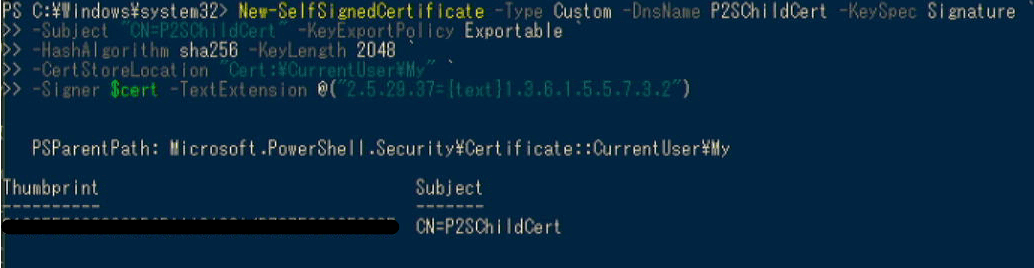
If it succeeds, the screen will look something like this.
If you check the certificate store on Windows, you will see the following two certificates registered.

From these, export a .cer file from the root certificate named P2SRootCert.
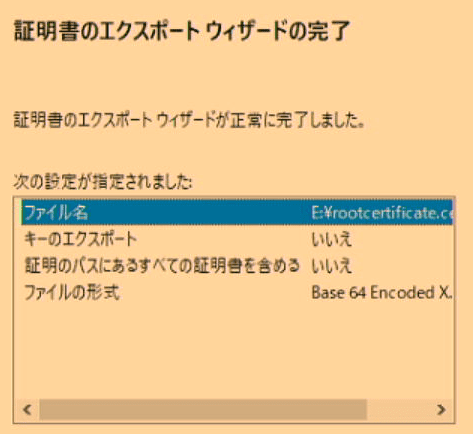
Right-click the root certificate, choose Export, and proceed by selecting Base64 Encode~.
Export it with settings like the following.
In the exported .cer file, copy the content starting from the line after BEGIN CERTIFICATE.
-----BEGIN CERTIFICATE-----
<copy this content>
-----END CERTIFICATE-----
Configure the P2S VPN connection
From the virtual network gateway screen, open Point-to-site configuration.
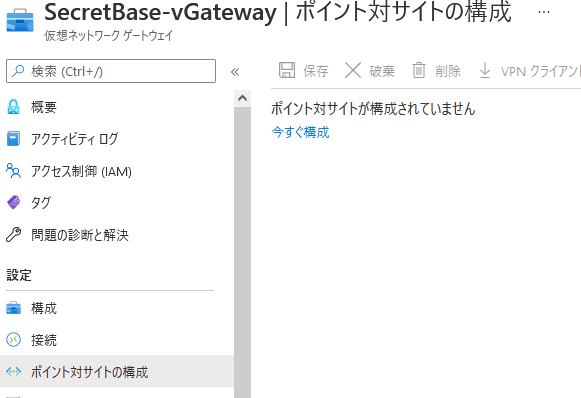
From there, click Configure now to open the settings screen.
For the address pool, specify an address pool included in the range of the virtual network.
Also, unless you have a specific reason not to, IKEv2 is probably a good choice for the tunnel type.
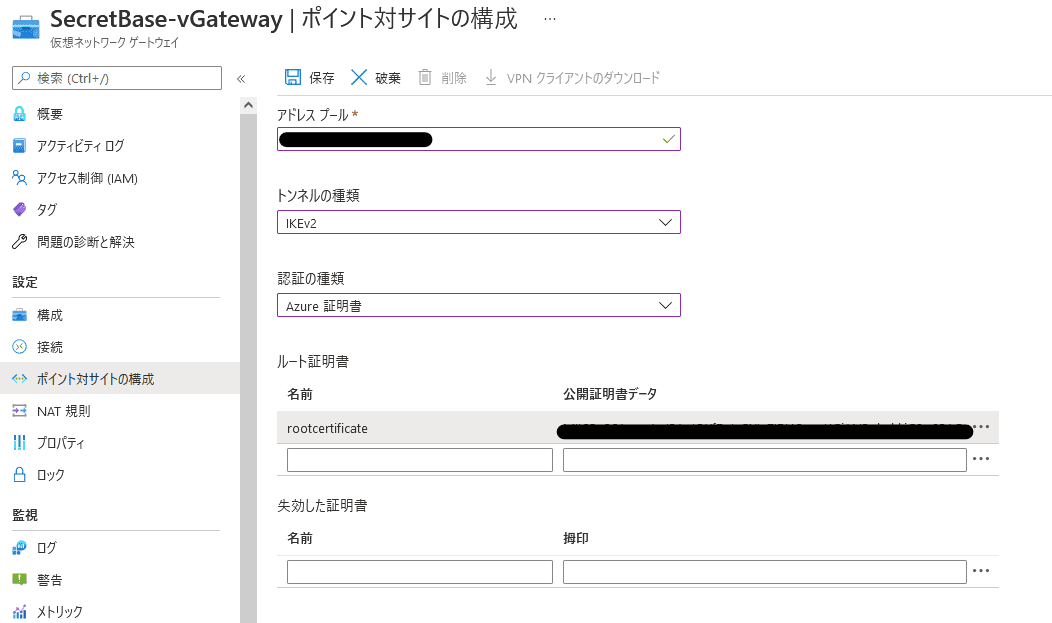
Then set Authentication type to Azure certificate, paste the root certificate you copied earlier, and save.
Once the configuration is complete, Download VPN client becomes available. Install the client you download here on the Windows machine that will use the VPN connection.
Configure VPN on Windows
Once the client is installed, open Windows VPN settings and connect to Azure.
If the connection succeeds, you will be able to connect over SSH and so on using the Azure-side local IP addresses configured for the virtual network, as shown below.
Do not forget to allow it in the VM-side security group settings.
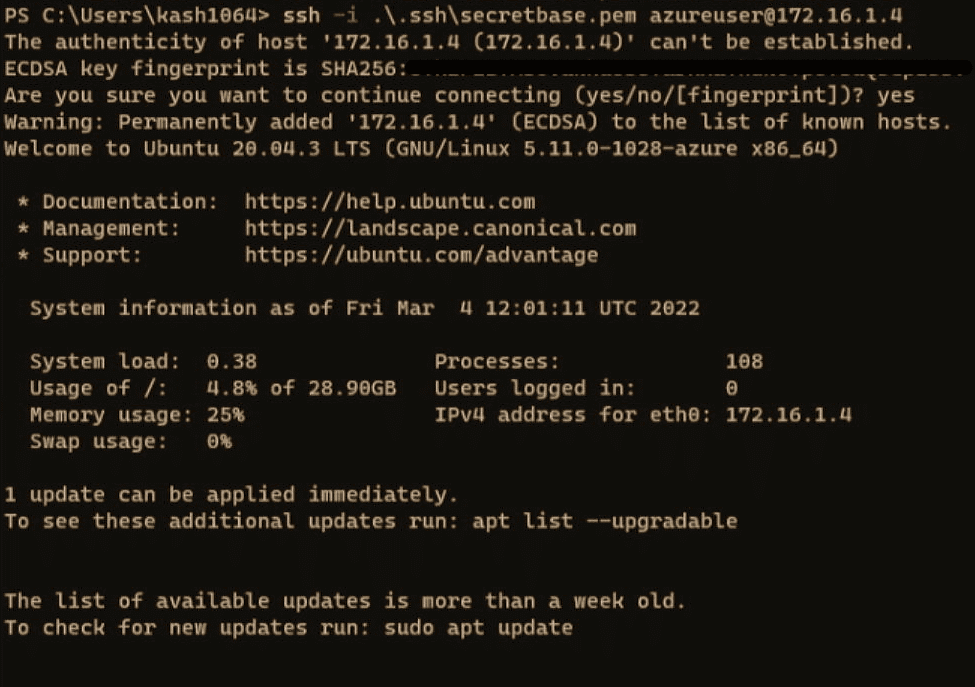
For reference, my network security group looked like this.
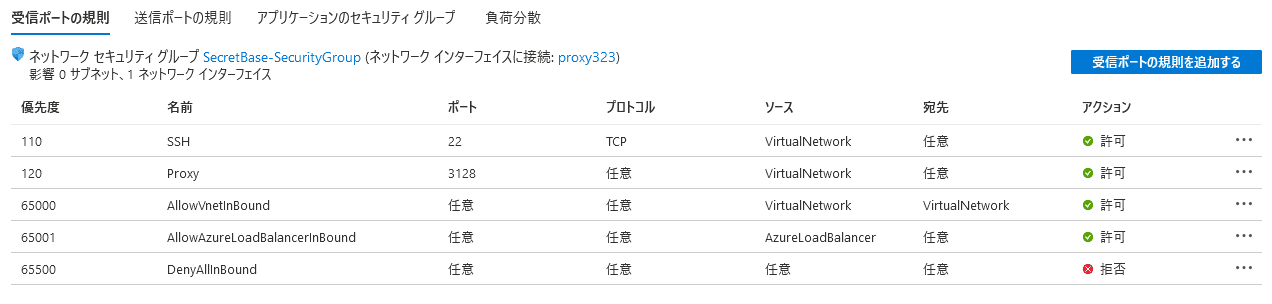
I also opened the port for the proxy that I set up afterward.
Since Source is set to VirtualNetwork, it should reject connections over the global IP and only accept connections from terminals connected to the Azure virtual network over P2S VPN.
Because the connection also requires a client certificate corresponding to the registered root certificate, it feels pretty secure.
Configure a proxy on AzureVM
Finally, I wanted to turn the AzureVM into a proxy by setting up Squid on it.
The machine is running Ubuntu 20.04.
First, update the machine.
sudo apt update && sudo apt upgrade -y
sudo apt install git make vim -y
Next, install Squid and edit the configuration file.
sudo apt install squid -y
sudo cp /etc/squid/squid.conf /etc/squid/squid.conf.origin
sudo vim /etc/squid/squid.conf
This time I only wanted a minimal setup, so I changed the two entries http_port and http_access.
# Squid normally listens to port 3128
http_port <VM private IP>:3128

acl vGateways src <virtual network gateway IP range>
http_access allow vGateways
By specifying http_port as <VM private IP>:3128, you can configure it to accept traffic only on a port bound to that specific interface.
Also, by setting the virtual network gateway IP range in http_access, only traffic coming over the VPN can use the proxy.
That is enough for the minimal configuration, so start Squid.
sudo systemctl enable squid
sudo systemctl restart squid
Connection test
On the Windows machine configured with the VPN, configure the server on AzureVM as a proxy.

When you access any site, if the source address changes to the global IP address assigned to the AzureVM, you are done.
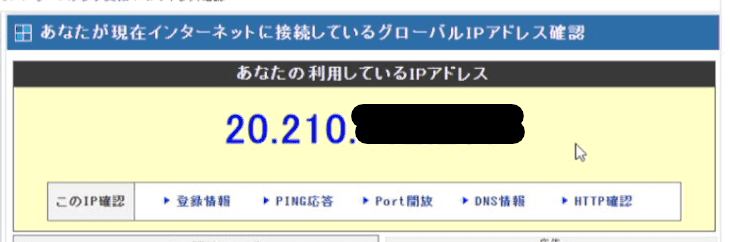
Reference: Access Information [Check Your Current IP Address]
This time I set it up in the Japan East region, but if you follow the same steps and use a machine in an overseas region as the proxy, you might be able to connect using a foreign IP address as well.
The steps are simple, so this is pretty useful.