This page has been machine-translated from the original page.
Until now, whenever an APK challenge showed up in a CTF and I could not solve it with static analysis, I would just give up. But I figured it was time to properly learn dynamic analysis techniques for Android apps, so I wrote this article as part of that study.
Using “Java Not Interesting” from Cryptoverse CTF 2023 as the theme, I will summarize some basic ways to dynamically analyze Android apps.
Table of Contents
-
Perform Dynamic Analysis by Attaching a Debugger to the Emulator
-
Use
dlopenon Library Functions and Dynamically Analyze Them as an ELF Binary - Bonus: Perform Dynamic Analysis with Symbolic Execution
- Summary
Unpack the APK File and Perform Static Analysis
First, unpack the APK file to get a rough understanding of the implementation.
APK files can be unpacked with tools such as Apktool and dex2jar.
apktool d app-debug.apkYou can also unpack an APK by loading it in Android Studio from [File] > [Profile or Debug APK].
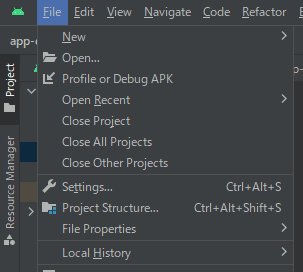
To understand the overall picture of the APK being analyzed, start by checking AndroidManifest.xml.
Read AndroidManifest.xml
AndroidManifest.xml is the manifest file that is essential for Android app development.
It declares many elements, including the SDK version the APK depends on, whether Android Studio can debug it, and the app’s permissions.
For example, from the manifest file of app-debug.apk, which is the target of this analysis, we can read the following information.
# The minimum SDK version is 23
<uses-sdk
android:minSdkVersion="23"
android:targetSdkVersion="33"
/>

# The app is configured to be debuggable
# The Main Activity is com.example.hellojni.HelloJni
<application
android:debuggable="true"

    <activity
        android:name="com.example.hellojni.HelloJni"
        android:exported="true">
    </activity>
/>
Reference: App Manifest Overview | Android Developers
Reference: AndroidManifest.xml - Monaca Docs
By the way, if the target APK does not have debuggable set to True as in this case, you need to tamper with the APK file and repackage it.
The following reference covers the details.
Reference: Android Tampering and Reverse Engineering - owasp-mastg-ja
Investigate the Main Activity
Next, continue investigating to understand the overall structure of the target app.
Once you understand the contents of AndroidManifest.xml, the next step is to look at the Main Activity that gets called first.
In this binary, com.example.hellojni.HelloJni was registered as the Main Activity.
If you unpack the APK in Android Studio, you can find this information in java/com.example/hellojni/HelloJni.smali.
The .smali format is a disassembly of dex-format binaries used by Android’s Java VM (Dalvik).
Incidentally, conversion to .smali is reversible, so you can edit it and then turn it back into an APK again.
Smali files are somewhat readable as-is, but if you decompile them into Java with a tool such as smali2java, they become even easier to read.
smali2java can be used with the following command.
smali2java_windows_amd64.exe -path_to_smali=./HelloJini.smaliReference: AlexeySoshin/smali2java: Recreate Java code from Smali
The decompiled result of java/com.example/hellojni/HelloJni.smali obtained this time looked like this.
// {{ omitted }}

private native final Boolean checkValid ( java.lang.String p0 ) {
} // .end method

private native final java.lang.String getFIaggg ( ) {
} // .end method

private static final void onCreate$lambda$0 ( com.example.hellojni.HelloJni p0, com.example.hellojni.databinding.ActivityHelloJniBinding p1, android.view.View p2 ) {
/* .registers 5 */
/* .param p0, "this$0" # Lcom/example/hellojni/HelloJni; */
/* .param p1, "$binding" # Lcom/example/hellojni/databinding/ActivityHelloJniBinding; */
/* .param p2, "it" # Landroid/view/View; */
final String v0 = "this$0"; // const-string v0, "this$0"
kotlin.jvm.internal.Intrinsics .checkNotNullParameter ( p0,v0 );
final String v0 = "$binding"; // const-string v0, "$binding"
kotlin.jvm.internal.Intrinsics .checkNotNullParameter ( p1,v0 );
/* .line 30 */
v0 = this.flag;
(( android.widget.EditText ) v0 ).getText ( ); // invoke-virtual {v0}, Landroid/widget/EditText;->getText()Landroid/text/Editable;
(( java.lang.Object ) v0 ).toString ( ); // invoke-virtual {v0}, Ljava/lang/Object;->toString()Ljava/lang/String;

v0 = /* invoke-direct {p0, v0}, Lcom/example/hellojni/HelloJni;->checkValid(Ljava/lang/String;)Z */
if ( v0 != null) { // if-eqz v0, :cond_24
 /* .line 31 */
 v0 = this.valid;
 final String v1 = "Correct!"; // const-string v1, "Correct!"
 /* check-cast v1, Ljava/lang/CharSequence; */
 (( android.widget.TextView ) v0 ).setText ( v1 ); // invoke-virtual {v0, v1}, Landroid/widget/TextView;->setText(Ljava/lang/CharSequence;)V
 /* .line 33 */
} // :cond_24
v0 = this.valid;
v1 = this.flag;
(( android.widget.EditText ) v1 ).getText ( ); // invoke-virtual {v1}, Landroid/widget/EditText;->getText()Landroid/text/Editable;
(( java.lang.Object ) v1 ).toString ( ); // invoke-virtual {v1}, Ljava/lang/Object;->toString()Ljava/lang/String;
/* check-cast v1, Ljava/lang/CharSequence; */
(( android.widget.TextView ) v0 ).setText ( v1 ); // invoke-virtual {v0, v1}, Landroid/widget/TextView;->setText(Ljava/lang/CharSequence;)V
/* .line 35 */
} // :goto_35
return;
} // .end method

/* # virtual methods */
protected void onCreate ( android.os.Bundle p0 ) {
/* .registers 5 */
/* .param p1, "savedInstanceState" # Landroid/os/Bundle; */
/* .line 25 */
/* invoke-super {p0, p1}, Landroidx/appcompat/app/AppCompatActivity;->onCreate(Landroid/os/Bundle;)V */
/* .line 27 */
(( com.example.hellojni.HelloJni ) p0 ).getLayoutInflater ( ); // invoke-virtual {p0}, Lcom/example/hellojni/HelloJni;->getLayoutInflater()Landroid/view/LayoutInflater;
com.example.hellojni.databinding.ActivityHelloJniBinding .inflate ( v0 );
final String v1 = "inflate(layoutInflater)"; // const-string v1, "inflate(layoutInflater)"
kotlin.jvm.internal.Intrinsics .checkNotNullExpressionValue ( v0,v1 );
/* .line 28 */
/* .local v0, "binding":Lcom/example/hellojni/databinding/ActivityHelloJniBinding; */
(( com.example.hellojni.databinding.ActivityHelloJniBinding ) v0 ).getRoot ( ); // invoke-virtual {v0}, Lcom/example/hellojni/databinding/ActivityHelloJniBinding;->getRoot()Landroidx/constraintlayout/widget/ConstraintLayout;
/* check-cast v1, Landroid/view/View; */
(( com.example.hellojni.HelloJni ) p0 ).setContentView ( v1 ); // invoke-virtual {p0, v1}, Lcom/example/hellojni/HelloJni;->setContentView(Landroid/view/View;)V
/* .line 29 */
v1 = this.getflag;
/* new-instance v2, Lcom/example/hellojni/HelloJni$$ExternalSyntheticLambda0; */
/* invoke-direct {v2, p0, v0}, Lcom/example/hellojni/HelloJni$$ExternalSyntheticLambda0;-><init>(Lcom/example/hellojni/HelloJni;Lcom/example/hellojni/databinding/ActivityHelloJniBinding;)V */
(( android.widget.Button ) v1 ).setOnClickListener ( v2 ); // invoke-virtual {v1, v2}, Landroid/widget/Button;->setOnClickListener(Landroid/view/View$OnClickListener;)V
/* .line 36 */
return;
} // .end method
Reading the code above, you can see that when the button created in onCreate is tapped, onCreate$lambda$0 is called with the string entered in the form.
The string passed here is then given to the checkValid function, which is called via invoke-direct {p0, v0} at the following point, and validated there.
/* .line 30 */
v0 = this.flag;
(( android.widget.EditText ) v0 ).getText ( ); // invoke-virtual {v0}, Landroid/widget/EditText;->getText()Landroid/text/Editable;
(( java.lang.Object ) v0 ).toString ( ); // invoke-virtual {v0}, Ljava/lang/Object;->toString()Ljava/lang/String;

v0 = /* invoke-direct {p0, v0}, Lcom/example/hellojni/HelloJni;->checkValid(Ljava/lang/String;)Z */
if ( v0 != null) { // if-eqz v0, :cond_24
 /* .line 31 */
 v0 = this.valid;
 final String v1 = "Correct!"; // const-string v1, "Correct!"
 /* check-cast v1, Ljava/lang/CharSequence; */
 (( android.widget.TextView ) v0 ).setText ( v1 ); // invoke-virtual {v0, v1}, Landroid/widget/TextView;->setText(Ljava/lang/CharSequence;)V
 /* .line 33 */
} // :cond_24
Then, if the result of validation by the checkValid function is True, the app displays Correct! on the screen.
In other words, we can infer that checkValid determines whether the correct Flag was supplied as input.
From here, I wanted to inspect the implementation of checkValid to retrieve the Flag, but if you look at the following line that declares checkValid, it appears to be defined in a native library.
private native final Boolean checkValid ( java.lang.String p0 ) {} // .end methodSo from here, we continue by analyzing the native library.
Decompile the Native Library
If you unpack the APK file with the command shown earlier, you can see that libhello-jni.so exists under app-debug/lib/arm64-v8a.
apktool d app-debug.apkBecause the checkValid function is implemented there, analyze this file with Ghidra.
There are also other directories such as x86 under app-debug/lib/, but current Android environments basically require apps to support arm64-v8a, so I first used arm64-v8a as the analysis target.
As described later, if you debug on an emulator running in an x86_64 environment, you can decompile x86 or other binaries as needed.
Reference: Support 64-bit architectures | Android Developers
By decompiling it in Ghidra, you can identify how the checkValid function works.
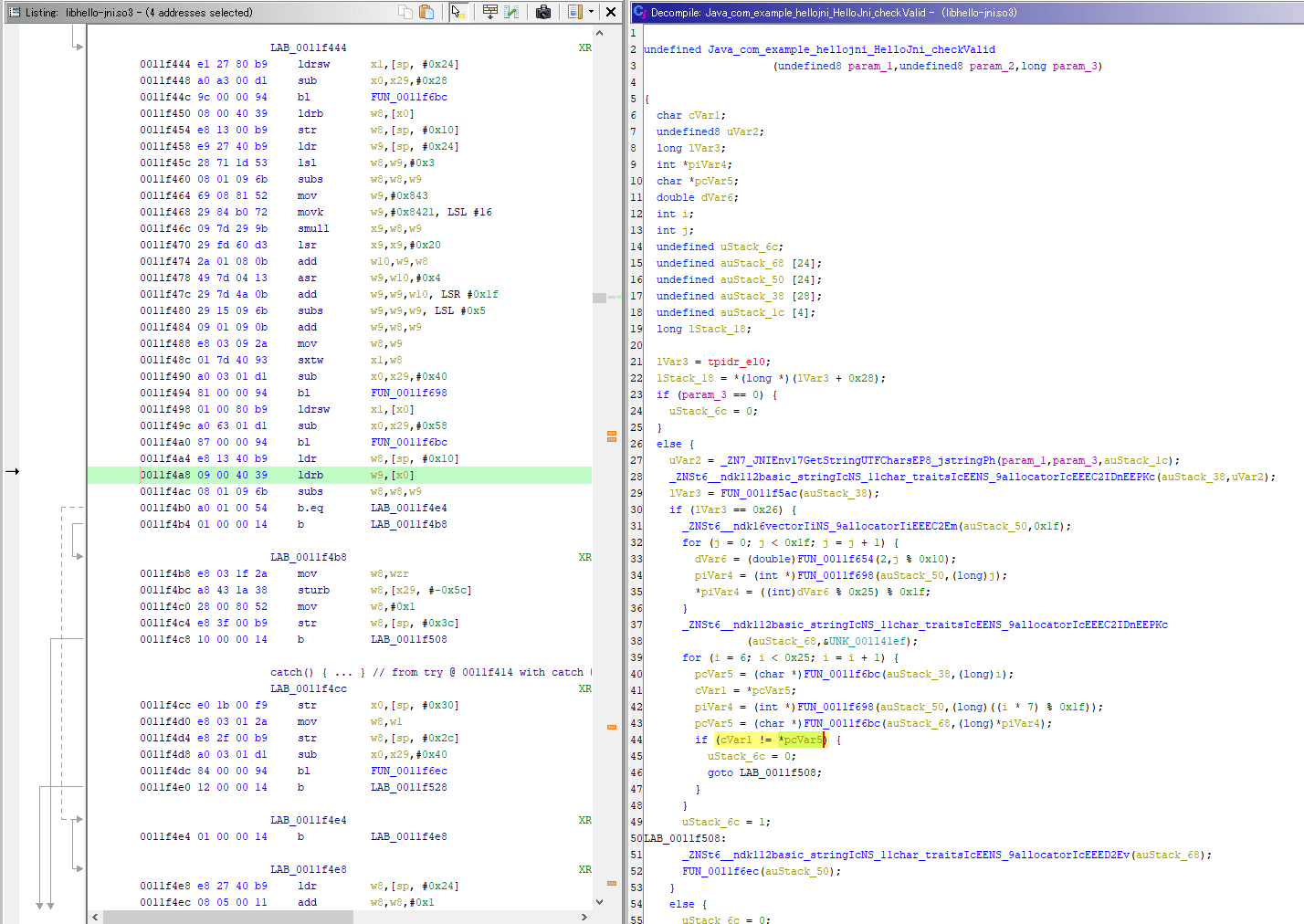
From the decompiled result, the Flag appears to be 0x26 characters long, and characters 7 through 0x25 seem to be checked one by one at the line cVar1 != *pcVar5.
(The first 6 characters and the last 1 character are probably ignored because the Flag format is cvctf{}.)
lVar3 = FUN_0011f5ac(auStack_38);
if (lVar3 == 0x26) {
  _ZNSt6__ndk16vectorIiNS_9allocatorIiEEEC2Em(auStack_50,0x1f);
  for (j = 0; j < 0x1f; j = j + 1) {
    dVar6 = (double)FUN_0011f654(2,j % 0x10);
    piVar4 = (int *)FUN_0011f698(auStack_50,(long)j);
    *piVar4 = ((int)dVar6 % 0x25) % 0x1f;
  }
  _ZNSt6__ndk112basic_stringIcNS_11char_traitsIcEENS_9allocatorIcEEEC2IDnEEPKc
            (auStack_68,&UNK_001141ef);
  for (i = 6; i < 0x25; i = i + 1) {
    pcVar5 = (char *)FUN_0011f6bc(auStack_38,(long)i);
    cVar1 = *pcVar5;
    piVar4 = (int *)FUN_0011f698(auStack_50,(long)((i * 7) % 0x1f));
    pcVar5 = (char *)FUN_0011f6bc(auStack_68,(long)*piVar4);
    if (cVar1 != *pcVar5) {
      uStack_6c = 0;
      goto LAB_0011f508;
    }
  }
  uStack_6c = 1;
LAB_0011f508:
  _ZNSt6__ndk112basic_stringIcNS_11char_traitsIcEENS_9allocatorIcEEED2Ev(auStack_68);
  FUN_0011f6ec(auStack_50);
}
At this point, you could probably recover the Flag by statically analyzing the function in (char *)FUN_0011f6bc(auStack_68,(long)*piVar4);, which is used to obtain pcVar5, but that function is fairly complex, and it seemed like it would take quite a while to derive its output purely with static analysis.
In a case like this, you can recover the Flag more easily by using dynamic analysis to obtain the return value of (char *)FUN_0011f6bc(auStack_68,(long)*piVar4); one by one.
So from here on, I will focus on dynamically analyzing native libraries in Android apps.
Perform Dynamic Analysis with the Android Studio Debugger
As you can tell from AndroidManifest.xml, debugging was already enabled from the beginning for this APK file.
That means after loading the APK file in Android Studio via [File] > [Profile or Debug APK], you can start debugging automatically on the emulator by clicking the bug icon in the top toolbar.
(If debugging is not enabled, you need to edit AndroidManifest.xml and repackage the APK file.)
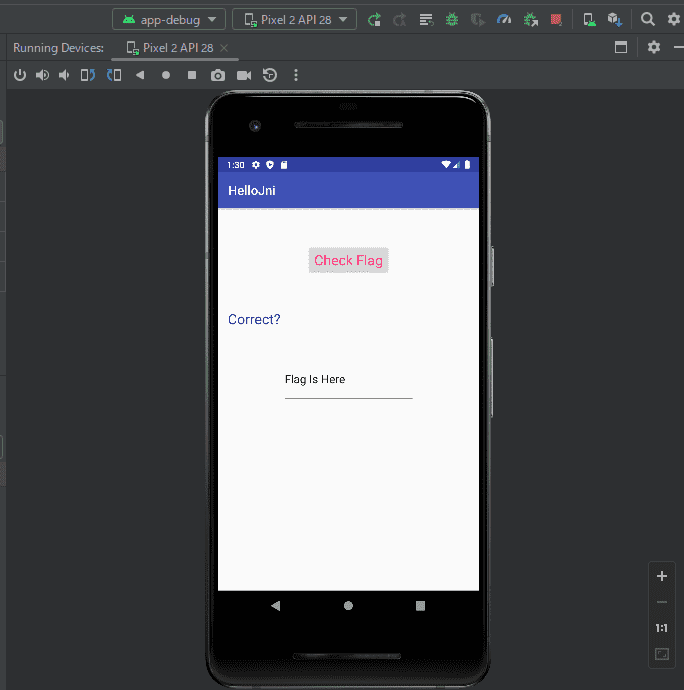
When you start debugging in Android Studio, the APK launches on the emulator and then a debug window like the following opens.
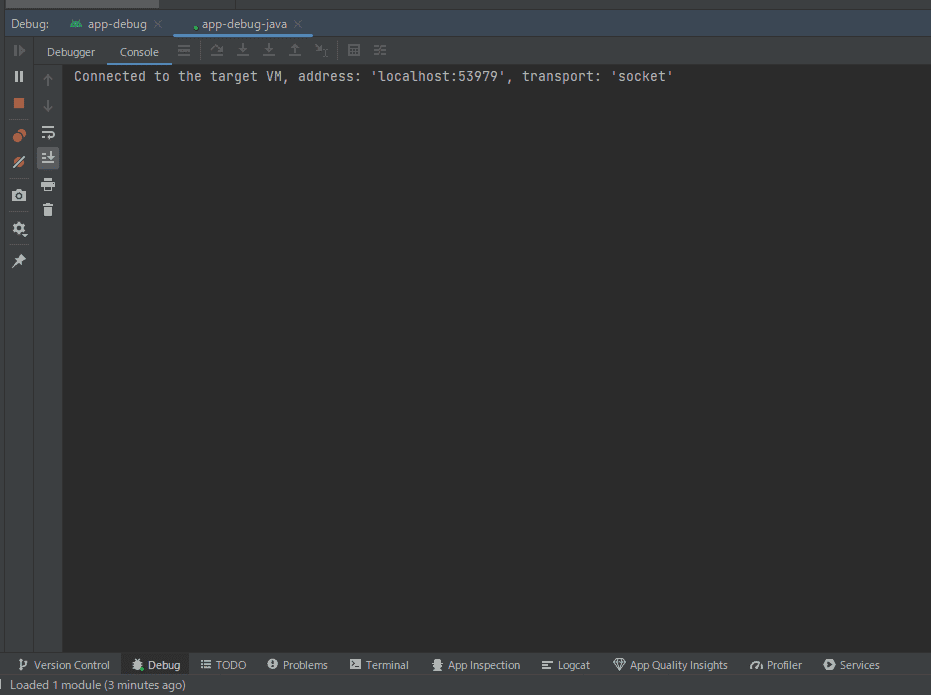
From here it looks like debugging would be easier if we could configure symbols for the native library, but unfortunately we do not have the target symbols on hand, so that approach is unavailable.
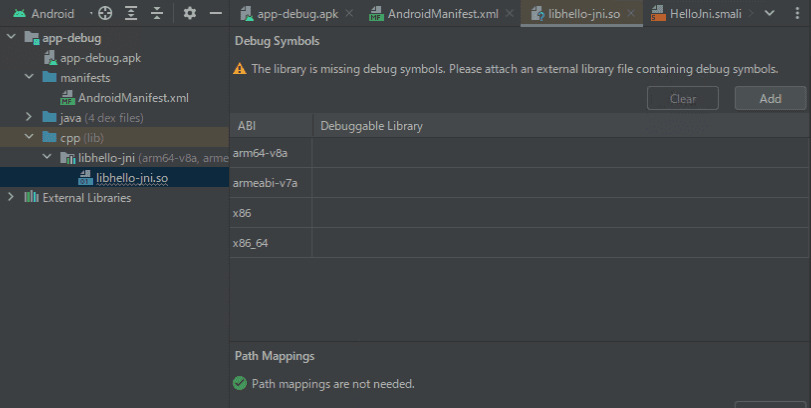
Debug a Native App in Android Studio
To debug a native app in Android Studio, open the configuration window from [Run] > [Edit Configurations].
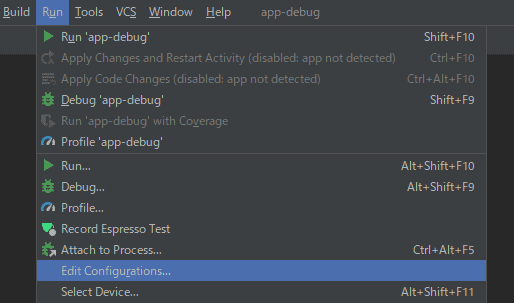
Next, set [Debug Type] to [Native Only].
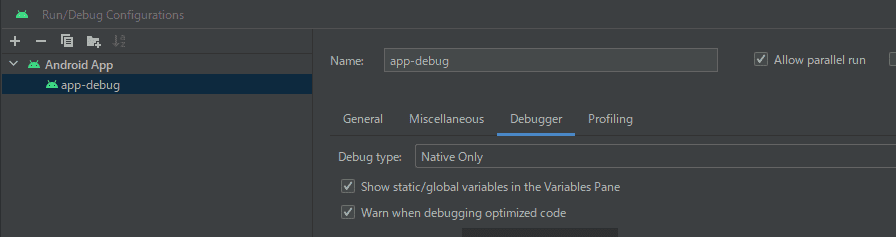
This allows you to debug the native library from the Android Studio debugger.
After changing this setting, press the debug button once more to start debugging the app again.
Identify the App Architecture and Image Base
Now that native library debugging is enabled in Android Studio, it is finally time to set a breakpoint at the location that validates the Flag and trace the execution.
From here on, the work is not very different from ordinary dynamic analysis of a typical ELF binary.
To determine where to set the breakpoint, first identify the image base where the target native library is loaded.
After starting debugging, if you break the app while it is running, you will see the disassembly of the current stop location and the LLDB console as shown below.
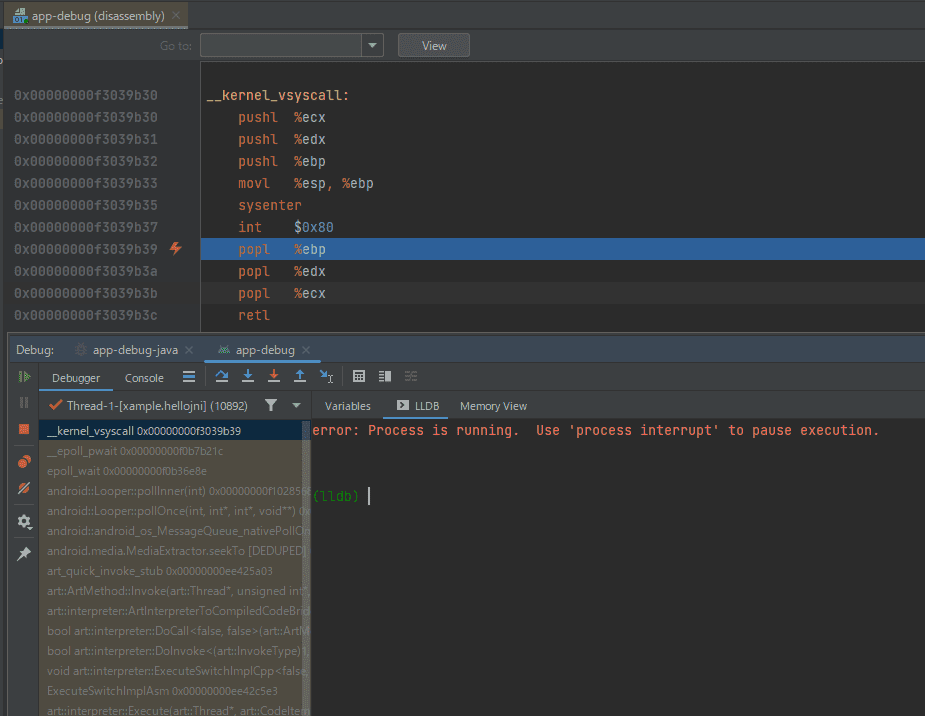
Next, run the following command in the LLDB console to list the loaded images.
image listFrom the output of this command, find the line where libhello-jni.so, the library being analyzed, is displayed, and identify the image base address.

This time, 0xd4b0d000 was the image base address. (It changes each time you launch the app.)
Next, inspect the memory information at the image base address and identify the architecture of the loaded image from the ELF header.

By referring to the familiar table on Wikipedia, you can confirm that the image loaded during this debugging session uses the x86 architecture because e_machine at offset 0x12 is 0x3.
Reference: Executable and Linkable Format - Wikipedia
So I analyzed the x86 native library that Apktool had unpacked earlier in Ghidra and identified the offset of the checkValid function.
From Ghidra’s analysis result, you can see that the offset of the checkValid function is 0x1a020, so I entered 0xd4b27020, which is the image base address plus that offset, into the disassembly window.
This allowed me to identify the address of the checkValid function.
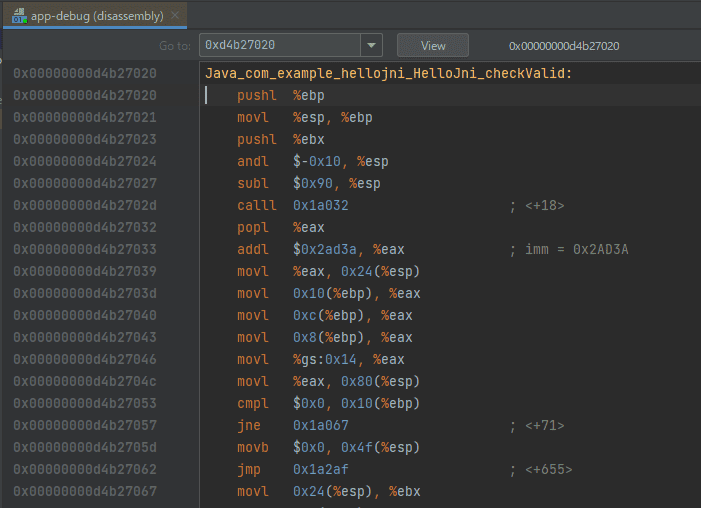
Set Breakpoints and Identify the Flag
Once you have come this far, the rest is easy.
As identified earlier in the static analysis, this native library function accepts 38 (0x26) characters of input and checks characters 7 through 37 one by one at the line if (cVar1 != *pcVar2).
So I set a breakpoint at 0xd4b2720c, which is the image base address plus the offset of the validation line.
# Set a breakpoint
b *0xd4b2720c
After setting the breakpoint there, I entered an arbitrary 38-character string in the app on the emulator and pressed the [Check Flag] button, and execution stopped at the breakpoint I had set.
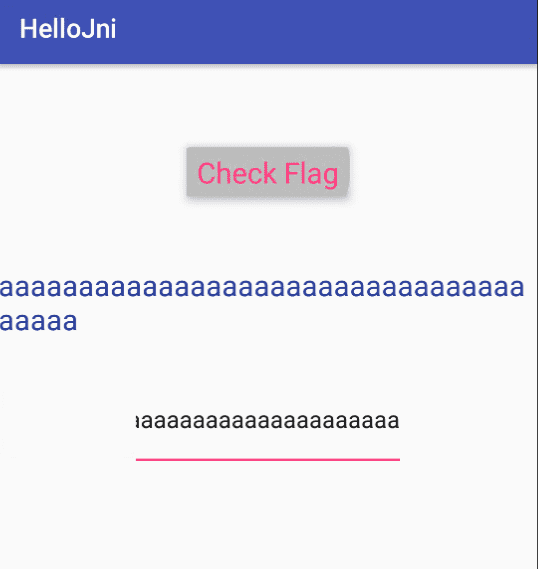
At that moment, ECX contains the correct Flag character, and it is compared against EAX, which contains the input value.
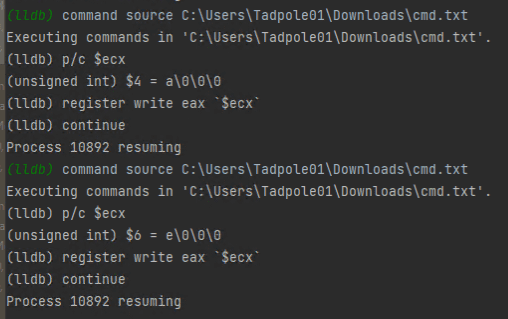
So if you print the value of ECX as shown below, write the value of ECX into EAX, and then continue execution, you can recover the correct Flag one character at a time.
Originally, I wanted to automate this using LLDB’s embedded Python, but in Android Studio’s default debugger the source command did not work, so I used a source file for automation instead.
# Put the following in cmd.txt
p/c $ecx
register write eax `$ecx`
continue

# Run the source file
command source C:\Users\Tadpole01\Downloads\cmd.txt
This allowed me to recover the Flag by determining it one character at a time, as shown below.
By the way, the following reference was helpful for LLDB commands.
Reference: GDB to LLDB command map — The LLDB Debugger
Perform Dynamic Analysis by Attaching a Debugger to the Emulator
Install the APK on the Emulator
This time, instead of using Android Studio’s debugging features, I will attach a debugger to an application launched inside the system emulator.
First, with the emulator running, install the target APK file with the following command.
adb install app-debug.apkadb.exe is included in the Android SDK and can be downloaded from the following page.
Reference: Download Android Studio & App Tools - Android Developers
Once the APK has been installed, you will be able to launch the app on the running emulator.
Next, download the Android NDK tools in advance so you can attach a debugger to the emulator.
The NDK tools can be downloaded from the following page.
Reference: NDK Downloads | Android NDK | Android Developers
Incidentally, although we use the NDK tools to attach a debugger to the emulator, it seems that the current latest version, r25, no longer includes gdbserver, which was bundled with NDK tools up through r23.
I would have preferred to use the familiar gdb, but thinking ahead I decided to use LLDB.
Install LLDB on the Host Machine
Next, install LLDB on the host machine so that it can attach to the emulator.
To install LLDB, download the Windows installer from the releases page of the following GitHub repository.
The version I used this time, 16.0.3, depends on Python10, so if Python10 is not installed or is not in PATH, you need to install it separately in advance.
Deploy lldb-server to the Android Emulator and Launch the App
Now it is finally time to debug the app running on the Android emulator by attaching LLDB from the host machine.
First, deploy lldb-server to the emulator side.
The prebuilt lldb-server binary is placed inside the toolchains directory of the NDK obtained earlier.
This time, to match the OS platform, I used the lldb-server located at $NDK_PATH\toolchains\llvm\prebuilt\windows-x86_64\lib64\clang\14.0.7\lib\linux\i386\lldb-server.
# Install the APK file on the emulator
adb install app-debug.apk

# Push lldb-server to the emulator
adb push lldb-server /data/local/tmp

# Grant execute permission to lldb-server
adb shell chmod +x /data/local/tmp/lldb-server

# Copy lldb-server to the target package path
adb shell run-as com.example.hellojni cp /data/local/tmp/lldb-server /data/data/com.example.hellojni/
In the commands above, I eventually grant execute permission to the pushed lldb-server and copy it to the target package path.
You can identify the package name of the target from the AndroidManifest.xml analyzed earlier.
Attach the Debugger
Everything is finally ready, so let us start debugging.
We will execute the following commands in order, but first let us look at the information for the target package.
# Dump package information
adb shell pm dump com.example.hellojni

>
DUMP OF SERVICE package:
Activity Resolver Table:
  Non-Data Actions:
      android.intent.action.MAIN:
        6525ec5 com.example.hellojni/.HelloJni filter 3d4e3e9
          Action: "android.intent.action.MAIN"
          Category: "android.intent.category.LAUNCHER"
{{ omitted }}
The dump command shows a very large amount of information, but here we especially want to note the package’s ActivityName.
Make a note of the com.example.hellojni/.HelloJni part in the output above.
Now that all preparations are complete, start debugging with the following commands.
By the way, com.example.hellojni is the target package name here.
# Stop lldb-server in advance (not needed the first time)
adb shell run-as com.example.hellojni killall -9 lldb-server

# Launch the app with adb shell am start -a <Main Activity> -D -n "com.package.name/com.package.name.ActivityName"
adb shell am start -a android.intent.action.MAIN -n "com.example.hellojni/.HelloJni"

# Once the app starts, begin listening with lldb-server
adb shell run-as com.example.hellojni sh -c '/data/data/com.example.hellojni/lldb-server platform --server --listen unix-abstract:///data/data/com.example.hellojni/debug.socket'

# Open another terminal and check the app's PID
adb shell run-as com.example.hellojni ps

# Launch lldb
lldb.exe

# Run these in order at the (lldb) prompt
platform select remote-android
platform connect unix-abstract-connect:///data/data/com.example.hellojni/debug.socket

# Attach to the app PID identified above
attach 17728
Reference: How to find out activity names in a package? android. ADB shell - Stack Overflow
Reference: How to start an application using Android ADB tools - Stack Overflow
This lets you attach to the app running on the emulator from LLDB on the host machine.
After that, as before, you can identify the Flag with the following commands.
# Identify the base address of libhello-jni.so
image list
>
[202] 2720F64E-E4CD-4F44-2073-43B9B03816BB-CE41285A 0xd86b5000 libhello-jni.so

# Set a breakpoint at 0xd86b5000+0x1a20c and resume app execution
b *0xd86cf20c
continue
Now that you can set a breakpoint at the location where the Flag is validated in the app running on the emulator, you can retrieve the Flag in the same way as before.
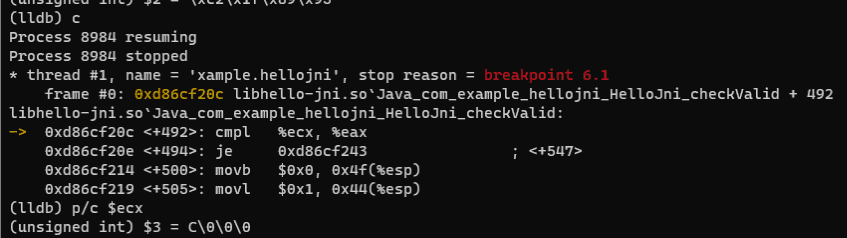
However, this time I wanted to make the analysis a little easier by using LLDB scripts.
Control LLDB with Python
LLDB provides very extensive support for interfaces using Python.
To check whether LLDB’s Python interpreter is available, try entering the following command in the attached debugger.
For some reason I could not use it in the debugger launched from Android Studio, but in the environment where I attached from the host this time I was able to start the interpreter.
# Start LLDB's embedded Python interpreter
script
Reference: Python Reference — The LLDB Debugger
Now that we know Python scripts can be used in LLDB, we can automate Flag extraction as follows.
This time, I decided to retrieve the Flag by registering a Python script that runs when the breakpoint is hit.
# Identify the ID of the breakpoint you set
br list
>
1: address = libhello-jni.so[0x0001a20c], locations = 1, resolved = 1, hit count = 0

# Use the identified breakpoint ID to define what happens when the breakpoint is hit
script counter=0
breakpoint command add --script-type python 1

# Enter the following
import time

eax = frame.FindRegister("eax")
ecx = frame.FindRegister("ecx").value
eax.SetValueFromCString(ecx)
print(chr(int(ecx,16)),end="")

time.sleep(1)
thread = frame.GetThread()
process = thread.GetProcess()
process.Continue()
DONE
When I actually ran this, I was able to capture the Flag characters as shown below.
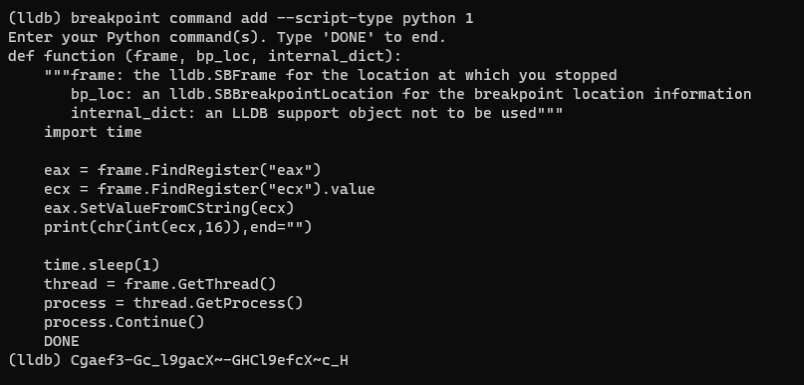
Because scripting works, remote attach feels easier than debugging directly inside Android Studio.
Use dlopen on Library Functions and Dynamically Analyze Them as an ELF Binary
In this challenge, unfortunately I could not get as far as recovering the Flag because I was unable to successfully connect the argument string passed from a C program to the GetStringUTFChars function on the native library side. Still, depending on the target, there are cases where loading native library functions with dlopen from your own program makes it easy to recover the Flag or debug the target.
Identify the Native Library NDK Version
To execute the native library after loading it with dlopen, you need to obtain libraries that satisfy the native library’s dependencies.
The version of the native library included in the built APK can be identified by placing the native library file on the Android emulator and examining it with the file command.
So I first placed libhello-jni.so on the emulator and checked its version with the file command as follows.
# Push solver.out to the emulator
adb push libhello-jni.so /data/local/tmp

# Identify the version with the file command
adb shell file /data/local/tmp/libhello-jni.so

This showed that the NDK version used to build this library was r25b, so I downloaded the NDK r25b files from https://dl.google.com/android/repository/android-ndk-r25b-windows.zip.
After extracting the downloaded file and expanding it with ndk-build.cmd, you can obtain prebuilt library files for each platform from under android-ndk-r25b\toolchains\llvm\prebuilt\windows-x86_64\sysroot\usr\lib.
This time I was using an x86 binary, so I copied the library files built under i686-linux-android.
Create an Executable
Once the required dependency libraries were ready, I next created a binary that calls the native library.
I used the following code.
The symbol for the checkValid function could be used exactly as identified in Ghidra.
#include <stdio.h>
#include <stdlib.h>
#include <dlfcn.h>

int main()
{
    void *handle;
    char *error;

    handle = dlopen("./libhello-jni.so", RTLD_LAZY);
    if (!handle)
    {
        fprintf(stderr, "%s\n", dlerror());
        exit(EXIT_FAILURE);
    }

    dlerror();
    int (*checkValid)(wchar_t *) = dlsym(handle, "Java_com_example_hellojni_HelloJni_checkValid");
    error = dlerror();
    if (error != NULL)
    {
        fprintf(stderr, "%s\n", error);
        exit(EXIT_FAILURE);
    }
    printf("pid : %d\n", getpid());
    puts("dlopen success");
    printf("handle addr : %p\n", handle);

    wchar_t text = L"AAAAAAAAAAAAAAAAAAAAAAAAAAAAAAAAAAAAAA";
    int i = checkValid(text);
    printf("Result : %d\n", i);
    dlclose(handle);
    return 0;
}
After building this code with the following command, launch it with gdb.
At runtime, place the compiled file, libhello-jni.so, and the library files copied earlier including libandroid.so all in the same directory.
# Build as an x86 binary
gcc solver.c -m32 -o solver.out

# Add the current directory to the library path
export LD_LIBRARY_PATH=.:$LD_LIBRARY_PATH

# Run the program with gdb
gdb ./solver.out
Running this shows that you can call the checkValid function implemented in the native library.
Unfortunately, this time I could not successfully connect the argument string passed from the C program to the GetStringUTFChars function on the native library side, so I did not get as far as recovering the Flag. However, as shown below, I was still able to reach the Flag validation logic itself using gdb.

In particular, native library functions that do not require arguments from the app can be debugged easily with this method.
Perform Dynamic Analysis with Frida Hooks
Frida is a tool that lets you analyze native apps on a wide range of platforms such as Windows, macOS, Linux, iOS, and Android by injecting JavaScript code.
According to the documentation, Frida’s core is implemented in C, and by injecting the QuickJS Javascript Engine into the target black-box process, it can hook functions and call arbitrary functions inside the process.
Reference: Welcome | Frida • A world-class dynamic instrumentation toolkit
Set Up Frida
Let us quickly set up Frida so we can analyze the Android app.
First, install frida-tools on the host machine with pip.
# Install frida-tools on a Windows machine
python3.exe -m pip install frida-tools
When I installed Frida in my environment, the Frida executable ended up under:
%USERPROFILE%\AppData\Local\Packages\PythonSoftwareFoundation.Python.3.10_qbz5n2kfra8p0\LocalCache\local-packages\Python310\Scripts
So I placed the downloaded files in an appropriate folder and added that folder to PATH.
# Check that Frida is available
frida.exe --version
>
16.0.19
Now that Frida is installed on the host machine, the next step is to configure frida-server on the Android environment running on the emulator.
From the Frida releases page below, download and extract a frida-server with the same version as the Frida installation on the host machine that we confirmed earlier.
Reference: Releases · frida/frida
This time, because I was running it on an emulator, I downloaded frida-server-16.0.19-android-x86.xz.
If you install it on a physical Android device, choose the ARM version instead.
The APK file and frida-server can be deployed to the emulator in roughly the same way as the lldb-server mentioned earlier, but note that this time root access is required.
If adb root outputs the error adbd cannot run as root in production builds, then to avoid that problem you need to choose an emulator OS whose [Play Store] field is blank.
Also, if Android 12 or later is configured by default, the OS platform version becomes x86_64, so be careful.
In that case, you can start frida-server by using frida-server-16.0.19-android-x86_64.
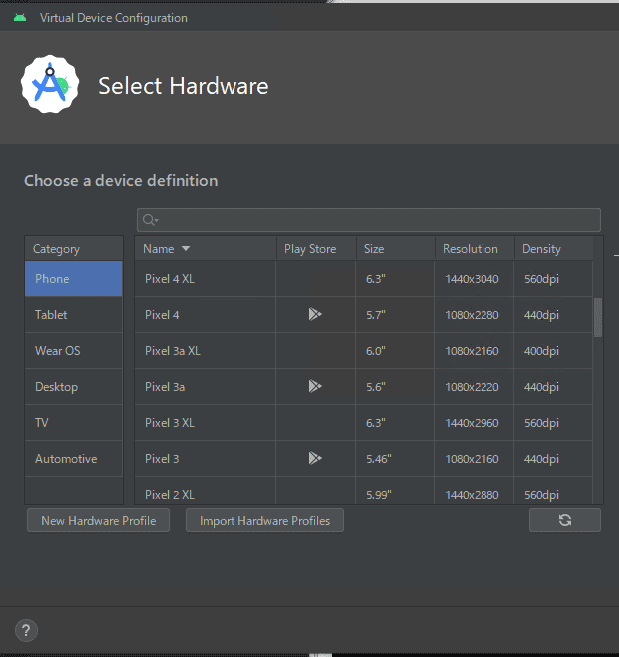
If you are using an emulator whose [Play Store] field is blank, adb root works correctly, so you can start frida-server with the following commands.
# Enable adb root
adb root

# Install the APK on the emulator
adb install app-debug.apk

# Rename the extracted file
# Use frida-server-16.0.19-android-x86_64 for the x86_64 platform
ren frida-server-16.0.19-android-x86 frida-server

# Push frida-server to the emulator and grant execute permission
adb push frida-server /data/local/tmp
adb shell chmod +x /data/local/tmp/frida-server

# Start frida-server
adb shell /data/local/tmp/frida-server
Debug with a Frida Hook
Once frida-server is running on the emulator side, it is finally time to start analyzing the app.
The actual operation of analyzing with a Frida hook is very simple.
Basically, the idea is to attach from a Python script to the frida-server running on the emulator and let the embedded JavaScript code in the script do the processing.
Let us first look at the first half.
Up to this point, the script identifies the frida-server instance the Python script should attach to.
DEVICE_NAME can be identified with the adb devices command.
import frida
import sys

def on_message(message, data):
    if message['type'] == 'send':
        print("[*] {0}".format(message['payload']))
    else:
        print(message)

# Connect to the emulator
DEVICE_NAME = "emulator-5554"
APK_PROCESS_NAME = "HelloJni"
process = frida.get_device_manager().get_device(DEVICE_NAME).attach(APK_PROCESS_NAME)
Next comes the main JavaScript portion. The basic idea is the same as the dynamic analysis performed with the debugger so far: recover the Flag.
First, Module.findBaseAddress(module_name) obtains the image base address from the native library filename.
Then it adds the offset of the Flag validation code already identified in Ghidra to produce target_address.
var module_name = "libhello-jni.so";
// var sym_name = "Java_com_example_hellojni_HelloJni_checkValid";

var base_addr = Module.findBaseAddress(module_name);
var target_offset = 0x1a20c
var target_address = base_addr.add(target_offset);

var flag = "";
Next, Interceptor.attach uses onEnter: to define what should happen when the app reaches target_address. (It is like a breakpoint.)
As identified through the analysis so far, the operations needed to recover the Flag were as follows.
- Enter a 38-character string in the app and press the [Check Flag] button.
- At offset 0x1a20c in the native library, obtain one Flag character from the value stored in
ecx. - Copy the value of
ecxtoeaxand continue processing.
In the following code, when execution reaches target_address, this.context.ecx is used to read the value in the ecx register and tamper with the eax register.
Interceptor.attach(target_address, {
  onEnter: function(args) {
    // console.log("eax: " + this.context.eax);
    // console.log("ecx: " + this.context.ecx);

    // Retrieve a Flag character
    flag = flag + String.fromCharCode(this.context.ecx);
    console.log(flag);

    // Rewrite the register value
    this.context.eax = this.context.ecx;
  },
  onLeave: function(retval) {
    // Do nothing
  }
});
The final code I implemented looked like this.
import frida
import sys

def on_message(message, data):
    if message['type'] == 'send':
        print("[*] {0}".format(message['payload']))
    else:
        print(message)

# Connect to the emulator
DEVICE_NAME = "emulator-5554"
APK_PROCESS_NAME = "HelloJni"
process = frida.get_device_manager().get_device(DEVICE_NAME).attach(APK_PROCESS_NAME)

jscode = """
var module_name = "libhello-jni.so";
var sym_name = "Java_com_example_hellojni_HelloJni_checkValid";

var base_addr = Module.findBaseAddress(module_name);
var target_offset = 0x1a20c
var target_address = base_addr.add(target_offset);

var flag = "";

// console.log(base_addr);
// console.log(target_address);

Interceptor.attach(target_address, {
  onEnter: function(args) {
    // console.log("eax: " + this.context.eax);
    // console.log("ecx: " + this.context.ecx);

    // Retrieve a Flag character
    flag = flag + String.fromCharCode(this.context.ecx);
    console.log(flag);

    // Rewrite the register value
    this.context.eax = this.context.ecx;
  },
  onLeave: function(retval) {
    // Do nothing
  }
});
"""

script = process.create_script(jscode)
script.on("message", on_message)
print("[*] Running APK")

script.load()
sys.stdin.read()
By running this from the command prompt, I was able to recover the Flag as shown below.
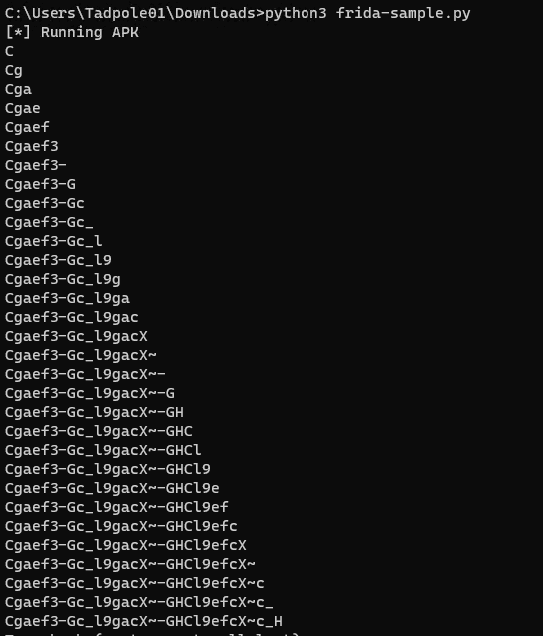
Bonus: Perform Dynamic Analysis with Symbolic Execution
When I read angr’s official documentation, it appeared to mention support for symbolic execution of Android apps that use native libraries.
Reference: experimental java, android, and jni support in angr
Looking at the page above, it includes an example of recovering a Flag with angr from an Android app analysis challenge that actually appeared in a CTF.
I did not try using angr for this problem, but if I feel like it later I may add an update.
Summary
This time I tried four (+1) approaches for dynamically analyzing an Android app challenge from a CTF.
In particular, Frida hooking was a technique I had been meaning to try someday and had left untouched for a long time, but once I actually used it, it felt remarkably easy and extremely powerful.
It seems likely to be useful beyond Android analysis as well, so I plan to keep experimenting with it in various contexts.