This page has been machine-translated from the original page.
I wrote this article for CTF Advent Calendar 2024 - Adventar.
Unfortunately, it landed right in the middle of the blank stretch from 12/9 to 12/18, so there were no articles immediately before or after it.
This time, I will try using a tool called Mandiant’s capa to analyze the functionality contained in executable files.
With this tool, you can analyze files such as ELF, PE, and shellcode to check whether a program contains encryption logic (such as RC4 or AES), installs services, performs communication, and more.
Reference: capa: Automatically Identify Malware Capabilities | Mandiant | Google Cloud Blog
Reference: mandiant/capa: The FLARE team’s open-source tool to identify capabilities in executable files.
In this article, I will try analyzing programs using the capa binary and its Ghidra integration features.
The versions used in this article are as follows.
Although I am using a Windows environment this time, the setup steps should be almost the same on Linux as well.
- Windows 11 23H2
- Ghidra 11.2.1
- Ghidrathon 4.0.0
- capa 8.0.0
- Python 3.12.0
Python 3 will probably work fine with the latest version in general, but at the time of writing this article, one of the dependency packages required to install flare-capa had an unfixed bug that caused installation to fail on Python 3.13, so I am using 3.12.0.
Table of Contents
Downloading the capa Binary
Setting up the standalone version of capa is very simple: just extract the executable you downloaded from the releases page.
Reference: Releases · mandiant/capa
It is convenient to add the capa executable to your PATH.
Integrating capa with Ghidra
Setting Up Ghidrathon
Run the following commands in order to set up Ghidrathon.
Before installing the dependency packages, make sure that JAVA_HOME is set to an appropriate path.
Reference: Releases · mandiant/Ghidrathon
cd Ghidrathon
python.exe -m pip install -r requirements.txt
python.exe ghidrathon_configure.py C:\Tools\Ghidra # Ghidra installation folder (path can be changed as needed)
If ghidrathon_configure.py runs successfully, it will print Ghidrathon has been configured to use this Python interpreter. Please restart Ghidra for these changes to take effect.
Next, install the Ghidrathon extension.
Unfortunately, the package bundled with the Ghidrathon 4.0.0 release files was for Ghidra 11.0, but building it myself would have been a hassle, so I decided to use it as-is.
Once you place Ghidrathon-v4.0.0.zip, included in the release files, under C:\Tools\Ghidra\Extensions\Ghidra (you can change the installation path as desired), restart Ghidra and install the Ghidrathon extension from [File]>[Install Extension].
In my environment, I was using Ghidra 11.2.1, so the extension version did not match, but I installed it anyway because it worked.
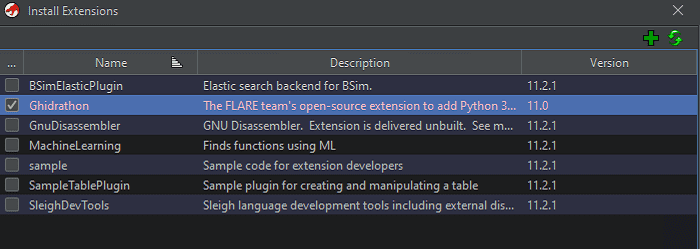
If that bothers you, you will probably need to build it yourself.
After installing the extension, do not forget to enable the plugin from [File]>[Configure]>[Ghidra Core] in the CodeBrowser.
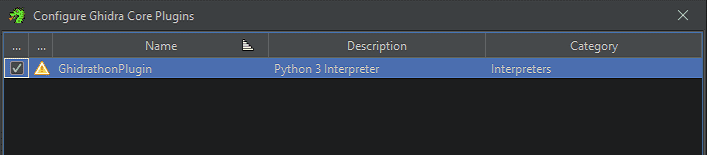
Once setup is complete, you will be able to launch Ghidrathon from the CodeBrowser.
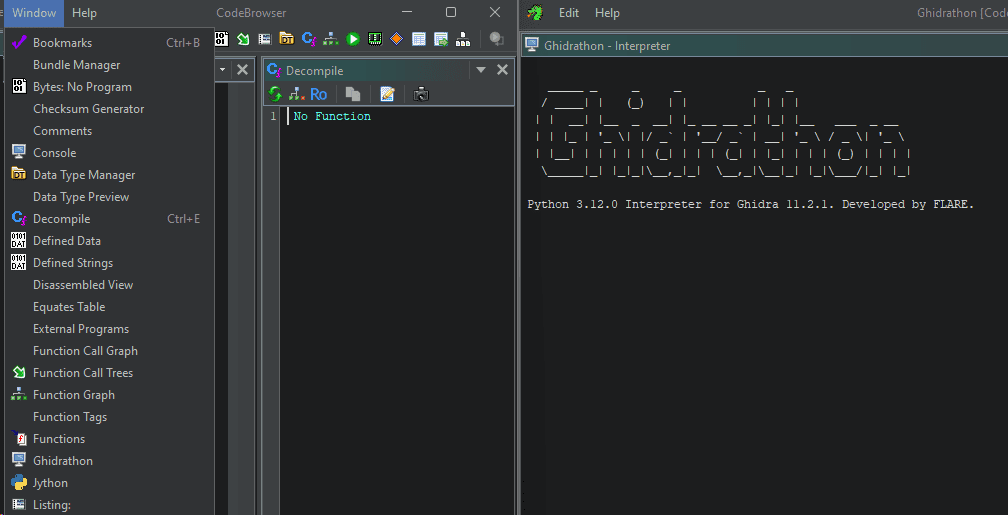
Registering Ghidra Scripts and Downloading Rules
After finishing the Ghidrathon setup, install the flare-capa package with the following command.
python.exe -m pip install flare-capaAfter installing the package, place the two scripts published below, capa_explorer.py and capa_ghidra.py, into Ghidra’s script folder.
Reference: capa/capa/ghidra at master · mandiant/capa
Running the scripts you obtain here in Ghidra enables capa/Ghidra integration, but when using flare-capa it seems that you also need to obtain the rules used for detection separately.
So, download the latest ruleset from the repository below and extract it somewhere on your system. (If the 8.0.0 ruleset causes an error, please use 7.4.0 or whatever version is latest at that point.)
Reference: Releases · mandiant/capa-rules
By specifying the path to the folder containing the extracted rule files when running capa_explorer.py or capa_ghidra.py in Ghidra, you will be able to use capa from Ghidra.
This completes the Ghidra and capa integration.
Analyzing a Binary with capa
Detecting Encryption Logic with capa
Now that the capa setup is done, I will start by analyzing a few binaries.
The first binary I will analyze is an ELF file from WMCTF 2023 that contains RC4 and AES encryption logic.
These days, if it is just RC4 or AES, I can usually identify it reasonably smoothly from disassembly results and similar clues, but when I first attempted this challenge, I failed to notice the RC4 implementation and was very frustrated.
However, if you feed this binary to capa, you can easily determine that it contains RC4 and AES encryption logic.
In fact, when analyzing this binary with capa, you can confirm in the output under [MBC Objective]>[CRYPTOGRAPHY] that implementations matching the AES and RC4 rules were detected.
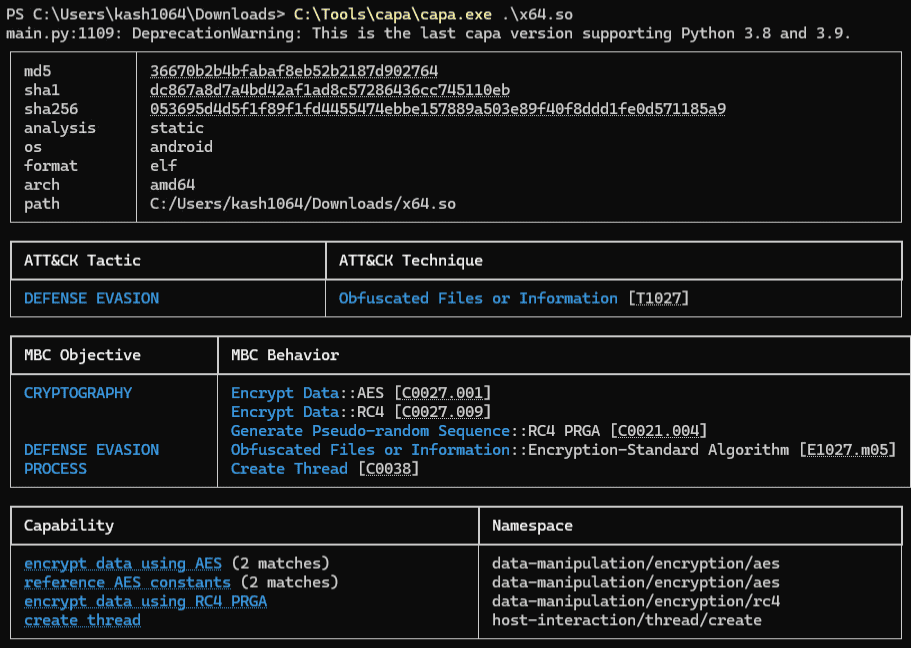
If I had known about capa back then, I might have had a much easier time in that earlier CTF…
Reviewing capa Analysis Results in Ghidra
Next, I will analyze this binary using capa integrated into Ghidra.
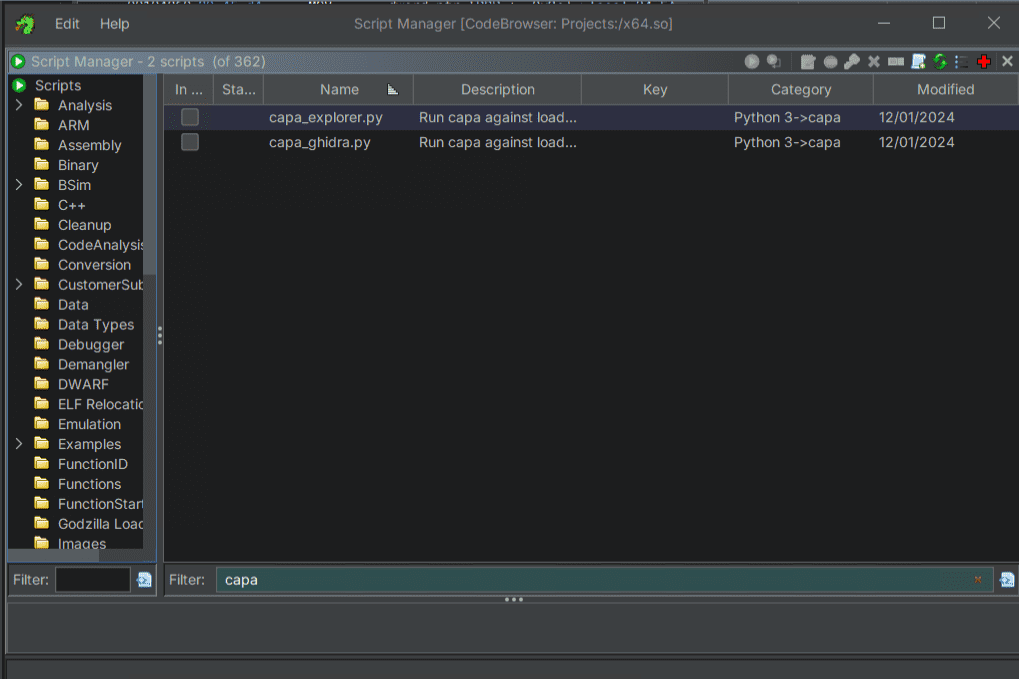
Of the two scripts, capa_ghidra.py displays output in the script window equivalent to what you get when running the standalone tool capa.exe.
Meanwhile, if you use capa_exlorer.py, information linking capa’s analysis results to the code is added under [Namespaces]>[capa] in the Symbol Tree window.
For this binary, functions that appear to implement RC4 were listed as shown below.
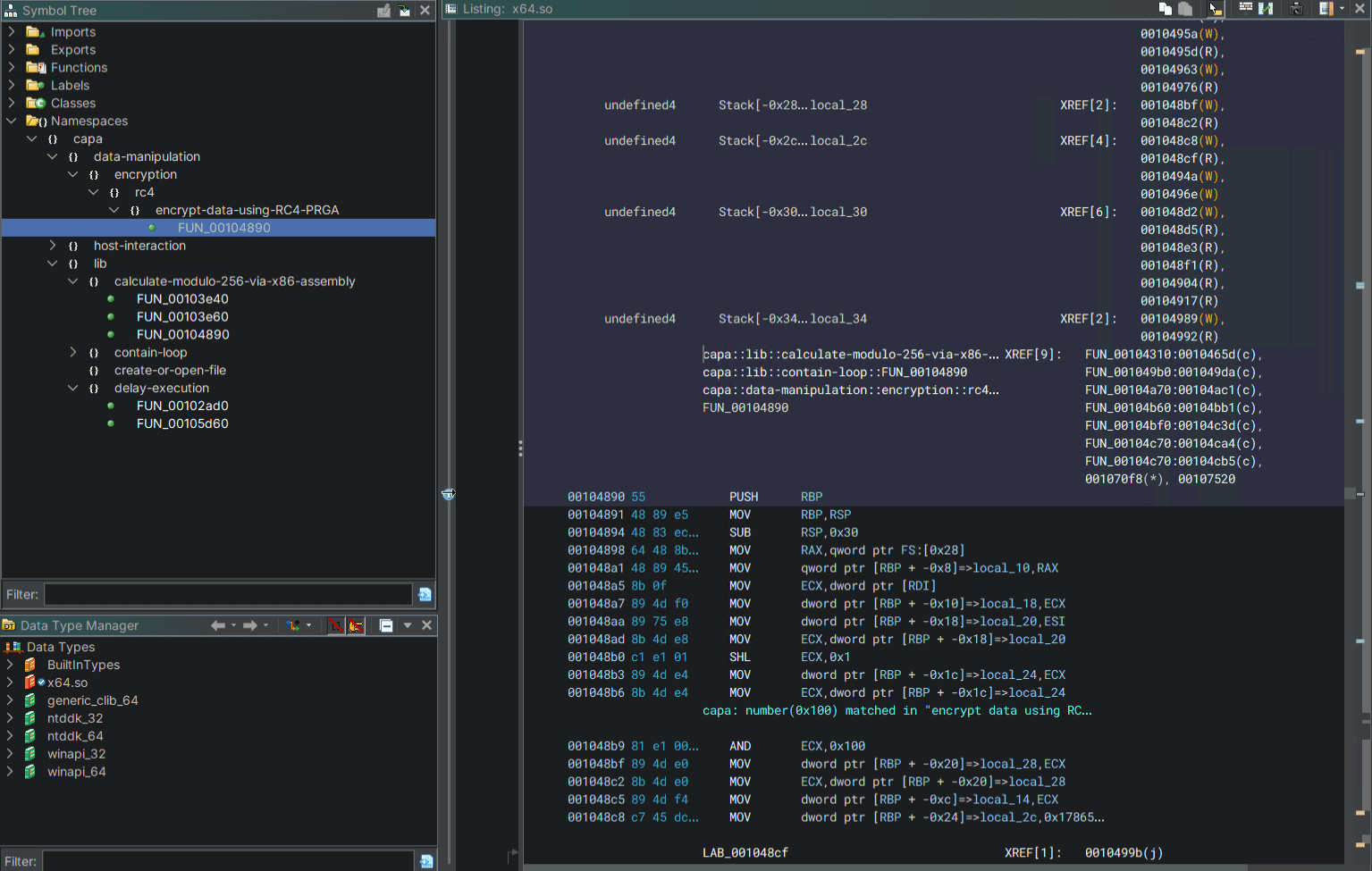
However, when you look at the results shown in Ghidra, you can see that although the function implementing RC4 is marked, the information related to the AES implementation is not marked.
The same was true when I ran the capa_ghidra.py script, which displays output in the script window equivalent to the standalone capa.exe tool: the AES-related rule matches that capa.exe detected were not included in the results.
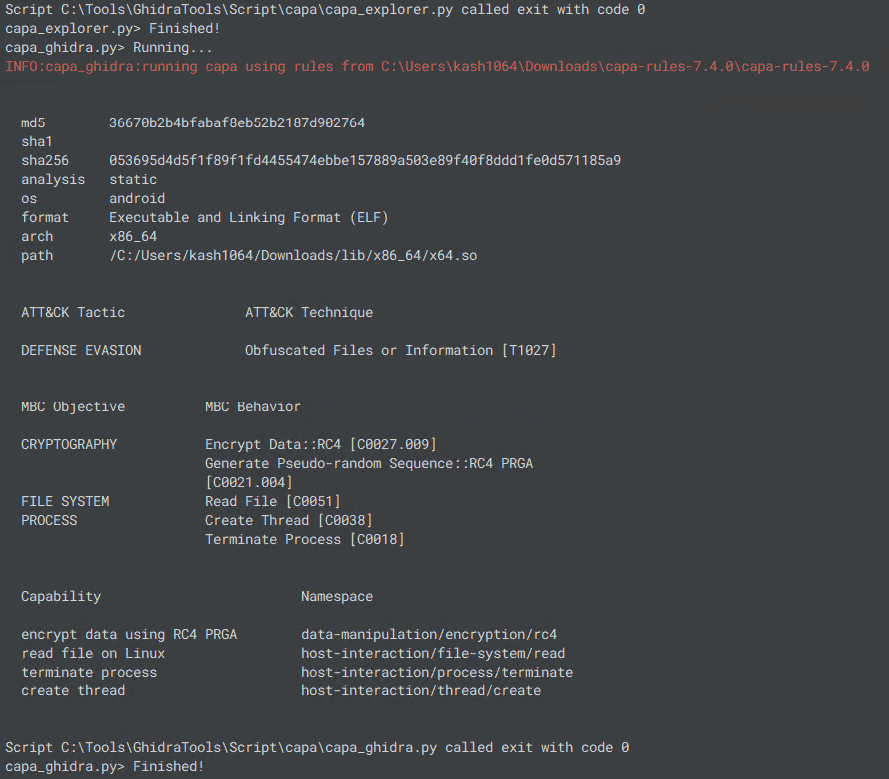
I was not able to determine the exact cause of this issue, and a quick search through capa’s Issues did not turn up any information about a similar problem.
However, from the limited testing I did, it seemed that the analysis results produced by the capa scripts could change depending on Ghidra’s Analyze settings, so I suspect that there is some difference between the information collected through Ghidra and the information obtained when capa.exe analyzes the binary file directly.
Finding Rule-Matched Offsets from JSON Export Output
Although capa’s Ghidra integration is extremely convenient, the version I used has a problem where it can detect fewer items than when the binary is analyzed with the standalone tool.
One way to deal with this is to output the standalone tool’s analysis results in JSON format and identify the file offsets that matched capa’s rules.
As shown below, you can obtain analysis results in JSON format by running capa with the --json or --j option.
capa.exe --json ./x64.so > output.jsonOnce you have the capa analysis results in JSON format, first check the value of base_address.
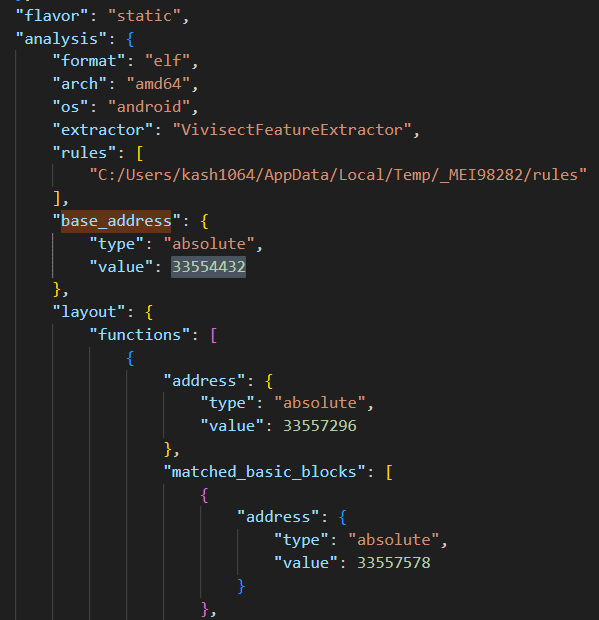
In my environment, this value was 0x2000000, so I kept that in mind.
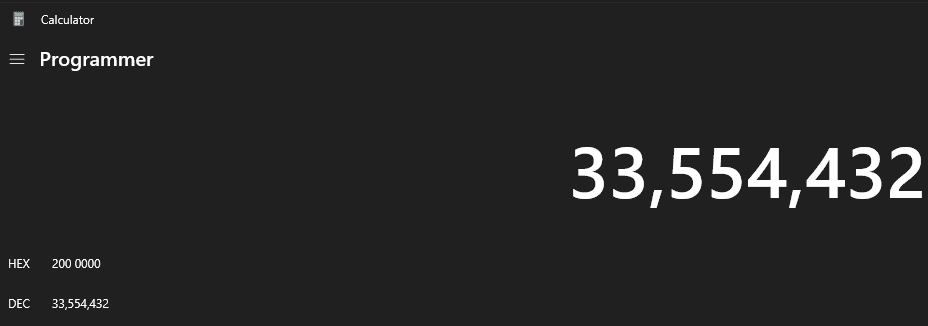
Next, look at the line where the result matching the RC4 rule is recorded and check the location that matched the rule.
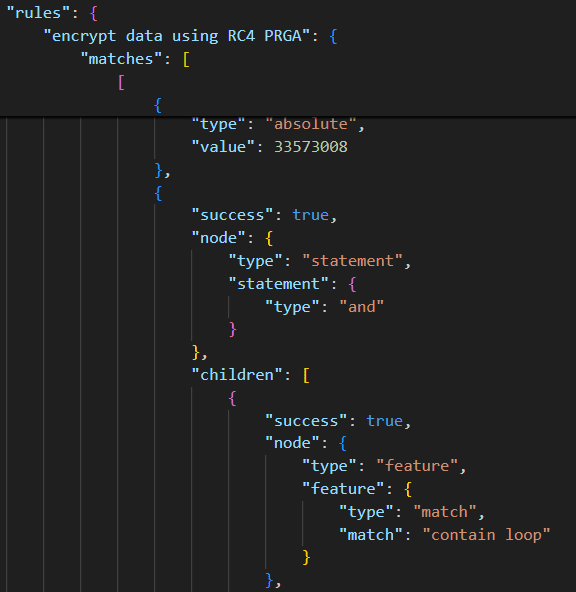
At that point, the value recorded in value was 0x2004890.
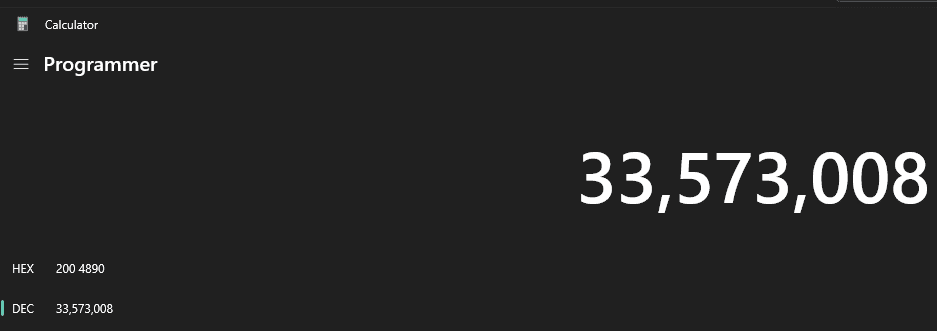
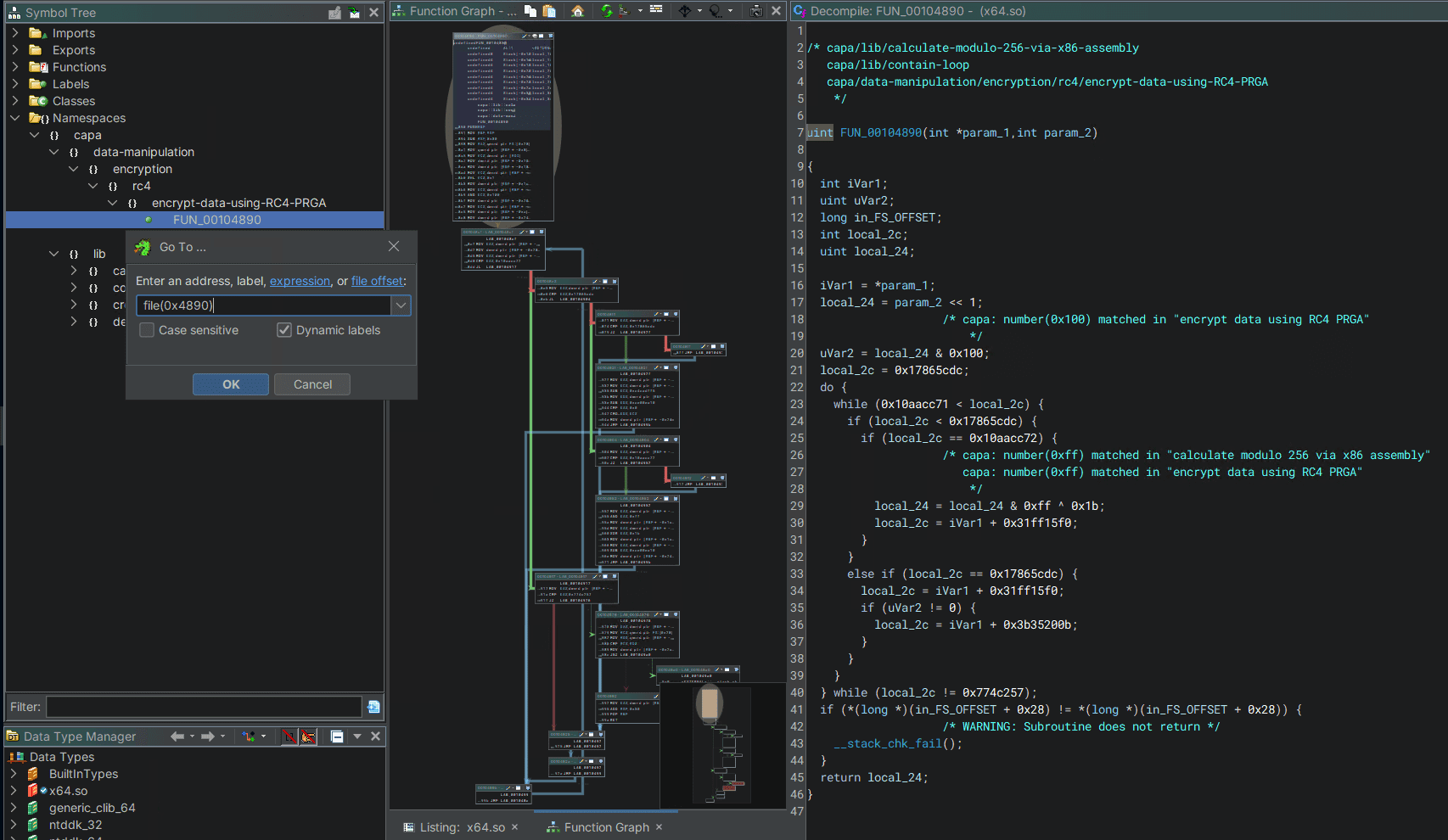
Apparently, the values in the JSON output from capa are the RVAs of the locations that matched the rules.
In fact, if you jump to that address with Ghidra’s Go To feature, you can reference the same function that was marked by capa_explorer.py.
Next, let us check the code related to the AES encryption logic that capa_explorer.py could not detect.
First, just as before, locate the lines in the JSON output from capa that correspond to the detection results for rules related to AES, and from the value shown there, 33564304(0x2002690), derive the address 0x2690.
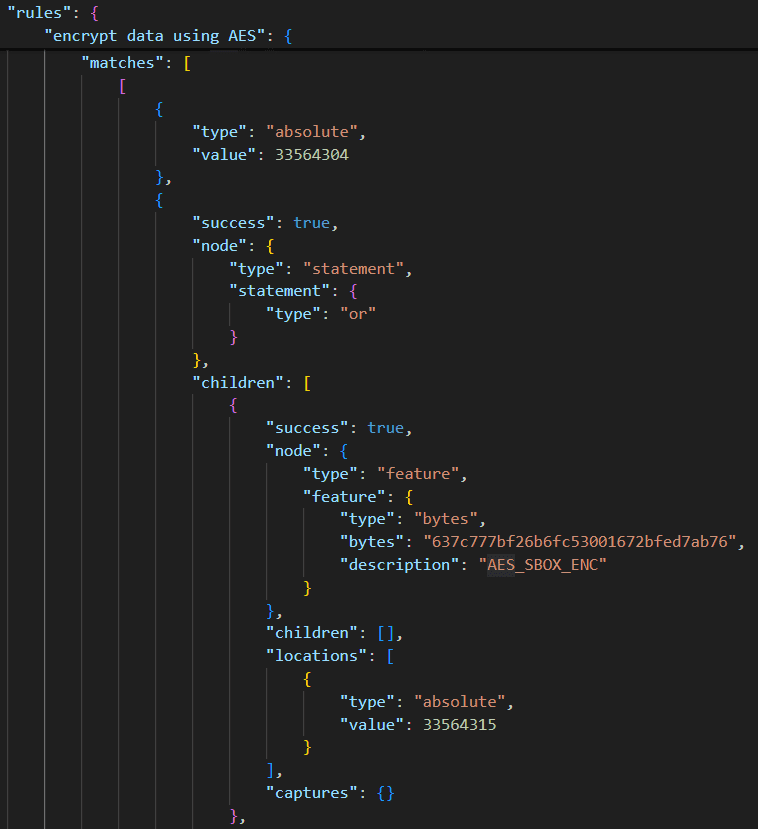
When you jump to this address, you can confirm that the executed function starts by copying the 0x100 bytes stored in DAT_001067e0.
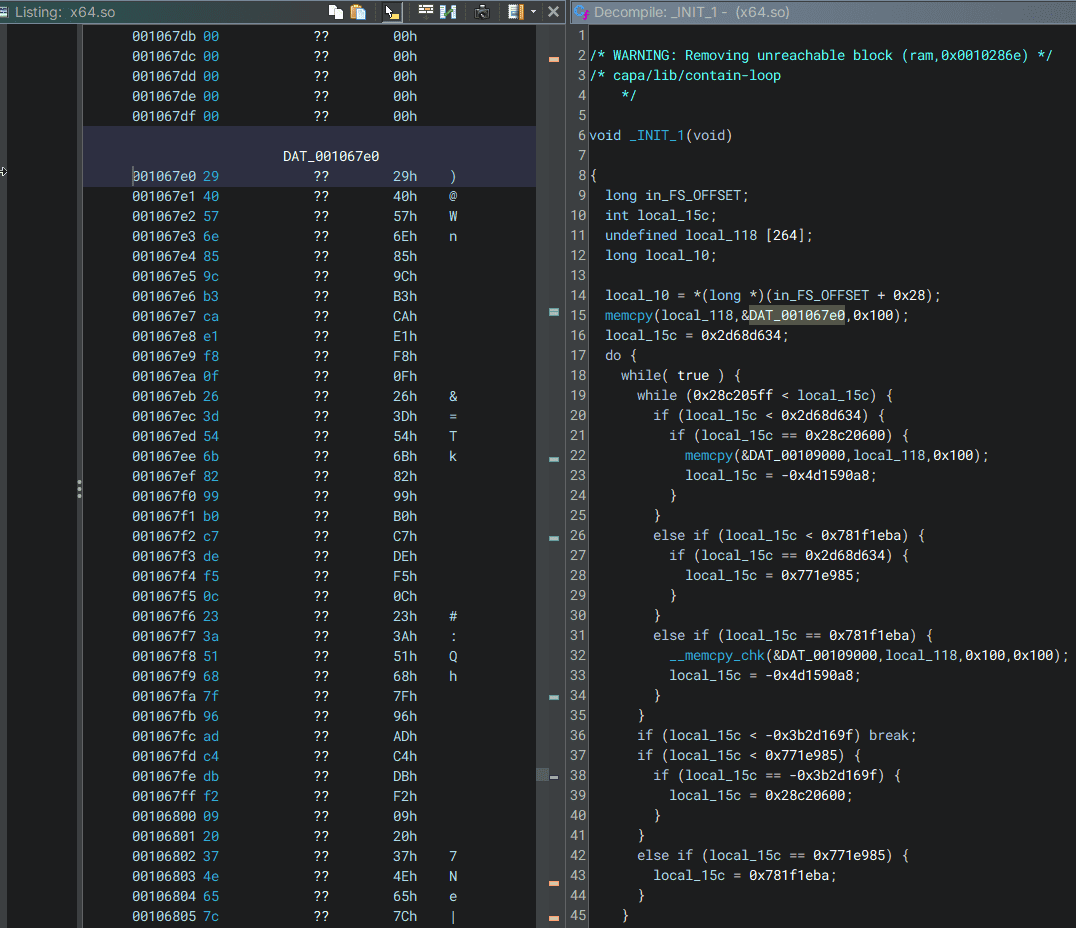
In fact, the value at this address corresponds to the custom S-BOX used by this binary when performing AES encryption.
Therefore, by using capa, you can easily analyze the program’s implementation and identify the relevant address.
By the way, the JSON-format information output by capa can be easily visualized using capa Explorer Web.
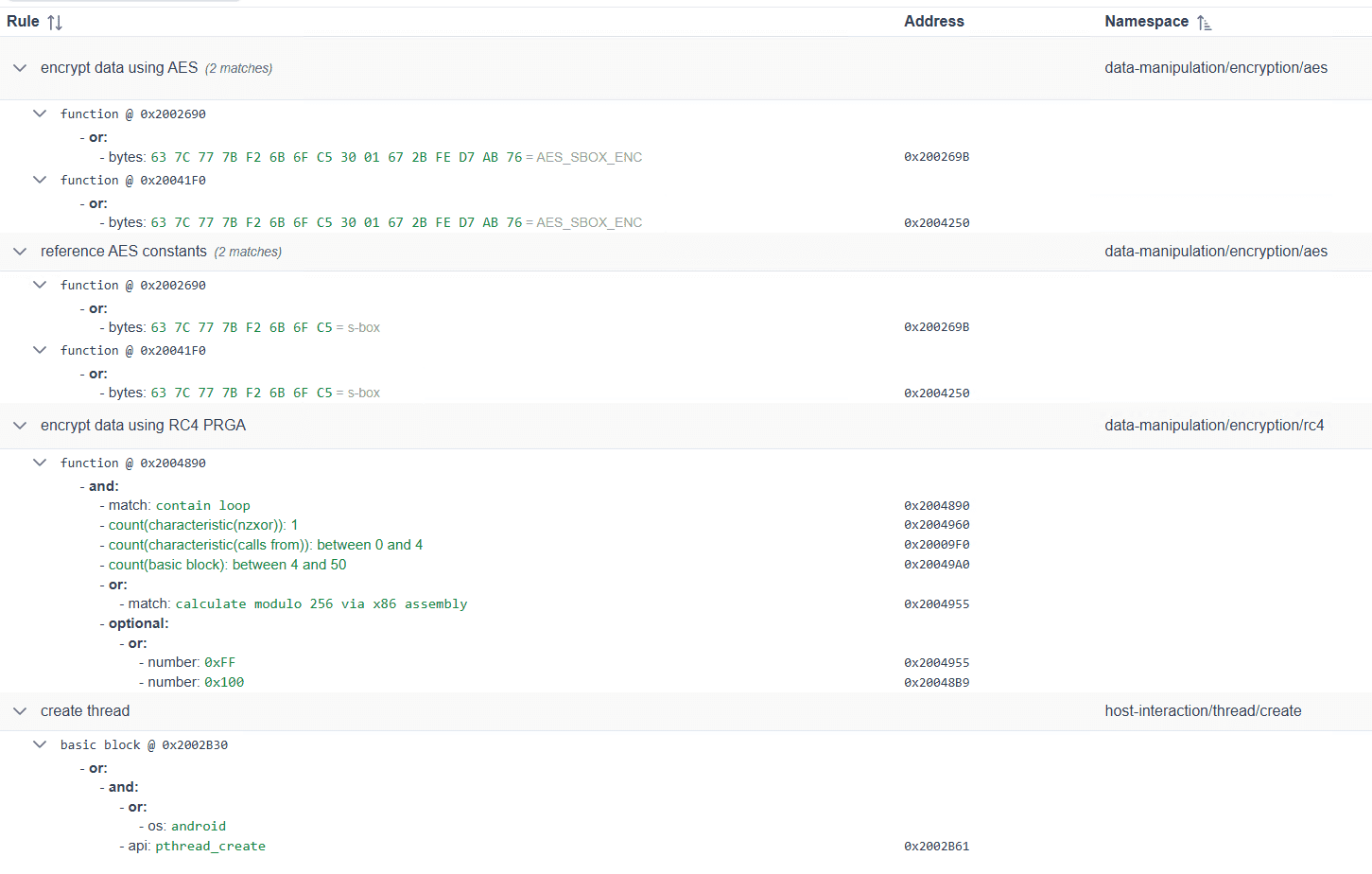
This tool can also be used offline, so you can smoothly inspect capa’s analysis results in a variety of environments.
Trying capa on Other Binaries
Finally, I will look at some output results from re-analyzing a few binaries I examined in the past with capa.
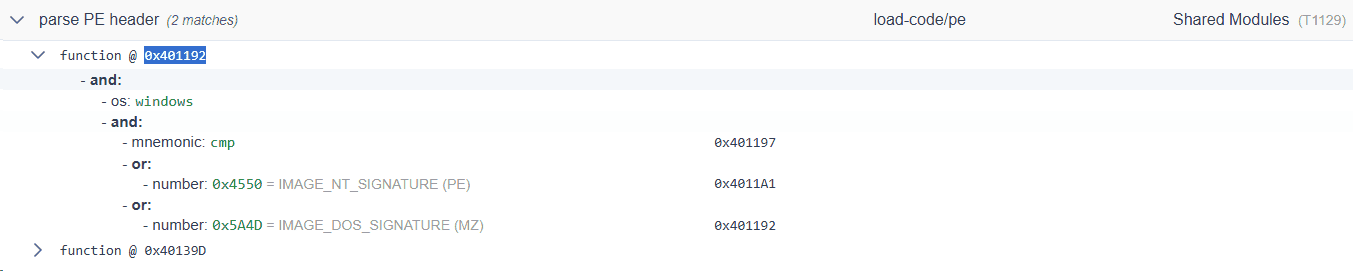
First, when I analyzed a program that hardcodes PE binary data encrypted with RC4 and then decrypts and executes it at runtime, the results shown below were displayed, matching rules such as Executable Code Obfuscation and parse PE header.
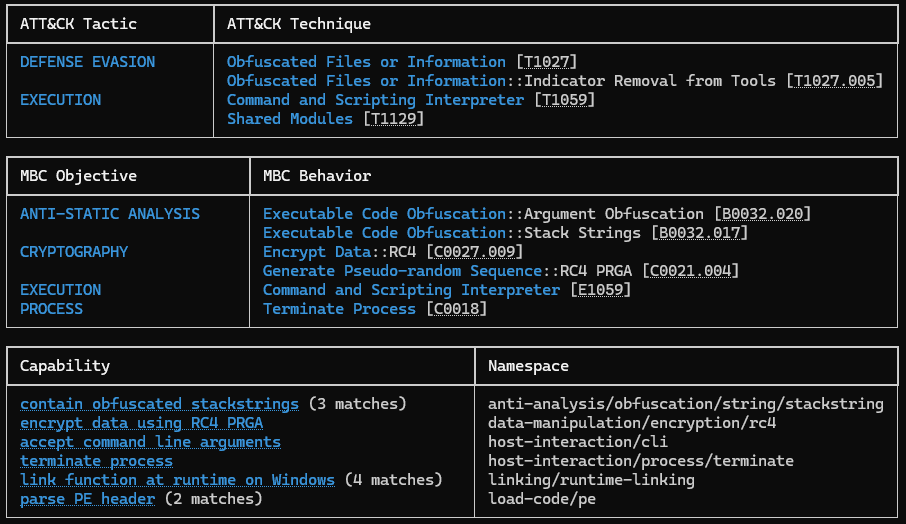
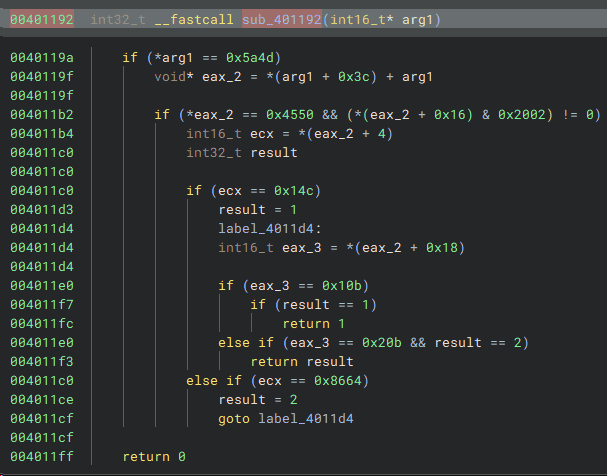
For example, this parse PE header rule appears to mark the function pointed to by 0x401192 when the base address is 0x400000.
If you actually jump to this function in Binary Ninja (or Ghidra, etc.), you can confirm the presence of code that appears to check the PE header.
As another example, when I analyzed the binary from the challenge called Hero Ransom with capa, a warning was displayed saying that the file was packed and could not be analyzed.
Reference: Hero CTF 2023 Writeup - Kaeru no Himitsukichi
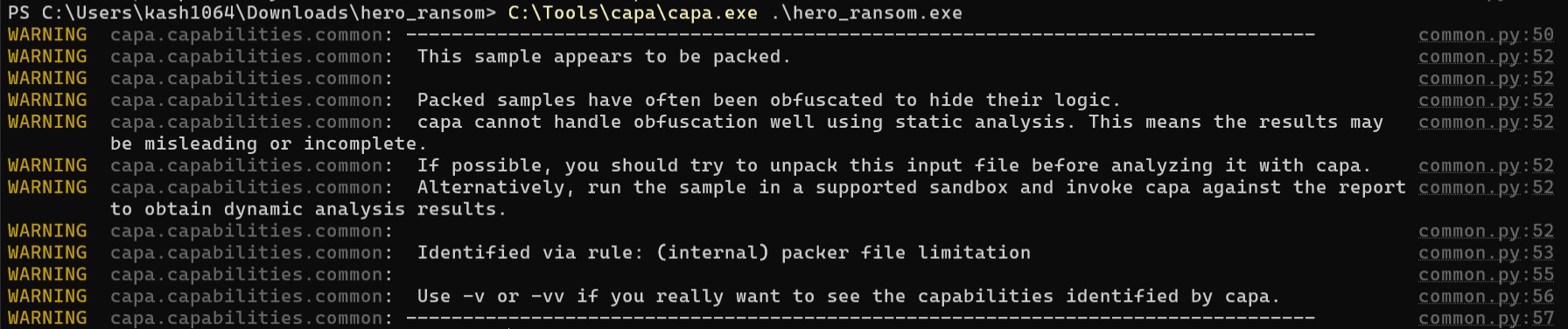
This binary has functionality to deploy the solved executable into memory by Process Hollowing, but analysis of that kind of binary naturally seems difficult for capa’s static analysis alone.
However, although I do not cover it in this article, there does appear to be a way to effectively analyze packed malware with capa by integrating it with a sandbox called CAPE sandbox.
Reference: Dynamic capa: Exploring Executable Run-Time Behavior with the CAPE Sandbox | Google Cloud Blog
Summary
This time, I summarized how to use the powerful static analysis tool capa, either as a standalone tool or through Ghidra integration.
When using it in CTFs, identifying encryption logic is probably the main use case, and since recognizing cryptographic processing is one of the higher-barrier skills for beginners, I think it can be especially helpful in that respect.