This page has been machine-translated from the original page.
This article explains basic ELF binary analysis techniques for CTF beginners.
This article was written as study material for a workshop I personally host.
Table of Contents
- Purpose of This Article
- Target Audience
-
Analyzing the main Function with Ghidra
- Finding the Entry Point
- About RVA / VA / Offset
- Identifying the main Function from the Entry Point
- Examining the Decompiled main Function
- Reading Standard Input
- Removing the Newline Character
- XOR-Encrypting the String in a Loop
- Checking the Encrypted Byte Sequence
- Retrieving Values from the Data Section
- Summary
Purpose of This Article
- This article introduces ELF binary analysis techniques using GDB and Ghidra, aimed at beginners interested in binary analysis.
Target Audience
- People interested in CTF or binary analysis
-
People with a basic understanding of computer architecture and ELF files
※ This article focuses on how to use GDB and Ghidra, so detailed explanations of foundational concepts are not provided.
※ The assumed level is roughly: you can read C and Python at a casual level, you know the terms CPU, registers, memory, etc. and their general purposes, and you can set up a Linux environment on your own.
Prerequisites
You need to have the following applications installed on a Linux environment with an x86_64 platform.
The steps in this article have been reproduced in the following environment, but minor differences in application versions should not be an issue.
# Environment
Ubuntu20.04 64bit
Ghidra 10.1-BETA
IDA Free 7.6
gdb (Ubuntu 9.2-0ubuntu1~20.04) 9.2
radare2 4.2.1
radare2 and IDA Free are installed for reference, but since they are only briefly introduced, it is fine if you do not install them.
Downloading the Challenge File
The binary used in this article can be downloaded from the link below.
Challenge binary: revvy_chevy
# Description
1 Flag, 2 Flag, Red Flag, Blue Flag. Encrypting flags is as easy as making a rhyme
Note: I contacted the MetaCTF organizers and received their permission to redistribute the challenge binary on this blog, on the condition that the MetaCTF URL is included in the article.
CTF link: MetaCTF | Cybersecurity Capture the Flag Competition
If you are considering further redistribution, please remember to include the link above.
wget https://kashiwaba-yuki.com/file/revvy_chevyRun the above command in your Linux environment to download the challenge binary.
Now, let’s get started with the analysis.
Performing Surface-Level Analysis
First, let’s perform a surface-level analysis of the downloaded binary.
Surface-level analysis is a technique for analyzing the information held by the file itself.
We perform surface-level analysis to get an overview of a file before conducting static analysis (such as reverse engineering) or dynamic analysis (actually running the program).
This time, we’ll use the file and strings commands to investigate the file type and readable strings in the binary.
file
The file command retrieves the file type by performing the following checks in order, returning the result based on the first match:
- Filesystem tests
- Magic number tests
- Language tests
The actual output looks like this.
In this case, the binary was identified as a 64-bit ELF binary.
# Use the file command to check the type of the binary
$ file revvy_chevy
revvy_chevy: ELF 64-bit LSB shared object, x86-64, version 1 (SYSV), dynamically linked, interpreter /lib64/ld-linux-x86-64.so.2, BuildID[sha1]=271c2040193241b806252d57ce67d110b6c8e78c, for GNU/Linux 3.2.0, stripped
For details on the file command, refer to the following:
Reference: Man page of FILE
In particular, the filesystem test, which has the highest priority among file command tests, is based on the result of the stat system call.
$ stat revvy_chevy
File: revvy_chevy
Size: 14480
Blocks: 32
IO Block: 4096
regular file
Device: fd00h/64768dInode: 918235      Links: 1
Access: (0664/-rw-rw-r--)  Uid: ( 1000/  ubuntu)   Gid: ( 1000/  ubuntu)
Access: 2021-12-11 12:58:48.991810253 +0900
Modify: 2021-12-06 23:58:52.000000000 +0900
Change: 2021-12-11 12:58:45.839677244 +0900
Birth: -
Reference: Man page of STAT
strings
The strings command lets you list all readable strings (printable byte values in the ASCII range) contained in the binary of the target file.
By default, it outputs readable strings of 4 or more characters.
In surface-level analysis, the output of the strings command can yield useful information for analysis, such as the names of libraries and functions being used, and any text defined in the binary.
# Use the strings command to retrieve readable strings in the binary
$ strings revvy_chevy
{{ omitted }}
For details, refer to the manual page.
Reference: Man page of strings
readelf
The readelf command is used to retrieve an overview of an ELF file.
It can display information from the ELF header, section headers, segments, and more in a formatted way.
$ readelf -a revvy_chevyReference: readelf(1) - Linux manual page
Running the Binary
From the surface-level analysis, we now know that the downloaded file is an executable in ELF format.
What is an ELF File?
By the way, ELF stands for Executable and Linkable Format, an executable file format commonly used on Linux and UNIX systems.
ELF binaries have an ELF header that is 52 bytes long (for 32-bit) or 64 bytes long (for 64-bit).
Knowing the ELF header format can be very useful when analyzing ELF binaries.
For details on the ELF header, the English Wikipedia article is very comprehensive and easy to understand, so it is highly recommended.
Reference: Executable and Linkable Format - Wikipedia
Granting Execute Permission
On Linux systems, files have permissions set, and access is restricted from two perspectives: the owner (user and group) and the permitted operations (read/write/execute).
In a default Linux system configuration, the file we downloaded does not yet have execute permission, so we need to grant it first.
The file owner and permissions can be confirmed with the ls -l command.
$ ls -l
total 16
-rw-rw-r-- 1 ubuntu ubuntu 14480 12月  6 23:58 revvy_chevy
For details, refer to the following:
Reference: Man page of LS
Reference: Understanding Linux File Permissions | Linuxize
To grant execute permission to the file, use the chmod +x command.
$ chmod +x revvy_chevy
$ ls -l
total 16
-rwxrwxr-x 1 ubuntu ubuntu 14480 12月  6 23:58 revvy_chevy
Reference: Man page of CHMOD
As shown above, when you check permissions with ls -l and see x, you know that execute permission has been granted.
Now let’s run it.
$ ./revvy_chevy
What's the flag? <input text>
That's not it...
Running the challenge binary prompts you for a string input.
When we enter an arbitrary string, That's not it... is displayed.
From this result, we can infer that the program is likely comparing the input string against the Flag internally.
Performing Static Analysis
radare2
radare2 is a feature-rich analysis tool that allows you to invoke various operations from the CUI, including disassembly, binary patching, data comparison and search, and decompilation.
Launch radare2 with radare2 revvy_chevy and start analysis by calling the aaa command.
After analysis completes, calling the afl command lists the functions in the binary.
$ radare2 revvy_chevy
# aaa command
[0x00001100]> aaa
[Cannot find function at 0x00001100 sym. and entry0 (aa)
[x] Analyze all flags starting with sym. and entry0 (aa)
[x] Analyze function calls (aac)
[x] Analyze len bytes of instructions for references (aar)
[x] Check for objc references
[x] Check for vtables
[x] Type matching analysis for all functions (aaft)
[x] Propagate noreturn information
[x] Use -AA or aaaa to perform additional experimental analysis.

# List functions with afl command
[0x00001100]> afl
0x00001130    4 41   -> 34   fcn.00001130
Note that the radare2 help is quite clear, so calling help with an option like a -h is a good idea.
The following website is also helpful:
Reference: Command-line Flags - The Official Radare2 Book
To disassemble and decompile a function with radare2, run the following commands:
# Running a function offset moves to that address
[0x00001100]> afl
0x00001130    4 41   -> 34   fcn.00001130
[0x00001100]> 0x00001130

# Running pdf at the function start address gives the disassembly result
[0x00001130]> pdf
            ; CALL XREF from entry.fini0 @ +0x27
 34: fcn.00001130 ();
           0x00001130      488d3de12e00.  lea rdi, qword [0x00004018]
           0x00001137      488d05da2e00.  lea rax, qword [0x00004018]
           0x0000113e      4839f8         cmp rax, rdi
       ┌─< 0x00001141      7415           je 0x1158
       │   0x00001143      488b058e2e00.  mov rax, qword [reloc._ITM_deregisterTMCloneTable] ; [0x3fd8:8]=0
       │   0x0000114a      4885c0         test rax, rax
      ┌──< 0x0000114d      7409           je 0x1158
      ││   0x0000114f      ffe0           jmp rax
..
      ││   ; CODE XREFS from fcn.00001130 @ 0x1141, 0x114d
      └└─> 0x00001158      c3             ret

# Running pdc at the function start address gives the decompiled result
[0x00001130]> pdc
function fcn.00001130 () {
    //  4 basic blocks
    loc_0x1130:
         //CALL XREF from entry.fini0 @ +0x27
       rdi = qword [0x00004018]
       rax = qword [0x00004018]
       var = rax - rdi
       if (!var) goto 0x1158    //likely
       {
        loc_0x1158:
           //CODE XREFS from fcn.00001130 @ 0x1141, 0x114d
           return
        loc_0x1143:
           rax = qword [reloc._ITM_deregisterTMCloneTable] //[0x3fd8:8]=0
           var = rax & rax
           if (!var) goto 0x1158    //likely
      }
      return;
    loc_0x114f:
       goto rax
(break)
}
Next, let’s check the disassembly and decompilation results from a GUI.
Analyzing the main Function with Ghidra
Ghidra is an open-source reverse engineering tool developed by the NSA.
If you set it up using the official installation method, you can launch it with ghidraRun.
$ ghidraRunReference: Ghidra
Once the Ghidra GUI launches, select [File] > [Import File] from the top left to load the challenge binary.
Once loading is complete, click the imported filename to start analysis.
For detailed usage of Ghidra, the help tool accessible via [Help] > [Content] is quite thorough and is highly recommended.
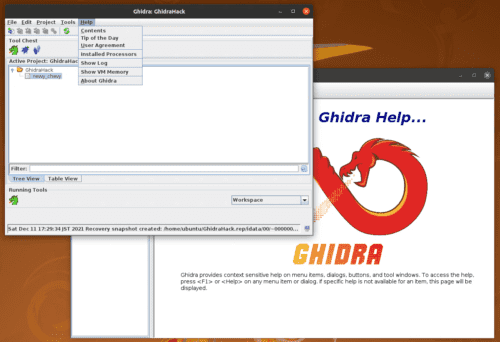
If you want information in Japanese, there is not much systematically organized content on the web, so reading Ghidra実践ガイド is recommended.
Finding the Entry Point
Once the Ghidra analysis window is open, we first want to find the disassembly and decompilation results for the main function.
However, when searching the Functions list in the Symbol Tree on the left side of the default screen, we could not find the main function.
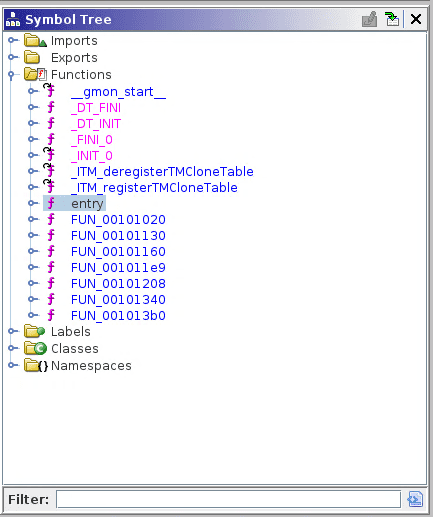
Therefore, we will identify the address of the main function from the disassembly of the entry point.
The entry point is the function that is called first when an ELF binary is executed.
The file offset of the entry point is defined using 8 bytes starting at byte 25 of the ELF header.
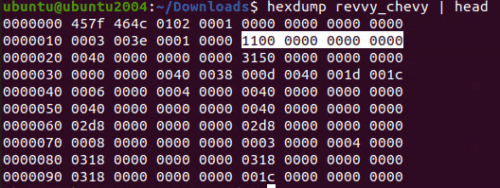
In little-endian format, 0x1100 is the entry point address.
Using the -h option with the readelf command mentioned earlier, you can easily view the information in the ELF header.
$ readelf -h revvy_chevy
ELF Header:
  Magic:   7f 45 4c 46 02 01 01 00 00 00 00 00 00 00 00 00
  Class:                             ELF64
  Data:                              2's complement, little endian
  Version:                           1 (current)
  OS/ABI:                            UNIX - System V
  ABI Version:                       0
  Type:                              DYN (Shared object file)
  Machine:                           Advanced Micro Devices X86-64
  Version:                           0x1
  Entry point address:               0x1100
  Start of program headers:          64 (bytes into file)
  Start of section headers:          12624 (bytes into file)
  Flags:                             0x0
  Size of this header:               64 (bytes)
  Size of program headers:           56 (bytes)
  Number of program headers:         13
  Size of section headers:           64 (bytes)
  Number of section headers:         29
  Section header string table index: 28
Now that we know the entry point address is 0x1100, let’s open the entry function address from the Ghidra Symbol Tree.
The disassembly and decompilation results of the entry function are displayed, but looking at the address, it shows 0x101100 instead of 0x1100.
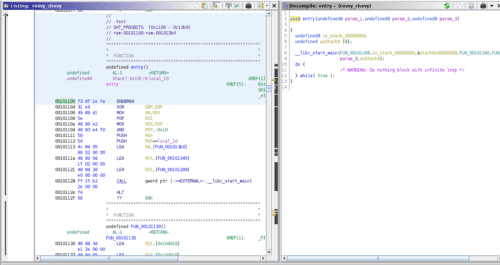
This is because what Ghidra displays as an address is not the actual binary address, but rather an address called an RVA (Relative Virtual Address).
An RVA is a virtual address with a base address (also called an image base) added to it.
When loading an ELF file in Ghidra, if you check the [Image Base] field under [Options], you can see that the default is 0x100000.
Therefore, 0x101100, which is the image base added to the actual virtual address 0x1100, is what Ghidra displays as the RVA.
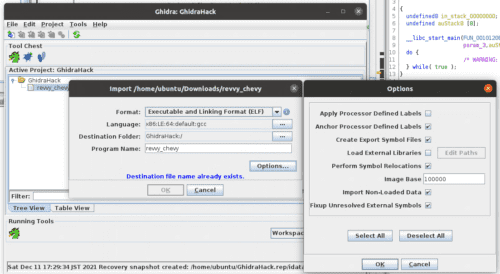
By the way, the Ghidra image base setting can be changed arbitrarily.
For example, setting it to 0x555555555000 allows you to align the displayed addresses with those shown when using tools like gdb.
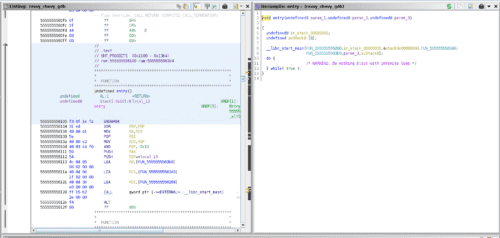
The image above shows the disassembly result of the entry point when the image base is set to 0x555555555000.
About RVA / VA / Offset
We have been loosely using terms like RVA, address (virtual address), and offset, so let’s take a moment to organize them.
First, the file offset simply represents the position as a number of bytes from the beginning of the binary.
The file offset of data located at byte 0x100 when opened in a hex editor is likewise 0x100.
Next, let’s look at the virtual address (VA).
This article does not go into the details of virtual addresses, but in simple terms, the virtual address is obtained by adding the starting position of each section to the file offset.
When a program is executed on an OS, it is naturally loaded into memory. However, if it were loaded at the actual memory address (physical address), various issues would arise in systems that need to run multiple applications concurrently, such as memory address conflicts.
To avoid these problems, when applications running on operating systems such as Linux reference memory addresses, they reference a virtual address (VA) rather than a physical address.
This virtual address is the offset added to the beginning of each section.
For example, if the file offset of data in the .data section, whose section boundary is set at 0x1000, is 0x3000, the virtual address would be 0x4000.
And finally, the RVA, as mentioned earlier, is the virtual address with the image base address further added.
Reference: Understanding Concepts Of VA, RVA and Offset | Tech Zealots
The differences and uses of these addresses and offsets may be a bit confusing, but since they are rarely used for solving entry-level CTF problems, feel free to skip this section for now if it is too difficult.
As you work with binaries more, you will develop a better intuition for these concepts.
Identifying the main Function from the Entry Point
Let’s return to the analysis.
Looking at the decompiled result of the entry point, we can see that __libc_start_main exists.
This function is the initialization routine that is always called first when an ELF binary is executed.
Furthermore, it is established that the first argument of __libc_start_main receives the address of the main function.
In other words, by examining the first argument of __libc_start_main, we can identify the address of the main function even in a binary without symbol information, like the challenge binary in this case.
Reference: _libcstart_main
So, we have identified that FUN_00101208 is the main function.
Since this name is hard to read, let’s right-click FUN_00101208 and use [Rename Function] to rename it to main.
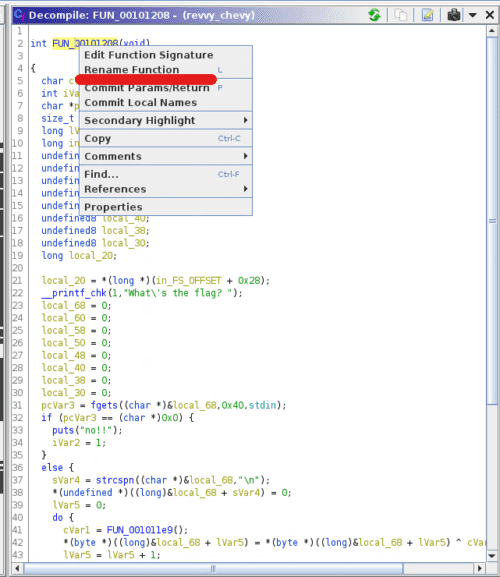
When analyzing with Ghidra, you can rename function names and variable names at will, so renaming them to something meaningful each time will help you analyze more efficiently.
Examining the Decompiled main Function
Let’s first look at the decompiled result of the main function. (The local variable definitions are cut for brevity.)
int main(void)
{
  /* omitted */
  local_20 = *(long *)(in_FS_OFFSET + 0x28);

  /* Receive standard input (stdin) from the user and store it in local_68 */
  __printf_chk(1,"What\'s the flag? ");
  /* omitted */
  pcVar3 = fgets((char *)&local_68,0x40,stdin);
  if (pcVar3 == (char *)0x0) {
    puts("no!!");
    iVar2 = 1;
  }

  /* Find the newline character and replace it with a null character */
  else {
    sVar4 = strcspn((char *)&local_68,"\n");
    *(undefined *)((long)&local_68 + sVar4) = 0;
    lVar5 = 0;

  /* Mysterious loop processing */
    do {
      cVar1 = FUN_001011e9();
      *(byte *)((long)&local_68 + lVar5) = *(byte *)((long)&local_68 + lVar5) ^ cVar1 + (char)lVar5;
      lVar5 = lVar5 + 1;
    } while (lVar5 != 0x40);

  /* Compare local_68 value with PTR_DAT_00104010 for 0x40 bytes */
    iVar2 = memcmp(&local_68,PTR_DAT_00104010,0x40);
    if (iVar2 == 0) {
      puts("You got it!");
    }
    else {
      puts("That\'s not it...");
      iVar2 = 1;
    }
  }
  /* omitted */
}
From the above, we can see that this main function is broadly divided into the following four processes:
- Receive standard input (stdin) from the user and store it in
local_68 - Find the newline character and replace it with a null character (when a byte sequence is evaluated as a string, 0 is treated as equivalent to
\0) Reference: c - What is the difference between NULL, ‘\0’ and 0? - Stack Overflow - Mysterious loop processing
- Compare the value of
local_68withPTR_DAT_00104010for 0x40 bytes
First, let’s rename the local_68 variable to something like input_text, then proceed to analyze each step in order.
Reading Standard Input
The first part we’ll look at is the following code.
The fgets function reads up to 0x40 characters of input from standard input and stores it in the variable input_text.
If the read fails, it outputs the string no!! and exits.
pcVar3 = fgets((char *)&input_text,0x40,stdin);
if (pcVar3 == (char *)0x0) {
puts("no!!");
iVar2 = 1;
}
The fgets function is a function that can read a specified number of bytes from a stream (FILE object).
Reference: C library function - fgets()
The reason this function can receive user input is that on Linux and UNIX-based systems, most devices are abstracted and treated as files.
On Linux systems, as described in the following manual, the FILE object stdin is defined as the input stream for receiving standard input.
Reference: stdin(3) - Linux manual page
That is why fgets can receive input values.
For those who want to learn more, the following book is easy to understand and a good reference.
Reference: 動かしながらゼロから学ぶ Linuxカーネルの教科書
Removing the Newline Character
The next part to focus on is this:
sVar4 = strcspn((char *)&input_text,"\n");
*(undefined *)((long)&input_text + sVar4) = 0;
The strcspn function returns the length of the initial segment of the first argument string that consists only of characters not in the second argument (reject) string.
In other words, using strcspn, you can find the position where a given character first appears.
Here, we are finding the position of the newline character \n in the string received from standard input, and changing the byte at that position to 0.
The reason for doing this is that the string received from standard input contains a newline character.
If you actually look at the memory contents, you can see that the newline character 0x0a follows the input characters, as shown below.
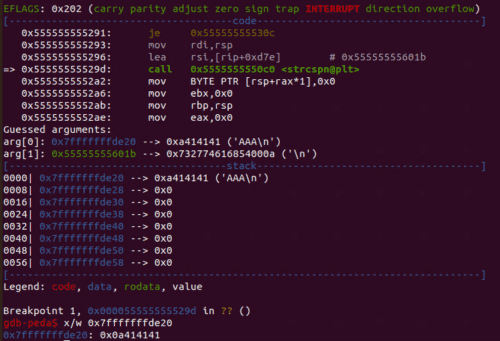
0x0a represents a control character defined in ASCII called LF (Line Feed).
Reference: 改行コードについて - とほほのWWW入門
Next, if we advance execution to the line where the substitution is performed, we can see that the newline character has been erased from memory.
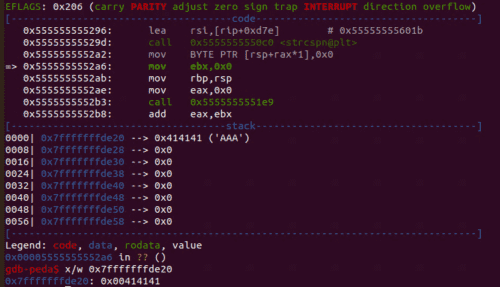
How to use GDB is described later.
XOR-Encrypting the String in a Loop
Looking at the next process, we can see that it XOR-encrypts the string received from standard input using a value obtained by adding the loop counter lVar5 to the return value of the mysterious function FUN_001011e9.
do {
    cVar1 = FUN_001011e9();
    *(byte *)((long)&input_text + lVar5) = *(byte *)((long)&input_text + lVar5) ^ cVar1 + (char)lVar5;
    lVar5 = lVar5 + 1;
} while (lVar5 != 0x40);
Details about XOR cipher are omitted here.
Reference: たのしいXOR暗号入門
Checking the Encrypted Byte Sequence
Here, the XOR-encrypted input_text is compared byte-by-byte against the byte sequence defined in PTR_DAT_00104010 for 0x40 bytes to check whether they match.
iVar2 = memcmp(&input_text,PTR_DAT_00104010,0x40);
if (iVar2 == 0) {
puts("You got it!");
}
else {
puts("That\'s not it...");
    iVar2 = 1;
}
It is presumed that if the string given as initial input is the correct flag, the XOR-encrypted result will match the byte values defined in PTR_DAT_00104010.
Retrieving Values from the Data Section
Next, let’s examine the value defined in PTR_DAT_00104010.
In an ELF binary, predefined data such as strings is stored in the .data section.
Reference: Data segment - Wikipedia
The .data section is a read-write area, so writable variables and similar data are stored there.
It is possible to jump to the section where this data is defined by clicking PTR_DAT_00104010 in Ghidra’s decompilation result, but let’s first identify the offset of the .data section.
First, let’s perform surface-level analysis using readelf -S.
$ readelf -S revvy_chevy
There are 29 section headers, starting at offset 0x3150:

Section Headers:
  [Nr] Name              Type             Address           Offset       Size              EntSize          Flags  Link  Info  Align
  [25] .data             PROGBITS         0000000000004000  00003000       0000000000000018  0000000000000000  WA       0     0     8
From this output, we can see that the .data section occupies 0x18 bytes starting from virtual address 0x4000.
Next, let’s use the iS command in radare2 analysis to retrieve the section table.
[0x00001100]> iS
[Sections]

nth paddr        size vaddr       vsize perm name

0   0x00000000    0x0 0x00000000    0x0 ----
1   0x00000318   0x1c 0x00000318   0x1c -r-- .interp
2   0x00000338   0x20 0x00000338   0x20 -r-- .note.gnu.property
3   0x00000358   0x24 0x00000358   0x24 -r-- .note.gnu.build_id
4   0x0000037c   0x20 0x0000037c   0x20 -r-- .note.ABI_tag
5   0x000003a0   0x28 0x000003a0   0x28 -r-- .gnu.hash
6   0x000003c8  0x138 0x000003c8  0x138 -r-- .dynsym
7   0x00000500   0xd1 0x00000500   0xd1 -r-- .dynstr
8   0x000005d2   0x1a 0x000005d2   0x1a -r-- .gnu.version
9   0x000005f0   0x40 0x000005f0   0x40 -r-- .gnu.version_r
10  0x00000630   0xf0 0x00000630   0xf0 -r-- .rela.dyn
11  0x00000720   0x90 0x00000720   0x90 -r-- .rela.plt
12  0x00001000   0x1b 0x00001000   0x1b -r-x .init
13  0x00001020   0x70 0x00001020   0x70 -r-x .plt
14  0x00001090   0x10 0x00001090   0x10 -r-x .plt.got
15  0x000010a0   0x60 0x000010a0   0x60 -r-x .plt.sec
16  0x00001100  0x2b5 0x00001100  0x2b5 -r-x .text
17  0x000013b8    0xd 0x000013b8    0xd -r-x .fini
18  0x00002000   0x81 0x00002000   0x81 -r-- .rodata
19  0x00002084   0x4c 0x00002084   0x4c -r-- .eh_frame_hdr
20  0x000020d0  0x128 0x000020d0  0x128 -r-- .eh_frame
21  0x00002d90    0x8 0x00003d90    0x8 -rw- .init_array
22  0x00002d98    0x8 0x00003d98    0x8 -rw- .fini_array
23  0x00002da0  0x1f0 0x00003da0  0x1f0 -rw- .dynamic
24  0x00002f90   0x70 0x00003f90   0x70 -rw- .got
25  0x00003000   0x18 0x00004000   0x18 -rw- .data
26  0x00003018    0x0 0x00004020   0x10 -rw- .bss
27  0x00003018   0x2a 0x00000000   0x2a ---- .comment
28  0x00003042  0x10a 0x00000000  0x10a ---- .shstrtab
This result also shows that the .data section occupies 0x18 bytes starting from virtual address 0x4000.
So, let’s actually look at the disassembly result at RVA 0x104000 in Ghidra.
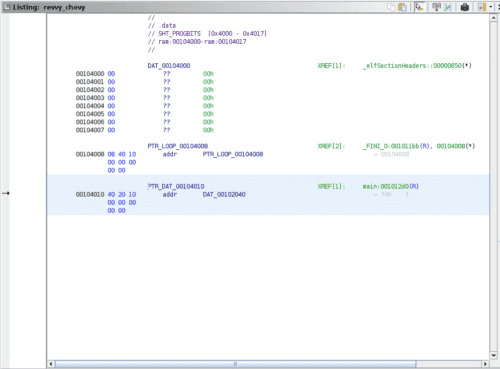
Data is stored within the range of 0x18 bytes.
Our target is the value at PTR_DAT_00104010, which appears to be stored as a pointer in the .data section.
Therefore, let’s jump further to DAT_00102040, which this pointer points to.
The byte sequence is stored there.
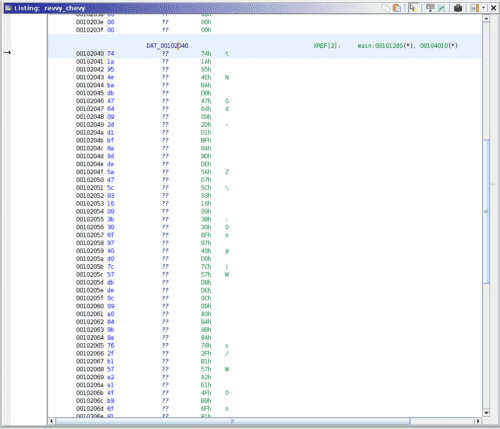
Ultimately, the line iVar2 = memcmp(&input_text,PTR_DAT_00104010,0x40); references 0x40 bytes of data starting from the address 0x104010.
Since this is hard to read as-is, let’s use Ghidra’s features to format and retrieve this data.
This time, since we want to use it in a Python script later, we decided to retrieve it in Python array format.
First, select the range of 0x40 bytes starting from 0x104000 and right-click.
Then press [Copy Special] and select [Python List].
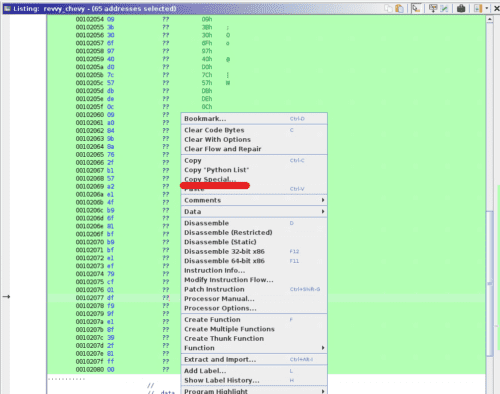
This gave us the binary data in a format usable as a Python array, as shown below.
[ 0x74, 0x1a, 0x95, 0x4e, 0xba, 0xdb, 0x47, 0x64, 0x09, 0x2d, 0xd1, 0xbf, 0x8a, 0x9d, 0xde, 0x5a, 0xd7, 0x5c, 0x93, 0x16, 0x09, 0x3b, 0x30, 0x6f, 0x97, 0x40, 0xd0, 0x7c, 0x57, 0xdb, 0xde, 0x0c, 0x09, 0xa0, 0x84, 0x9b, 0x8a, 0x76, 0x2f, 0xb1, 0x57, 0xa2, 0xe1, 0x4f, 0xb9, 0x6f, 0x81, 0xbf, 0xb9, 0xbf, 0xe1, 0xef, 0x79, 0xcf, 0x01, 0xdf, 0xf9, 0x9f, 0xe1, 0x8f, 0x39, 0x2f, 0x81, 0xff, 0x00 ]There are various other ways to convert to different data types and copy, so using them as appropriate will allow you to proceed with analysis more smoothly.
Analyzing the XOR Encryption Function
Let’s continue with the static analysis a bit more.
In the XOR encryption process we analyzed earlier, there was a line that calls the function FUN_001011e9.
do {
    cVar1 = FUN_001011e9();
    *(byte *)((long)&input_text + lVar5) = *(byte *)((long)&input_text + lVar5) ^ cVar1 + (char)lVar5;
    lVar5 = lVar5 + 1;
} while (lVar5 != 0x40);
From here, we’ll trace what this function does.
Looking at the Ghidra decompilation result, it was a simple function with just a single line.
void FUN_001011e9(void)
{
  DAT_0010402c = DAT_0010402c * 0x41c64e6d + 0x3039 & 0x7fffffff;
  return;
}
DAT_0010402c was an undefined variable, so let’s replace it with an appropriate name like variable.
Now, one question has arisen.
Looking at the decompiled result of the caller, cVar1 = FUN_001011e9();, it appears as though the return value of this function is stored in cVar1.
However, looking at the actual decompiled result of this function, it appears to be a void function with no return value.
Which one is correct?
We could determine this by reading the assembly or through dynamic analysis, but this time let’s also look at the decompilation result from IDA Free.
Using IDA Free
Since we asked you to install it in advance, let’s look at the IDA Free analysis result as well.
We’ll omit a detailed explanation of IDA, so please launch it with the following command and import the challenge binary.
$ ida64Unlike when we analyzed with Ghidra, it has identified the symbol for the main function from the start.
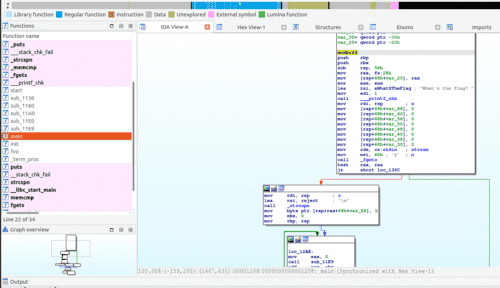
In IDA, pressing the [F5] key on the disassembly output screen performs decompilation.
When we identify the function called during XOR encryption from the same line as in Ghidra and check the decompiled result, we can see that it returns an int64 type value, as shown below.
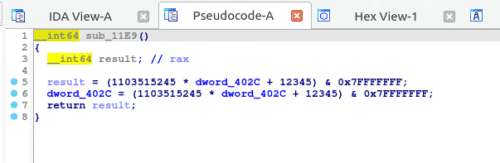
As shown here, decompilation results can differ between decompilers, and sometimes the results are outright incorrect.
Therefore, rather than blindly trusting a decompiler, when in doubt it is recommended to carefully read the assembly or compare the results with other tools.
Understanding the XOR Encryption Behavior
Now we know that the return value cVar1 plus the loop counter lVar5 is used to XOR-encrypt input_text one character at a time from the beginning.
*(byte *)((long)&input_text + lVar5) = *(byte *)((long)&input_text + lVar5) ^ cVar1 + (char)lVar5;If we can find the input that makes this encryption result equal to the following byte sequence, we should be able to obtain the Flag.
[ 0x74, 0x1a, 0x95, 0x4e, 0xba, 0xdb, 0x47, 0x64, 0x09, 0x2d, 0xd1, 0xbf, 0x8a, 0x9d, 0xde, 0x5a, 0xd7, 0x5c, 0x93, 0x16, 0x09, 0x3b, 0x30, 0x6f, 0x97, 0x40, 0xd0, 0x7c, 0x57, 0xdb, 0xde, 0x0c, 0x09, 0xa0, 0x84, 0x9b, 0x8a, 0x76, 0x2f, 0xb1, 0x57, 0xa2, 0xe1, 0x4f, 0xb9, 0x6f, 0x81, 0xbf, 0xb9, 0xbf, 0xe1, 0xef, 0x79, 0xcf, 0x01, 0xdf, 0xf9, 0x9f, 0xe1, 0x8f, 0x39, 0x2f, 0x81, 0xff, 0x00 ]It is also possible to identify the Flag through static analysis alone, but that’s quite tedious, so from here we’ll perform dynamic analysis.
Dynamic analysis is a method of analysis performed while actually running the executable.
This time, we’ll use a debugger called gdb to perform dynamic analysis and identify the Flag.
Performing Dynamic Analysis with gdb
First, let’s open the challenge binary with gdb.
If you have already installed gdb-peda, a color-highlighted console will open.
$ gdb ./revvy_chevyWe’ll skip detailed explanation of gdb-peda, but think of it as an extension that nicely visualizes register and memory information in gdb.
Reference: longld/peda: PEDA - Python Exploit Development Assistance for GDB
The basic operations when solving CTF problems with gdb are as follows:
- Set breakpoints at suspicious locations or places where you want to understand the behavior
- Stop processing at a breakpoint and reference memory and register information
- To obtain the Flag, tamper with the memory or register data of the running program to invoke processing that would not normally be executed
Finding the gdb Load Address
First, let’s try setting a breakpoint at the main function.
In gdb, breakpoints can be set with either of the following commands:
b <breakpoint target>
break <breakpoint target>
For the breakpoint target, you can specify a function name, a line number in the current file, an offset from the current point, a memory address, etc.
In CTF cases like this one where symbol information is often not provided, setting breakpoints by memory address will generally be the main approach.
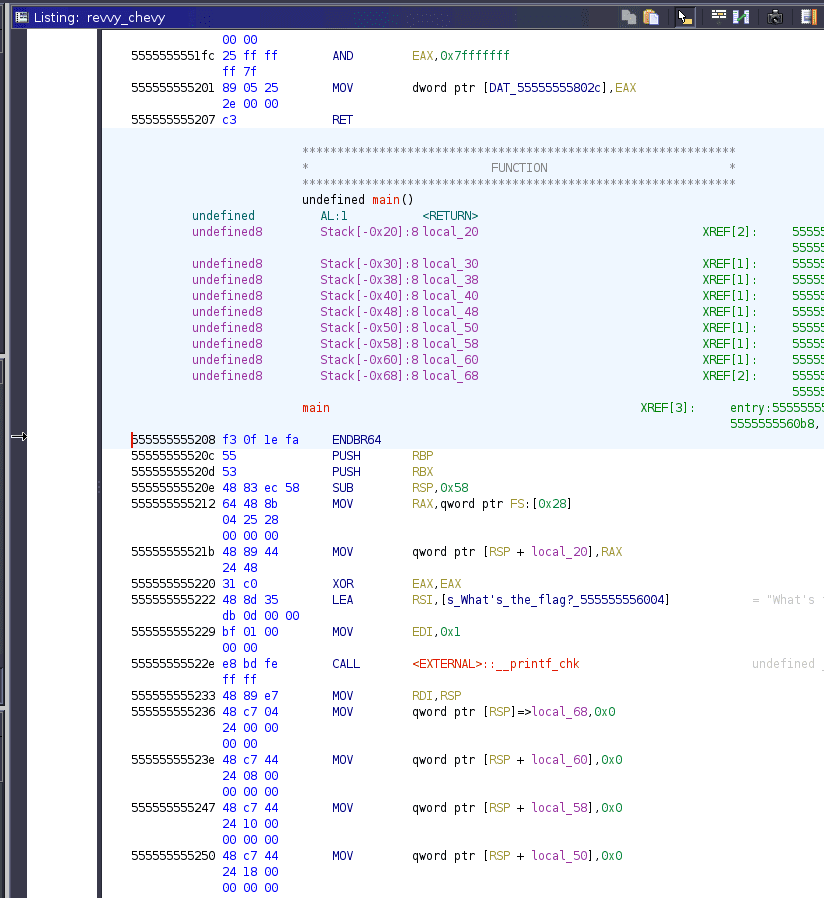
Earlier, when we identified the main function in Ghidra, the main function address was 0x1208.
However, specifying this address in gdb will not set a breakpoint at the main function.
When setting a breakpoint in gdb, you need to specify the RVA that gdb loads when it runs the program.
The main function address 0x1208 is a virtual address (VA), so to determine the RVA, we’ll identify the base address to which gdb maps memory when executed.
To identify the base address, let’s run the challenge binary from gdb for now.
Running with the run command prompts for standard input as before.
$ run
Starting program: /home/parrot/Downloads/revvy_chevy
What's the flag?
Press [Ctrl+C] here to interrupt the program.
Pressing [Ctrl+C] generates a keyboard interrupt SIGINT, which interrupts program execution and lets you interact with gdb.
In this state, run the info proc mappings command.
$ info proc mappings
process 1971
Mapped address spaces:
          Start Addr           End Addr       Size     Offset objfile
      0x555555554000     0x555555555000     0x1000        0x0 /home/parrot/Downloads/revvy_chevy
      0x555555555000     0x555555556000     0x1000     0x1000 /home/parrot/Downloads/revvy_chevy
      0x555555556000     0x555555557000     0x1000     0x2000 /home/parrot/Downloads/revvy_chevy
      0x555555557000     0x555555558000     0x1000     0x2000 /home/parrot/Downloads/revvy_chevy
      0x555555558000     0x555555559000     0x1000     0x3000 /home/parrot/Downloads/revvy_chevy
    /* omitted */
This gives you the mapping information between the challenge binary offsets and the memory addresses loaded by gdb.
It appears that file offset 0x1000 is mapped to 0x555555555000.
From the surface-level analysis results with readelf and radare2, we know the .text section address is 0x1100, so 0x1100 corresponds to 0x555555555100 at gdb runtime.
It may be a bit confusing, but the fact that address 0x1100 is loaded to 0x555555555100 at gdb runtime means that the main function address 0x1208 is loaded to 0x555555555208 in gdb.
Setting Breakpoints
Now that we’ve identified the RVA of the main function, let’s set a breakpoint and run it.
Set the breakpoint with the following command.
When specifying an address for a breakpoint, you need to prefix it with *.
$ b *0x555555555208
Breakpoint 1 at 0x555555555208
Breakpoints can be confirmed with i breakpoint.
We won’t use it this time, but the Num value is the breakpoint ID, which can be used to delete a breakpoint with delete <Num> or d <Num>.
i breakpoints
Num     Type           Disp     Enb Address            What
1       breakpoint     keep y   0x0000555555555208
Now that the breakpoint has been confirmed, call the run command.
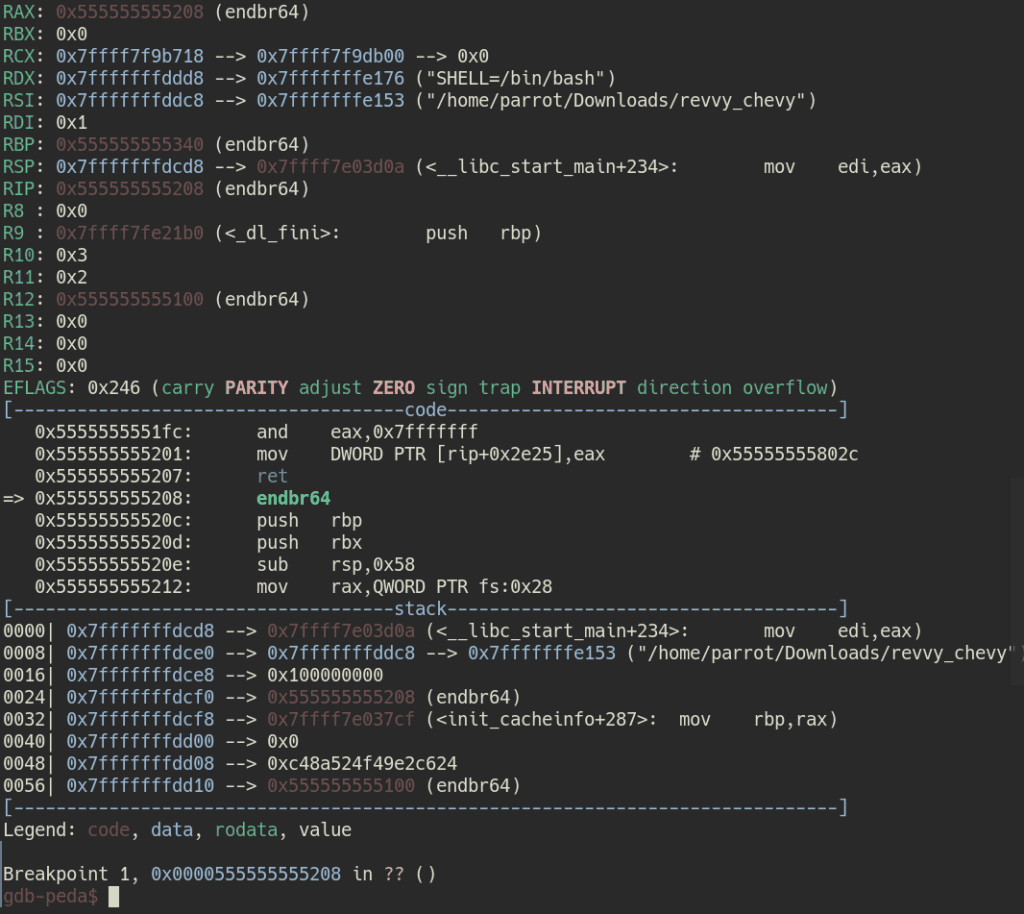
Processing stopped at the main function call timing, and gdb-peda displayed register and stack information.
By the way, the run command launches a process from gdb; to pass command-line arguments at runtime, call it as run <command-line arguments>.
Changing the Ghidra Image Base
From here, we’ll proceed with analysis by correlating Ghidra’s decompilation results with gdb, so let’s change Ghidra’s base address to 0x555555554000 to match gdb.
Changing the Ghidra base address can be done from [Options] at file import time, or by opening [Window] > [Memory Map] and clicking the [Set Image Base] button on the right.
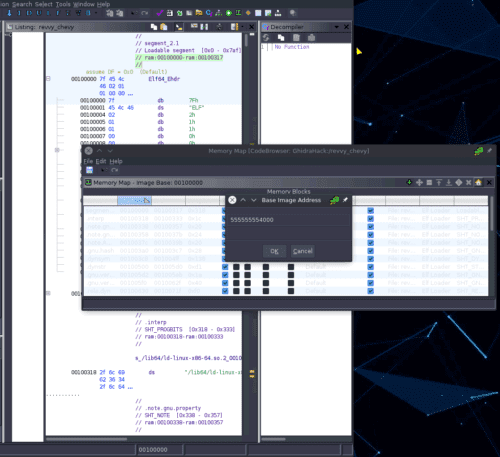
Now the main function address has also been changed to 0x555555555208, which matches the address loaded in gdb, making the correspondence clearer.
Commonly Used gdb Commands (Partial List)
From here we’ll proceed with dynamic analysis in earnest, but first let’s organize the commonly used gdb commands.
Only a very limited set of commands are introduced here, but books such as Debug Hacks are helpful for more detail.
| Command | Purpose |
|---|---|
| break <breakpoint> b <breakpoint> |
Set a breakpoint Prefix with * when specifying an address |
| info <argument> i <argument> |
Display information about the running process Running without arguments displays help |
| run <command-line arguments> | Run the process |
| p/<format> $eax p/<format> variable |
Display the value of a variable or register Commonly used formats: x / d / c / s / i |
| x/<format> <memory address> | Display the contents of memory Can also reference the address pointed to by registers such as $ecx |
| next n |
Execute one line at a time Does not jump into function calls |
| step s |
Execute one step at a time Jumps into function calls |
| continue c |
Resume process execution |
| finish | Execute until the current function returns |
| until u |
Execute until the specified line |
The following cheat sheet is also useful in practice:
Reference: GDB Cheat Sheet
Planning the Analysis Approach
We can now set breakpoints with gdb, but setting breakpoints blindly makes it very difficult to identify the Flag.
Therefore, let’s first plan an analysis strategy based on the static analysis results.
What we know so far is as follows:
- The string input by the user is XOR-encrypted and compared against the byte sequence at PTRDAT00104010 (named when image base was
0x100000) - XOR encryption is performed one character at a time, and the key used is the return value of function FUN_001011e9 (named when image base was
0x100000) plus the loop counterlVar5
XOR cipher uses the same key for both encryption and decryption.
That is, if encryption is performed as A ^ K = B, the original data can be decrypted with B ^ K = A.
For this reason, if we can identify the key used by the challenge binary for encryption, we can perform XOR operations on the byte sequence stored in PTRDAT00104010 (named when image base was 0x100000) to recover the original Flag string.
Here, the base value used to generate the XOR key per character was being produced by the following code:
DAT_0010402c = DAT_0010402c * 0x41c64e6d + 0x3039 & 0x7fffffff;Of course, it is possible to identify the key through static analysis as well, but since that is somewhat tedious, we’ll use dynamic analysis to identify the key.
In other words, we’ll use dynamic analysis to identify the return value of function FUN_001011e9 (named when image base was 0x100000).
About x86_64 Architecture Registers
Before identifying the function return value with gdb, let’s briefly touch on registers.
The x86_64 architecture is Intel’s x86 architecture extended to 64 bits.
An x86_64 architecture CPU has 16 64-bit general-purpose registers, one 64-bit RPI register and one RFLAGS register, and 16 128-bit XMM registers.
The main uses of the key registers are summarized below.
| Register | Purpose |
|---|---|
| RAX (Accumulator) |
A general-purpose register mainly storing arithmetic results and function return values The lower 32 bits are used as the EAX register |
| RBX (Base Register) |
A general-purpose register mainly storing pointers to data The lower 32 bits are used as the EBX register |
| RCX (Counter Register) |
A general-purpose register mainly storing string and loop counters The lower 32 bits are used as the ECX register |
| RDX (Data Register) |
Mainly used as a variable in I/O pointer calculations The lower 32 bits are used as the EDX register |
| RSI (Source Index) |
Mainly used for string copy destinations and similar The lower 32 bits are used as the ESI register |
| RDI (Destination Index) |
Mainly used to specify the destination in string operations The lower 32 bits are used as the EDI register |
| RSP (Stack Pointer Register) |
Used as a stack pointer The lower 32 bits are used as the ESP register |
| RBP (Base Pointer Register) |
Used as a pointer to data on the stack The lower 32 bits are used as the EBP register |
| RIP (Instruction Pointer Register) |
Stores the instruction set |
| RFLAGS (Flag Register) |
The lower 32 bits are used as the EFLAGS flag register |
Reference: Debug Hacks -デバッグを極めるテクニック&ツール
Reference: 詳解セキュリティコンテスト
Details of each register and architecture are omitted here, but since function return values after execution are stored in the RAX register, the basic approach to obtaining a function’s result is to reference the RAX register immediately after the CALL instruction.
Identifying the Function Return Value
From the Ghidra result, we can see that the address calling the key-generating function is 0x5555555552b3.
That means the value stored in the RAX register at the next instruction, 0x5555555552b8, is the return value of this function.
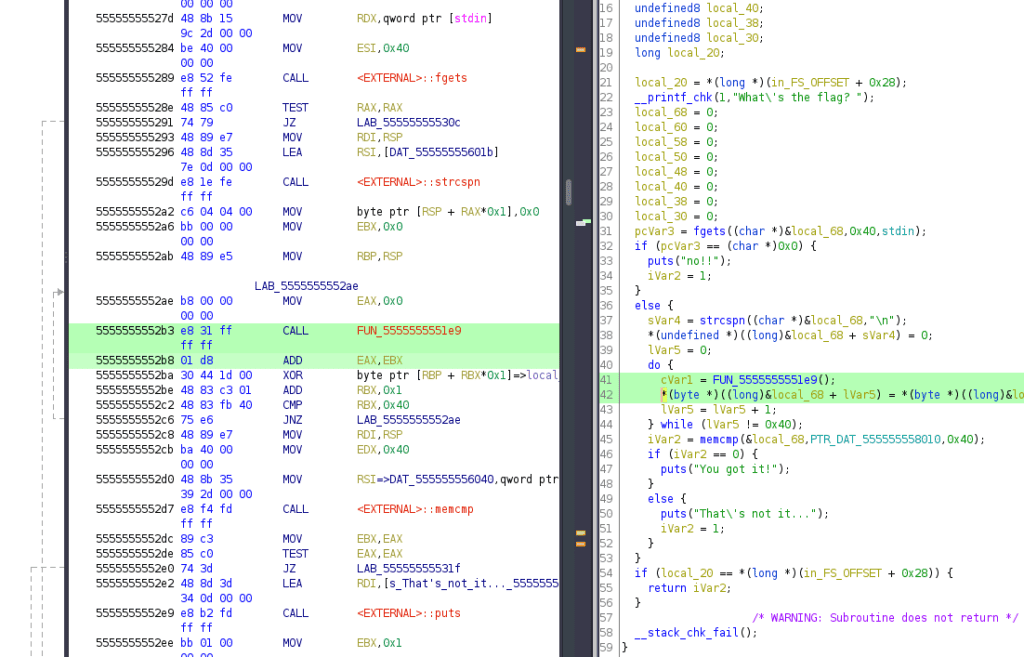
At 0x5555555552b8, the return value of the key-generating function is further stored with the value in EBX.
This is ultimately the key used for XOR encryption.
The result of the ADD instruction, like a function return value, is stored in the accumulator (RAX).
So, let’s set a breakpoint at 0x5555555552ba in gdb and run it.
$ b *0x5555555552ba
$ run
We can see that the value of the RAX register is 0x3039.
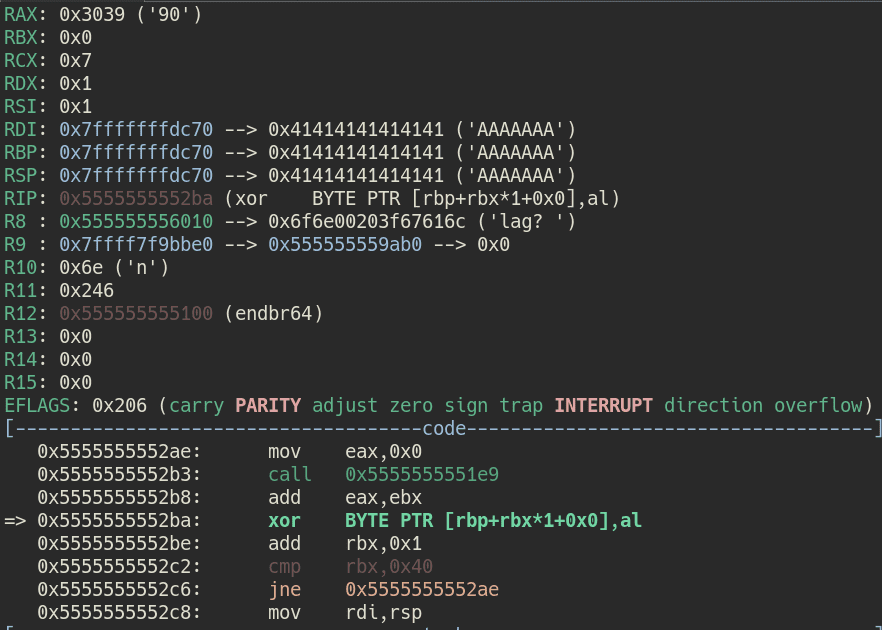
By the way, register values can also be obtained using the p command.
$ p $rax
$2 = 0x3039
In particular, since the byte sequence after XOR encryption is of char type in this case, only the lower 8 bits of the RAX register value are used as the XOR encryption key.
To extract only the lower 8 bits of a specific register, output the $al register value with the p command.
$ p $al
$3 = 0x39
This means the key for encrypting the first character is 0x39.
Since this key is generated each time a character is encrypted, using the c command to resume execution will bring us to the next breakpoint at the time of encrypting the second character.
Using this method, we identified the keys for the first four characters.
1st character: 0x39
2nd character: 0x7f
3rd character: 0xe1
4th character: 0x2f
Let’s try decrypting the first four characters of the Flag using this key and the byte sequence identified from Ghidra earlier.
[ 0x74, 0x1a, 0x95, 0x4e, 0xba, 0xdb, 0x47, 0x64, 0x09, 0x2d, 0xd1, 0xbf, 0x8a, 0x9d, 0xde, 0x5a, 0xd7, 0x5c, 0x93, 0x16, 0x09, 0x3b, 0x30, 0x6f, 0x97, 0x40, 0xd0, 0x7c, 0x57, 0xdb, 0xde, 0x0c, 0x09, 0xa0, 0x84, 0x9b, 0x8a, 0x76, 0x2f, 0xb1, 0x57, 0xa2, 0xe1, 0x4f, 0xb9, 0x6f, 0x81, 0xbf, 0xb9, 0xbf, 0xe1, 0xef, 0x79, 0xcf, 0x01, 0xdf, 0xf9, 0x9f, 0xe1, 0x8f, 0x39, 0x2f, 0x81, 0xff, 0x00 ]When we actually decrypted the first four characters, the output was Meta, which matches the MetaCTF flag format.
enc = [ 0x74, 0x1a, 0x95, 0x4e ]
key = [ 0x39, 0x7f, 0xe1, 0x2f ]
for i in range(4):
print(chr(enc[i] ^ key[i]) ,end="")
>>> Meta
Now we just need to identify all 0x40 characters’ worth of keys to get the Flag.
However, repeating this process 56 more times is quite tedious.
So from here, we’ll automate the gdb processing to obtain the Flag all at once.
Automating gdb
gdb can be automated using .gdbinit or gdb-python.
Reference: scripting - What are the best ways to automate a GDB debugging session? - Stack Overflow
Reference: Python (Debugging with GDB)
.gdbinit is simpler for automating gdb command operations, but since we want to perform calculations based on the retrieved values this time, we’ll use gdb-python, which makes it easier to define more flexible processing.
Using gdb-python
When debugging using gdb-python, the following Python script is the basic template.
import gdb

BINDIR = "~/Downloads"
BIN = "revvy_chevy"
INPUT = "./in.txt"
BREAK = "0x5555555552ba"

with open(INPUT, "w") as f:
    f.write("A"*0x40)

gdb.execute('file {}/{}'.format(BINDIR, BIN))
gdb.execute('b *{}'.format(BREAK))
gdb.execute('run < {}'.format(INPUT))

gdb.execute('quit')
gdb.execute() is the function that executes gdb commands from a Python script.
The basic usage is the same as operating gdb by command, but one slightly tricky point is that input values during execution must be predefined in a file.
Since this program requires input from standard input, we create a file called ./in.txt before execution and pre-write 0x40 bytes worth of string to it.
Running this automates the process of executing the program in gdb, entering 0x40 bytes of string, stopping at the breakpoint 0x5555555552ba, and then ending the debug session.
The call is made not from Python but using the gdb -x command, as follows:
gdb -x solver.pyFinally, let’s add the key retrieval process and obtain the Flag.
Obtaining the Flag
From here it’s simple.
We automated the work of using the continue command to retrieve keys one character at a time, which we previously did manually.
This is the solver script.
# gdb -x solver.py
import gdb

BINDIR = "~/Downloads"
BIN = "revvy_chevy"
INPUT = "./in.txt"
BREAK = "0x5555555552ba"

# Byte sequence retrieved from Ghidra
data = [ 0x74, 0x1a, 0x95, 0x4e, 0xba, 0xdb, 0x47, 0x64, 0x09, 0x2d, 0xd1, 0xbf, 0x8a, 0x9d, 0xde, 0x5a, 0xd7, 0x5c, 0x93, 0x16, 0x09, 0x3b, 0x30, 0x6f, 0x97, 0x40, 0xd0, 0x7c, 0x57, 0xdb, 0xde, 0x0c, 0x09, 0xa0, 0x84, 0x9b, 0x8a, 0x76, 0x2f, 0xb1, 0x57, 0xa2, 0xe1, 0x4f, 0xb9, 0x6f, 0x81, 0xbf, 0xb9, 0xbf, 0xe1, 0xef, 0x79, 0xcf, 0x01, 0xdf, 0xf9, 0x9f, 0xe1, 0x8f, 0x39, 0x2f, 0x81, 0xff, 0x00 ]
key = []

with open(INPUT, "w") as f:
    f.write("A"*0x40)

gdb.execute('file {}/{}'.format(BINDIR, BIN))
gdb.execute('b *{}'.format(BREAK))
gdb.execute('run < {}'.format(INPUT))

# Retrieve 0x40 characters' worth of keys and store in key
for i in range(0x40):
    # gdb.execute('p $al')
    r = gdb.parse_and_eval("$al")
    key.append(int(r.format_string(), 16))
    gdb.execute('continue')

# Decrypt the Flag using the retrieved keys
flag = ""
for i in range(0x40):
    flag += chr(data[i] ^ key[i])
if chr(data[i] ^ key[i]) == "}":
        break

print(flag)
gdb.execute('quit')
Running this will ultimately retrieve the Flag string.
Bonus: Useful gdb Techniques
Finally, let’s supplement some techniques that were not used in this particular problem.
For the analysis, we’ll use a program compiled from the following source code.
This is a program where the key-creation loop is only executed when is_vulun is 1.
#include <stdio.h>
#define TEXT "Enjoy debug!\n"

char key[10] = {};

int main() {
printf(TEXT);
    int is_vulun = 0;
    if (is_vulun == 1)
    {
    for (int i = 0; i < 10; i++)
    {
        key[i] = (char)(0x41+i);
    }
        printf("Key %s\n", key);
    }
    printf("Finish!!\n");
return 0;
}
First, save this source code as easy.c and create the executable with gcc easy.c -o easy.
However, when we ran the compiled program, the key generation loop did not execute because is_vulun = 0.
Bypassing Conditional Branches by Modifying EFLAGS
First, let’s look at the line that performs conditional branching based on the value of is_vuln.
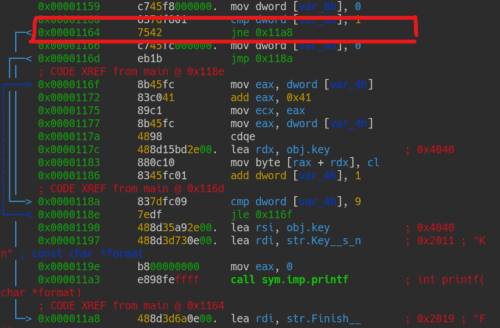
Here, var_8h is the local variable where is_vulun is stored.
The cmp instruction compares it with 1 as a 32-bit unsigned integer (dword).
0x00001160      837df801       cmp dword [var_8h], 1
0x00001164      7542           jne 0x11a8
The cmp instruction commonly appears when comparing two values in a conditional branch, but its essence is simply subtraction.
However, unlike the sub instruction which performs subtraction, the result is not stored in a register.
Reference: assembly - Understanding cmp instruction - Stack Overflow
The reason a simple subtraction cmp instruction is used for conditional branching is that the arithmetic operation updates the flag register.
The flag register is a register used by the CPU to indicate results and state when performing arithmetic operations.
In the x86_64 architecture, the lower 32 bits of the RFLAGS register are used.
Reference: X86アセンブラ/x86アーキテクチャ - Wikibooks
Each bit of the 32-bit flag register has a specific meaning, and values are updated based on the arithmetic result.
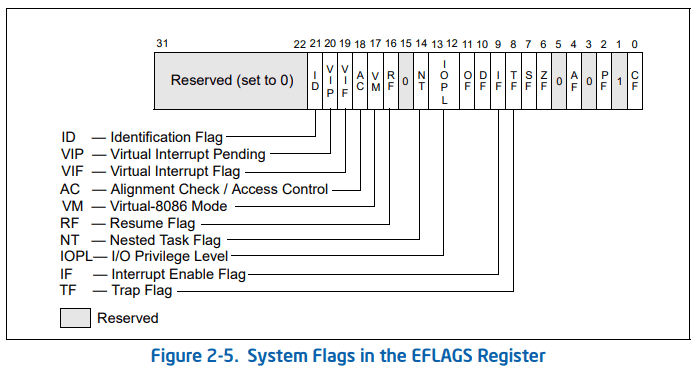
Image from Intel Developer Manual
The flags most frequently used for conditional branching are as follows:
| FLAG | Purpose | Bit number |
|---|---|---|
| CF (Carry Flag) | Set when a carry occurs during addition that exceeds the register size | 0 |
| ZF (Zero Flag) | Set when the result of an operation is zero (0) | 6 |
| SF (Sign Flag) | Set when the result of an operation is negative | 7 |
| OF (Overflow Flag) | Set when the result of a signed arithmetic operation is too large to fit in a register | 11 |
When branching with a cmp instruction, the branch is decided based on whether the subtraction result is 0, or positive, or negative.
The actual branching decision based on flag register values is made by several jump instructions.
| Instruction | Jump Condition | Opcode |
|---|---|---|
| JE | Equal (ZF = 1) | 74 |
| JNE | Not equal (ZF = 0) | 75 |
| JG | Greater than (ZF = 0 & SF = OF) | 7F |
| JGE | Greater than or equal (SF = OF) | 7D |
| JNG | Not greater than (ZF = 1 | SF ! OF) | 7E |
| JL | Less than (SF ! OF) | 7C |
Reference: インラインアセンブラで学ぶアセンブリ言語 第3回 (1/3):CodeZine(コードジン)
Keeping the opcodes (right column) at hand is convenient when patching to forcibly alter conditional branches.
Opcodes can change depending on the operand, but in general searching the IDM below is a good approach.
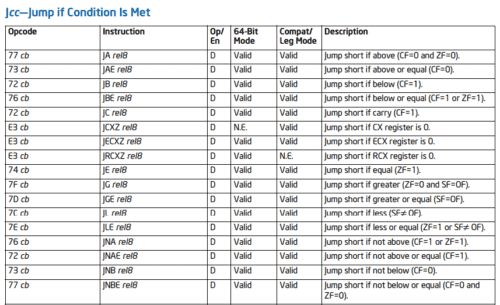
Reference: Intel x86 Assembler Instruction Set Opcode Table
Refer to the Jcc—Jump if Condition Is Met table.
Now that we’ve organized the flag register and jump instructions, let’s return to the main topic.
Let’s bypass the following conditional branch that checks whether the value of is_vulun is 1.
0x00001160      837df801       cmp dword [var_8h], 1
0x00001164      7542           jne 0x11a8
Since var_8h always holds 0, after the cmp instruction at 0x00001160 is executed, the flag register will have the [ CF PF AF SF IF ] flags set.
Don’t worry about each flag in detail for now; just focus on the fact that ZF, which needs to be set to prevent jne from skipping the processing, is not set.
The result of running in gdb is as follows:
$ b *0x555555555164
$ p $eflags
$5 = [ CF PF AF SF IF ]
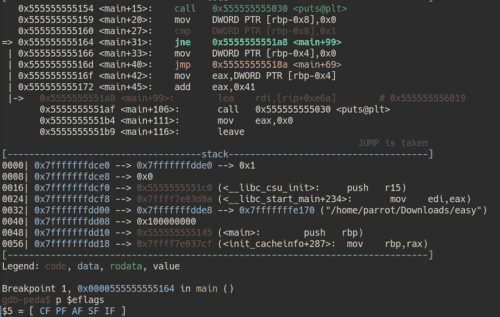
We’ve confirmed that ZF is indeed not set.
To bypass the conditional branch here, we need to set ZF.
In gdb, memory data can be tampered with using the set command.
As we confirmed earlier, ZF corresponds to bit 6 of the flag register.
In other words, we can set ZF by forcibly writing 1 to bit 6 of the flag register.
# Set bit 6 of $eflags to 1 using OR operation
$ set $eflags |= (1 << 6)
$ p $eflags
$7 = [ CF PF AF ZF SF IF ]
As shown above, executing set $eflags |= (1 << 6) set the ZF flag.
With this state, advancing with the n command allowed us to proceed to 0x555555555166, which would not normally be executed.
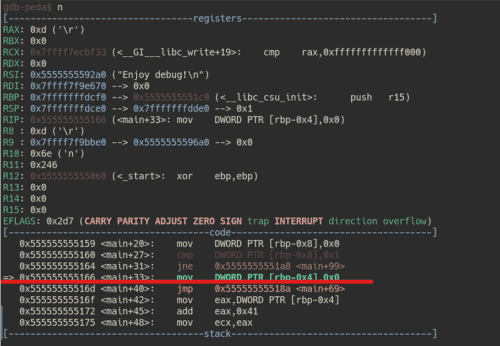
Next, let’s try bypassing the conditional branch by reading a variable’s value from memory and then tampering with it, rather than by modifying the flag register.
Extracting Information from Memory
Let’s look at the same process as before.
0x00001160      837df801       cmp dword [var_8h], 1
0x00001164      7542           jne 0x11a8
This time, let’s set a breakpoint at 0x00001160.
Running the run command stops execution at the cmp instruction call point.
$ b *0x555555555160
$ run
   0x555555555159 <main+20>:    mov    DWORD PTR [rbp-0x8],0x0
=> 0x555555555160 <main+27>:    cmp    DWORD PTR [rbp-0x8],0x1
   0x555555555164 <main+31>:    jne    0x5555555551a8 <main+99>
   0x555555555166 <main+33>:    mov    DWORD PTR [rbp-0x4],0x0
Here, DWORD PTR [rbp-0x8] references the value of the local variable is_vulun.
The syntax DWORD PTR [memory address] is an instruction to retrieve the memory address defined inside [] as a DWORD (32-bit unsigned integer).
$rbp-0x8 is the address of the stack where the local variable is stored, but when we check it, it appears to indirectly reference a memory address that holds the actual variable value.
p $rbp-0x8
$16 = (void *) 0x7fffffffdce8
This means the actual value of is_vulun is stored inside 0x7fffffffdce8.
In gdb, you can view the contents of memory using the x/[format] <address> command.
Reference: GDB Command Reference - x command
Looking at the above documentation, you can see that specifying the format as x/w <address> retrieves the memory contents as a 32-bit unsigned integer.
Therefore, running the following command shows that the value at memory address 0x7fffffffdce8 (variable is_vulun) is 0.
$ x/w 0x7fffffffdce8
0x7fffffffdce8: 0
Let’s return to the conditional branch processing.
Here we can see that the value of dword [var_8h] is 0, and the cmp instruction is checking whether it equals 1.
0x00001160      837df801       cmp dword [var_8h], 1
0x00001164      7542           jne 0x11a8
Therefore, it appears we can bypass the conditional branch by tampering with the value of dword [var_8h] to 1.
Here, the set command can also be used to tamper with a value at a specific memory location.
When changing the value at a specific address, append {data type} as shown in the link below.
Reference: Assignment (Debugging with GDB)
We were able to tamper with the memory data as follows:
$ x/w 0x7fffffffdce8
0x7fffffffdce8: 0x00000000

# Tamper the value
$ set {int}0x7fffffffdce8 = 1

$ x/w 0x7fffffffdce8
0x7fffffffdce8: 0x00000001
Advancing execution in this state means the cmp instruction comparison results in is_vuln == 1, and the conditional branch bypass succeeds.

We have now been able to reference and tamper with memory information using gdb.
Summary
In this article, I summarized basic ELF binary analysis techniques for CTF beginners.
This article was created for a workshop I personally host, so if you wish to reuse it in a workshop or similar setting, no special permission is required.
Just include the URL as a reference, and feel free to use it as you like.
If you have any questions or points to raise about this article or other content, please DM me on Twitter: yuki_kashiwaba.
Comments on this article are also welcome, but Twitter DMs get a faster response.
I hope this article is helpful for those who are starting out with CTF.
Recommended Books / Websites
Since this article only covers introductory ELF analysis topics, I’ll list the following books and websites for those who want to learn in more depth.
Books
- Debug Hacks -デバッグを極めるテクニック&ツール While it is a debugging book for developers, the first ~100 pages cover the basics of gdb usage very well and are highly informative.
- 詳解セキュリティコンテスト If you’re getting started with CTF, this is a book worth reading first. It’s a quite readable summary of analysis techniques and how to read assembly. Note that the Reversing section has a number of typos, so be sure to check the errata.
- リバースエンジニアリングツールGhidra実践ガイド ~セキュリティコンテスト入門からマルウェア解析まで~ Probably the only Ghidra book written in Japanese. It is heavy on PE binary analysis content, but is very educational not only on how to use Ghidra but also on analysis techniques. Note that it was written for Ghidra prior to 10.0, so there is no coverage of the debugger.
- リバースエンジニアリング ―Pythonによるバイナリ解析技法 This book is entirely about PE binary analysis, but the analysis techniques have much in common with ELF.
- 冴えないIDAの育てかた Covers an overview and usage of IDA. For some reason, despite being an IDA book, about a third of the pages are devoted to explaining radare2. I’ve never encountered a book with this much radare2 information in Japanese, so it is very helpful. os.environ[‘PYGAMEHIDESUPPORT_PROMPT’] = ‘Hide Linuxカーネルの教科書](https://amzn.to/3oMmsPY)’ Analyzing ELF binaries requires some understanding of how Linux works. Personally, I think this is the most beginner-friendly book on the topic.
- ptrace入門: ptraceの使い方 We didn’t use it in this article, but it is an explanatory book on ptrace and ltrace. It appears to be a book of lecture materials used by a University of Tsukuba professor, and is sold for just 100 yen — there is no reason not to buy it.
Websites
- NASM Tutorial In English, but there is a lot of useful information as a first step toward being able to read Intel-syntax assembly.
-
Assembly Debugger Online You can easily verify the behavior of Intel-syntax assembly from the web without running gdb locally.
It is useful for checking whether your understanding of a certain behavior is correct.
- JM Project (Japanese) When doing ELF analysis you’ll often need to check man pages for library functions; this is a site with man pages and similar documentation translated into Japanese.
- The Official Radare2 Book radare2 is feature-rich, isn’t it. I can’t fully master it yet…
Reference information will be added someday when I feel like it. There is too much to write it all.