This page has been machine-translated from the original page.
In this post, using the Hero CTF 2023 forensic challenge “Windows Stands for Loser” as a case study, I’ll share what I learned about analyzing Windows memory dumps with Volatility.
The writeups for the other challenges are below.
Reference: Hero CTF 2023 Writeup - Frog’s Secret Base
Windows Stands for Loser(Forensic)
This time, no realistic context, we just need you to find the commands that were executed and the time. (we don’t talk about windows commands here :p) (time to find : UTC+2) Format: Hero{secret:dd/mm/YYYY-hh:mm:ss} Author: Malon
If you inspect the provided challenge file memdump.mem with the strings command, you can tell that it appears to be a memory dump from a Windows machine.
However, it was not a crash dump file that could be opened with WinDbg. (Maybe it was acquired with FTK Imager?)
For now, I decided to solve the challenge while trying a few Volatility3 options to see what kind of information it contains.
Table of Contents
-
Running Volatility3 Commands (Windows)
- Getting OS Information from Memory
- Investigating Network Activity from Memory
- Getting the Process List and Command Lines from Memory
- Dumping an Entire Process Memory Region
- Extracting an Image File from a Process
- Collecting File Objects from Memory
- Getting a List of DLLs Loaded by a Process
- Enumerating Object Handles
- Summary
Running Volatility3 Commands (Windows)
First, let’s run a few basic commands and inspect the memory information.
All of the commands used here are for analyzing Windows memory dumps.
When collecting information from memory on Linux and similar systems, use dedicated commands like those in the Linux Tutorial.
Getting OS Information from Memory
You can inspect OS information with the following command.
vol3 -f memdump.mem windows.info.InfoThe output looked like this.

Since NtMajorVersion is 10, we can tell the OS is Windows 10.
Also, because the Minor Version is 19041, we can tell it corresponds to Windows 10 20H1.
Investigating Network Activity from Memory
You can investigate network activity from memory with the following commands.
vol3 -f memdump.mem windows.netstat.NetStat
vol3 -f memdump.mem windows.netscan.NetScan
The output is shown in a format similar to running the Netstat command.
At this point, the address recorded in the Offset(V) column matches the address of that process’s EPROCESS structure.

One especially suspicious point is that WWAHost.exe, which runs as a UWP app container, is connected to port 80 on 192.229.221.95, but I’ll leave that aside for now.
Also, using the NetScan plugin produced the following output.
The results are almost the same, but NetScan uses a technique called Pool tag quick scanning, so it can collect even hidden artifacts from kernel memory.

Getting the Process List and Command Lines from Memory
You can get a list of processes from memory with the following commands.
# You can also filter like --filters "ImageFileName,chrome.exe"
vol3 -f memdump.mem windows.pslist.PsList
vol3 -f memdump.mem windows.psscan.PsScan
The output looked like this.
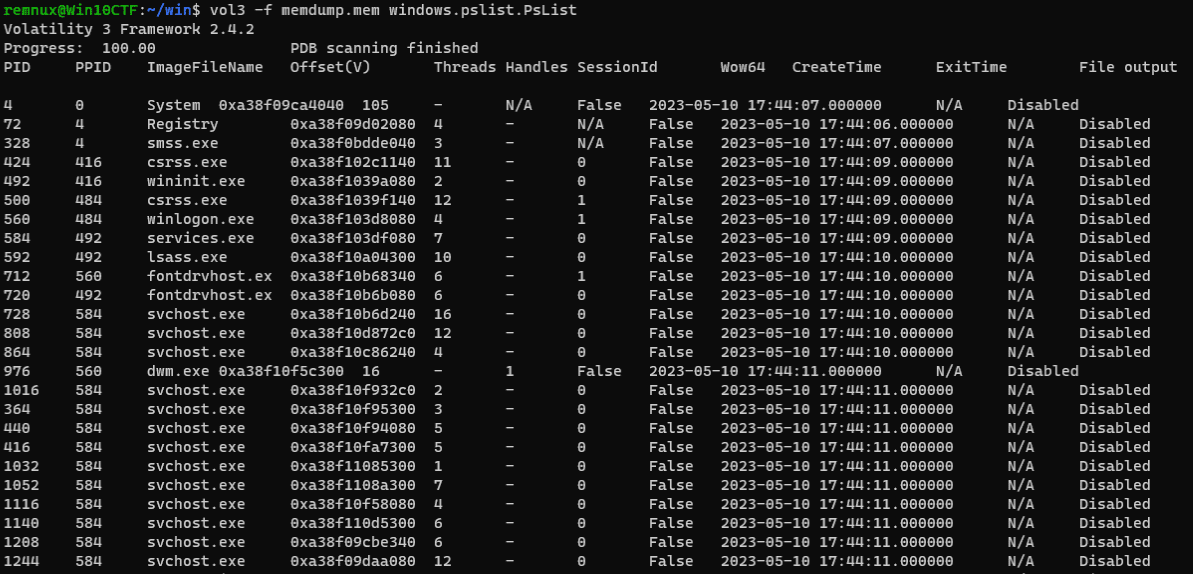
When I looked for anything other than default programs or any unfamiliar processes, I found the following.
5768    1464    ubuntu2204.exe
8888    5128    bash
5464    8020    FTK Imager.exe
FTK Imager is fine, but this tells us the environment is running WSL.
PsScan can also produce equivalent output.
There also appears to be a PsTree plugin that can display process information in tree form.
vol3 -f memdump.mem windows.pstree.PsTreeThat gave the following information.
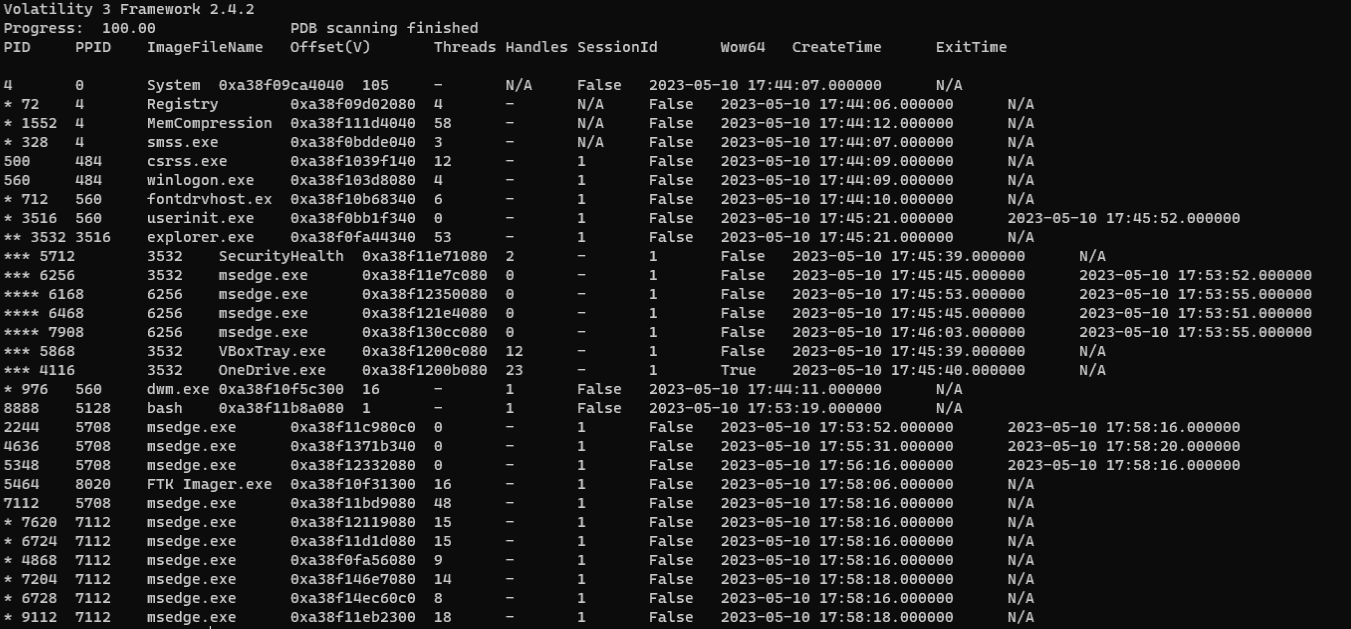
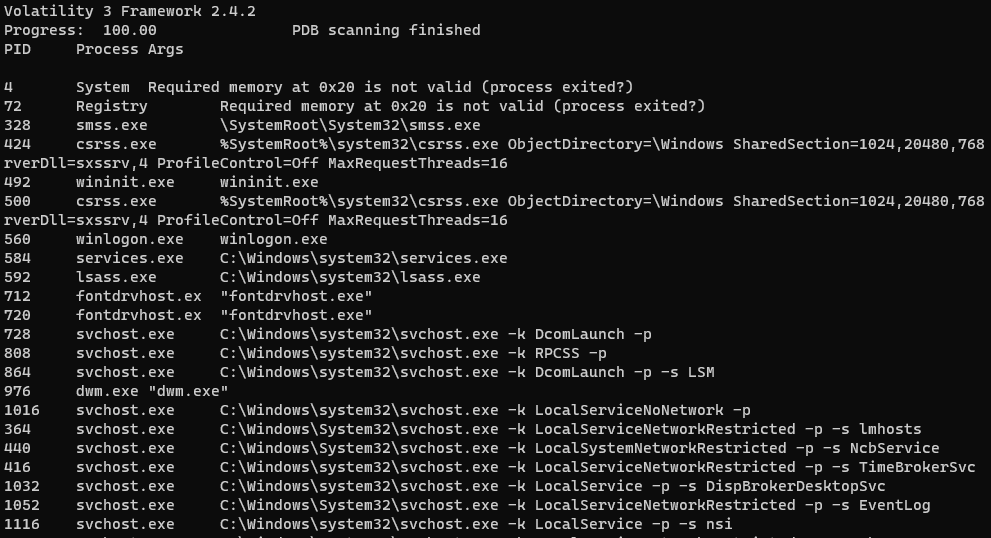
Furthermore, you can collect command-line information for processes running in the system from memory.
You can enumerate command lines with the following command.
vol3 -f memdump.mem windows.cmdline.CmdLineThe output is also quite readable.
Dumping an Entire Process Memory Region
Also, the following command lets you dump an entire process’s memory.
Depending on the size of the memory image, output may take a little while.
# vol3 -o <output path> -f memdump.mem windows.memmap --dump --pid <PID>
vol3 -o /tmp -f memdump.mem windows.memmap --dump --pid 1000
Extracting an Image File from a Process
With the PsList plugin, you can not only enumerate processes but also retrieve a process image file.
# vol3 -o <output directory> -f memdump.mem windows.pslist.PsList --pid <process PID> --dump
vol3 -o /tmp -f memdump.mem windows.pslist.PsList --pid 6724 --dump
When you run the above command, the specified process can be dumped as shown below.

Although the extension is shown as .dmp, it is actually dumped as a PE file.
Collecting File Objects from Memory
With the following command, you can obtain the addresses and full paths of file objects from memory.
The output is very large.
vol3 -f memdump.mem windows.filescan.FileScanFor this challenge memory image, you can identify paths for files inside WSL under the jane user folder.
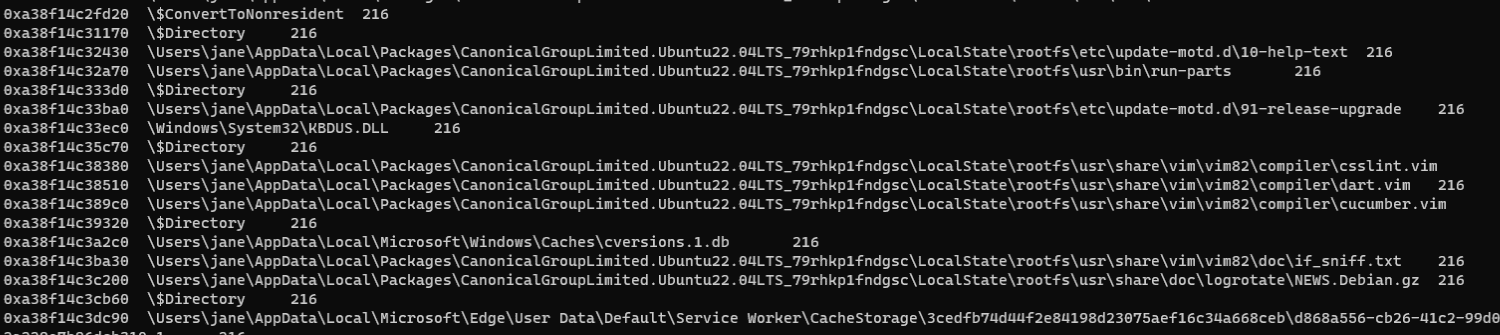
You can also use the address identified here to retrieve the file from memory.
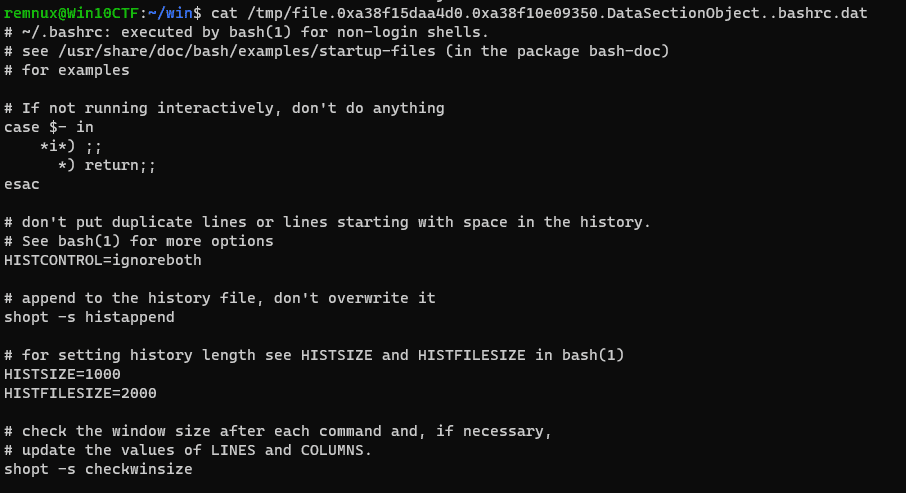
In the command example below, the .bashrc file inside WSL located at 0xa38f15daa4d0 is saved to a tmp directory.
# vol3 -o <output directory> -f memdump.mem windows.dumpfiles.DumpFiles --virtaddr <virtual address of the file object>
vol3 -o /tmp -f memdump.mem windows.dumpfiles.DumpFiles --virtaddr 0xa38f15daa4d0
When retrieval succeeds, it is displayed as follows.

When I inspected the retrieved file, I confirmed that .bashrc had indeed been extracted from the memory dump.
Getting a List of DLLs Loaded by a Process
With the following command, you can obtain a list of DLLs loaded by processes from memory.
vol3 -f memdump.mem windows.dlllist.DllListAs shown below, you can enumerate DLLs loaded by each process, and you can specify a PID with the --pid option.

Also, just like dumping a process image file, you can use the --dump option to dump all DLL files loaded by a process.
vol3 -o /tmp -f memdump.mem windows.dlllist.DllList --pid 6724 --dumpYou can see that these were also exported as DLL files.

Enumerating Object Handles
You can enumerate object handles with the following command.
vol3 -f memdump.mem windows.handles.HandlesAnalyzing Memory Interactively with Volshell3
Volshell3 works as an interactive interface for analyzing memory dumps, and can be operated much like a Python interpreter.
Reference: Volshell - A CLI tool for working with memory — Volatility 3 2.4.2 documentation
To analyze a Windows memory dump with Volshell3, run the following command.
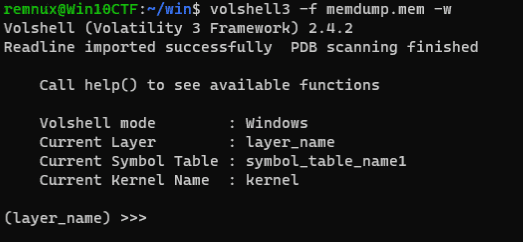
volshell3 -f memdump.mem -wThe -w option is important because it tells Volshell3 to use known symbols; without it, you won’t be able to inspect most information.
When Volshell3 starts, you see a screen like this.
Accessing EPROCESS
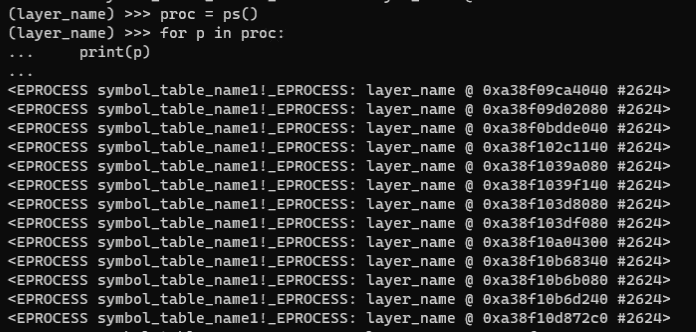
For example, running the following commands will enumerate information about EPROCESS structures in memory.
proc = ps()
for p in proc:
print(p)
The output looks like this.
Volshell3 also provides a dt command.
This works almost the same way as WinDbg’s dt command.
So, for example, you can use commands like the following to display structure offsets or inspect the contents of a specific EPROCESS structure.
# Enumerate information about the EPROCESS structure
dt('_EPROCESS')

# Enumerate the EPROCESS information obtained with ps()[0]
proc = ps()[0]
dt(proc)
Analyzing the Challenge File
After using Volatility to understand the system’s basic information, I started solving the challenge.
In this challenge, the flag appears to consist of some command found in memory and the time it was executed.
However, nothing that looked like a flag appeared in the information enumerated by the CmdLine plugin.
So I focused on the WSL process running in the system.
According to the page cited in the writeup below, even for a WSL bash process, it seems possible to search in-memory information using the same commands as on normal Linux.
Reference: Memory forensics and the Windows Subsystem for Linux - ScienceDirect
Also, Volatility’s linux_bash can apparently scan a bash process heap to easily search execution history.
Reference: Volatility Labs: MoVP II - 3.3 - Automated Linux/Android Bash History Scanning
Reference: Linux Tutorial — Volatility 3 2.4.2 documentation
In other words, if we can run the linux_bash plugin against a bash process running under WSL, we should be able to identify the executed commands.
Investigating the WSL Process
As confirmed with the Info plugin at the beginning, this system’s build is 20H1, so we know the running WSL version is 1.
As described in Volume 1 of Windows Internals, WSL1 uses interfaces provided by the PICO providers Lxss.sys and Lxcore.sys (kernel drivers that obtain access to kernel interfaces using the PsRegisterPicoProvider API).
Processes running under a Pico provider are managed as Pico processes.
Memory for processes provided under WSL’s Pico provider contains structures similar to Linux’s vDSO (Virtual Dynamic Shared Object).
Reference: I Took a Quick Look at the Implementation of VDSO(arm) - Qiita
As shown in the image below, WSL /bin/bash runs as a Pico process managed by a Pico provider.
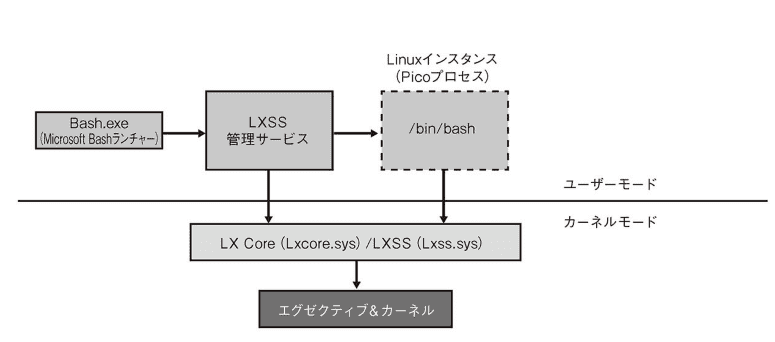
Source: Windows Internals, 7th Edition (Part 1)
The Pico provider has functions to create and terminate Pico processes and threads, and it receives callbacks when Pico threads make syscalls or raise exceptions.
As a result, Pico processes running under a Pico provider are encapsulated and wrapped as shown below.
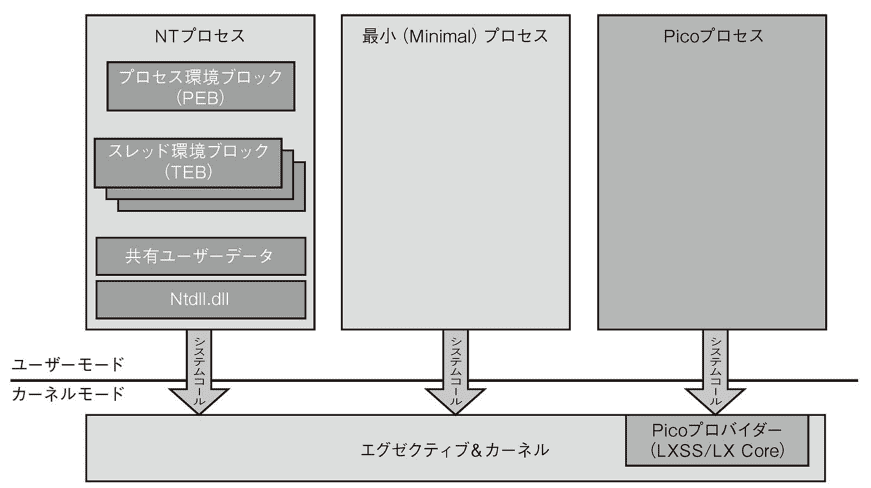
Source: Windows Internals, 7th Edition (Part 1)
For example, you can enumerate the EPROCESS structure information for the bash process with either of the following commands.
# 8888 5128 bash 0xa38f11b8a080
proc = ps()
for p in proc:
if p.UniqueProcessId == 8888:
print(dt(p))

# 8888 5128 bash 0xa38f11b8a080f
dt("_EPROCESS",0xa38f11b8a080)
However, as mentioned above, this bash process is a Pico process encapsulated by a Pico provider, so it does not have PEB information.
Manually Analyzing the bash Process Memory
Honestly, from here it became completely impossible for me to proceed on my own, so I followed along with the writeup’s explanation.
Reference: HeroCTFv5/README.md at main · HeroCTF/HeroCTFv5 · GitHub
First, dump the memory space of the bash process running as PID 8888 with the following command.
vol3 -o /tmp -f memdump.mem windows.memmap --dump --pid 8888 When I ran the file command on the dumped file, it was recognized as glibc locale file LC_CTYPE.
As mentioned earlier, Volatility’s linux_bash plugin can extract command execution history from Linux memory dumps.
However, since what I extracted this time was only the bash process’s memory space, I couldn’t simply use that plugin as-is.
Here, the following page explains how linux_bash works:
- Scan the heap of all running /bin/bash instances, or all processes period if —scan-all is supplied. The ---scan-all allows you to ignore the process name, in case an attacker copied a /bin/bash shell to /tmp/a and then entered commands. Furthermore, since we’re only scanning the heap of the process, its much quicker than a whole process address space scan.
- Look for # characters in heap segments. With the address in process memory for each # character, do a second scan for pointers to that address elsewhere on the heap. The goal is to find the timestamp member of the histentry structure. We’re essentially linking up data with pointers to the data.
- With each potential timestamp, we subtract 8 bytes (since it exists at offset 8 of the structure). That should give us the base address of the histentry. Now we can associate any other members of histentry (in particular the line member) with the timestamp.
- Once the scan is finished, collect all histentry structures and place them in chronological order by timestamp. Then report the results.
Reference: Volatility Labs: MoVP II - 3.3 - Automated Linux/Android Bash History Scanning
To obtain command history from a bash process, it first scans the entire bash process, then finds # characters in heap segments, and from there identifies the timestamps in _hist_entry structures.
The _hist_entry structure contains the entered command-line string, the execution timestamp, and other data.
Reference: history(3): GNU History Library - Linux man page
Next, subtracting 8 bytes from those timestamp addresses gives the base address of the _hist_entry structure.
Finally, you enumerate all _hist_entry structures in memory in timestamp order to collect the command execution history from memory.
After that, I manually followed the above procedure against the dumped bash process memory.
First, search the entire process for the # character, then look for UNIX timestamps in memory.
import os
i = 0
memdump = "./pid.8888.dmp"
with open(memdump, "rb") as f:
# Read the file one byte at a time and check whether # exists
    while i < os.path.getsize(memdump):
        diese = f.read(1)
        if not diese:
            break
# Advance until the # character is found
        if diese == b"\x23":
            one = f.read(1)

# Since the target is a UNIX timestamp, the first digit must always be 1
            if one == b"\x31": # "1"
# Once a timestamp is found, read the next 9 bytes and write them to a file
                next_data = f.read(9)
                with open("./8888_extracted_info.txt", "a") as f2:
                    f2.write(f"offset: {hex(i)} - #1")
                    for byte in next_data:
                        f2.write(f"{chr(byte)}")
                    f2.write(f"\n")
                i+=9
            i+=1
        i += 1
When I ran the script above, there was a lot of noise, but I found the following three timestamps and their offsets.
offset: 0x30a100 - #1683741543
offset: 0x362d30 - #1683741570
offset: 0x376d10 - #1683741539
Next, after determining the virtual addresses corresponding to these timestamp offsets, I found pointers referencing those addresses and used them to identify the base addresses of the _hist_entry structures.
The mapping between offsets in the extracted memory dump and loaded virtual addresses can be referenced from the output of vol3 -o /tmp -f memdump.mem windows.memmap --dump --pid 8888 shown earlier.
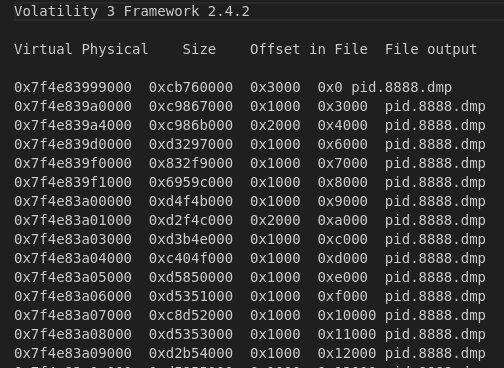
For example, since 0x30a000 corresponds to 0x00007fffeca66000, we can see that address 0x30a100 corresponds to 0x00007fffeca66100.
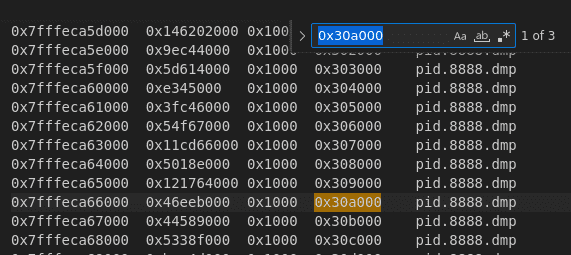
Likewise, after determining the mappings for the other two offsets, I established the following correspondences.
offset: 0x30a100 : 0x00007fffeca66100
offset: 0x362d30 : 0x00007fffecabed30
offset: 0x376d10 : 0x00007fffecad2d10
Convert these virtual addresses to little-endian and search for them in memory.
You can use any suitable hex editor for the search; this time I used HxD.
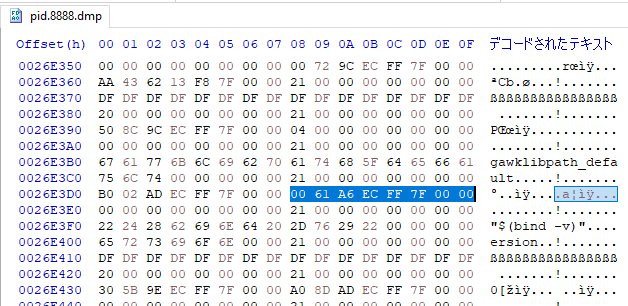
This let me identify the addresses that hold pointers to the timestamps.
In other words, I could determine that the address written in the preceding 8 bytes is a pointer to the command-line string contained in the _hist_entry structure.
Retrieving Values from Virtual Addresses with Volshell
Finally, I used the identified virtual addresses of the _hist_entry structures to dump raw data from memory and obtain the command-line information.
First, I changed the context to the bash process with the cc command, then used db to retrieve information at the virtual address.
# cc(offset=None, pid=None, name=None) : Change current shell context.
cc(pid=8888)

# >>> db(0x00007fffecabc4c0) /!\ you can ask to display more bits
>>> db(0x00007fffecabc4c0,200)
0x7fffecabc4c0  65 63 68 6f 20 4b 48 42 73 5a 57 46 7a 5a 53 42   echo.KHBsZWFzZSB
0x7fffecabc4d0  6b 62 32 34 6e 64 43 42 6d 61 57 35 6b 49 47 31   kb24ndCBmaW5kIG1
0x7fffecabc4e0  6c 49 48 64 70 64 47 67 67 64 47 68 6c 49 43 4a   lIHdpdGggdGhlICJ
0x7fffecabc4f0  7a 64 48 4a 70 62 6d 64 7a 49 69 42 6a 62 32 31   zdHJpbmdzIiBjb21
0x7fffecabc500  74 59 57 35 6b 4c 43 42 30 61 47 56 79 5a 53 42   tYW5kLCB0aGVyZSB
0x7fffecabc510  70 63 79 42 68 49 47 5a 31 62 6d 35 70 5a 58 49   pcyBhIGZ1bm5pZXI
0x7fffecabc520  67 62 57 56 30 61 47 39 6b 4b 53 35 55 61 47 55   gbWV0aG9kKS5UaGU
0x7fffecabc530  67 63 32 56 6a 63 6d 56 30 49 47 6c 7a 49 44 6f   gc2VjcmV0IGlzIDo
0x7fffecabc540  67 64 7a 56 73 58 7a 42 75 4d 77 3d 3d 20 7c 20   gdzVsXzBuMw==.|.
0x7fffecabc550  62 61 73 65 36 34 20 2d 64 00 ab ec ff 7f 00 00   base64.-d.......

>>> db(0x00007fffecabed30)
0x7fffecabed30  23 31 36 38 33 37 34 31 35 37 30 00 00 00 00 00   #1683741570.....
This allowed me to identify the executed command line and the timestamp, and I obtained the flag.
For some reason, however, the cc command raises an error in Volshell3, so I used Volatility 2 only for this part.
Reference: Command Reference · volatilityfoundation/volatility Wiki
Reference: Volatility 3 CheatSheet - onfvpBlog [Ashley Pearson]
Summary
The challenge I used as the theme this time was quite difficult, and only 3 teams solved it.
I think it was a great challenge that broadened the ways I can use Volatility and taught me a lot.
I want to become a forensic investigator.