This page has been machine-translated from the original page.
Table of Contents
Import a theme file into Ghidra
Ghidra has supported UI themes since version 10.3.
Reference: Ghidra What’s New
This has made font and color settings dramatically more convenient than before.
For Ghidra UI themes, you can either customize one of the built-in themes or use a theme published by the community.
There are still not that many community themes available, but among the public options, I recommend the themes in the following repository.
Setting a theme is simple: just import the file from the Ghidra GUI after launching it.
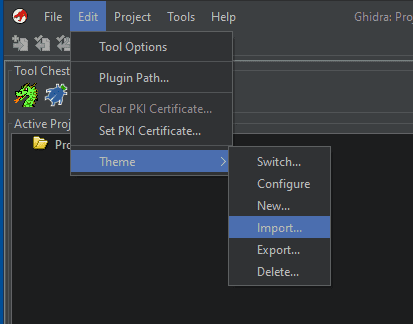
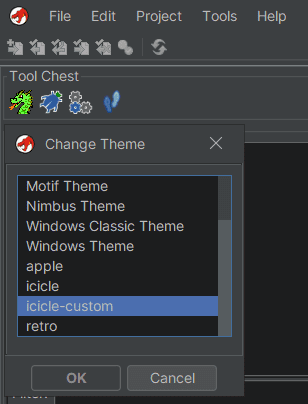
If you want to change the selected theme, you can do so from Switch.
Customize fonts and colors in a Ghidra theme
In the current release, you can easily customize a Ghidra theme from the GUI by selecting [Edit] > [Theme] > [Configure].
Another very convenient point is that settings changed from the GUI are previewed in real time even if you do not click [Save] (if I remember correctly, before the current theme feature was released, checking theme changes was fairly cumbersome).
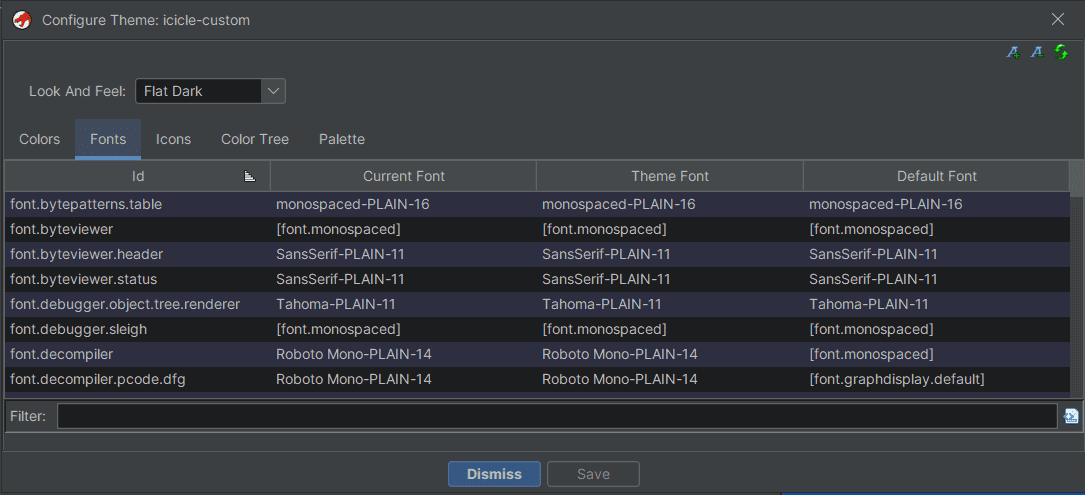
Personally, I think the easiest approach is to confirm the settings here and then add them to a theme file when making edits.
Customize fonts
Ghidra fonts can be customized from the Fonts tab.
There seem to be mainly two formats for the setting values.
- Direct specification
<font name>-<style>-<size>- Common label
[font.monospaced]
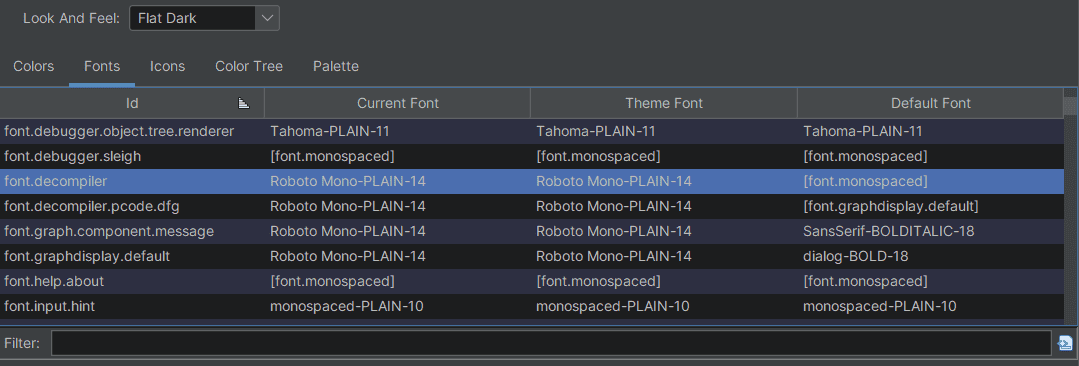
You can check the setting values defined by labels by exporting the configuration file.
In Ghidra’s default theme, for example, several UI fonts related to the system UI are specified using these labels.
Therefore, when customizing fonts in places that are associated with a label by default, you can change the value tied to that label instead of editing each setting item individually, which makes font changes much more efficient.
For example, the following settings can be used in a theme file to change the system menu font to Inter and set the font size to 14.
[font]system.font.control = Inter-PLAIN-14
[font]system.font.menu = Inter-PLAIN-14
[font]system.font.view = Inter-PLAIN-14
If you want to use a font such as Inter that is not installed on the system by default, you need to install the font on your OS first using the procedure described later.
Also, many areas, such as the decompiler window and the Listing window, seem to inherit the font.monospaced font.
As a result, simply changing the font.monospaced font lets you update the font in most places quite nicely.
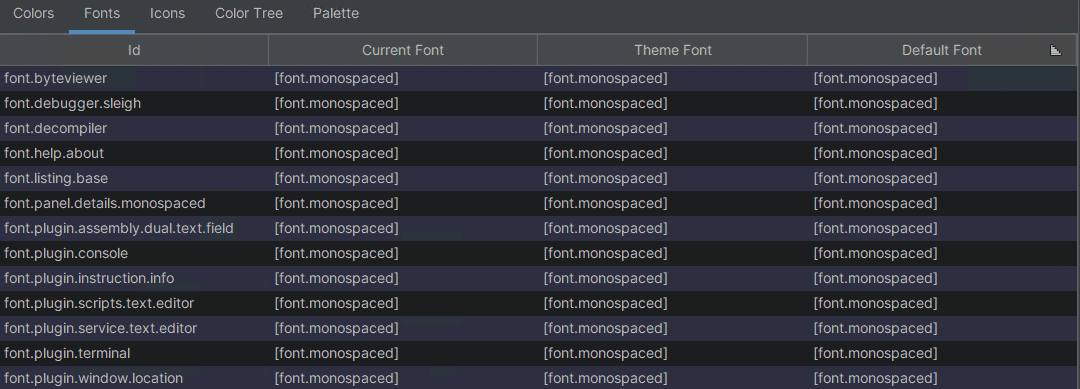
Personally, I prefer monospaced fonts such as Roboto Mono and Consolas, so this time I am using Roboto Mono.
Customize colors
Next, I will customize colors based on the icicle theme.
Reference: ghidra-themes/icicle.theme at main · lr-m/ghidra-themes
You can configure colors from the Colors tab, but compared with Fonts there are a huge number of places to adjust, so checking them one by one and choosing colors is pretty tiring.
However, most themes use color palettes to specify colors for each component.
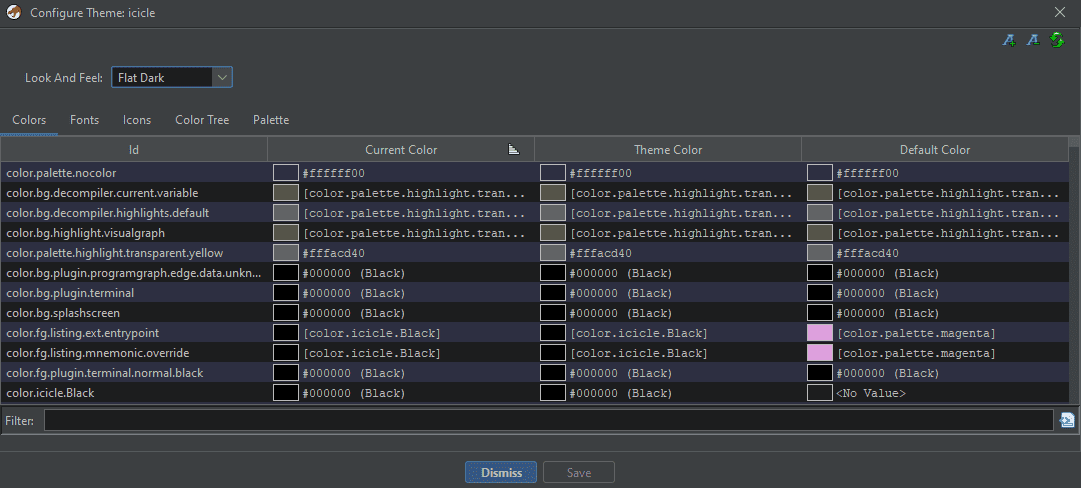
For example, in the icicle theme I am currently using, you can see that the color.icicle.GreenBlue color palette is used for comment sections in various windows.
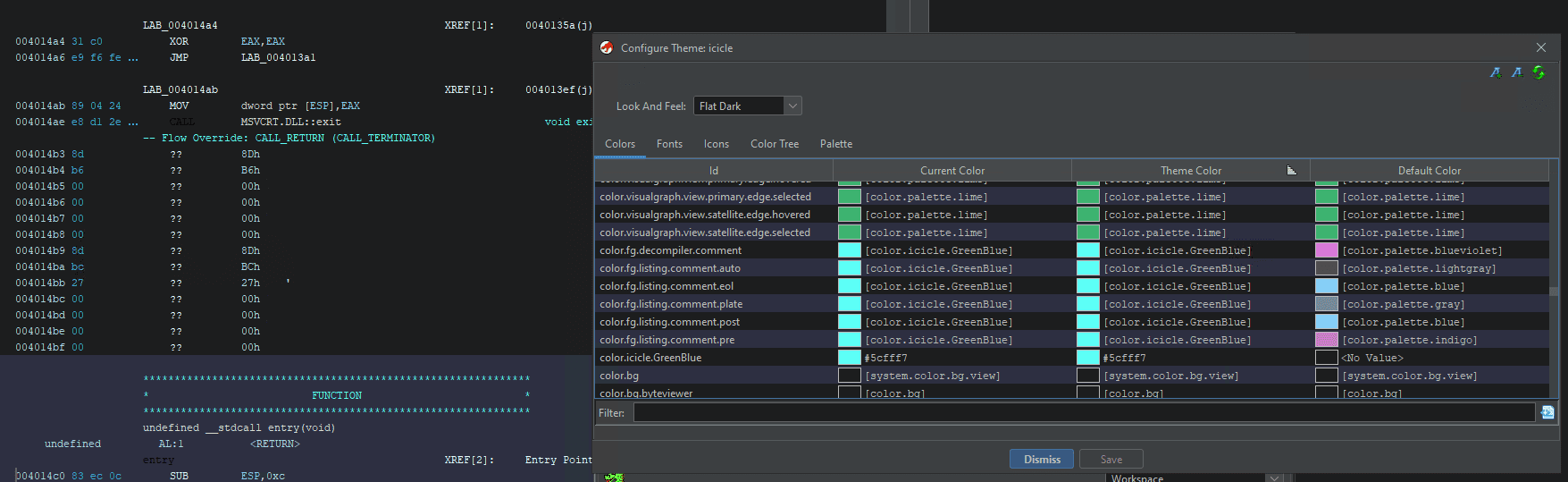
This time, I will change a few colors in the icicle theme.
I think the icicle theme is excellent, but for example, it uses Black for the Entry Point color, so there are places where the text blends into the background and becomes hard to read.
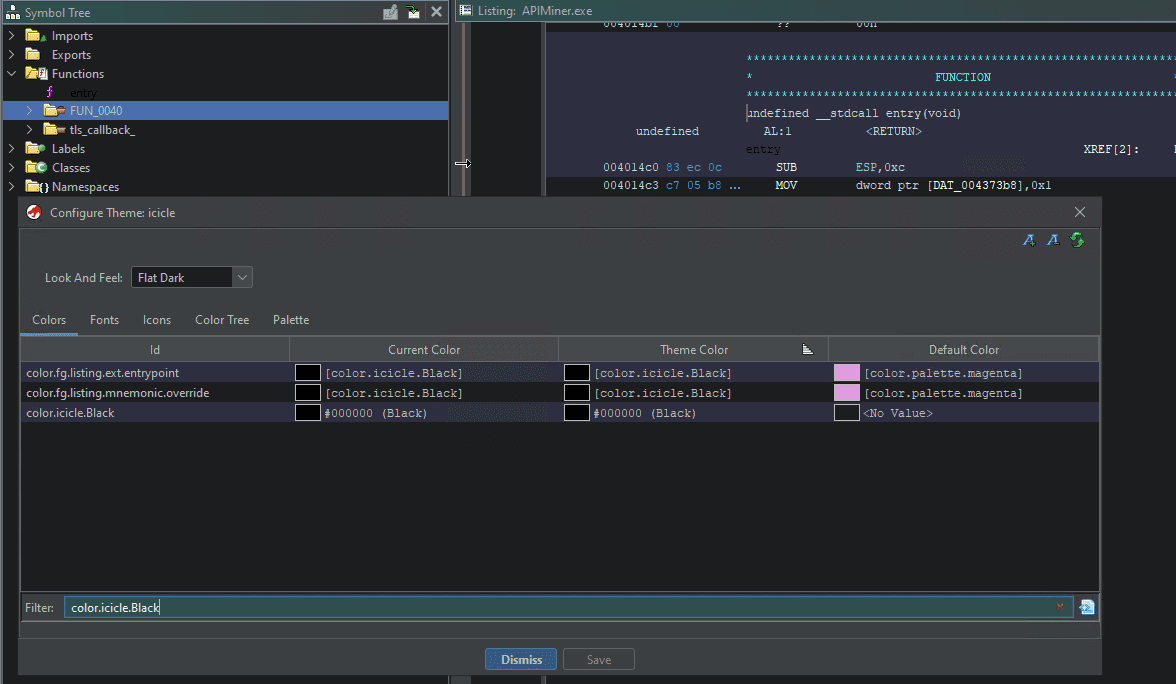
Even simply replacing that with color.icicle.BlueViolet, for example, makes it dramatically easier to read.
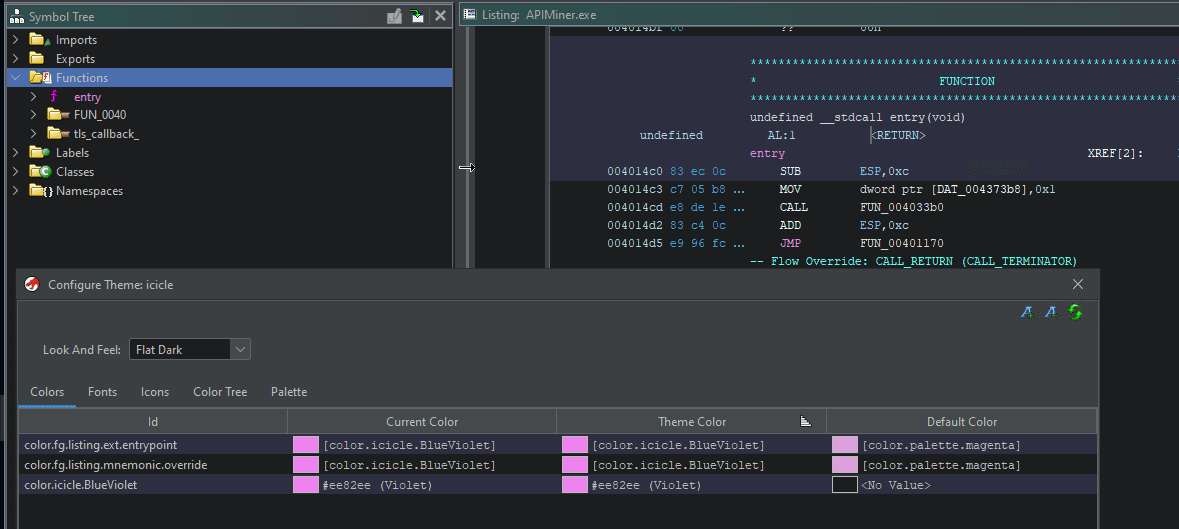
In this way, you can adjust Ghidra’s theme colors.
Add fonts to your OS
Download font files
This time, I will add two fonts that I personally like: Roboto Mono and Inter.
Download the font files in advance from the following sites.
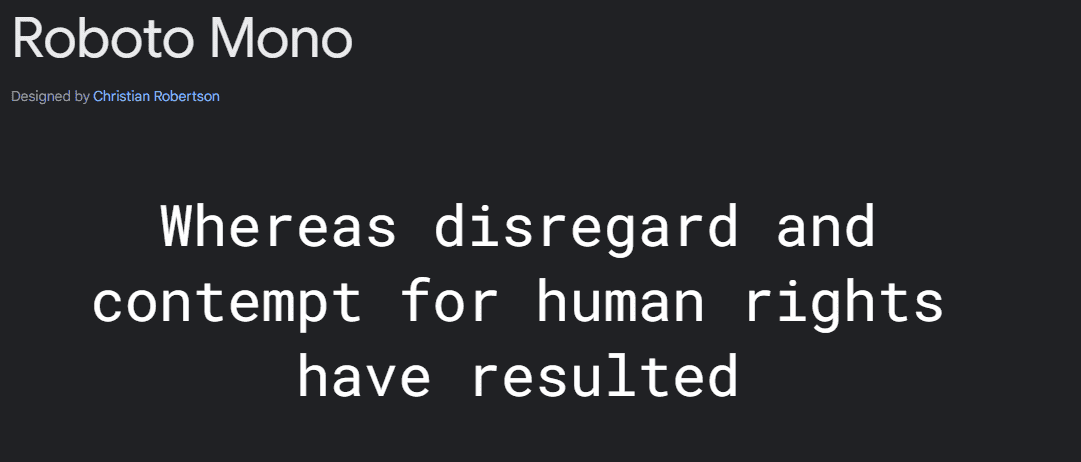
Reference: Roboto Mono - Google Fonts
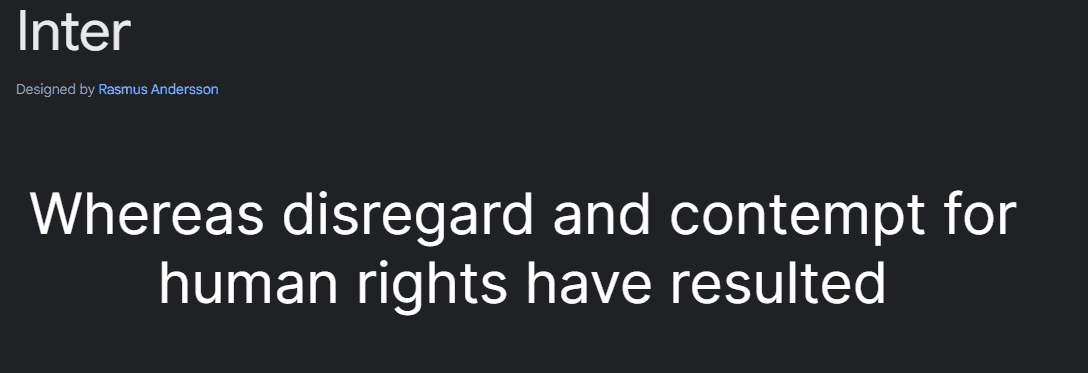
Reference: Inter - Google Fonts
Install fonts on Windows
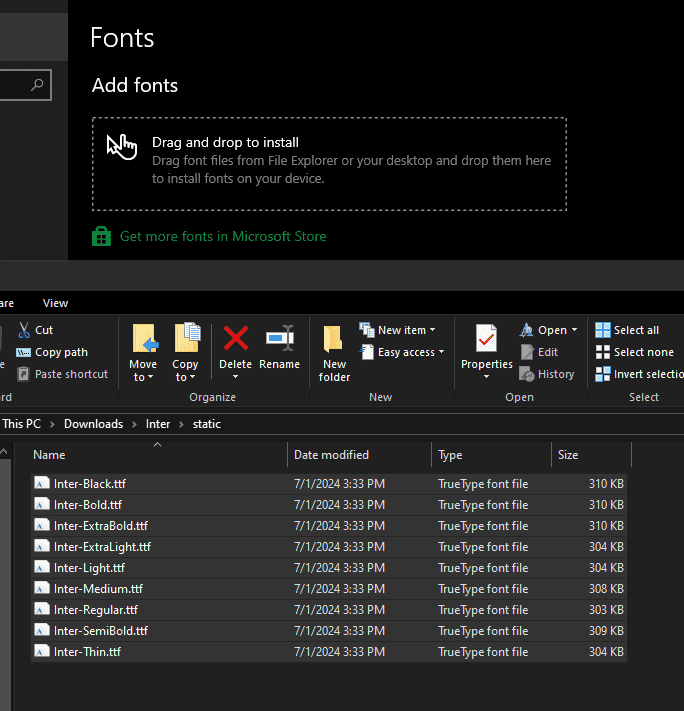
On Windows, you can add fonts by installing the .ttf files you downloaded from [Personalization] > [Fonts] in the Settings app.
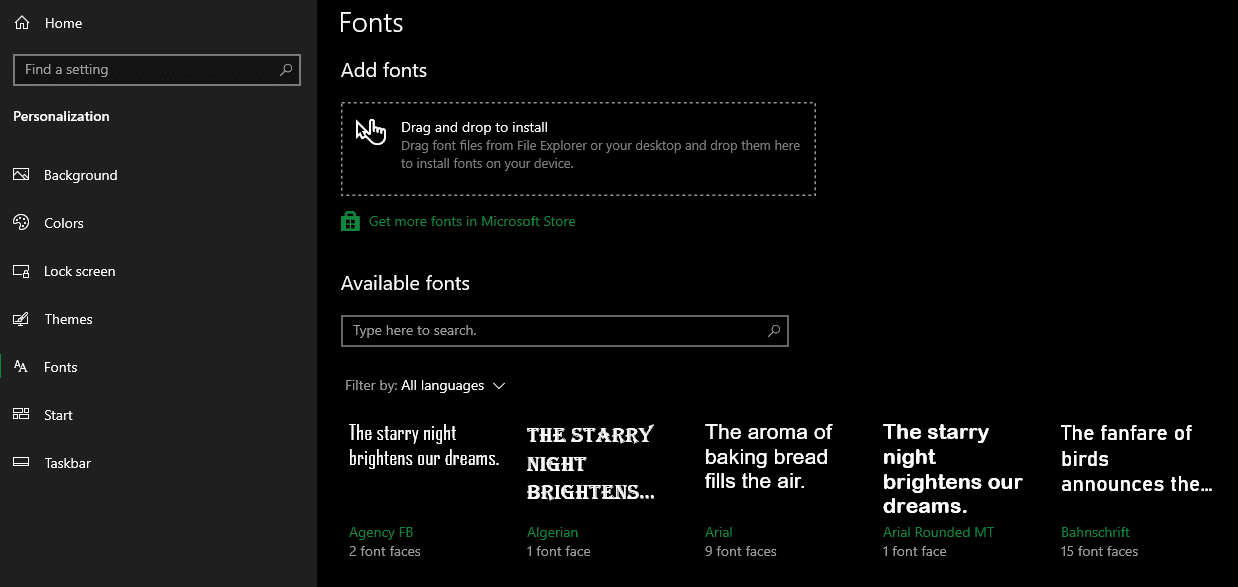
Adding them is very easy: just drag and drop the .ttf files into the Settings app.
Install fonts on Ubuntu
On Ubuntu, you can install fonts by copying the extracted ttf files to /usr/local/share/fonts.
This lets you configure fonts such as Roboto Mono in Ghidra on Ubuntu as well.

Summary
I was surprised to find that Ghidra had added theme support without me noticing.
I had also tried various things to change the UI in older versions, but compared with back then, changing the settings has become dramatically easier and much more comfortable.