This page has been machine-translated from the original page.
This is a memo of my Ghidra environment setup for CTF.
For the Ghidra installation itself, I will skip it since the official Ghidra Installation Guide covers it adequately.
Reference: Ghidra Installation Guide
Table of Contents
- Installing ghidra-findcrypt
- Setting Up Ghidrathon for Python3 Interpreter (Linux)
- Setting Up Ghidrathon for Python3 Interpreter (Windows)
- Using Ghidra in Dark Mode (Updated: June 2024)
- Using Ghidra Analysis Results from GDB (Added January 2023)
- Adding Ghidra Data Types (Added March 2023)
- Loading PDB in Ghidra (Added March 2023)
- Summary
Basic Settings
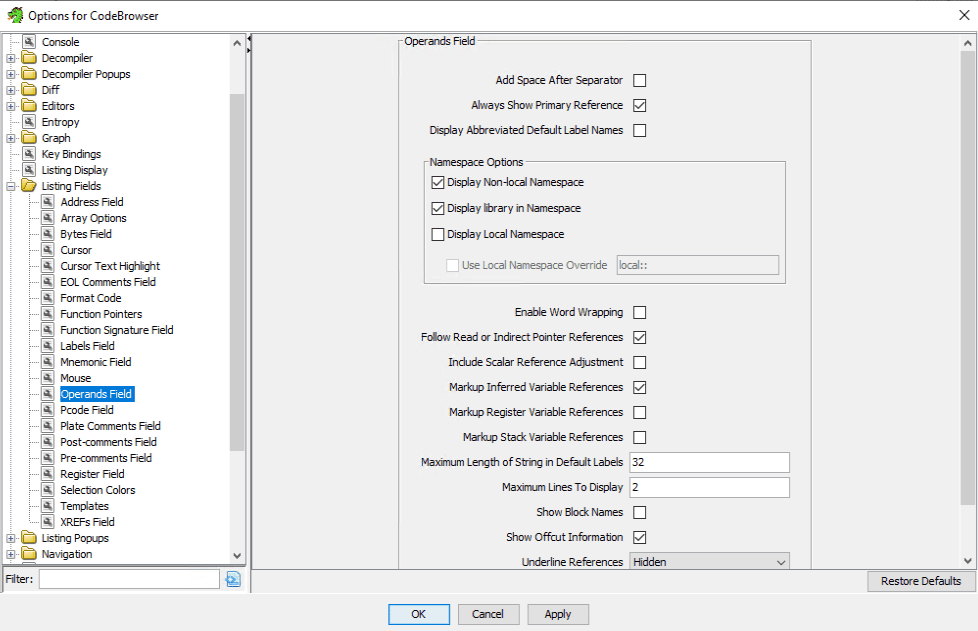
Disabling Register and Stack Markup (Added June 2024)
In the current default Ghidra settings, renaming a variable from the decompiler window can cause all matching register references in the Listing window to be renamed at once, which is very inconvenient.
Likewise, Stack entries in the Listing window are automatically replaced with local variable names, making it difficult to intuitively understand stack positions at a glance.
To address this, go to [Edit] > [Tool Options] > [Listing Fields] > [Operands Field] and disable both “Markup Register Variable References” and “Markup Stack Variable References”.
About UI Theme Settings (Added July 2024)
For UI theme settings and customization tips, see the following article:
Reference: Tips on Customizing Ghidra UI Themes
Code Browser Settings
My base configuration follows the Ghidra Practical Guide for Reverse Engineering.
Listing Binary Row Spacing
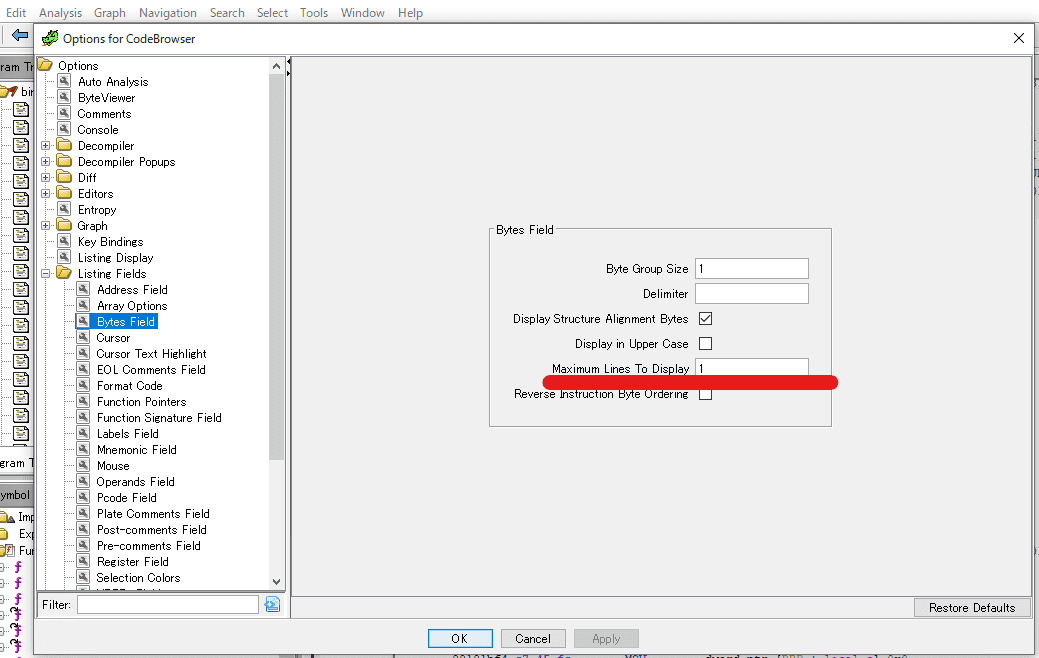
First, set the Listing Binary window row spacing to 1.
From [Edit] > [Tool Options] in Code Browser, go to [Listing Fields] > [Bytes Field] and change [Maximum Lines To Display] to 1.
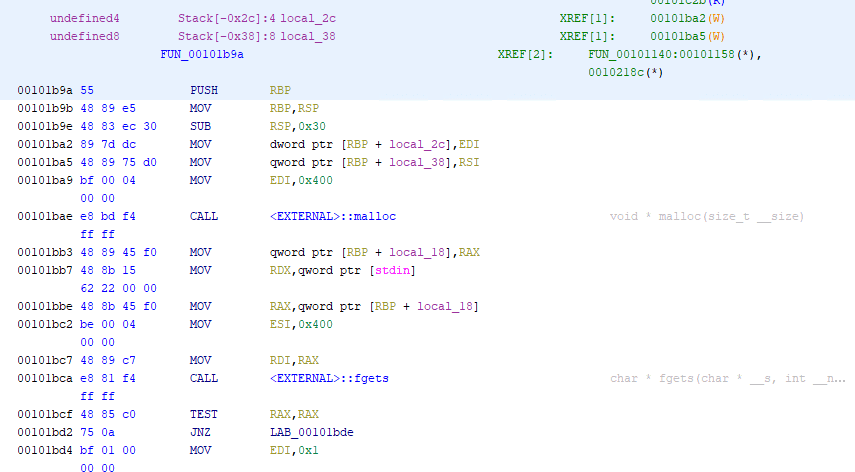
Here is the Before and After:
↓Before
↓After
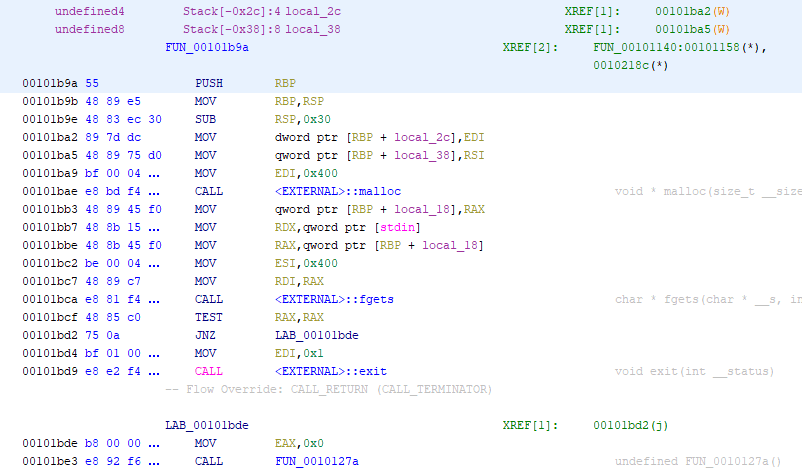
I think it looks quite a bit cleaner and easier to read.
Key Binding Configuration
Key bindings can be changed from the same [Edit] > [Tool Options] in Code Browser by selecting [Key Binding].
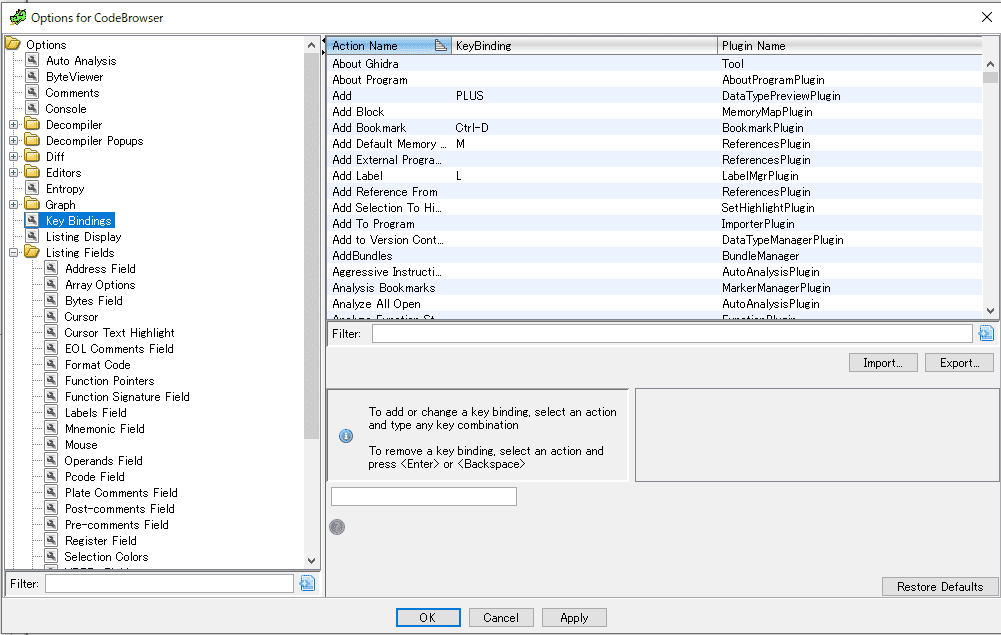
Configure these however you like.
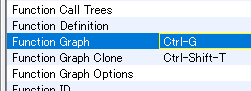
Personally, I have set up a shortcut for the Function Graph window, which I use frequently.
Decompiler Window Comments
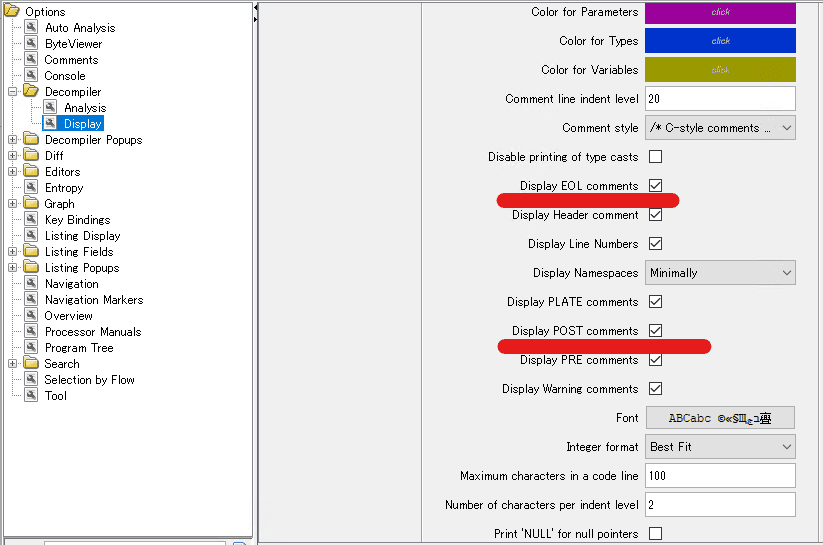
From [Edit] > [Tool Options] in Code Browser, select [Decompiler] and change the settings to show comments that are hidden by default.
Adding XRef Display Columns
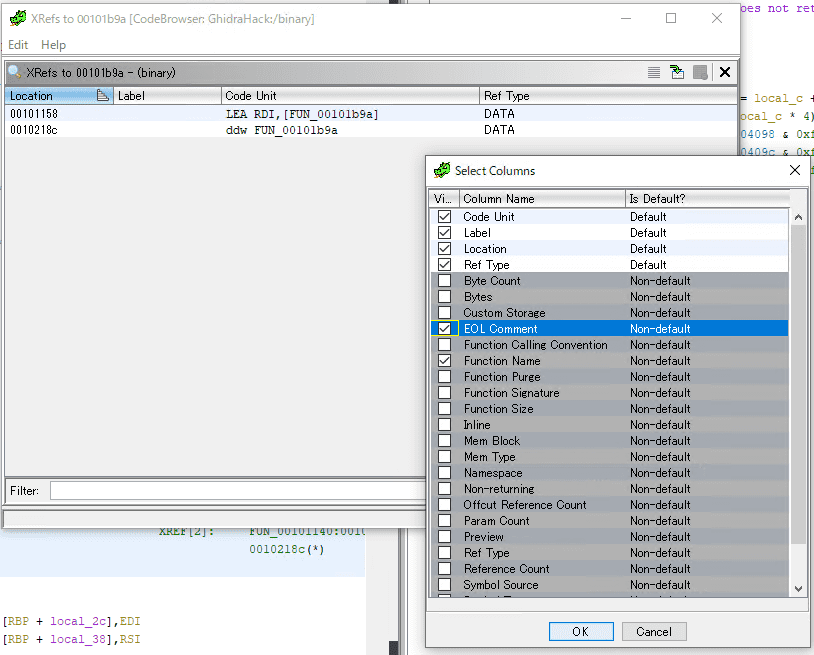
Add columns to the XRef window accessible from the Listing window.
Adding the Function Name column is especially useful.
Symbol Source Configuration
Specify the path and source for symbol files.
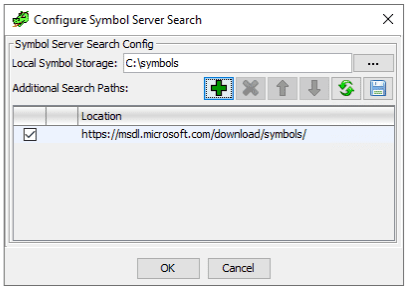
Eclipse Setup
First, install Eclipse in order to build Ghidra extensions.
On both Windows and Linux, download and run the installer from the link below.
Reference: Eclipse Downloads | The Eclipse Foundation
I selected Java Developers at the top of the list and installed it.

Installing Ghidra Develop Tools in Eclipse
Once Eclipse is installed, install the Ghidra Develop Tools.
To do this, right-click any script in Ghidra’s Script Manager and select [Edit with Eclipse].

Here, specify the full path to Eclipse.
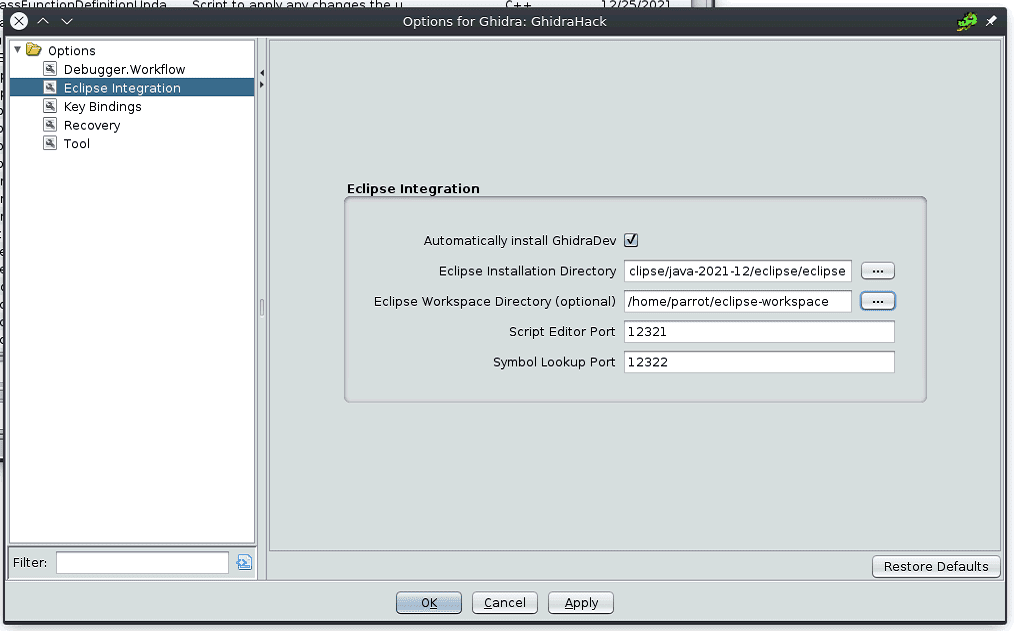
This installs the extension in Eclipse and adds the [GhidraDev] tab to the top menu bar.
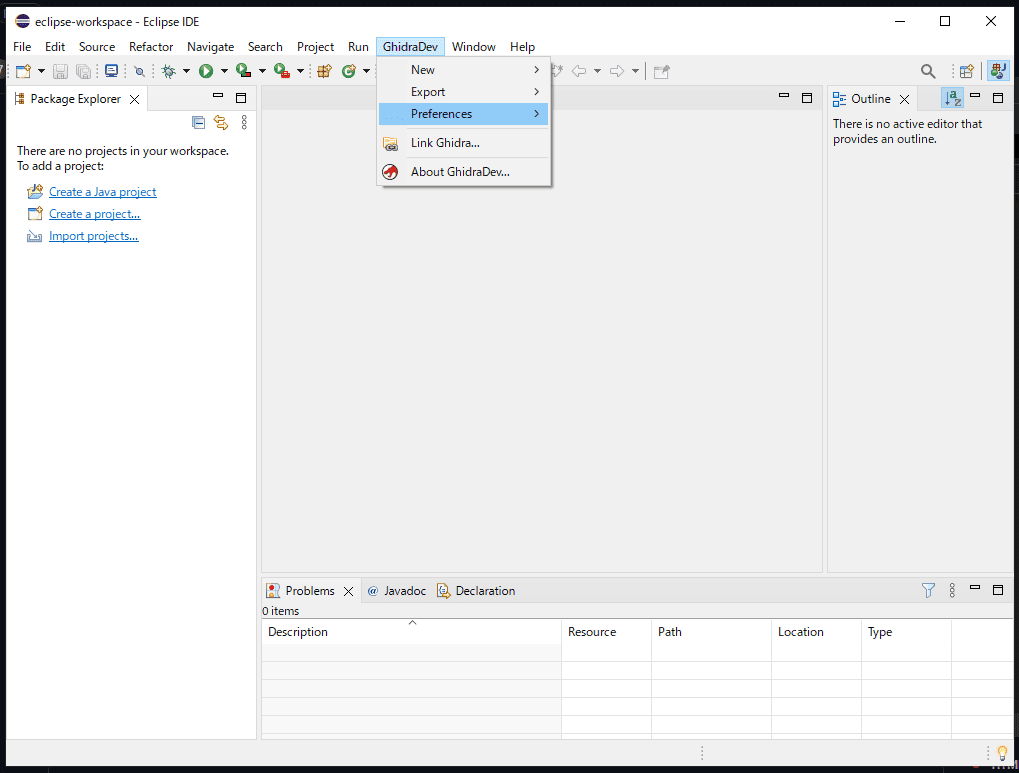
Installing ghidra-findcrypt
Install on Ghidra 10.2.x.
Reference: GitHub - TorgoTorgo/ghidra-findcrypt: Ghidra analysis plugin to locate cryptographic constants
Note that Ghidra 10.3.x can cause template mismatch issues with other plugins such as gotools.
Script Configuration
Next, configure Ghidra Scripts.
Adding scripts to Ghidra is very easy: open Bundle Manager from the Script Manager and add the folder where your scripts are located.

Setting Up pwndra
pwndra is a collection of CTF-oriented Ghidra Scripts.
Download the release from the repository below, extract it, and add it to Ghidra.
Reference: 0xb0bb/pwndra: A collection of pwn/CTF related utilities for Ghidra
Setting Up ghidra_scripts
Download the files from the repository below and extract them into Ghidra.
Reference: AllsafeCyberSecurity/ghidra_scripts: Ghidra scripts for malware analysis
Setting Up Ghidrathon for Python3 Interpreter (Linux)
Ghidra supports a Jython-based Python2 interpreter by default.
However, since I wanted to use Python3 as much as possible, I integrated a Python3 interpreter with Ghidra using the Ghidrathon extension published as OSS by MANDIANT.
Refer to the following for installation instructions:
Reference: mandiant/Ghidrathon: The FLARE team’s open-source extension to add Python 3 scripting to Ghidra.
Note that the required build tool versions vary depending on the Ghidrathon version.
# Download Gradle 7.3 or later from https://gradle.org/releases/ and add it to PATH
export PATH=/<path to gradle>/gradle-7.6/bin:$PATH

# Set JAVA_HOME to the same JDK version used by Ghidra
export JAVA_HOME=<path to JDK 17>

# Build
git clone https://github.com/mandiant/ghidrathon
cd ghidrathon
gradle -PGHIDRA_INSTALL_DIR=<full path to Ghidra>
Once the build is complete, the extension file is created in the dist directory inside the Ghidrathon source directory. Import this file into Ghidra.
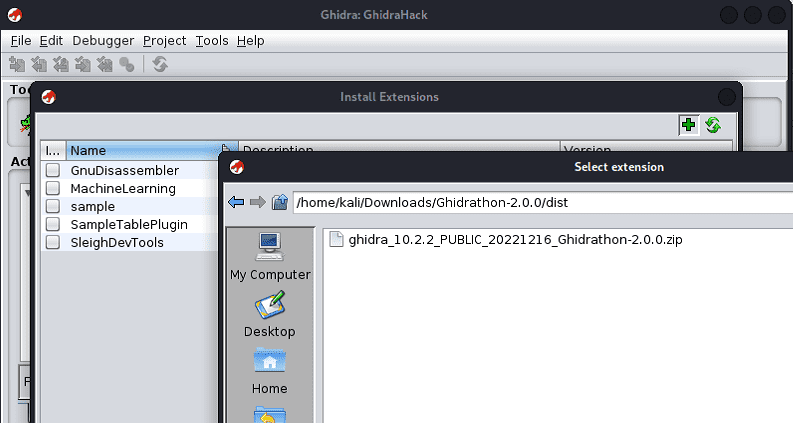
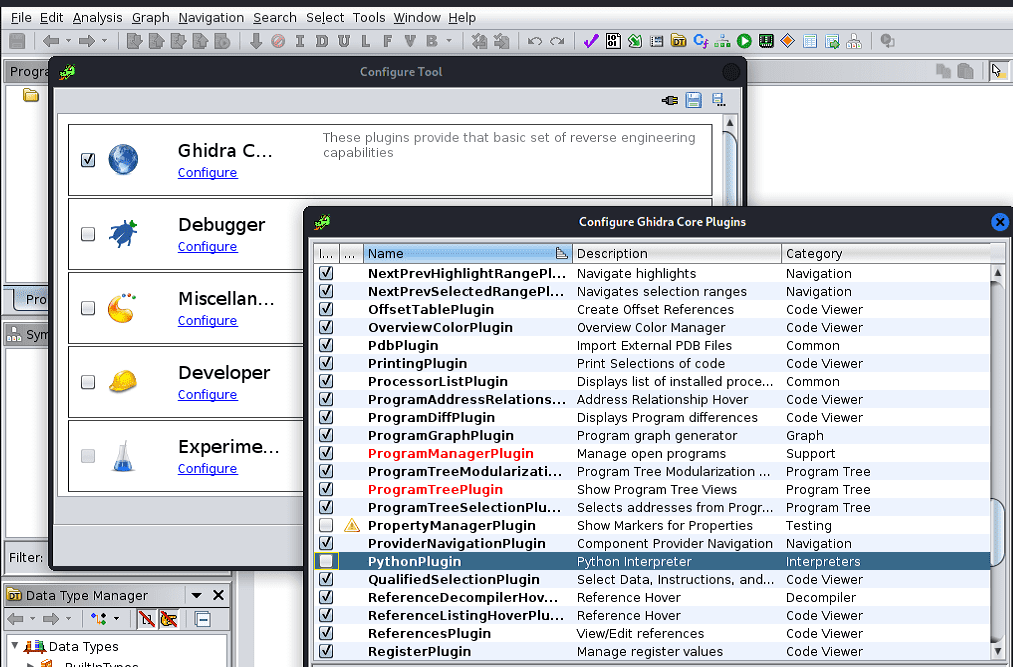
Next, go to [File] > [Configure] in Ghidra Core and disable the default Python plugin.
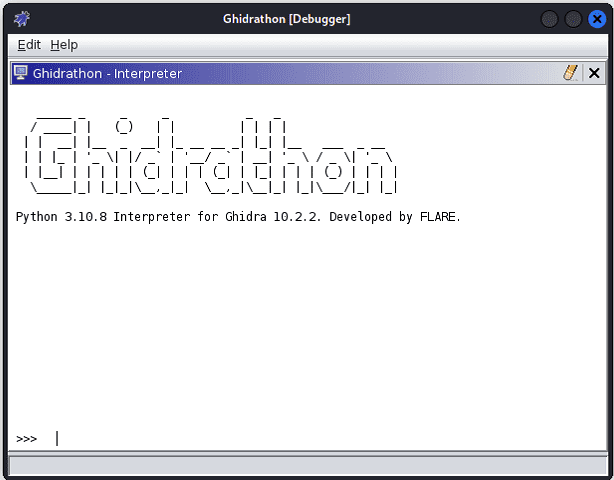
Now open [Window] > [Ghidrathon] to launch an interpreter that uses Python3.
Setting Up Ghidrathon for Python3 Interpreter (Windows)
Let’s also set up Ghidrathon on Windows.
As with Linux, download gradle version 7.x and add it to PATH.
Also, set JAVA_HOME to the folder of the same Java version used by Ghidra.
With this in place, run the following commands in PowerShell to build the extension:
git clone https://github.com/mandiant/ghidrathon
cd ghidrathon
gradle -PGHIDRA_INSTALL_DIR=<full path to Ghidra>
After that, install the extension in Ghidra as you would on Linux, and you are done.