This page has been machine-translated from the original page.
This article documents the setup process for FLARE VM, a Windows distribution designed for malware analysis.
FLARE VM is an open-source, Windows-based security distribution designed for reverse engineers, malware analysts, incident responders, forensics investigators, and penetration testers.
Starting from Version 3.0, it also supports Windows 10.
Reference: mandiant/flare-vm
Reference: FLARE VM Update | Mandiant
Table of Contents
Environment
FlareVM will be installed on a virtual machine with the following specifications:
-
Windows 10 Pro 1903 English
- CPU: 3 core
- RAM: 8192GB
- Storage: 80GB
- FlareVM 3.1
While I haven’t tested it personally, I’ve seen articles mentioning that FlareVM installation fails on Windows 10 versions newer than 1903, so I used 1903 for this setup.
According to mandiant/flare-vm, the system requirements are as follows:
Note that the 60GB requirement refers to available storage space after OS installation, not the total VM storage capacity.
Requirements
60 GB Hard Drive
  Additional space needed after VM is downloaded/installed
2 GB RAM
Pre-Installation Preparation
Disabling Windows Defender
Basically, you can follow the steps in the article below:
Reference: How To Uninstall, Disable, and Remove Windows Defender
In my environment (1903), to disable Defender, I also needed to disable the Tamper Protection feature.
The following article is helpful:
Reference: Windows 10 Windows Defenderを完全に無効化する-パソブル
Although not a requirement, I also disabled Windows Firewall while I was at it.
Taking a Snapshot
Before proceeding with FlareVM installation, take a snapshot of the VM.
Downloading FlareVM
Download FlareVM 3.1 from the Release page below:
Reference: Releases · mandiant/flare-vm
Installing FlareVM
Extract the downloaded FlareVM file on the VM.
Navigate to the extracted folder in PowerShell running with administrator privileges and execute the following commands in order:
Internet connection is required.
Unblock-File .\install.ps1
Set-ExecutionPolicy Unrestricted
.\install.ps1 -password <password>
If successful, installations and setups will proceed sequentially like this:
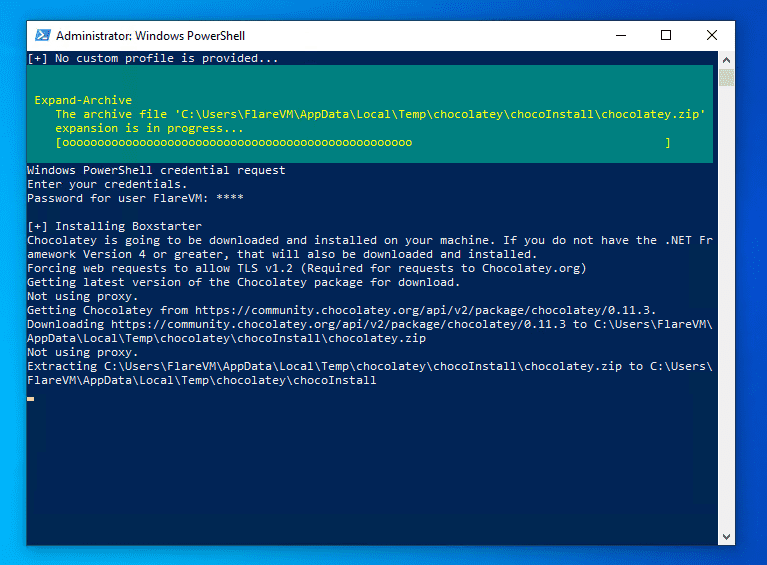
It took an incredibly long time to complete (didn’t finish even after an overnight run).
Be patient and wait.
FlareVM Package Installation Method
FlareVM automatically performs package installation, registry modifications, and OS reboots after executing the PowerShell script.
It uses Chocolatey, a package manager, to automate package installation on Windows.
Reference: Chocolatey - Wikipedia
Package updates can also be done with the chocolatey upgrade ${packageName} command, which seems very useful for building and managing lab environments.
At least for now, it appears to have a much richer package selection than winget.
Reference: Chocolateyを使った環境構築の時のメモ - Qiita
I plan to write an article about building environments using Chocolatey in the future.
Post-Installation Tasks
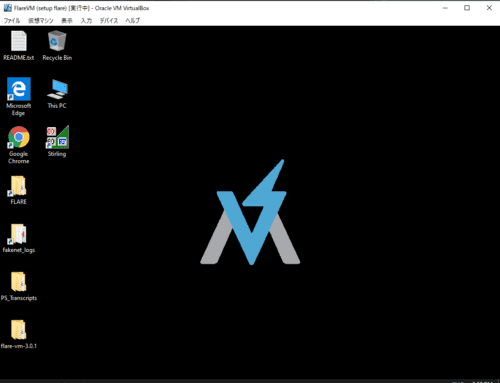
Once installation is complete, the wallpaper will change as shown below:
Finally, install additional packages and change the network settings to a host-only adapter.
When deploying FlareVM for malware analysis, make sure to verify that the environment is completely isolated from the network.
Installing Additional Packages
First, install the tools listed as additional packages in the article below:
choco install exiftool, trid, grep, stirling-jp, sakuraeditor, irfanview, irfanviewplugins, hashtab, audacity, winmerge, teraterm, fiddler, sqlitebrowser, ultravnc, gnuwin32-coreutils.installReference: FLARE VM を使って Windows10 に解析環境を構築する - setodaNote
I installed exiftool and fiddler, among others, as I use them frequently.
I also installed Windows Terminal, Noriben, and PowerToys additionally.
Noriben doesn’t work properly with FlareVM’s default settings, so the configuration described here is required.
Bonus: Tools Installed with FlareVM
The tools deployed with FlareVM are listed in the Readme.
Reference: mandiant/flare-vm
Here are some interesting tools I picked out and summarized:
Android
- dex2jar
- apktool
I’ve used these two tools when Android app challenges appeared in CTFs.
They can extract APK files and decompile them into a readable Java-like format.
Decompilers
- RetDec
I hadn’t used RetDec before, but it appears to be an OSS decompiler developed by Avast.
It can decompile ELF and PE files, and can also output decompilation results in Python-like language as well as C. Amazing.
Reference: avast/retdec: RetDec is a retargetable machine-code decompiler based on LLVM.
Reference: avastのretdecをインストールする - Qiita
Disassemblers
- Ghidra
- IDA Free (5.0 & 7.0)
- Binary Ninja Demo
- radare2
- Cutter
Various disassemblers are included.
I hadn’t used Cutter before, but it disassembles quite cleanly.
The dark mode is also nice.
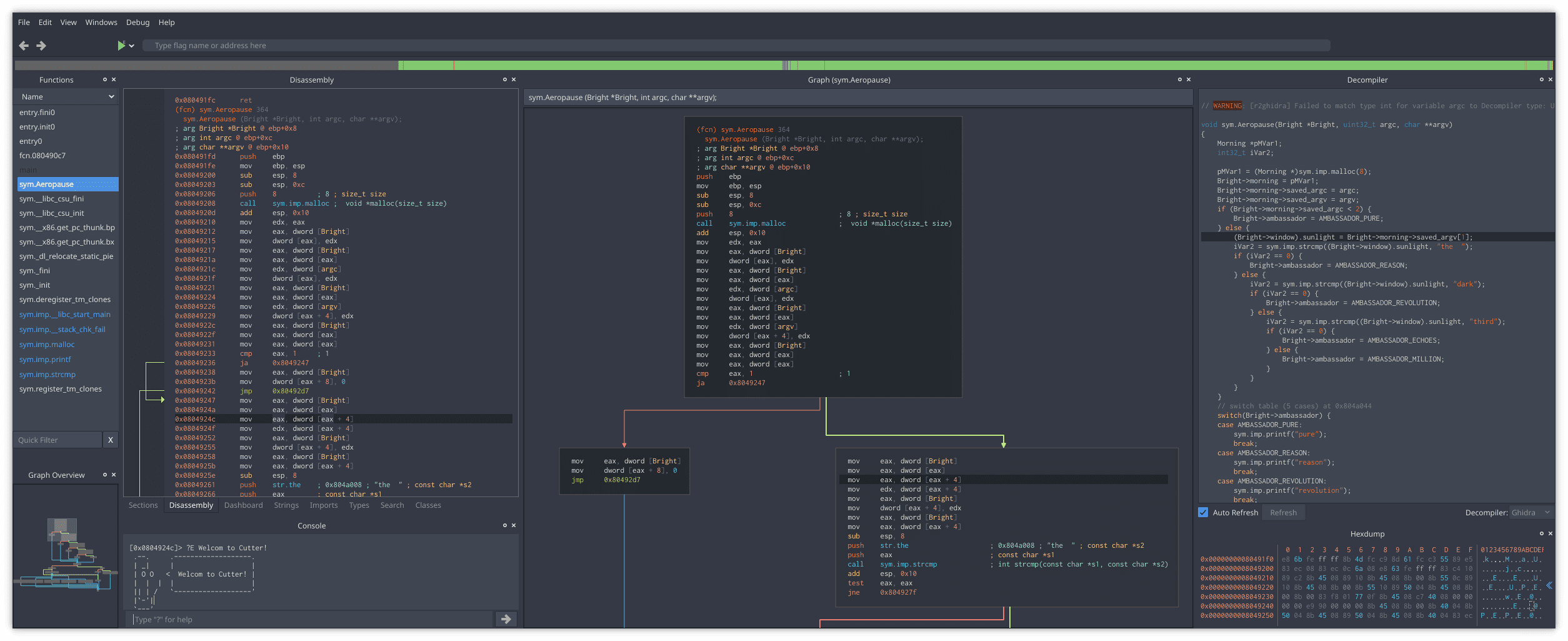
Reference: rizinorg/cutter: Free and Open Source Reverse Engineering Platform powered by rizin
.NET
- de4dot
- Dot Net String Decoder (DNSD)
- dnSpy
- DotPeek
- ILSpy
- RunDotNetDll
ILSpy and dnSpy are standard tools, but there are quite a few others too.
de4dot appears to be a deobfuscation tool. Should be useful for malware analysis.
Reference: de4dot/de4dot: .NET deobfuscator and unpacker.
AutoIt
- AutoItExtractor
- UnAutoIt
- Exe2Aut
This is my first time learning about AutoIt. Is it similar to VBScript?
Reference: AutoIt - Wikipedia
Flash
- FFDec
There’s even a decompiler for Flash.
Forensic
- Volatility
- Autopsy
I’ll repeat this 100 times: Volatility is a memory forensics tool.
I wondered what the difference from ChatEngine was, but it can be used from the CLI. Convenient.
Reference: volatilityfoundation/volatility: An advanced memory forensics framework
Hex Editors
- FileInsight
- HxD
- 010 Editor
My favorite Tweak isn’t included…
Java
- JD-GUI
- Bytecode-Viewer
- Java-Deobfuscator
There’s even a Java deobfuscation tool.
I haven’t encountered it in CTFs yet, but I wonder if it’s commonly used in malware analysis.
Office
- Offvis
- OfficeMalScanner
- oledump.py
- rtfdump.py
- msoffcrypto-crack.py
There’s a tool specifically for scanning Office file malware.
Reference: OfficeMalScanner - Microsoft Office Files Malware Scanner
- PDFiD
- PDFParser
- PDFStreamDumper
PE
- PEiD
- ExplorerSuite (CFF Explorer)
- PEview
- DIE
- PeStudio
- PEBear
- ResourceHacker
- LordPE
- PPEE(puppy)
I often use PEiD and PeStudio, but there are quite a few others.
I’ll try them out sometime.
Pentest
- Windows binaries from Kali Linux
Seems like a collection of Kali tools like netcat that can be used on Windows.
Reference: windows-binaries | Kali Linux Tools
Powershell
- PSDecode
Text Editors
- SublimeText3
- Notepad++
- Vim
I want to add VSCode manually…
Visual Basic
- VBDecompiler
Web Application
- BurpSuite Free Edition
- HTTrack
HTTrack can recursively download websites and build a pseudo mirror site locally.
Reference: 【画像付き】httrackでホームページを丸ごとダウンロードする使い方
Utilities
Omitted.
There are several hash tools included, but Hashcat isn’t there.
Summary
I set up FlareVM, which I’ve been curious about for a while.
It was very instructive to learn that custom distributions like this can be created on Windows as well.