This page has been machine-translated from the original page.
This time, I will summarize the BIOS setting that lets you automatically power on a shut down PC when the AC adapter is connected.
When I work at home, I use a laptop stand like the one on the left in the image to save space.
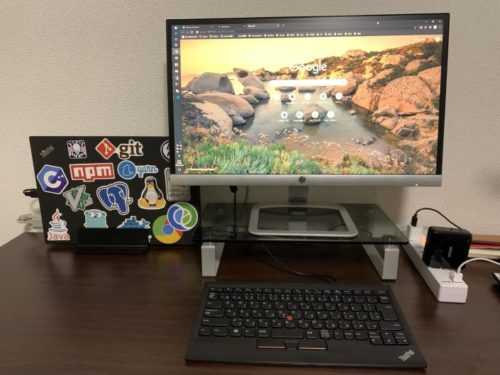
However, as shown in the image, I use the PC with the lid closed all the time, so opening the PC just to power it on is very cumbersome.
To solve this, I changed the BIOS setting so that the laptop powers on automatically when the AC adapter is connected.
How to Configure the BIOS
The setup is very simple.
Once you have started the BIOS (the method differs depending on the PC), look for the setting item called Restore after AC Power Loss.
It may differ depending on the PC, but it is probably in a location like the following.
Setting > Advanced > Power Management Setup > Restore after AC Power Loss
Once you find that setting item, change the setting value to Enable.
This will make the PC start automatically when you connect the AC adapter while the PC is shut down.
By the way, even if you shut down the PC while the AC adapter is connected, it will not restart on its own, so you can use it without worry.
If you want to start it again, just unplug and replug the AC adapter.
This Does Not Work on Surface
That said, some PCs cannot use the setting above.
I could not enable the automatic startup setting above on the Surface Laptop I had on hand, and in the end I gave up.
The reason is that although Surface uses a UEFI called SurfaceUEFI, the setting above cannot be changed from the UEFI screen.
Also, even if you enable automatic power-on after power loss using the method described later, it seems the PC still does not start when you unplug and replug the power because of the hardware power management behavior.
The following page also describes this in detail, but just like the people in the comments, I could not boot the PC even after enabling automatic power-on after power loss.
About the Surface Pro UEFI item “automatic power-on after power loss”
How to Change SurfaceUEFI Settings
As a result, automatic startup could not actually be enabled on Surface, but since I went to the trouble, I will summarize how to change the SurfaceUEFI configuration.
You can change SurfaceUEFI settings by using Microsoft Surface UEFI Manager.
Microsoft Surface UEFI Manager can be downloaded from the documentation above.
For the certificate, I used a self-signed .pfx certificate file created with OpenSSL in WSL.
For creating the self-signed certificate, I referred to the following article.
How I created a self-signed certificate (pfx file) with openssl - Qiita
For how to import the self-signed certificate you created into the Windows certificate store, I referred to the following article.
Windows configuration for trusting a self-signed certificate
Summary
I could not enable the setting on Surface, but I could enable it on the ThinkPad I use as my main machine, and it works comfortably.
It is very convenient, so if you use a laptop while keeping it closed, please give it a try.