This page has been machine-translated from the original page.
These are my personal notes on setting up Visual Studio.
These are not best practices — just the settings I personally use most often.
The version being installed is Visual Studio 2022.
Table of Contents
- Installing Components
- Manually Installing the SDK and WDK
- Font Settings
- Keymap Settings
- Changing the Default Project Creation Folder
- UI Configuration
- Sticky Scroll Settings
- Summary
Installing Components
After launching the Visual Studio Community installer, install the following components.
I generally always add the following workloads:
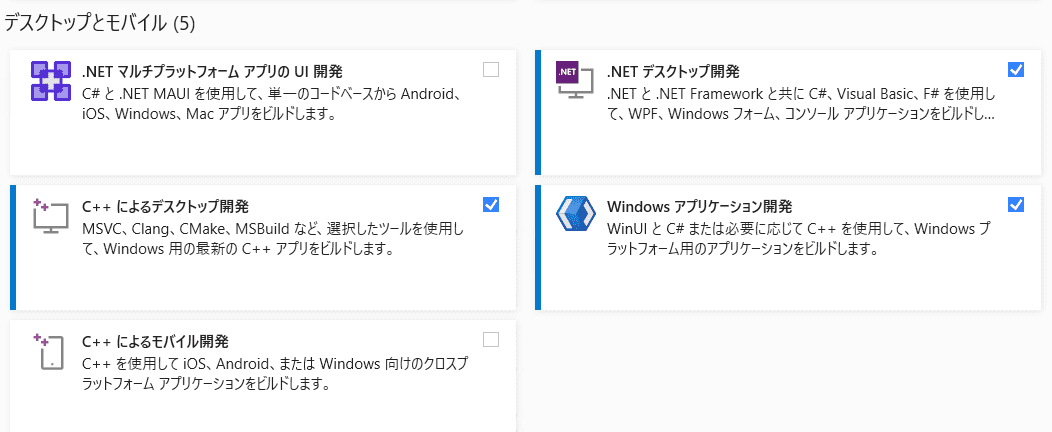
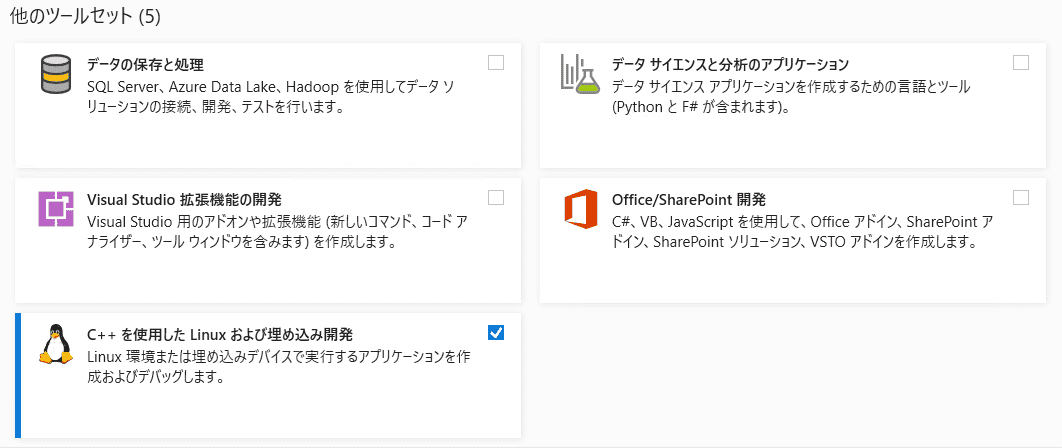
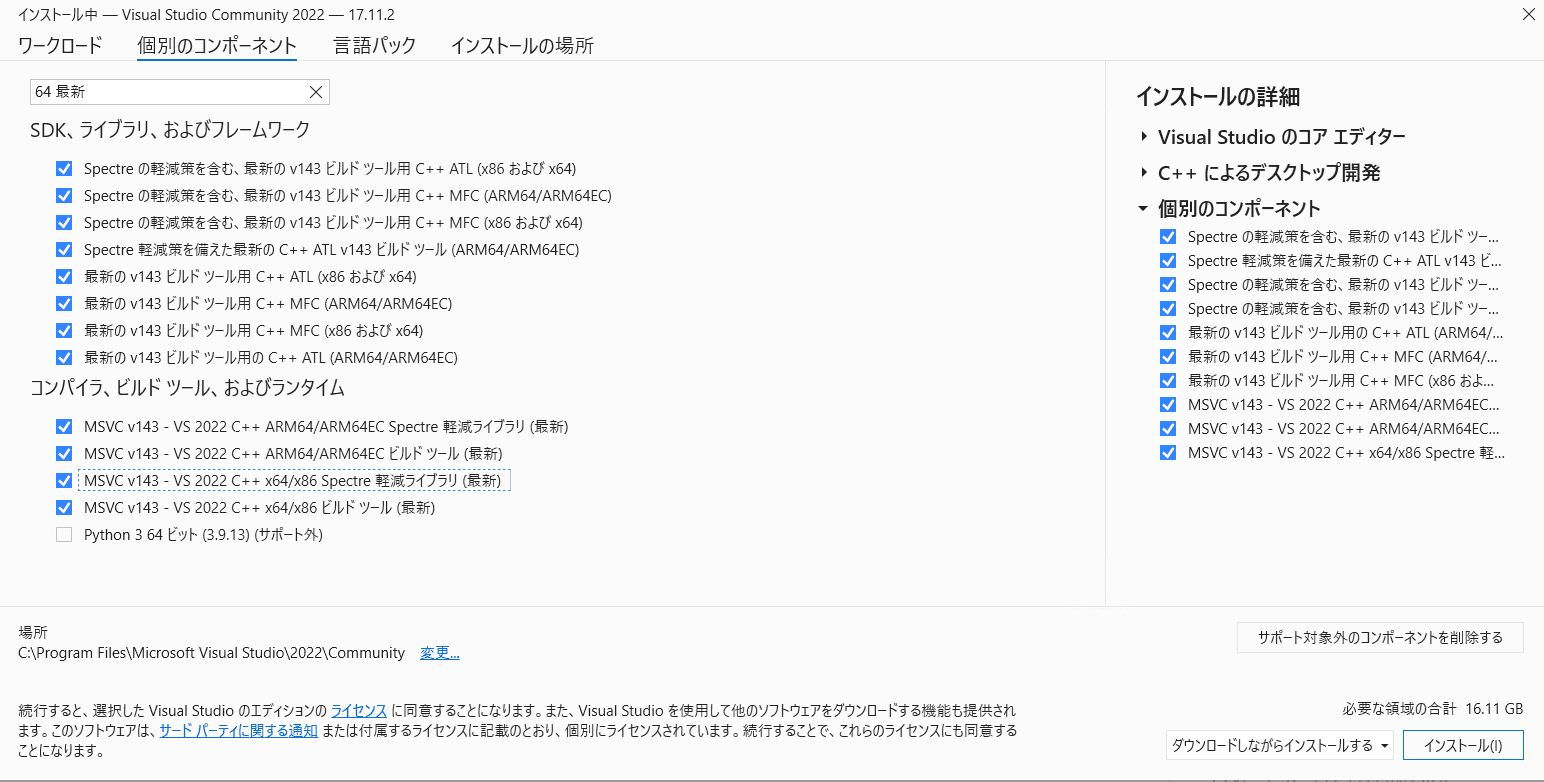
Under [Individual components], type 64 latest in the search box and check the following items:
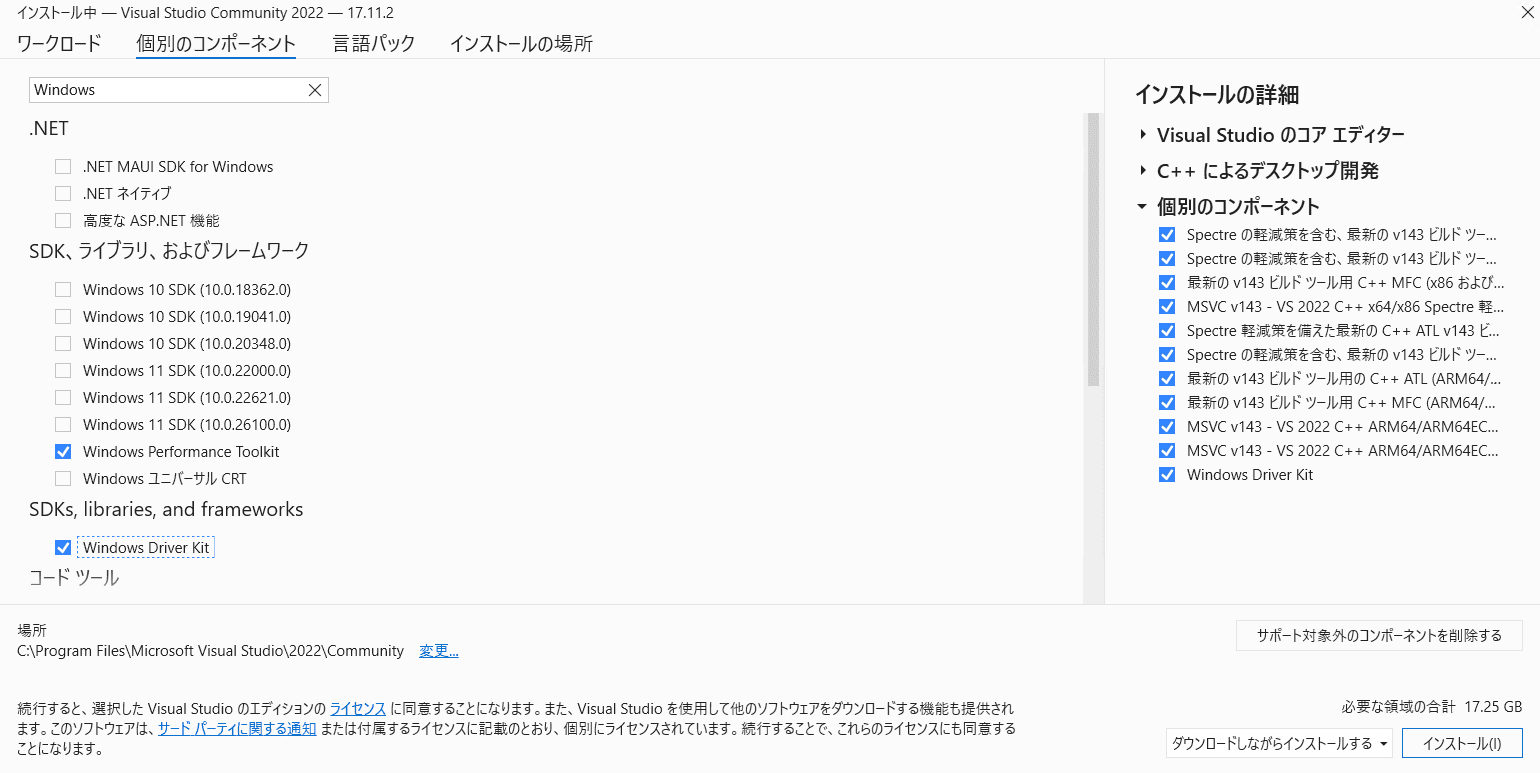
Next, check [Windows Driver Kit] and proceed with the installation.
Note: Since I will install the Windows 11 SDK manually, I leave it unchecked here. (Even if you uncheck it, the SDK may be installed automatically in some cases.)
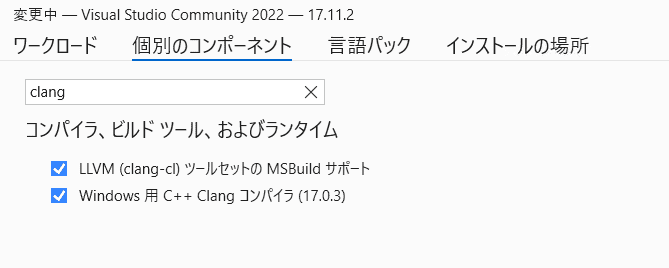
I also often add the LLVM and Clang compilers.
Manually Installing the SDK and WDK
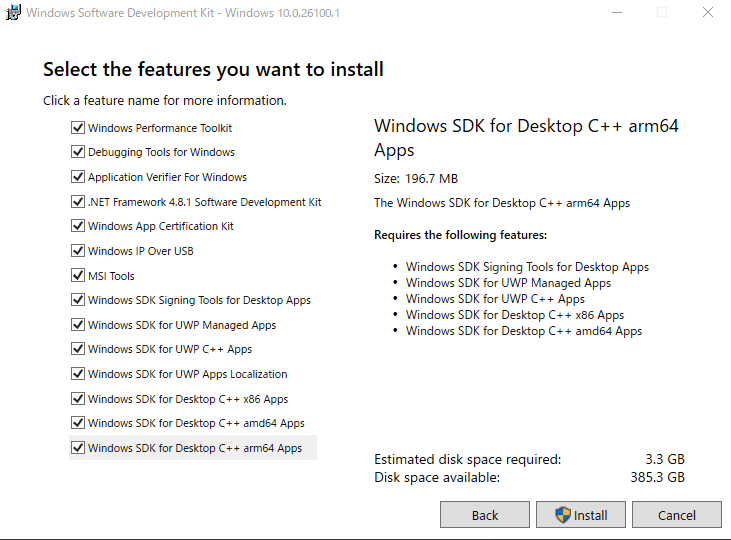
After installing Visual Studio, download the installers from the links in the following documentation and manually install the SDK and WDK.
Reference: Download the Windows Driver Kit (WDK) - Windows drivers | Microsoft Learn
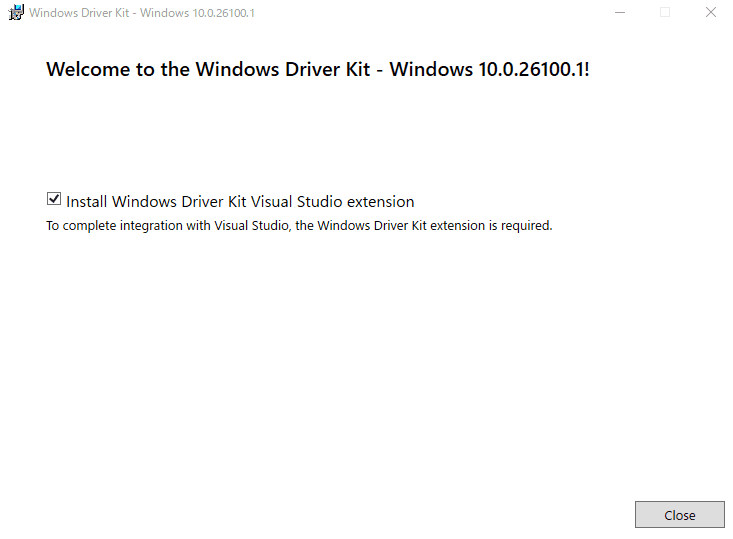
Regarding the Visual Studio extension that installs after WDK: as of the time this article was written, if you are using the latest version of Visual Studio 2022, this extension is reportedly not required. Uncheck it as appropriate. (Leaving it checked just causes an error and does not seem to cause other problems.)
Font Settings
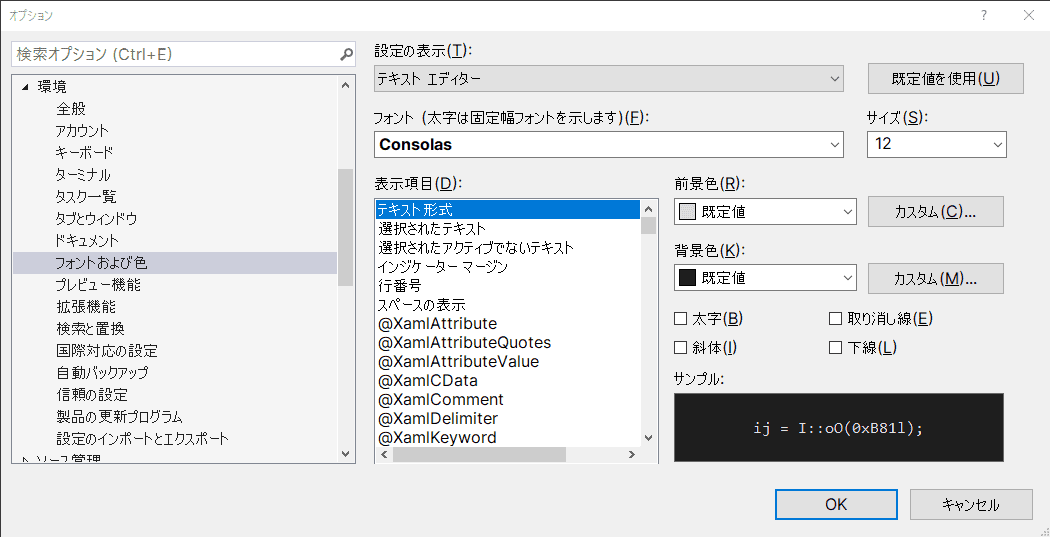
After Visual Studio is installed, go to Options and change the text editor font and size.
I almost always use Consolas.
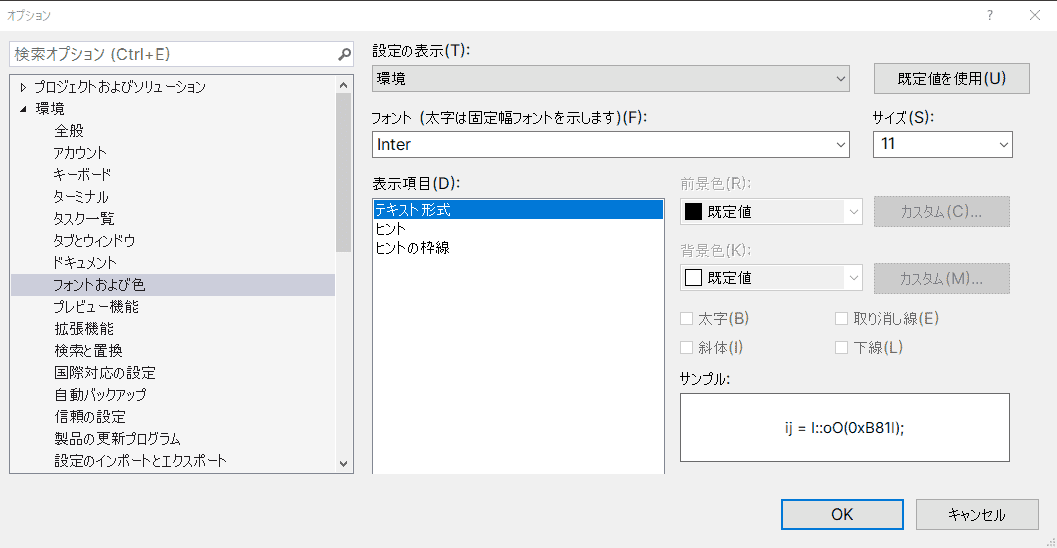
Next, under [Environment], change the font and size for the toolbar and other UI elements.
I always use the Inter font. (If you use Inter, you need to separately install the font file on the OS.)
Keymap Settings
Next, configure the Visual Studio keymap.
I always set the base keymap to the Visual Studio Code scheme.
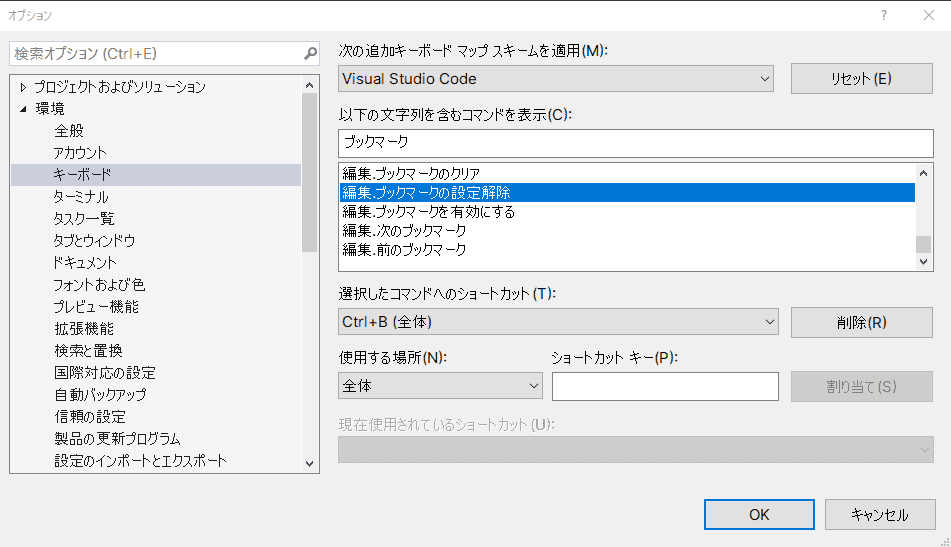
I also remap the [Find All References] shortcut to Ctrl+Shift+F.
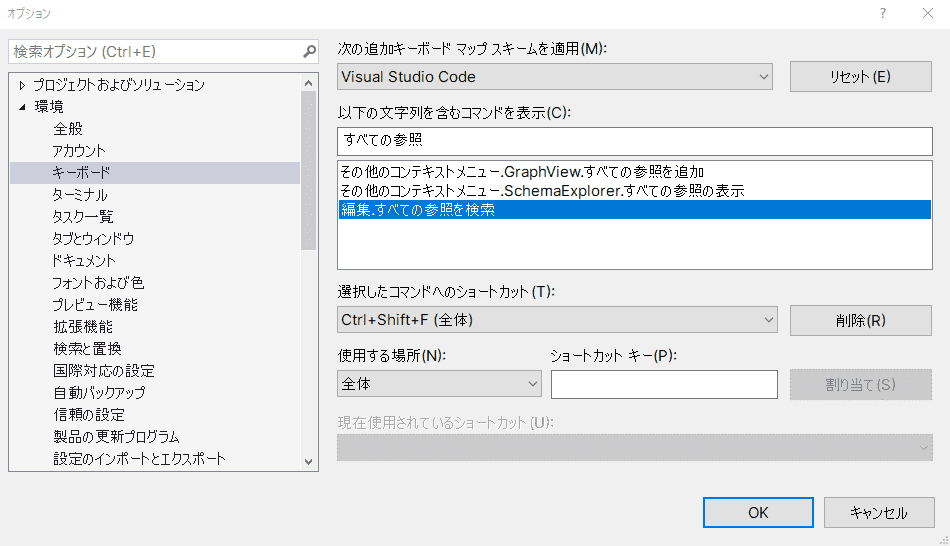
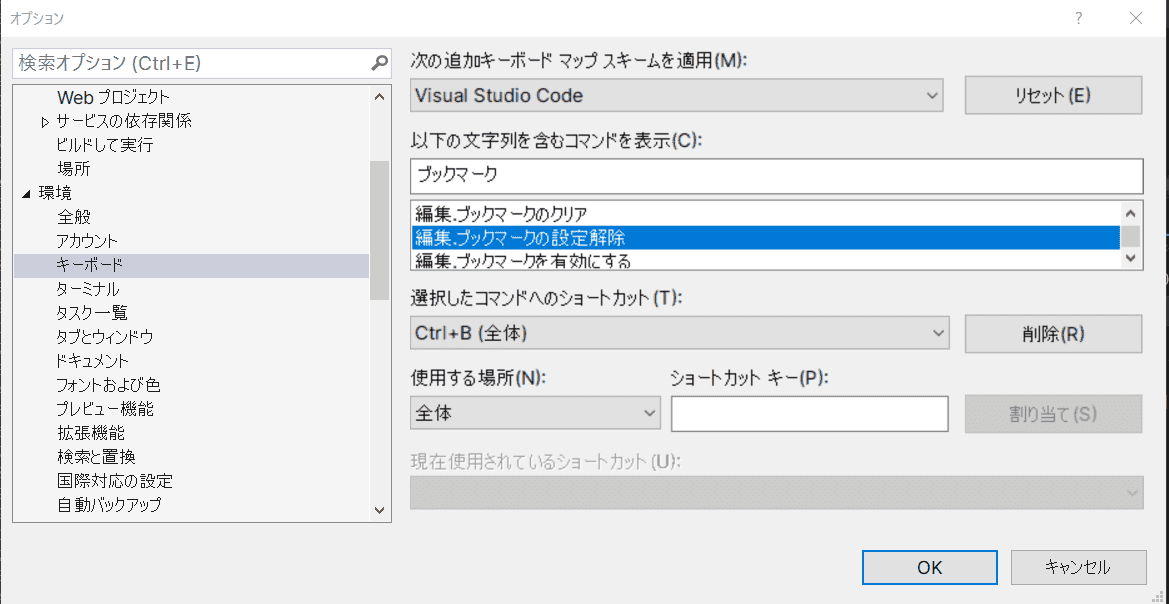
I also change the bookmark shortcut assignments.
The name is a bit confusing, but using the [Clear Bookmark] shortcut allows you to both assign and remove a specific bookmark with the same key.
Changing the Default Project Creation Folder
Visual Studio creates projects in %USERPROFILE%\source\repos by default, which is somewhat inconvenient, so I change it to something like %USERPROFILE%\Documents\Codes.
You can change this from [Projects and Solutions] > [Locations].
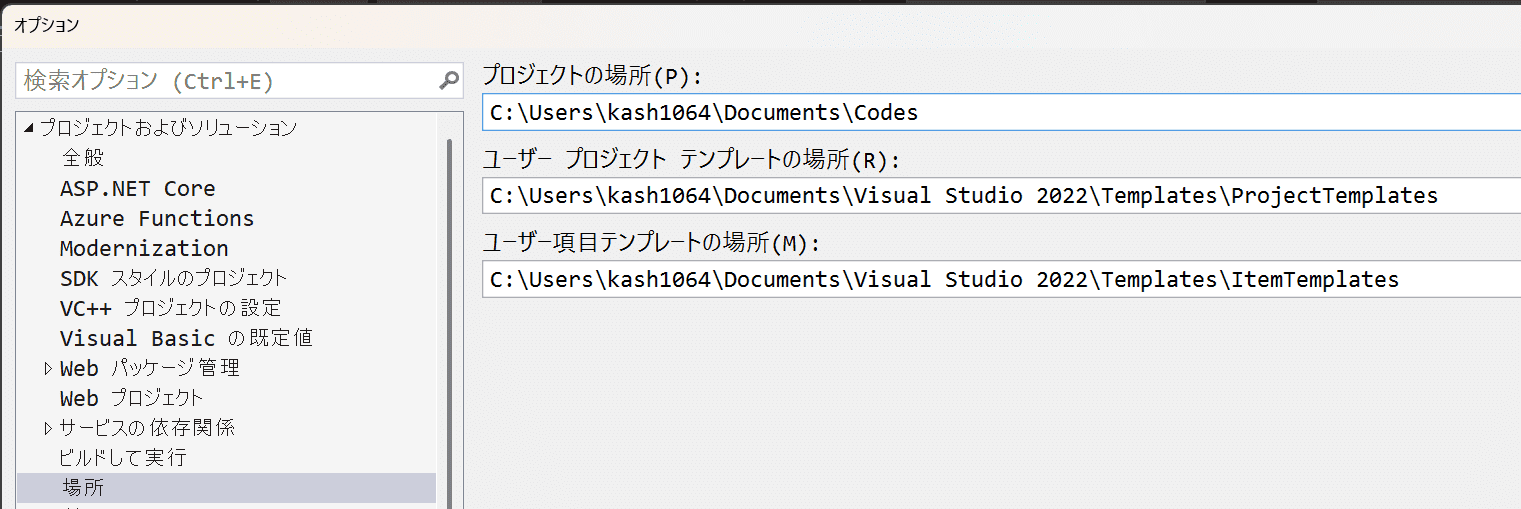
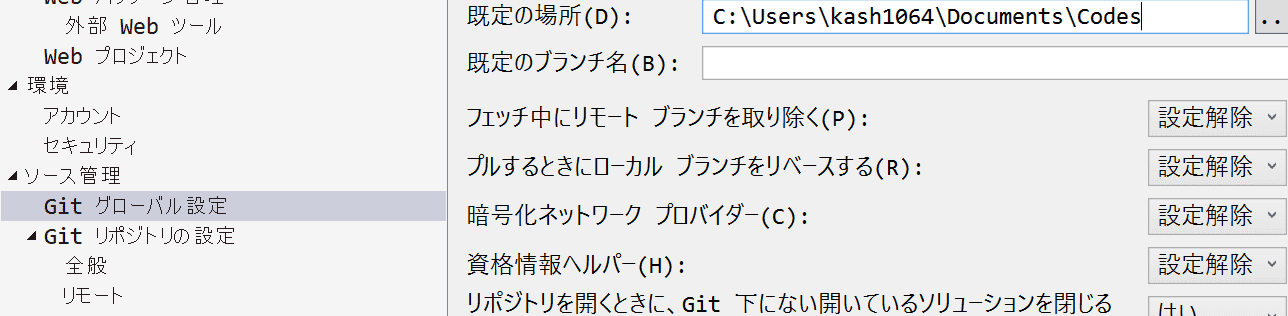
Changing the Default Repository Clone Folder
Similar to the project creation folder, I also change the default folder path used when cloning with git from the following settings location.
UI Configuration
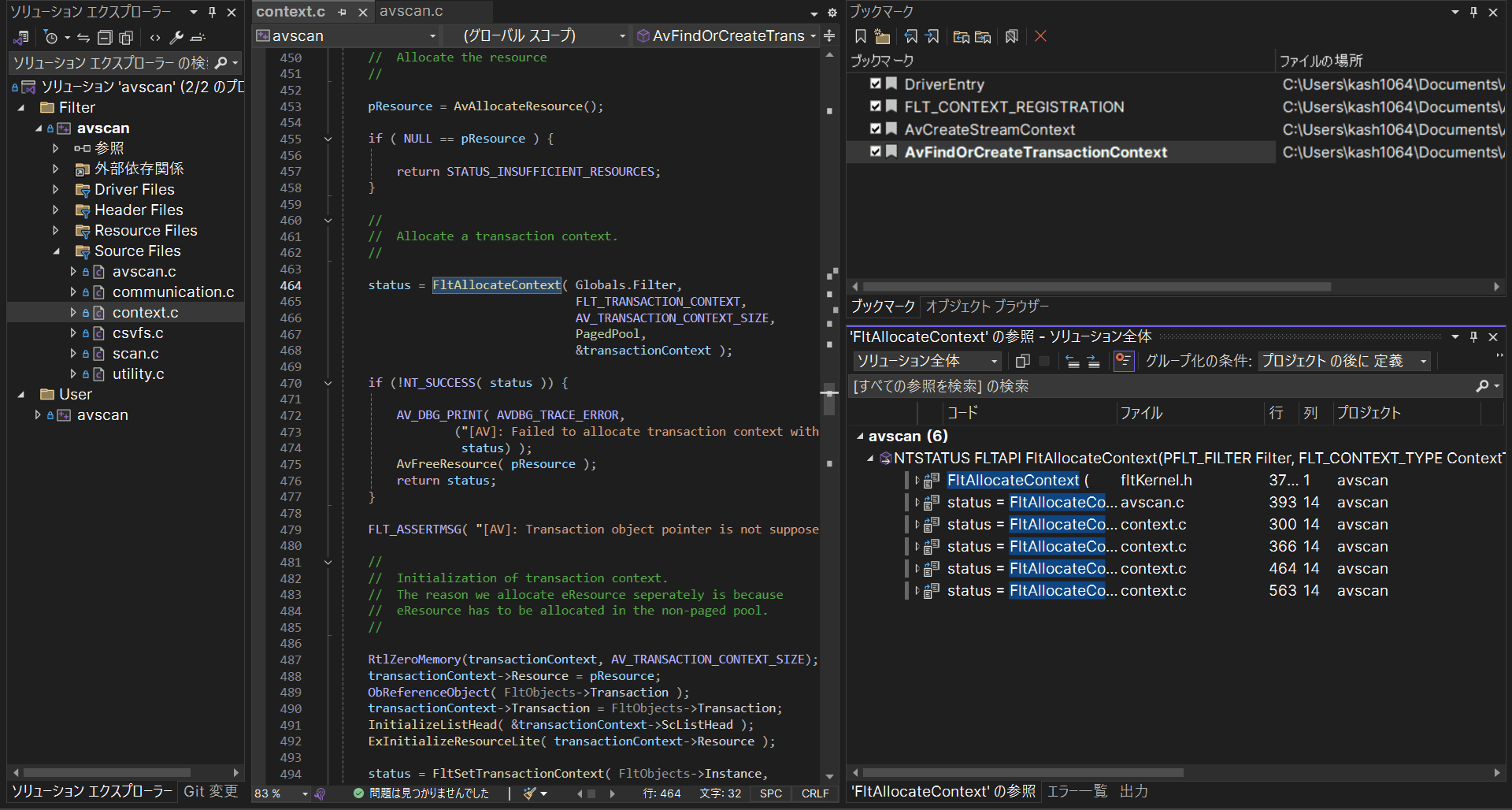
I generally arrange the UI roughly as follows.
The layout may change depending on the situation, but I typically place bookmarks and reference search views in the right pane.
I also keep the Object Browser readily accessible.
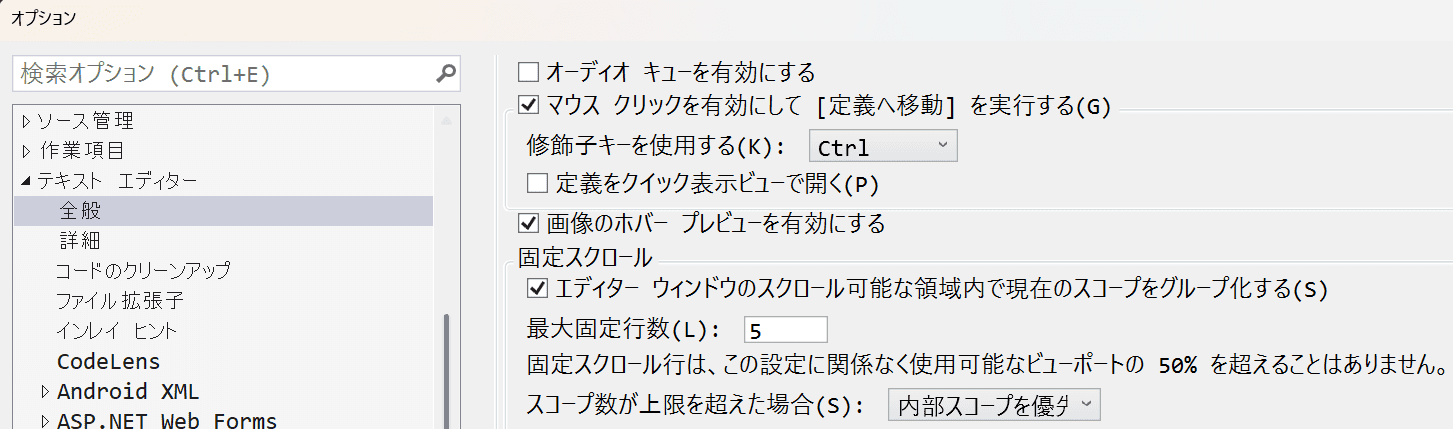
Sticky Scroll Settings
From the text editor settings, enable the current scope grouping setting and activate the sticky scroll feature in the Visual Studio editor.
How to Fix the GitHub Account Used When Cloning a Repository
When you are signed into Visual Studio with multiple accounts, it can be annoying to see a dialog asking which GitHub account to use every time you push, etc.
To fix this, embed the GitHub account username in the Clone URL like https://username@github.com/owner/repo.git.
This fixes the GitHub account used when working with that repository.
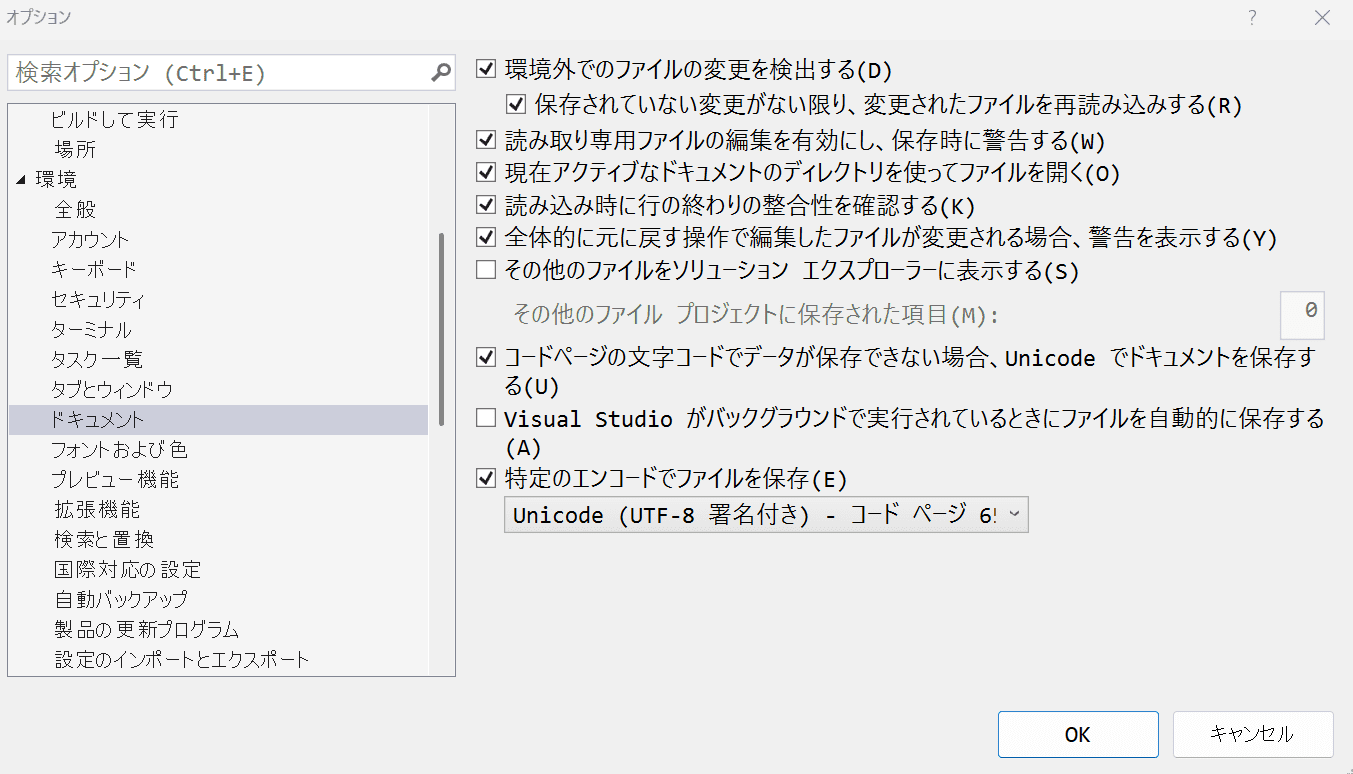
How to Change the Default File Encoding
In a Japanese locale, files can accidentally be opened using Shift-JIS, which is very inconvenient. To prevent this, go to [Environment] > [Documents] and specify an encoding such as UTF-8 for saving files.
Summary
Just personal notes.
I plan to update the content in the future.