This page has been machine-translated from the original page.
This article is a follow-up to the Cheat Sheet for Dump Analysis and Live Debugging with WinDbg that I created the other day, and summarizes GFlags settings that are useful to remember when troubleshooting Windows.
I only included the settings that I personally find useful. This is also just a memo for myself, so I would like to add more settings in the future if I find others that prove useful in different situations.
Table of Contents
- Introduction
- What Is GFlags?
- Preventing Kernel-Mode Stacks from Being Paged Out
- Viewing Image Loader Processing
- Launching a Debugger When a Program Starts
- Monitoring Program Termination
- Summary
Introduction
All of the content in this article is based only on publicly available information, published books, or results verified in a personal test environment.
Related articles:
- Cheat Sheet for Dump Analysis and Live Debugging with WinDbg
- Notes on Reading Windows Process Information with WinDbg
What Is GFlags?
GFlags (Global Flags Editor) is a tool that can be used to enable or disable specific debugging features.
Because it is included in Debugging Tools for Windows 10 (WinDbg), if you have the classic WinDbg installed, gflags.exe and gflags.dll are placed in the same folder as WinDbg (for example, C:\Program Files (x86)\Windows Kits\10\Debuggers\x64).
Reference: GFlags - Windows drivers | Microsoft Learn
GFlags can be used from both the CLI and the GUI, and lets you manipulate global flags for the system or for individual images (programs).
The command-based way to operate GFlags is described here.
Reference: GFlags Commands - Windows drivers | Microsoft Learn
What Are Global Flags?
Global flags are variables that support debugging and tracing of Windows systems and images.
System Global Flags
System global flags are managed by two global variables: NtGlobalFlag and NtGlobalFlag2.
These system variables are defined under HKEY_LOCAL_MACHINE\SYSTEM\CurrentControlSet\Control\Session Manager and are initialized when the system starts. (The default value of both is 0, meaning no global flags are set.)
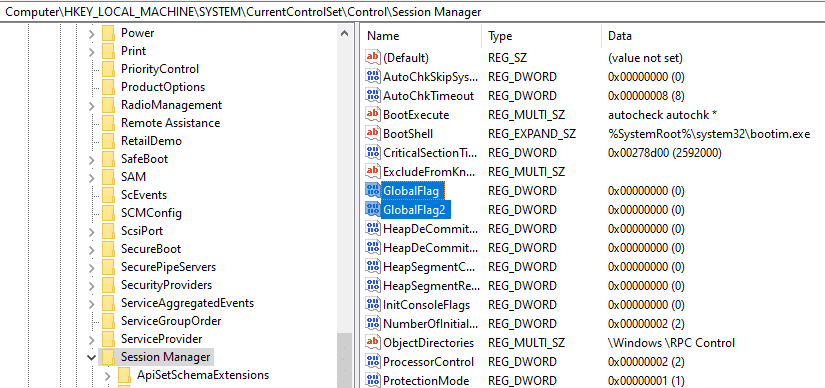
You can inspect system-side global flags during kernel debugging by using the !gflag extension.
However, at present this extension appears to support only the value configured in NtGlobalFlag.
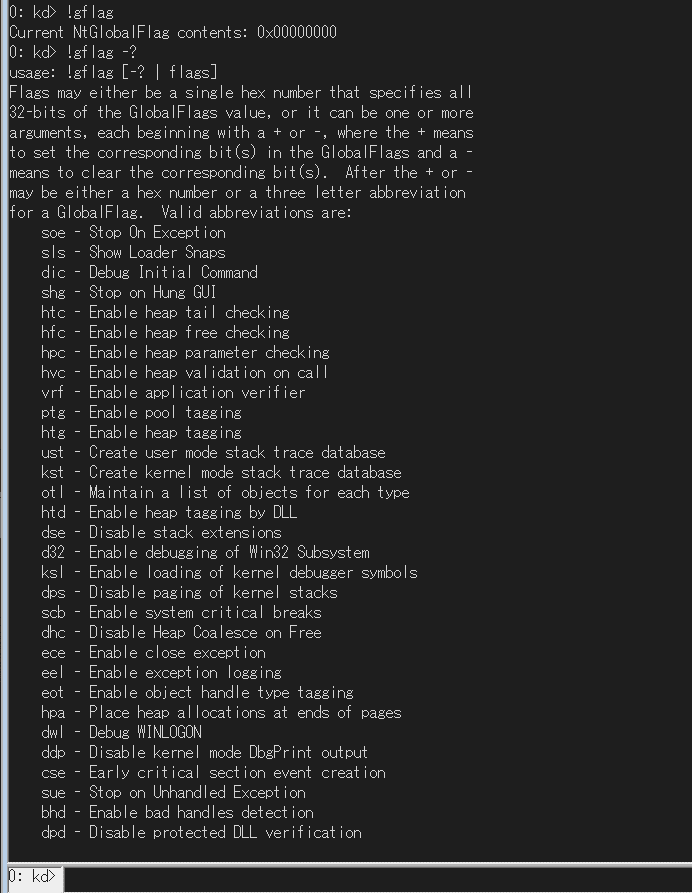
Running the !gflag -? command displays help for global flags.
Per-Image-File Global Flags
Each image (program) also has its own global flag settings.
The global flags for each image file are defined under HKEY_LOCAL_MACHINE\SOFTWARE\Microsoft\Windows NT\CurrentVersion\Image File Execution Options\<Application>.
Under this registry key you can find the Debugger option, which specifies the application to open when the target application starts, and SilentProcessExit, which can be abused to launch a process when the application exits.
These Image File Execution Options (IFEO) settings are known to be abused by malware for persistence, not only for debugging purposes.
Global flags for each image are processed by user-mode components such as the loader and Windows Error Reporting (WER).
For example, when the loader handles global flags, it processes them while initializing the process and loading dependencies so that the program can start.
At that time, the loader function LdrpInitializeExecutionOptions looks up the IFEO registry key based on the image file name and retrieves the global flags.
The global flag information retrieved by the loader from the registry is stored in NtGlobalFlag and NtGlobalFlag2 inside the PEB.
When I actually inspected the PEB of a Notepad process for which global flags had been set with GFlags, I was able to confirm that a value was set in NtGlobalFlag as shown below.
> !ped
No export ped found
0:000> !peb
PEB at 00000030dbc1e000
    InheritedAddressSpace:    No
    ReadImageFileExecOptions: No
    BeingDebugged:            Yes
    ImageBaseAddress:         00007ff689330000
    NtGlobalFlag:             70
    NtGlobalFlag2:            0
    Ldr                       00007ffcf7f9c4c0
    Ldr.Initialized:          Yes
    Ldr.InInitializationOrderModuleList: 000001744bbe2a10 . 000001744bbe3130
    Ldr.InLoadOrderModuleList:           000001744bbe2bc0 . 000001744bbf04e0
    Ldr.InMemoryOrderModuleList:         000001744bbe2bd0 . 000001744bbf04f0
Reference: Inside Windows, 7th Edition Part 2
Preventing Kernel-Mode Stacks from Being Paged Out
By setting the Disable paging of kernel stacks global flag in GFlags, you can disable paging of kernel-mode stacks.
Disable paging of kernel stacks is configured with FLG_DISABLE_PAGE_KERNEL_STACKS(0x80000).
As described in the documentation below, kernel-mode stacks are normally not paged and are guaranteed to remain resident in memory.
However, in rare cases, the kernel stacks of inactive threads may be paged out.
If a kernel stack is paged out, you may no longer be able to inspect information related to the target thread during kernel debugging or full dump analysis.
For that reason, setting this global flag is useful, for example, when debugging deadlocks or when you need to track every thread.
Reference: Disable paging of kernel stacks - Windows drivers | Microsoft Learn
You can configure Disable paging of kernel stacks from the following location.
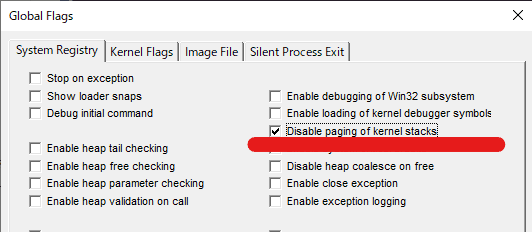
In addition, the following blog mentioned that during real debugging, it is also useful to set the global flag FLG_POOL_ENABLE_TAGGING(0x400), which lets you calculate statistics related to pool memory allocation, along with preventing kernel stack paging described above.
Reference: How to Prevent Kernel-Mode Stacks from Being Paged Out | Mado no Kusuribako
Reference: Enable pool tagging - Windows drivers | Microsoft Learn
Viewing Image Loader Processing
By using GFlags to set the global flag that enables the Show Loader Snaps debugging feature, you can inspect the image loader’s debug output when the target application starts.
This lets you output information about loading and unloading executables and libraries to the debugger.
Show Loader Snaps is FLG_SHOW_LDR_SNAPS(0x2). If it is set system-wide, it outputs information about driver loading and unloading.
If it is set only for a specific image file, it outputs information about DLL loading and unloading when the application starts.
Reference: Show loader snaps - Windows drivers | Microsoft Learn
For example, if you start gflags.exe and configure it from [Image File] as shown below, Show Loader Snaps and the Debugger flag are set for Notepad.exe.
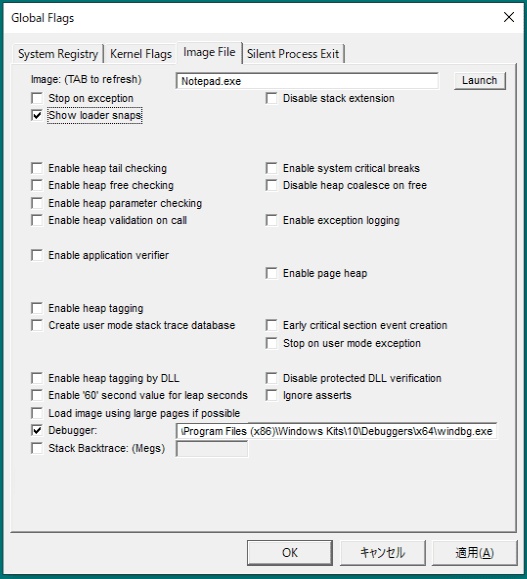
Applying this setting writes the WinDbg path to Debugger under HKEY_LOCAL_MACHINE\Software\Microsoft\Windows NT\CurrentVersion\Image File Execution Options\Notepad.exe.
It also sets the value 2 in GlobalFlag. (In this environment, no other GlobalFlag values were set for Notepad.exe, so the hexadecimal value for Show Loader Snaps, 0x2, is applied as-is.)
With the Debugger flag now set for Notepad.exe, trying to start Notepad automatically attaches WinDbg and records output like the following.
ModLoad: 00007ff7`8c3b0000 00007ff7`8c3e8000   notepad.exe
ModLoad: 00007ffd`1f2d0000 00007ffd`1f4c8000   ntdll.dll
22e0:0710 @ 00503718 - LdrpInitializeProcess - INFO: Beginning execution of notepad.exe (C:\WINDOWS\system32\notepad.exe)
Current directory: C:\Users\Tadpole01\
Package directories: (null)
22e0:0710 @ 00503718 - LdrLoadDll - ENTER: DLL name: KERNEL32.DLL
22e0:0710 @ 00503718 - LdrpLoadDllInternal - ENTER: DLL name: KERNEL32.DLL
22e0:0710 @ 00503718 - LdrpFindKnownDll - ENTER: DLL name: KERNEL32.DLL
22e0:0710 @ 00503718 - LdrpFindKnownDll - RETURN: Status: 0x00000000
22e0:0710 @ 00503718 - LdrpMinimalMapModule - ENTER: DLL name: C:\WINDOWS\System32\KERNEL32.DLL
ModLoad: 00007ffd`1d390000 00007ffd`1d44f000   C:\WINDOWS\System32\KERNEL32.DLL
22e0:0710 @ 00503718 - LdrpMinimalMapModule - RETURN: Status: 0x00000000
22e0:0710 @ 00503718 - LdrpPreprocessDllName - INFO: DLL api-ms-win-core-rtlsupport-l1-1-0.dll was redirected to C:\WINDOWS\SYSTEM32\ntdll.dll by API set
22e0:0710 @ 00503718 - LdrpFindKnownDll - ENTER: DLL name: KERNELBASE.dll
22e0:0710 @ 00503718 - LdrpFindKnownDll - RETURN: Status: 0x00000000
22e0:0710 @ 00503718 - LdrpMinimalMapModule - ENTER: DLL name: C:\WINDOWS\System32\KERNELBASE.dll
ModLoad: 00007ffd`1ca10000 00007ffd`1cd06000   C:\WINDOWS\System32\KERNELBASE.dll
22e0:0710 @ 00503718 - LdrpMinimalMapModule - RETURN: Status: 0x00000000
22e0:0710 @ 00503718 - LdrpPreprocessDllName - INFO: DLL api-ms-win-eventing-provider-l1-1-0.dll was redirected to C:\WINDOWS\SYSTEM32\kernelbase.dll by API set
22e0:0710 @ 00503718 - LdrpPreprocessDllName - INFO: DLL api-ms-win-core-apiquery-l1-1-0.dll was redirected to C:\WINDOWS\SYSTEM32\ntdll.dll by API set
22e0:0710 @ 00503718 - LdrpPreprocessDllName - INFO: DLL api-ms-win-core-apiquery-l1-1-1.dll was redirected to C:\WINDOWS\SYSTEM32\ntdll.dll by API set
The output is quite large (around 120 KB in my environment), so depending on your needs it is probably a good idea to write it to a log file.
For example, if you run the Debugger flag with a log file path included as shown below, you can write the startup log to a file.
C:\Program Files (x86)\Windows Kits\10\Debuggers\x64\windbg.exe -logo C:\Users\Public\debug.logWhen the Show Loader Snaps flag is enabled, WinDbg outputs events not only when the application starts but also when a module is loaded later as the result of some operation.
Launching a Debugger When a Program Starts
As mentioned above, setting the Debugger option for each image lets you attach a debugger when the program starts.
Strictly speaking, these Image File Execution Options (IFEO) settings are different from global flags, but they can still be configured from GFlags.
For example, by setting it up as shown below, you can start Notepad under WinDbg and begin debugging immediately.
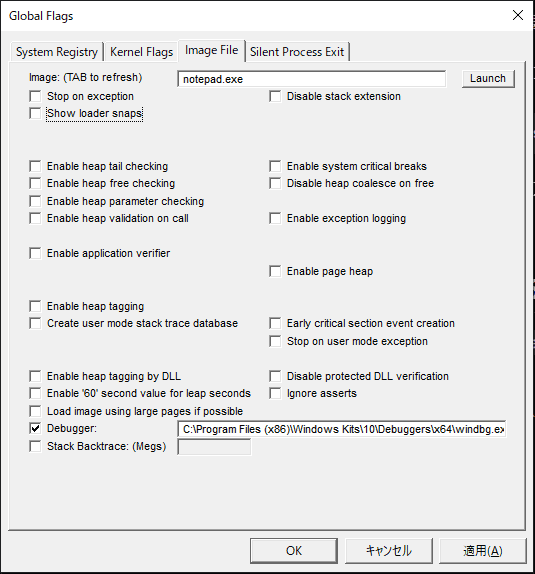
This setting is extremely useful in scenarios where you need to debug something that cannot be launched directly, must be started through some interface or job, and does not remain resident long enough to attach a debugger manually.
Reference: Image File Execution Options | Microsoft Learn
Also, the path you specify in Debugger is not limited to the path of an actual debugger.
For example, if you specify an editor or some other arbitrary program as shown below, then starting Notepad automatically opens Notepad with that specified program.
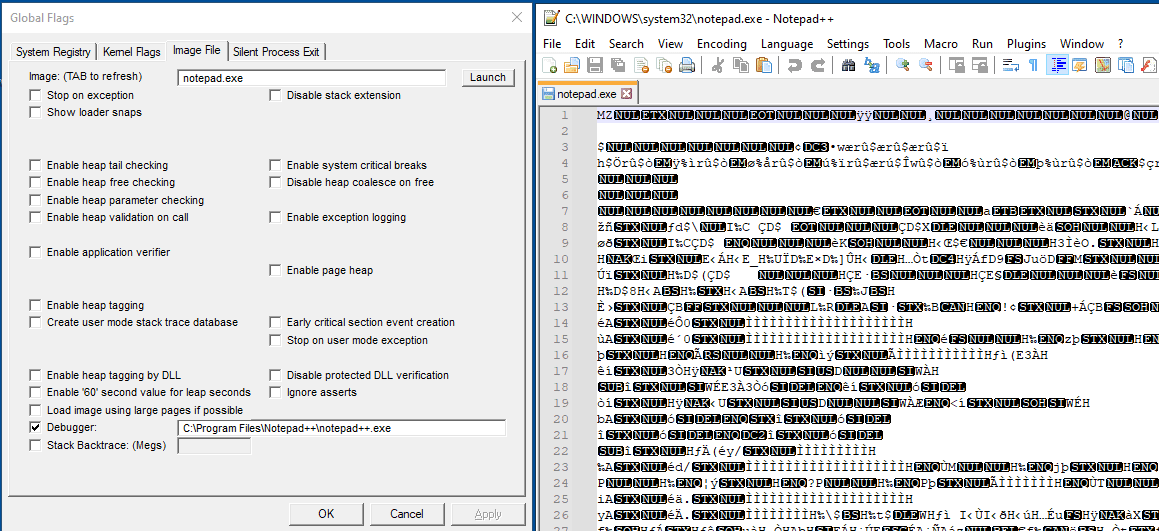
Because this behavior can be abused, it should be used with caution.
Monitoring Program Termination
Strictly speaking, this is not a global flag either, but by enabling Silent Process Exit for each application, you can monitor when the application terminates.
The termination events you can monitor are limited to self-termination via ExitProcess (for example, clicking the close button in the top right) or termination by another application via TerminateProcess.
When Silent Process Exit is configured, you can output a crash dump when the application exits or send a notification to the host.
You can also launch an arbitrary application as a Monitor process. (This too can be abused, so caution is required.)
These settings can be configured from Silent Process Exit in GFlags.
This makes it possible to collect dumps of programs that exited for reasons other than a crash during troubleshooting, or to identify what caused the program to terminate.
For example, suppose you configure Silent Process Exit for the Notepad application with options like the following.
- If [Custom Dump] is selected as the dump type, the dump type that can be collected is determined by the values of MINIDUMP_TYPE (minidumpapiset.h). In this example,
0x2, which is the value ofMiniDumpWithFullMemory, is set.
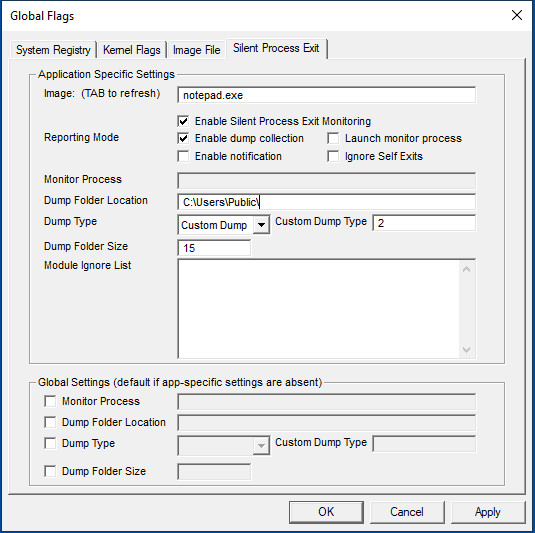
If you forcibly terminate Notepad from Task Manager in this state, a dump of the Task Manager process that performed the termination is also collected, as shown below.

Also, if you terminate it from PowerShell with Stop-Process -Name notepad, a PowerShell dump is collected like this.

Reference: Monitoring Silent Process Exit - Windows drivers | Microsoft Learn
Reference: Finding the Process That Terminated a Process - Information Site for Collecting Windows Materials
By the way, even if you set the debugger path in the Monitor Process setting, unfortunately you cannot attach a debugger to the process immediately before it exits.
However, there seem to be many possible uses, such as launching a program that notifies you when a program exits or running a tool that collects system information immediately after the program ends.
Summary
This time, I summarized GFlags settings that are useful to remember when troubleshooting Windows.
I only listed the settings that I personally find useful, but I would like to add more in the future if I discover others that prove useful in different situations.