This page has been machine-translated from the original page.
I built a PC with parts I picked up during Prime Day, so while setting up a fresh environment, I put together these notes on setting up a Windows 10 environment.
This article includes the following:
- Small settings to configure after a clean install of Windows 10
- How to install applications I personally use often
- How to set up the OS
With that out of the way, let’s start setting things up right after a clean install.
Table of Contents
-
- Install Drivers
- Run Windows Update
- Change Network Settings
- Enable RDP
- Uninstall Unnecessary Applications
- Modify Keyboard Registry Settings
- Customize the IME Key Layout
- Change the Host Name
- Sign In with a Microsoft Account
- Change the Desktop Appearance
- Enable Windows Features
- Change PowerShell Execution Policy
- Enable Clipboard History
- Summary
Tasks After a Clean Install
- Update drivers (if necessary)
- Run Windows Update
- Change network settings
- Enable RDP
- Change the host name
- Uninstall unnecessary applications
- Modify keyboard registry settings
- Customize the IME key layout
- Change the host name
- Sign in with a Microsoft account
- Change the desktop appearance
- Enable Windows features
- Change PowerShell execution policy
- Enable clipboard history
Install Drivers
This time, I clean-installed Windows 10 on a PC built with an ASUS motherboard, the TUF GAMING Z490-PLUS, so I first needed to install drivers in order to get things like internet connectivity working.
I installed the drivers from the CD-R that came with the motherboard.
Run Windows Update
Run Windows Update from [Settings] in Windows. A restart is required after it completes.
Change Network Settings
From [Control Panel] > [Network and Internet], change the network adapter settings. This time I was not assigning a static IP address, so I left that setting alone.
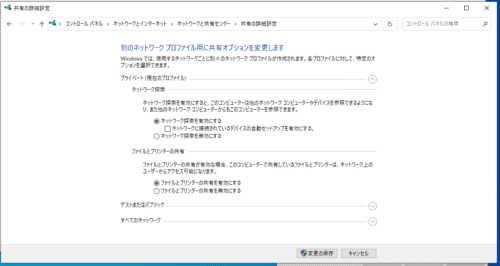
Next, enable network discovery only on [Private network] so that remote connections can be made by host name.
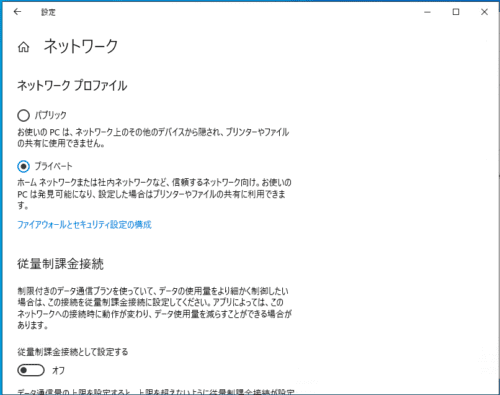
Then, from [Settings], make sure that your current home network is set to [Private network].
Enable RDP
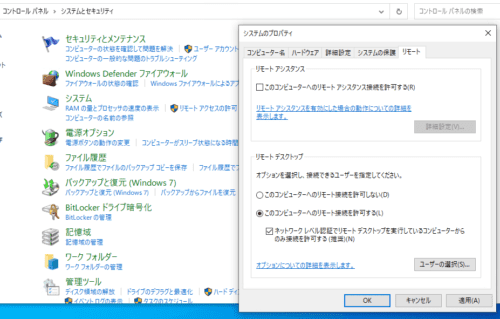
Enable Remote Desktop connections from [Control Panel].
I think it is fine to disable Remote Assistance.
Also, although I am not changing it this time, if you want to change the RDP listening port, edit the following registry entry.
- [HKEYLOCALMACHINE\SYSTEM\CurrentControlSet\Control\Terminal Server\WinStations\RDP-Tcp\PortNumber ]
Uninstall Unnecessary Applications
I uninstalled every preinstalled application I do not use.
I removed games, Skype, OneNote, and so on.
Modify Keyboard Registry Settings
Customize the Windows keyboard layout to better match your preferences.
First, create a file named [changekey.reg] in Notepad and enter the following.
Windows Registry Editor Version 5.00

[HKEY_LOCAL_MACHINE\SYSTEM\CurrentControlSet\Control\Keyboard Layout]
"Scancode Map"=hex:00,00,00,00,00,00,00,00,06,00,00,00,1d,00,3a,00,4b,e0,70,00,\
  4d,e0,38,e0,0e,00,7b,00,7b,00,36,00,00,00,00,00
I summarized the key remapping used here in the following article, so feel free to customize it as you like.
Double-clicking the registry file you created will write the keyboard layout changes into the registry.
The changed registry settings take effect after a restart.
Customize the IME Key Layout
Even without changing registry keys, you can customize some key input behavior from [IME settings].
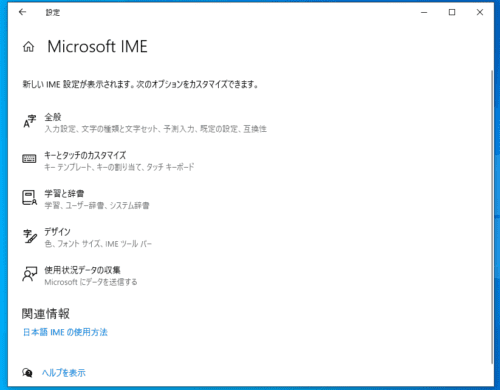
The [IME settings] available from [Settings] do not yet cover every setting, so first turn on compatibility mode.
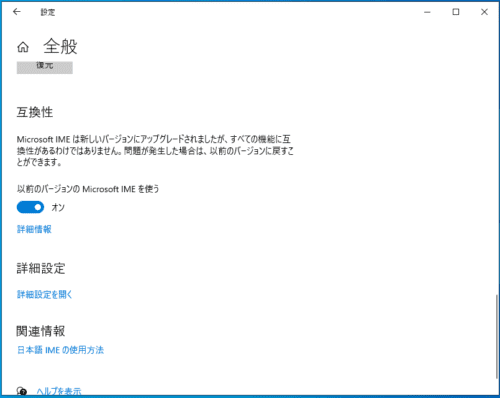
Then, from [Advanced IME Settings], I changed the following.
- Set [Space] to [Always use half-width]
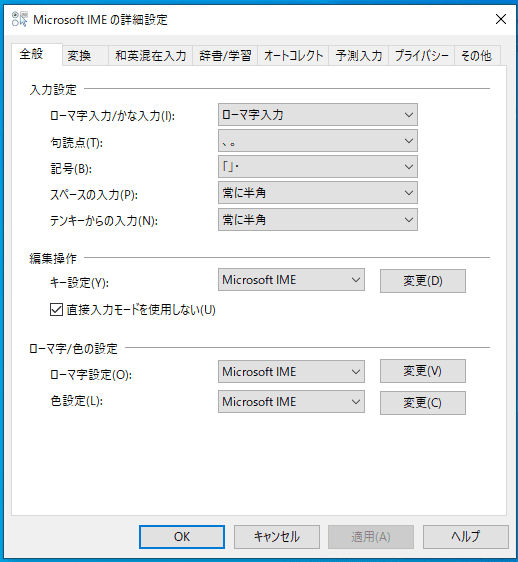
- Set [Letters/Numbers/Symbols] to [Always convert to half-width]
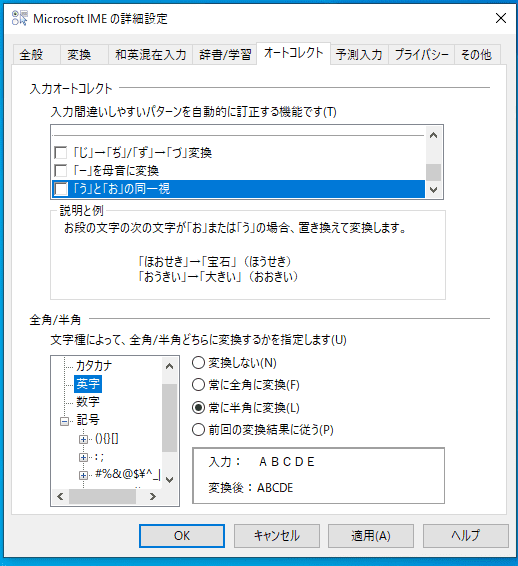
If it concerns you, I think it is also a good idea to disable the setting that sends input history to Microsoft.
Change the Host Name
Change the host name from [Settings] and restart.
Sign In with a Microsoft Account
First, sign in with your Microsoft account.
Once you do that, the login method is forcibly switched to sign-in with the Microsoft account, so change it back to [Sign in with a local account instead] from [Account settings].
This is to reduce the hassle of remote connections within my home network.
Change the Desktop Appearance
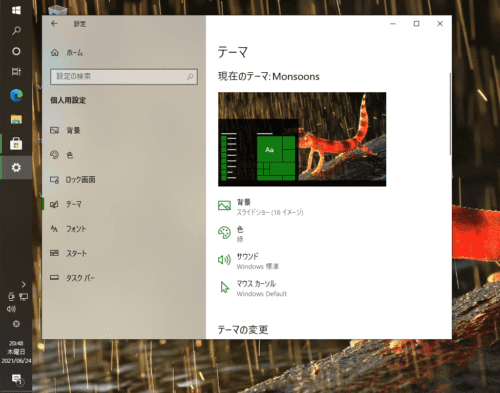
From [Personalization], change the taskbar position, apply a theme, and change the background and colors.
Whatever you prefer.
Enable Windows Features
From [Turn Windows features on or off], enable the following features.
- Hyper-V
- Windows Subsystem for Linux
- Windows Hypervisor Platform
- Virtual Machine Platform
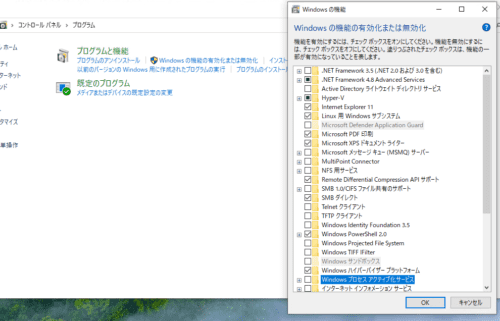
After restarting to apply the settings, you are done.
Change PowerShell Execution Policy
Start PowerShell with administrator privileges and change the execution policy to [RemoteSigned].
Set-ExecutionPolicy RemoteSignedEnable Clipboard History
Press [Windows + v] to enable the clipboard feature.
Installing and Configuring Applications
Install Applications with Windows Package Manager
Now that the minimum setup is complete, install the various applications.
This time, I used Windows Package Manager, whose latest major version had just been released, to install applications.
Since the explanation of installing applications with Windows Package Manager got long, I summarized it in the following article.
Install Other Applications
- Npcap: Windows Packet Capture Library & Driver
- Sysinternals Suite - Windows Sysinternals | Microsoft Docs
Set Up WSL2
First, enable WSL2.
I summarized the method in the following article.
All you need to do is run the following command in PowerShell started with administrator privileges.
wsl --set-version Ubuntu-20.04 2WSL Name Resolution
First, edit [/etc/wsl.conf] as follows.
# This file was automatically generated by WSL. To stop automatic generation of this file, add the following entry to /etc/wsl.conf:
[network]
generateResolvConf = false
This prevents resolv.conf from being generated automatically in the WSL environment.
Next, delete [/etc/wsl.conf] once, then recreate it after adding [8.8.8.8].
sudo rm /etc/resolv.conf
sudo sh -c "echo 'nameserver 8.8.8.8' > /etc/resolv.conf"
Install Various Packages in WSL
For now, install them with apt.
sudo apt update && sudo apt upgrade -y
sudo apt install vim \
                 make \
                 python3.8 \
                 python3-pip \
                 unzip \
                 zip \
                 build-essential \
                 ufw \
                 python3.8-dev \
                 gdb \
                 yara \
                 radare2 \
                 ltrace \
                 strace \
                 -y
Next, install Docker on the Ubuntu environment where WSL2 has been enabled.
The procedure in the official documentation is fine.
Next, make it possible to run Docker without sudo privileges.
sudo gpasswd -a  $USER  docker
sudo chown "$USER":"$USER" /home/"$USER"/.docker -R
sudo chmod g+rwx "/home/$USER/.docker" -R
See here for details.
Connect to GitHub from WSL over SSH
Normally you just register the public key created with ssh-keygen in GitHub, but I run into the same trap every time, so I am writing it down here.
Connecting to GitHub with SSH - GitHub Docs
That is because when you try to connect to GitHub over SSH, you may see an error like this.
Warning: Permanently added the RSA host key for IP address '13.114.40.48' to the list of known hosts.
git@github.com: Permission denied (publickey).
fatal: Could not read from remote repository.

Please make sure you have the correct access rights
and the repository exists.
To resolve this problem, create .ssh/config and run ssh-add.
In my environment, I name the private key for GitHub [github], so I create .ssh/config as follows.
$ cat .ssh/config
Host github
User git
Hostname github.com
Port 22
IdentityFile ~/.ssh/github
Also, for some reason ssh-agent is sometimes not running, so start it as well.
(At worst, write it into .bashrc or something similar…)
eval `ssh-agent`
ssh-add ~/.ssh/github
With this, I was able to connect to GitHub from WSL over SSH.
Here is the command to check.
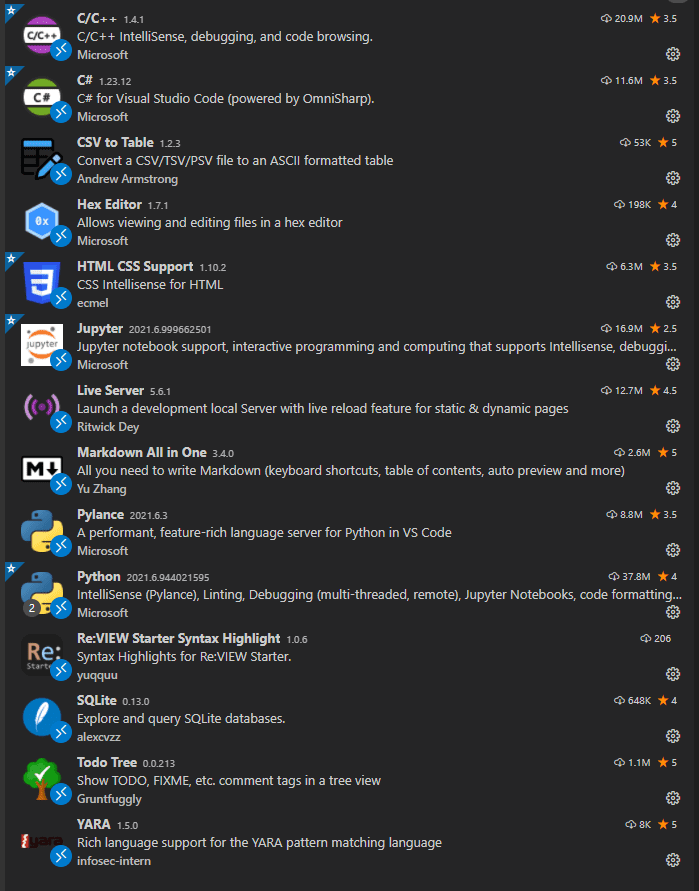
ssh-add -lInstall VSCode Extensions
I installed VSCode extensions like this.
Change Typora Settings
First, change the theme to GithubDark.
See Github Night for how to configure it.
Change Windows Terminal Settings
Edit Windows Terminal Profiles and Actions to customize the appearance and shortcuts.
"profiles":
    {
        "defaults": {},
        "list":
        [
            {
                "colorScheme": "One Half Dark",
                "guid": "{07b52e3e-de2c-5db4-bd2d-ba144ed6c273}",
                "hidden": false,
                "name": "Ubuntu-20.04",
                "source": "Windows.Terminal.Wsl",
                "startingDirectory": "//wsl$/Ubuntu-20.04/home/ubuntu"
            },
            {
                "commandline": "powershell.exe",
                "guid": "{61c54bbd-c2c6-5271-96e7-009a87ff44bf}",
                "hidden": false,
                "name": "Windows PowerShell"
            },
            {
                "commandline": "cmd.exe",
                "guid": "{0caa0dad-35be-5f56-a8ff-afceeeaa6101}",
                "hidden": false,
                "name": "コマンド プロンプト"
            },
            {
                "guid": "{58ad8b0c-3ef8-5f4d-bc6f-13e4c00f2530}",
                "hidden": false,
                "name": "Debian",
                "source": "Windows.Terminal.Wsl"
            },
            {
                "guid": "{b453ae62-4e3d-5e58-b989-0a998ec441b8}",
                "hidden": false,
                "name": "Azure Cloud Shell",
                "source": "Windows.Terminal.Azure"
            }
        ]
    }
"actions":
[
// Copy and paste are bound to Ctrl+Shift+C and Ctrl+Shift+V in your defaults.json.
// These two lines additionally bind them to Ctrl+C and Ctrl+V.
// To learn more about selection, visit https://aka.ms/terminal-selection
{
"command":
{
"action": "copy",
"singleLine": false
},
"keys": "ctrl+shift+c"
},
{
"command": "paste",
"keys": "ctrl+shift+v"
},
// Press Alt+Shift+D to open a new pane.
// - "split": "auto" makes this pane open in the direction that provides the most surface area.
// - "splitMode": "duplicate" makes the new pane use the focused pane's profile.
// To learn more about panes, visit https://aka.ms/terminal-panes
// Press Ctrl+Shift+F to open the search box
{
"command": "find",
"keys": "ctrl+f"
},
{
"command": "newTab",
"keys": "ctrl+t"
},
{
"command":
{
"action": "newTab",
"index": 0
},
"keys": "ctrl+1"
},
{
"command":
{
"action": "newTab",
"index": 1
},
"keys": "ctrl+2"
},
{
"command": "closePane",
"keys": "ctrl+w"
},
{
"command":
{
"action": "splitPane",
"split": "auto",
"splitMode": "duplicate"
},
"keys": "alt+shift+d"
},
{
"command":
{
"action": "splitPane",
"split": "horizontal"
},
"keys": "alt+h"
},
{
"command":
{
"action": "splitPane",
"split": "vertical"
},
"keys": "alt+v"
}
]Hyper-V Settings
Next, enable Hyper-V and configure the virtual switches.
First, run the following command in PowerShell started with administrator privileges, then restart the OS.
Enable-WindowsOptionalFeature -Online -FeatureName Microsoft-Hyper-V -AllThis lets you connect to the local host service from Hyper-V Manager, so create the following three networks from the [Virtual Switch] settings.
- External: Bridge to the adapter connected to the internet.
- Internal: Can communicate between the local host and virtual machines. Used for RDP and similar purposes.
- VirtualHostOnly: Can communicate only among virtual machines.
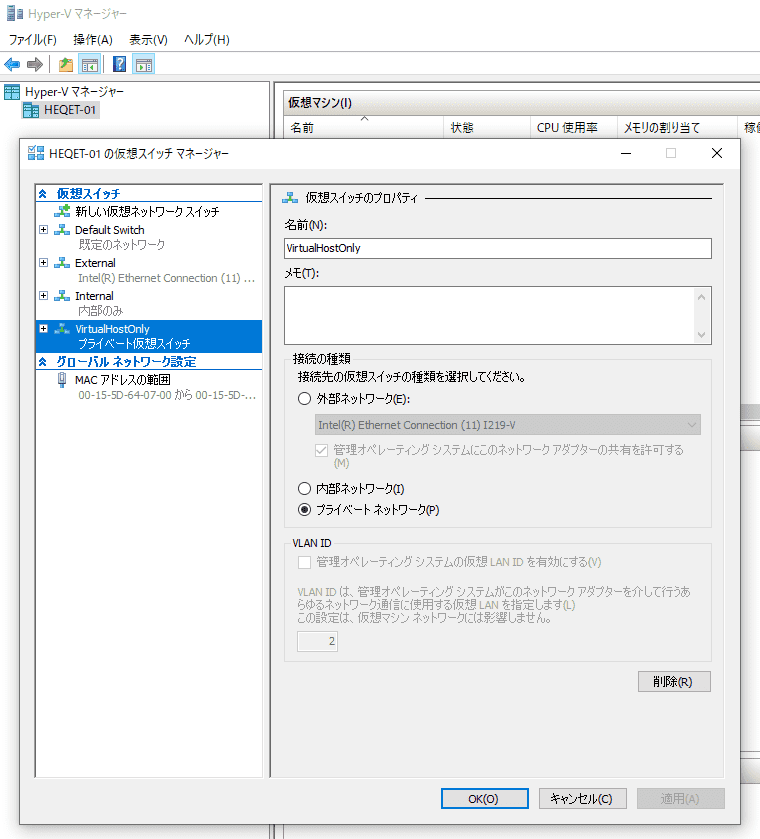
I will omit the details here, but after this I will set up the virtual machines.
I also divided a partition for storing virtual machine disks just in case. Ideally, a separate disk would be better, but since I still have plenty of space left on the M.2 SSD, I am using partitions for now.
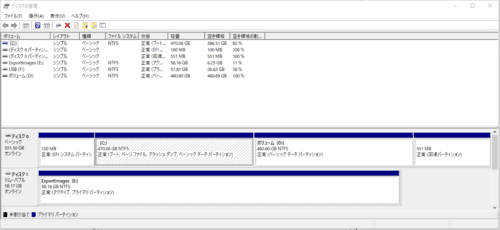
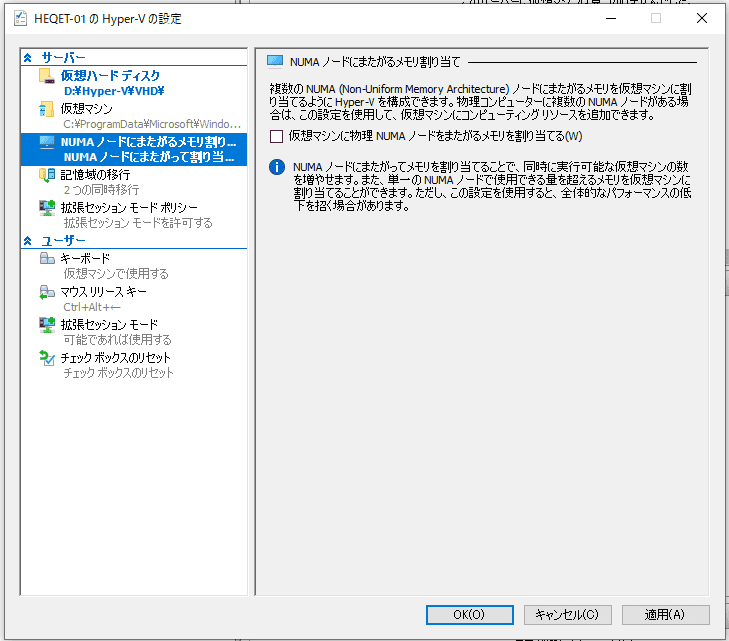
The save location can be changed from [Hyper-V Settings].
While I was at it, I also disabled NUMA node memory allocation for better performance.
Settings After Installing Applications
- Disable background apps
- Change privacy settings
- Configure environment variables
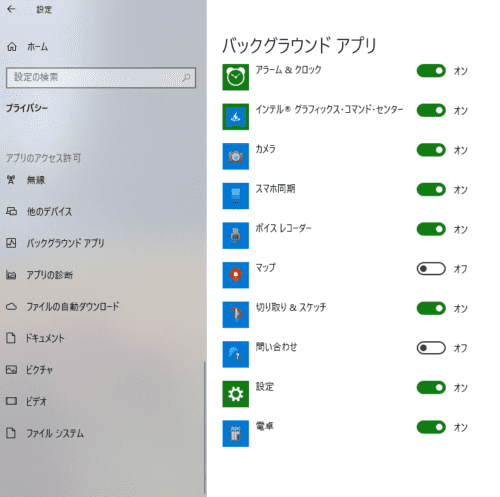
Disable Background Apps
Disable unnecessary background apps.
Cortana, Cortana, and more Cortana.
You can skip this for now since you will check again after installing other applications.
Change Privacy Settings
Under each item in [Privacy], turn off the sending of information you do not want to send.
Also, I think it is a good idea to appropriately limit permissions for various applications.
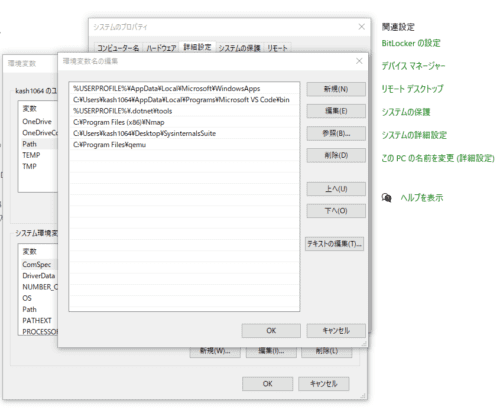
Configure Environment Variables
Set PATH for the SysinternalTools and Qemu folders.
Summary
I built a PC with parts I picked up during Prime Day, so I put together these notes on setting up a Windows 10 environment.
I would like to add updates as needed if anything changes.