This page has been machine-translated from the original page.
My goal is to become proficient with WinDbg for Windows debugging and dump-based troubleshooting.
In a previous article, First Steps in Kernel Debugging with WinDbg on Windows 10, I covered how to get started with kernel-mode debugging using WinDbg.
This time, rather than live debugging, I’ll walk through how to analyze a kernel memory dump.
For a full list of articles on Windows debugging and dump analysis with WinDbg, see the index page:
Reference: Debugging and Troubleshooting Techniques with WinDbg
This article covers the following topics.
Table of Contents
Tools Used
In this article I’m using the following two tools on a Windows 10 system.
- WinDbg Preview
- notmyfault64
WinDbg Preview
WinDbg Preview is the UWP version of WinDbg available from the Microsoft Store.
Compared to the classic WinDbg included in Windows Debug Tools, it features a much more modern UI and adds support for Time Travel Debugging (TTD), among other improvements.
It shares the same underlying engine as the classic WinDbg, so all existing functionality continues to work.
Reference: Debugging Using WinDbg Preview - Windows drivers | Microsoft Docs
NotMyFault
NotMyFault is a tool for manually generating the memory dump that would normally be produced when a computer crashes.
It can be obtained from the link in the following document.
Reference: Generate a kernel or complete crash dump - Windows Client Management | Microsoft Docs
Capturing a Kernel Memory Dump
First, let’s capture a kernel memory dump for analysis.
Configuring Everything with a PowerShell Script (Added July 2023)
The following article describes how to configure full memory dump capture settings and keyboard-crash settings all at once with a PowerShell script.
Reference: Configure Windows Full Memory Dump and Keyboard Crash Settings with a PowerShell Script
Changing Settings via Control Panel
Open Control Panel on the machine you want to capture a dump from and navigate to System and Security.
Click System, then Advanced system settings to open the System Properties window.
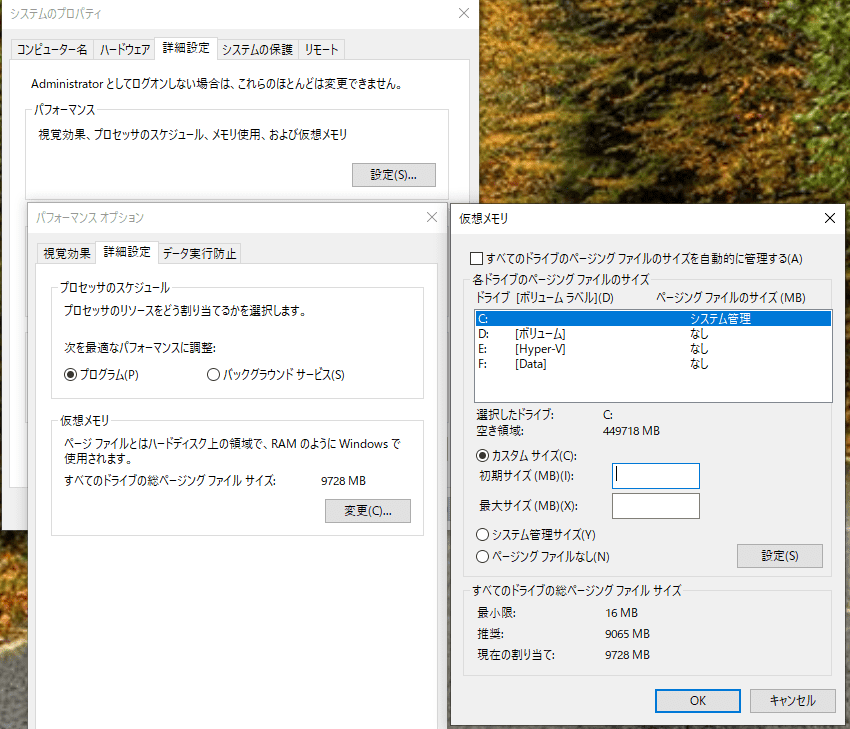
First, under the Performance section, change the virtual memory paging file size to a value at least 300 MB larger than the physical memory size.
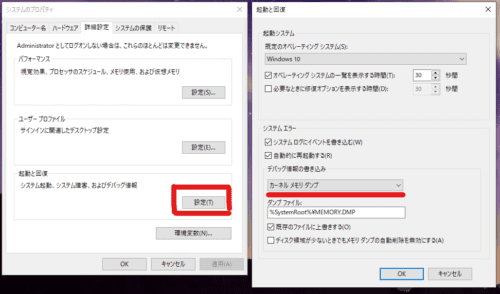
Then click Settings under the Startup and Recovery section, and change the Write debugging information setting to Kernel memory dump.
The final settings should look like the image below.
Restart the OS to apply the settings.
Obtaining NotMyFault
Download the ZIP file containing NotMyFault from the Generate a memory dump file manually section of the following document and extract it.
Reference: Generate a kernel or complete crash dump - Windows Client Management | Microsoft Docs
Capturing the Memory Dump
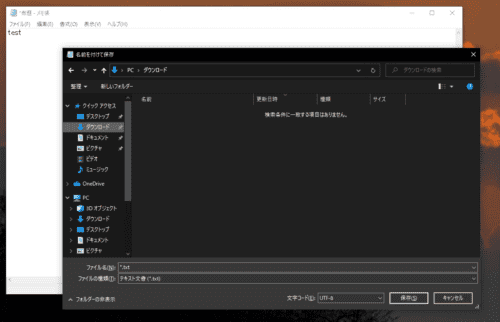
Close all windows and open Notepad.
Type some text, then initiate a save operation but stop just before the file is written, as shown in the image below.
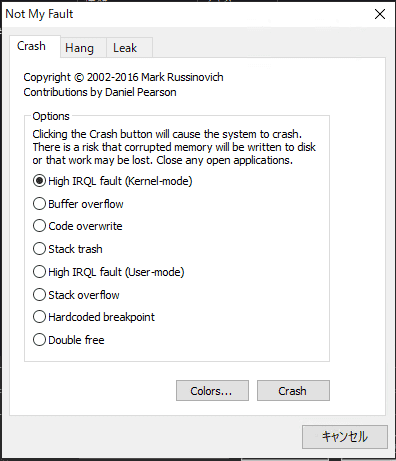
With Notepad in this state, run the NotMyFault tool you extracted earlier. You will be prompted to agree to a EULA — click OK.
When the tool opens, leave the default selection and click Crash.
The Windows machine will blue-screen and restart.
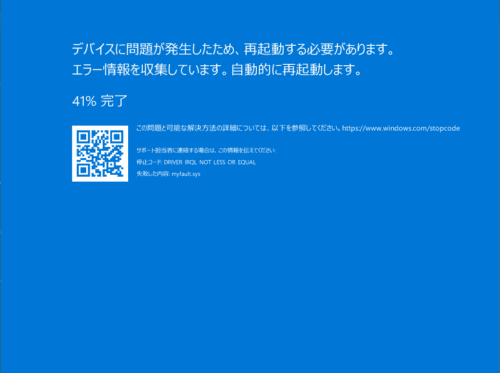
After the restart, confirm that MEMORY.DMP exists directly under C:\Windows.
In my environment it was roughly 450 MB.
The kernel memory dump has now been captured.
Analyzing the Kernel Memory Dump
Loading the Dump File into WinDbg
Launch WinDbg with administrator privileges.
Go to File → Open dump file and import the MEMORY.DMP file created earlier.
(Loading a memory dump into WinDbg can take several minutes.)
Once the dump is loaded, you will see output similar to the following:
Loading Dump File [C:\Windows\MEMORY.DMP]
Kernel Bitmap Dump File: Kernel address space is available, User address space may not be available.

Symbol search path is: srv*
Executable search path is:
Windows 10 Kernel Version 19041 MP (3 procs) Free x64
Product: WinNt, suite: TerminalServer SingleUserTS
Edition build lab: 19041.1.amd64fre.vb_release.191206-1406
Machine Name:
Kernel base = 0xfffff800`62600000 PsLoadedModuleList = 0xfffff800`6322a230
Debug session time: Thu Oct  7 20:33:12.945 2021 (UTC + 9:00)
System Uptime: 0 days 0:00:54.755
Loading Kernel Symbol
Reading the Output at Load Time
The output above gives us the following information:
- The loaded dump file is a kernel memory dump
- The Windows kernel version, the number of CPU cores, and the bitness
- The addresses of
Kernel baseandPsLoadedModuleList - Debug session time: the time at which the STOP error (blue screen) occurred
- System Uptime: how long the system had been running before the crash (54 seconds in this test environment)
Debug session time and System Uptime in particular can be important clues during troubleshooting, so it’s worth checking them.
Running Automatic Analysis with !analyze -v
Next, run the automatic analysis command:
!analyze -vThe automatic analysis in modern versions of WinDbg is quite powerful, and even this single command reveals a great deal of information.
The command produces a lot of output. Let’s look at a few key excerpts.
The first thing printed is the crash analysis result. During troubleshooting, this is often a good starting point.
2: kd> !analyze -v
*******************************************************************************
*                                                                             *
*                        Bugcheck Analysis                                    *
*                                                                             *
*******************************************************************************

DRIVER_IRQL_NOT_LESS_OR_EQUAL (d1)
An attempt was made to access a pageable (or completely invalid) address at an
interrupt request level (IRQL) that is too high.  This is usually
caused by drivers using improper addresses.
If kernel debugger is available get stack backtrace.
Arguments:
Arg1: ffffd8024aaa8010, memory referenced
Arg2: 0000000000000002, IRQL
Arg3: 0000000000000000, value 0 = read operation, 1 = write operation
Arg4: fffff80060da1981, address which referenced memory
Because we triggered the crash using NotMyFault’s High IRQL Fault (Kernel-mode) option, the output shows a DRIVER_IRQL_NOT_LESS_OR_EQUAL (d1) error.
Reference: Bug Check 0xD1 DRIVERIRQLNOTLESSOR_EQUAL - Windows drivers | Microsoft Docs
This error occurs when code executing at an Interrupt Request Level (IRQL) higher than PASSIVE_LEVEL (the lowest level) attempts to access paged pool memory.
For more detail, the following article is a useful reference:
Reference: Device Driver Lecture 12 │ Science Park Co., Ltd.
After registry information is printed, the analysis output shows the crashing process and the stack trace:
PROCESS_NAME:  notmyfault64.exe

TRAP_FRAME:  ffffd48f77af97e0 -- (.trap 0xffffd48f77af97e0)
NOTE: The trap frame does not contain all registers.
Some register values may be zeroed or incorrect.
rax=00000000c85c00f0 rbx=0000000000000000 rcx=ffffd80241e00340
rdx=0000000000000890 rsi=0000000000000000 rdi=0000000000000000
rip=fffff80060da1981 rsp=ffffd48f77af9970 rbp=0000000000000002
 r8=ffffd8024abbdc80  r9=0000000000000000 r10=ffffd80241e002c0
r11=ffffd8024aa9bff0 r12=0000000000000000 r13=0000000000000000
r14=0000000000000000 r15=0000000000000000
iopl=0         nv up ei ng nz na pe nc
myfault+0x1981:
fffff800`60da1981 8b03            mov     eax,dword ptr [rbx] ds:00000000`00000000=????????
Resetting default scope

STACK_TEXT:
ffffd48f`77af9698 fffff800`62a09169     : 00000000`0000000a ffffd802`4aaa8010 00000000`00000002 00000000`00000000 : nt!KeBugCheckEx
ffffd48f`77af96a0 fffff800`62a05469     : 00007ff8`f16ecc00 00000000`00000000 00000000`00000f4d 00000000`00000000 : nt!KiBugCheckDispatch+0x69
ffffd48f`77af97e0 fffff800`60da1981     : 00000000`00000000 ffffd48f`77af99c8 00000000`00000000 00000000`00000000 : nt!KiPageFault+0x469
ffffd48f`77af9970 fffff800`60da1d3d     : 00000000`c85c00f0 000001e3`5fb24550 00000000`000000f0 00000000`00000000 : myfault+0x1981
ffffd48f`77af99a0 fffff800`60da1ea1     : ffff9189`4ed94d70 00000000`00000000 00000000`00000000 fffff800`62bf5e51 : myfault+0x1d3d
ffffd48f`77af9ae0 fffff800`6288f865     : ffff9189`4ed94d70 00000000`00000001 ffffd48f`77af9ec0 00000000`00000001 : myfault+0x1ea1
ffffd48f`77af9b40 fffff800`62c75328     : ffffd48f`77af9ec0 ffff9189`4ed94d70 00000000`00000001 fffff800`00000000 : nt!IofCallDriver+0x55
ffffd48f`77af9b80 fffff800`62c74bf5     : 00000000`00000000 ffffd48f`77af9ec0 00000000`00000000 ffffd48f`77af9ec0 : nt!IopSynchronousServiceTail+0x1a8
ffffd48f`77af9c20 fffff800`62c745f6     : 00000000`00000000 00000000`00000000 00000000`00000000 00000000`00000000 : nt!IopXxxControlFile+0x5e5
ffffd48f`77af9d60 fffff800`62a08bb5     : 00000000`fffffffc ffff5121`00000000 00000000`00000001 000001e3`5f5e99a0 : nt!NtDeviceIoControlFile+0x56
ffffd48f`77af9dd0 00007ff8`f16ece54     : 00000000`00000000 00000000`00000000 00000000`00000000 00000000`00000000 : nt!KiSystemServiceCopyEnd+0x25
0000007a`e6bde8d8 00000000`00000000     : 00000000`00000000 00000000`00000000 00000000`00000000 00000000`00000000 : 0x00007ff8`f16ece54

SYMBOL_NAME:  myfault+1981
MODULE_NAME: myfault
IMAGE_NAME:  myfault.sys
STACK_COMMAND:  .thread ; .cxr ; kb
BUCKET_ID_FUNC_OFFSET:  1981
FAILURE_BUCKET_ID:  AV_myfault!unknown_function
OS_VERSION:  10.0.19041.1
BUILDLAB_STR:  vb_release
OSPLATFORM_TYPE:  x64
OSNAME:  Windows 10
FAILURE_ID_HASH:  {9745090a-9bce-ccba-c096-ca6e9ca04c64}
Followup:     MachineOwner
As you can see, !analyze -v alone gives you a substantial amount of information.
Analyzing the Stack Back Trace
Next, let’s analyze the stack back trace.
For documentation on stack back trace display commands, refer to:
Reference: k, kb, kc, kd, kp, kP, kv (Display Stack Backtrace) - Windows drivers | Microsoft Docs
Here I compared the output of three commands: k, kb, and kv.
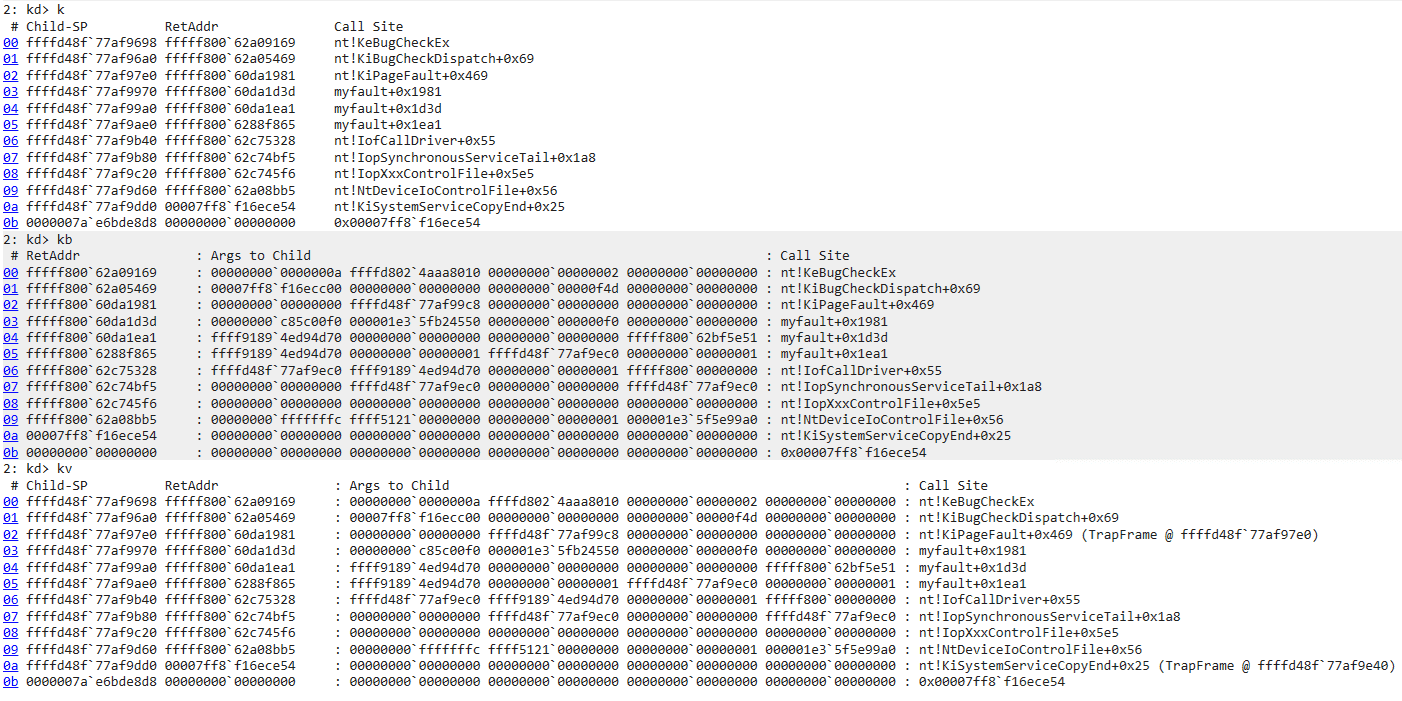
kv clearly provides more information, including Frame Pointer Omission (FPO) data.
Notice the line (TrapFrame @ ffffd48f77af97e0)`. This is the trap frame — it records the CPU registers and stack at the moment an interrupt occurred, and is critical information for restoring the thread state at that point.
Restoring a Thread from a Trap Frame
Use the .trap command to restore the thread state from the trap frame.
The output shows register values at the point captured in the trap frame:
2: kd> .trap ffffd48f`77af97e0
NOTE: The trap frame does not contain all registers.
Some register values may be zeroed or incorrect.
rax=00000000c85c00f0 rbx=0000000000000000 rcx=ffffd80241e00340
rdx=0000000000000890 rsi=0000000000000000 rdi=0000000000000000
rip=fffff80060da1981 rsp=ffffd48f77af9970 rbp=0000000000000002
 r8=ffffd8024abbdc80  r9=0000000000000000 r10=ffffd80241e002c0
r11=ffffd8024aa9bff0 r12=0000000000000000 r13=0000000000000000
r14=0000000000000000 r15=0000000000000000
iopl=0         nv up ei ng nz na pe nc
myfault+0x1981:
fffff800`60da1981 8b03            mov     eax,dword ptr [rbx] ds:00000000`00000000=????????
The stack back trace confirms we are now viewing the state at the trap frame:
2: kd> kv
  *** Stack trace for last set context - .thread/.cxr resets it
 # Child-SP          RetAddr               : Args to Child                                                           : Call Site
00 ffffd48f`77af9970 fffff800`60da1d3d     : 00000000`c85c00f0 000001e3`5fb24550 00000000`000000f0 00000000`00000000 : myfault+0x1981
01 ffffd48f`77af99a0 fffff800`60da1ea1     : ffff9189`4ed94d70 00000000`00000000 00000000`00000000 fffff800`62bf5e51 : myfault+0x1d3d
02 ffffd48f`77af9ae0 fffff800`6288f865     : ffff9189`4ed94d70 00000000`00000001 ffffd48f`77af9ec0 00000000`00000001 : myfault+0x1ea1
03 ffffd48f`77af9b40 fffff800`62c75328     : ffffd48f`77af9ec0 ffff9189`4ed94d70 00000000`00000001 fffff800`00000000 : nt!IofCallDriver+0x55
04 ffffd48f`77af9b80 fffff800`62c74bf5     : 00000000`00000000 ffffd48f`77af9ec0 00000000`00000000 ffffd48f`77af9ec0 : nt!IopSynchronousServiceTail+0x1a8
05 ffffd48f`77af9c20 fffff800`62c745f6     : 00000000`00000000 00000000`00000000 00000000`00000000 00000000`00000000 : nt!IopXxxControlFile+0x5e5
06 ffffd48f`77af9d60 fffff800`62a08bb5     : 00000000`fffffffc ffff5121`00000000 00000000`00000001 000001e3`5f5e99a0 : nt!NtDeviceIoControlFile+0x56
07 ffffd48f`77af9dd0 00007ff8`f16ece54     : 00000000`00000000 00000000`00000000 00000000`00000000 00000000`00000000 : nt!KiSystemServiceCopyEnd+0x25 (TrapFrame @ ffffd48f`77af9e40)
08 0000007a`e6bde8d8 00000000`00000000     : 00000000`00000000 00000000`00000000 00000000`00000000 00000000`00000000 : 0x00007ff8`f16ece54
Inspecting Processes
Now let’s try to analyze the state of the Notepad process that was mid-save when the crash occurred.
The following command lists all running processes:
!process 0 0Reference: !process - Windows drivers | Microsoft Docs
When the first argument is 0, information is printed for all processes.
To display information for a specific process only, provide a hexadecimal process address or a process ID as the first argument.
The second argument controls the level of detail.
!process 0 0— prints time and priority statistics for all processes.!process 0 1— additionally prints threads and events associated with each process, along with their wait states.
Search through the output to find the Notepad process:
PROCESS ffff9189527e9080
    SessionId: 2  Cid: 1e90    Peb: bb6f2ac000  ParentCid: 15e8
    DirBase: 1d822d000  ObjectTable: ffffd80249eb8040  HandleCount: 817.
    Image: notepad.exe
Now use that process address to print its detailed information.
Setting the flag (second argument) to 7 shows the complete details for a single process:
2: kd> !process ffff9189527e9080 7
PROCESS ffff9189527e9080
    SessionId: 2  Cid: 1e90    Peb: bb6f2ac000  ParentCid: 15e8
    DirBase: 1d822d000  ObjectTable: ffffd80249eb8040  HandleCount: 817.
    Image: notepad.exe
    VadRoot ffff918953a30a20 Vads 285 Clone 0 Private 2175. Modified 340. Locked 2.
    DeviceMap ffffd80247fe8cf0
    Token                             ffffd8024a19c770
    ElapsedTime                       00:00:47.378
    UserTime                          00:00:00.000
    KernelTime                        00:00:00.000
    QuotaPoolUsage[PagedPool]         430688
    QuotaPoolUsage[NonPagedPool]      39648
    Working Set Sizes (now,min,max)  (11788, 50, 345) (47152KB, 200KB, 1380KB)
    PeakWorkingSetSize                11793
    VirtualSize                       2101500 Mb
    PeakVirtualSize                   2101501 Mb
    PageFaultCount                    14745
    MemoryPriority                    BACKGROUND
    BasePriority                      8
    CommitCharge                      3452

        THREAD ffff91895309d080  Cid 1e90.1e94  Teb: 000000bb6f2ad000 Win32Thread: ffff9189523d0fc0 WAIT: (UserRequest) UserMode Non-Alertable
            ffff918953118260  SynchronizationEvent
            ffff918952d83d80  QueueObject
        Not impersonating
        DeviceMap                 ffffd80247fe8cf0
        Owning Process            ffff9189527e9080       Image:         notepad.exe
        Attached Process          N/A            Image:         N/A
        Wait Start TickCount      3492           Ticks: 12 (0:00:00:00.187)
        Context Switch Count      10798          IdealProcessor: 2
        UserTime                  00:00:00.140
        KernelTime                00:00:00.328
        Win32 Start Address 0x00007ff7e2e85a30
        Stack Init ffffd48f777bffd0 Current ffffd48f777bead0
        Base ffffd48f777c0000 Limit ffffd48f777ba000 Call 0000000000000000
        Priority 10 BasePriority 8 PriorityDecrement 0 IoPriority 2 PagePriority 5
        Child-SP          RetAddr               Call Site
        ffffd48f`777beb10 fffff800`6280c970     nt!KiSwapContext+0x76
        ffffd48f`777bec50 fffff800`6280be9f     nt!KiSwapThread+0x500
        ffffd48f`777bed00 fffff800`628805ce     nt!KiCommitThreadWait+0x14f
        ffffd48f`777beda0 fffff800`62c6f620     nt!KeWaitForMultipleObjects+0x2be
        ffffd48f`777beeb0 ffffeccb`d0c3798d     nt!ObWaitForMultipleObjects+0x2f0
        ffffd48f`777bf3b0 ffffeccb`d0b46c5e     win32kfull!xxxMsgWaitForMultipleObjectsEx+0xd9
        ffffd48f`777bf460 ffffeccb`d15d6fd0     win32kfull!NtUserMsgWaitForMultipleObjectsEx+0x3fe
        fffff800`62a08bb5     win32k!NtUserMsgWaitForMultipleObjectsEx+0x20
        ffffd48f`777bfdd0 00007ff8`eed7a104     nt!KiSystemServiceCopyEnd+0x25 (TrapFrame @ ffffd48f`777bfe40)
        000000bb`6f17e2d8 00000000`00000000     0x00007ff8`eed7a104
{{ omitted }}
From this output we were able to retrieve information about the Notepad process at the moment it was trying to save a file.
Because this is a kernel memory dump, it only contains kernel-mode process information. To inspect user-mode process information as well, a complete (full) memory dump is required.
Wrap-up
In this article, I covered how to manually capture a kernel memory dump on Windows and how to perform basic analysis using WinDbg.
Going forward, I plan to document more advanced analysis techniques as well.
For other articles on Windows debugging and dump analysis with WinDbg, see the list on the following page:
Reference: Debugging and Troubleshooting Techniques with WinDbg