This page has been machine-translated from the original page.
My goal is to become proficient with WinDbg for Windows debugging and dump-based troubleshooting.
This time, I’ll walk through the official Time Travel Debugging tutorial available in the UWP version of WinDbg Preview.
Reference: Time Travel Debugging - Sample App Walkthrough - Windows drivers | Microsoft Docs
For a full list of articles on Windows debugging and dump analysis with WinDbg, see the index page:
Reference: Debugging and Troubleshooting Techniques with WinDbg
This article covers the following topics.
Table of Contents
- Tutorial: Preparing the Sample Program
- Tracing ttd_sample.exe with TTD
-
- Loading the Symbol File
- Checking Exceptions from the Trace File
- Listing Events in the TTD Trace
- Retrieving Exception Details
- Jumping to the Point Where the Exception Occurred
- Step Into Back!!!
- Inspecting the Memory Data at the Address Pointed to by BSP
- Supplementary Note: About ESP and EBP
- Identifying the Root Cause
- Debugging the GetCppConGreetingPwy Function
- Wrap-up
What Is Time Travel Debugging?
The Time Travel Debugging (TTD) feature allows users to record the behavior of a running process and replay it forward and backward afterward.
Reference: Time Travel Debugging - Overview - Windows drivers | Microsoft Docs
Using TTD provides the following advantages:
- Unlike live debugging, you can “rewind” to the point where a problem occurred and analyze it there.
- Sharing a TTD trace file makes it easy to share the state of a problem reproduction.
- Unlike crash dumps, it includes the execution context at the time the problematic code ran.
- You can run queries against the trace using Integrated Language Query (LINQ).
On the other hand, recording a TTD trace requires significant overhead — even a few minutes of recording can consume gigabytes of storage.
TTD is available in WinDbg Preview, but it can also be used in Visual Studio.
Reference: Introducing Time Travel Debugging for Visual Studio Enterprise 2019 - Visual Studio Blog
Files Created by TTD
During a trace, the following three files are typically created:
.idxfile: an index for accessing the trace data.runfile: the file where the recorded code execution is stored.outfile: a file containing output from the TTD recording session
The .idx and .run files in particular can become very large depending on how long the trace runs.
What TTD Cannot Do
As of WinDbg Preview at the time of writing (October 17, 2021), the following three things are not supported by TTD:
- Tracing kernel-mode processes
- Writing to memory during TTD playback
- Tracing processes protected by Protected Process Light (PPL)
In particular, because TTD traces are read-only, techniques common in live debugging — such as setting a breakpoint at a conditional branch and modifying a register to redirect execution to an arbitrary address — are not available in TTD.
Tutorial: Preparing the Sample Program
Let’s start working through the official TTD tutorial.
Reference: Time Travel Debugging - Sample App Walkthrough - Windows drivers | Microsoft Docs
The environment used for this tutorial:
- Windows 10 Pro 20H2
- WinDbg Preview 1.2106.26002.0 (launched with administrator privileges)
For the sample program, I used a version cross-compiled with llvm-mingw rather than Visual Studio.
The sample program source code and compilation environment are described in the following article:
Reference: How to Generate Symbol Files (.pdb) in a Linux Environment Using llvm-mingw
The sample program I used looks like this:
#include <array>
#include <cstring>
#include <stdio.h>
#include <string.h>

void GetCppConGreeting(wchar_t *buffer, size_t size)
{
    wchar_t const *const message = L"HELLO FROM THE WINDBG TEAM. GOOD LUCK IN ALL OF YOUR TIME TRAVEL DEBUGGING!";

    wcscpy_s(buffer, size, message);
}

int main()
{
    std::array<wchar_t, 50> greeting{};
    GetCppConGreeting(greeting.data(), sizeof(greeting));

    wprintf(L"%ls\n", greeting.data());

    return 0;
}
Running the executable (ttd_sample.exe) — created based on the official tutorial source code — from PowerShell causes the program to crash abnormally for some reason.
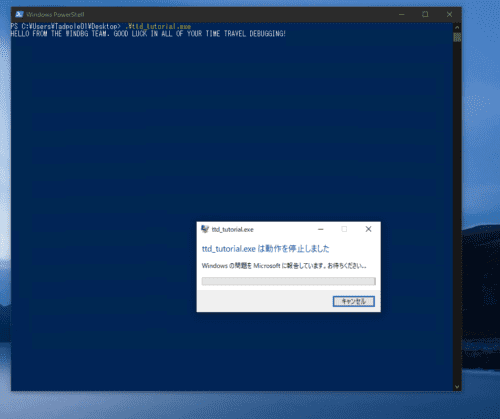
Identifying the cause of this crash using TTD is the scenario for this tutorial.
Tracing ttd_sample.exe with TTD
First, launch WinDbg Preview (downloaded from the Windows Store) with administrator privileges.
Then, from the top-right File menu, select Launch executable (advanced) as shown in the image below.
From here you can run a binary under debugging and capture a TTD trace.
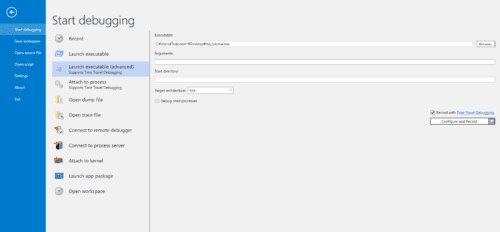
Enter the absolute path of the ttd_sample.exe binary in the Executable field.
Enable the Record with Time Travel Debugging checkbox in the lower right.
Leave the remaining options at their defaults and click Record.
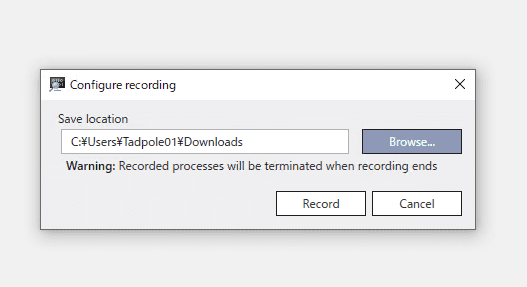
In the Configure location window, choose a destination folder for the trace file and click Record.
The application runs and the fault is reproduced. The TTD trace has been captured at this point, so click Terminate process to stop the application.
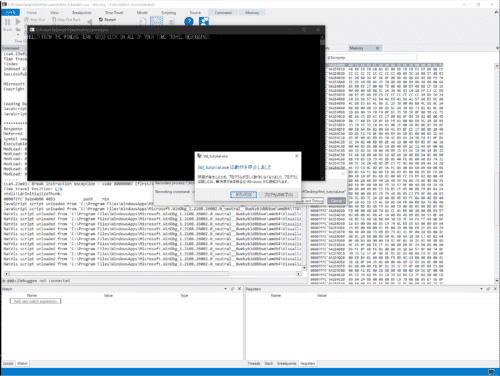
When the application terminates, the TTD trace replay starts automatically with the Timeline positioned at the beginning.
You are now ready to start troubleshooting with TTD.
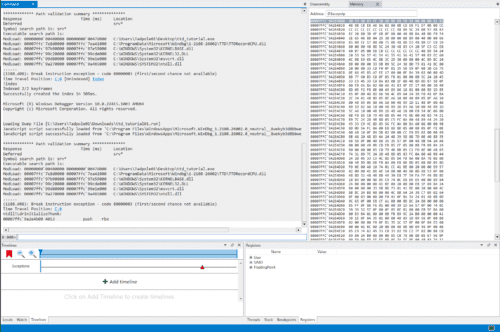
You can analyze the TTD trace directly from here, but let’s take the opportunity to open the saved trace file for analysis.
Close WinDbg and relaunch it with administrator privileges.
From the File menu, select Open trace file and open the .run file that was created.
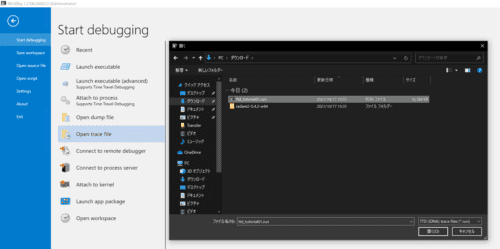
The trace file is now loaded into WinDbg and ready for analysis.
Troubleshooting with TTD
From here, analyze the captured trace file to perform troubleshooting.
Loading the Symbol File
The official tutorial starts by loading the symbol file path into WinDbg.
In my environment, ttd_tutorial.pdb is placed on the Desktop, so I use .sympath+ <desktop path>.
After adding the symbol file path, run the .reload command.
.sympath+ C:\Users\Tadpole01\Desktop
.reload
When the symbol file is loaded correctly, WinDbg can interpret and display function names and other symbols for ttd_tutorial.exe, as shown in the image below.
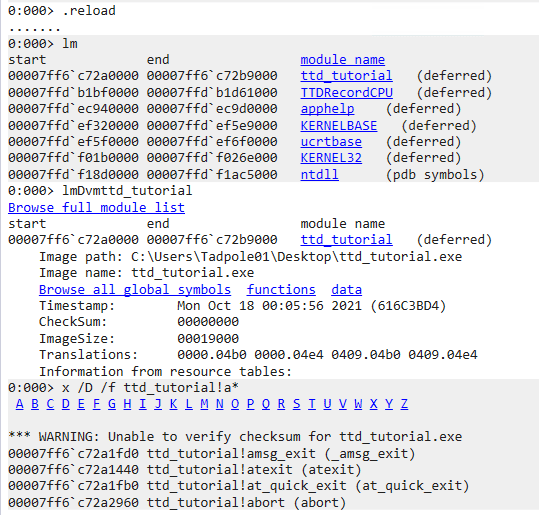
With the symbol file loaded, let’s start the analysis.
Checking Exceptions from the Trace File
Opening the trace file reveals that a code 80000003 exception occurred:
(19e0.1f9c): Break instruction exception - code 80000003 (first/second chance not available)
Time Travel Position: D:0 [Unindexed] Index
!index
Indexed 2/2 keyframes
Successfully created the index in 362ms.
The Time Travel Position displayed here indicates the position within the TTD trace. (Position values may vary between execution environments.)
You can jump to any trace position by running a command like !ttdext.tt <Time Travel Position>.
Reference: Time Travel Debugging Extension !tt command - Windows drivers | Microsoft Docs
0:000> !ttdext.tt D:0
Setting position: D:0
(19e0.1f9c): Break instruction exception - code 80000003 (first/second chance not available)
Time Travel Position: D:0
ntdll!LdrInitializeThunk:
00007ffd`f1944b00 4053            push    rbx
Listing Events in the TTD Trace
Next, call dx -r1 @$curprocess.TTD.Events to get a list of events that occurred in the TTD trace.
Reference: TTD Event Objects - Windows drivers | Microsoft Docs
The output below shows the complete sequence: various modules were loaded, a thread was started, an exception occurred which caused the thread to terminate, then each module was unloaded, and the process exited.
0:000> dx -r1 @$curprocess.TTD.Events
@$curprocess.TTD.Events
    [0x0]            : Module ttd_tutorial.exe Loaded at position: 2:0
    [0x1]            : Module TTDRecordCPU.dll Loaded at position: 3:0
    [0x2]            : Module apphelp.dll Loaded at position: 4:0
    [0x3]            : Module KERNELBASE.dll Loaded at position: 5:0
    [0x4]            : Module ucrtbase.dll Loaded at position: 6:0
    [0x5]            : Module KERNEL32.DLL Loaded at position: 7:0
    [0x6]            : Module ntdll.dll Loaded at position: 8:0
    [0x7]            : Thread UID:   2 TID: 0x1F9C created at D:0
    [0x8]            : Exception 0xC0000005 of type Hardware at PC: 0X52005400200045
    [0x9]            : Thread UID:   2 TID: 0x1F9C terminated at 96:1
    [0xa]            : Module apphelp.dll Unloaded at position: FFFFFFFFFFFFFFFE:0
    [0xb]            : Module TTDRecordCPU.dll Unloaded at position: FFFFFFFFFFFFFFFE:0
    [0xc]            : Module ttd_tutorial.exe Unloaded at position: FFFFFFFFFFFFFFFE:0
    [0xd]            : Module KERNEL32.DLL Unloaded at position: FFFFFFFFFFFFFFFE:0
    [0xe]            : Module KERNELBASE.dll Unloaded at position: FFFFFFFFFFFFFFFE:0
    [0xf]            : Module ntdll.dll Unloaded at position: FFFFFFFFFFFFFFFE:0
    [0x10]           : Module ucrtbase.dll Unloaded at position: FFFFFFFFFFFFFFFE
Retrieving Exception Details
Clicking on the exception event to view its details shows that the Time Travel Position when the exception occurred was 7C:0. (Position values may differ in other environments.)
0:000> dx -r1 @$curprocess.TTD.Events[8]
@$curprocess.TTD.Events[8]                 : Exception 0xC0000005 of type Hardware at PC: 0X52005400200045
    Type             : Exception
    Position         : 7C:0 [Time Travel]
    Exception        : Exception 0xC0000005 of type Hardware at PC: 0X52005400200045
Selecting the child Exception element gives even more detail:
0:000> dx -r1 @$curprocess.TTD.Events[8].Exception
@$curprocess.TTD.Events[8].Exception                 : Exception 0xC0000005 of type Hardware at PC: 0X52005400200045
    Position         : 7C:0 [Time Travel]
    Type             : Hardware
    ProgramCounter   : 0x52005400200045
    Code             : 0xc0000005
    Flags            : 0x0
    RecordAddress    : 0x0
Jumping to the Point Where the Exception Occurred
Click 7C:0 [Time Travel] to jump to the position where the exception occurred.
The cursor in the Timelines panel at the bottom of the screen advances.
In TTD, you can inspect the memory and register state as they were recorded at the current Time Travel Position.
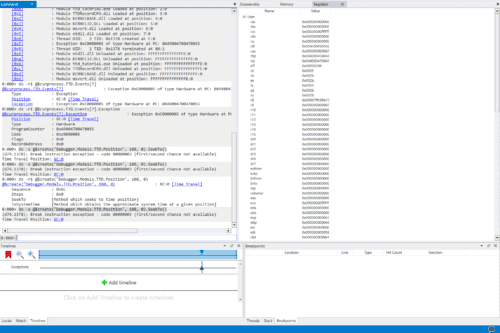
In WinDbg, the r command displays register information.
Time Travel Position: 7C:0
0:000> r
rax=0000000000000000 rbx=0000000000000001 rcx=00000000ffffffff
rdx=00007ffdef6e0980 rsi=000002b36fa33520 rdi=000000000000002c
rip=0052005400200045 rsp=000000b936effb20 rbp=004d004900540020
 r8=000000b936efde98  r9=000002b36fa3899c r10=0000000000000000
r11=000000b936eff980 r12=0000000000000000 r13=0000000000000000
r14=000002b36fa2d110 r15=0000000000000001
iopl=0         nv up ei pl nz na pe nc
cs=0033  ss=002b  ds=002b  es=002b  fs=0053  gs=002b             efl=00000202
00520054`00200045 ??              ???
When the values of rsp and rbp differ as drastically as shown above, it is possible that the stack has been corrupted for some reason.
Step Into Back!!!
To identify the point at which the stack was corrupted, we need to travel back in time.
Click the Step Into Back button shown in the screenshot to step backwards through the trace one instruction at a time.
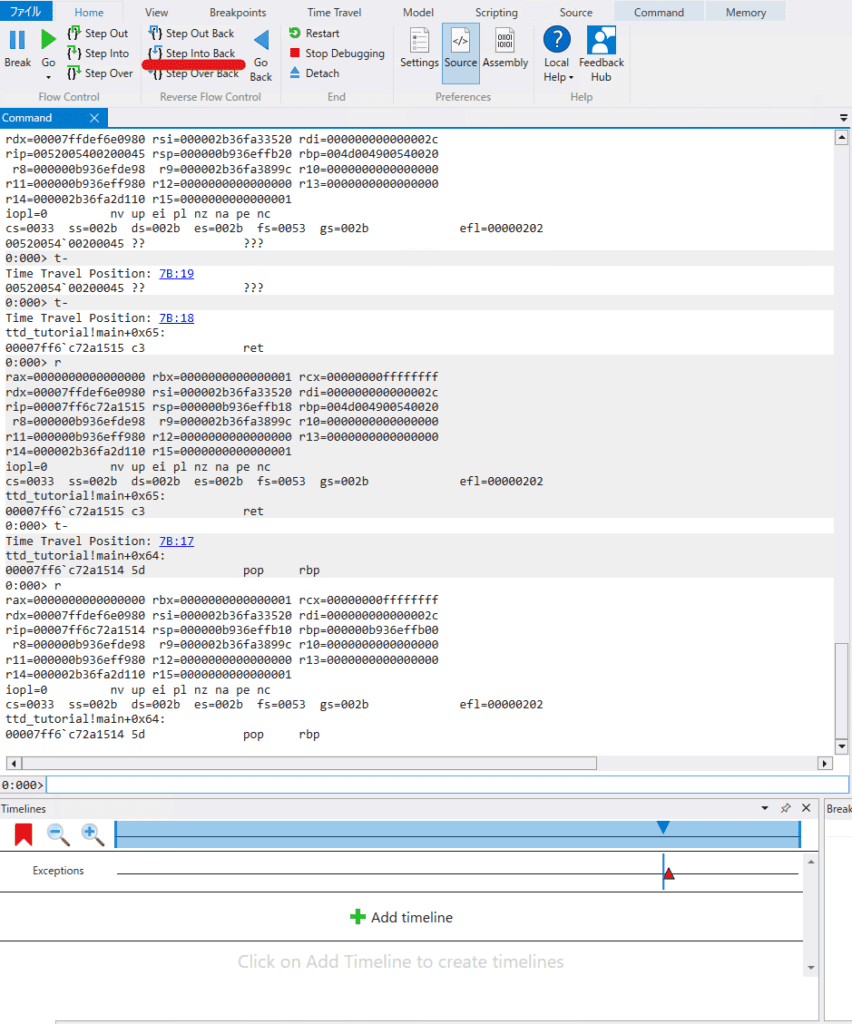
By comparing register values, we can infer that the rbp register was still healthy at Time Travel Position: 7B:17, but became corrupted at Time Travel Position: 7B:18.
Inspecting the Memory Data at the Address Pointed to by BSP
We confirmed that the address held by BSP just before the stack was corrupted is 0xb936effb00.
Let’s display the memory data at that address.
Open the Memory window from WinDbg’s View menu and enter 0xb936effb00 in the address bar.
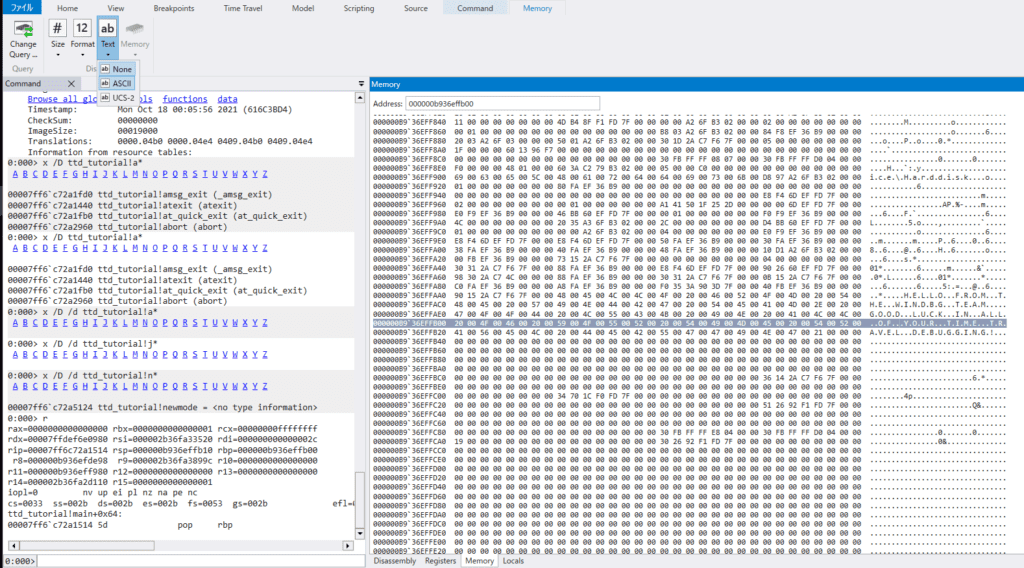
Change the Text setting in the Memory tab from none to ASCII to display any strings contained in the memory data.
As shown in the image below, the address pointed to by BSP appears to contain a string.
Supplementary Note: About ESP and EBP
Let me briefly touch on some computer architecture concepts.
When a function is called on a computer running a CPU with an x64 architecture or similar, the CALL instruction is used.
Simply put, the CALL instruction performs the following steps:
- Pushes the address of the instruction immediately following the CALL onto the stack (this address will be called when the function’s execution is fully complete).
- Jumps to the memory address of the function being called.
Reference: Understanding the x86-64 processor stack - Qiita
For more details, please refer to the following article:
Reference: Overwriting the Memory Pointed to by the Stack Pointer in WinDbg to Execute an Arbitrary Function
Identifying the Root Cause
As confirmed earlier, the address indicated by the BSP register pointed to a string.
In a program like this sample, the address stored in BSP is expected to be the address of the instruction called after main finishes.
So where exactly did the stack get corrupted? Let’s find out.
Set a breakpoint on the main function with the following command, then press Go Back to rewind time.
bu ttd_tutorial!mainExecution stops at the top of main. Step forward with Step Into until a memory address is pushed onto BSP.
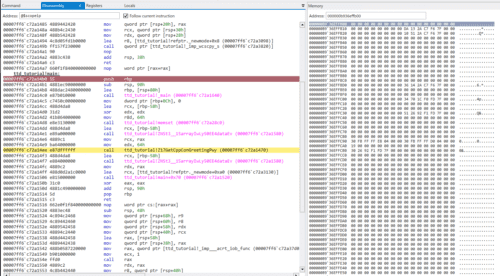
Inspecting memory immediately after the address is pushed onto BSP shows that at this point it still contains an instruction address (not yet a string) — the address of the instruction to be called after main finishes.

Stepping forward several times with Step Over while comparing the Disassembly and Memory windows, it becomes clear that the stack was corrupted immediately after calling the GetCppConGreetingPwy function.
Before stack corruption
After stack corruption
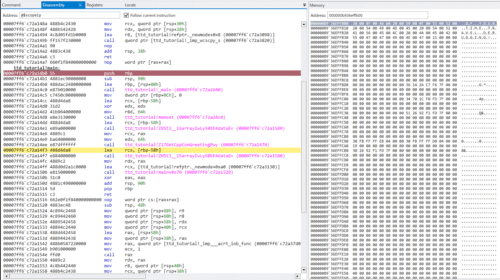
This identifies the GetCppConGreetingPwy function as the source of the stack corruption.
Debugging the GetCppConGreetingPwy Function
I rewound the TTD trace a little and stepped through the GetCppConGreetingPwy function.
It turns out the stack was corrupted immediately after calling wcscpy_s.
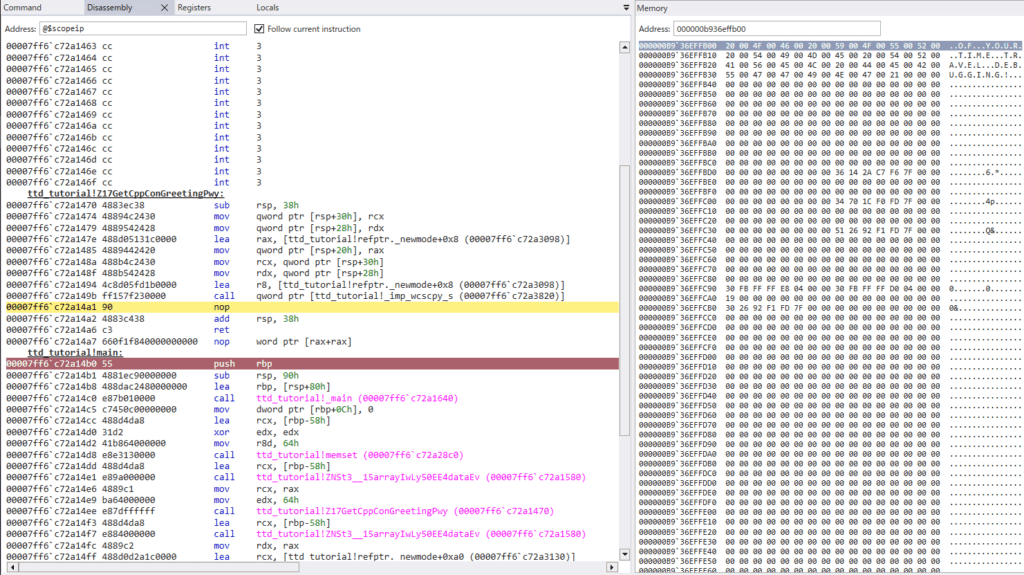
With that identified, let’s look at the source code:
#include <array>
#include <cstring>
#include <stdio.h>
#include <string.h>

void GetCppConGreeting(wchar_t *buffer, size_t size)
{
    wchar_t const *const message = L"HELLO FROM THE WINDBG TEAM. GOOD LUCK IN ALL OF YOUR TIME TRAVEL DEBUGGING!";

    wcscpy_s(buffer, size, message);
}

int main()
{
    std::array<wchar_t, 50> greeting{};
    GetCppConGreeting(greeting.data(), sizeof(greeting));

    wprintf(L"%ls\n", greeting.data());

    return 0;
}
It appears the greeting array was allocated for only 50 wide characters, but a 75-character message was written into it, causing a stack overflow.
I fixed this by increasing the array element count to 75 in ttd_tutorial_fixed.cpp and rebuilding as ttd_tutorial_fixed.exe.
The error was resolved and the program ran successfully!
$ ttd_tutorial_fixed.exe
HELLO FROM THE WINDBG TEAM. GOOD LUCK IN ALL OF YOUR TIME TRAVEL DEBUGGING!
Wrap-up
I tried out TTD-based debugging, which lets you trace execution both forward and backward in time.
Being able to see the memory and register state from the past — which is not possible with memory dumps or process dumps alone — made the analysis significantly smoother.
Also, unlike live debugging, the ability to step backward through execution eliminates the tedious cycle of “set a breakpoint, reproduce the problem, and start over,” which is very convenient.
I plan to continue documenting debugging techniques that take advantage of TTD.
For other articles on Windows debugging and dump analysis with WinDbg, see the list on the following page:
Reference: Debugging and Troubleshooting Techniques with WinDbg