This page has been machine-translated from the original page.
I hit a wall when trying Windows kernel debugging: there are very few kernel drivers whose detailed specifications are publicly available.
So I decided that if none existed, I would just build one myself, and started developing a kernel driver.
When working on kernel driver development, I am basically proceeding with the following book as a reference.
Reference: Windows Kernel Driver Programming
I summarized how to configure kernel debugging in the following article.
Reference: First steps for kernel debugging a Windows 10 environment with WinDbg
In the previous article, I set up DebugView, created a driver that only outputs the OS version with KdPrint, and performed live debugging.
This time I want to create a driver with a bit more behavior and debug it.
Table of Contents
Kernel programming
I am developing this kernel driver based on Windows Kernel Driver Programming.
The WDK (Windows Driver Kit) that I installed last time contains the libraries and header files used for kernel driver development.
Kernel APIs are composed of C-language functions, but they differ from user-mode development mainly in the following ways.
How kernel driver development differs from user mode
Below is a quotation from Windows Kernel Driver Programming about how kernel driver development differs from user mode development.
- Unhandled exceptions crash the system (BSOD)
- Resources must be released in the unload routine when the driver is unloaded (otherwise leaks occur)
- Errors during kernel driver development must never be ignored
- IRQL can be greater than 0
- Embedded bugs can affect the entire system
- Debugging must be done remotely from another machine
- Most standard libraries are unavailable
- Only
Structured Exception Handling (SEH)can be used for exception handling - The C++ runtime is unavailable
Structured Exception Handling (SEH)
SEH is a feature for appropriately handling situations with specific exception codes, such as hardware failures.
By using SEH, you can write programs that properly release resources such as memory blocks and files even when an exception occurs.
SEH provides two mechanisms: an “exception handler” and a “termination handler”.
Exception handlers are used to deal with specific errors.
Reference: Writing an Exception Handler | Microsoft Docs
Meanwhile, a termination handler can be made to run regardless of whether a code block finishes normally or an exception occurs.
Reference: Writing a Termination Handler | Microsoft Docs
When developing kernel drivers, you need to use SEH and implement exception handling with one of the mechanisms above.
Reference: Structured Exception Handling (C/C++) | Microsoft Docs
Kernel functions
In kernel driver development, the C standard library is basically unavailable.
Instead, kernel driver development uses functions exported from kernel components.
Many kernel functions are implemented in Ntoskrnl.exe.
Some of the functions implemented in Ntoskrnl.exe are documented, while others are not.
Kernel function names follow certain conventions, and prefixes are attached according to purpose.
The following Wikipedia page had a detailed explanation of the prefix mappings.
Reference: ntoskrnl.exe - Wikipedia
Documented kernel functions can be referenced on pages such as the following.
Reference: Windows kernel - Windows drivers | Microsoft Docs
Memory allocation in kernel drivers
The kernel provides the following two memory pools that drivers can use.
- Paged pool: an area that can be paged out as needed
- Nonpaged pool: an area that is never paged out
In addition, the nonpaged pool can separately control executable and non-executable regions.
Using nonpaged pool that is not paged out guarantees that page faults will not occur, but it seems that when developing drivers, using paged pool as much as possible is recommended.
Reference: ExAllocatePool function (wdm.h) - Windows drivers | Microsoft Docs
Device objects
As a rule, a kernel driver needs to create one or more device objects.
A device object is what the OS uses to represent a device.
Reference: Introduction to Device Objects - Windows drivers | Microsoft Docs
A device object is created as an instance of the DEVICE_OBJECT structure.
Kernel drivers communicate with client applications through device objects.
Reference: DEVICEOBJECT (wdm.h) - Windows drivers | Microsoft Docs
Creating a kernel driver and client application
I will develop SecondDriverSample while transcribing the code explained in Chapter 4 of Windows Kernel Driver Programming.
In Chapter 4, a set consisting of a kernel driver and a client application that controls thread priority is created.
Scheduling priorities
To be honest, I did not really know what setting thread priority with the Windows API meant, so I looked into it briefly.
In Windows, threads are scheduled according to thread priority.
Thread priority is determined by the following two conditions.
- Process priority class
- Thread priority level within the process priority class
The process priority class can be set to one of the following and can be configured with SetPriorityClass.
By default, the process priority class seems to be THREAD_PRIORITY_NORMAL.
- THREADPRIORITYIDLE
- THREADPRIORITYLOWEST
- THREADPRIORITYBELOW_NORMAL
- THREADPRIORITYNORMAL
- THREADPRIORITYABOVE_NORMAL
- THREADPRIORITYHIGHEST
- THREADPRIORITYTIME_CRITICAL
On the other hand, one of the following thread priority levels is set within each priority class.
It can be changed with SetThreadPriority.
Here as well, THREAD_PRIORITY_NORMAL is assigned by default.
- THREADPRIORITYIDLE
- THREADPRIORITYLOWEST
- THREADPRIORITYBELOW_NORMAL
- THREADPRIORITYNORMAL
- THREADPRIORITYABOVE_NORMAL
- THREADPRIORITYHIGHEST
- THREADPRIORITYTIME_CRITICAL
Reference: SetPriorityClass function (processthreadsapi.h) - Win32 apps | Microsoft Docs
Reference: SetThreadPriority function (processthreadsapi.h) - Win32 apps | Microsoft Docs
Although each thread’s priority is determined by a combination of these settings, as shown in the table at the link below, it seems that not all priority levels can be flexibly set with the usual configuration methods.
Reference: Scheduling Priorities - Win32 apps | Microsoft Docs
Therefore, the goal of the driver and client developed in Chapter 4 is to make thread priority configurable more flexibly.
Creating the DriverEntry function
The base procedure is the same as the one I used in the earlier article.
First, create the DriverEntry function, which will serve as the entry point.
In the DriverEntry function, implement the following processing.
- Set the unload routine
- Set the dispatch routines supported by the driver
- Create the device object
- Create a symbolic link to the device object
As mentioned earlier, that is why the unload routine and device object are necessary.
For details, the “Required Standard Driver Routines” section below is helpful.
Reference: Introduction to Standard Driver Routines - Windows drivers | Microsoft Docs
Dispatch routines are what process IRPs (incoming I/O request packets).
IRPs store information about many different kinds of requests.
To open the driver’s device handle, a kernel driver apparently needs to support at least the dispatch routines for IRP_MJ_CREATE and IRP_MJ_CLOSE.
Reference: Dispatch Routine Functionality - Windows drivers | Microsoft Docs
Reference: DRIVER_DISPATCH (wdm.h) - Windows drivers | Microsoft Docs
Reference: DispatchCreate, DispatchClose, and DispatchCreateClose Routines - Windows drivers | Microsoft Docs
A symbolic link to the device object is created so that the client can reference the kernel driver’s device object.
For example, functions such as CreateFile take the symbolic link to the device object as their first argument.
Reading the DriverEntry function
Now, the DriverEntry function that I actually created while transcribing the code looked like this.
extern "C" NTSTATUS
DriverEntry(_In_ PDRIVER_OBJECT DriverObject, _In_ PUNICODE_STRING RegistryPath) {
	UNREFERENCED_PARAMETER(RegistryPath);

	KdPrint(("SecondDriver DriverEntry started\n"));

	DriverObject->DriverUnload = SecondDriverUnload;

	DriverObject->MajorFunction[IRP_MJ_CREATE] = SecondDriverCreateClose;
	DriverObject->MajorFunction[IRP_MJ_CLOSE] = SecondDriverCreateClose;
	DriverObject->MajorFunction[IRP_MJ_DEVICE_CONTROL] = SecondDriverDeviceControl;

	UNICODE_STRING devName = RTL_CONSTANT_STRING(L"\\Device\\SecondDriver");

	//RtlInitUnicodeString(&devName, L"\\Device\\ThreadBoost");
	PDEVICE_OBJECT DeviceObject;
	NTSTATUS status = IoCreateDevice(DriverObject, 0, &devName, FILE_DEVICE_UNKNOWN, 0, FALSE, &DeviceObject);
	if (!NT_SUCCESS(status)) {
		KdPrint(("Failed to create device (0x%08X)\n", status));
		return status;
	}

	UNICODE_STRING symLink = RTL_CONSTANT_STRING(L"\\??\\SecondDriver");
	status = IoCreateSymbolicLink(&symLink, &devName);
	if (!NT_SUCCESS(status)) {
		KdPrint(("Failed to create symbolic link (0x%08X)\n", status));
		IoDeleteDevice(DeviceObject);
		return status;
	}

	KdPrint(("SecondDriverSecondDriver DriverEntry completed successfully\n"));

	return STATUS_SUCCESS;
}
Supporting dispatch routines
For the time being, the following three lines were what caught my attention.
This is where the dispatch routines are set up.
DriverObject->MajorFunction[IRP_MJ_CREATE] = SecondDriverCreateClose;
DriverObject->MajorFunction[IRP_MJ_CLOSE] = SecondDriverCreateClose;
DriverObject->MajorFunction[IRP_MJ_DEVICE_CONTROL] = SecondDriverDeviceControl;
DriverObject is a semi-documented structure that represents the image of a loaded kernel-mode driver.
typedef struct _DRIVER_OBJECT {
  CSHORT             Type;
  CSHORT             Size;
  PDEVICE_OBJECT     DeviceObject;
  ULONG              Flags;
  PVOID              DriverStart;
  ULONG              DriverSize;
  PVOID              DriverSection;
  PDRIVER_EXTENSION  DriverExtension;
  UNICODE_STRING     DriverName;
  PUNICODE_STRING    HardwareDatabase;
  PFAST_IO_DISPATCH  FastIoDispatch;
  PDRIVER_INITIALIZE DriverInit;
  PDRIVER_STARTIO    DriverStartIo;
  PDRIVER_UNLOAD     DriverUnload;
  PDRIVER_DISPATCH   MajorFunction[IRP_MJ_MAXIMUM_FUNCTION + 1];
} DRIVER_OBJECT, *PDRIVER_OBJECT;
Reference: DRIVEROBJECT (wdm.h) - Windows drivers | Microsoft Docs
What does “the image of a loaded kernel-mode driver” actually mean? My understanding is that it is an object allocated and initialized by the kernel before DriverEntry is called, so I figure it is an object the kernel kindly sets up for us. (I still could not quite figure it out even after looking it up…)
Here, by registering dispatch routines in MajorFunction, which is a member of this driver object, you can specify the concrete functions supported by the driver.
MajorFunction is managed as an array of function pointers, and indices prefixed with IRP_MJ_ are predefined.
The reason you only need to add the dispatch routines you support is that when the MajorFunction array is initialized by the kernel, all elements are set to nt!IopInvalidDeviceRequest, which indicates IRPs not supported by the driver.
For that reason, only the dispatch routines you support are updated.
Reference: DriverObject and DriverEntry
Strings used by kernel functions
When using strings with kernel functions, a structure of type UNICODE_STRING is basically expected.
Reference: UNICODESTRING (ntdef.h) - Win32 apps | Microsoft Docs
In the following lines of source code, the RTL_CONSTANT_STRING macro converts the path string \\Device\\SecondDriver into a UNICODE_STRING and stores it in the variable devName.
The later symLink line works the same way.
UNICODE_STRING devName = RTL_CONSTANT_STRING(L"\\Device\\SecondDriver");

UNICODE_STRING symLink = RTL_CONSTANT_STRING(L"\\??\\SecondDriver");
Reference: RtlInitString function (wdm.h) - Windows drivers | Microsoft Docs
Creating a device object
The required “creation of a device object” inside the DriverEntry function happens here.
Although we already receive the kernel-initialized DriverObject as an argument to DriverEntry, it provides the information needed to create a device object with the IoCreateDevice function.
If no device object exists, there is no way for a user-mode client to open a handle and communicate with the driver.
A device object is created with the IoCreateDevice function.
The IoCreateDevice function has the following form.
NTSTATUS IoCreateDevice(
  [in]           PDRIVER_OBJECT  DriverObject,
  [in]           ULONG           DeviceExtensionSize,
  [in, optional] PUNICODE_STRING DeviceName,
  [in]           DEVICE_TYPE     DeviceType,
  [in]           ULONG           DeviceCharacteristics,
  [in]           BOOLEAN         Exclusive,
  [out]          PDEVICE_OBJECT  *DeviceObject
);
Reference: IoCreateDevice function (wdm.h) - Windows drivers | Microsoft Docs
The DriverObject of type PDRIVER_OBJECT received as the first argument is the one that was passed in as an argument to DriverEntry.
The seventh argument receives a pointer to the newly created DeviceObject structure.
Here, we pass a pointer to the newly declared DeviceObject of type PDEVICE_OBJECT.
If the IoCreateDevice function runs successfully, the location referenced by this pointer is filled with a device object allocated from nonpaged pool.
In addition, the third argument DeviceName lets you name the device object being created.
Here, we set the devName defined earlier.
For DeviceType, specify FILE_DEVICE_UNKNOWN.
The documentation below summarizes other device types that can be set.
Reference: Specifying Device Types - Windows drivers | Microsoft Docs
The actual code looks like this.
PDEVICE_OBJECT DeviceObject;
NTSTATUS status = IoCreateDevice(DriverObject, 0, &devName, FILE_DEVICE_UNKNOWN, 0, FALSE, &DeviceObject);
if (!NT_SUCCESS(status)) {
	KdPrint(("Failed to create device (0x%08X)\n", status));
	return status;
}
If the operation fails, an error message is output with the KdPrint function.
Creating a symbolic link
The device object has now been created, but user-mode clients still cannot access it as-is.
To allow a user-mode client to access the device driver, you need to create a symbolic link to the device object.
A symbolic link is created with the IoCreateSymbolicLink function.
The function itself is simple: you just pass the symbolic link and the device object name, converted into PUNICODE_STRING structures, as arguments.
Reference: IoCreateSymbolicLink function (wdm.h) - Windows drivers | Microsoft Docs
The actual code looks like this.
UNICODE_STRING symLink = RTL_CONSTANT_STRING(L"\\??\\SecondDriver");
status = IoCreateSymbolicLink(&symLink, &devName);
if (!NT_SUCCESS(status)) {
	KdPrint(("Failed to create symbolic link (0x%08X)\n", status));
	IoDeleteDevice(DeviceObject);
	return status;
}
If creating the symbolic link fails, all of the work done so far needs to be rolled back and the function should exit.
Here, the IoDeleteDevice function is used to delete the device object from the system.
Reference: IoDeleteDevice function (wdm.h) - Windows drivers | Microsoft Docs
Once the device object and symbolic link have been created, the DriverEntry processing is complete.
Setting up the routines assigned to the dispatch routines
Next, let’s set up the routines that support CREATE and CLOSE, which were assigned in the following lines earlier.
DriverObject->MajorFunction[IRP_MJ_CREATE] = SecondDriverCreateClose;
DriverObject->MajorFunction[IRP_MJ_CLOSE] = SecondDriverCreateClose;
In the program created in Chapter 4, both the CREATE and CLOSE routines are set to the same SecondDriverCreateClose.
That is because its behavior is simply to accept IRP requests without doing any special processing.
If you want to separate the processing for CREATE and CLOSE, you need to create and assign different routines.
Let’s look at the actual code.
_Use_decl_annotations_
NTSTATUS SecondDriverCreateClose(PDEVICE_OBJECT DeviceObject, PIRP Irp) {
	UNREFERENCED_PARAMETER(DeviceObject);

	Irp->IoStatus.Status = STATUS_SUCCESS;
	Irp->IoStatus.Information = 0;
	IoCompleteRequest(Irp, IO_NO_INCREMENT);
	return STATUS_SUCCESS;
}
Also, when I actually defined the dispatch routine exactly like the sample in the book, I got compiler error C2440 at build time.
エラー C2440 '=': 'NTSTATUS (__stdcall *)(PDRIVER_OBJECT,PIRP)' から 'PDRIVER_DISPATCH' に変換できません。I honestly did not understand it even after Googling, but when I tried defining the assigned function directly before the DriverEntry function instead of just declaring a prototype, it went away.
I do not know whether that is really the right fix.
Kernel development with WDM itself is no longer recommended, so maybe the latest compiler is tripping over something.
Function annotations
There is _Use_decl_annotations_ on the first line, but I had no idea what it was for.
The documentation says that by using _Use_decl_annotations_, the annotations shown in the header within the scope of the same function are treated as if they also exist on the definition marked with _Use_decl_annotations_.
Reference: c++ - what is Usedeclannotations meaning - Stack Overflow
Reference: Annotating function behavior | Microsoft Docs
I looked into it for a while, but I still could not understand its purpose, so I may add an update later if I figure it out.
Receiving IRPs
An IRP is a structure created by the I/O manager when an I/O request occurs from an application.
IRPs are allocated from nonpaged pool and passed around as data packets.
Let’s look at the code first.
What the driver in Chapter 4 does is simple: after it rewrites some values in the IoStatus field of the IRP received as an argument, it passes the IRP to IoCompleteRequest.
Irp->IoStatus.Status = STATUS_SUCCESS;
Irp->IoStatus.Information = 0;
IoCompleteRequest(Irp, IO_NO_INCREMENT);
An IRP roughly consists of an IRP header and a stack location.
After the I/O manager receives a request from an application, it allocates an IRP in nonpaged pool memory.
It then initializes the IRP header and stack location and calls the driver’s dispatch routine.
The following article was extremely helpful for understanding the detailed flow.
Reference: Device driver course 25 | Science Park Co., Ltd.
IoStatus is an I/O status block, and when the IRP completes, its completion state is set in IoStatus.Status.
IoStatus.Information stores the number of bytes read or written.
Since nothing is being read or written here, IoStatus.Information is set to 0.
The IoCompleteRequest macro is used when a dispatch routine has completely finished processing an I/O request and returns the IRP to the I/O manager.
This completes the definition of the dispatch routine that supports CREATE and CLOSE.
Setting up device control
Next, set up the device control routine configured by the line DriverObject->MajorFunction[IRP_MJ_DEVICE_CONTROL] = SecondDriverDeviceControl;.
DEVICE_CONTROL is a general-purpose routine that can be used when exchanging data with a driver.
DEVICE_CONTROL needs to receive three things: an input buffer, an output buffer, and a control code.
Reference: IRPMJDEVICE_CONTROL - Windows drivers | Microsoft Docs
Reference: Introduction to I/O Control Codes - Windows drivers | Microsoft Docs
The control codes described in the following documentation are passed to DEVICE_CONTROL, and the operation is determined from them.
Reference: DeviceIoControl function (ioapiset.h) - Win32 apps | Microsoft Docs
Let’s look at the actual code.
_Use_decl_annotations_
NTSTATUS SecondDriverDeviceControl(PDEVICE_OBJECT, PIRP Irp) {
	// get our IO_STACK_LOCATION
	auto stack = IoGetCurrentIrpStackLocation(Irp);
	auto status = STATUS_SUCCESS;

	switch (stack->Parameters.DeviceIoControl.IoControlCode) {
	case IOCTL_SECOND_DRIVER_SET_PRIORITY:
	{
		// do the work
		if (stack->Parameters.DeviceIoControl.InputBufferLength < sizeof(ThreadData)) {
			status = STATUS_BUFFER_TOO_SMALL;
			break;
		}

		auto data = (ThreadData*)stack->Parameters.DeviceIoControl.Type3InputBuffer;
		if (data == nullptr) {
			status = STATUS_INVALID_PARAMETER;
			break;
		}

		if (data->Priority < 1 || data->Priority > 31) {
			status = STATUS_INVALID_PARAMETER;
			break;
		}

		PETHREAD Thread;
		status = PsLookupThreadByThreadId(ULongToHandle(data->ThreadId), &Thread);
		if (!NT_SUCCESS(status))
			break;

		KeSetPriorityThread((PKTHREAD)Thread, data->Priority);
		ObDereferenceObject(Thread);
		KdPrint(("Thread Priority change for %d to %d succeeded!\n",
			data->ThreadId, data->Priority));
		break;
	}

	default:
		status = STATUS_INVALID_DEVICE_REQUEST;
		break;
	}

	Irp->IoStatus.Status = status;
	Irp->IoStatus.Information = 0;
	IoCompleteRequest(Irp, IO_NO_INCREMENT);
	return status;
}
Obtaining the current stack location
The IoGetCurrentIrpStackLocation function can obtain the current stack location.
auto stack = IoGetCurrentIrpStackLocation(Irp);A stack location is defined by the IO_STACK_LOCATION structure.
Drivers use the stack location inside an IRP to obtain driver-specific information related to the I/O operation.
Reference: IoGetCurrentIrpStackLocation function (wdm.h) - Windows drivers | Microsoft Docs
A stack location contains information such as the following.
- Information about the
MajorFunctionsexecuted by the driver - Information about the
MinorFunctionsexecuted by the driver - The length and start position of buffers for data transferred by the driver
- A pointer to the device object created by the driver
- A pointer to a file object that represents an open file, device, directory, or volume
Reference: I/O Stack Locations - Windows drivers | Microsoft Docs
Setting the requested priority on the thread
This is the core implementation of the driver we are building this time.
It is defined inside the SecondDriverDeviceControl function.
The stack location obtained with the IoGetCurrentIrpStackLocation function contains information such as the passed control code.
Because of that, processing branches based on the information in stack->Parameters.DeviceIoControl.IoControlCode.
The source code is below.
// switch (stack->Parameters.DeviceIoControl.IoControlCode)
case IOCTL_SECOND_DRIVER_SET_PRIORITY:
{
	// do the work
	if (stack->Parameters.DeviceIoControl.InputBufferLength < sizeof(ThreadData)) {
		status = STATUS_BUFFER_TOO_SMALL;
		break;
	}

	auto data = (ThreadData*)stack->Parameters.DeviceIoControl.Type3InputBuffer;
	if (data == nullptr) {
		status = STATUS_INVALID_PARAMETER;
		break;
	}

	if (data->Priority < 1 || data->Priority > 31) {
		status = STATUS_INVALID_PARAMETER;
		break;
	}

	PETHREAD Thread;
	status = PsLookupThreadByThreadId(ULongToHandle(data->ThreadId), &Thread);
	if (!NT_SUCCESS(status))
		break;

	KeSetPriorityThread((PKTHREAD)Thread, data->Priority);
	ObDereferenceObject(Thread);
	KdPrint(("Thread Priority change for %d to %d succeeded!\n",
		data->ThreadId, data->Priority));
	break;
}
IOCTL_SECOND_DRIVER_SET_PRIORITY is defined as follows.
#define IOCTL_SECOND_DRIVER_SET_PRIORITY CTL_CODE(SECOND_DRIVER_DEVICE, 0x800, METHOD_NEITHER, FILE_ANY_ACCESS)The CTL_CODE macro generates a control code object from the information in its arguments.
Reference: CTL_CODE macro (d4drvif.h) - Windows drivers | Microsoft Docs
If the passed control code is IOCTL_SECOND_DRIVER_SET_PRIORITY, the processing is performed.
The following code checks the input values.
// do the work
if (stack->Parameters.DeviceIoControl.InputBufferLength < sizeof(ThreadData)) {
	status = STATUS_BUFFER_TOO_SMALL;
	break;
}

auto data = (ThreadData*)stack->Parameters.DeviceIoControl.Type3InputBuffer;
if (data == nullptr) {
	status = STATUS_INVALID_PARAMETER;
	break;
}

if (data->Priority < 1 || data->Priority > 31) {
	status = STATUS_INVALID_PARAMETER;
	break;
}
This time, because the goal is ultimately to set a thread’s priority, the passed buffer needs to store ThreadData.
That is why the size of stack->Parameters.DeviceIoControl.InputBufferLength is checked.
After checking the size, the buffer in the stack location is cast to ThreadData with (ThreadData*)stack->Parameters.DeviceIoControl.Type3InputBuffer.
If it turns out to be a null pointer, an error is returned.
Finally, it checks whether the Priority value in ThreadData falls within the prescribed range.
Once validation of the passed data is complete, the thread priority is set with the KeSetPriorityThread function.
The KeSetPriorityThread function needs to receive, as its first argument, a pointer to the thread whose priority is to be set.
Reference: KeSetPriorityThread function (wdm.h) - Windows drivers | Microsoft Docs
Therefore, the PsLookupThreadByThreadId function is used to obtain a pointer to the thread object from the passed thread ID.
Reference: PsLookupThreadByThreadId function (ntifs.h) - Windows drivers | Microsoft Docs
PsLookupThreadByThreadId can be used by including ntifs.h.
To avoid compile errors, ntifs.h needs to be included before ntddk.h.
Let’s look at the code.
PETHREAD Thread;
status = PsLookupThreadByThreadId(ULongToHandle(data->ThreadId), &Thread);
if (!NT_SUCCESS(status)) break;

KeSetPriorityThread((PKTHREAD)Thread, data->Priority);
ObDereferenceObject(Thread);
KdPrint(
    ("Thread Priority change for %d to %d succeeded!\n",
      data->ThreadId, data->Priority
    )
);
break;
After setting the priority, the ObDereferenceObject macro is called.
This macro decrements the reference count of the object passed as an argument, but I did not quite understand what it was for.
Reference: ObDereferenceObject macro (wdm.h) - Windows drivers | Microsoft Docs
A reference count seems to be a count of how many references or pointers to that object exist within the system.
If the reference count is 0, the system (perhaps GC or something similar) is allowed to destroy it.
Reference: Reference counting - Wikipedia
The reason ObDereferenceObject decrements the reference count here is to prevent leaks in the system.
PsLookupThreadByThreadId increments the reference count for the thread it receives.
Therefore, if it is not decremented by ObDereferenceObject before the routine finishes, the reference count remains increased and a leak occurs.
With that, I was able to trace through the kernel driver implementation more or less all the way through.
I will omit the client implementation in this article.
If you want to dig into it in more detail, please purchase Windows Kernel Driver Programming.
Installing the driver
As in the previous article, install the created driver into the system using the same procedure.
$ sc create second type= kernel binPath= C:\Driver\SecondDriver\SecondDriver.sys
[SC] CreateService SUCCESS

$ sc start second
SERVICE_NAME: second
        TYPE               : 1  KERNEL_DRIVER
        STATE              : 4  RUNNING
                                (STOPPABLE, NOT_PAUSABLE, IGNORES_SHUTDOWN)
        WIN32_EXIT_CODE    : 0  (0x0)
        SERVICE_EXIT_CODE  : 0  (0x0)
        CHECKPOINT         : 0x0
        WAIT_HINT          : 0x0
        PID                : 0
        FLAGS              :
After this, if you check GLOBAL?? in WinObj, you can confirm that the symbolic link for the SecondDriver you created exists.
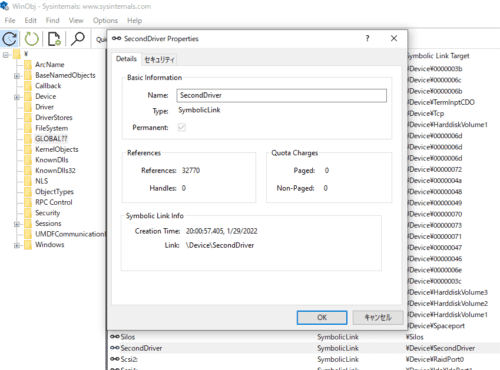
Now that the driver has been installed, let’s try setting a thread’s priority with the client application.
This time, for verification, I decided to manipulate a Notepad thread.
From Proexp, you can see that the Notepad thread’s priority is set to 10.
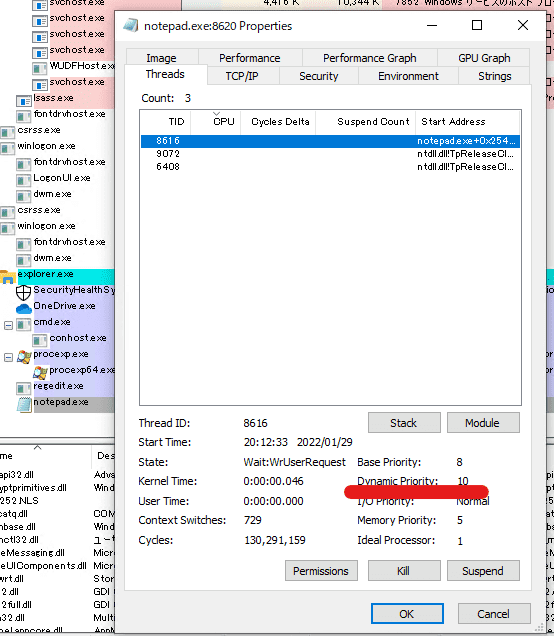
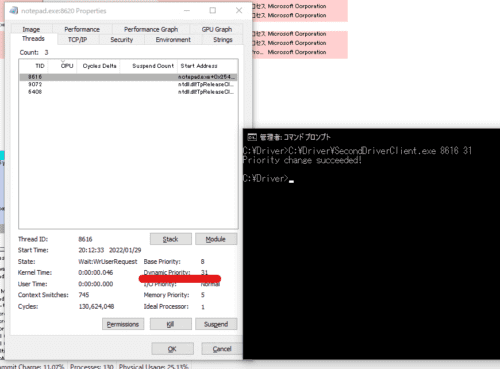
Let’s set this thread to the maximum priority, 31.
C:\Driver\SecondDriverClient.exe 8616 31After the application finishes executing, the Notepad thread’s priority changes to 31 as shown below.
Checking the behavior with kernel debugging
Now, this has taken quite a while, but at last we are finally getting to the main point.
I want to perform kernel debugging from WinDbg and observe the behavior of the kernel driver I wrote.
I have already introduced how to configure kernel debugging before, so I will omit it here.
Reference: First steps for kernel debugging a Windows 10 environment with WinDbg
Reference: Writing a Windows kernel driver from scratch and analyzing it with WinDbg
Setting a breakpoint
First, after preparing kernel debugging, confirm that the SecondDriver module is loaded.
kd> lmDvmSecondDriver
Browse full module list
start             end                 module name
fffff801`18390000 fffff801`18397000   SecondDriver   (deferred)
    Image path: \??\C:\Driver\SecondDriver\SecondDriver.sys
    Image name: SecondDriver.sys
    Browse all global symbols  functions  data
    Timestamp:        Sat Jan 29 20:08:51 2022 (61F52043)
    CheckSum:         0000EB8D
    ImageSize:        00007000
    Translations:     0000.04b0 0000.04e4 0409.04b0 0409.04e4
    Information from resource tables:
As we have seen from the source code so far, the routine that receives IRPs from the client and actually changes the priority is SecondDriverDeviceControl.
For that reason, with a breakpoint set on SecondDriverDeviceControl, perform the priority change from the client application.
kd> bu SecondDriver!SecondDriverDeviceControl
kd> bl
     0 e Disable Clear  fffff801`18391040  [G:\Try2WinDbg\drivers\SecondDriverSample\SecondDriver\SecondDriver.cpp @ 18]     0001 (0001) SecondDriver!SecondDriverDeviceControl
As before, start Notepad and then issue a request from the client application to change the Notepad thread priority to 31.
C:\Driver\SecondDriverClient.exe 8520 31Analyzing IRPs
This time I also opened the source window.
It is very convenient because when execution stops at a breakpoint, you can immediately see which line of the source code it is on.
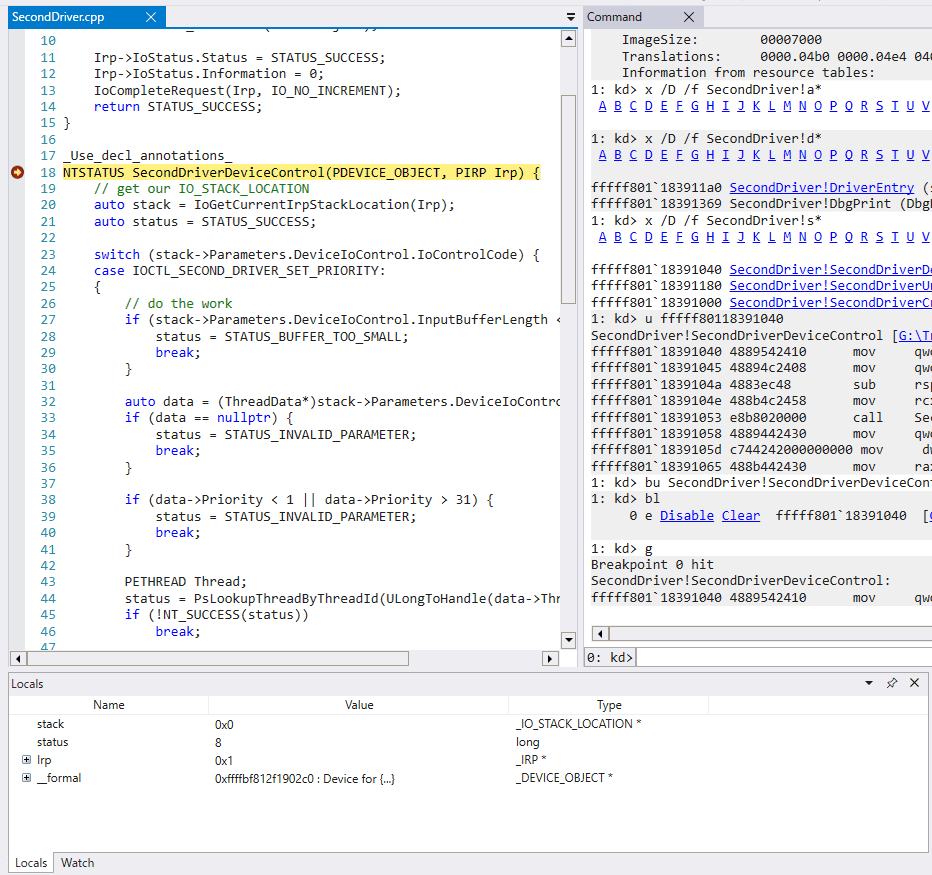
The source window is extremely useful, and it also lets you set additional breakpoints directly from the source code.
This time I want to inspect the IRP information received from the client application, so I set a breakpoint on the line immediately after the stack location is obtained.
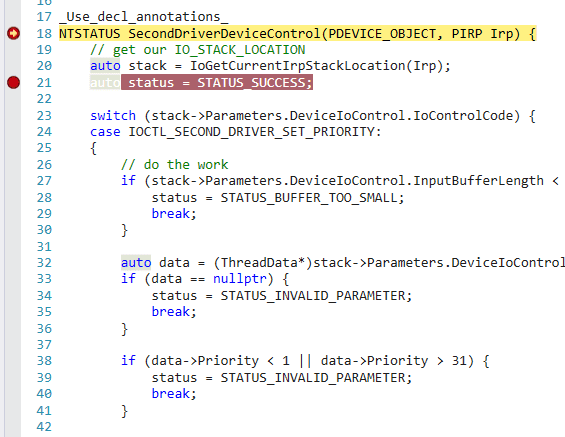
This time, to do something a little different from before, I decided to analyze it mainly through the GUI.
Once execution reaches the line immediately after the stack location is obtained, inspect the stack location information in the Locals window.
In WinDbg’s GUI, the structure information can be formatted and inspected like this.
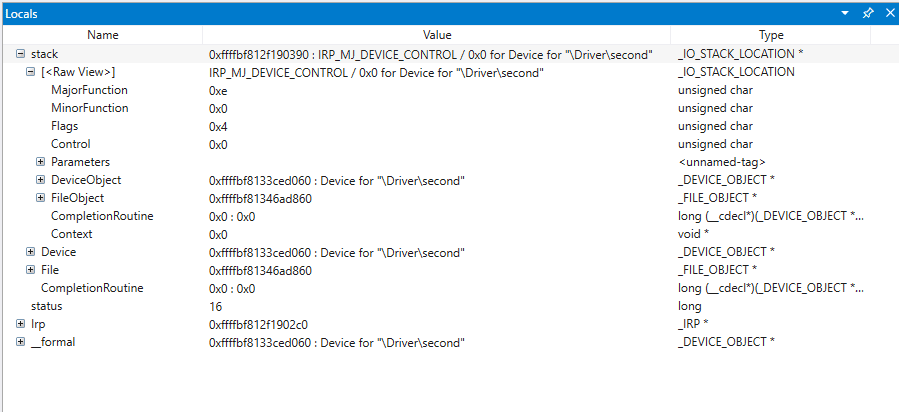
The arguments passed from the application are stored in the input buffer of the IRP passed to the device control routine.
If you inspect the location pointed to by the input buffer, you can see that it is 0x1cefd9f6d8.
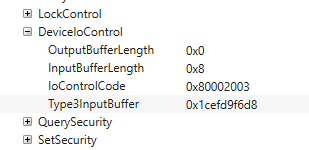
So, let’s look at the values stored at that referenced address in the Memory window.
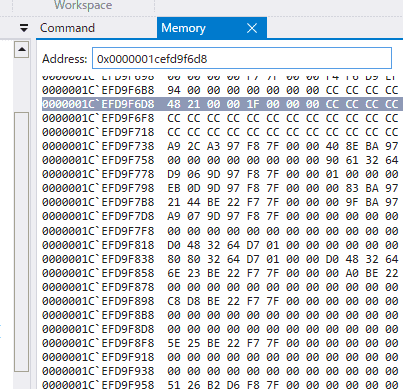
In the client application, the received arguments are converted into numeric values with the atoi function and then passed to the driver routine as follows.
data.ThreadId = atoi(argv[1]);
data.Priority = atoi(argv[2]);
The C++ atoi function converts a string into a 4-byte int value.
Therefore, it seems best to read the data stored in memory in little-endian format, 4 bytes at a time.
From the above, we can see that the values stored in the memory pointed to by the input buffer match the arguments given to the client application, as follows.
0x2148 = 8520
0x1F = 31
WinDbg makes it very easy to inspect the IRP information passed to a kernel driver, which is extremely convenient.
Summary
Now I have been able to get an introductory look at implementing a kernel driver with the minimum necessary functionality, as well as analyzing IRPs through debugging.
There is still a long way to go, but I plan to keep studying kernel programming and debugging.