This page has been machine-translated from the original page.
Table of Contents
- Setting Up a Windows Server 2019 Virtual Machine
- Installing Visual Studio
- Downloading and Building Driver Sample Code
- Installing WinDbg
- Chapter Summary
Setting Up a Windows Server 2019 Virtual Machine
In this book, we use a Windows Server 2019 virtual machine to install and debug the built minifilter driver.
The reason for choosing Windows Server 2019 as the debug OS is to uninstall Microsoft Defender Antivirus (MDAV), which is preinstalled.
Unlike client OS versions such as Windows 10 and 11, server OS versions from Windows Server 2016 onward can easily disable or uninstall preinstalled Microsoft Defender Antivirus.
Because uninstalling AntiVirus software introduces security risks, do this only on a virtual machine used for debugging.
This book does not explain VM setup details, but you can use any virtualization software such as Hyper-V, VirtualBox, or VMware Workstation.
For OS installation, use the evaluation image downloadable from the URL below.
URL: Microsoft Evaluation Center Windows Server 2019
https://www.microsoft.com/ja-jp/evalcenter/evaluate-windows-server-2019
After opening the URL and filling in the required form, you can download evaluation Windows Server 2019 OS images as ISO or VHD.
If you use a VHD file instead of ISO, you can start using the VM immediately without going through the OS installation process.

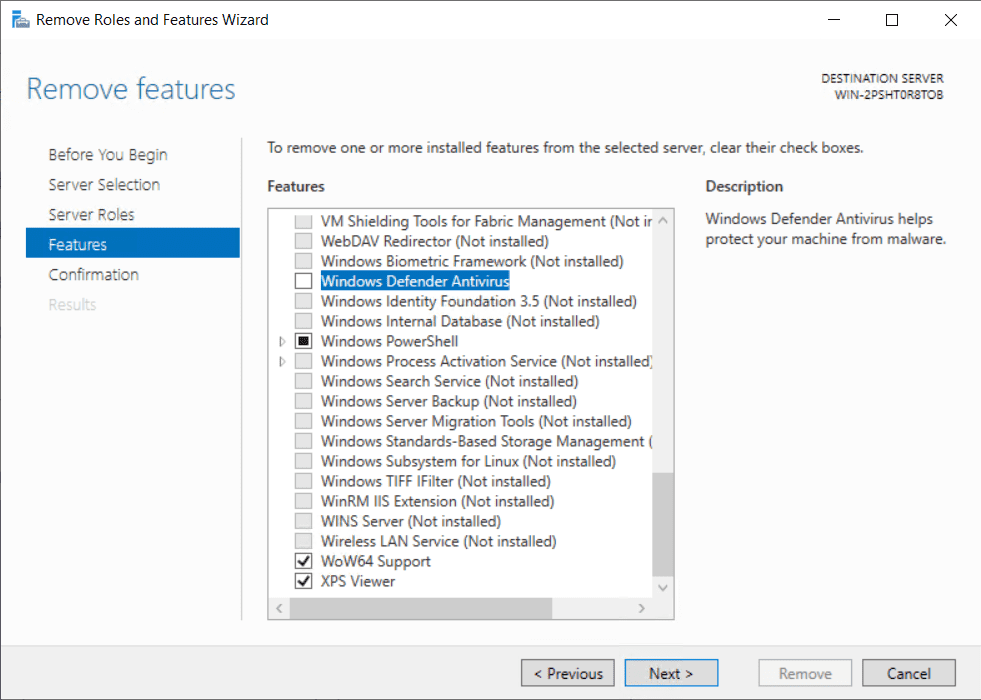
After starting the configured Windows Server 2019 VM, uninstall Microsoft Defender Antivirus from Server Manager.
Open [Remove Roles and Features], uncheck [Windows Defender AntiVirus], and complete the wizard.
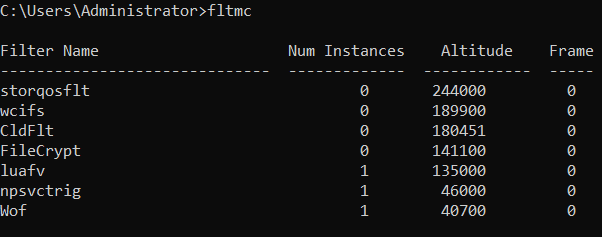
After uninstalling, run the fltmc command in Command Prompt and verify that the WdFilter minifilter driver is no longer loaded.
Next, install the redistributable package in the VM using the installer downloaded from the link below.
This is required to run the Scanner sample module’s client program.
URL: Download latest supported Visual C++ Redistributable
https://learn.microsoft.com/ja-jp/cpp/windows/latest-supported-vc-redist?view=msvc-170
After uninstalling Microsoft Defender Antivirus and installing the redistributable package, run the following three commands in an elevated Command Prompt to enable test-signing mode and kernel debugging.
bcdedit /set testsigning on
bcdedit /debug on
bcdedit /dbgsettings serial debugport:1 baudrate:115200
These commands enable installation of test-signed drivers1 and kernel debugging over COM port2 on the target VM.
To install custom built kernel driver modules such as Scanner minifilter driver, you must enable test-signing mode as above.
This is because, on Windows Vista and later, all drivers installed on the system require valid signatures.
(Especially on Windows 10 version 1607 and later, drivers must have valid signatures granted by Microsoft.3 4)
However, if you enable test-signing mode on a debug Windows system with bcdedit /set testsigning on, you can install drivers signed with test self-signed certificates.
So to install and run the kernel drivers used in this book, test-signing mode is required.
When test-signing mode is enabled, drivers without Microsoft signatures can be installed, which increases the risk of malicious driver installation.
For this reason, always enable test-signing mode only on debug virtual machines.
Installing Visual Studio
Next, set up Visual Studio on a machine separate from the debug VM to build the minifilter driver.
First, download and run the Visual Studio 2022 Community installer from the URL below.
URL: Visual Studio 2022 Downloads
https://visualstudio.microsoft.com/downloads/
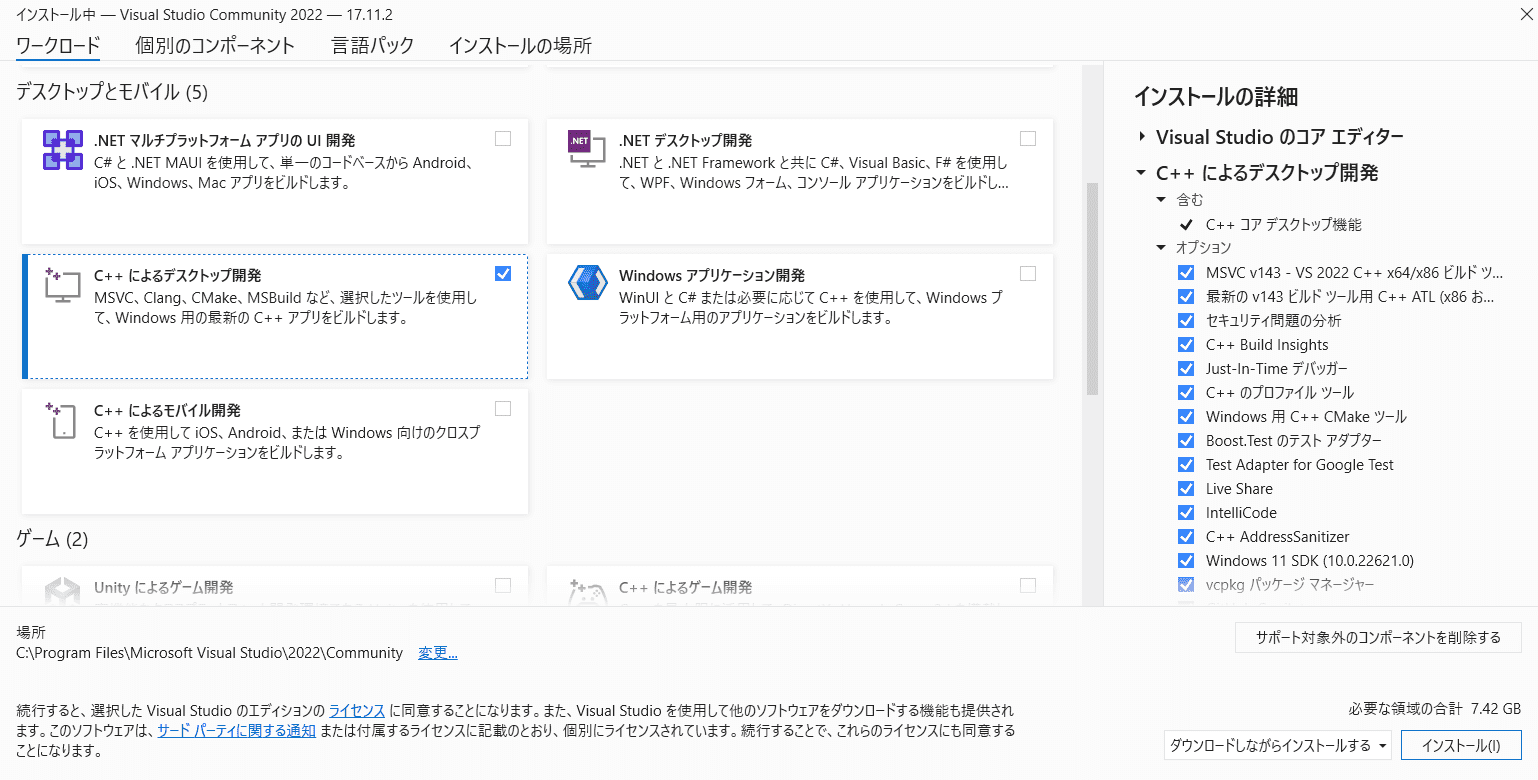
After launching the installer, select any items including [Desktop development with C++].
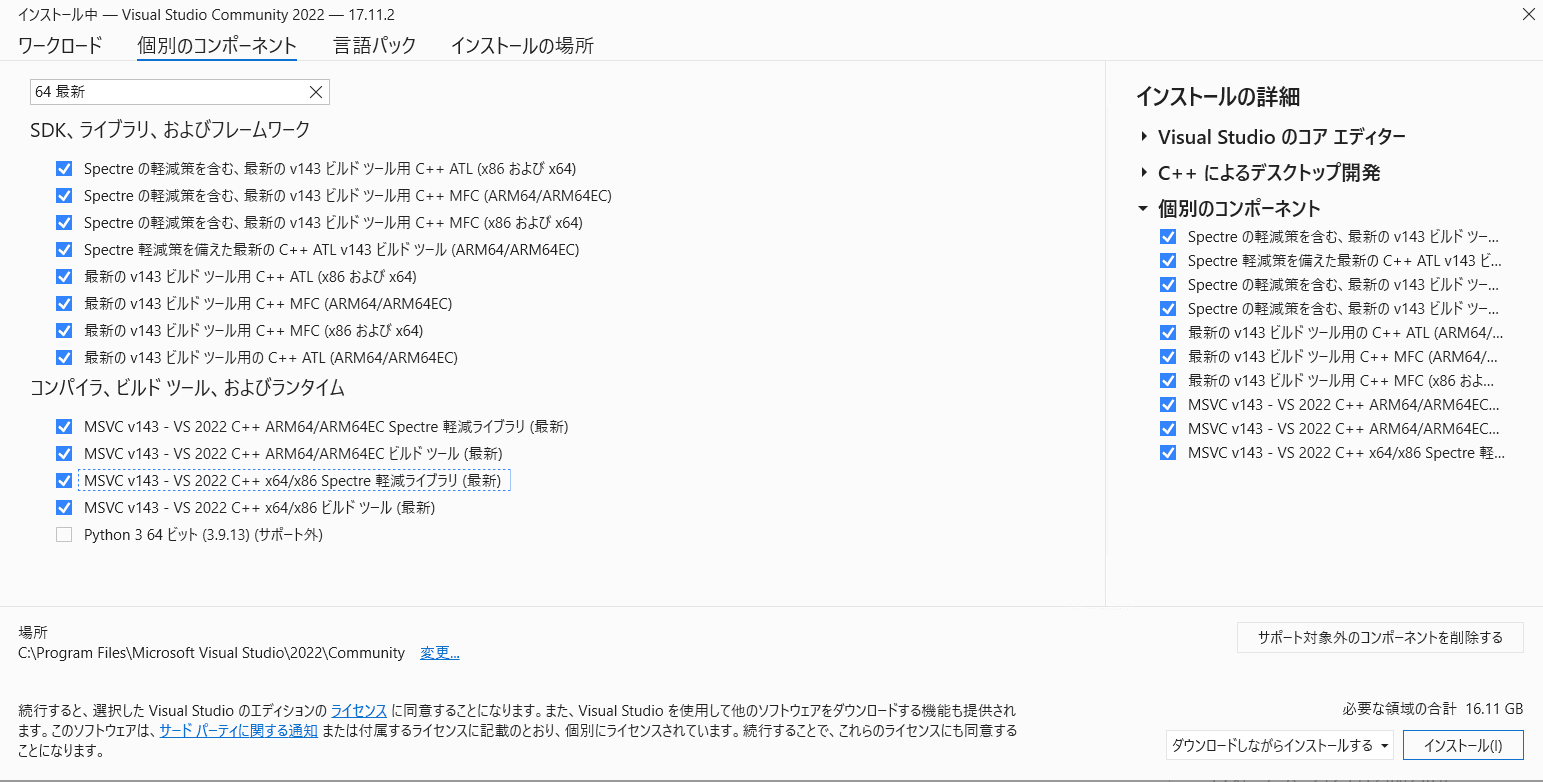
Then, on [Individual components], enter [64 latest] in the search box and select the required items.
Also select [Windows Driver Kit] under [Individual components].
In this guide, SDK is installed later with a separate installer, so uncheck SDK items here.
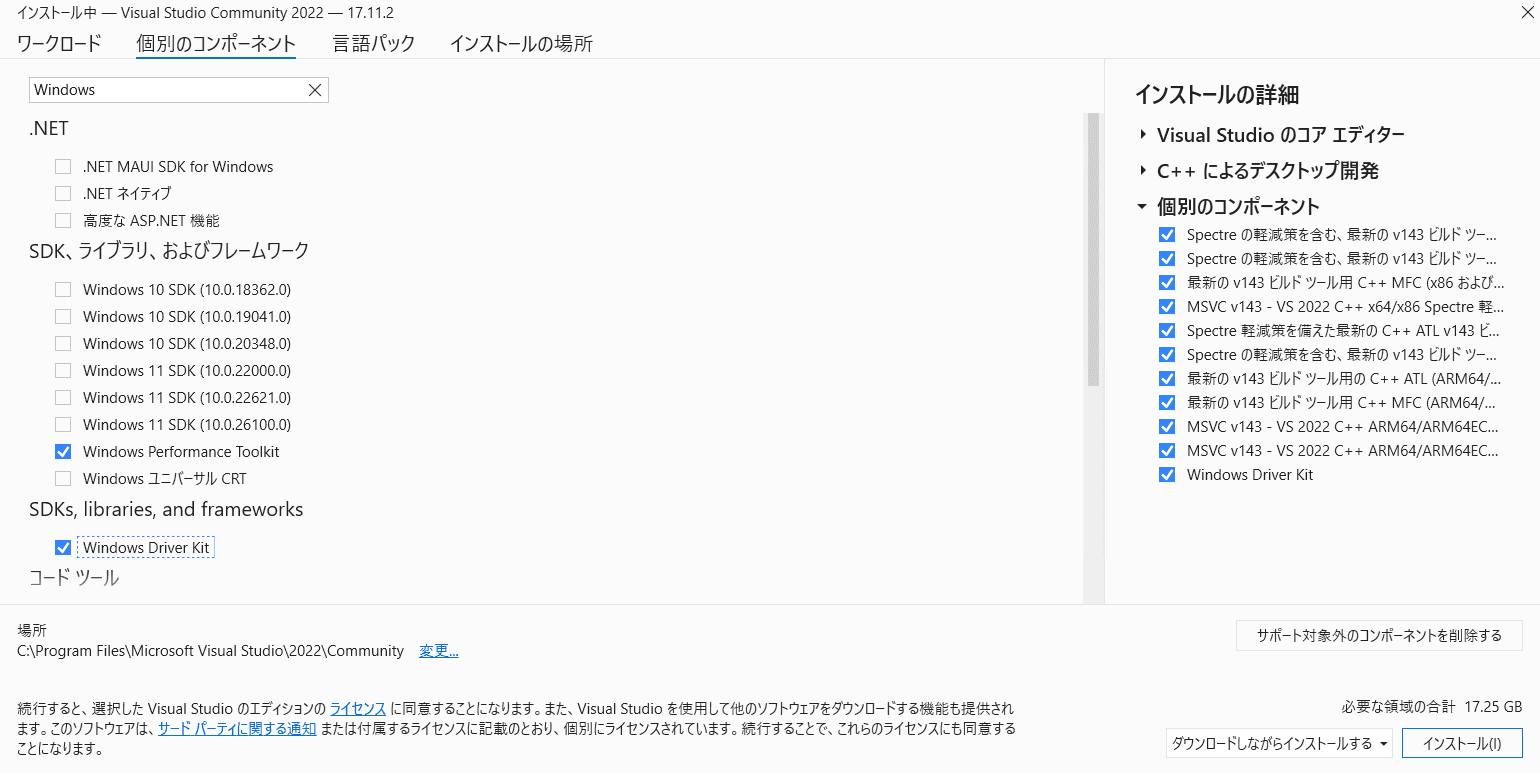
At this point, add optional tools such as [Windows for Git] as needed.
After installing Visual Studio, download the latest SDK and WDK installers from [Step 2: Install SDK] and [Step 3: Install WDK] at the URL below.
In this book, version 10.0.26100.1 was the latest at writing time.
URL: Download SDK and WDK
https://learn.microsoft.com/ja-jp/windows-hardware/drivers/download-the-wdk
After downloading installers, install SDK first, then WDK.
Keep default installation paths for both.
For SDK installation options, install all default items.
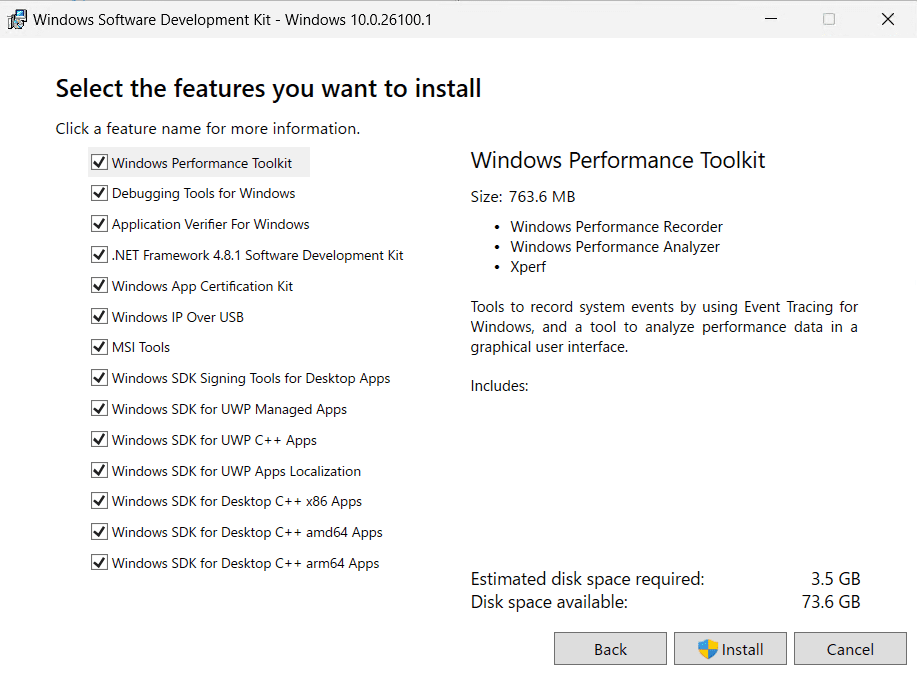
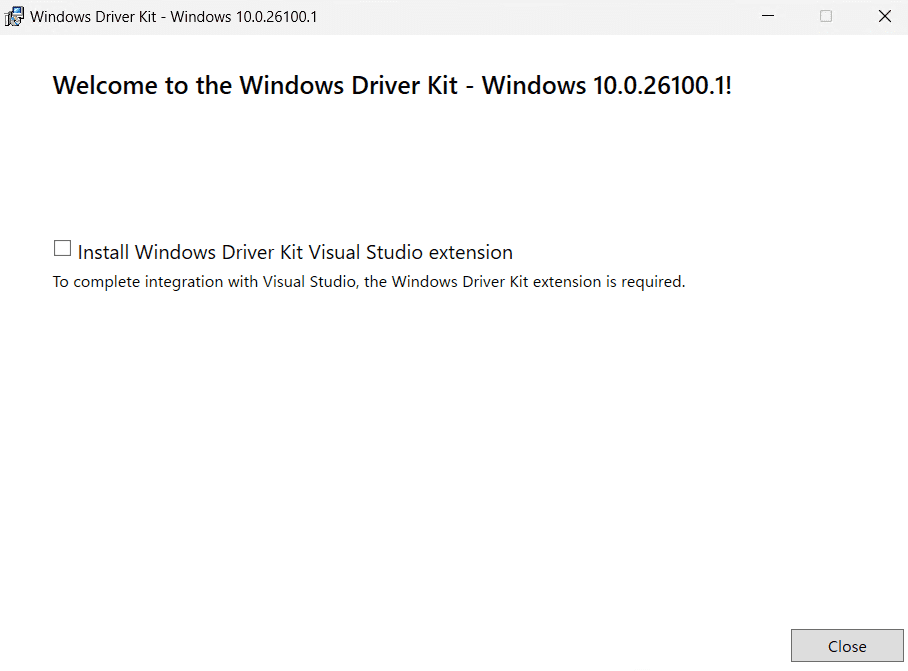
After SDK installation finishes, install WDK.
At the time of writing, with latest Visual Studio 2022, it seems fine to leave the Visual Studio extension checkbox unchecked at the end of WDK installation.
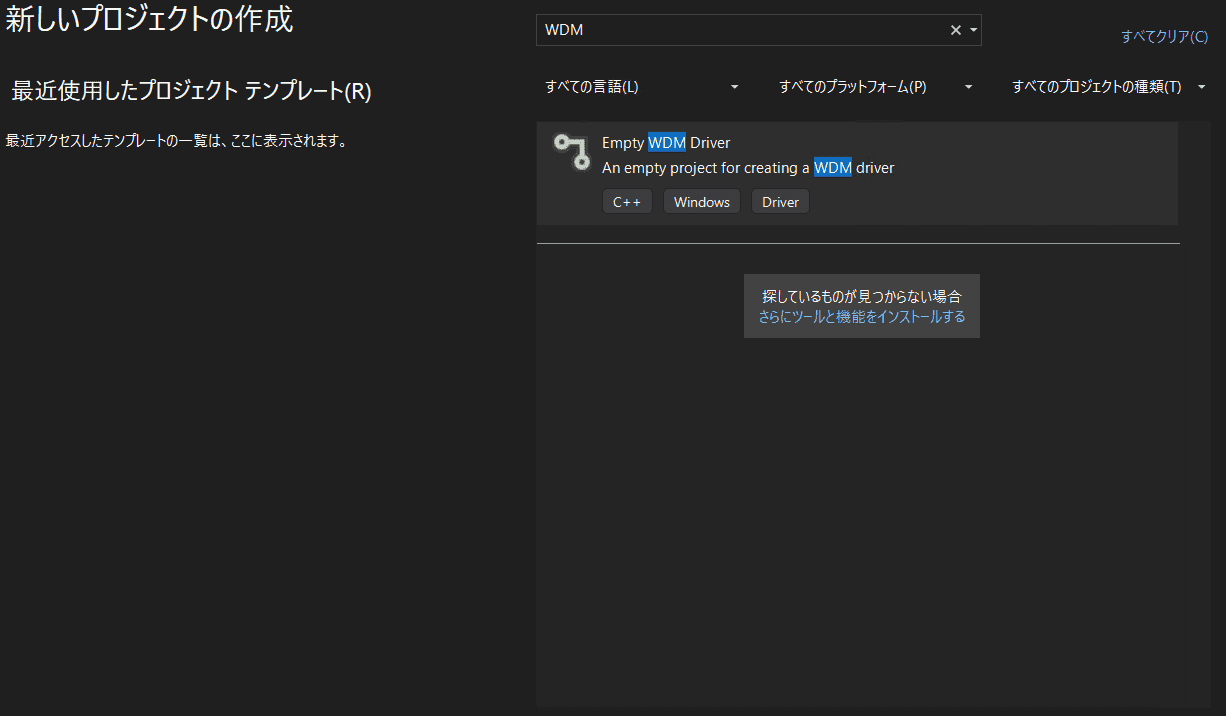
After all installation is complete, verify that [Empty WDM Driver] is selectable in [Create a new project] in Visual Studio.
Downloading and Building Driver Sample Code
After Visual Studio installation, download the driver sample source code from the repository below.
URL: Windows-driver-samples
https://github.com/Microsoft/Windows-driver-samples
Extract the downloaded files and open <ExtractedFolder>\filesys\miniFilter\scanner\scanner.sln in Visual Studio.
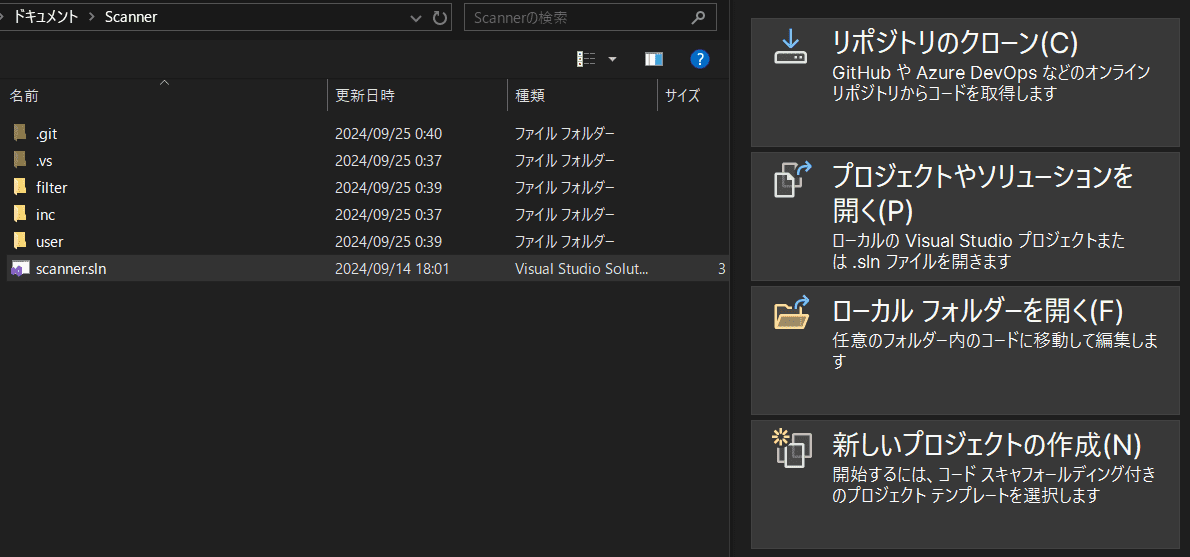
When you open the solution in Solution Explorer, you can confirm there are two projects: Filter and User.
First, right-click each project, open [Properties], and set Windows SDK version to the installed version.
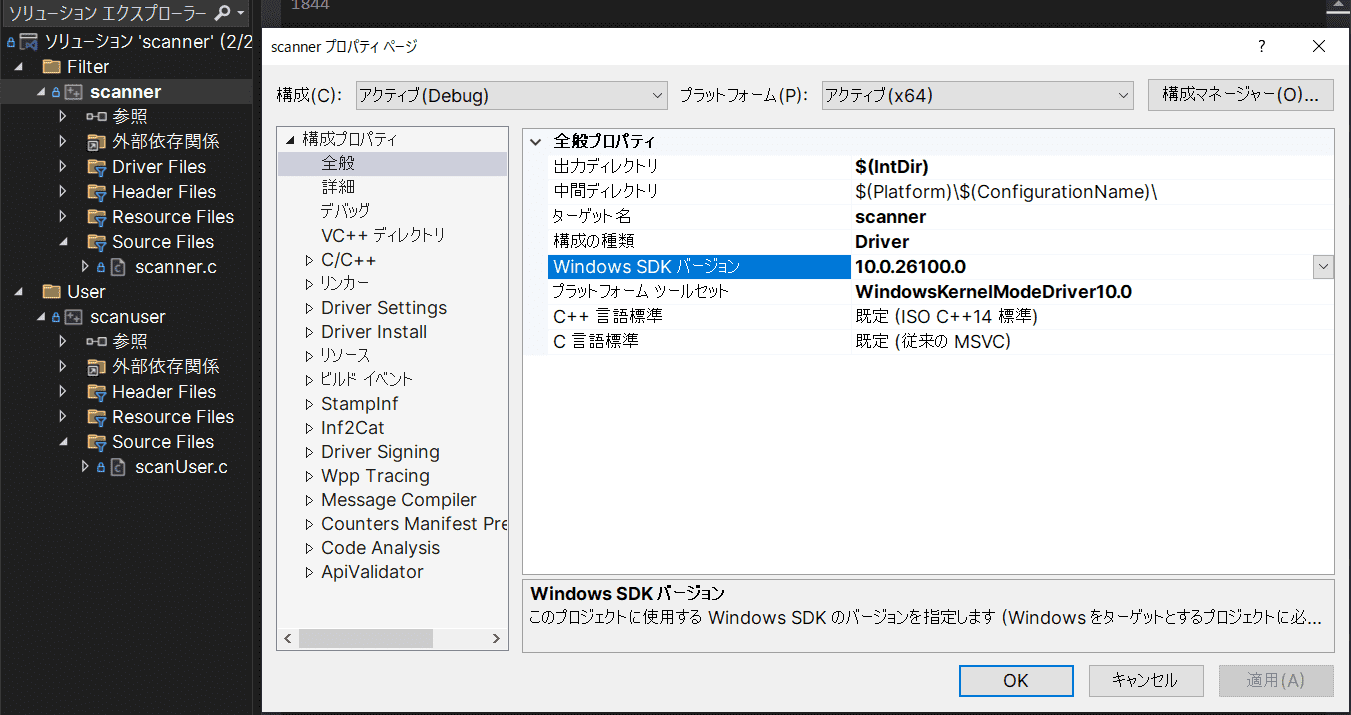
In this book, because debug dependencies are not installed on the VM, set build [Configuration] to [Release] when building Scanner.
Also verify [Platform] matches your environment (x64 in this book).
If Visual Studio setup and SDK/WDK installation are complete, building the solution should successfully build both Scanner kernel driver and user-mode program.
Installing WinDbg
Install the latest WinDbg for program analysis.
In this book, we use the latest WinDbg app, not WinDbg Classic included in Debug Tools for Windows SDK.
Since this book performs kernel debugging, install WinDbg on the host machine that manages the virtual machine.
If WinGet package manager is available, run the following in Command Prompt or PowerShell.
winget install Microsoft.WinDbgIf WinGet is unavailable, download WinDbg installer from the URL below and install manually.
Install Windows Debugger:
https://learn.microsoft.com/ja-jp/windows-hardware/drivers/debugger/
After installing WinDbg, update symbol server settings as follows.
Getting correct symbols is very important for debugging with WinDbg.
Symbols5 are information such as function and variable names not included in executable files like exe or dll.
By obtaining and referencing proper symbols in tools like WinDbg, analysis becomes much smoother.
Symbol information used in general debugging can be downloaded from Microsoft’s symbol server.6
However, symbol information for some non-public modules or third-party software cannot be downloaded from Microsoft symbol servers.
To configure symbol server, run WinDbg as administrator and open [File] > [Settings] > [Debugging Settings].
In [Default Symbol Path], enter the following and click [OK].
srv*https://msdl.microsoft.com/download/symbolsThis updates WinDbg symbol server settings.
If you want to reference symbol files for your own programs, add the local folder path to symbol path and reload modules with .reload.
This book does not explain in detail how to prepare kernel debugging environment for VM with installed WinDbg.
For kernel debugging environment setup, official documentation has rich information.7
Magical WinDbg 28, distributed for free at Tech Book Fest 16, also explains kernel debugging environment setup in detail.
Chapter Summary
This chapter introduced how to prepare an environment to build Scanner sample drivers and debug the generated modules.
Chapter 2 introduces an overview of Windows file system minifilter drivers.
Table of Contents
- Preface
- Chapter 1: Setup Environment Used in This Book
- Chapter 2: Introduction to File System Minifilter Drivers
- Chapter 3: Reading the Scanner Sample Code
- Chapter 4: Kernel Debugging Scanner with WinDbg
-
Enable loading test-signed drivers https://learn.microsoft.com/ja-jp/windows-hardware/drivers/install/the-testsigning-boot-configuration-option
↩ -
Manually set up kernel-mode debugging for a VM using virtual COM port https://learn.microsoft.com/ja-jp/windows-hardware/drivers/debugger/attaching-to-a-virtual-machine—kernel-mode-
↩ -
Driver signing https://learn.microsoft.com/ja-jp/windows-hardware/drivers/develop/signing-a-driver
↩ -
Driver signing policy https://learn.microsoft.com/ja-jp/windows-hardware/drivers/install/kernel-mode-code-signing-policy—windows-vista-and-later-
↩ -
Symbols and symbol files https://learn.microsoft.com/ja-jp/windows-hardware/drivers/debugger/symbols-and-symbol-files
↩ -
Using a symbol server https://learn.microsoft.com/ja-jp/windows-hardware/drivers/debugger/using-a-symbol-server
↩ -
Manually set up kernel-mode debugging for a VM using virtual COM port https://learn.microsoft.com/ja-jp/windows-hardware/drivers/debugger/attaching-to-a-virtual-machine—kernel-mode-
↩ -
Magical WinDbg 2 - Learn User Mode & Kernel Debugging in CTF -: https://techbookfest.org/product/6hBEkTPSxJC5vSRTqa81F9
↩