This page has been machine-translated from the original page. Finally, we perform kernel debugging on a virtual machine with Scanner installed by using WinDbg, and explain Scanner implementation more deeply through live debugging.
Before kernel debugging, copy and install related files for scanner.sys built in Visual Studio and scanuser.exe into the VM.
Also place the generated PDB files for scanner.sys and scanuser.exe in a folder included in WinDbg symbol path before starting debug.
Table of Contents
Debugging DriverEntry
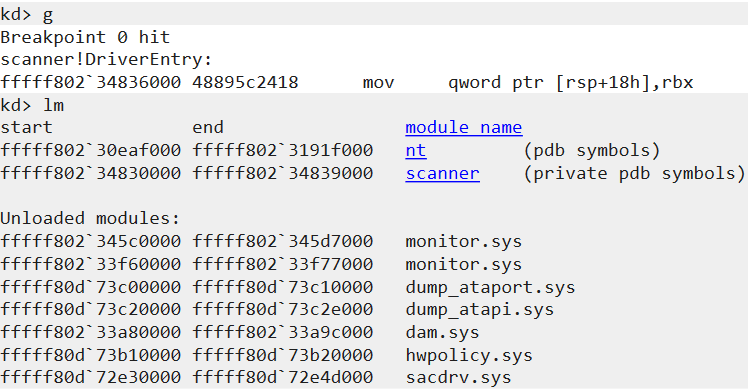
Set Deferred Breakpoint on DriverEntry
After connecting WinDbg as kernel debugger to the VM and loading symbols, set a deferred breakpoint on scanner!DriverEntry using bu.
bu scanner!DriverEntryNow DriverEntry can be debugged when kernel driver initializes.
Resume VM execution and run fltmc load Scanner in the VM to load installed minifilter driver.
If breakpoint is set correctly, the system stops when DriverEntry is called.
Check Minifilter Configuration
First, inspect configuration used when registering Scanner minifilter with Filter Manager via FltRegisterFilter.
Disassemble DriverEntry with u, then set breakpoint at FltRegisterFilter call site using bp scanner!DriverEntry+0x79.
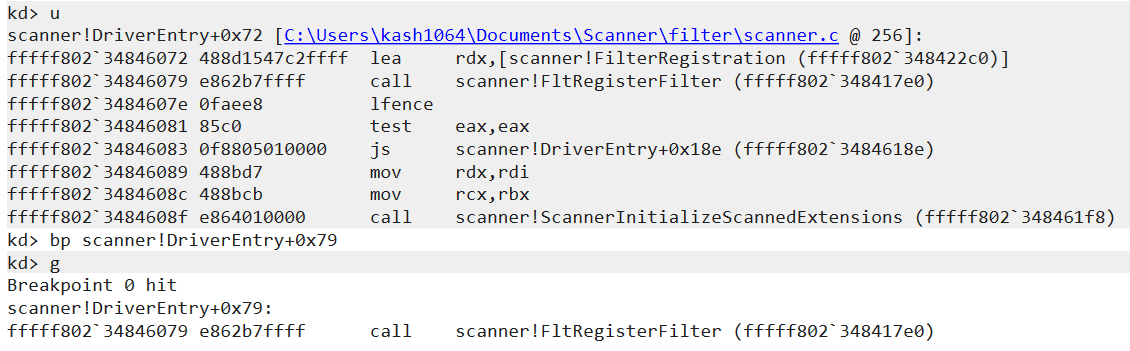
Pointer to FLT_REGISTRATION is passed as second argument.
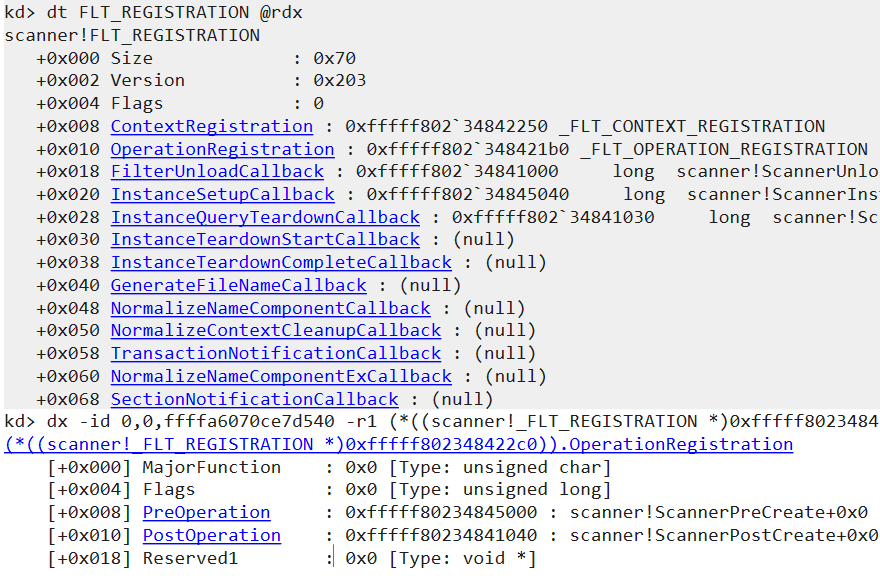
So dt FLT_REGISTRATION @rdx lets you inspect registration structure.
For example, the screenshot confirms that for IRP major function 0x0 (IRP_MJ_CREATE), callbacks ScannerPreCreate and ScannerPostCreate are registered.
Check Extension Data Stored in ScannedExtensions
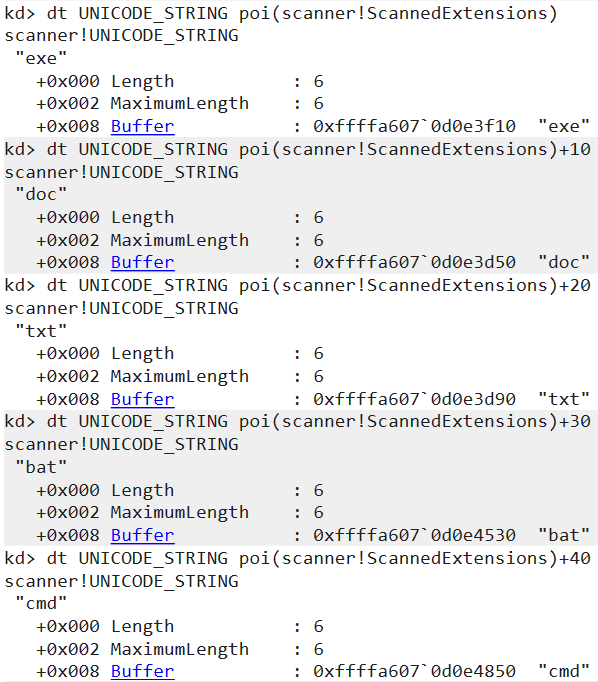
Next, verify that scan-target extensions loaded from registry are correctly stored in global variable ScannedExtensions.
Configuration loading happens in ScannerInitializeScannedExtensions.
Set a breakpoint immediately before its call and continue.
At that point ScannedExtensions is still empty; after the function completes, you can confirm extension entries loaded from registry are registered.
Check Registered Minifilter Driver Information
After minifilter registration completes, resume with g, then click Break in WinDbg to pause again.
Since fltmc load Scanner has already loaded the minifilter, you can inspect Scanner with fltkd extension.
After identifying Scanner address with !fltkd.filters, run !fltkd.filter to dump detailed information.
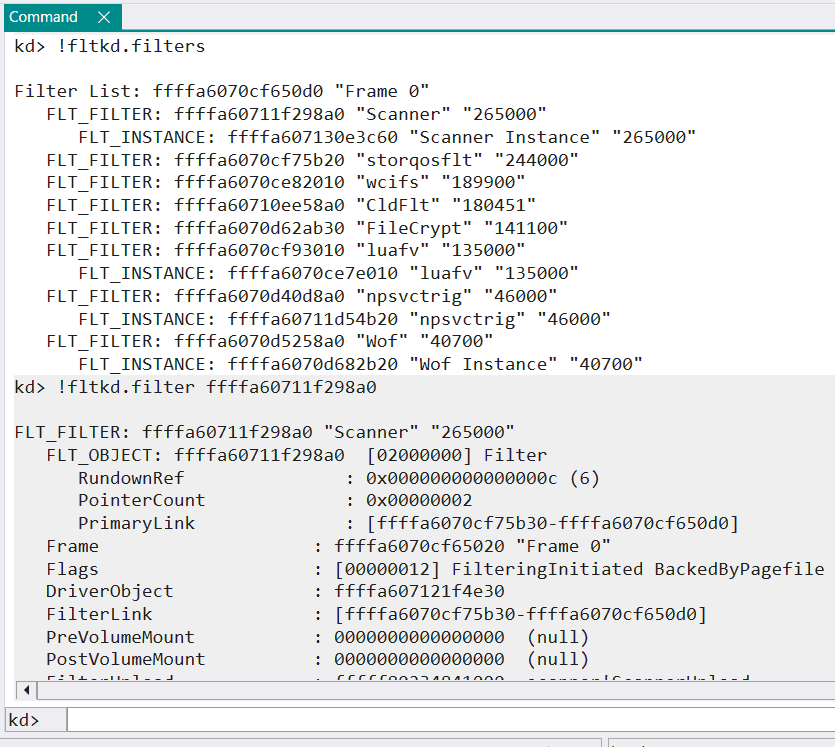
Dump from !fltkd.filter includes instance list.
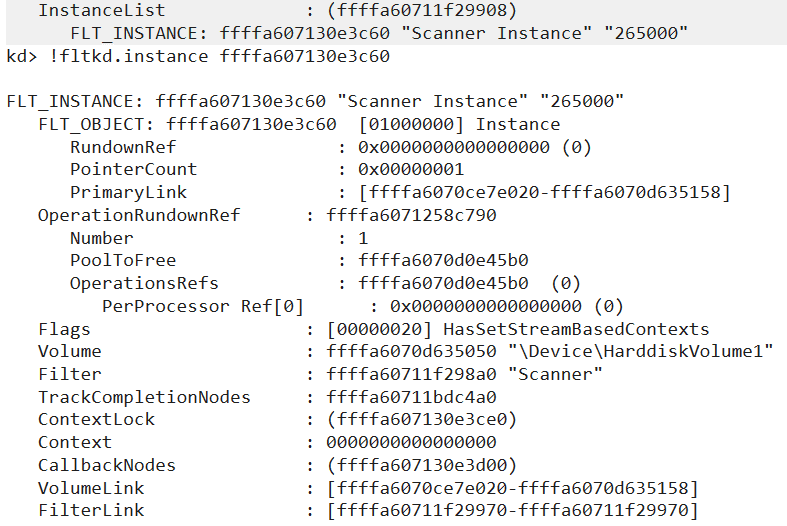
Use identified instance address with !fltkd.instance to dump Scanner instance details.
Debugging User-mode Program
Debug scanuser main from Kernel Debugger
After minifilter registration, debug user-mode program scanuser.exe.
First, set breakpoint on scanuser.exe main.
Debugging a running user-mode process from kernel debugger is relatively easy.
But setting breakpoints for a user-mode program that has not started yet is a bit cumbersome.
In this book we intentionally use kernel debugger, but in normal cases it is smoother to debug user-mode programs with a debugger installed in the execution environment.
To set breakpoint on main from kernel debugger, first set breakpoint on nt!NtCreateUserProcess.
After setting this breakpoint, execute scanuser.exe in the VM.
System will break at NtCreateUserProcess call.
Then use pt to continue until return from NtCreateUserProcess, and run !process 0 0 scanuser.exe to get process object address.
Use that address with .process /i <process address>, then run g to switch process context.
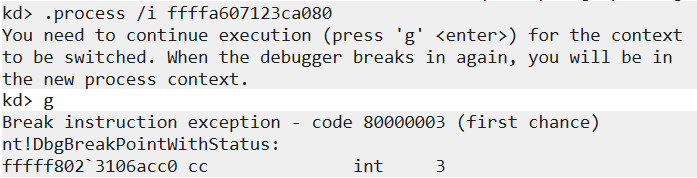
After this, symbols for scanuser should be accessible.

If symbols are not accessible, retry .reload and .process /i <process address> until symbols load.
Then set breakpoint on main with bm /p <process object address> scanuser!main.
The /p option must use scanuser.exe process object address.
Resume with g to start debugging main.
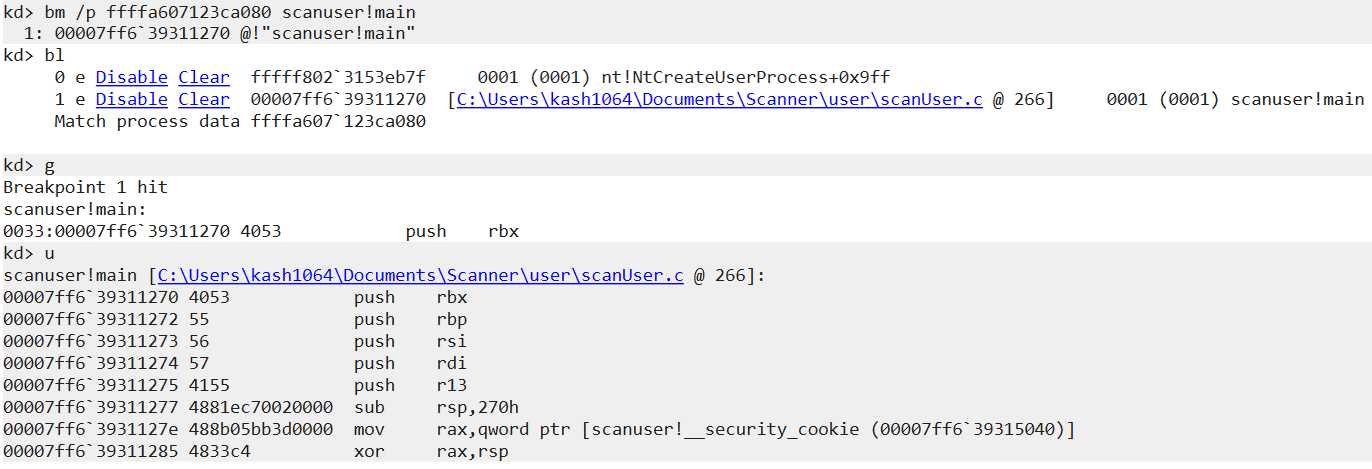
When setting breakpoints on user-mode processes from kernel debugger, breakpoints may sometimes not work as expected.
This often occurs when target address is paged out.1
To reduce this issue, using processor breakpoints with ba, such as ba e 1 /p <process address> scanuser!main, is effective.
If it fails, retry the same steps a few times.
Debug Worker-thread Creation
After attaching debugger to main, inspect worker-thread creation.
Trace function-call instructions in main using repeated pc commands.
After several steps, execution reaches CreateThread call in the loop.
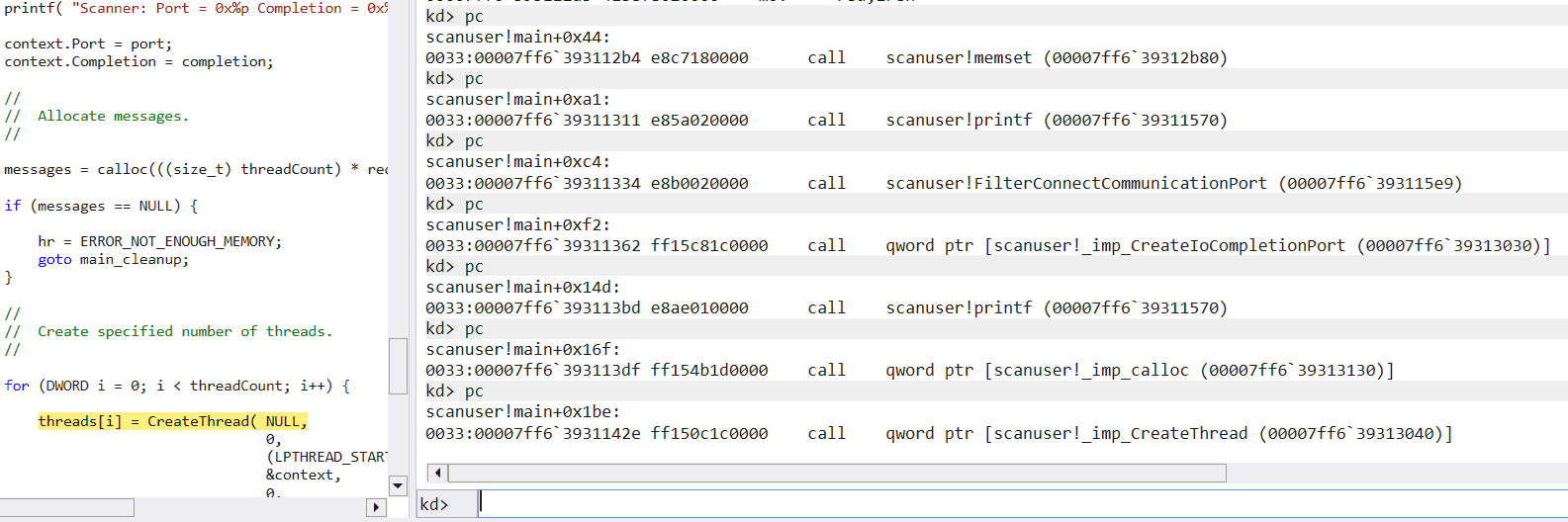
Execute p to finish thread creation, then run !process 0 7 scanuser.exe.
You can confirm a new thread running ScannerWorker has started.
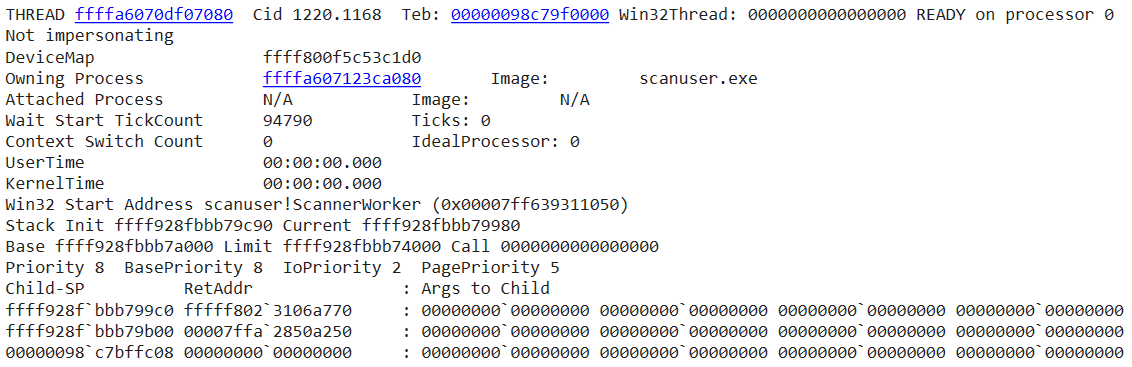
Debug Worker Threads
By default, scanuser.exe runs two ScannerWorker threads.
These threads scan data received from minifilter.
First run .process /r /P <process address> to set scanuser.exe context.
Because process is already running, .process /r /P should allow immediate symbol access.
After confirming disassembly of ScannerWorker is visible, set a processor breakpoint at GetQueuedCompletionStatus call site.
Resume execution, then save any text file in VM to trigger debug in ScannerWorker.
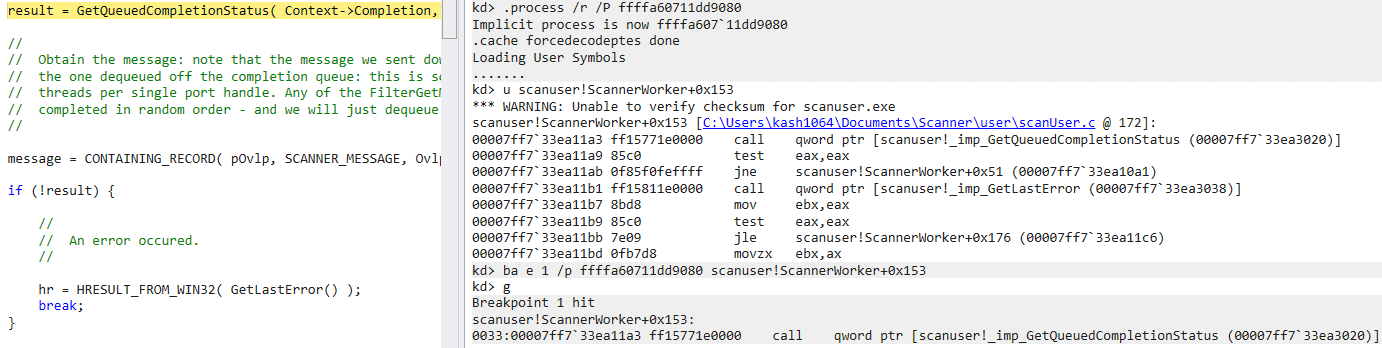
As shown in Chapter 3, ScannerWorker calls GetQueuedCompletionStatus to dequeue I/O completion packets and receive data from minifilter.
result = GetQueuedCompletionStatus(
    Context->Completion,
    &outSize,
    &key,
    &pOvlp,
    INFINITE
);
If asynchronous I/O info from Scanner is successfully obtained, Internal in OVERLAPPED is no longer STATUS_PENDING (0x103), and InternalHigh stores transferred byte count.2
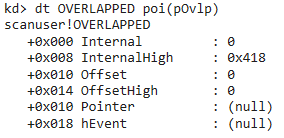
It is inconvenient if the system breaks every time an OVERLAPPED with STATUS_PENDING is received.
So move breakpoint to code immediately after successful GetQueuedCompletionStatus, then continue debugging while writing This is test. to a file.
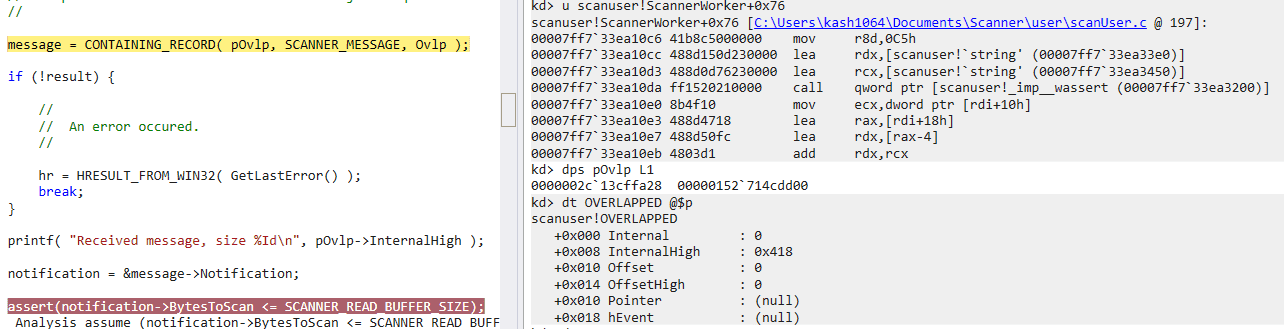
As confirmed in Chapter 3, ScannerWorker uses CONTAINING_RECORD( pOvlp, SCANNER_MESSAGE, Ovlp ) to recover SCANNER_MESSAGE address from received OVERLAPPED address.
dt -v SCANNER_MESSAGE shows OVERLAPPED is at offset 0x418 in SCANNER_MESSAGE.
kd> dt -v SCANNER_MESSAGE

struct _SCANNER_MESSAGE, 3 elements, 0x438 bytes

   +0x000 MessageHeader
    : struct _FILTER_MESSAGE_HEADER, 2 elements, 0x10 bytes

   +0x010 Notification
    : struct _SCANNER_NOTIFICATION, 3 elements, 0x408 bytes

   +0x418 Ovlp
    : struct _OVERLAPPED, 6 elements, 0x20 bytes
So at address OVERLAPPED - 0x418, the SCANNER_MESSAGE received from minifilter is stored, and you can verify scan target data.
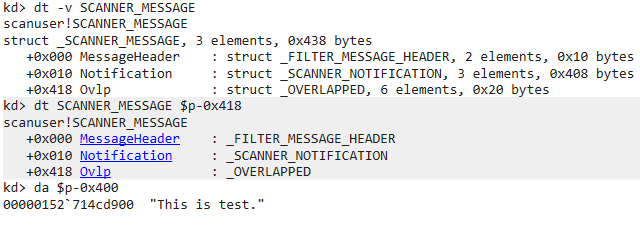
This scan target data is then passed to ScanBuffer, where it is compared against predefined detection signature string foul.
Chapter Summary
In this chapter, we used a kernel debugger to verify initialization of minifilter drivers and worker threads, and behavior for scanning data received from minifilter.
The method partially demonstrated here, debugging a user-mode program from a kernel debugger, is useful in situations such as when debugging tools cannot be installed on the target system.
Afterword
Thank you very much for reading this book to the end.
This time, based on public sample code, I explained real-time file scan behavior of AntiVirus software using Windows minifilter drivers.
The behavior of AntiVirus software has long been one of the topics I wanted to write about, so I am very happy to finally publish it as a technical doujin book.
Originally, I planned to explain AvScan sample code instead of Scanner.
Because AvScan is more practical than Scanner, it includes many code paths worth reading to deepen understanding of Windows real-time file scanning.
Its code size is several times larger than Scanner, so I could not cover it in this book.
I expect to have another chance to write about it, so I will keep that topic for next time.
If this book helped you become interested in AntiVirus software for Windows, I hope you will look forward to the next work as well.
Thank you again for reading.
Table of Contents
- Preface
- Chapter 1: Setup Environment Used in This Book
- Chapter 2: Introduction to File System Minifilter Drivers
- Chapter 3: Reading the Scanner Sample Code
- Chapter 4: Kernel Debugging Scanner with WinDbg
-
The NT Insider: Take a Break - Missed Breakpoints? Here’s Why… https://www.osronline.com/article.cfm%5Earticle=541.htm
↩ -
OVERLAPPED structure https://learn.microsoft.com/ja-jp/windows/win32/api/minwinbase/ns-minwinbase-overlapped
↩