This page has been machine-translated from the original page.
My CTF machine’s configuration had gotten complicated enough that I could no longer keep track of it, so I decided to start fresh and build a new environment.
This time, I want to set things up as much as possible using command-based approaches, so I can save effort the next time I need to build a similar environment.
Note that since the problems I mainly work on are Reversing (Rev) and Forensics, the tools I install may be somewhat biased toward those categories — please bear with me.
Table of Contents
- Addendum (Windows 11 only): Change Explorer Right-Click Behavior
- Addendum: Add Desktop Shortcuts for All EXE Files Under a Specific Folder
- Install Analysis Tools via WinGet
-
Manually Install Various Analysis Tools
- WinDbg
- Sysinternals
- .NET 6.0 Desktop Runtime
- Ghidra
- Visual Studio 2019
- Noriben
- Java 17
- Java 8
- Eclipse Memory Analyzer
- Android Studio
- Android SDK Platform Tools
- Android NDK
- pestudio
- RegistryChangesView
- Hayabusa
- Timeline Explorer
- Hasher
- jq
- Frida
- Eclipse IDE
- Gradle
- PEiD
- jadx
- jd-gui
- ProcessHacker
- LLDB
- npcap
- Windows Terminal
- hollows_hunter
- APIMiner
- CyberChef
- UPX
- FTK Imager
- PDFStreamDumper
- UsaMimi Hurricane, Aozora Shiro Neko
- Volatility 2.6
- Universal Radio Hacker (URH)
- Cheat Engine
- Sysmon
- VcXsrv Windows X Server
- Pybag
- AssetStudio
- ExtremeDumper
- Quick Assembler
- cutter
- Fiddler
- Install Tools via Chocolatey
- Set Up Environment Variables
- Summary
Prerequisites
Clean OS Installation and Updates
Since I normally solve CTF problems on a Windows machine, the VM I’m building is also Windows.
I’m using Hyper-V as the virtualization platform, and created the machine with the following configuration.
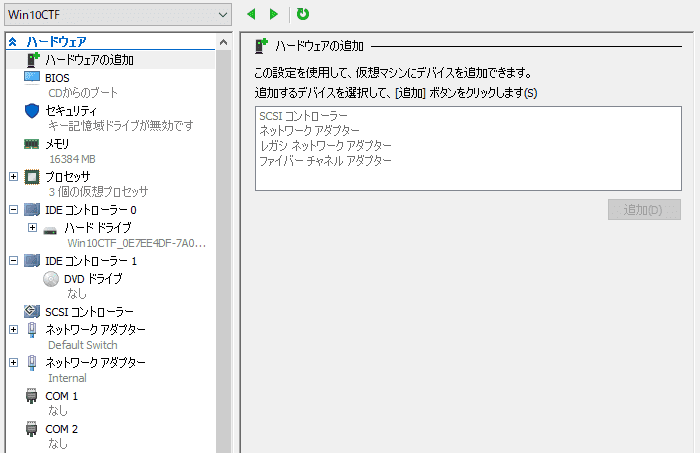
The storage capacity is set to 232 GB.
The OS clean installation and update procedure is omitted here.
Enabling Nested Virtualization
After creating the virtual machine, shut it down and run the following cmdlet from an elevated PowerShell prompt to enable nested virtualization.
This allows you to launch Android Emulator and similar tools inside the virtual machine.
# Set-VMProcessor -VMName <VMName> -ExposeVirtualizationExtensions $true
Set-VMProcessor -VMName "Win10CTF" -ExposeVirtualizationExtensions $true
Reference: Run Hyper-V in a Virtual Machine with Nested Virtualization | Microsoft Learn
Changing Network Adapter Settings
Run the following from an elevated PowerShell prompt to change the network adapter settings.
In this setup, the Default Switch for external connectivity uses the default DHCP connection, and the Internal network adapter is assigned the static address 192.168.50.10/28.
# Use Get-NetIPAddress to identify the InterfaceIndex for the Internal NIC
Get-NetIPAddress
>
IPAddress         : 169.254.116.214
InterfaceIndex    : 8
InterfaceAlias    : Ethernet 3
AddressFamily     : IPv4

# Assign 192.168.50.10/28 to the network with InterfaceIndex 8
New-Netipaddress -InterfaceIndex 8 -IpAddress 192.168.50.10 -PrefixLength 28
Reference: New-NetIPAddress (NetTCPIP) | Microsoft Learn
Deleting the Recovery Partition
Since this is a virtual machine, I’ll delete the recovery partition.
Launch Diskpart.exe from an elevated Command Prompt and run the following commands in order.
Diskpart.exe

# List disks and select one
DISKPART> list disk
Disk 0    Online

DISKPART> select disk 0

# List partitions and identify the Recovery partition ID
DISKPART> list partition

Partition ###  Type              Size     Offset
-------------  ----------------  -------  -------
Partition 3    Recovery           535 MB    79 GB

# Select the identified Recovery partition and delete it
DISKPART> select partition 3
DISKPART> delete partition override
Windows Setup
After starting the created virtual machine, open PowerShell as administrator and apply the various settings.
The following command can apply all settings at once.
# Set the username used in user folder paths
$username = "kash1064"

# Set timezone to UTC
tzutil.exe /s "UTC"

# Change PowerShell script execution policy
Set-ExecutionPolicy RemoteSigned

# Show file extensions and hidden files in Explorer
Set-ItemProperty "HKCU:\Software\Microsoft\Windows\CurrentVersion\Explorer\Advanced" -name "HideFileExt" -Value 0
Set-ItemProperty "HKCU:\Software\Microsoft\Windows\CurrentVersion\Explorer\Advanced" -name "Hidden" -Value 1

# Enable RDP connections
Set-ItemProperty -Path "HKLM:\SYSTEM\CurrentControlSet\Control\Terminal Server" -Name "fDenyTSConnections" -Value 0
Enable-NetFirewallRule -DisplayGroup "Remote Desktop"

# List feature names: Get-WindowsOptionalFeature -Online
# Enable WSL, Virtual Machine Platform, and Hyper-V
Enable-WindowsOptionalFeature -NoRestart -Online -FeatureName Microsoft-Windows-Subsystem-Linux
Enable-WindowsOptionalFeature -NoRestart -Online -FeatureName HypervisorPlatform
Enable-WindowsOptionalFeature -NoRestart -Online -FeatureName VirtualMachinePlatform
Enable-WindowsOptionalFeature -NoRestart -Online -FeatureName Microsoft-Hyper-V-All

# Remove unnecessary pre-installed Store packages
# List packages with: Get-AppxPackage | Select-Object Name
# TikTok and Instagram require manual removal
Get-AppxPackage -alluser *MicrosoftSolitaireCollection* | Remove-Appxpackage
Get-AppxPackage -alluser *MicrosoftStickyNotes* | Remove-Appxpackage
Get-AppxPackage -alluser *Microsoft.People* | Remove-Appxpackage
Get-AppxPackage -alluser *Office.OneNote* | Remove-Appxpackage
Get-AppxPackage -alluser *Microsoft.GetHelp* | Remove-Appxpackage
Get-AppxPackage -alluser *MicrosoftOfficeHub* | Remove-Appxpackage
Get-AppxPackage -alluser *MicrosoftSolitaireCollection* | Remove-Appxpackage
Get-AppxPackage -alluser *MicrosoftStickyNotes* | Remove-Appxpackage
Get-AppxPackage -alluser *Microsoft.People* | Remove-Appxpackage
Get-AppxPackage -alluser *SkypeApp* | Remove-Appxpackage
Get-AppxPackage -alluser *YourPhone* | Remove-Appxpackage
Get-AppxPackage -alluser *SpotifyAB.SpotifyMusic* | Remove-Appxpackage
Get-AppxPackage -alluser *Disney* | Remove-Appxpackage
Get-AppxPackage -alluser *ZuneMusic* | Remove-Appxpackage
Get-AppxPackage -alluser *3DViewer* | Remove-Appxpackage
Get-AppxPackage -alluser *Microsoft.MSPaint* | Remove-Appxpackage
Get-AppxPackage -alluser *Microsoft.WindowsMaps* | Remove-Appxpackage
Get-AppxPackage -alluser *messaging* | Remove-Appxpackage
Get-AppxPackage -alluser *windowscommunicationsapps* | Remove-Appxpackage
Get-AppxPackage -alluser *ZuneVideo* | Remove-Appxpackage
Get-AppxPackage -alluser *BingWeather* | Remove-Appxpackage
Get-AppxPackage -alluser *MicrosoftOfficeHub* | Remove-Appxpackage
Get-AppxPackage -alluser *Microsoft.549981C3F5F10* | Remove-AppxPackage
Get-AppxPackage -alluser *Microsoft.Todo* | Remove-AppxPackage
Get-AppxPackage -alluser *Microsoft.GetHelp* | Remove-AppxPackage
Get-AppxPackage -alluser *Microsoft.GamingApp* | Remove-AppxPackage
Get-AppxPackage -alluser *Microsoft.People* | Remove-AppxPackage
Get-AppxPackage -alluser *Microsoft.WindowsCamera* | Remove-AppxPackage
Get-AppxPackage -alluser *Microsoft.WindowsFeedbackHub* | Remove-AppxPackage
Get-AppxPackage -alluser *Microsoft.YourPhone* | Remove-AppxPackage
Get-AppxPackage -alluser *Microsoft.BingNews* | Remove-AppxPackage
Get-AppxPackage -alluser *Microsoft.BingWeather* | Remove-AppxPackage
Get-AppxPackage -alluser *Microsoft.MicrosoftSolitaireCollection* | Remove-AppxPackage
Get-AppxPackage -alluser *Microsoft.Getstarted* | Remove-AppxPackage
Get-AppxPackage -alluser *Microsoft.WindowsNotepad* | Remove-AppxPackage


# Remove unnecessary shortcuts
# C:\ProgramData\Microsoft\Windows\Start Menu\Programs
# %USERPROFILE%\AppData\Roaming\Microsoft\Windows\Start Menu\Programs
Get-ChildItem -Path "C:\ProgramData\Microsoft\Windows\Start Menu\Programs"
Remove-Item -Path "C:\ProgramData\Microsoft\Windows\Start Menu\Programs" -Include *.lnk

# Register all Desktop shortcuts in the Start Menu as well
Copy-Item -Path "C:\Users\$username\Desktop\*.lnk" -Destination "C:\ProgramData\Microsoft\Windows\Start Menu\Programs"

# Create the Tools folder
New-Item -ItemType "directory" -Path "C:\Tools"

# Add Defender exclusions
Add-MpPreference -ExclusionPath "C:\Tools\"
Add-MpPreference -ExclusionPath  "C:\Users\kash1064\AppData\Local\Packages\CanonicalGroupLimited.Ubuntu_*\"
Add-MpPreference -ExclusionPath "C:\Users\kash1064\Downloads\"

# Change UAC to level 2 (notify only)
# Get-ItemProperty HKLM:Software\Microsoft\Windows\CurrentVersion\policies\system
Set-ItemProperty "HKLM:Software\Microsoft\Windows\CurrentVersion\policies\system" -name "ConsentPromptBehaviorAdmin" -Value 5
Set-ItemProperty "HKLM:Software\Microsoft\Windows\CurrentVersion\policies\system" -name "PromptOnSecureDesktop" -Value 0
Set-ItemProperty "HKLM:Software\Microsoft\Windows\CurrentVersion\policies\system" -name "EnableLUA" -Value 1

# Restart the OS
Start-Sleep -Seconds 30
Restart-Computer
An OS restart is required for the settings to take effect.
Show File Extensions and Hidden Files in Explorer
Explorer option settings can be managed via registry keys under HKEY_CURRENT_USER\SOFTWARE\Microsoft\Windows\CurrentVersion\Explorer\Advanced.
The following cmdlets configure Explorer to show file extensions and hidden files.
# Show file extensions and hidden files in Explorer
Set-ItemProperty "HKCU:\Software\Microsoft\Windows\CurrentVersion\Explorer\Advanced" -name "HideFileExt" -Value 0
Set-ItemProperty "HKCU:\Software\Microsoft\Windows\CurrentVersion\Explorer\Advanced" -name "Hidden" -Value 1
Enable Windows Features
The following features are enabled to support WSL2, Android Studio emulator, and similar tools.
Note: omitting -NoRestart will cause a restart immediately after executing the command.
# Enable WSL, Virtual Machine Platform, and Hyper-V
Enable-WindowsOptionalFeature -NoRestart -Online -FeatureName Microsoft-Windows-Subsystem-Linux
Enable-WindowsOptionalFeature -NoRestart -Online -FeatureName HypervisorPlatform
Enable-WindowsOptionalFeature -NoRestart -Online -FeatureName VirtualMachinePlatform
Enable-WindowsOptionalFeature -NoRestart -Online -FeatureName Microsoft-Hyper-V-All
Reference: Enable-WindowsOptionalFeature (DISM) | Microsoft Learn
Change IME Settings
I configured this through the GUI for now.
Reference: Customize the IME layout
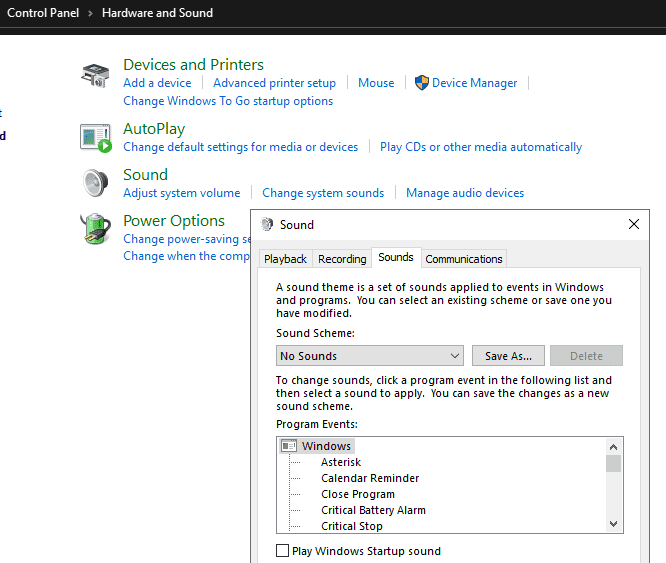
Disable System Sounds
I also configured this through the GUI for now.
Open [Change system sounds] from Control Panel and set it to [No Sounds].
Addendum (Windows 11 only): Change Explorer Right-Click Behavior
The following command changes the right-click behavior in Explorer to match Windows 10 style.
reg.exe add "HKCU\Software\Classes\CLSID\{86ca1aa0-34aa-4e8b-a509-50c905bae2a2}\InprocServer32" /f /veAddendum: Add Desktop Shortcuts for All EXE Files Under a Specific Folder
$src='C:\Tools\AllTools';$desktop=[Environment]::GetFolderPath('Desktop');$ws=New-Object -ComObject WScript.Shell;Get-ChildItem -Path $src -Filter *.exe -Recurse -File|ForEach-Object{$name=[IO.Path]::GetFileNameWithoutExtension($_.FullName);$lnk=Join-Path $desktop ($name+'.lnk');$s=$ws.CreateShortcut($lnk);$s.TargetPath=$_.FullName;$s.WorkingDirectory=$_.DirectoryName;$s.IconLocation=$_.FullName;$s.Save()}Install Analysis Tools via WinGet
I’ll manage tools using winget wherever possible.
Any tools that cannot be obtained via winget, or that are easier to manage without it, will all be installed in the section below.
# Install various packages
winget.exe install --id Google.Chrome
winget.exe install --id Mozilla.Firefox
winget.exe install --id Canonical.Ubuntu
winget.exe install --id Typora.Typora
winget.exe install --id Microsoft.WindowsTerminal
winget.exe install --id Git.Git
winget.exe install --id WiresharkFoundation.Wireshark
winget.exe install --id SoftwareFreedomConservancy.QEMU
winget.exe install --id 7zip.7zip
winget.exe install --id Microsoft.XMLNotepad
winget.exe install --id Brave.Brave
winget.exe install --id PortSwigger.BurpSuite.Community
winget.exe install --id Google.AndroidStudio
winget.exe install --id Hex-Rays.IDA.Free
winget.exe install --id icsharpcode.ILSpy
winget.exe install --id dnSpyEx.dnSpy
winget.exe install --id Notepad++.Notepad++
winget.exe install --id WinMerge.WinMerge
winget.exe install --id Microsoft.WinDbg
winget.exe install --id OliverBetz.ExifTool
winget.exe install --id GIMP.GIMP
winget.exe install --id Microsoft.Office
winget.exe install --id Canonical.Ubuntu.2204
winget.exe install --id kalilinux.kalilinux
winget.exe install --id Chocolatey.ChocolateyGUI
winget.exe install --id MHNexus.HxD
winget.exe install --id ImageMagick.ImageMagick
winget.exe install --id WinsiderSS.SystemInformer
Reference: Installing Commonly Used Applications with Windows Package Manager (winget) - Frog’s Secret Base
Manually Install Various Analysis Tools
Installing tools that cannot (or should not) be installed via WinGet.
The versions of some tools (such as Visual Studio and JDK) reflect those available at the time of writing; please install the latest versions as appropriate.
WinDbg
Install using the Windows SDK installer downloaded from the link below.
Reference: Debugging Tools for Windows - Windows drivers | Microsoft Learn
Also, set up the workspace using the reg file downloaded from the link below.
Reference: Releases · kash1064/WinDbg-Classic-Dark
Sysinternals
Download files from the link below and place them in C:\Tools\SysinternalsSuite.
Reference: Sysinternals Utilities - Sysinternals | Microsoft Learn
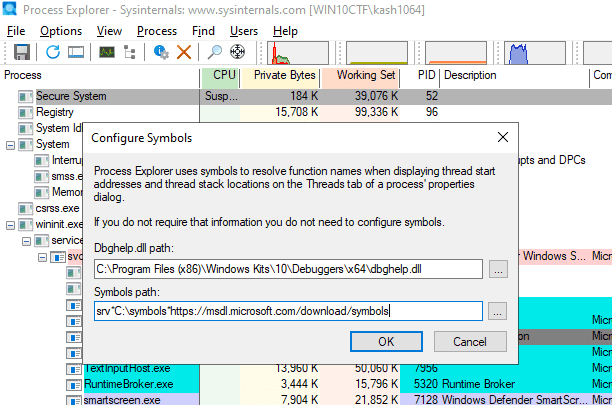
Also, configure symbol settings for Procmon and Procexp.
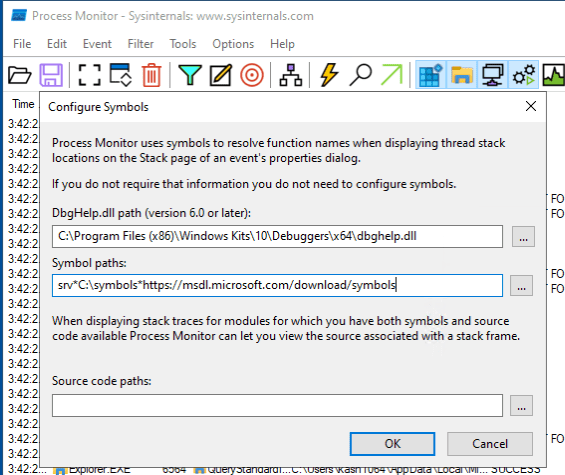
Change the path to C:\Program Files (x86)\Windows Kits\10\Debuggers\x64\dbghelp.dll included in the SDK, then set the symbol path to the following.
srv*C:\symbols*https://msdl.microsoft.com/download/symbolsApply the same settings to Procexp.
.NET 6.0 Desktop Runtime
Install using the MSI downloaded from the link below.
Reference: Download .NET 6.0 Desktop Runtime (v6.0.16) - Windows x64 Installer
Ghidra
Download files from the link below and extract them to C:\Tools\Ghidra.
Reference: Releases · NationalSecurityAgency/ghidra
Follow the setup procedure below.
Reference: Ghidra Environment Setup Notes for CTF - Frog’s Secret Base
Visual Studio 2019
Download the installer from MSDN and install it.
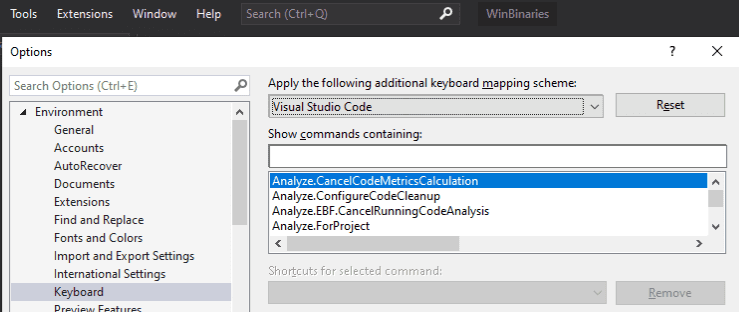
After installation, at a minimum, unify the keyboard mapping to VSCode style.
Noriben
Download files from the link below and extract them to C:\Tools\Noriben.
Reference: GitHub - Rurik/Noriben: Noriben - Portable, Simple, Malware Analysis Sandbox
Java 17
Download files from the link below and extract them to C:\Tools\jdk-17.
Reference: Java Downloads | Oracle
Java 8
Download from the link below and extract to C:\Tools\jdk-8.
Reference: Latest Releases | Adoptium
Eclipse Memory Analyzer
Download files from the link below and extract them to C:\Tools\MemoryAnalyzer.
Reference: Open Source Project | The Eclipse Foundation
Follow the procedure below to specify the Java path.
Android Studio
Launch the Android Studio installed via WinGet and proceed through the setup.
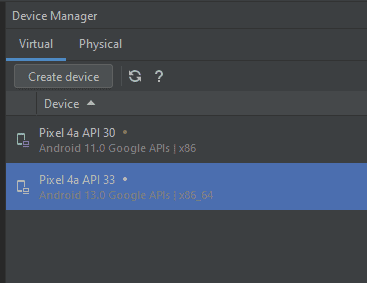
Also, create x86 and x86_64 emulators from the Device Manager.
Android SDK Platform Tools
Download files from the link below and extract them to C:\Tools\android-sdk.
Reference: SDK Platform Tools release notes | Android Studio | Android Developers
Android NDK
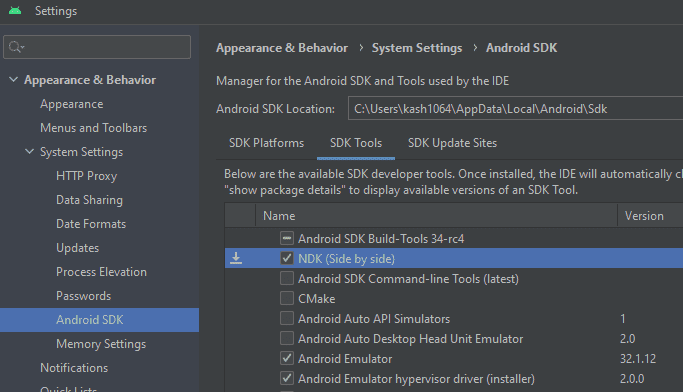
Install the NDK from SDK Manager.
Reference: Install and configure the NDK and CMake | Android Studio | Android Developers
Alternatively, build the downloaded NDK file directly.
Reference: Dynamic analysis of an ELF binary by dlopen-ing a library function
pestudio
Download from the link below and extract to C:\Tools\pestudio.
Reference: Winitor
RegistryChangesView
Download RegistryChangesView from the link below and extract to C:\Tools\RegistryChangesView.
Reference: RegistryChangesView - Compare snapshots of Windows Registry
Hayabusa
Download from the link below and extract to C:\Tools\Hayabusa.
Reference: Releases · Yamato-Security/hayabusa · GitHub
Timeline Explorer
Download from the link below and extract to C:\Tools\TimelineExplorer.
Reference: Eric Zimmerman’s tools
Hasher
Download from the link below and extract to C:\Tools\Hasher.
Reference: Eric Zimmerman’s tools
jq
Download from the link below and place in C:\Tools\jq.
Reference: Download jq
Frida
Set up using the procedure below and place in C:\Tools\Frida.
Reference: Setting Up Frida
Eclipse IDE
Install using the installer downloaded from the link below.
Reference: Eclipse Downloads | The Eclipse Foundation
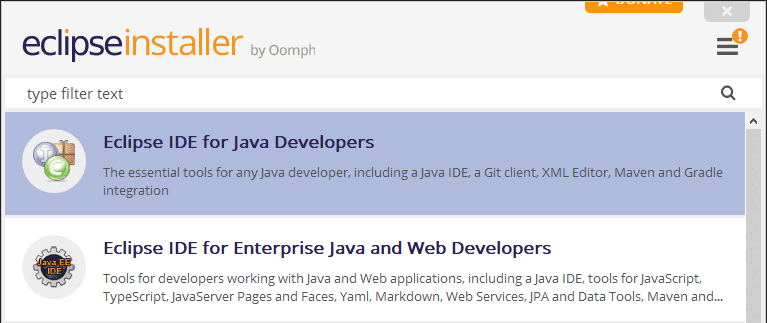
Set the installation destination to C:\Tools\Eclipse.
Also, create the workspace at %USERPROFILE%\Documents\eclipse-workspace.
Gradle
Download from the link below and extract to C:\Tools\Gradle.
Reference: Gradle | Releases
PEiD
Download from the link below and extract to C:\Tools\PEiD.
Reference: PEiD (Windows) - Download & Review
jadx
Download from the link below and extract to C:\Tools\jadx.
Reference: Releases · skylot/jadx · GitHub
jd-gui
Download from the link below and extract to C:\Tools\jd-gui.
Reference: Java Decompiler
ProcessHacker
Download from the link below and extract to C:\Tools\ProcessHacker.
Reference: Downloads - Process Hacker
LLDB
Install to C:\Tools\LLVM using the installer downloaded from the link below.
Reference: Releases · llvm/llvm-project · GitHub
npcap
Install using the installer downloaded from the link below.
Reference: Npcap: Windows Packet Capture Library & Driver
Windows Terminal
Set up the application installed via WinGet.
Configure shortcut keys and the startup folder.
Also, add a PowerShell profile with [elevate] set to True, and reorder settings.json as follows.
{omitted}
{
    "commandline": "%SystemRoot%\\System32\\WindowsPowerShell\\v1.0\\powershell.exe",
    "guid": "{61c54bbd-c2c6-5271-96e7-009a87ff44bf}",
    "hidden": false,
    "name": "Windows PowerShell",
    "startingDirectory": "%USERPROFILE%\\Downloads"
},
{
    "commandline": "%SystemRoot%\\System32\\WindowsPowerShell\\v1.0\\powershell.exe",
    "elevate": true,
    "guid": "{61c54bbd-c2c6-5271-96e7-009a87ff44ba}",
    "hidden": false,
    "name": "Elevate Windows PowerShell",
    "startingDirectory": "%USERPROFILE%\\Downloads"
},
{
    "guid": "{51855cb2-8cce-5362-8f54-464b92b32386}",
    "hidden": false,
    "name": "Ubuntu",
    "source": "CanonicalGroupLimited.Ubuntu_79rhkp1fndgsc"
},
{
    "guid": "{07b52e3e-de2c-5db4-bd2d-ba144ed6c273}",
    "hidden": false,
    "name": "Ubuntu-20.04",
    "source": "Windows.Terminal.Wsl",
    "tabTitle": "Remnux"
},
{
    "commandline": "%SystemRoot%\\System32\\cmd.exe",
    "guid": "{0caa0dad-35be-5f56-a8ff-afceeeaa6101}",
    "hidden": false,
    "name": "Command Prompt",
    "startingDirectory": "%USERPROFILE%\\Downloads"
},
{omitted}
This allows you to easily launch an elevated PowerShell prompt from Windows Terminal.
hollows_hunter
Download files from the link below and extract to C:\Tools\hollows_hunter.
Reference: Releases · hasherezade/hollows_hunter
APIMiner
Download files from the link below and extract to C:\Tools\APIMiner.
Reference: Release APIMiner-v1.0.0 · poona/APIMiner
CyberChef
Download files from the link below, extract to C:\Tools\CyberChef, and bookmark it in your browser.
Reference: Releases · gchq/CyberChef · GitHub
UPX
Download files from the link below and extract to C:\Tools\upx.
Reference: Releases · upx/upx · GitHub
FTK Imager
Install to C:\Tools\AccessData using the installer downloaded from the link below.
Reference: Exterro Thank You Page - Exterro
PDFStreamDumper
Install to C:\Tools\PDFStreamDumper using the installer downloaded from the link below.
Reference: Releases · dzzie/pdfstreamdumper
UsaMimi Hurricane, Aozora Shiro Neko
Download files from the link below and extract to C:\Tools\UsaMimi.
Reference: General File Analyzer “Looking Up at the Blue Sky, There’s Always a White Cat” (青い空を見上げればいつもそこに白い猫)
Volatility 2.6
Download files from the link below and extract to C:\Tools\volatility2.
Volatility 3 is typically used from the version installed in WSL.
Reference: Release Downloads | Volatility Foundation
Universal Radio Hacker (URH)
Install to C:\Tools\Universal Radio Hacker using the installer downloaded from the link below.
Reference: Releases · jopohl/urh
Cheat Engine
Downloadable from the link below; note that the installer reportedly bundles adware and is detected as PUA by Defender.
Since I don’t use it very often, I normally don’t install it and only do so when I absolutely need it.
Reference: Cheat Engine
Sysmon
Download from the link below and install with sysmon64 -i.
Reference: Sysmon - Sysinternals | Microsoft Learn
VcXsrv Windows X Server
Download from the link below and install to C:\Tools\VcXsrv.
Reference: VcXsrv Windows X Server download | SourceForge.net
Pybag
Install using the following commands.
cd C:\Tools

# The official repository has a bug at install time (as of 2023/5/24), so clone the forked repository instead
git clone https://github.com/kash1064/Pybag
cd .\Pybag\
python.exe ./setup.py install
Reference: kash1064/Pybag: Python module for Windbg’s dbgeng plus additional wrappers.
AssetStudio
Download from the link below.
ExtremeDumper
Download from the repository below.
Reference: Releases · wwh1004/ExtremeDumper · GitHub
Quick Assembler
Download the binary from the repository below.
Reference: zodiacon/AllTools: All reasonably stable tools
cutter
Download and extract the files from the link below.
Reference: Cutter
Fiddler
Use the installer downloaded from the link below.
Reference: Web Debugging Proxy and Troubleshooting Tools|Fiddler
Install Tools via Chocolatey
Some tools, including CFF Explorer, will be installed via Chocolatey.
First, run the following command in an elevated PowerShell prompt to install Chocolatey.
Set-ExecutionPolicy Bypass -Scope Process -Force; [System.Net.ServicePointManager]::SecurityProtocol = [System.Net.ServicePointManager]::SecurityProtocol -bor 3072; iex ((New-Object System.Net.WebClient).DownloadString('https://community.chocolatey.org/install.ps1'))Once Chocolatey is installed, run the following command to install each tool.
# Install tools
choco install apimonitor -y
choco install hashmyfiles -y
choco install fakenet -y
choco install explorersuite -y
Set Up Environment Variables
Run the following commands in an elevated PowerShell prompt to configure all environment variables at once.
Adjust the actual paths to match your environment.
# Set up user environment variables
$usename = "kash1064"
$UserPath = @"
C:\Tools\SysinternalsSuite;
C:\Tools\android-sdk;
C:\Tools\android-ndk;
C:\Tools\Noriben;
C:\Tools\Ghidra;
C:\Tools\MemoryAnalyzer;
C:\Tools\Hayabusa;
C:\Tools\Hasher;
C:\Tools\TimelineExplorer;
C:\Tools\jq;
C:\Tools\Frida;
C:\Tools\Gradle\bin;
C:\Tools\jdk-17\bin;
C:\Tools\LLVM\bin;
C:\Tools\APIMiner;
C:\Tools\hollows_hunter;
C:\Tools\upx;
C:\Tools\UsaMimi;
C:\Tools\volatility2;
C:\Tools\Universal Radio Hacker;

C:\Program Files\qemu;

C:\ProgramData\chocolatey\lib\apimonitor;
C:\ProgramData\chocolatey\lib\hashmyfiles;
C:\Program Files\NTCore\Explorer Suite;

C:\Users\$usename\AppData\Local\Programs\Python\Python310\Scripts\;
C:\Users\$usename\AppData\Local\Programs\Python\Python310\;
C:\Users\$usename\AppData\Local\Microsoft\WindowsApps;
C:\Users\$usename\AppData\Local\Programs\Microsoft VS Code\bin;
C:\Users\$usename\AppData\Local\Microsoft\WinGet\Links;
C:\Users\$usename\AppData\Local\Programs\ExifTool;

C:\Python27\Scripts;
C:\Python27;
"@
$UserPath = $UserPath.Replace("`n", "")

[System.Environment]::SetEnvironmentVariable("Path", $UserPath, "User")
[System.Environment]::SetEnvironmentVariable("NDK_PROJECT_PATH", "C:\Tools\NDK", "User")
[System.Environment]::SetEnvironmentVariable("JAVA_HOME", "C:\Tools\jdk-17", "User")


# Set up system environment variables
$usename = "kash1064"
$SytemPath = @"
C:\Users\$usename\AppData\Local\Programs\Python\Python310\Scripts\;
C:\Users\$usename\AppData\Local\Programs\Python\Python310\;
C:\Python27\Scripts;
C:\Python27;

C:\Windows\system32;
C:\Windows;
C:\Windows\System32\Wbem;
C:\Windows\System32\WindowsPowerShell\v1.0\;
C:\Windows\System32\OpenSSH\;
C:\Program Files\Microsoft SQL Server\130\Tools\Binn\;
C:\Program Files\dotnet\;
C:\ProgramData\chocolatey\bin;
C:\Program Files (x86)\Windows Kits\10\Windows Performance Toolkit\;
C:\Program Files\Git\cmd;
C:\Tools\SysinternalsSuite;
C:\Tools\APIMiner;
C:\Tools\hollows_hunter;
C:\Tools\UsaMimi;
C:\Tools\volatility2;

C:\Program Files\qemu;
"@
$SytemPath = $SytemPath.Replace("`n", "")
[System.Environment]::SetEnvironmentVariable("Path", $SytemPath, "Machine")

# Restart the OS
Restart-Computer
WSL Setup
Switch to WSL2
First, install wsl_update_x64.msi downloaded from the link below.
Reference: Manual installation steps for older versions of WSL | Microsoft Learn
Next, run the following commands from an elevated PowerShell prompt to enable WSL2.
wsl --set-version Ubuntu 2
wsl --set-version Ubuntu-20.04 2
The WSL2 enable command is run twice because the following two packages are installed during WinGet installation.
winget.exe install --id Canonical.Ubuntu.2204
winget.exe install --id Canonical.Ubuntu.2004
Ubuntu 20.04 is required to satisfy the prerequisites for SHIFT and REMnux described later.
Also, since Ubuntu 20.04 cannot run recent problem binaries due to a glib version dependency, Ubuntu 22.04 is used as the main CTF analysis environment.
Install Packages
Use the following commands to install packages and tools.
This environment is used for the main analysis, so Ubuntu 22.04 is used here.
# Update
sudo apt update && sudo apt upgrade -y

# Install Docker
# https://docs.docker.com/engine/install/ubuntu/
sudo apt install \
    ca-certificates \
    curl \
    gnupg \
    lsb-release \
    -y
sudo mkdir -p /etc/apt/keyrings
curl -fsSL https://download.docker.com/linux/ubuntu/gpg | sudo gpg --dearmor -o /etc/apt/keyrings/docker.gpg
echo \
  "deb [arch=$(dpkg --print-architecture) signed-by=/etc/apt/keyrings/docker.gpg] https://download.docker.com/linux/ubuntu \
  $(lsb_release -cs) stable" | sudo tee /etc/apt/sources.list.d/docker.list > /dev/null

# Install packages
sudo apt update && sudo apt install \
apktool \
    bash-completion \
    build-essential \
    binwalk \
    cifs-utils \
    containerd.io \
    docker-ce \
    docker-ce-cli \
    docker-compose \
    docker-compose-plugin \
    elfutils \
    exiftool \
    foremost \
    gdb \
    gdbserver \
    glibc-source \
    golang-go \
    git \
    hexedit \
    hprof-conv \
    libc6-dbg \
    lldb \
    libbpf-dev \
    libseccomp-dev \
    libfuzzy-dev \
    maven \
    make \
    mingw-w64-* \
    nasm \
    netcat \
    net-tools \
    openjdk-17-jdk \
    patchelf \
    pdftohtml \
    pngcheck \
    python2.7 \
    python3-pip \
    python3.10 \
    python3.10-dev \
    qemu \
    rar \
    ruby-rubygems \
    snapd \
    steghide \
    ssh \
    tmux \
    tshark \
    ufw \
    unzip \
    upx-ucl \
    vim \
    yara \
    7zip \
    -y

# Required to run docker-compose as of 2024/06
pip3 install requests==2.29.0

# Select /usr/sbin/iptables-legacy
sudo update-alternatives --config iptables

# Install Rust
curl --proto '=https' --tlsv1.2 -sSf https://sh.rustup.rs | sh

# Install SageMath (large package, skip if not needed)
sudo apt install sagemath -y

# Use Docker as a normal user
sudo gpasswd -a $USER docker
sudo service docker start --enable

# Create SSH key and register it with GitHub
ssh-keygen

# Install tools
mkdir ~/Tools

# Install gdb peda and pwndbg
git clone https://github.com/longld/peda.git ~/Tools/peda
git clone https://github.com/scwuaptx/Pwngdb.git ~/Tools/Pwngdb

cat << EOF > ~/.gdbinit
source ~/Tools/peda/peda.py
source ~/Tools/Pwngdb/pwngdb.py
source ~/Tools/Pwngdb/angelheap/gdbinit.py

define hook-run
python
import angelheap
angelheap.init_angelheap()
end
end
EOF

# zsteg
sudo gem install zsteg

# stegsolve
mkdir -p ~/Tools/stegsolve
cd ~/Tools/stegsolve
wget http://www.caesum.com/handbook/Stegsolve.jar -O stegsolve.jar
chmod +x stegsolve.jar

# pwninit
mkdir -p ~/Tools/pwninit
cd ~/Tools/pwninit
wget https://github.com/io12/pwninit/releases/download/3.3.0/pwninit
chmod +x ./pwninit

# Install pip2
curl https://bootstrap.pypa.io/pip/2.7/get-pip.py -o ~/Tools/get-pip.py
python2.7 ~/Tools/get-pip.py
/home/ubuntu/.local/bin/pip2 install --upgrade setuptools
/home/ubuntu/.local/bin/pip2 install pipenv
sudo apt install python2-dev --fix-missing

# pip tools
sudo pip3 install \
angr \
ciphey \
    pipenv \
    python-magic \
    pycryptodome \
    pwntools \
    yara-python

# volatility3
cd ~/Tools
git clone https://github.com/volatilityfoundation/volatility3.git

# Download extract-vmlinux
cd ~/Tools
wget https://raw.githubusercontent.com/torvalds/linux/master/scripts/extract-vmlinux
chmod +x extract-vmlinux

# Install ropr
cargo install ropr

# Install Steganography
cd ~/Tools
git clone https://github.com/ragibson/Steganography
cd Steganography
sudo python3 setup.py install

# Set up stegoveritas
pip3 install stegoveritas
stegoveritas_install_deps

# Install darling (with all dependencies)
sudo apt install cmake clang bison flex libfuse-dev libudev-dev pkg-config libc6-dev-i386 \
gcc-multilib libcairo2-dev libgl1-mesa-dev libglu1-mesa-dev libtiff5-dev \
libfreetype6-dev git git-lfs libelf-dev libxml2-dev libegl1-mesa-dev libfontconfig1-dev \
libbsd-dev libxrandr-dev libxcursor-dev libgif-dev libavutil-dev libpulse-dev \
libavformat-dev libavcodec-dev libswresample-dev libdbus-1-dev libxkbfile-dev \
libssl-dev python2 -y
wget https://github.com/darlinghq/darling/releases/download/v0.1.20220704/darling_0.1.20220704.focal_amd64.deb
sudo dpkg -i darling_0.1.20220704.focal_amd64.deb
rm darling_0.1.20220704.focal_amd64.deb

# Install QEMU-related tools
sudo apt install qemu-user-binfmt qemu-efi qemu-efi-aarch64 qemu-efi-arm qemu-system qemu-system-arm qemu-system-common qemu-system-x86 qemu-system-misc qemu-utils g++-arm-linux-gnueabihf gdb-multiarch -y

# Install wabt
wget https://github.com/WebAssembly/wabt/releases/download/1.0.33/wabt-1.0.33-ubuntu.tar.gz

# Install smali2java and jadx: https://github.com/skylot/jadx/releases

# Install one_gadget
sudo gem install one_gadget

# Install seccomp-tools
sudo apt install ruby-dev -y
sudo gem install seccomp-tools

# Risc-V
git clone https://github.com/riscv-collab/riscv-gnu-toolchain
cd riscv-gnu-toolchain
git checkout origin/extra-multi-lib-test

sudo apt-get install autoconf automake autotools-dev curl python3 python3-pip libmpc-dev libmpfr-dev libgmp-dev gawk build-essential bison flex texinfo gperf libtool patchutils bc zlib1g-dev libexpat-dev ninja-build git cmake libglib2.0-dev python-is-python3 -y

# Install gef for root
sudo su
wget -O ~/.gdbinit-gef.py -q https://gef.blah.cat/py

sudo su
./configure --prefix=/home/ubuntu/Tools/riscv
make linux

# Clone glibc source
cd ~/Tools
git clone https://github.com/bminor/glibc
echo source ~/.gdbinit-gef.py > ~/.gdbinit

# Set up aliases
echo -e "
alias tarbz2='tar -jxvf'
alias targz='tar -zxvf'
alias tarxz='tar -Jxvf'
alias aptupgrade='sudo apt update && sudo apt upgrade -y && sudo apt autoremove -y'
alias checksec='pwn checksec'

alias run_python2='docker run --net host --rm -it -v $PWD:/app python2 bash'
alias run_python3='docker run --net host --rm -it -v `pwd`:/app python3 bash'
alias run_wine='docker run --rm -it --user ubuntu -v $PWD:/usr/app wine32 bash'
alias run_php='docker run --net host --rm -it -v $PWD:/root php bash'
alias run_impacker='docker run --net host --rm -it -v `pwd`:/root impacket'
alias pince='cd /home/parrot/Tools/PINCE && sh PINCE.sh'

alias aptupgrade='sudo apt update && sudo apt upgrade -y && sudo apt autoremove -y'
alias sample2zip='zip -P infected -r'

sudo /etc/init.d/docker start > /dev/null

export PATH=$PATH:/home/ubuntu/.local/bin:/home/ubuntu/Tools:/home/ubuntu/Tools/stegsolve:/home/ubuntu/Tools/wabt:/home/ubuntu/Tools/pwninit
export DISPLAY=$(cat /etc/resolv.conf | grep nameserver | awk '{print $2}'):0" >> ~/.bashrc

# Create a symbolic link to the host machine
ln -s /mnt/c/Users/kash1064/Downloads/ win

# Remove password requirement for frequently used commands
echo $USER ALL=NOPASSWD: /usr/bin/apt | sudo tee /etc/sudoers.d/apt
echo $USER ALL=NOPASSWD: /etc/init.d/docker | sudo tee /etc/sudoers.d/docker
sudo chmod 440 /etc/sudoers.d/*

# Add libraries to run 32-bit binaries
sudo dpkg --add-architecture i386
sudo apt update

sudo apt install libncurses6:i386

# Install ripgrep
# To enable pcre2: cargo install ripgrep --features 'pcre2'
rustup install stable
cargo install ripgrep

# Clean up
sudo apt autoremove -y
sudo rm /var/crash/*
Install libc-database in WSL2
libc-database lets you look up libc offsets, but online tools may have outdated information, making it impossible to identify the needed version.
Therefore, we set up libc-database locally.
# Clone libc-database
cd ~/Tools
git clone https://github.com/niklasb/libc-database

# Install dependencies
sudo apt update && sudo apt install -y \
  binutils file \
  wget \
  rpm2cpio cpio \
  zstd jq -y

# Fetch libc information for each platform (consumes time and storage)
cd ~/Tools/libc-database
./get ubuntu debian rpm centos alpine
Reference: GitHub - niklasb/libc-database: Build a database of libc offsets to simplify exploitation
Install rp++ in WSL2
Download from the link below.
Reference: Releases · 0vercl0k/rp
Install REMnux Tools in WSL2
Next, install the REMnux add-on to the Ubuntu 20.04 WSL2 instance.
sudo apt update && sudo apt upgrade -y

# Place the installer
wget https://REMnux.org/remnux-cli
mv remnux-cli remnux
chmod +x remnux
sudo mv remnux /usr/local/bin

# Install
sudo remnux install --mode=addon
Reference: Install from Scratch - REMnux Documentation
Reference: Using Linux Forensics Tools in a Windows Environment! - Qiita
Enable GUI Tools in WSL2
The REMnux add-on includes many GUI tools, and we want to be able to use them.
First, launch the already-installed VcXsrv Windows X Server.
Leave the settings at their defaults, and on the next screen also select [Start no client].
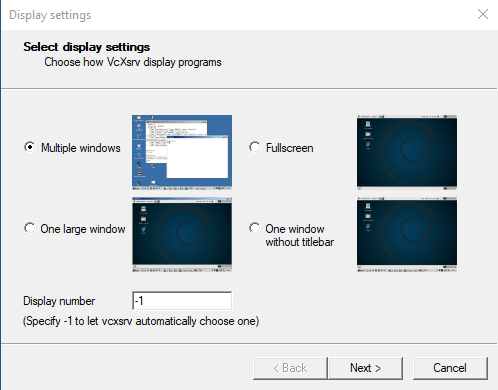
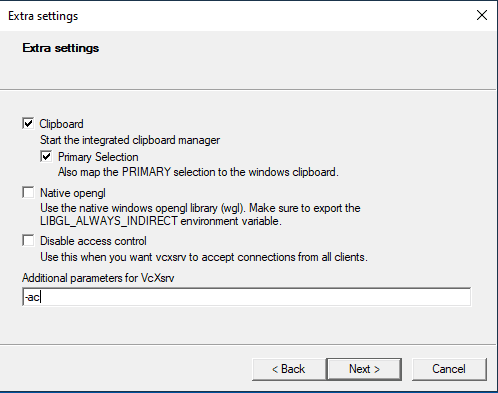
Configure the Extra Settings as shown below.
Enter -ac as the parameter.
Save the generated config.xlaunch to %USERPROFILE%\AppData\Roaming\Microsoft\Windows\Start Menu\Programs\Startup.
Next, add the following command to .bashrc in the WSL instance where REMnux is set up to register the display setting.
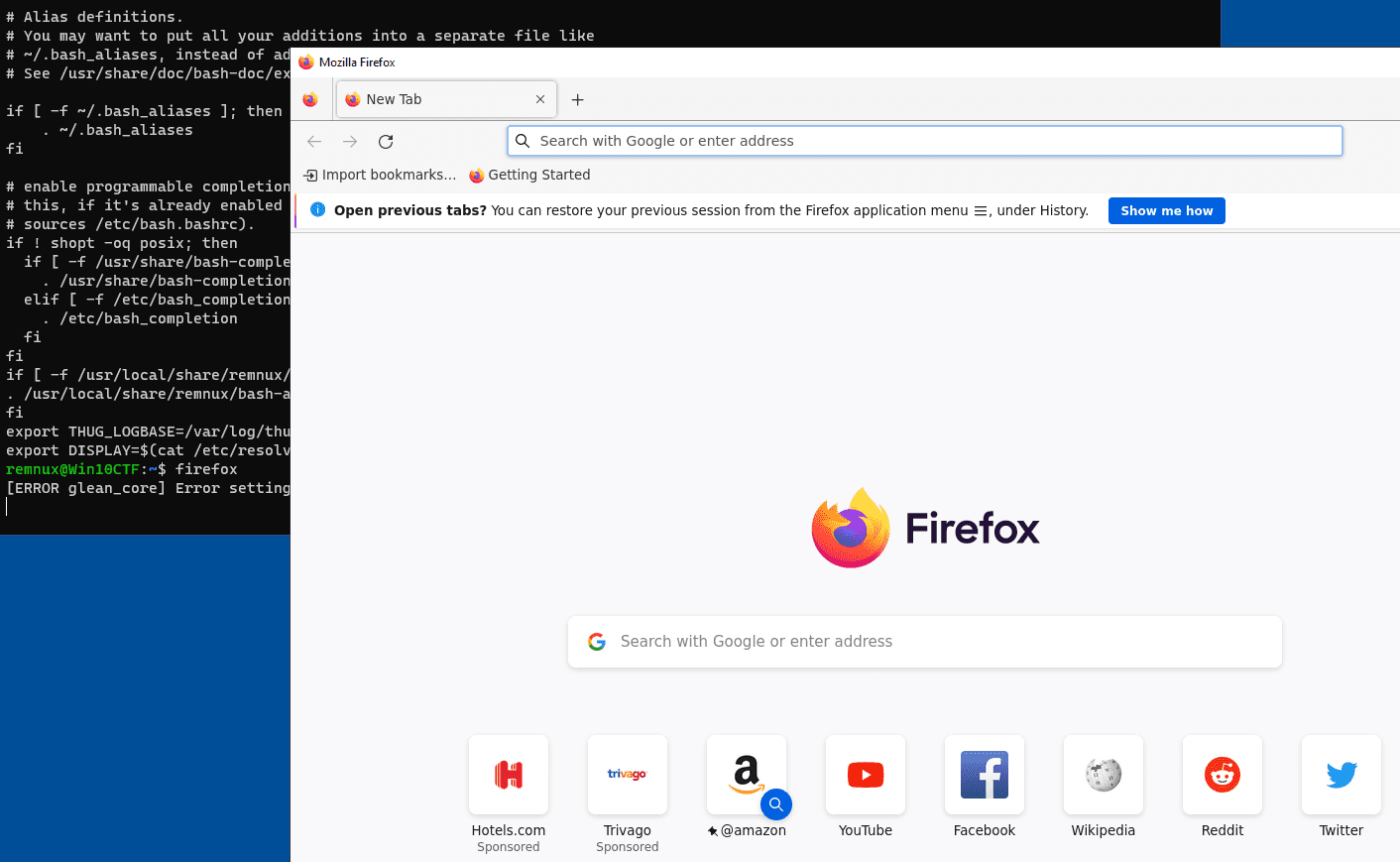
export DISPLAY=$(cat /etc/resolv.conf | grep nameserver | awk '{print $2}'):0After restarting the OS, the setup is complete once GUI apps launched from WSL are accessible on the Windows side.
Kali Setup
Let’s also set up the Kali Linux installed in WSL.
First, switch Kali to WSL2.
wsl --set-version kali-linux 2You could also install kali-tools into Ubuntu, but for minimal setup to easily use tools like msfvenom, proceed as follows.
First, to resolve the EXPKEYSIG ED444FF07D8D0BF6 Kali Linux Repository error, download kali-archive-keyring_2022.1_all.deb from the repository below, place it in the WSL Kali instance, and install it.
# https://http.kali.org/kali/pool/main/k/kali-archive-keyring/
sudo dpkg -i kali-archive-keyring_2022.1_all.deb
Reference: Index of /kali/pool/main/k/kali-archive-keyring
Reference: The following signatures were invalid: EXPKEYSIG ED444FF07D8D0BF6 Kali Linux Repository
This enables package updates via apt.
Next, proceed with package updates and setup using the following commands. (Note: running dist-upgrade immediately can break apt, so be careful.)
# Install Tools
sudo apt update && sudo apt install kali-linux-large -y
sudo apt install \
bash-completion \
vim \
sox \
multimon-ng \
-y
Reference: Win-KeX | Kali Linux Documentation
The Kali tools include many GUI applications.
To be able to use these, add the following to .bashrc on the Kali side as well.
export DISPLAY=$(cat /etc/resolv.conf | grep nameserver | awk '{print $2}'):0Note: if you run into issues on the WSL side and cannot access it, you can access the shell as the root user by running the following command from PowerShell.
wsl --distribution kali-linux -u rootSummary
I rebuilt my CTF environment that I had been using for about three years.
After a while, the configuration starts getting hard to keep track of, so I plan to update this article whenever I make changes in the future.