This page has been machine-translated from the original page.
This chapter explains the environment setup procedure used in this book.
Execution and debugging of the binaries used in this book assume that you will use a virtual machine.
I recommend using Hyper-V, which is included with the Pro editions of Windows 10/11.
However, even when using the Home edition of Windows 10/11, you can still create a virtual machine by using third-party virtualization applications such as VirtualBox or VMware.
Table of Contents
- About the Environment Used in This Book
- Create the Virtual Machine
- Set Up the Virtual Machine
- Install WinDbg
- Install Debugging Tools for Windows
- Install Sysinternals Utilities
- Register the Symbol Server in WinDbg and Sysinternals
- Install Ghidra 11.0.2
- Install Binary Ninja
- Install Other Analysis Tools
- Prepare for Kernel Debugging with WinDbg
- Perform Kernel Debugging over the Network
- Download the Target Programs
- Links to Each Chapter
About the Environment Used in This Book
The content of this book has been verified in the following environment.
OS : Windows 10 Pro 22H2
Because this book assumes that you will prepare a virtual machine, I recommend using a system with at least an Intel Core i3 CPU and at least 8 GB of RAM so that you can work reasonably comfortably.
Create the Virtual Machine
This book does not explain the detailed procedure for installing a virtual machine.
If you are using Windows 10/11 Pro, Enterprise, or Education, I recommend using Hyper-V, which is available free of charge.
For instructions on enabling Hyper-V and creating a virtual machine, you can follow the official documentation below.
Install Hyper-V on Windows 10:
https://learn.microsoft.com/ja-jp/virtualization/hyper-v-on-windows/quick-start/enable-hyper-v
If your current OS edition is Windows 10/11 Home, you cannot use Hyper-V.
In that case, you can use a virtual machine platform such as VirtualBox, which can be installed for free. (At least at the time of writing, I confirmed that the then-latest version, VirtualBox 7.0.14, could be installed on Windows 10/11 Home and used to create virtual machines. However, because that version has been reported to contain known vulnerabilities that are easy to exploit, I recommend installing the latest available version whenever possible.)
VirtualBox can be installed using the installer available from the download page below.
Download VirtualBox:
https://www.virtualbox.org/wiki/Downloads
To install VirtualBox 7.0.14, you also need to run vc_redist.x64.exe, which can be downloaded from the URL below, and install the latest redistributable package.
vc_redist.x64.exe:
https://aka.ms/vs/17/release/vc_redist.x64.exe
Once you have prepared a virtual machine platform such as Hyper-V or VirtualBox, create a Windows 10 virtual machine.
In general, regardless of which virtualization platform you use, you start by installing the OS from an ISO image file for OS installation.
When setting up the Windows virtual machine used for analysis in this book, use the evaluation-version OS ISO that can be downloaded below. (Downloading it requires entering an email address and other information.)
After installing the evaluation OS, you can use the full functionality of Windows 10 for 90 days after installation.
Windows 10 Enterprise (Evaluation):
https://www.microsoft.com/ja-jp/evalcenter/evaluate-windows-10-enterprise
Set Up the Virtual Machine
Once the virtual machine for running the program to be analyzed is ready, perform the setup needed to install the device driver and do kernel debugging.
First, run the following three commands in a Command Prompt started with administrator privileges, and then reboot the OS.
bcdedit /set testsigning on
bcdedit /debug on
bcdedit /dbgsettings serial debugport:1 baudrate:115200
Running these commands enables installation of the test-signed driver 1 and kernel debugging over a COM port 2 on the target virtual machine.
On systems since Windows Vista, all drivers installed on the system must have a valid signature. In particular, on systems running Windows 10 version 1607 or later, drivers must have a valid signature issued by Microsoft.3 4
However, if you run bcdedit /set testsigning on on Windows to enable installation of test-signed drivers, you can install drivers signed with a test self-signed certificate or similar means.
For that reason, you need to enable test-signing mode in order to install and run the kernel driver used in this book on the system.
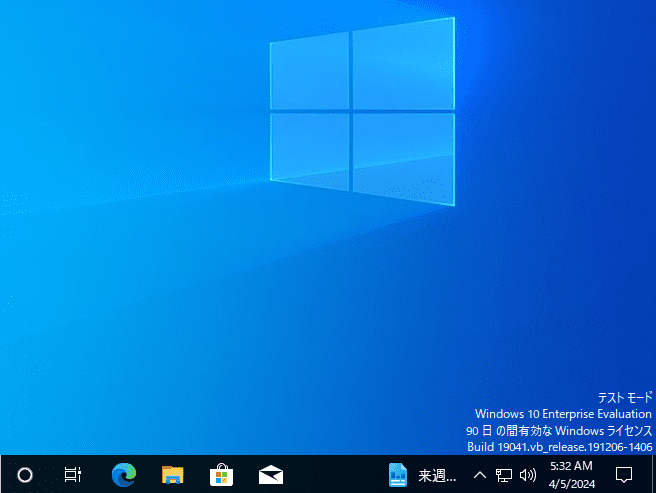
When test-signing mode is enabled on the system, “Test Mode” is displayed in the lower-right corner of the desktop, as shown below.
Note that when test-signing mode is enabled, you can install drivers that do not have a Microsoft signature, which creates the risk that a malicious driver could be installed on the system.
Therefore, be sure to enable test-signing mode only inside a virtual machine.
Install WinDbg
To analyze the program, install the latest version of WinDbg on your computer.
Because kernel debugging will be performed, be sure to install WinDbg on the host machine that manages the virtual machine.
Of course, there is no problem with also installing it inside the virtual machine for user-mode debugging.
If your environment can use the WinGet package manager, you can easily install the latest WinDbg by running the following command in Command Prompt or PowerShell.
winget install Microsoft.WinDbgIf you cannot use the WinGet package manager, download the WinDbg installer from the URL below and install WinDbg manually.
Install the Windows debugger:
https://learn.microsoft.com/ja-jp/windows-hardware/drivers/debugger/
Install Debugging Tools for Windows
Next, install Debugging Tools for Windows on the machine where you will perform the analysis.
Debugging Tools for Windows includes debuggers such as WinDbg Classic 5 and tools such as GFlags 6 that are useful for troubleshooting Windows environments.
There are several ways to install Debugging Tools for Windows, but in this book we use the Windows SDK (10.0.22621) to install it.
First, go to the Windows SDK download page at the URL below and download winsdksetup.exe from [Download the installer].
Windows SDK:
https://developer.microsoft.com/ja-jp/windows/downloads/windows-sdk/
Next, double-click the downloaded winsdksetup.exe and run it.
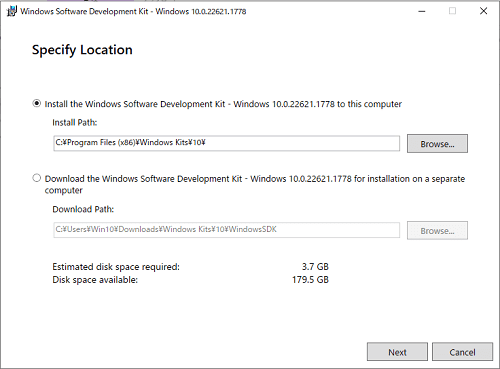
By following the installer’s instructions with the default settings, you will eventually reach a screen where you choose which packages to install.
It does not matter which items you download here, but make sure that [Debugging Tools for Windows] is checked.
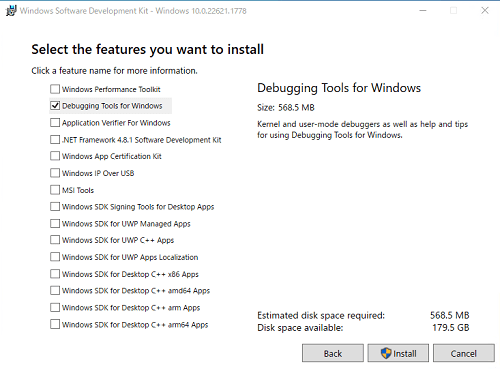
Run the installer with [Debugging Tools for Windows] checked.
After installation completes, confirm that windbg.exe and gflags.exe are present in C:\Program Files (x86)\Windows Kits\10\Debuggers\x64.
The windbg.exe that can be installed through the Windows SDK is the traditional debugger, also known as WinDbg Classic.
The latest version of WinDbg and WinDbg Classic use the same debugger commands and windows, but the latest version of WinDbg provides powerful debugger features such as JavaScript debugger scripts and Time Travel Debugging (TTD).
In this book, we use the latest version of WinDbg installed in the [Install WinDbg] section above rather than WinDbg Classic.
Install Sysinternals Utilities
Note: Sysinternals utilities are not used in this book, so installing them is optional.
Next, download Sysinternals 9, which includes useful tools such as Process Monitor 7 and Process Explorer 8.
This book does not go into detail about these tools.
If you want to learn more, the official documentation or “Windows Sysinternals徹底解説” 10, for example, should be helpful.
To install these tools all at once, visit the URL below and click [Sysinternals Suite].
Sysinternals Utilities:
https://learn.microsoft.com/ja-jp/sysinternals/downloads/
By extracting the ZIP file downloaded there, you will be able to use tools such as Process Monitor and Process Explorer.
Register the Symbol Server in WinDbg and Sysinternals
When using WinDbg or Process Monitor (Procmon) for troubleshooting, obtaining the correct symbols is extremely important.
Symbols 11 are information such as the names of functions and variables that are not included in executable files such as exe and dll files.
When using tools such as WinDbg, obtaining and referencing the correct symbols makes analysis much smoother.
In general, the symbol information used for analyzing dump files can be obtained from Microsoft’s public symbol server 12.
However, symbol information for some non-public modules and symbol information for software independently developed by third parties cannot be downloaded from Microsoft’s public symbol server.
If the program being analyzed was developed by the user, pdb or dbg files generated when the program is built can be loaded into the debugger and used as symbol information.
In this section, we configure WinDbg and Process Monitor so that they can retrieve symbols from Microsoft’s public symbol server.
Although this book does not use it, you may also want to apply the same configuration to Process Explorer if necessary.
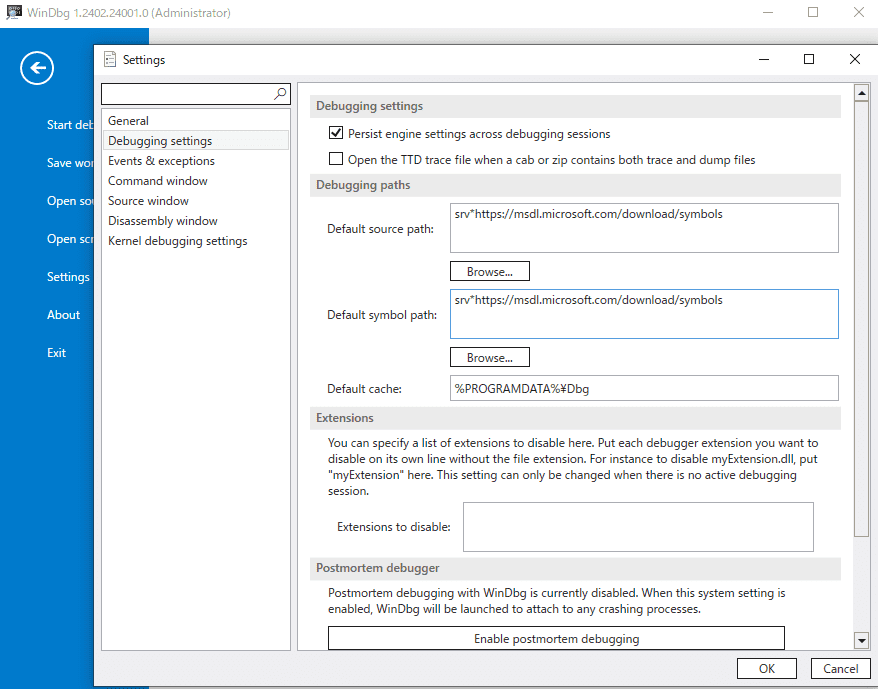
To configure the symbol server, start WinDbg with administrator privileges and open [File] > [Settings] > [Debugging Settings].
Enter the following in [Default Symbol Path] in the window that appears, and click [OK].
srv*https://msdl.microsoft.com/download/symbols
Next, run Procmon64.exe with administrator privileges from the SysinternalsSuite obtained in the [Install Sysinternals Utilities] section.
From the menu at the top of the Procmon window, click [Options] > [Configure Symbols…].
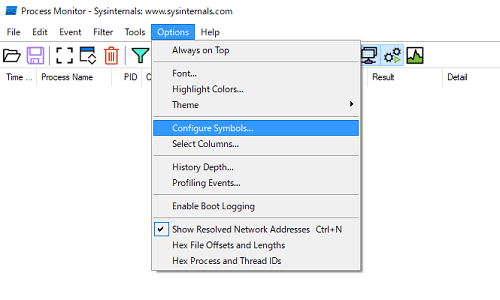
By default, C:\WINDOWS\SYSTEM32\dbghelp.dll is registered for [DbgHelp.dll path(version 6.0 or later)].
However, C:\WINDOWS\SYSTEM32\dbghelp.dll usually does not satisfy the requirement of version 6.0 or later, so you need to specify the path to a dbghelp.dll that does.
A dbghelp.dll that meets that requirement is located directly under C:\Program Files (x86)\Windows Kits\10\Debuggers\x64, alongside WinDbg x64 and the other tools installed in the [Install Debugging Tools for Windows] section.
Therefore, specify the following path for [DbgHelp.dll path(version 6.0 or later)].
C:\Program Files (x86)\Windows Kits\10\Debuggers\x64\dbghelp.dllAlso, for [Symbol paths:], specify the same Microsoft symbol server address you used for WinDbg.
srv*https://msdl.microsoft.com/download/symbols
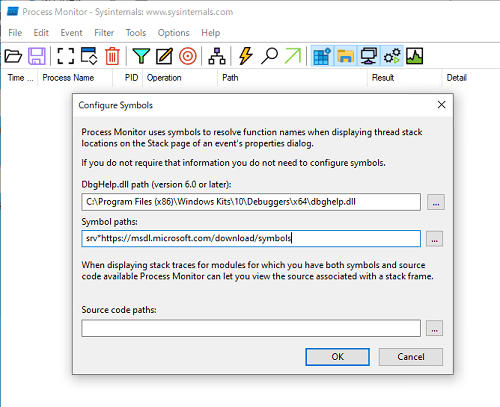
This completes the symbol server configuration.
Install Ghidra 11.0.2
Note: Ghidra 11.0.2 is not used in this book, so installing it is optional.
Next, set up the reverse engineering tool Ghidra 11.0.2.
This book does not explain Ghidra itself or how to use it in detail, but the built-in Help and books such as a practical guide to Ghidra 13 and a comprehensive guide to mastering Ghidra 14 should be useful references.
To set up Ghidra, download the Ghidra 11.0.2 package (ghidra_11.0.2_PUBLIC_20240326.zip) from the GitHub Releases page below and extract it.
Ghidra Release Page:
https://github.com/NationalSecurityAgency/ghidra/releases
Next, download the Windows x64 MSI Installer from the page below in order to install JDK 17, which is required to run Ghidra.
Java Downloads:
https://www.oracle.com/jp/java/technologies/downloads/#jdk17-windows
Run the downloaded JDK 17 MSI installer and complete the installation of JDK 17.
After installation is complete, launch Ghidra by double-clicking ghidraRun.bat in the extracted ghidra_11.0.2_PUBLIC_20240326.zip.
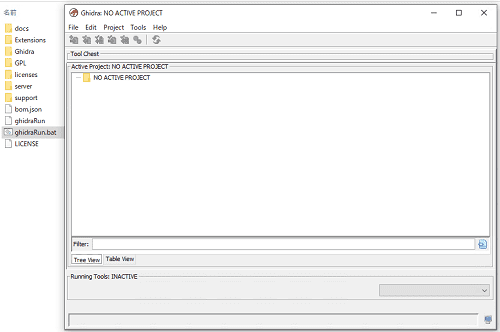
Once Ghidra has launched, create a project with any name from [File] > [New Project].
Install Binary Ninja
In addition to Ghidra, there are other strong options for analyzing Windows programs, including IDA and Binary Ninja.
You can install Binary Ninja by downloading the free installer from [Download For Windows] at the URL below.
Binary Ninja 4.0 Free:
For instructions on installing Binary Ninja and its basic operations, please refer to the official page at the link below.
Binary Ninja 4.0 Getting Started:
https://docs.binary.ninja/getting-started.html
Incidentally, if you want to learn more about how to use Binary Ninja, I personally recommend the official YouTube channel of VECTOR 35, the company behind Binary Ninja.
YouTube VECTOR 35:
https://www.youtube.com/@Vector35
Install Other Analysis Tools
In addition to the tools introduced so far, this book uses PEStudio for analyzing Windows programs.
Although this book does not use them, PE-bear and CFF Explorer included in Explorer Suite are also convenient tools for similar purposes.
I will omit the detailed setup procedure, but each tool can be downloaded from the links below.
PEStudio:
https://www.winitor.com/download
PE-bear:
https://github.com/hasherezade/pe-bear
Explorer Suite:
https://ntcore.com/explorer-suite/
Prepare for Kernel Debugging with WinDbg
Verify that the virtual machine configured in the [Set Up the Virtual Machine] section can be kernel-debugged over a COM port from WinDbg installed on the host machine.
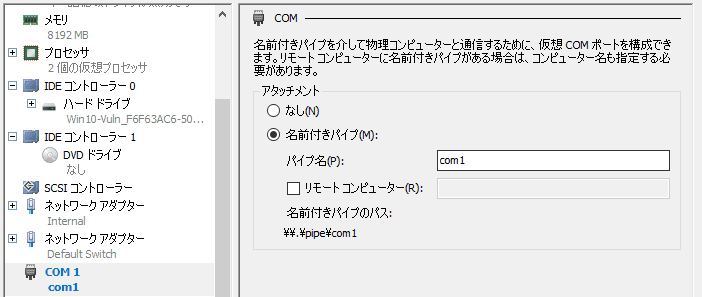
If you are using Hyper-V, open the settings screen for the target virtual machine, and under the hardware settings for [COM 1], change [Attachment] to [Named pipe] and set the pipe name to [com1].
As shown in the screen below, it is fine as long as the value shown in [Named pipe path] is \\.\pipe\com1.
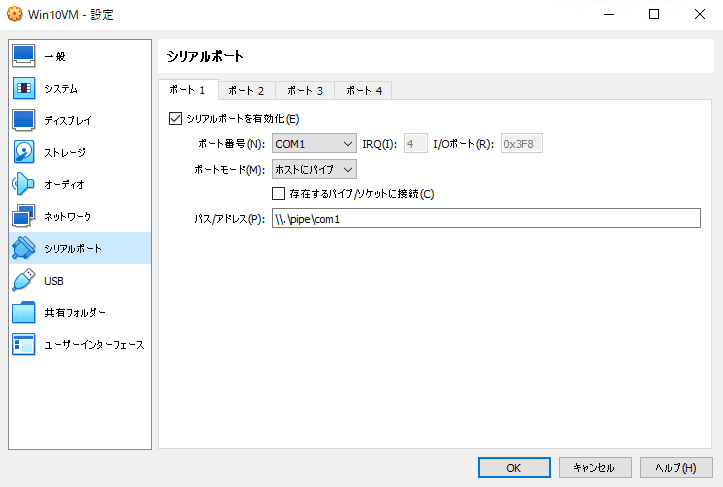
If you are using VirtualBox, open the settings screen for the virtual machine you created, open the [Serial Ports] settings, and on the [Port 1] tab enable the [Enable Serial Port] checkbox.
Set [Port Number] to [COM1], [Port Mode] to [Host Pipe], enter \\.\pipe\com1 for [Path/Address], and save the settings.
After configuring the COM port on the virtual machine created with Hyper-V or VirtualBox, start WinDbg and attach the kernel debugger.
When using the newer version of WinDbg, choose [File] > [Start Debugging] > [Attach to Kernel].
Open the [Attach to Kernel] settings screen, set [Baud Rate] on the [COM] tab to 115200, and set [Port] to \\.\pipe\com1.
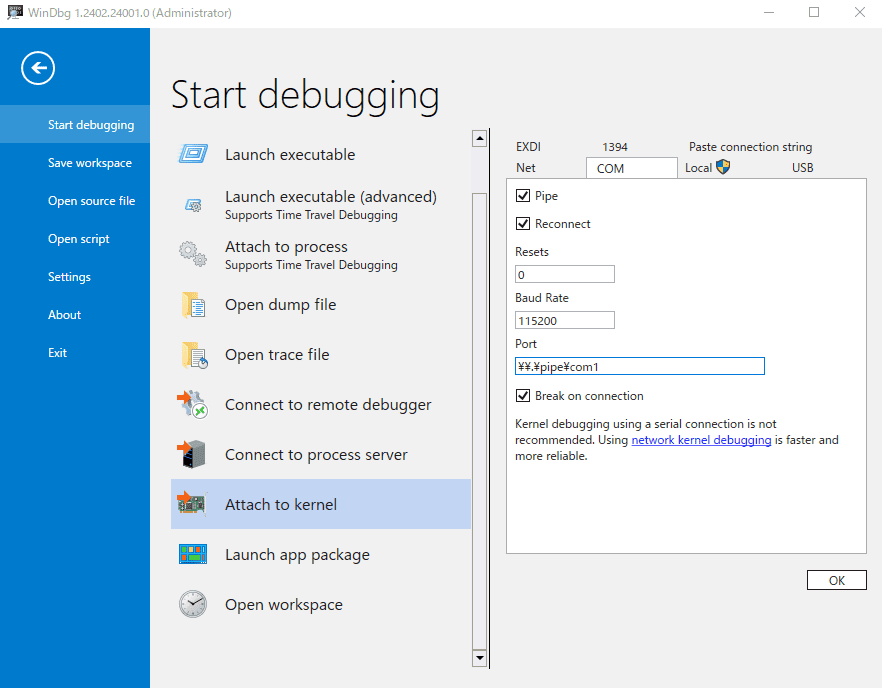
If [Break on Connection] is checked, WinDbg automatically breaks when it attaches to the machine as a kernel debugger, and the system on the VM side stops.
When WinDbg has attached to the system as a kernel debugger, the OS version and other information are displayed as in the screen below, and you can enter commands in WinDbg’s command window.
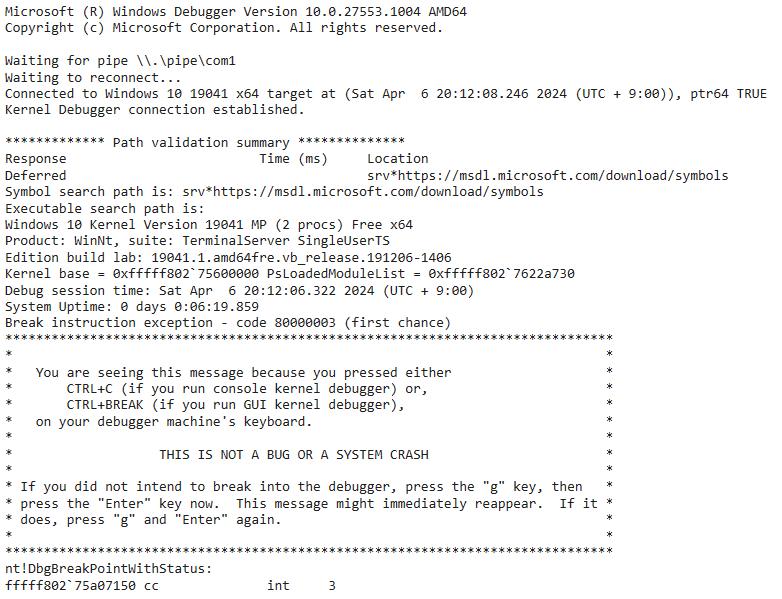
When the kernel debugger is debugging the kernel of the virtual machine, the virtual machine itself stops running.
For that reason, if you are connected to the virtual machine remotely using Hyper-V Enhanced Session or RDP, the screen will black out and remote access will be disconnected.
When performing kernel debugging on a virtual machine built with Hyper-V, I recommend using console access with Enhanced Session disabled.
If you want to resume system operation, run the g command.
Perform Kernel Debugging over the Network
In the previous section, we set up a kernel debugger connection that uses a COM port, but data transfer over a COM port is extremely slow even when the baud rate is set to its maximum value of 115200.
You probably will not notice much delay when running ordinary debugger commands such as lm or k, but when using commands that require large amounts of data transfer, such as the .dump command 15, it can take several hours or more to finish if you are using a COM port.
In such cases, I recommend setting up kernel debugging over the network instead of using a COM port.
You can set up network-based kernel debugging manually, but using kdnet.exe is more reliable.16
To use kernel debugging over the network, first prepare an environment where the host machine that performs debugging and the target virtual machine can communicate over IPv4.
If you are using Hyper-V as the virtualization platform, it is a good idea to create an internal virtual switch from [Virtual Switch Manager], attach it to the virtual machine, and assign fixed static IPv4 addresses.
In this book, I assign 192.168.50.1/25 to the host machine and 192.168.50.12/25 to the virtual machine.
Once network connectivity between the host machine and the virtual machine has been established, next run Command Prompt as Administrator inside the virtual machine and execute "C:\Program Files (x86)\Windows Kits\10\Debuggers\x64\kdnet.exe".
kdnet.exe is located in the folder where Debugging Tools for Windows was installed in the [Install Debugging Tools for Windows] section.

If running kdnet.exe without any options displays Network debugging is supported by this Microsoft Hypervisor Virtual Machine, then continue by running "C:\Program Files (x86)\Windows Kits\10\Debuggers\x64\kdnet.exe" <HostComputerIPAddress> <YourDebugPort>.
At this point, specify the IP address of the host machine that will perform debugging (192.168.50.1) as HostComputerIPAddress, and specify the port number that you will later configure in WinDbg on the host machine (default: 50000).

When you run this command, you will get output containing key=<KEY string> as shown in the image above, so copy the string after key=.
Next, start WinDbg on the host machine, enter the port number configured with kdnet.exe and the copied string after key= into [Port number] and [Key] on the [Net] tab of [Attach to Kernel], and click [OK].
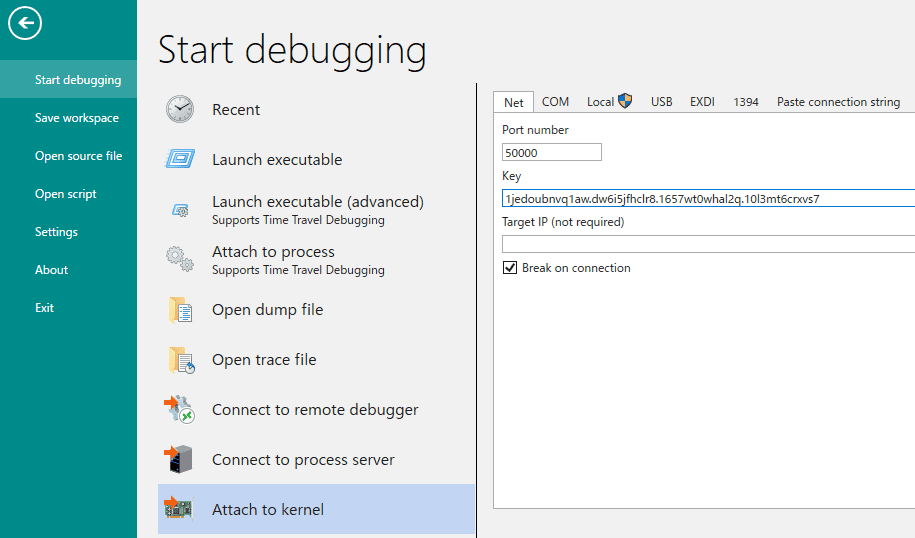
When you start network-based kernel debugging in WinDbg, Waiting to reconnect... appears in the debugging console.
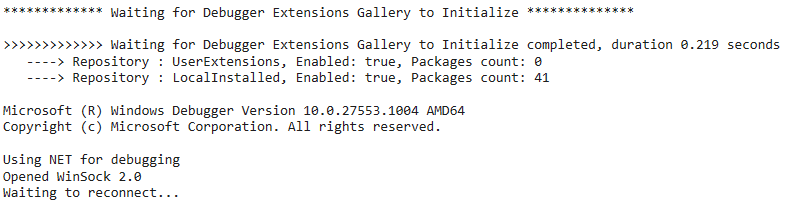
In this state, if you reboot the virtual machine that was configured with kdnet.exe, WinDbg on the host machine will attach to the kernel of the virtual machine over the network, and network-based kernel debugging becomes possible.
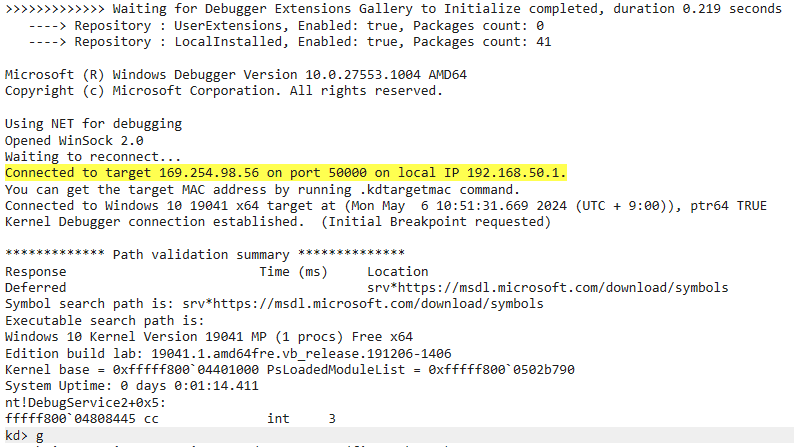
If network-based kernel debugging does not work properly, check the network connectivity between the host machine and the virtual machine, and also confirm whether communication by WinDbg is allowed through Microsoft Defender Firewall on the host machine.
Download the Target Programs
Download the DoP programs analyzed in this book from the release page below.
In this book, the goal is to analyze these DoP programs and identify two Flags.
The Flag format is ^FLAG\{[\x20-\x7E]+\}$.
DoP -The dream of a pumpkin-:
https://github.com/kash1064/ctf-and-windows-debug/releases/tag/v1.0/
From the release page, you can download the following two files.
DoPClient.exe(SHA256:59D52D6AF3479A75B21784916B8C73396971E75142A1AF0C0900C843E4491710)

DoPDriver.sys(SHA256:4C2F4F26A8F19083CE699B83F91C4430D03EB62DDECA509A16E66FCD7FE46D3D)
Please copy the two downloaded files into the same folder inside the virtual machine that you created for debugging.
Note that in most CTF challenges, symbol files used for analyzing the target, such as PDB files, are not provided.
Even when debugging is done for troubleshooting rather than for a CTF, it is rare to be able to obtain the proper symbol files unless the reader is directly involved in developing that software.
For that reason, this book also debugs unknown files without symbol files.
Analyzing an unknown program without symbol files using only WinDbg is extremely difficult, but you can debug efficiently by combining it with analysis tools such as IDA, Ghidra, and Binary Ninja.
Incidentally, these tools also include debugging features, so it is not strictly necessary to use WinDbg.
However, powerful features such as automating debugger operations with scripts, as used in this book, are not available in the free editions of IDA or Binary Ninja, where functionality is limited.
In this book, I therefore use WinDbg, which offers full functionality including these advanced features, to analyze the user-mode program and the kernel driver.
To run the DoP programs, depending on your environment you may need to install the latest redistributable package beforehand by running vc_redist.x64.exe, which can be downloaded from the URL below.
vc_redist.x64.exe:
https://aka.ms/vs/17/release/vc_redist.x64.exe
Links to Each Chapter
- Preface
- Chapter 1: Environment Setup
- Chapter 2: Surface Analysis of DoPClient and DoPDriver
- Chapter 3: Static Analysis of DoPClient
- Chapter 4: Dynamic Analysis of DoPClient
- Chapter 5: Static Analysis of DoPDriver
- Chapter 6: Dynamic Analysis of DoPDriver
-
Enable Loading of Test-Signed Drivers https://learn.microsoft.com/ja-jp/windows-hardware/drivers/install/the-testsigning-boot-configuration-option
↩ -
Setting Up Kernel-Mode Debugging of a Virtual Machine Manually using a Virtual COM Port https://learn.microsoft.com/ja-jp/windows-hardware/drivers/debugger/attaching-to-a-virtual-machine—kernel-mode-
↩ -
Signing a Driver https://learn.microsoft.com/ja-jp/windows-hardware/drivers/develop/signing-a-driver
↩ -
Driver Signing Policy https://learn.microsoft.com/ja-jp/windows-hardware/drivers/install/kernel-mode-code-signing-policy—windows-vista-and-later-
↩ -
What is WinDbg? https://learn.microsoft.com/ja-jp/windows-hardware/drivers/debugger/windbg-overview?source=recommendations
↩ -
GFlags https://learn.microsoft.com/ja-jp/windows-hardware/drivers/debugger/gflags
↩ -
Process Monitor https://learn.microsoft.com/ja-jp/sysinternals/downloads/procmon
↩ -
Process Explorer https://learn.microsoft.com/ja-jp/sysinternals/downloads/process-explorer
↩ -
Sysinternals https://learn.microsoft.com/ja-jp/sysinternals
↩ -
Windows Sysinternals徹底解説 : 無償ツールで極めるトラブルシューティングテクニック (Mark E. Russinovich・Aaron Margosis 著 / 山内 和朗 訳 / 日経BP社 / 2017 年)
↩ -
Symbols and Symbol Files https://learn.microsoft.com/ja-jp/windows-hardware/drivers/debugger/symbols-and-symbol-files
↩ -
Using a Symbol Server https://learn.microsoft.com/ja-jp/windows-hardware/drivers/debugger/using-a-symbol-server
↩ -
Reverse Engineering Tool Ghidra Practical Guide: From Security Contest Basics to Malware Analysis (Shota Nakajima, Yasukazu Kotake, Hiroaki Hara, Kohei Kawabata / Mynavi Publishing / 2020)
↩ -
Mastering Ghidra: A Complete Reverse Engineering Manual from the Basics (Chris Eagle, Kara Nance / technical supervision by Tomohisa Ishikawa / translated by Shota Nakajima, Yasukazu Kotake, Hiroaki Hara / O’Reilly Japan / 2022)
↩ -
.dump (Create Dump File) https://learn.microsoft.com/ja-jp/windows-hardware/drivers/debuggercmds/-dump—create-dump-file-
↩ -
Automatically Setting Up a KDNET Network Kernel Debugging Connection https://learn.microsoft.com/ja-jp/windows-hardware/drivers/debugger/setting-up-a-network-debugging-connection-automatically
↩