This page has been machine-translated from the original page.
In this chapter, we dynamically analyze DoPClient’s checkPassword function with WinDbg to identify the first Flag.
Dynamic analysis is a technique that analyzes a program based on its behavior when it actually runs, along with information such as memory and registers.
This includes not only suspending program execution with a debugger such as WinDbg and analyzing it while inspecting (or modifying) memory and registers, but also collecting process monitor logs or network traces while the program is running.
In this book, we primarily use WinDbg for analysis.
Table of Contents
- Run the Program in WinDbg and Set Breakpoints
- Read Register, Stack, and Memory Information
- Resume Program Execution in the Debugger
- Statically Analyze the checkPassword Function
- Dynamically Analyze the checkPassword Function
- Analyze the Behavior When Entering the Correct String
- Use JavaScript-based Debugger Scripts
- Automate Debugger Operations with a Script
- Identify the Correct Flag by Brute Force
- Speed Up the Brute-force Script
- Chapter 4 Summary
- Links to Each Chapter
Run the Program in WinDbg and Set Breakpoints
Generally, when debugging a user-mode program with a debugger such as WinDbg, you either run the program under the debugger or attach the debugger to a process that is already running.
This time, we will analyze it by running the program under the debugger.
After launching WinDbg in the virtual machine where you placed DoPClient.exe, click [File] > [Start Debugging], then click [Launch executable(advanced)].
In the [Executable] field, specify the path to DoPClient.exe placed in the virtual machine.
Also, specify the program’s working folder in [Start Directory].
For identifying the first Flag this time, setting [Start Directory] is not necessary, but depending on how the target program is implemented, you may need to set [Start Directory] properly to the program’s working folder.
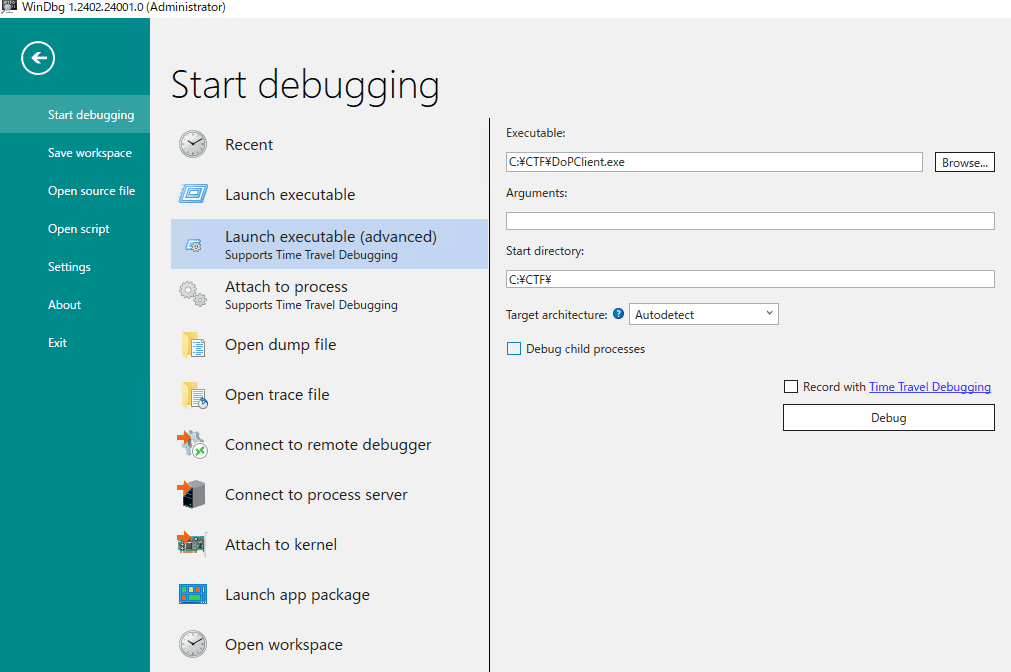
After making the above settings, leave [Record with Time Travel Debugging] unchecked and click the [Debug] button. The program starts, and the debugger attaches to it.
Time Travel Debugging (TTD) 1 is a powerful feature that captures a trace of process execution so that you can freely inspect register and memory state during execution, but we do not use it in this book.
When a user-mode application is started by the debugger, execution is paused while processing is still inside the image loader (Ldr) in ntdll.dll, which is a user-mode system DLL, and the debugger attaches at that point.2
At this point, the code implemented inside the program’s main function has not yet run.
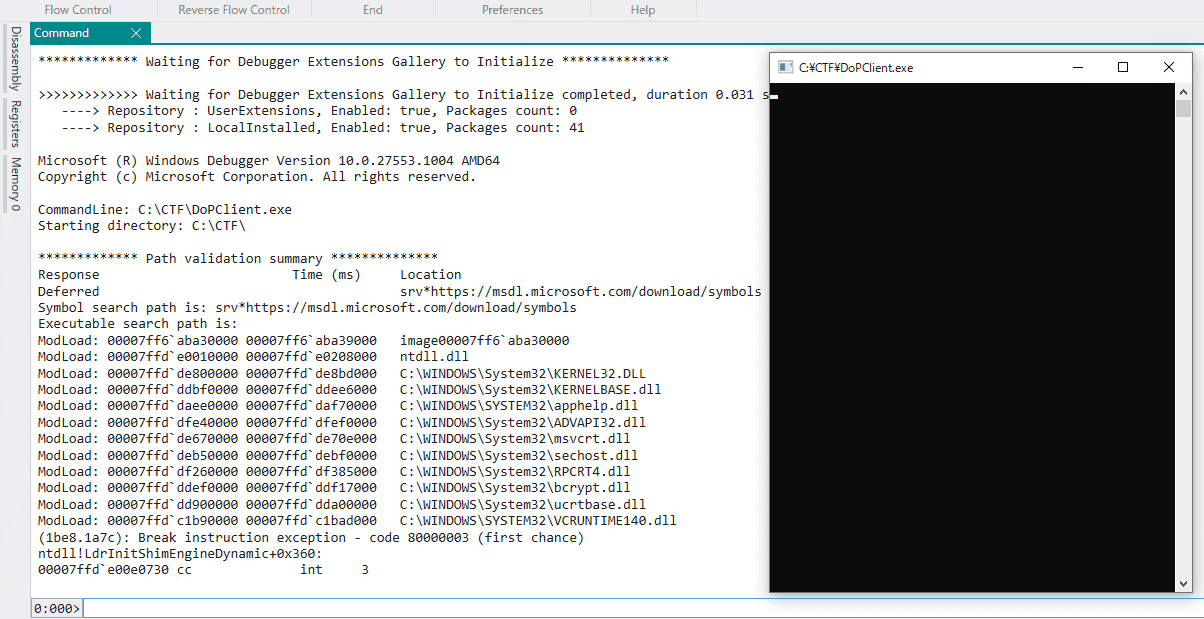
Before resuming program execution, set a breakpoint at the call site of the checkPassword function used for password validation that we examined in Chapter 3.
14000198b  lea     rcx, [rsp+0x40 {inputText}]
140001990  call    checkPassword
When using WinDbg, breakpoints can be set in various ways 3, but this time we will simply use the bp command to set a breakpoint at the specified address.
Most Windows programs are relocated at runtime, so the virtual address (VA) that can be specified when setting a breakpoint with the bp command changes each time.
Therefore, when setting a breakpoint, it is more convenient not to specify the virtual address directly, but instead to specify the executable’s image base address plus the relative virtual address (RVA).
For example, if you want to set a breakpoint at the address shown as 0x140001990 in Binary Ninja with default settings, specify the program’s image base address, accessible as DoPClient (or !DoPClient), plus the relative virtual address 0x1990, as shown below.
bp DoPClient+0x1990After setting the breakpoint with the command above and resuming execution with g, DoPClient displays the screen asking the user to enter a password.
Then, as confirmed in Chapter 3, if you enter a 45-character string such as AAAAAAAAAAAAAAAAAAAAAAAAAAAAAAAAAAAAAAAAAAAAA and press Enter, execution stops again at the address DoPClient+0x1990, and you can confirm that debugger control is possible.
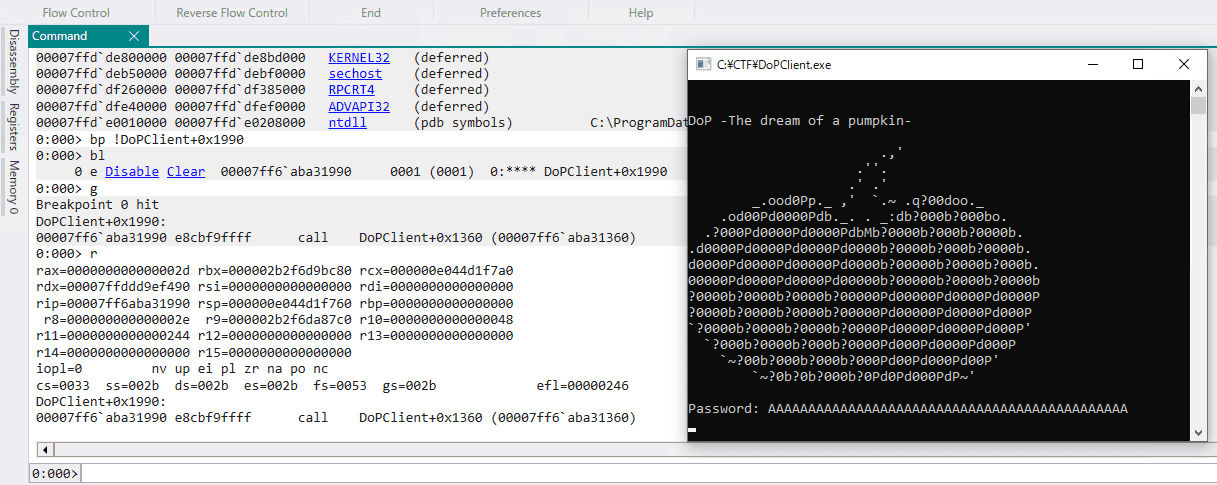
By the way, you can check the currently applied breakpoint settings with the bl command or in the Breakpoints window.
Also, if you open WinDbg’s Disassembly window, the instruction currently being executed is marked in yellow, and the instruction set as a breakpoint is marked in red, so you can confirm the breakpoint there as well.
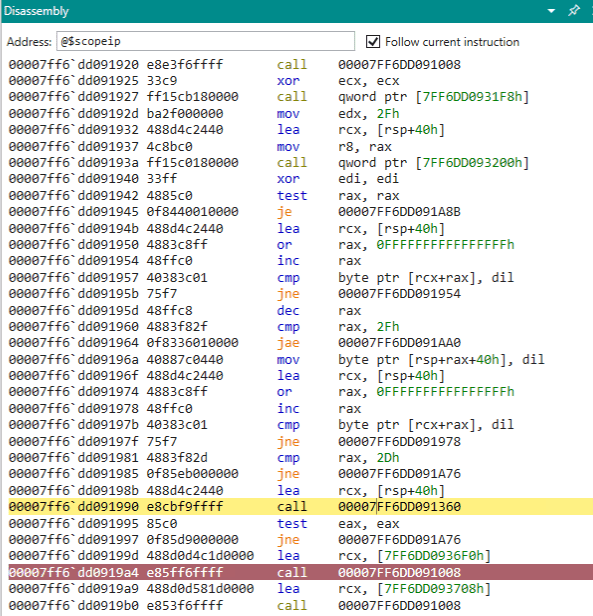
As you can see from the actual analysis results, the disassembly shown in WinDbg’s Disassembly window and by commands such as u and ub is less readable than output from analysis tools such as Binary Ninja.
For that reason, when debugging a program without symbols in WinDbg, I recommend using another analysis tool like the one used in Chapter 3 together with it.
Read Register, Stack, and Memory Information
Now that we have set a breakpoint at the checkPassword call site in WinDbg, let’s briefly introduce how to inspect registers, the stack, and memory.
First, register state can be inspected with the r command 4.
When you run the r command, the register state associated with the current thread context is displayed.
You can also inspect only a specific register or flag with commands such as r rax or r zf, or arbitrarily replace the value of a specific register with r eax = 10.
0:000> r
rax=000000000000002d rbx=0000028219807970 rcx=00000087212ffa70
rdx=00007fff7cc0f490 rsi=0000000000000000 rdi=0000000000000000
rip=00007ff6dd091990 rsp=00000087212ffa30 rbp=0000000000000000
 r8=000000000000002e  r9=0000028219812fd0 r10=0000000000000058
r11=0000000000000246 r12=0000000000000000 r13=0000000000000000
r14=0000000000000000 r15=0000000000000000
iopl=0         nv up ei pl zr na po nc
cs=0033  ss=002b  ds=002b  es=002b  fs=0053  gs=002b             efl=00000246
DoPClient+0x1990:
00007ff6`dd091990 e8cbf9ffff      call    DoPClient+0x1360 (00007ff6`dd091360)

0:000> r rax
rax=000000000000002d
By the way, if you want to inspect register state associated with another thread context while debugging a user-mode program, you can run ~2 r using the thread number, or use ~* r to inspect the register state of all threads.
Next, let’s inspect memory information at a specified address with the Display Memory (d, da, db, dc, dd, dD, df, dp, dq, du, dw) commands 5.
As confirmed in Chapter 3, the input string received by fgets is stored in the stack area, and its starting address is RSP+0x40.
Below is the output when the address RSP+0x40 is inspected with various commands.
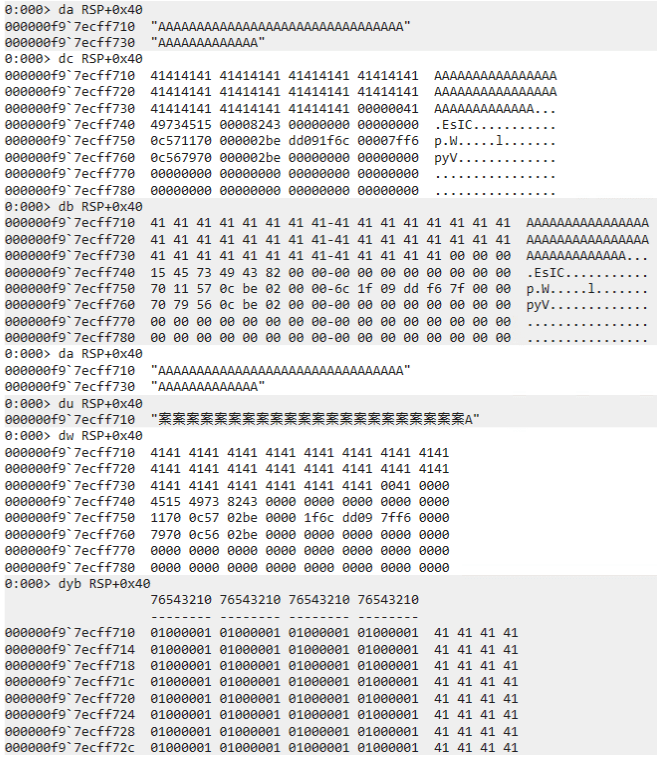
In particular, if you run the command da RSP+0x40, which displays ASCII text at the specified address, you can confirm that the entered 45-character string has been obtained.
If you run du RSP+0x40, the data at the specified address is interpreted as a Unicode string. (It becomes the character 0x4141 in UTF-16 encoding.)
If memory contains Unicode text rather than ASCII text, use du instead of da.
Note that this input string is written directly into the stack area.
Values in the stack area can also be inspected with the Display Memory commands above, but for values stored on the stack, analysis is easier if they are read in units of the pointer size of the running architecture.
Also, the stack area often contains pointer addresses to executable code.
For that reason, when inspecting the stack area, the dps command 6, which displays values in memory in pointer-size units and shows symbol information when it can resolve them, is often useful.
If you actually run the dps rsp command, you can confirm that the character A(0x41) is stored in the region starting at RSP+0x40.
0:000> dps rsp
000000f9`7ecff6d0  00007ff6`0000000a
000000f9`7ecff6d8  000002be`0c567970
000000f9`7ecff6e0  00007fff`7cc0f490 ucrtbase!iob
000000f9`7ecff6e8  00000000`00000000
000000f9`7ecff6f0  00000000`00000002
000000f9`7ecff6f8  00007fff`7cb41d56 ucrtbase!_set_new_mode+0x16
000000f9`7ecff700  00000000`00000000
000000f9`7ecff708  00000000`00000000
000000f9`7ecff710  41414141`41414141
000000f9`7ecff718  41414141`41414141
000000f9`7ecff720  41414141`41414141
000000f9`7ecff728  41414141`41414141
000000f9`7ecff730  41414141`41414141
000000f9`7ecff738  00000041`41414141
000000f9`7ecff740  00008243`49734515
000000f9`7ecff748  00000000`00000000
Resume Program Execution in the Debugger
Execution of the program paused at the configured breakpoint can be resumed with the g command 7.
Also, step execution and trace execution correspond to the p command (or the F10 key) 8 and the t command (or the F11 key) 9, respectively.
The p command corresponds to the [Step Over] operation in the WinDbg GUI.
So, for example, if you execute the p command on a line containing a Call instruction, execution advances to the instruction following that Call.
On the other hand, the t command corresponds to [Step Into].
If you execute it on a Call instruction line, unlike the p command, processing stops at the first address of the called function.
In addition, it is useful to know how to use step and trace commands depending on the situation, such as pa and ta, which continue stepping or tracing until a specified address; ph, th, pt, and tt, which continue execution until the next branch or return instruction; and pc and tc, which continue execution until the next Call instruction.
Statically Analyze the checkPassword Function
Now that we have introduced the minimum debugger commands we need, it is finally time to analyze the checkPassword function and identify the Flag.
First, following the same procedure as in Chapter 3, use Binary Ninja to navigate to the address of the checkPassword function and perform a static analysis.
Then, instead of the Graph view, switch the display to the Linear view and inspect the decompiled pseudo code under [Pseudo C].
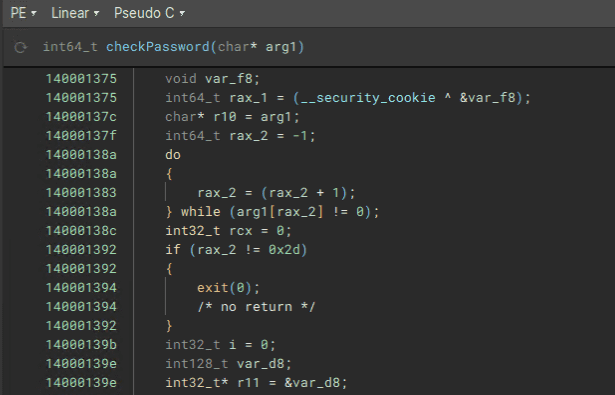
The code below extracts only the structural portions from that decompiled output.
int64_t checkPassword(char* arg1)

{
    void var_f8;
    int64_t rax_1 = (__security_cookie ^ &var_f8);
    char* r10 = arg1;
    int64_t rax_2 = -1;
    do
    {
        rax_2 = (rax_2 + 1);
    } while (arg1[rax_2] != 0);
    int32_t rcx = 0;
    if (rax_2 != 0x2d)
    {
        exit(0);
        /* no return */
    }

    int32_t i = 0;
    int128_t var_d8;
    int32_t* r11 = &var_d8;
    do
    {
        uint64_t rdx_1 = ((uint64_t)((int32_t)*(uint8_t*)r10));
        if (i > 0x16)
        {
            if (i > 0x22)
            {
                if (i == 0x29)
                {
                    rcx = ((int32_t)(rdx_1 + 0x5f6));
                }
                else if (i == 0x2a)
                {
                    rcx = ((rdx_1 * 0x21) + 0x23);
                }
                /* omitted */
                switch (i)
                {
                    case 0x23:
                    {
                        rcx = ((rdx_1 * 0x35) + 0xdab8);
                        break;
                    }
                    /* omitted */
                }
            }
            /* omitted */
        }

        /* omitted */

        __builtin_memcpy(&var_d8, "<hardcoded byte sequence>", 0xb4);

        if (rcx != *(uint32_t*)r11)
        {
            printf("Password is Wrong\n", rdx_1);
            exit(0);
        }

        i = (i + 1);
        r10 = &r10[1];
        r11 = &r11[1];
    } while (i < 0x2d);
    __security_check_cookie((rax_1 ^ &var_f8));
    return 0;
}
You can see that the following code executed from 0x14000138a to 0x140001392 is almost the same as the string-length verification code examined in Chapter 3.
char* r10 = arg1;
int64_t rax_2 = -1;
do
{
    rax_2 = (rax_2 + 1);
} while (arg1[rax_2] != 0);

int32_t rcx = 0;
if (rax_2 != 0x2d)
{
    exit(0);
}
The checkPassword function receives, as its first argument (arg1), a pointer to the input string stored on the stack.
After obtaining the length of this string in a loop, it checks again that the string length is 45 (0x2d) characters.
Once the string-length check is passed, you can see that a loop containing complex conditional branches is implemented between 0x14000139b and 0x1400017dd.
int32_t i = 0;
int128_t var_d8;
int32_t* r11 = &var_d8;
do
{
    uint64_t rdx_1 = ((uint64_t)((int32_t)*(uint8_t*)r10));
    if (i > 0x16)
    {
        if (i > 0x22)
        {
            if (i == 0x29)
            {
                rcx = ((int32_t)(rdx_1 + 0x5f6));
            }
            /* omitted */
        }
        /* omitted */
    }
    /* omitted */

    __builtin_memcpy(&var_d8, "<hardcoded byte sequence>", 0xb4);
    if (rcx != *(uint32_t*)r11)
    {
        printf("Password is Wrong\n", rdx_1);
        exit(0);
    }

    i = (i + 1);
    r10 = &r10[1];
    r11 = &r11[1];

} while (i < 0x2d);
If you look closely at this loop implementation, you can see that in each of the 45 (0x2d) iterations, something is validated by the code if (rcx != *(uint32_t*)r11), and if it does not match, the string Password is Wrong is printed.
Also, the RCX register being compared here seems to hold a transformed value of rdx_1, based on lines such as rcx = ((int32_t)(rdx_1 + 0x5f6));.
On the line uint64_t rdx_1 = ((uint64_t)((int32_t)*(uint8_t*)r10)), rdx_1 receives one character from the input string per loop iteration.
Also, r11 holds int32 integer values taken in order from the hardcoded byte sequence var_d8.
In other words, it seems reasonable to infer that checkPassword takes the input string from the beginning inside the loop, performs some calculation after passing through complex branching, checks whether the result matches the hardcoded byte sequence, and returns 0 only when validation succeeds for all characters.
Dynamically Analyze the checkPassword Function
Now, let’s use the debugger to verify whether the above hypothesis is actually correct.
First, run the following commands in the Command window in order.
.restart
bp !DoPClient+0x13a2 ; bp !DoPClient+0x17ca ; g
Running the .restart command restarts the target program being debugged and also resets settings such as breakpoints.
Then, bp !DoPClient+0x13a2 ; bp !DoPClient+0x17ca ; g sets two breakpoints in a one-liner and resumes program execution.
In this way, WinDbg lets you execute multiple commands together by chaining them with semicolons (;).
In the command above, breakpoints are set at two locations: the code that extracts one character from the input inside the loop, and the code that compares the result of some calculation on the input character with a hardcoded integer value.
When you run the program and enter 45 A(0x41) characters, execution first pauses immediately before the code movsx edx,byte ptr [r10], which extracts one character from the input string.
At this point, the EDX register contains the value 0x7cc0f490, not the input character.
0:000> g
Breakpoint 0 hit
DoPClient+0x13a2:
00007ff6`dd0913a2 410fbe12  movsx   edx,byte ptr [r10] ds:000000bd`b9cffc80=41

0:000> r edx
edx=7cc0f490
If you step the program with the p command here, you can confirm that the first character A(0x41) is loaded into EDX from the address stored in r10.
0:000> p
DoPClient+0x13a6:
00007ff6`dd0913a6 4183f816        cmp     r8d,16h

0:000> r edx
edx=41
Next, if you resume program execution once more with the g command, execution pauses at the second breakpoint, DoPClient+0x17ca.
0:000> g
Breakpoint 1 hit
DoPClient+0x17ca:
00007ff6`dd0917ca 413b0b          cmp     ecx,dword ptr [r11] ds:00000055`a5effc90=000021a7
At this point, the ECX register contains the integer value 2076, but the pointer address referenced by the R11 register, which is the comparison target, contains the integer value 8615.
0:000> r ecx
ecx=2076

0:000> dd r11 L1 ; ? $p
00000055`a5effc90  000021a7
Evaluate expression: 8615 = 00000000`000021a7
Therefore, when the first input character is A(0x41), validation by the code if (rcx != *(uint32_t*)r11) fails, and the program exits after outputting Password is Wrong.
By the way, the command dd r11 L1 ; ? $p used here relies on WinDbg pseudo-registers 10.
A pseudo-register is a value used to hold specific data inside the debugger.
And the pseudo-register $p stores the value output by the most recent Display Memory command.
Therefore, by evaluating ? $p after running dd r11 L1, the DWORD-sized value pointed to by the R11 register can be output as the decimal integer 8615 instead of 0x21a7.
This kind of syntax using pseudo-registers is useful to remember, because it can be applied when writing one-liner commands or scripts.
Analyze the Behavior When Entering the Correct String
Although a breakpoint was set at the location that appears to validate password characters, when AAAAAAAAAAAAAAAAAAAAAAAAAAAAAAAAAAAAAAAAAAAAA was used as the input string, the validation could not be passed.
So next, let’s run the program again using the 45-character string FLAG{ABCDEFGHIJKLMNOPQRSTUVWXYZabcdefghijklm}, which satisfies the correct Flag format, as the input value.
Then, at the code for the first breakpoint (movsx edx,byte ptr [r10]), the value stored in the EDX register changes from A(0x41) to F(0x46).
0:000> g
Breakpoint 0 hit
DoPClient+0x13a2:
00007ff6`dd0913a2 410fbe12        movsx   edx,byte ptr [r10] ds:0000001a`ed4ffaf0=46

0:000> p
DoPClient+0x13a6:
00007ff6`dd0913a6 4183f816        cmp     r8d,16h

0:000> r edx
edx=46
And at the line configured as the second breakpoint, the value of the ECX register matches the integer value pointed to by the R11 register, which tells us that when the first character is F(0x46), the first validation can pass.
0:000> g
Breakpoint 1 hit
DoPClient+0x17ca:
00007ff6`dd0917ca 413b0b          cmp     ecx,dword ptr [r11] ds:0000001a`ed4ff9d0=000021a7

0:000> r ecx
ecx=21a7

0:000> dd r11 L1 ; ? $p
0000001a`ed4ff9d0  000021a7
Evaluate expression: 8615 = 00000000`000021a7
This also supports the hypothesis that, inside the 45 (0x2d) iterations of the checkPassword function, the input string is taken one character at a time, some calculation is applied to it, and the result is checked against a hardcoded integer value.
If you continue execution after that, the program passes the validation performed by if (rcx != *(uint32_t*)r11) five times, then fails on the sixth validation and exits.
It seems very likely that the first five characters of the input string, FLAG{, matched the correct password, which is why the first five validations succeeded and the sixth failed.
Use JavaScript-based Debugger Scripts
To obtain the correct Flag, let’s investigate in a bit more detail how DoPClient behaves when it validates the password.
Specifically, I want to determine whether Flag validation is performed one character at a time from the beginning of the input string.
To do that, the following operations need to be performed with the debugger.
- Set a breakpoint at
DoPClient+0x13a6, immediately after one character is extracted from the input string, and confirm whether characters are being taken from the beginning of the string throughout the 45 iterations of the loop. - Set a breakpoint at
DoPClient+0x17cd, immediately after the result of some calculation on the input character is compared, and confirm whether the validation passes. - If validation fails for an input character, tamper with the zero flag so that the loop continues without letting the program terminate.
To perform the operations above, this time we will automate WinDbg command handling.
WinDbg provides several ways to automate debugging operations, but first we will use the JavaScript-based debugger scripts available in the current WinDbg 11.
Recent WinDbg versions can use JavaScript-based debugger scripts by default, but to be safe, let’s confirm that the script provider is loaded in the debugger.
In the currently running WinDbg, execute the .scriptproviders command. If JavaScript (extension '.js') appears in the list, you can conclude that the script provider is loaded in the debugger.
0:000> .scriptproviders
Available Script Providers:
    NatVis (extension '.NatVis')
    JavaScript (extension '.js')
When using JavaScript-based debugger scripts, you need to load a JavaScript file created in advance with the .scriptload or .scriptrun command.
Before creating a script that actually analyzes the challenge binary, let’s try running the following sample script.
"use strict";

function initializeScript()
{
    host.diagnostics.debugLog("RunCommands>; initializeScript was called \n");
}

function invokeScript()
{
    host.diagnostics.debugLog("RunCommands>; invokeScript was called \n");
}

function uninitializeScript()
{
    host.diagnostics.debugLog("RunCommands>; uninitialize was called\n");
}

function RunCommands(cmd)
{
var ctl = host.namespace.Debugger.Utility.Control;
var output = ctl.ExecuteCommand(cmd);
host.diagnostics.debugLog("RunCommands> Displaying command output \n");

for (var line of output)
{
host.diagnostics.debugLog("  ", line, "\n");
}

host.diagnostics.debugLog("RunCommands> Exiting RunCommands Function \n");
}
This sample script can also be downloaded from the following GitHub repository.
RunCommands.js:
https://github.com/kash1064/ctf-and-windows-debug/
After saving this sample script to the virtual machine as C:\CTF\RunCommands.js, try running the .scriptrun command in WinDbg.
The .scriptrun command loads the script and then executes the root code, followed by the initializeScript and invokeScript functions in order.
Therefore, when you execute .scriptrun C:\CTF\RunCommands.js, the debugLog calls defined in the initializeScript and invokeScript functions run as shown below, and you can also confirm with the .scriptlist command that the script has been loaded into the debugger.
0:000> .scriptrun C:\CTF\RunCommands.js
RunCommands>; initializeScript was called
JavaScript script successfully loaded from 'C:\CTF\RunCommands.js'
RunCommands>; invokeScript was called

0:000> .scriptlist
Command Loaded Scripts:
    {omitted}
    JavaScript script from 'C:\CTF\RunCommands.js'
Other Clients' Scripts:
    <None Loaded>
Next, after unloading the script with the .scriptunload C:\CTF\RunCommands.js command, let’s try loading it this time with .scriptload C:\CTF\RunCommands.js.
When the .scriptunload C:\CTF\RunCommands.js command is executed, the uninitializeScript function runs as the unload routine.
And when the .scriptload command is executed, only the initializeScript function runs.
0:000> .scriptunload C:\CTF\RunCommands.js
RunCommands>; uninitialize was called
JavaScript script unloaded from 'C:\CTF\RunCommands.js'

0:000> .scriptload C:\CTF\RunCommands.js
RunCommands>; initializeScript was called
JavaScript script successfully loaded from 'C:\CTF\RunCommands.js'
Since the script file loaded successfully, let’s execute the custom RunCommands function from the debugger.
This function runs the debugger command passed as an argument in WinDbg and displays the output on the console.
function RunCommands(cmd)
{
var ctl = host.namespace.Debugger.Utility.Control;
var output = ctl.ExecuteCommand(cmd);
host.diagnostics.debugLog("RunCommands> Displaying command output \n");

for (var line of output)
{
host.diagnostics.debugLog("  ", line, "\n");
}

host.diagnostics.debugLog("RunCommands> Exiting RunCommands Function \n");
}
Use the dx command to access functions loaded into the debugger.
To execute the RunCommands function, run dx Debugger.State.Scripts.RunCommands.Contents.RunCommands("<command>").
Below are the results of executing RunCommands("lm") and RunCommands("~k").
You can see that the same results are obtained as when you run the lm and ~k commands directly from the WinDbg Command window.
0:000> dx Debugger.State.Scripts.RunCommands.Contents.RunCommands("lm")
RunCommands> Displaying command output
  start             end                 module name
  00007ff6`dd090000 00007ff6`dd099000   DoPClient C (no symbols)
  00007fff`675f0000 00007fff`6760d000   VCRUNTIME140   (deferred)
  00007fff`7cb20000 00007fff`7cc20000   ucrtbase   (deferred)
  00007fff`7cc20000 00007fff`7cf16000   KERNELBASE   (deferred)
  00007fff`7d080000 00007fff`7d0a7000   bcrypt     (deferred)
  00007fff`7dc90000 00007fff`7ddb3000   RPCRT4     (deferred)
  00007fff`7deb0000 00007fff`7df4e000   msvcrt     (deferred)
  00007fff`7e610000 00007fff`7e6b0000   sechost    (deferred)
  00007fff`7e970000 00007fff`7ea2d000   KERNEL32   (deferred)
  00007fff`7eb90000 00007fff`7ec40000   ADVAPI32   (deferred)
  00007fff`7f130000 00007fff`7f328000   ntdll      (pdb symbols)          C:\ProgramData\Dbg\sym\ntdll.pdb\1669C503FDE3540E0A2FBE91C81204361\ntdll.pdb
RunCommands> Exiting RunCommands Function
Debugger.State.Scripts.RunCommands.Contents.RunCommands("lm")

0:000> dx Debugger.State.Scripts.RunCommands.Contents.RunCommands("~k")
RunCommands> Displaying command output
   # Child-SP          RetAddr               Call Site
  00 00000024`05cff758 00007fff`7f1fca0e     ntdll!DbgBreakPoint
  01 00000024`05cff760 00007fff`7e987344     ntdll!DbgUiRemoteBreakin+0x4e
  02 00000024`05cff790 00007fff`7f1826b1     KERNEL32!BaseThreadInitThunk+0x14
  03 00000024`05cff7c0 00000000`00000000     ntdll!RtlUserThreadStart+0x21
RunCommands> Exiting RunCommands Function
Debugger.State.Scripts.RunCommands.Contents.RunCommands("~k")
Incidentally, it is inconvenient to execute Debugger.State.Scripts.RunCommands.Contents.RunCommands("<command>") every time you want to run a custom function.
For that reason, it is convenient to register the loaded script information (Debugger.State.Scripts.RunCommands.Contents) as a custom variable using the dx command.
To register RunCommands.js as a variable, execute the command dx @$runCommand = Debugger.State.Scripts.RunCommands.Contents.
This makes it possible to run the custom RunCommands function by executing dx @$runCommand.RunCommands("lm") or dx @$runCommand.RunCommands("~k").
0:000> dx @$runCommand = Debugger.State.Scripts.RunCommands.Contents
@$runCommand = Debugger.State.Scripts.RunCommands.Contents                 : [object Object]
    host             : [object Object]

0:000> dx @$runCommand.RunCommands("lm")
RunCommands> Displaying command output
  start             end                 module name
  00007ff6`dd090000 00007ff6`dd099000   DoPClient C (no symbols)
  00007fff`675f0000 00007fff`6760d000   VCRUNTIME140   (deferred)
  00007fff`7cb20000 00007fff`7cc20000   ucrtbase   (deferred)
  00007fff`7cc20000 00007fff`7cf16000   KERNELBASE   (deferred)
  00007fff`7d080000 00007fff`7d0a7000   bcrypt     (deferred)
  00007fff`7dc90000 00007fff`7ddb3000   RPCRT4     (deferred)
  00007fff`7deb0000 00007fff`7df4e000   msvcrt     (deferred)
  00007fff`7e610000 00007fff`7e6b0000   sechost    (deferred)
  00007fff`7e970000 00007fff`7ea2d000   KERNEL32   (pdb symbols)          C:\ProgramData\Dbg\sym\kernel32.pdb\B07C97792B439ABC0DF83499536C7AE51\kernel32.pdb
  00007fff`7eb90000 00007fff`7ec40000   ADVAPI32   (deferred)
  00007fff`7f130000 00007fff`7f328000   ntdll      (pdb symbols)          C:\ProgramData\Dbg\sym\ntdll.pdb\1669C503FDE3540E0A2FBE91C81204361\ntdll.pdb
RunCommands> Exiting RunCommands Function
@$runCommand.RunCommands("lm")

0:000> dx @$runCommand.RunCommands("~k")
RunCommands> Displaying command output
   # Child-SP          RetAddr               Call Site
  00 00000024`05cffb08 00007fff`7f1fca0e     ntdll!DbgBreakPoint
  01 00000024`05cffb10 00007fff`7e987344     ntdll!DbgUiRemoteBreakin+0x4e
  02 00000024`05cffb40 00007fff`7f1826b1     KERNEL32!BaseThreadInitThunk+0x14
  03 00000024`05cffb70 00000000`00000000     ntdll!RtlUserThreadStart+0x21
RunCommands> Exiting RunCommands Function
@$runCommand.RunCommands("~k")
Automate Debugger Operations with a Script
Now that JavaScript-based debugger scripts are available, let’s create a script that automates the following operations mentioned earlier.
- Set a breakpoint at
DoPClient+0x13a6, immediately after one character is extracted from the input string, and confirm whether the string is being read from the beginning throughout the 45 iterations of the loop. - Set a breakpoint at
DoPClient+0x17cd, immediately after the result of some calculation on the input character is compared, and confirm whether the validation passes. - If validation fails for an input character, tamper with the zero flag so that the loop continues without letting the program terminate.
To automate the operations above, I created the following JavaScript.
// .scriptrun C:\CTF\Autorun.js
// FLAG{AAAAAAAAAAAAAAAAAAAAAAAAAAAAAAAAAAAAAAA}
"use strict";

let word = "";
let a1 = [];

function RunCommands(cmd) {
let ctl = host.namespace.Debugger.Utility.Control;
let output = ctl.ExecuteCommand(cmd);

for (let line of output) {
host.diagnostics.debugLog("  ", line, "\n");
}

return output;
}

function SetBreakPoints() {
let ctl = host.namespace.Debugger.Utility.Control;
let breakpoint;

breakpoint = ctl.SetBreakpointAtOffset("DoPClient", 0x13a6);
breakpoint.Command = "dx -r1 @$autoRun.CheckPoint1() ; g";

breakpoint = ctl.SetBreakpointAtOffset("DoPClient", 0x17cd);
breakpoint.Command = "dx -r1 @$autoRun.CheckPoint2() ; r zf = 1 ; g";

return;
}

function Result() {
for (let line of a1) {
host.diagnostics.debugLog("", line, "\n");
}
return;
}

function CheckPoint1() {
let context = host.namespace.Debugger.State.DebuggerVariables.curthread.Registers.User;
let edxValue = context.edx;
word = String.fromCodePoint(edxValue);
return;
}

function CheckPoint2() {
let context = host.namespace.Debugger.State.DebuggerVariables.curthread.Registers.User;
var memory = host.memory;
let edxValue = context.ecx;
let r11Value = context.r11;
let int32Value = memory.readMemoryValues(r11Value, 1, 4);
a1.push("Result: Word is " + word + " EDX = " + edxValue.toString() + " R11 = " + int32Value.toString() + " IsValid = " + (parseInt(edxValue) == parseInt(int32Value)).toString());
return;
}

function initializeScript() {
return [
new host.apiVersionSupport(1, 7),
];
}

function invokeScript() {
RunCommands("dx @$autoRun = Debugger.State.Scripts.Autorun.Contents");
RunCommands("dx @$autoRun.SetBreakPoints()");
RunCommands("g");
return;
}
This code can be downloaded as Autorun.js from the following GitHub repository.
Autorun.js:
https://github.com/kash1064/ctf-and-windows-debug/blob/main/Autorun.js
When you load this code with the .scriptrun C:\CTF\Autorun.js command, the initializeScript function and the invokeScript function are executed first.
In initializeScript, the API version to use is declared with new host.apiVersionSupport(1, 7).
Then, in invokeScript, the @$autoRun object is defined and the SetBreakPoints function is executed.
In SetBreakPoints, Debugger.Utility.Control’s SetBreakpointAtOffset is used to set breakpoints at DoPClient+0x13a6 and DoPClient+0x17cd.
Also, by specifying the Command property, you can specify the command to be executed when the breakpoint is hit.
function SetBreakPoints() {
let ctl = host.namespace.Debugger.Utility.Control;
let breakpoint;

breakpoint = ctl.SetBreakpointAtOffset("DoPClient", 0x13a6);
breakpoint.Command = "dx -r1 @$autoRun.CheckPoint1() ; g";

breakpoint = ctl.SetBreakpointAtOffset("DoPClient", 0x17cd);
breakpoint.Command = "dx -r1 @$autoRun.CheckPoint2() ; r zf = 1 ; g";

return;
}
If you run the bl command after this script is executed, you can confirm that breakpoints with commands have been defined.

At present, there is not much documentation for convenient commands such as Debugger.Utility.Control.SetBreakpointAtOffset.
However, by using the dx command in WinDbg to inspect object information, for example with dx -r1 Debugger.Utility.Control, you can view detailed descriptions of each command.
0:000> dx -r1 Debugger.Utility.Control

ExecuteCommand   [ExecuteCommand(command) - Method which executes a debugger command and returns a collection of strings representing the lines of output of the command execution]

SetBreakpointAtSourceLocation [SetBreakpointAtSourceLocation(source_file, source_line, (opt) module_name) - Method which sets a breakpoint at a source line location and returns it as an object in order to be able to control its options]

SetBreakpointAtOffset [SetBreakpointAtOffset(function_name, function_offset, (opt) module_name) - Method which sets a breakpoint at an offset and returns it as an object in order to be able to control its options]

SetBreakpointForReadWrite [SetBreakpointForReadWrite(address, (opt) type, (opt) size) - Method which sets a breakpoint on read/write (default) at a certain address and returns it as an object in order to be able to control its options]

ChangeRegisterContext [ChangeRegisterContext(inheritUnspecifiedValues, pc, sp, [fp], [regCtx]) | ChangeRegisterContext(inheritUnspecifiedValues, regCtx) - Changes the active register context with a given abstract pc, sp, and optional fp or an optional object which contains named registers and values.  This is largely equivalent to having done .cxr in the debugger.  It does *NOT* change the register values of the thread/processor, only the debugger's current view of them]

WalkStackForRegisterContext [WalkStackForRegisterContext(inheritUnspecifiedValues, pc, sp, [fp], [regCtx]) | WalkStackForRegisterContext(inheritUnspecifiedValues, regCtx) - Performs a stack walk given the incoming abstract pc, sp, and optional fp or an optional object which contains named registers and values.  The returned stack walk is of the same form as <ThreadObject>.Stack]
After loading this debugger script, run the program and enter a 45-character dummy Flag such as FLAG{AAAAAAAAAAAAAAAAAAAAAAAAAAAAAAAAAAAAAAA}. Then execution reaches the first breakpoint DoPClient+0x13a6, and dx -r1 @$autoRun.CheckPoint1() ; g is executed.
In the CheckPoint1 function that runs here, the value of the EDX register at the moment execution paused is stored as an ASCII character in the global variable word.
If the analysis in this chapter so far is correct, this word should receive the user’s input password string one character at a time.
function CheckPoint1() {
let context = host.namespace.Debugger.State.DebuggerVariables.curthread.Registers.User;
let edxValue = context.edx;
word = String.fromCodePoint(edxValue);
return;
}
Because the command configured for the first breakpoint is dx -r1 @$autoRun.CheckPoint1() ; g, the program resumes execution with the g command after the CheckPoint1 function runs, so the program does not stay paused.
As a result, it immediately reaches the second breakpoint, DoPClient+0x17cd, and executes dx -r1 @$autoRun.CheckPoint2() ; r zf = 1 ; g.
Then, in the CheckPoint2 function that runs next, the value of the ECX register at DoPClient+0x17cd and the 32-bit integer at the address pointed to by the R11 register are obtained as shown below, and the result is added to the a1 array.
Also, in JavaScript-based debugger scripts, a value at a specific memory address can be obtained with host.memory.readMemoryValues(location, numElements, [elementSize], [isSigned], [contextInheritor]) 12.
In other words, memory.readMemoryValues(r11Value, 1, 4) reads one 4-byte value from the pointer address stored in the R11 register.
function CheckPoint2() {
let context = host.namespace.Debugger.State.DebuggerVariables.curthread.Registers.User;
var memory = host.memory;
let edxValue = context.ecx;
let r11Value = context.r11;
let int32Value = memory.readMemoryValues(r11Value, 1, 4);
a1.push("Result: Word is " + word + " EDX = " + edxValue.toString() + " R11 = " + int32Value.toString() + " IsValid = " + (parseInt(edxValue) == parseInt(int32Value)).toString());
return;
}
As confirmed earlier, at the second breakpoint, the command r zf = 1 is executed after the CheckPoint2 function runs.
This causes 1 to be set in the zero flag regardless of the comparison result at the immediately preceding cmp ecx, dword [r11], so the loop continues to the end whether the input character is correct or not.
In fact, if you run dx -r1 @$autoRun.Result() after the program finishes executing, the information collected by the CheckPoint2 function is output as shown below.
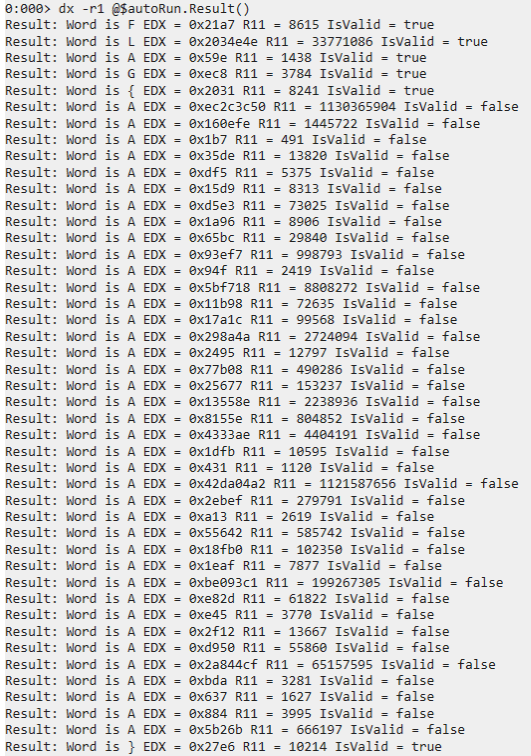
From this result, you can confirm that the user-entered string FLAG{AAAAAAAAAAAAAAAAAAAAAAAAAAAAAAAAAAAAAAA} is validated one character at a time from the beginning, and that only the initial FLAG{ and the final } succeed in password validation.
In other words, it seems that the correct Flag can be identified by brute-forcing the input characters one at a time from the beginning and using the debugger to identify the character that succeeds in the validation performed by cmp ecx, dword [r11].
Identify the Correct Flag by Brute Force
From the analysis results so far, we know that the correct password string is 45 characters long.
Also, because the Flag format is ^FLAG\{[\x20-\x7E]+\}$, if we identify the Flag by brute-forcing from the beginning, the number of trials required is expected to be at most about 3666, which is 39 characters multiplied by the number of printable ASCII characters (0x7E-0x20).
Naturally, it is not realistic to perform debugger operations manually that many times, so we want to automate the brute-force attack through debugger operations.
However, operations like the one in this case, where rerunning the program is required in order to brute-force the password, are not a good fit for scripts that are loaded into WinDbg, such as the JavaScript-based debugger script in the previous section.
There are several ways to do this, but this time I decided to automate both program execution and debugger control from the outside with a Python script.
In this book, to automate program execution and debugger operations, I take a somewhat brute-force approach and use the command-line debugger cdb.exe from a Python script rather than a dedicated interface.
cdb.exe is a CLI-based debugger included in the Windows SDK, and it can execute the same debugger commands as WinDbg.
To obtain the Flag from DoPClient by brute force, I created the following Python script.
import subprocess

cdb_path = "C:\\Program Files (x86)\\Windows Kits\\10\\Debuggers\\x64\\cdb.exe"
exe_path = "C:\\CTF\\DoPClient.exe"
flag_path = "C:\\CTF\\input.txt"
script_path = "C:\\CTF\\script.txt"

dbg_cmd = f"$$< {script_path}"

with open(script_path,"w") as f:
    cmd = ""
    cmd += "g ;"
    cmd += "p ;"
    cmd += ".if (@zf == 1) { .printf \"Solver: R8 is %d\\n\", @r8 ; " + f"$$< {script_path}" + " } .else { .echo \"Fail.\" ; .kill }"
    f.write(cmd)

command = f"\"{cdb_path}\" -G -o -kqm -c \"bp !DoPClient+0x17ca ; {dbg_cmd}\" \"{exe_path}\" < \"{flag_path}\""

i = 4
flag = r"FLAG{"
while(i < 44):
    for j in range(0x20,0x7e):
        with open(flag_path,"w") as f:
            word = ""
            word += flag
            word += chr(j)
            word += "A"*(45 - (len(flag)+1))
            word += "\n"
            f.write(word)

        process = subprocess.Popen(command, shell=True, stdout=subprocess.PIPE, stderr=subprocess.PIPE)
        stdout, stderr = process.communicate()

        print("")
        print("============================================================")

        for line in stdout.decode("utf-8").split("\n"):
            if line.startswith("Solver:"):
                print(line)

            if line.startswith("Solver: R8 is"):
                t = int(line.split(" ")[-1])

        print("============================================================")

        if t > i:
            i = t
            flag += chr(j)
            print(f"Flag: {flag}, i: {i}")
            break

print(flag)
This script can be downloaded as Stage1_Solver_1.py from the following repository.
Stage1_Solver_1.py:
https://github.com/kash1064/ctf-and-windows-debug/
When this script is executed, it first runs the following command by using subprocess.Popen, a standard library function in Python.
"C:\Program Files (x86)\Windows Kits\10\Debuggers\x64\cdb.exe" -G -o -kqm -c "bp !DoPClient+0x17ca ; $$< C:\CTF\script.txt" "C:\CTF\DoPClient.exe" < "C:\CTF\input.txt"This command starts cdb.exe with the option arguments -G -o -kqm 13 and begins debugging C:\CTF\DoPClient.exe. (The password to brute-force is redirected into the program from "C:\CTF\input.txt".)
It also uses -c "bp !DoPClient+0x17ca ; $$< C:\CTF\script.txt" to set a breakpoint at !DoPClient+0x17ca at startup and execute the debugger script C:\CTF\script.txt.
The debugger script used here differs from the JavaScript-based debugger script in the previous section. Instead, it is simply a script file that contains debugger commands you could execute manually.
WinDbg and CDB provide a feature that lets you load and execute a debugger script file containing multiple debug commands.14
In the Python script above, the following debug commands are saved to C:\CTF\script.txt, then automatically executed with the $$< C:\CTF\script.txt command.
g ;p ;.if (@zf == 1) { .printf "Solver: R8 is %d\n", @r8 ; $$< C:\CTF\script.txt } .else { .echo "Fail." ; .kill }In this command, g first resumes program execution until the breakpoint at DoPClient+0x17ca is reached.
At DoPClient+0x17ca, the value in the ECX register, which holds the result of applying some calculation to the input character, is compared with the hardcoded 32-bit integer at the address pointed to by the R11 register.
Here, if the input character is correct, the validation succeeds and the zero flag becomes 1.
1400017ca  cmp     ecx, dword [r11]
1400017cd  jne     0x1400017fa

1400017cf  inc     r8d
1400017d2  inc     r10
1400017d5  add     r11, 0x4
1400017d9  cmp     r8d, 0x2d
1400017dd  jl      0x1400013a2
Then, the .if (@zf == 1) { omitted } .else { omitted } syntax executed afterwards checks whether the zero flag is 1 immediately after that validation.
If the correct character has been entered, the zero flag becomes 1 after cmp ecx, dword [r11] executes, so the debugger command .printf "Solver: R8 is %d\n", @r8 ; $$< C:\CTF\script.txt runs.
In this command, the value of the R8 register is substituted into %d, the string Solver: R8 is %d\n is displayed, and then the commands defined in the debugger script C:\CTF\script.txt are executed once again.
In other words, the operation of resuming program execution and checking the validation result of the next character is repeated until either validation succeeds for all 45 characters or an incorrect character is entered.
As described above, in this Python script, the input string is brute-forced from the beginning by repeatedly debugging with cdb.exe while specifying debugger commands.
If validation of a correct password character succeeds, a string beginning with Solver: R8 is is written to standard output, so the correct input character can be identified from whether that output appears.
If you actually run this script, it takes a very long time to finish, but in the end it lets you determine that FLAG{You_can_use_debug_script_in_WinDbg_Next} is the correct first Flag.
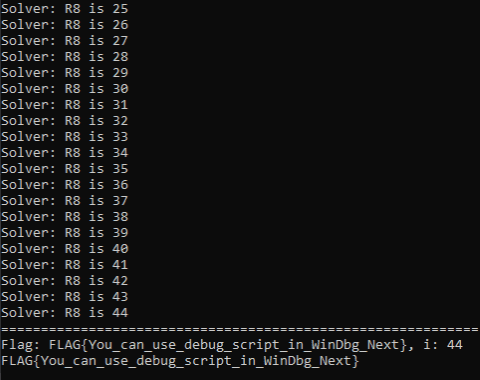
If you enter the Flag (the correct password) identified by this script into DoPClient from the Command Prompt, you can reach the code that displays the string Clear Stage1.
For that reason, we can conclude that the first Flag identified here is indeed correct.
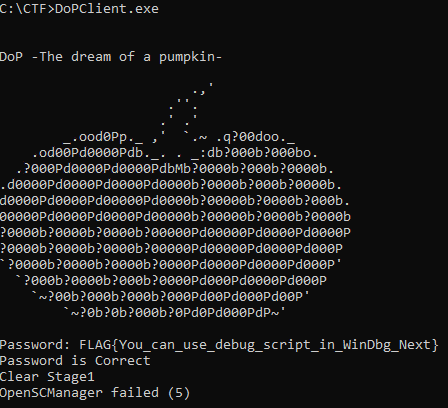
Note that although the string Clear Stage1 is displayed in the screen above, registration of the driver using the OpenSCManager function still seems to fail. (See Chapter 3 for DoPClient behavior.)
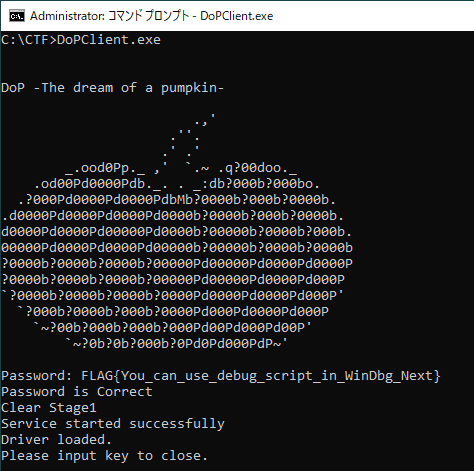
If you enable test-signing mode in the virtual machine by following the procedure described in Chapter 1, place DoPClient.exe and DoPDriver.sys in the same folder, and then run DoPClient from an administrator Command Prompt, DoPDriver can be loaded into the system when the correct password is entered, as shown below.
Speed Up the Brute-force Script
Using Stage1_Solver_1.py from the previous section allowed us to obtain the correct Flag, but it takes a very long time for this script to determine the full Flag.
The actual time required for brute force depends on the environment, but when I ran it in my environment, it took roughly 40 minutes.
If the script can ultimately identify the correct Flag, you might think the execution time does not matter, but in a CTF there are various disadvantages to having a long-running flag-retrieval script, such as rivals solving it first or it taking longer to notice bugs in the script.
For that reason, when solving challenges that require brute-forcing a Flag like this, it is also important to think about better algorithms for shortening script runtime.
For example, Stage1_Solver_1.py used in the previous section identifies the correct password by brute-forcing one character at a time from the beginning.
Since the Flag format is ^FLAG\{[\x20-\x7E]+\}$ and the correct password length is known to be 45 characters, the worst-case number of validation attempts required for brute force is 3705.15
In the script this time, DoPClient has to be restarted for each brute-force attempt, so the overhead per character validation is fairly large.
For that reason, if we can reduce the number of validation attempts even a little, it should lead to a significant reduction in execution time.
So, to speed up brute-force execution, I rewrote the script as follows.
import subprocess

cdb_path = "C:\\Program Files (x86)\\Windows Kits\\10\\Debuggers\\x64\\cdb.exe"
exe_path = "C:\\CTF\\DoPClient.exe"
flag_path = "C:\\CTF\\input.txt"
script_path = "C:\\CTF\\script.txt"

dbg_cmd = f"$$< {script_path}"

with open(script_path,"w") as f:
    cmd = ""
    cmd += "g ;"
    cmd += "p ;"
    cmd += ".if (@zf == 1) { .printf \"Solver: Correct word in %d\\n\", @r8 ; " + f"$$< {script_path}" + " } .else { r zf=1 ; " + f"$$< {script_path}" + "}"
    f.write(cmd)

command = f"\"{cdb_path}\" -G -o -kqm -c \"bp !DoPClient+0x17ca ; {dbg_cmd}\" \"{exe_path}\" < \"{flag_path}\""


flag = ["" for i in range(45)]

print("============================================================")
for i in range(0x20,0x7e):
    with open(flag_path,"w") as f:
        word = chr(i)*45
        word += "\n"
        f.write(word)

    process = subprocess.Popen(command, shell=True, stdout=subprocess.PIPE, stderr=subprocess.PIPE)
    stdout, stderr = process.communicate()

    for line in stdout.decode("utf-8").split("\n"):
        if line.startswith("Solver: Correct word"):
            t = int(line.split(" ")[-1])
            flag[t] = chr(i)
            print(f"flag[{t}] is {chr(i)}")

print("============================================================")

print("".join(flag))
This script can be downloaded as Stage1_Solver_2.py from the following repository.
Stage1_Solver_2.py:
https://github.com/kash1064/ctf-and-windows-debug/
In the new script, processing is made more efficient by taking advantage of the fact that password validation can be bypassed by forcing the zero flag to 1 in the debugger, making it possible to obtain the correct Flag in at most 95 executions (the number of printable ASCII characters).
In this script, the debugger command script used during execution changes its commands to the following.
g ;p ;.if (@zf == 1) { .printf "Solver: Correct word in %d\n", @r8 ; $$< C:\CTF\script.txt } .else { r zf=1 ; $$< C:\CTF\script.txt}The handling when the zero flag is 1 after cmp ecx, dword [r11] executes (that is, when the input character is correct) is almost the same as before, but the command executed when the zero flag is 0 (that is, when the input character is incorrect) has been changed significantly.
In the previous section, when the input character was incorrect, the program’s debugging session was terminated with the .kill command and a new brute-force test was started.
By contrast, in the current script, the r zf=1 command forces the zero flag to 1, so program execution continues to the end regardless of the result of the input-character validation.
In other words, in a single program execution, all 45 character positions can be tested at once to see whether a given character matches the correct password.
As a result, whereas the script used in the previous section required as many as 3705 program executions in the worst case for brute force, the script this time can identify the correct Flag in at most 95 executions.
If you actually run this script, it can identify the correct Flag in about one minute, achieving a speedup of several tens of times compared with the script used in the previous section.
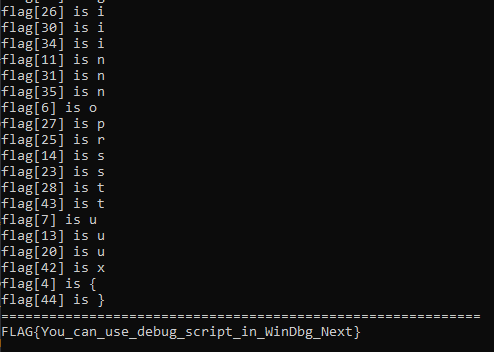
In this way, by using debugger commands to alter program behavior arbitrarily, you can sometimes make brute-force and similar attacks much more efficient with simple changes.
Chapter 4 Summary
In this chapter, by using JavaScript-based debugger scripts and debugger-command execution from external scripts via cdb.exe, we identified an unknown password with a brute-force attack.
Up to this point, we have analyzed DoPClient, which is a user-mode application, but from Chapter 5 onward we will step further into analysis of DoPDriver, which is a kernel driver module.
Links to Each Chapter
- Preface
- Chapter 1: Environment Setup
- Chapter 2: Surface Analysis of DoPClient and DoPDriver
- Chapter 3: Static Analysis of DoPClient
- Chapter 4: Dynamic Analysis of DoPClient
- Chapter 5: Static Analysis of DoPDriver
- Chapter 6: Dynamic Analysis of DoPDriver
-
Time Travel Debugging https://learn.microsoft.com/ja-jp/windows-hardware/drivers/debuggercmds/time-travel-debugging-overview
↩ -
Inside Windows, 7th Edition, Vol. 1, p.171 (by Pavel Yosifovich, Alex Ionescu, Mark E. Russinovich, and David A. Solomon / translated by Kazuaki Yamauchi / Nikkei BP / 2018)
↩ -
Methods of Controlling Breakpoints https://learn.microsoft.com/ja-jp/windows-hardware/drivers/debugger/methods-of-controlling-breakpoints
↩ -
r (Registers) https://learn.microsoft.com/ja-jp/windows-hardware/drivers/debuggercmds/r—registers-
↩ -
d, da, db, dc, dd, dD, df, dp, dq, du, dw (Display Memory) https://learn.microsoft.com/ja-jp/windows-hardware/drivers/debuggercmds/d—da—db—dc—dd—dd—df—dp—dq—du—dw—dw—dyb—dyd—display-memor
↩ -
dds, dps, dqs (Display Words and Symbols) https://learn.microsoft.com/ja-jp/windows-hardware/drivers/debuggercmds/dds—dps—dqs—display-words-and-symbols-
↩ -
g (Go) https://learn.microsoft.com/ja-jp/windows-hardware/drivers/debuggercmds/g—go-
↩ -
p (Step) https://learn.microsoft.com/ja-jp/windows-hardware/drivers/debuggercmds/p—step-
↩ -
t (Trace) https://learn.microsoft.com/ja-jp/windows-hardware/drivers/debuggercmds/t—trace-
↩ -
Pseudo-Register Syntax https://learn.microsoft.com/ja-jp/windows-hardware/drivers/debuggercmds/pseudo-register-syntax
↩ -
JavaScript Debugger Scripting https://learn.microsoft.com/ja-jp/windows-hardware/drivers/debugger/javascript-debugger-scripting
↩ -
Native Debugger Objects in JavaScript Extensions https://learn.microsoft.com/ja-jp/windows-hardware/drivers/debugger/native-objects-in-javascript-extensions-debugger-objects
↩ -
CDB Command-Line Options https://learn.microsoft.com/ja-jp/windows-hardware/drivers/debugger/cdb-command-line-options
↩ -
><, ><, $$ >a< (Run Script File) https://learn.microsoft.com/ja-jp/windows-hardware/drivers/debuggercmds/-----------------------a---run-script-file-
↩ -
95 (number of printable ASCII characters) x 39 (45 characters minus the 6 characters in
↩FLAG{}) = 3705